Visitor Management module
A visitor log for the front desk: register each visitor with their phone and purpose, approve them, and check them in and out.
Key screens
Register a visitor
In the sidebar, open Workplace and click Visitor Management. The newest visitors are at the top. Click Register Visitor: your browser asks for the Visitor Name, then the Visitor Phone, then the Purpose of Visit. Type each and click OK. The visitor joins the log as Pending. If you cancel any question, nothing is saved.
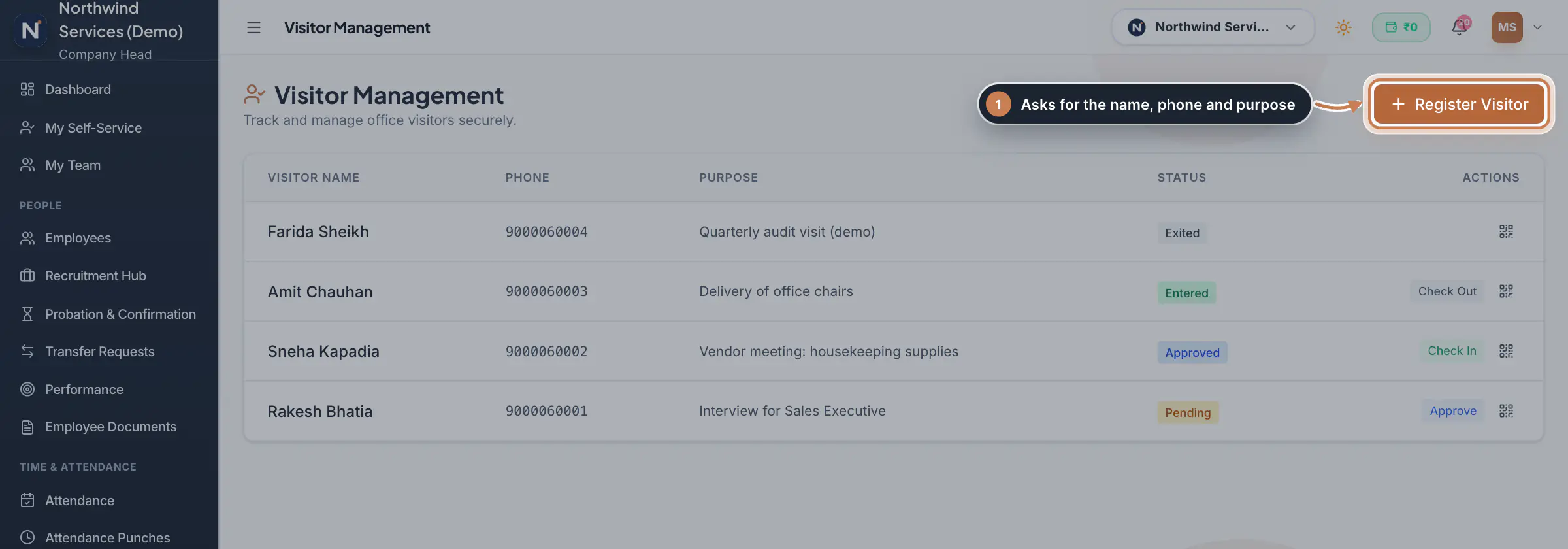 Full size
Step 1 Approve, check in and check out
The button in a visitor's row moves them to the next step. Approve a pending visitor when their visit is agreed. When they arrive, click Check In and the status becomes Entered; when they leave, click Check Out and it becomes Exited. Each change shows at once and cannot be undone.
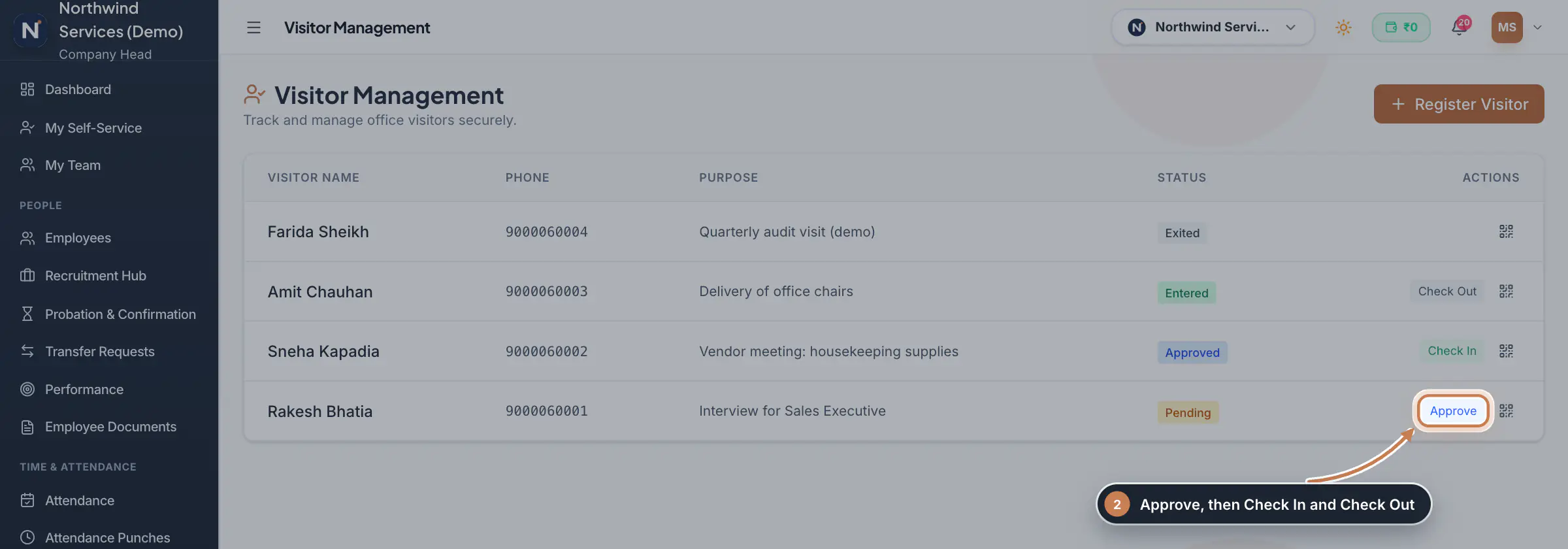 Full size
Step 2 Tip The QR code icon at the end of each row is not active yet.
What it does
Visitor Management is the company's visitor log. Each visitor has a name, a phone number and the purpose of the visit, and moves through four statuses: Pending when registered, Approved, Entered when they check in and Exited when they leave.
Who uses it
- The Company Head and HR. It is in the Workplace group of the sidebar.
How it connects
The log stands on its own: visitors are not linked to employee records, so registering one changes nothing elsewhere in ZeniaHR.
Questions
Can I change a visitor's details after registering them?
Not yet. If a name or phone number is wrong, register the visitor again with the right details.
Can a visitor skip approval?
No. Check In appears only after Approve, so everyone checked in was approved first.