Task Manager module
Give tasks to your colleagues with a priority and a due date, follow them to completion with comments, and see what is overdue.
Key screens
See the tasks
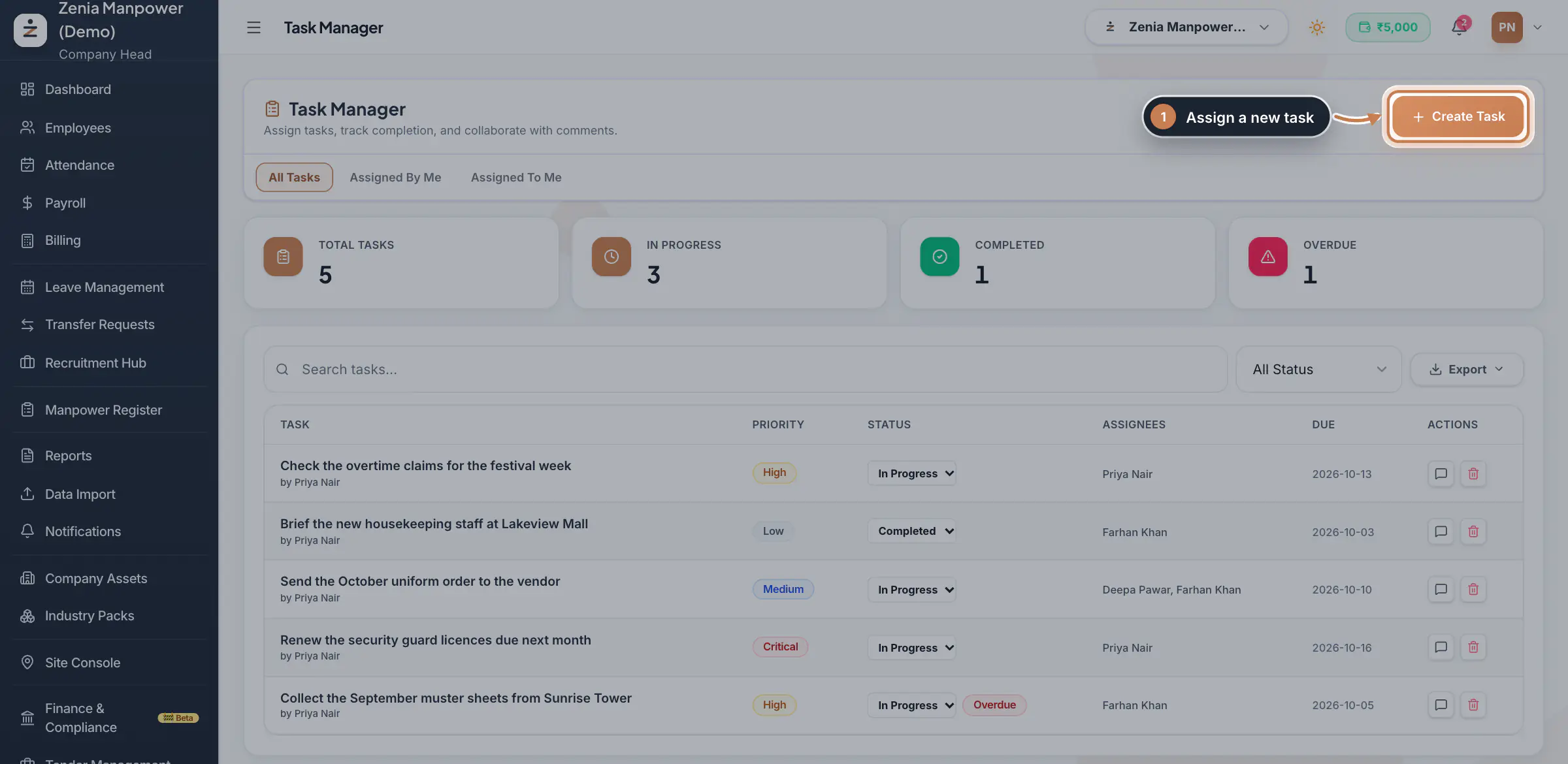
In the sidebar, click Task Manager. The cards count all tasks, those in progress, completed and overdue. All Tasks lists everything, Assigned By Me the tasks you created and Assigned To Me the ones given to you. Search by title or creator, or pick a status. Export downloads the list you see.
 Full size
Step 1 Create a task
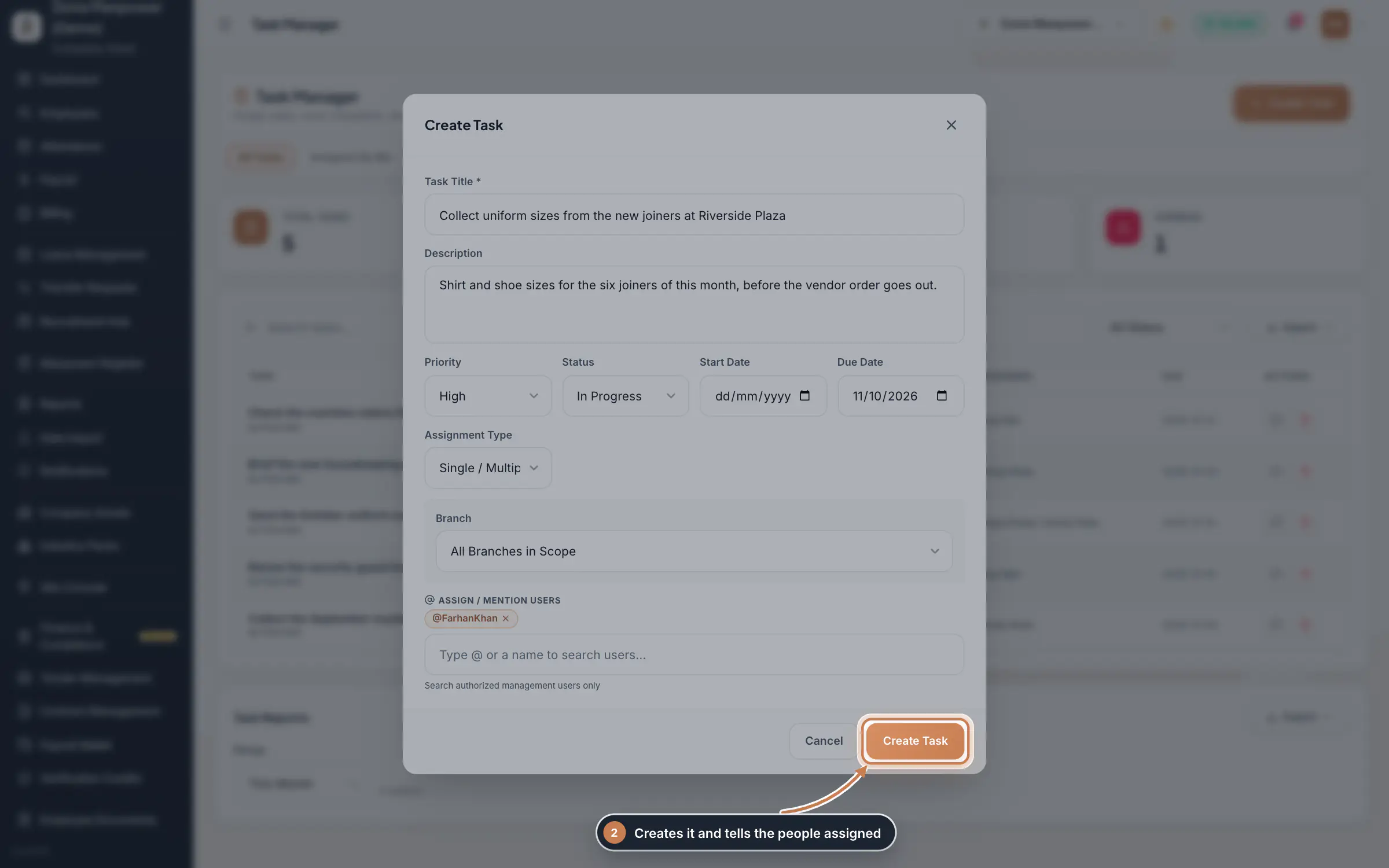
Click Create Task. Type the Task Title and a Description, then pick the Priority, Status, Start Date and Due Date. Under Assign / Mention Users, type @ or a few letters of a name and pick the person; add as many as you need. Click Create Task.
 Full size
Step 2 Tip Assignment Type can also name a department, branch or role, but only the people you pick by name see the task in their own list, so always add them under Assign / Mention Users.
Talk it through in the comments
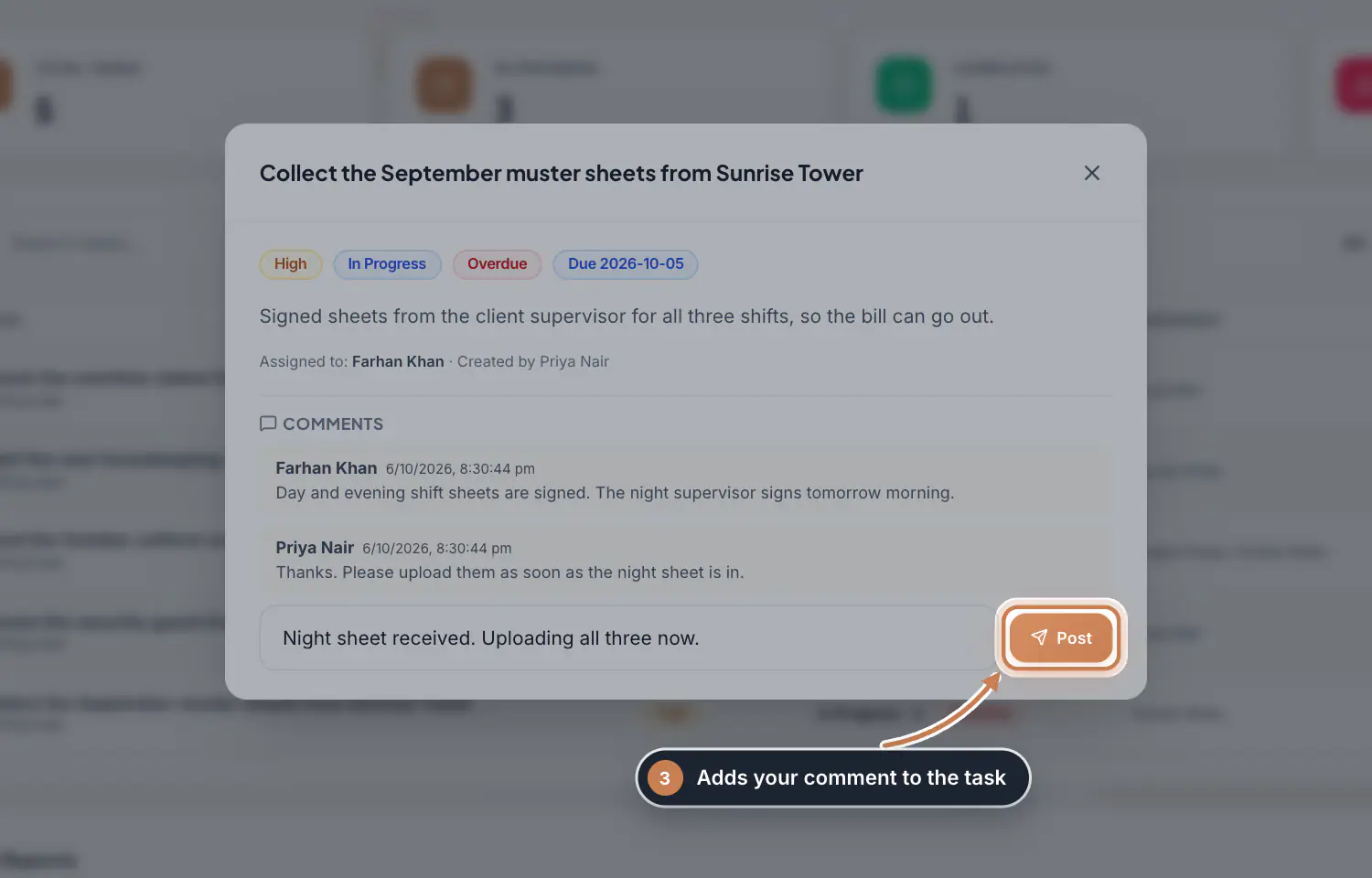
Click a task's title, or the speech bubble on its row. You see its priority, status, due date, description and the people on it. Type under Comments and click Post, or press Enter.
 Full size
Step 3 Update the status
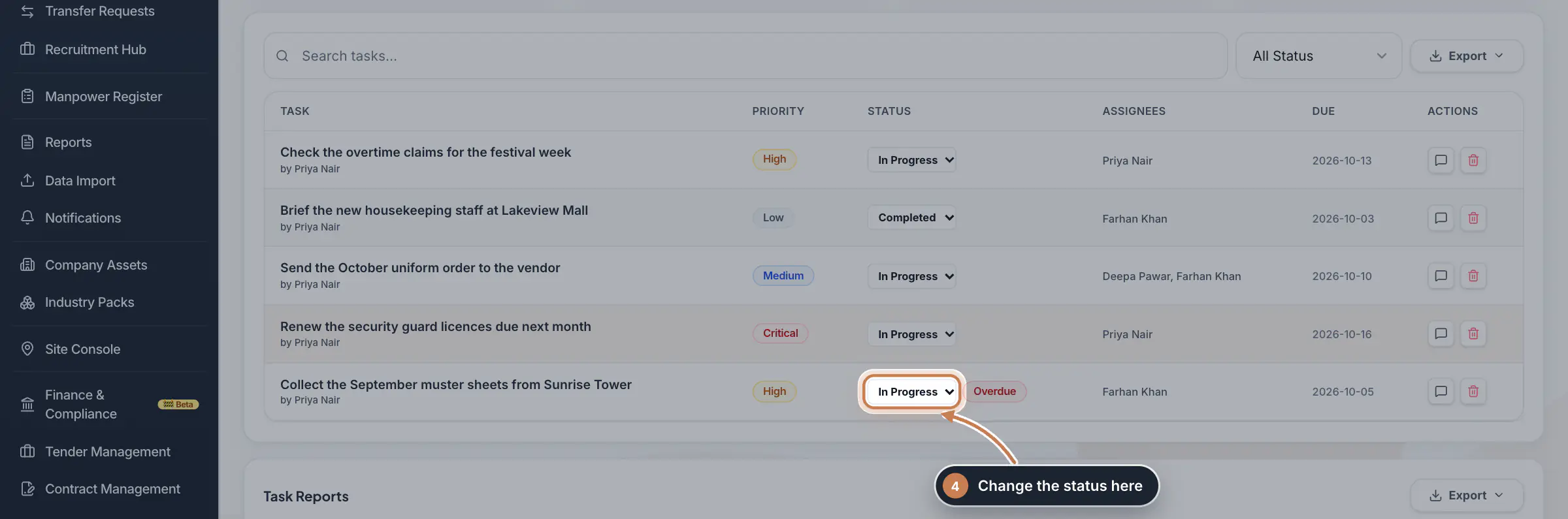
Use the status menu on a task's row to set In Progress, Completed or Cancelled. Overdue is not something you pick: it shows by itself next to an open task whose due date has passed, and goes away once the task is completed or cancelled. The bin deletes a task after you confirm.
 Full size
Step 4 What employees see
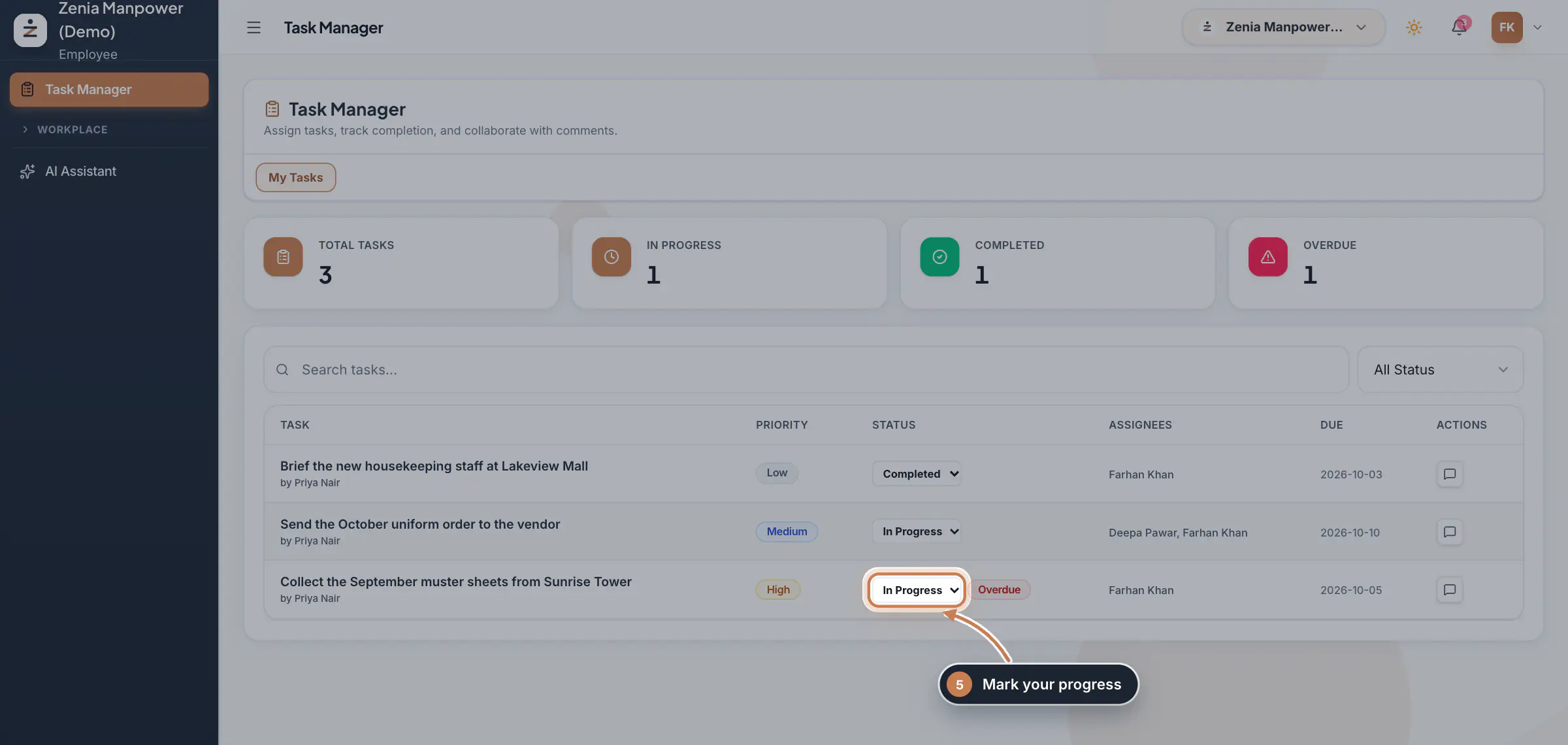
An employee who opens Task Manager sees only My Tasks, the tasks given to them, with the same counts. They set the status from the menu on each row and add comments, so you can follow the work without chasing.
 Full size
Step 5
What it does
Task Manager keeps the work you hand out in one list. Each task has a title, a description, a priority from Low to Critical, start and due dates and the people it is for. Its status is In Progress, Completed or Cancelled, and a task still open after its due date is flagged Overdue. The people on a task talk it through in its comments.
Who uses it
- The Company Head, HR and Finance create tasks and see the company's tasks.
- Employees see the tasks given to them under My Tasks, mark their progress and comment. They cannot create tasks.
- Task Manager is a premium module: on the Free plan it shows a small lock in the sidebar.
How it connects
You assign tasks to people who have a ZeniaHR login, found by name; add logins in Settings, under User Roles & Permissions. A new task sends each person on it a notification in the bell.
Questions
Why is Task Manager locked?
It is part of the paid plans. On the Free plan it shows a small lock in the sidebar; the Company Head can upgrade from there.
Who can be assigned a task?
Anyone in your company with a ZeniaHR login, including employees who sign in. Type a few letters of their name in Assign / Mention Users to find them.
Can I change a task after creating it?
You can change its status and add comments. To change its title, description, dates or people, delete it and create it again.
Related
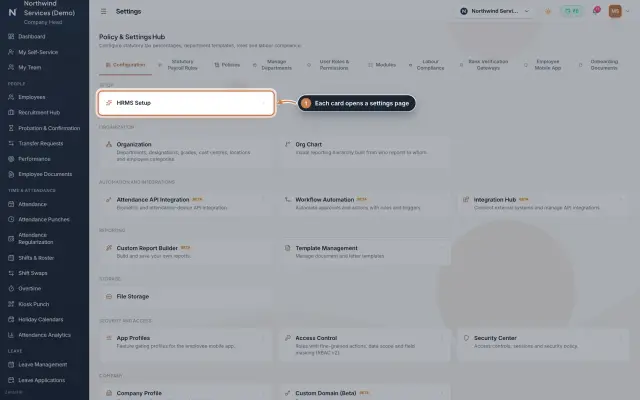 Settings moduleThe Policy & Settings Hub: a card for every settings page, and tabs for statutory rules, policies, departments, user permissions, modules, labour compliance, bank verification, the employee app and onboarding documents.Module
- ZeniaHR for every businessSee how it works on the ZeniaHR website