Settings module
The Policy & Settings Hub: a card for every settings page, and tabs for statutory rules, policies, departments, user permissions, modules, labour compliance, bank verification, the employee app and onboarding documents.
Key screens
Open a settings page from Configuration
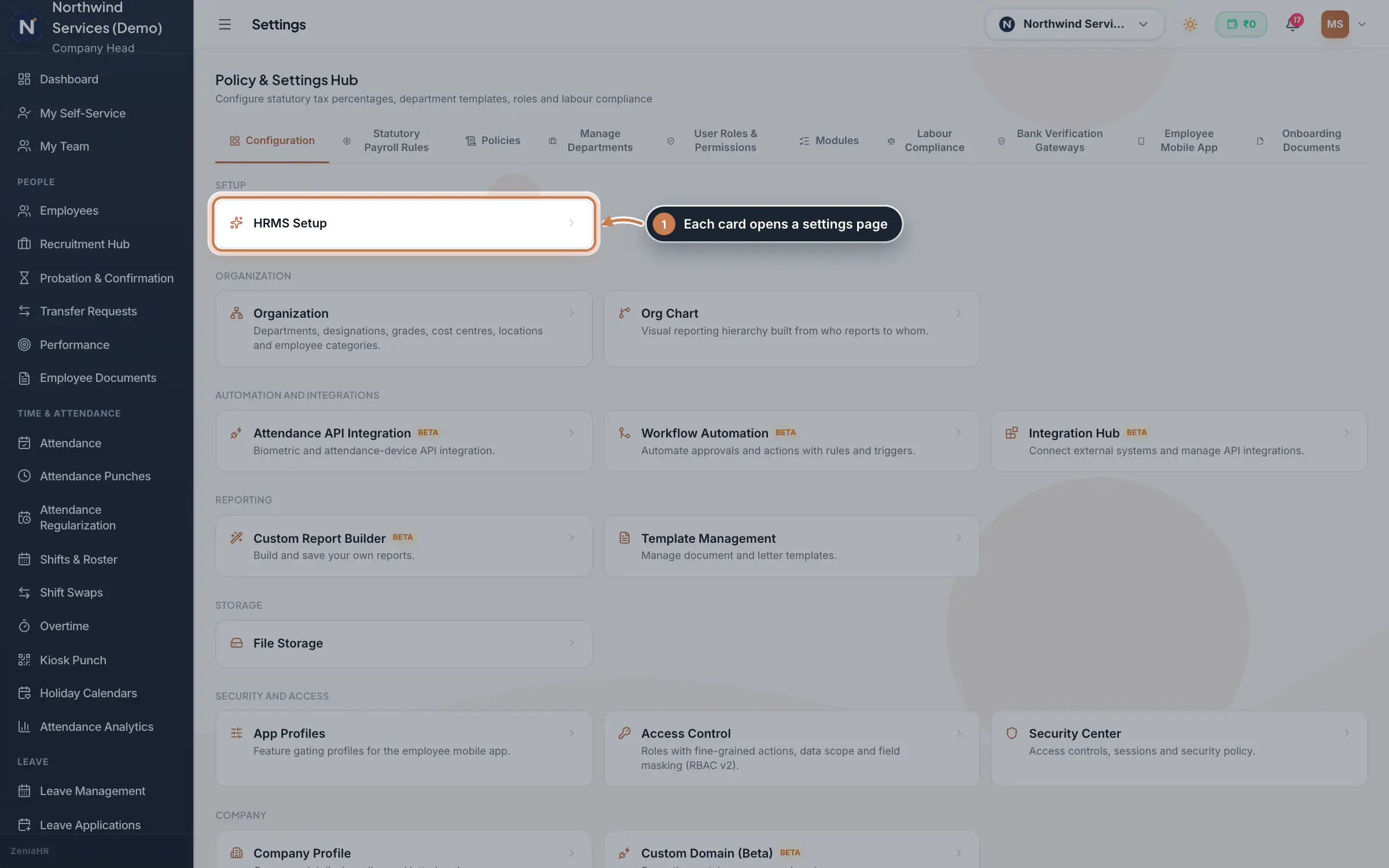
In the sidebar, click Settings. Configuration shows a card for each settings page your role can open, with a line on what it does. Click a card, such as HRMS Setup, Organization, Access Control or Company Profile, to open that page. Cards marked Beta are still being finished.
 Full size
Step 1 Statutory Payroll Rules
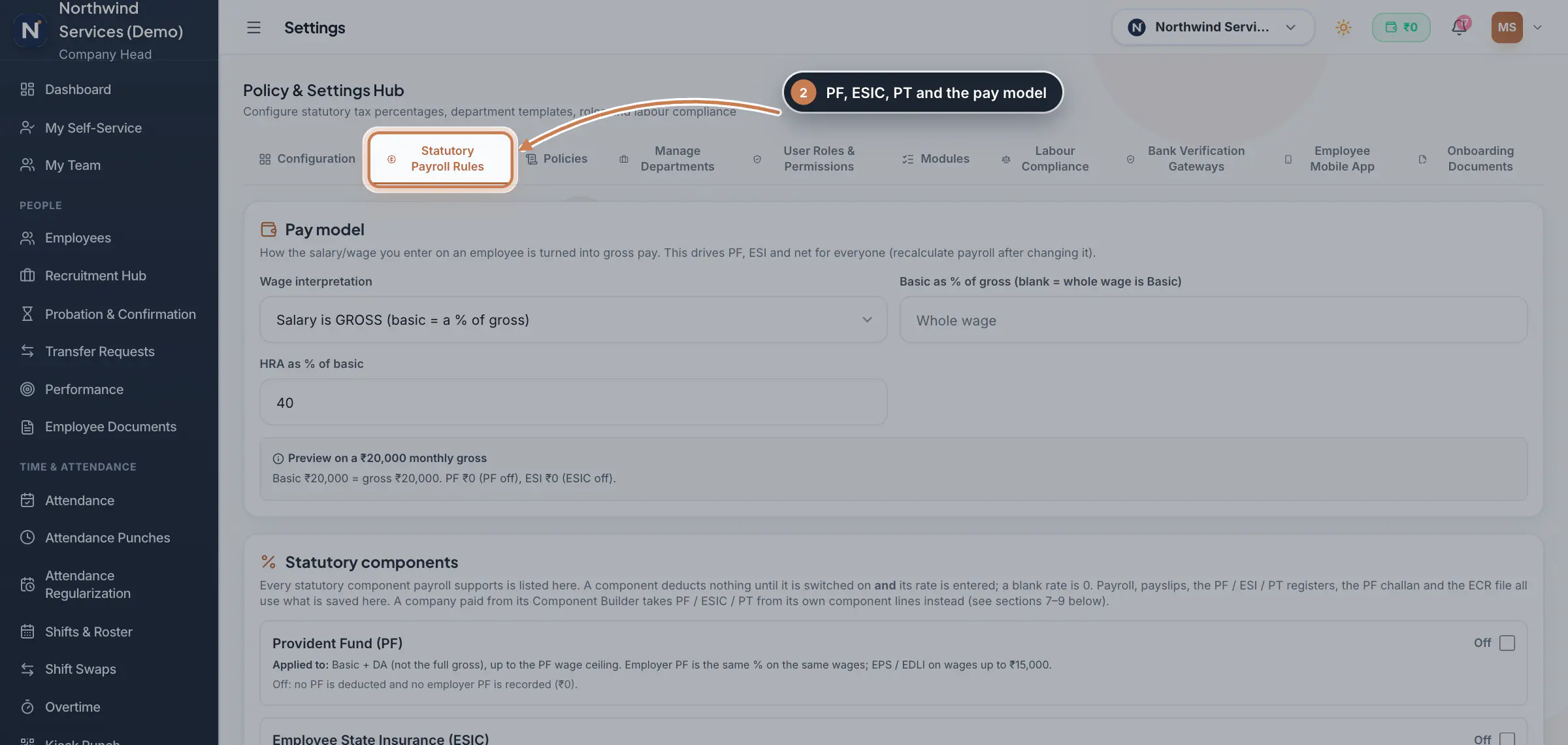
Click Statutory Payroll Rules to set how the salary you enter becomes gross pay, switch PF, ESIC and Professional Tax on with their rates, keep the state PT slabs and the wage master, and open the payroll rules engine. Nothing is deducted until a component is switched on. See Statutory Payroll Rules.
 Full size
Step 2 Policies
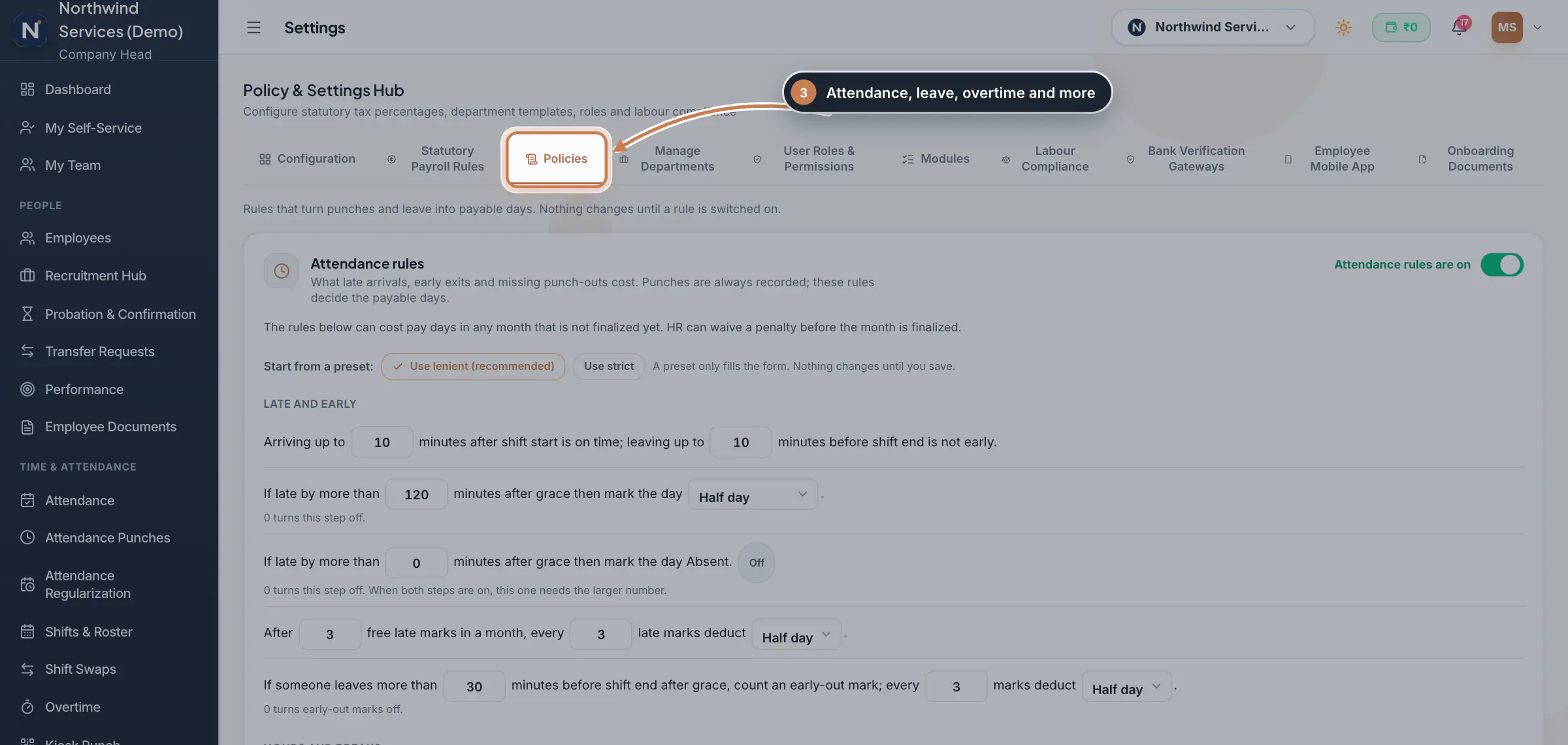
Policies is shown to HRMS Core and Hybrid companies. Its cards turn punches and leave into payable days: Attendance rules, Leave rules, Overtime, Work terms and probation, Capture controls for web, app and kiosk punches, and Company wall and praise. The rules read as sentences, and nothing changes until you save a card. See Attendance basics and Leave basics.
 Full size
Step 3 Manage Departments
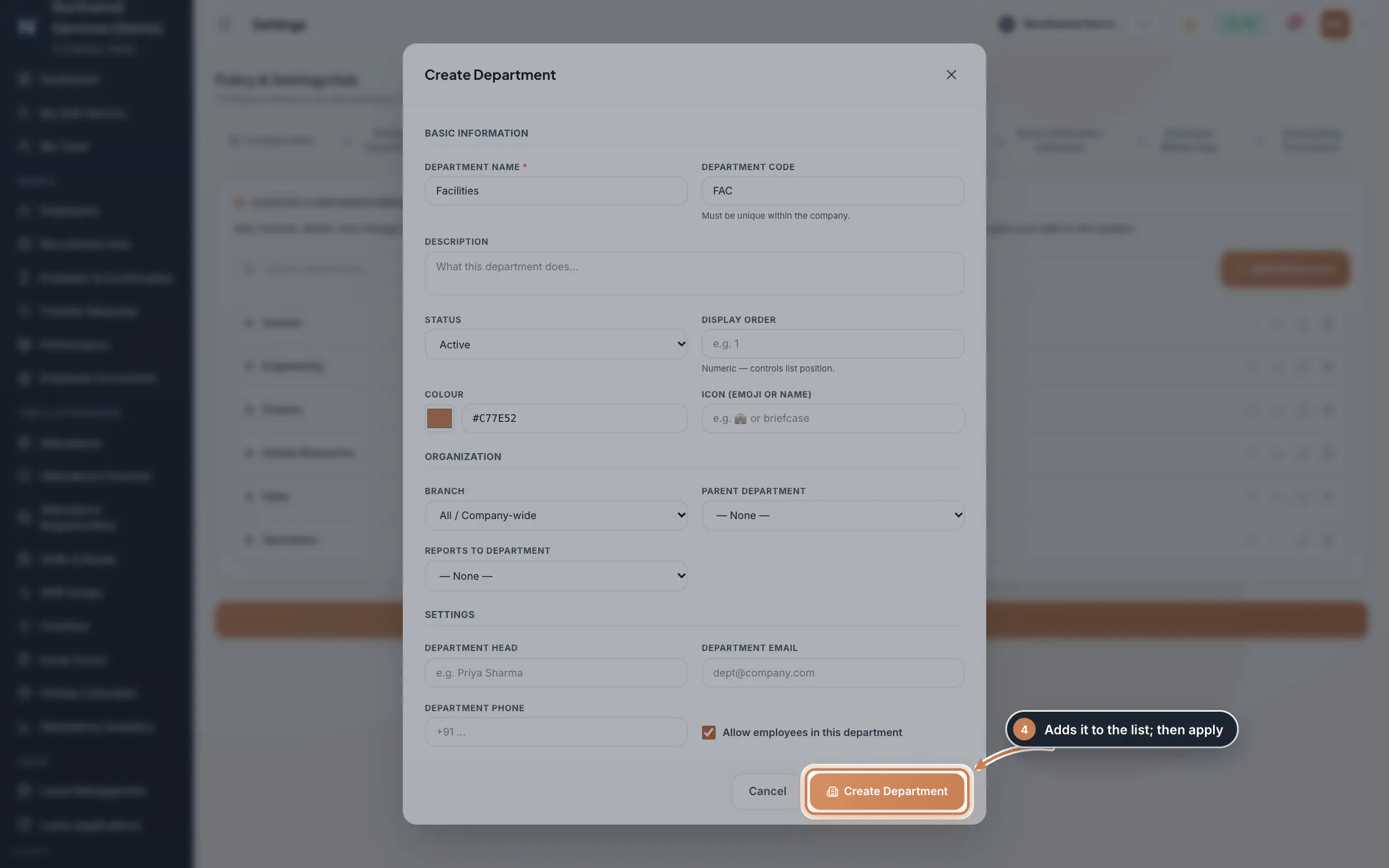
Click Manage Departments to see the departments with their colour, code and head; the arrows reorder them, the pencil edits one and the bin removes one. Add Department opens a form with the Department Name, a unique Department Code, the description, status, display order, colour and icon, the branch, parent and reporting department, and the department head, email and phone. Click Create Department, then Apply Department & Statutory Settings at the bottom of the tab to save the list.
 Full size
Step 4 User Roles & Permissions
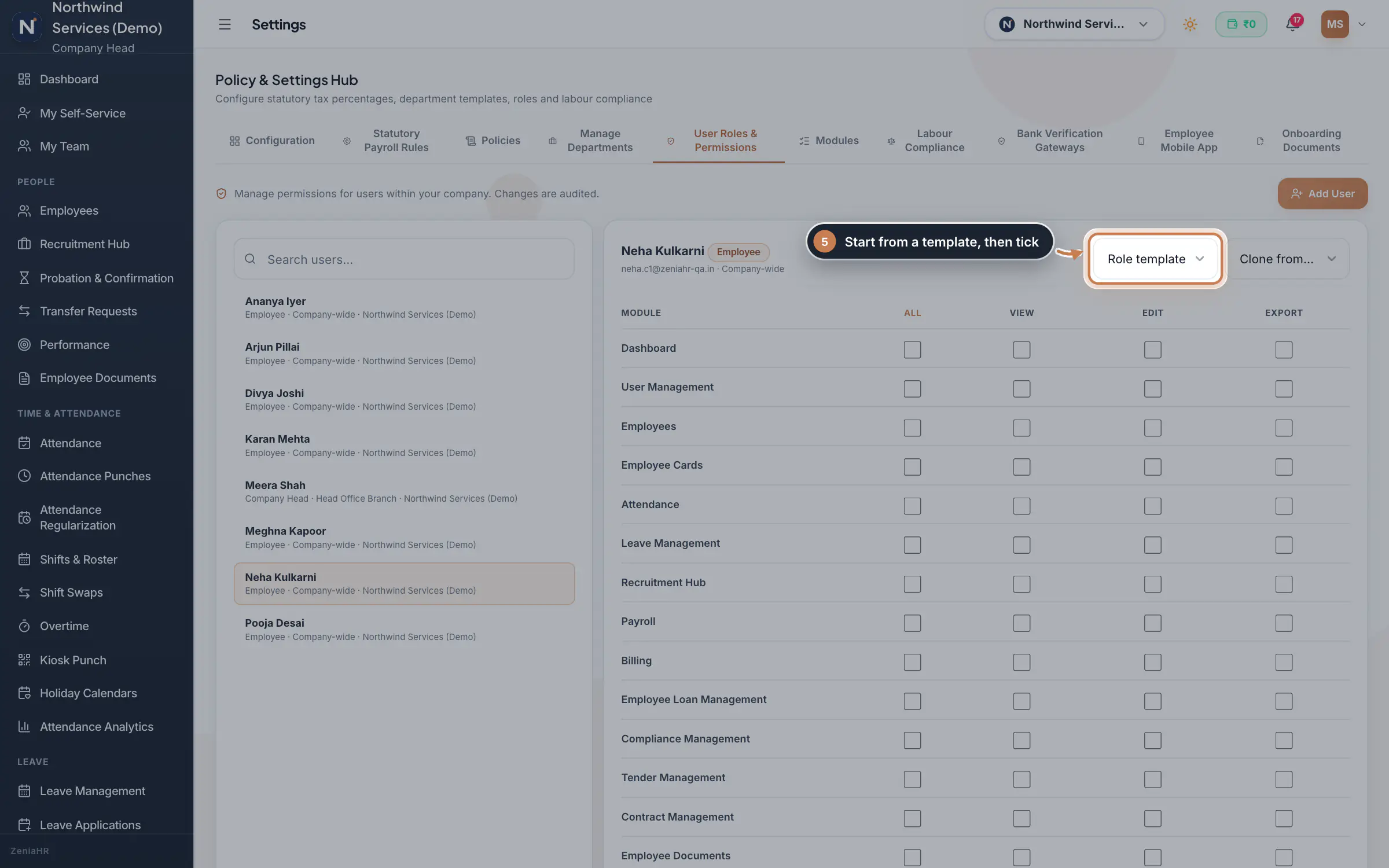
Click User Roles & Permissions and pick a user on the left. For each module, tick View, Edit and Export, or All for the whole row; Edit and Export include View. Role template fills every row from a preset such as View Only, HR Admin, Finance or Full (Company), and Clone from copies another user. Check the rows and click Save Permissions at the bottom. Add User creates a new login for the company with its role, branch and permissions. Every change is audited.
 Full size
Step 5 Modules
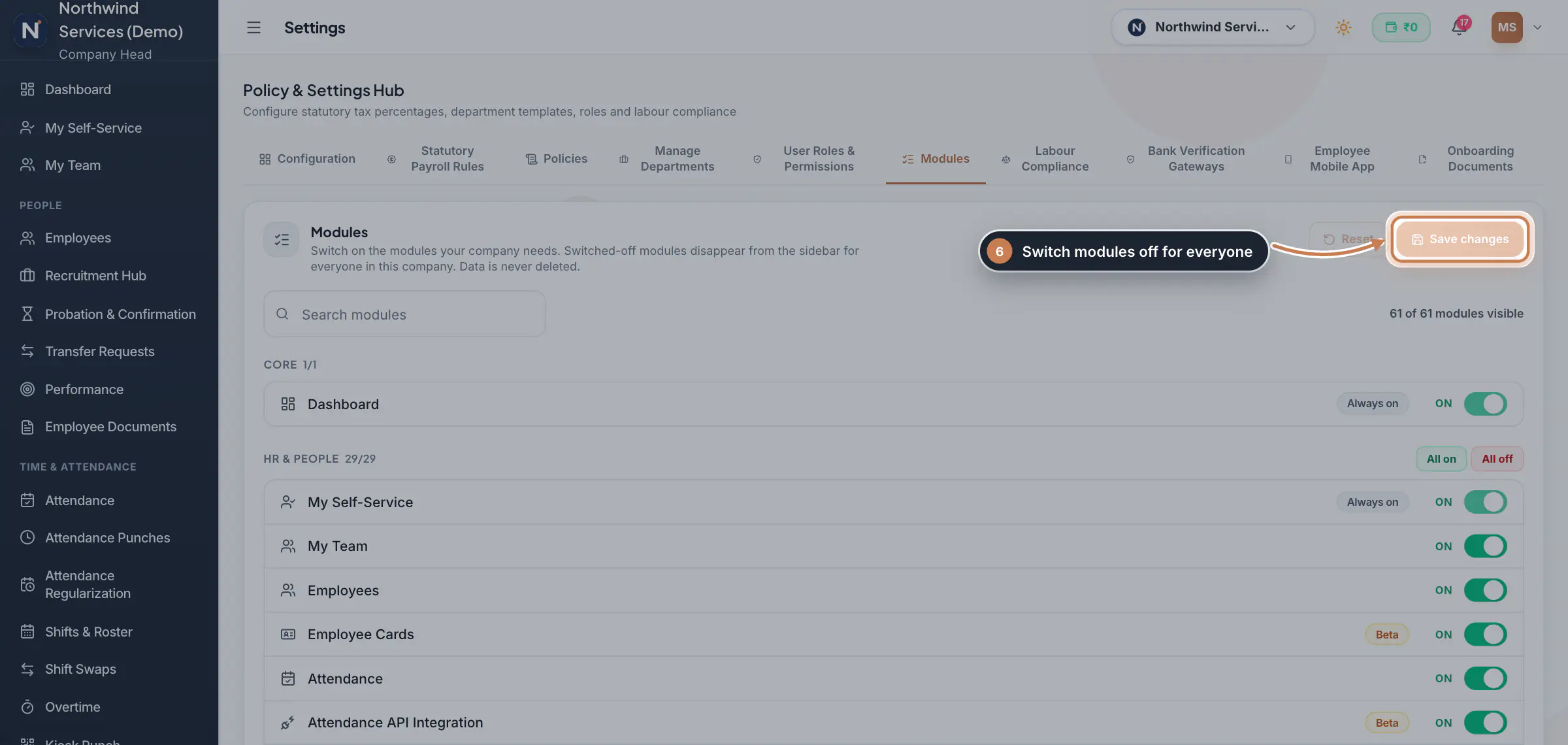
Click Modules to switch the modules your company does not need off, one by one or with All on and All off for a group, then click Save changes. A module you switch off disappears from the sidebar for everyone in the company; its data is never deleted. Dashboard, My Self-Service, Settings and Company Profile are always on.
 Full size
Step 6 Labour Compliance
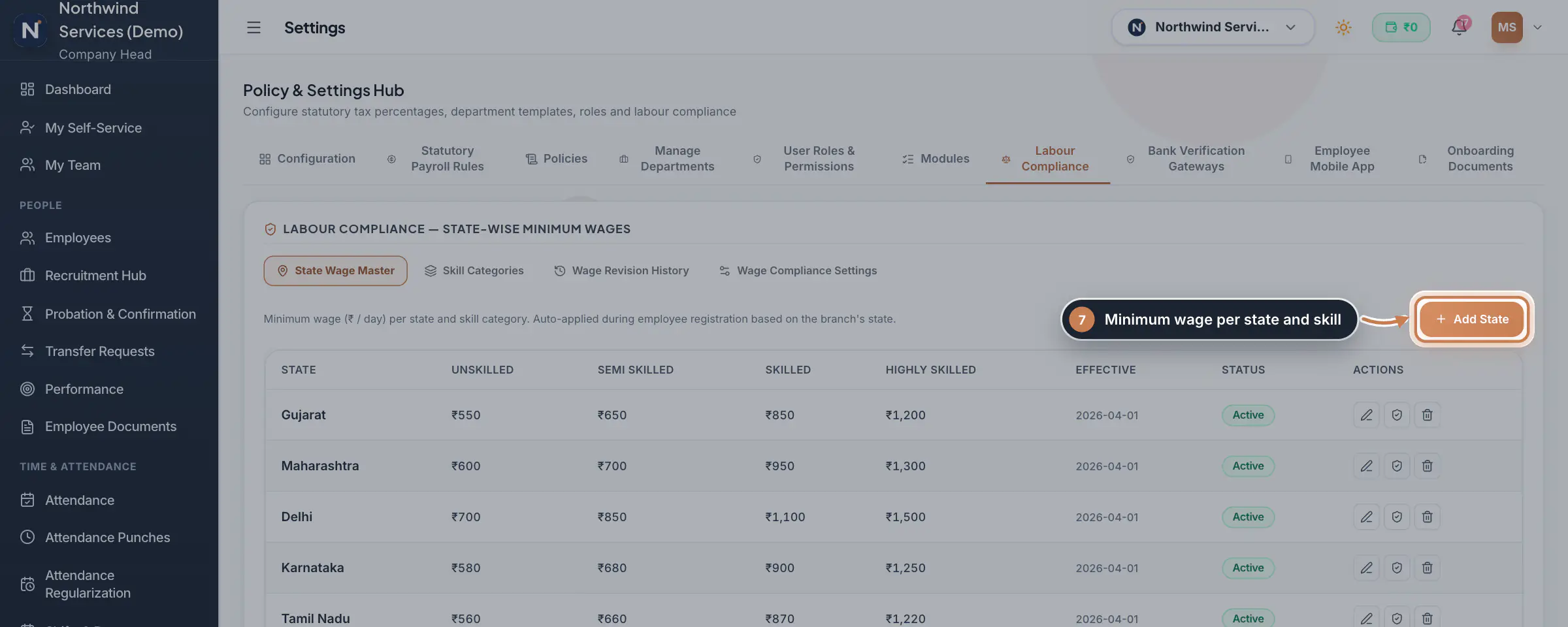
Click Labour Compliance. The State Wage Master holds the minimum daily wage for each state and skill category, Unskilled, Semi Skilled, Skilled and Highly Skilled, with the date it takes effect; it is applied when an employee is registered, from their branch's state. Click Add State to add one. The other tabs keep the Skill Categories, the Wage Revision History and the Wage Compliance Settings, such as a warning for a wage below the minimum and whether it may be overridden with a reason.
 Full size
Step 7 Bank Verification Gateways
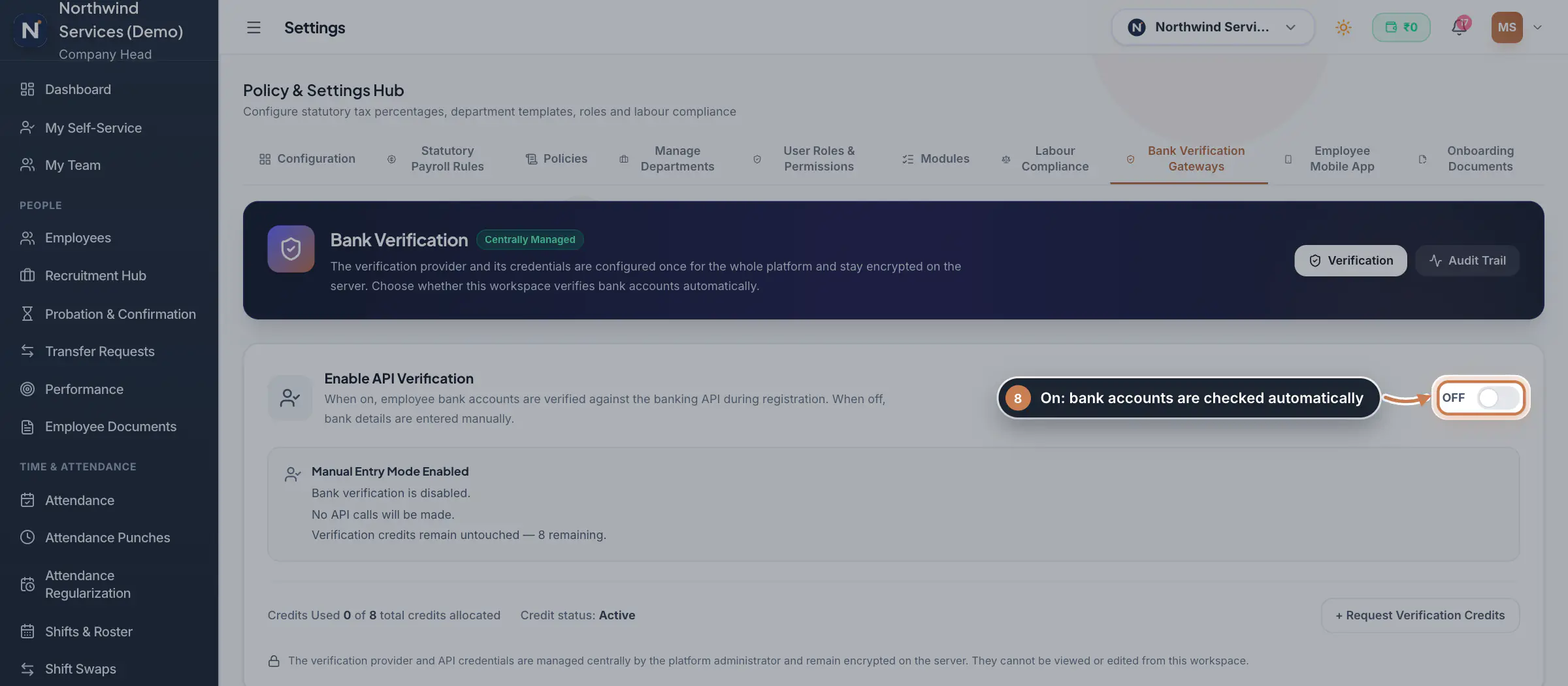
Click Bank Verification Gateways. Turn on Enable API Verification to check employee bank accounts against the banking service when they are registered, using your verification credits; turn it off to enter bank details by hand. See Verification credits.
 Full size
Step 8 Employee Mobile App
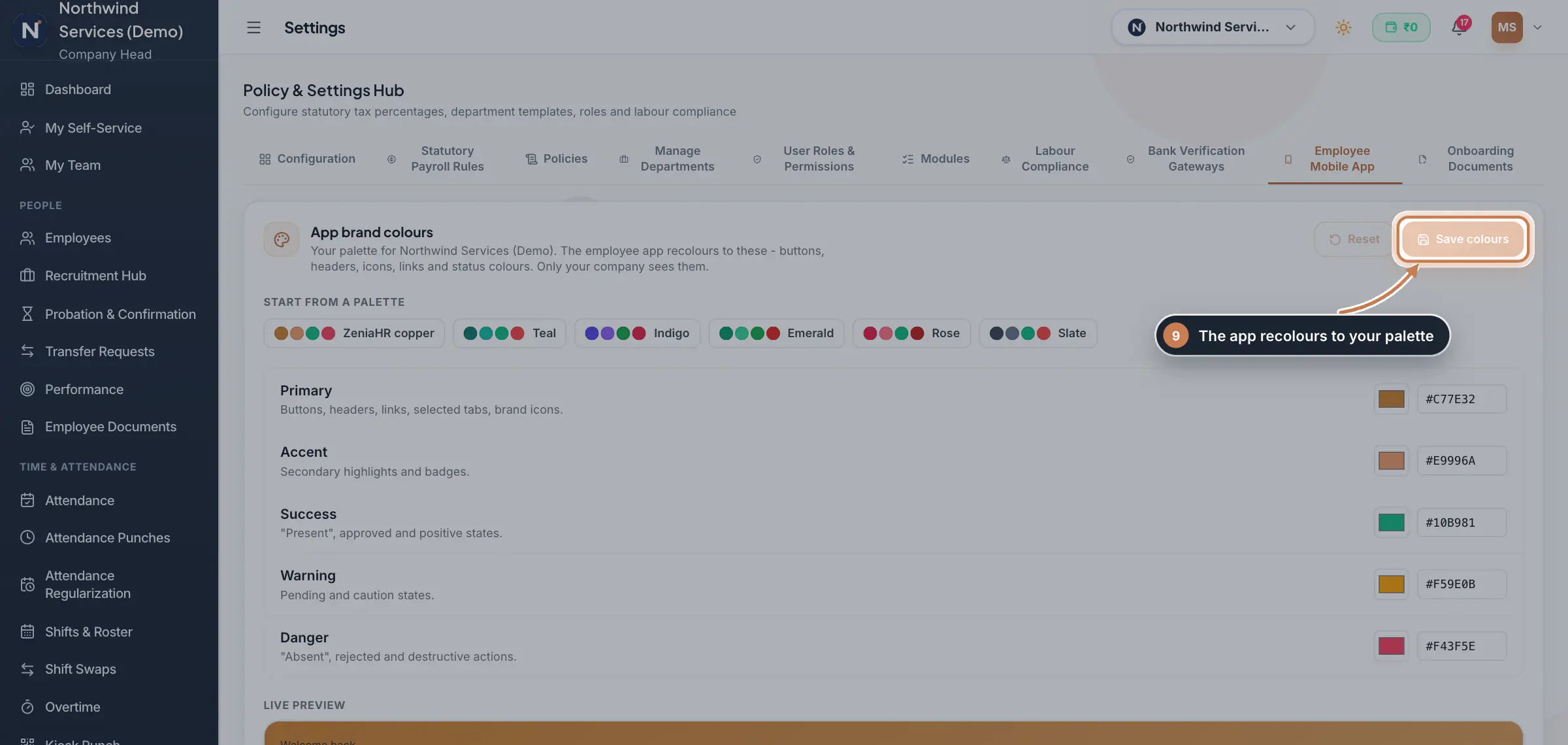
Click Employee Mobile App. Under App brand colours, start from a palette or set the Primary, Accent, Success, Warning and Danger colours, check the live preview and click Save colours; the employee app recolours to them for your company. Further down, choose the features everyone sees in the app, and use App Profiles to give groups of staff their own set.
 Full size
Admin panel · Step 9 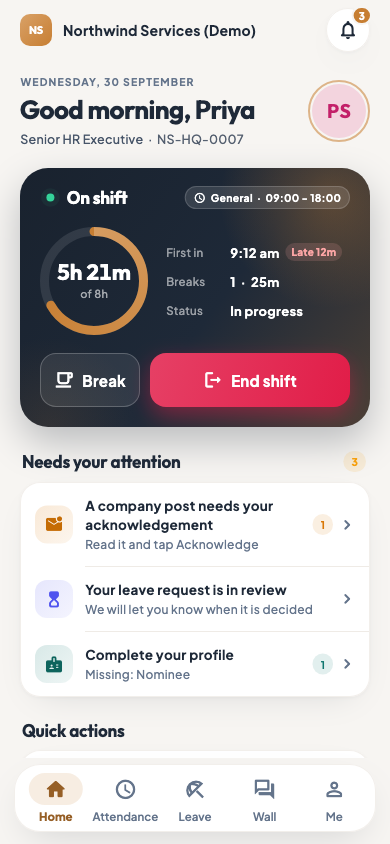 On the employee app
The employee app home
Onboarding Documents
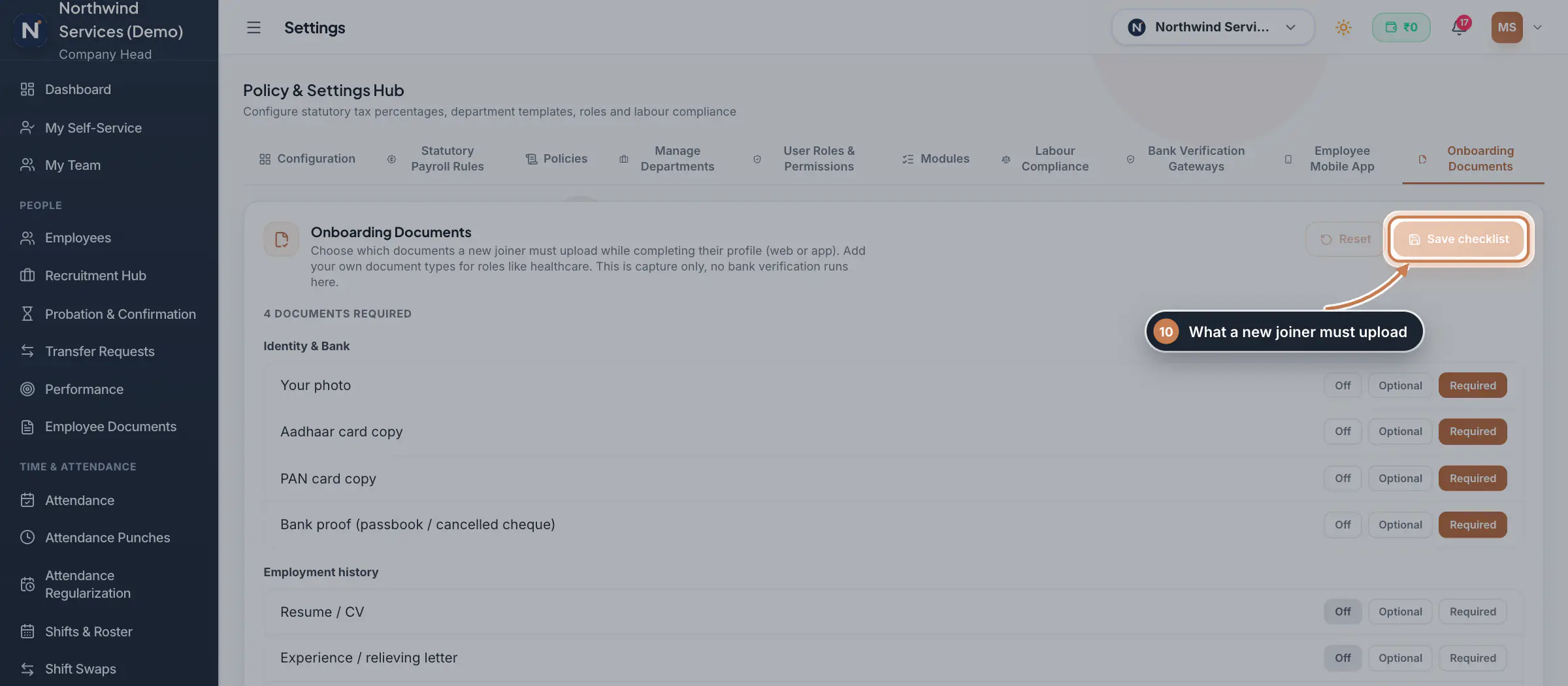
Click Onboarding Documents and set each document a new joiner uploads while completing their profile, on the web or in the app, to Off, Optional or Required: their photo, Aadhaar and PAN copies, bank proof, resume, experience letter, salary slip, degree, diploma, health certificate, professional licence and police verification. Add your own document types with Add a custom document, then click Save checklist.
 Full size
Step 10
What it does
Settings opens the Policy & Settings Hub. Its first tab, Configuration, has a card for each settings page that is not in the sidebar, grouped as Setup, Organization, Automation and integrations, Reporting, Storage, Security and access, and Company. The other tabs hold the company-wide rules: Statutory Payroll Rules, Policies, Manage Departments, User Roles & Permissions, Modules, Labour Compliance, Bank Verification Gateways, Employee Mobile App and Onboarding Documents.
Who uses it
- The Company Head and HR set the rules. What each person can change follows their own permissions; HR, for example, edits Labour Compliance only with the Settings edit permission.
- Finance and employees can open Settings too, but see only the tabs and cards their role allows.
How it connects
Each card opens its own page, such as Organization, App Profiles, Access Control, Security Center or Company Profile. The statutory rates are used by payroll, payslips and the statutory registers; the policies decide late marks, leave and overtime; the departments are offered on every employee record; a module you switch off disappears from the sidebar; the Employee Mobile App tab sets the app's colours and default features; and Onboarding Documents decides what a new joiner uploads.
Questions
Why do I not see the Policies tab?
The tab is shown only to HRMS Core and Hybrid companies, and only to the Company Head and HR.
A module is missing from the sidebar. Where did it go?
Someone may have switched it off under Settings, Modules. Switch it on again and save; its data is still there.
Do my changes apply at once?
Each tab saves with its own button: Apply Department & Statutory Settings, Save Permissions, Save changes, Save colours or Save checklist. Until you click it, nothing changes.
Related
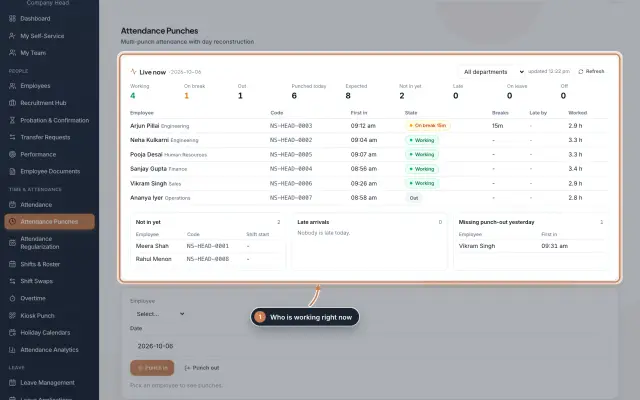 Attendance: punches and the daily registerHow punches reach HRMS Core, how to follow them live, record a missed punch, read each employee's day log, keep the daily register and close the month for payroll.Guide
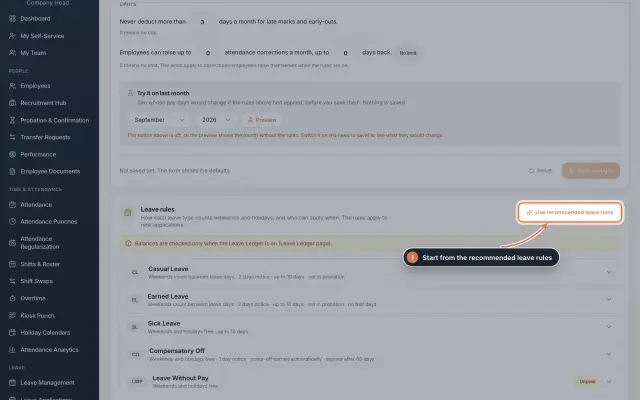 Leave: rules, applications and approvalsSet up your leave types and their rules, apply for leave on an employee's behalf with a live check of the days, and approve or reject applications.Guide
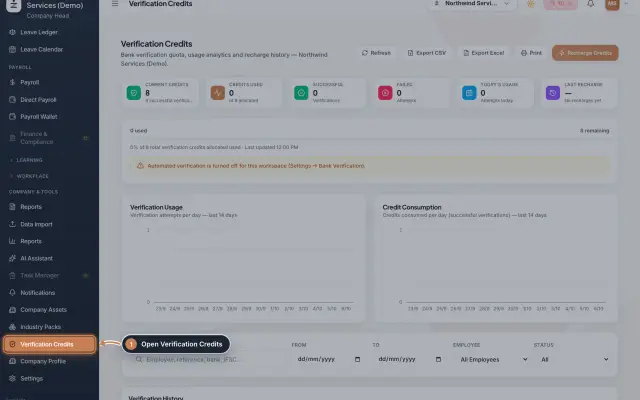 Verification creditsWhat verification credits are, how many each bank account check uses, where to see your balance and how to get more credits.Guide
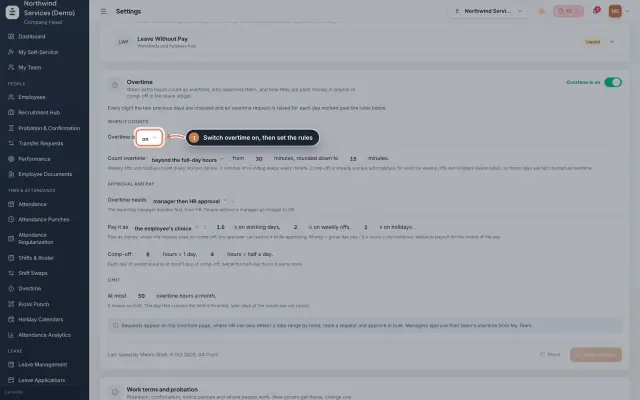 Overtime moduleOvertime found in the punches or raised by HR, approved by the manager and HR, and paid as money in payroll or as comp-off in the leave ledger.Module
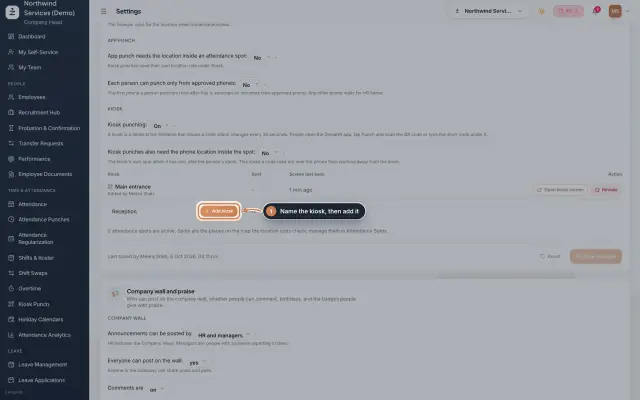 Kiosk Punch moduleTurn a tablet at the entrance into a punch kiosk: it shows a code that changes every 30 seconds, and staff scan or type it in the app to punch.Module
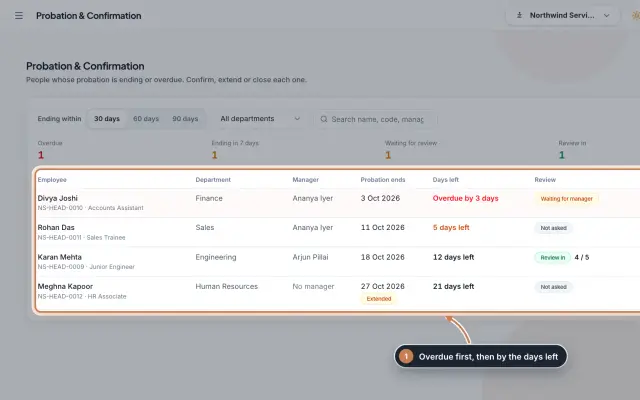 Probation & Confirmation moduleEveryone whose probation is ending or overdue in one queue; confirm with a letter, extend with a reason, record a not confirmed outcome or ask the manager for a review.Module
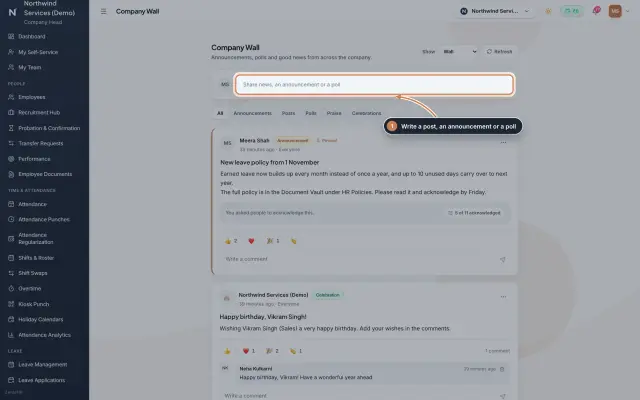 Company Wall moduleA feed for the whole company: announcements people acknowledge, posts, polls, praise and celebrations, with reactions and comments, on the web and in the employee app.Module
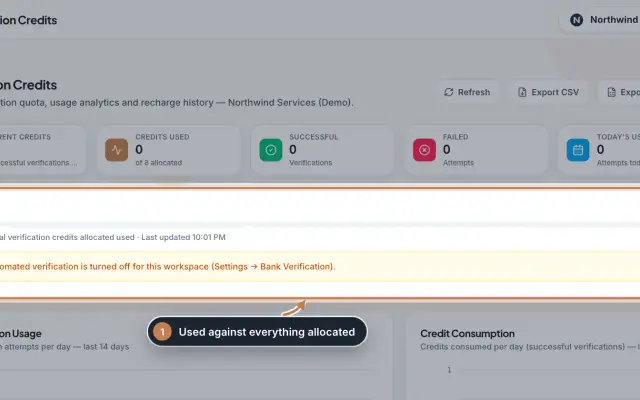 Verification Credits moduleThe full Verification Credits page: the credit meter and why checks may be paused, daily usage charts, the history of every bank verification with its details, and every recharge with its invoice.Module
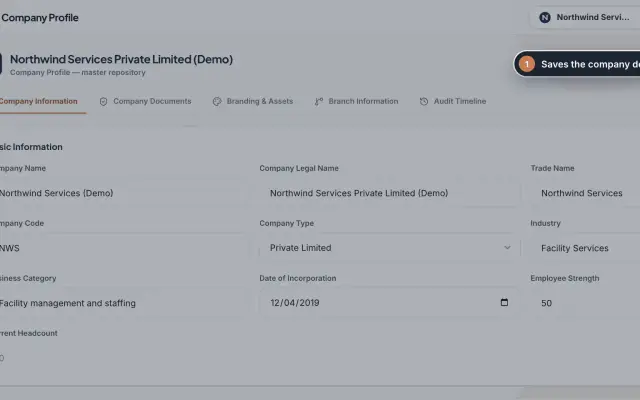 Company Profile moduleKeep your company's details, owners, certificates, branding images and branches in one place, with a timeline of every change.Module
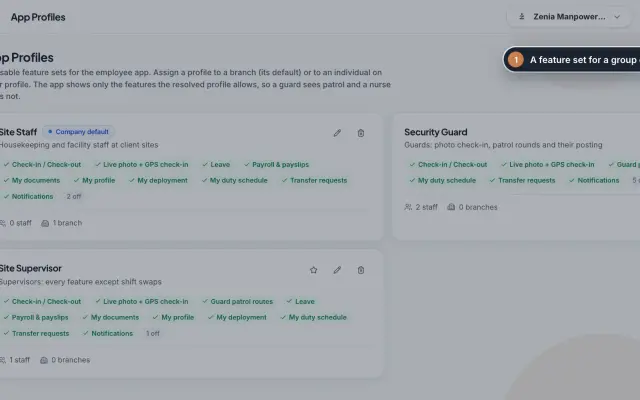 App Profiles moduleDecide which features each group of staff sees in the employee app, with named profiles for a branch, for one person or for the whole company.Module
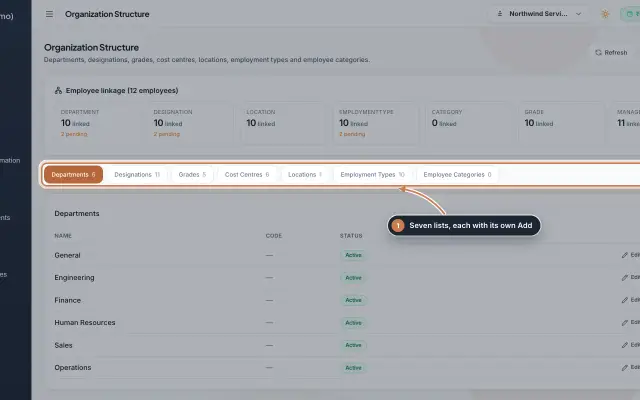 Organization moduleKeep the company's lists of departments, designations, grades, cost centres, locations, employment types and employee categories, and link each employee to them.Module
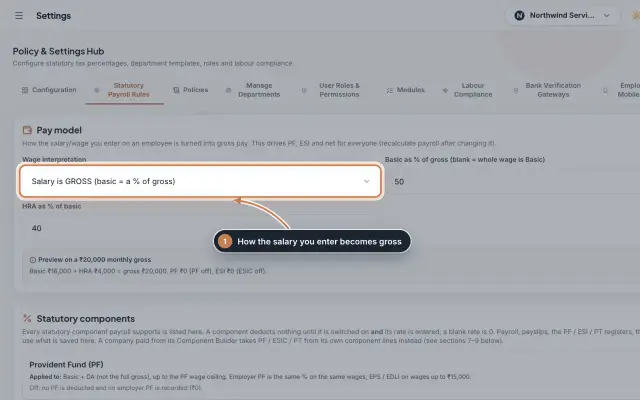 Statutory Payroll RulesSet how the salary you enter becomes gross pay, switch PF, ESIC and Professional Tax on with their rates, keep state PT slabs and day rates, and check a worked example before you save.Module
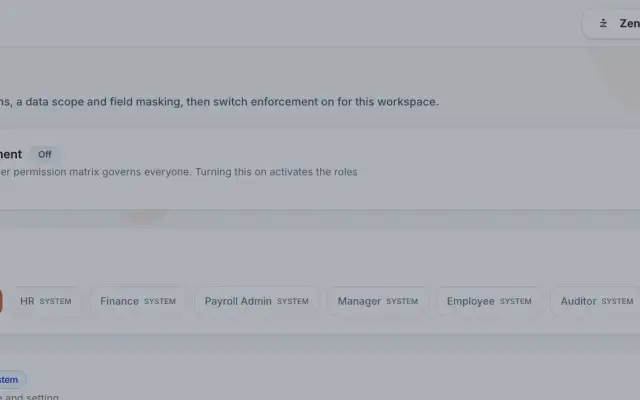 Access Control moduleDefine roles with eight actions per module, a data scope and field masking, grant client and site access to people, and switch role-based enforcement on when you are ready.Module
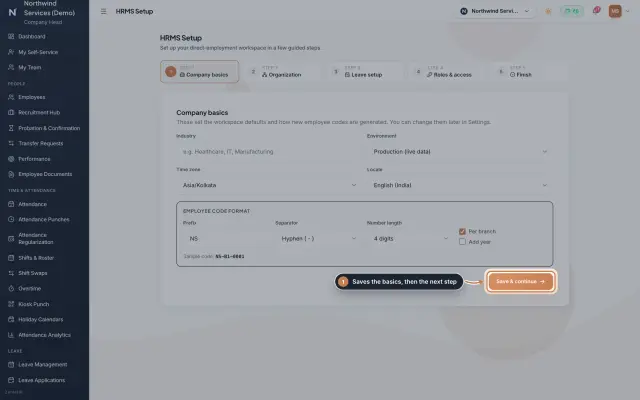 HRMS Setup moduleThe first-run wizard of an HRMS Core company: company basics and the employee code format, the organization lists, leave, roles and access, and a final check.Module
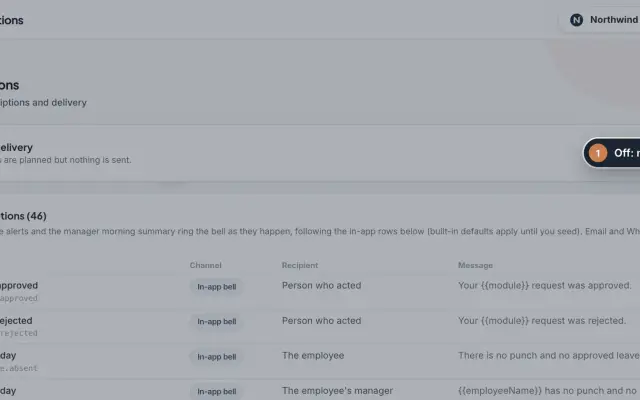 Notifications moduleDecide who hears about which event, on which channel and with which message, and switch live delivery of email and WhatsApp copies on when you are ready.Module
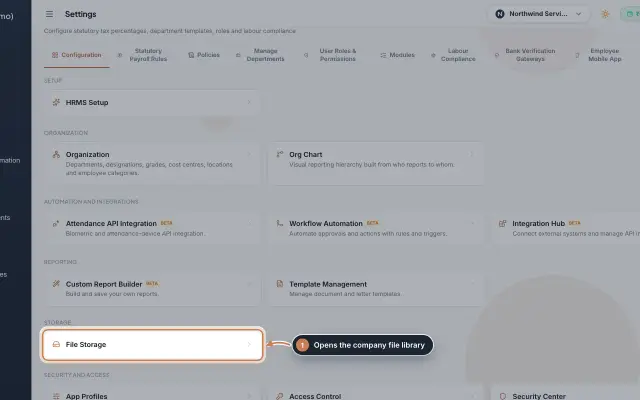 File Storage moduleThe company's file library in Settings: upload files of up to 25 MB, download them through short-lived secure links and delete what you no longer need.Module
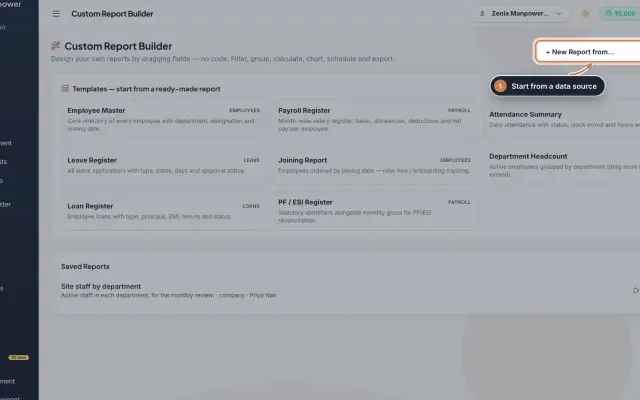 Custom Report Builder module (Beta)Design your own reports without code: pick a data source, add fields, filter, sort, group, add formulas and a chart, then save, export to Excel, CSV, PDF or Word, and email it on a schedule.Module
- ZeniaHR for every businessSee how it works on the ZeniaHR website