Employee Cards module
See every active employee on one card with pay, attendance and leave, and print ID cards from a ready design or your own artwork.
Key screens
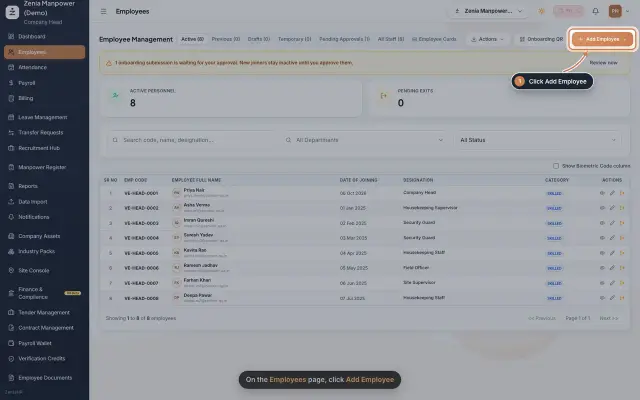
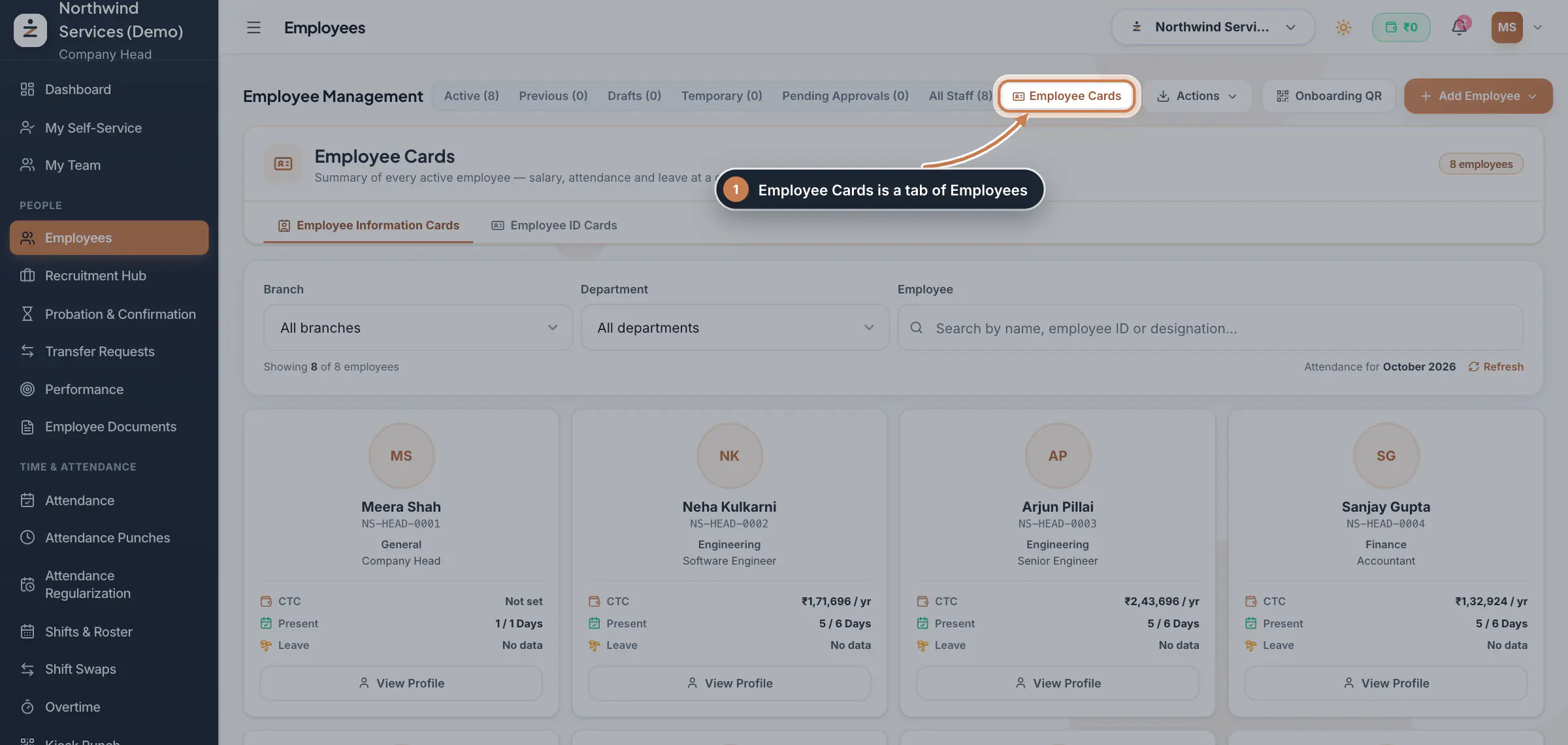
Open the information cards
In the sidebar, click Employees, then the Employee Cards tab. Employee Information Cards opens first. Filter by Branch or Department, or search by name, employee ID or designation. Each card shows CTC, Present and Leave; hold the pointer over a figure to see how it is worked out. Refresh reads payroll, attendance and leave again, and View Profile opens the person's record.
 Full size
Step 1 Tip A card shows the person's initials until a photo is added to their profile.
Preview and print ID cards
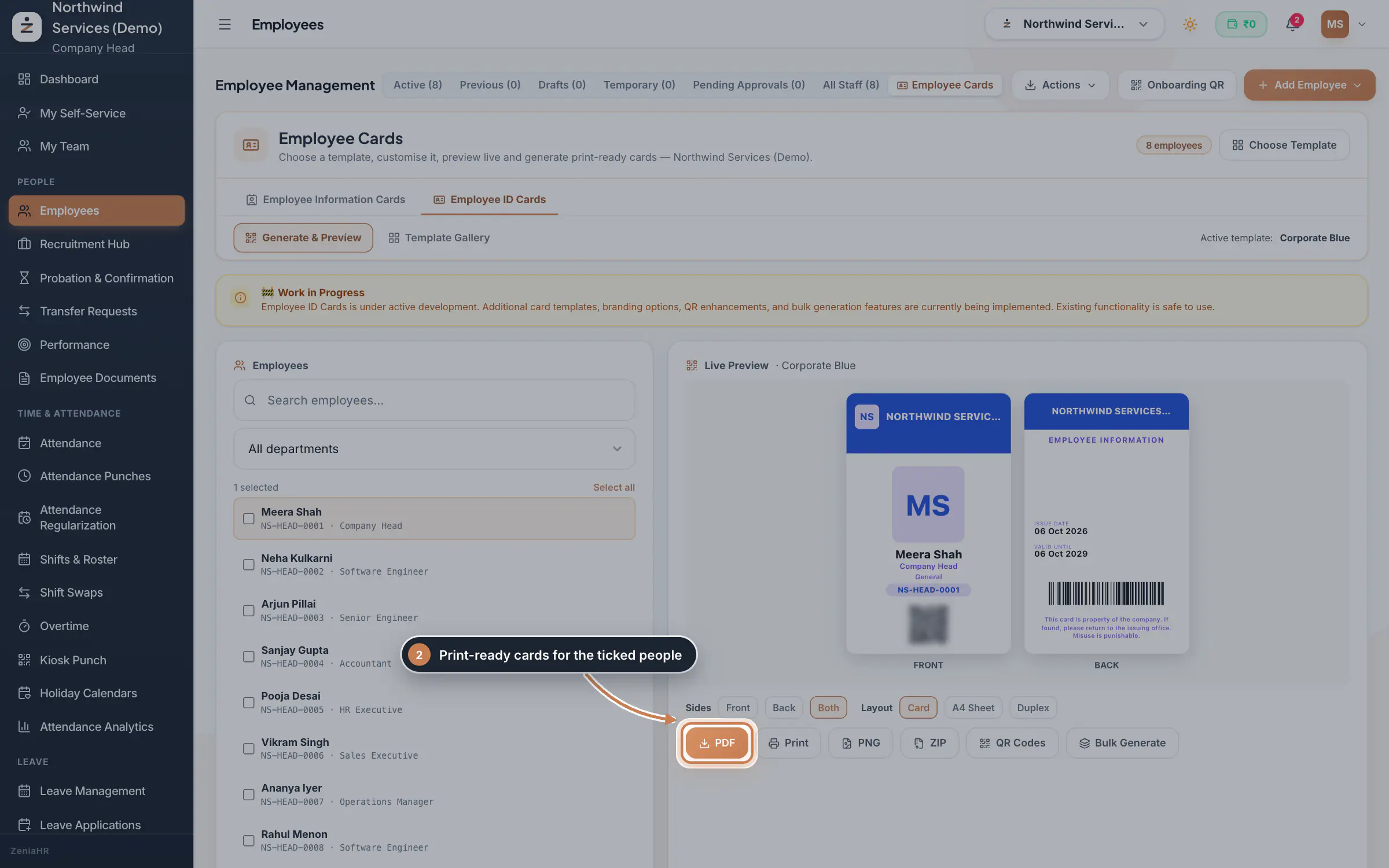
Click Employee ID Cards. The Live Preview shows the front and back of the selected person's card in the company's active design. Tick the people you want, or narrow the list with the search and the department filter and click Select all; with nobody ticked, the person in the preview is used. Under Sides choose Front, Back or Both. Under Layout, Card puts each card on its own page at card size, A4 Sheet fits several cards on each A4 page, and Duplex puts all the fronts first and then all the backs. Then click PDF to download, Print to print, PNG for picture files, ZIP for all cards in one file or QR Codes for each person's QR code.
 Full size
Step 2 Choose the company's card design
Click Template Gallery, or Choose Template at the top. The gallery has 20 ready designs grouped as Corporate, Modern, Industry and Security, and your own under Custom. Preview shows both sides with a sample employee. Use Template asks you to confirm and then makes that design the company's active template: every card printed from then on uses it, and the active one is marked In Use.
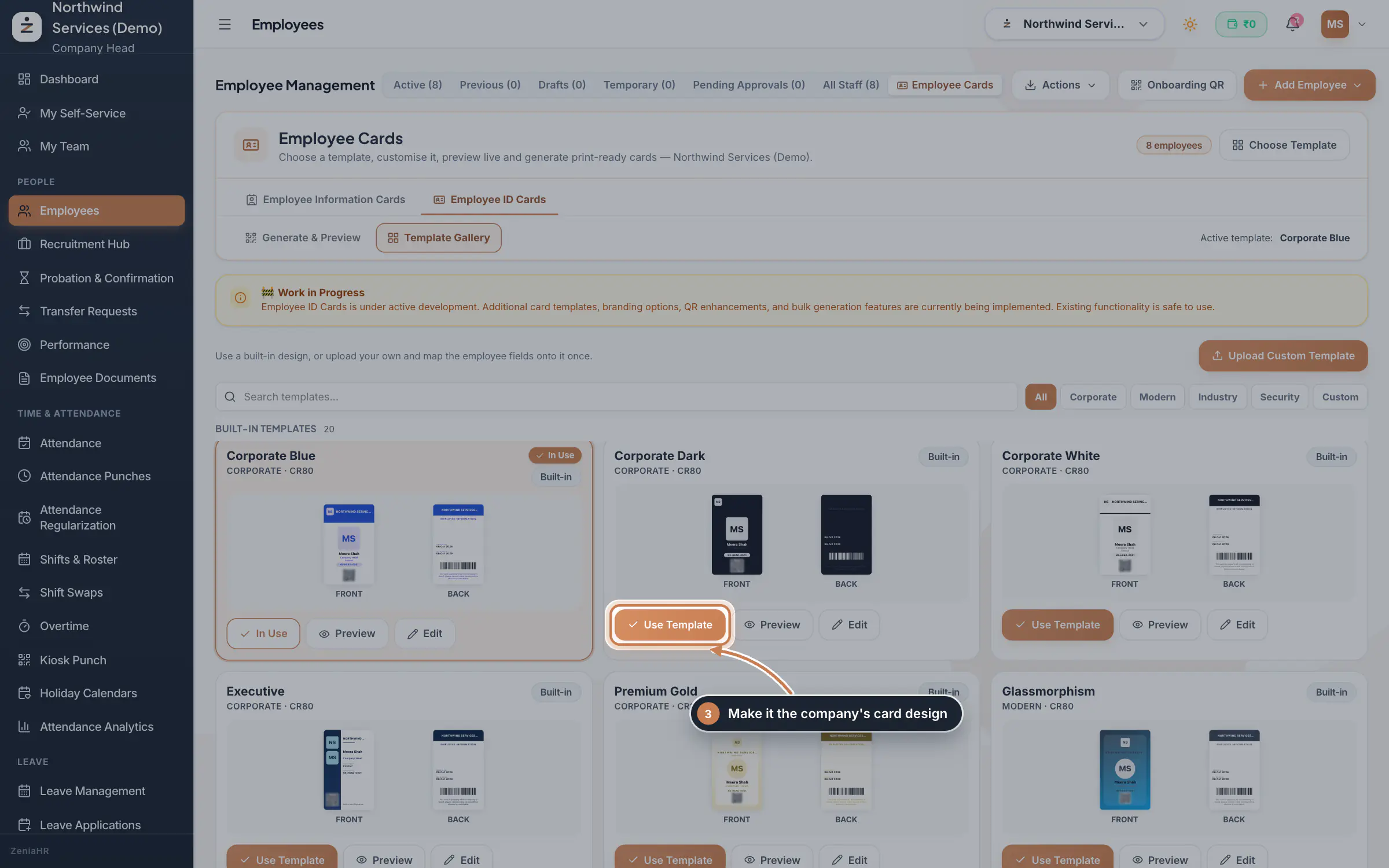 Full size
Step 3 Change a design
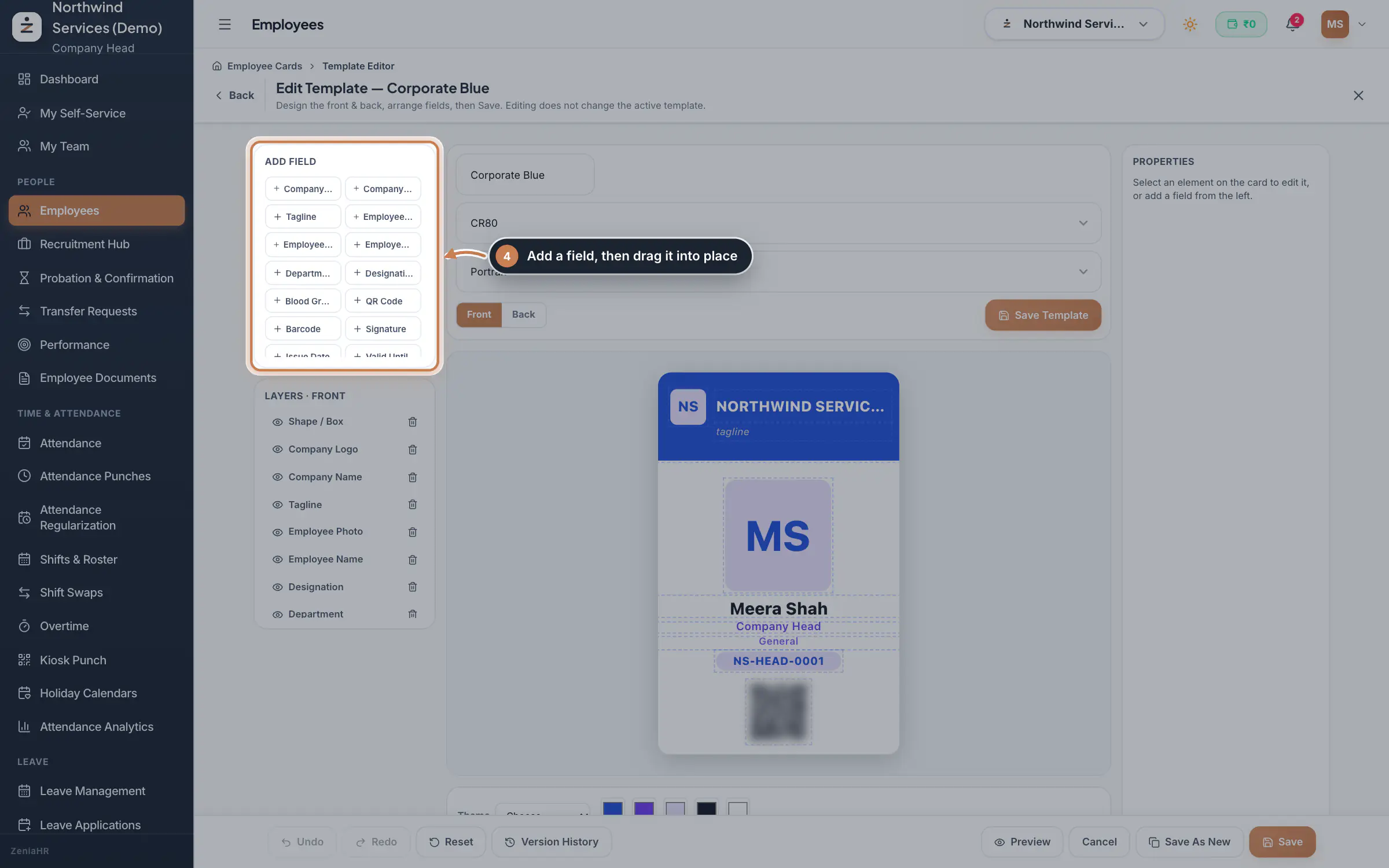
Click Edit on a design. Under Add field, click a field, such as the company logo, employee photo, designation, blood group, QR code, barcode, signature, issue date or valid until date, then drag it into place on the card and change it under Properties. Layers lists every field on the side you are working on, with Front and Back to switch sides. Undo, Redo, Reset, Version History and Preview help along the way. Save keeps your changes; saving a ready design makes a new custom template, so the original stays as it was. Save As New always makes a copy.
 Full size
Step 4 Tip Editing a design never changes which one is in use. Use Use Template for that.
Use your own artwork
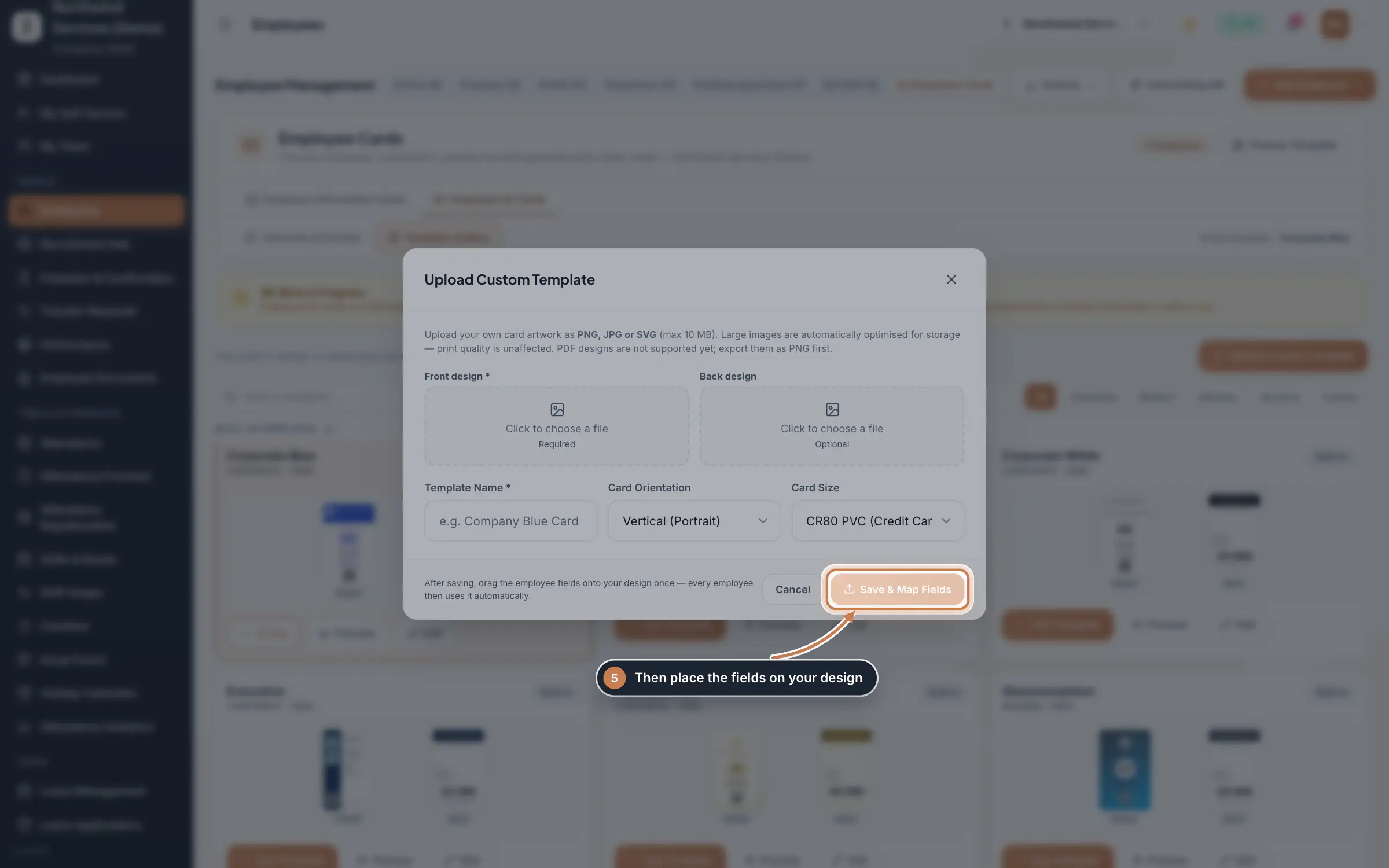
Click Upload Custom Template. Add the Front design (required) and, if you have one, the Back design, as PNG, JPG or SVG up to 10 MB. Give the Template Name, pick the Card Orientation and Card Size, and click Save & Map Fields. The editor then opens on your artwork: place the employee fields on it once, save, and every employee's card is drawn on your design.
 Full size
Step 5
What it does
Employee Cards has two parts. Employee Information Cards shows one card for every active employee: the photo, name, code, department and designation, the yearly CTC, the days present in the latest month with attendance and the leave balance, with a button to open the full profile. Employee ID Cards prints identity cards: pick a design from the gallery or upload your own artwork, see each person's card front and back, and download them as a PDF, images or a print job.
Who uses it
- The Company Head and HR open it from Employees.
- The same two roles choose the company's card design and edit templates.
How it connects
Everything on the cards comes from the employee record in Employees: name, code, photo, department, designation, blood group and the company's logo and name. The CTC on an information card is 12 times the gross of the person's latest payroll, or 12 times the monthly salary on file before the first payroll. Present counts the days present out of the days counted in the latest month that has attendance. Change the record and the cards follow; nothing is typed twice.
Questions
Why does a card show initials instead of a photo?
There is no photo on the employee's record. Add one on their profile in Employees and the information card and the ID card both show it.
Why does Leave say No data?
The card shows the casual, privilege and sick leave balance kept by Leave Management. When no balance is on file for the person, the card says No data.
Can I print cards for one department only?
Yes. On Employee ID Cards, pick the department in the filter, click Select all, then click PDF or Print.