Employees module
The staff directory, where you add people, open an employee profile and approve new joiners.
Key screens
The employee directory
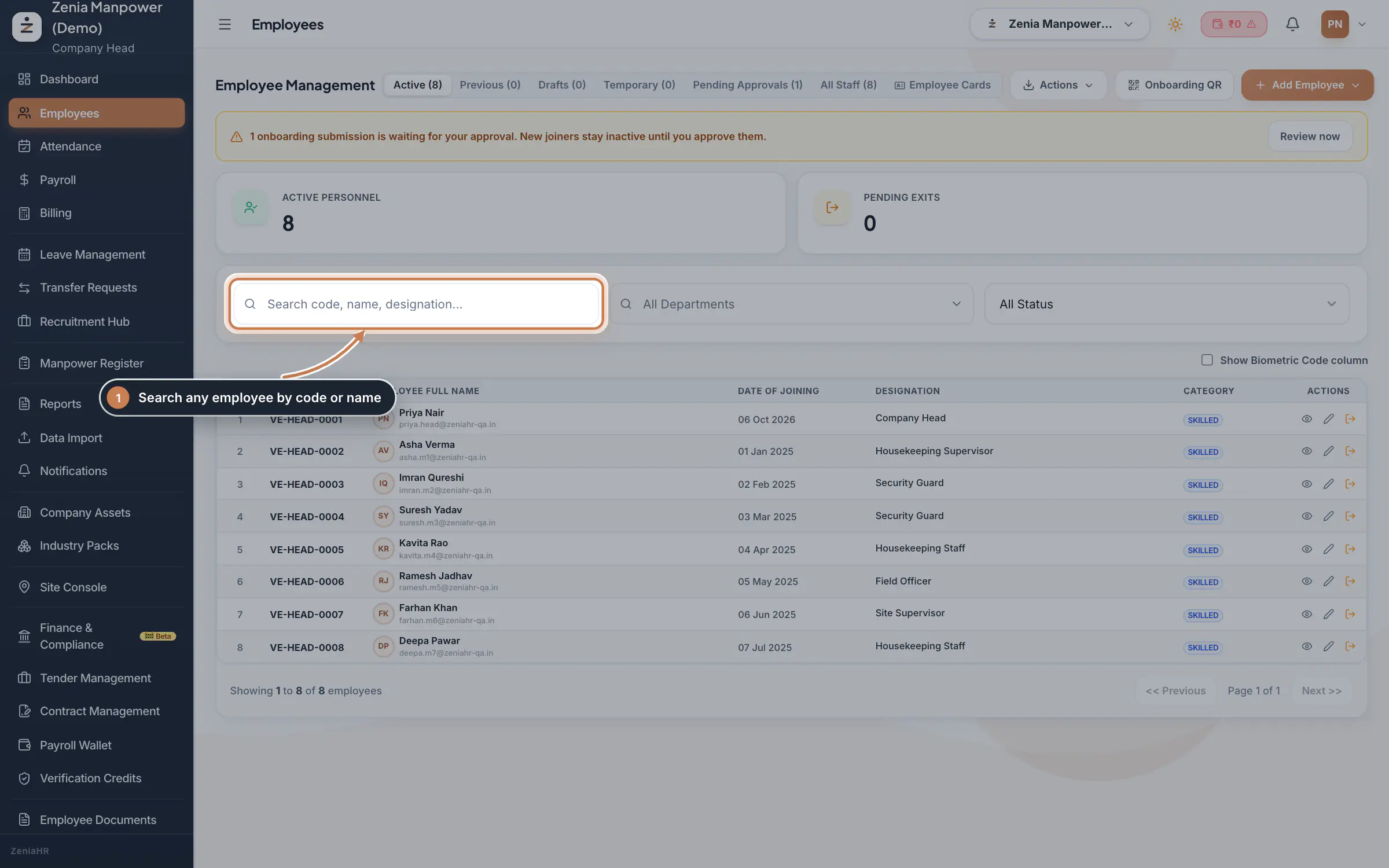
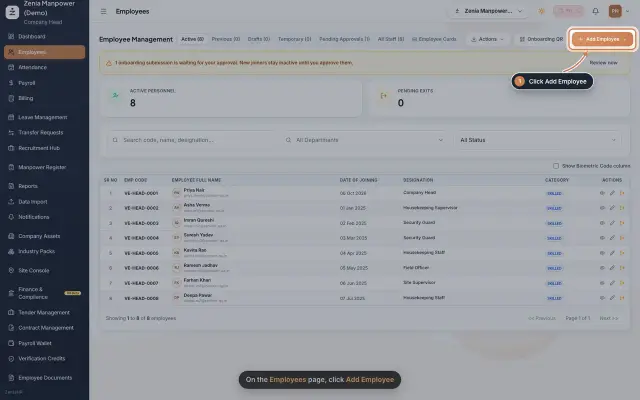
Open Employees from the sidebar. Use the search box and the Department and Status filters to find anyone. Click Add Employee to register a new person.
 Full size
Step 1 Open an employee profile
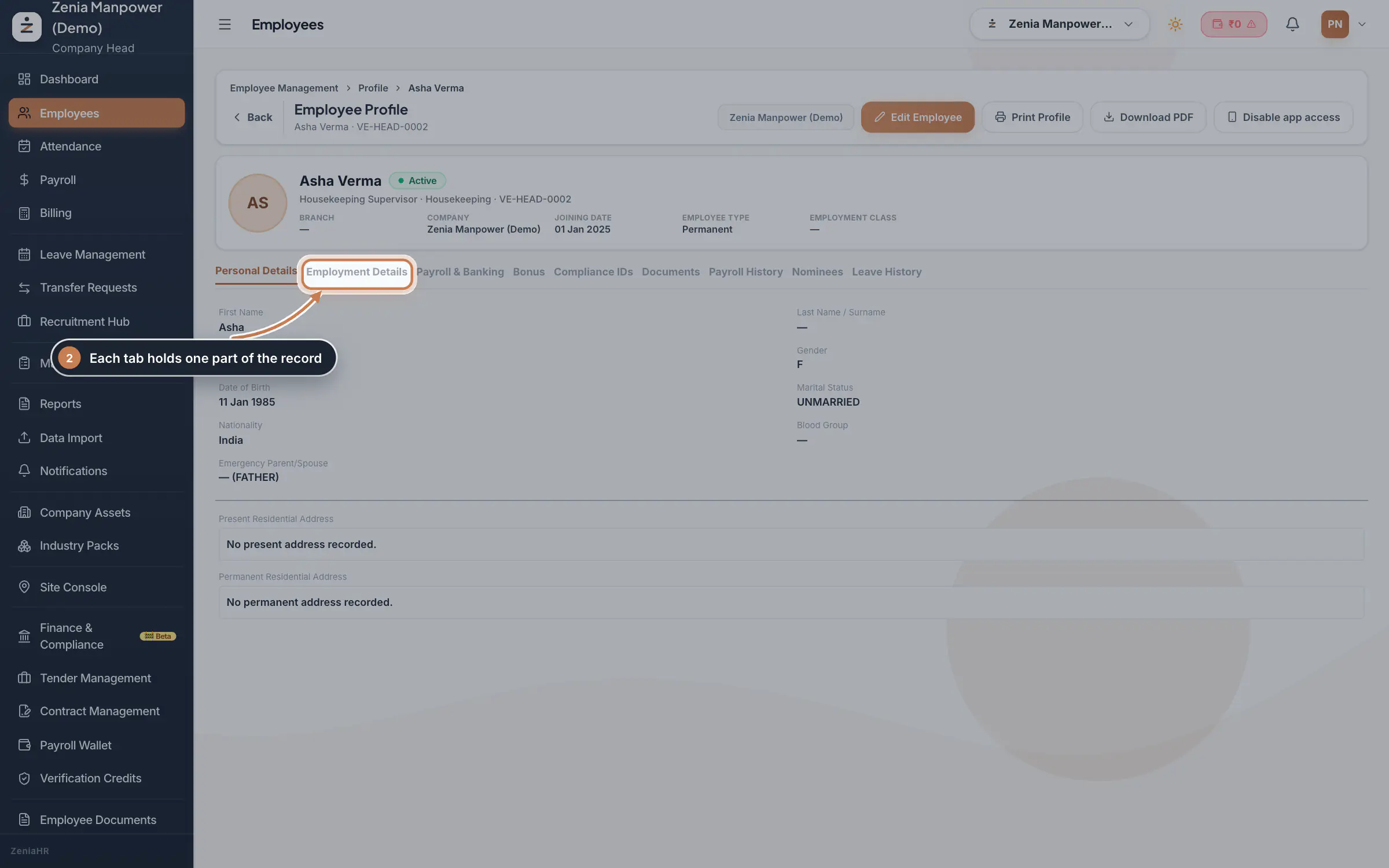
Click the view icon on any row to open the profile. The header shows the name, status and code, with Edit Employee, Print Profile and Download PDF actions. The tabs hold Personal Details, Employment Details, Payroll & Banking, Compliance IDs, Documents, Payroll History, Nominees and Leave History.
 Full size
Step 2 Employment details
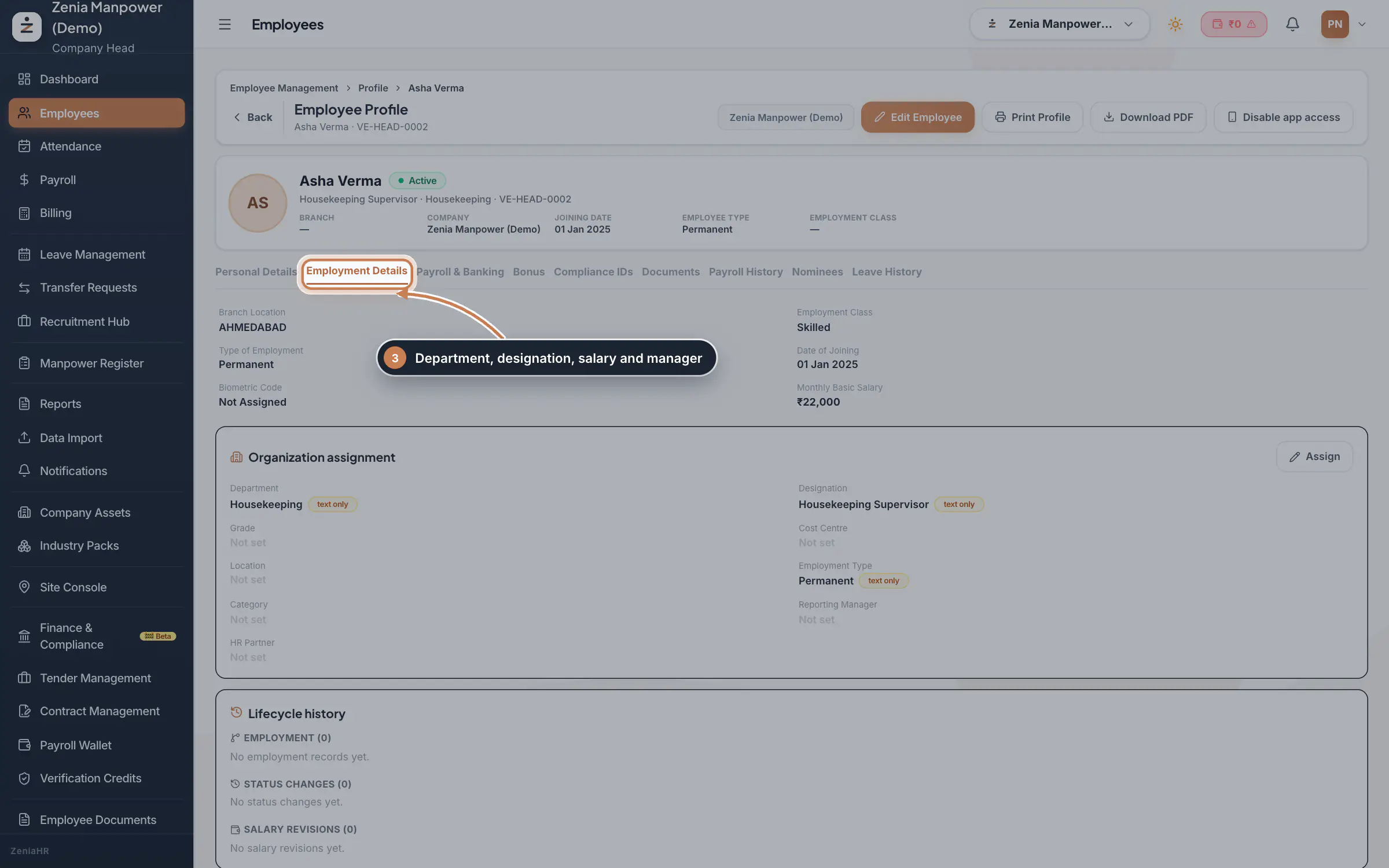
The Employment Details tab shows the branch, department, designation, employment type, joining date and monthly salary, plus the organization assignment and the lifecycle history of the record.
 Full size
Step 3 Approve new joiners
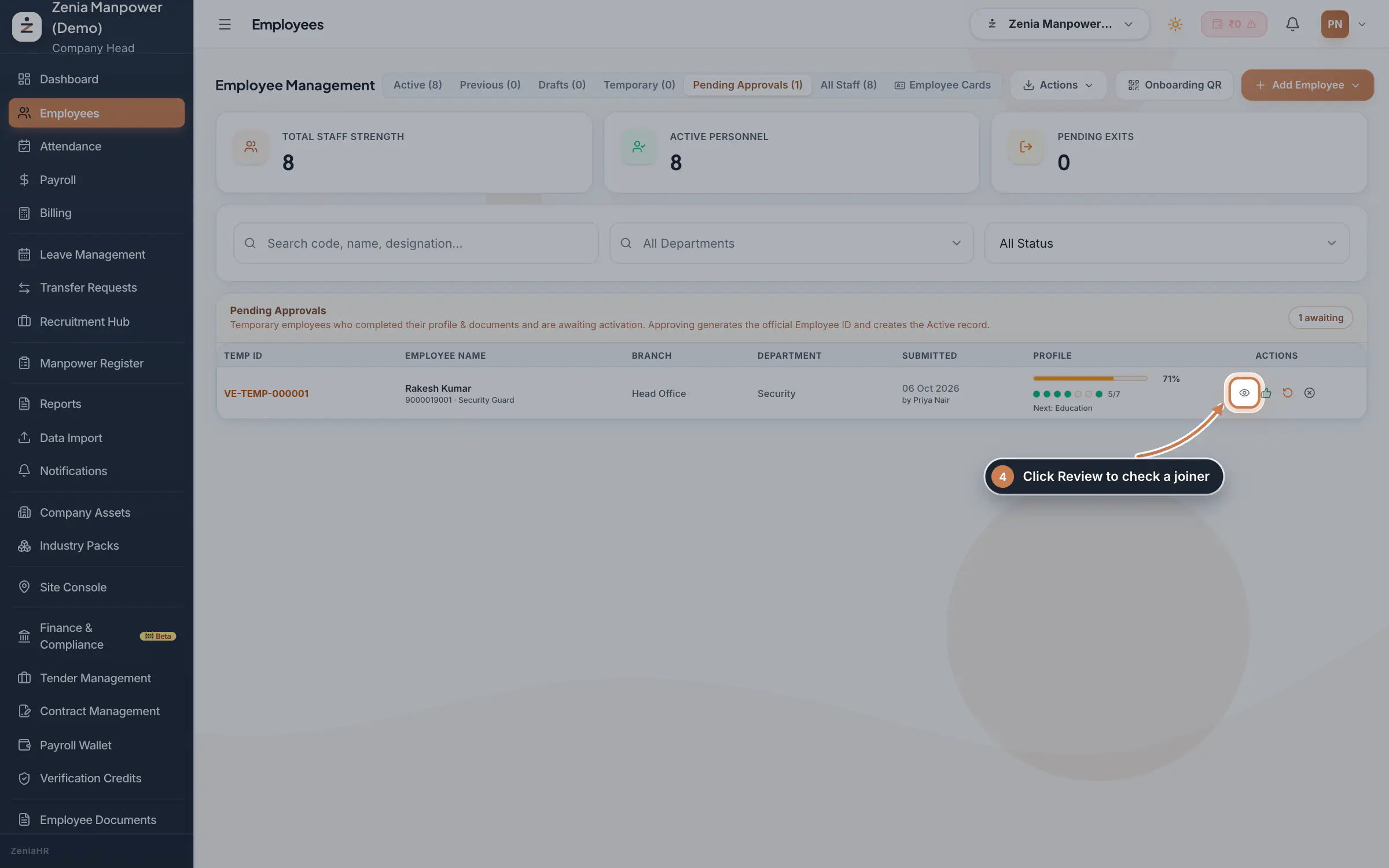
The Pending Approvals tab lists temporary employees who completed their profile and documents and are waiting for activation. Open one to review it, then approve to generate the Employee ID and create the active record.
 Full size
Step 4
What it does
The Employees module is the master directory of everyone who works for your company. From here you add people, search and filter the list, open any employee's full profile, and approve joiners who onboarded themselves. The tabs at the top split the list into Active, Previous (exited), Drafts, Temporary, Pending Approvals and All Staff, and the cards show your Total Staff Strength, Active Personnel and Pending Exits at a glance.
Who uses it
- Company Head and HR add, edit and approve employees.
- Finance uses the directory to look up an employee's compensation and bank details before payroll.
- Managers see their own team through My Team, which reads from the same records.
How it connects
Every other module reads the people kept here. Attendance is marked against these employees, payroll is generated for them, and a manpower client is billed from the staff deployed to it. A temporary joiner who finishes self onboarding appears under Pending Approvals; approving them issues the official Employee ID and moves them into Active.
Questions
How do I add someone new?
Click Add Employee. See the guide Add an employee for the full step by step.
Why is an employee under Pending Approvals and not Active?
They onboarded themselves and are waiting for HR to approve them. New joiners stay inactive, and do not appear in payroll, until you approve them.
Related
 Add an employeeRegister a new employee master file step by step, from personal details to employment.Guide25 s video
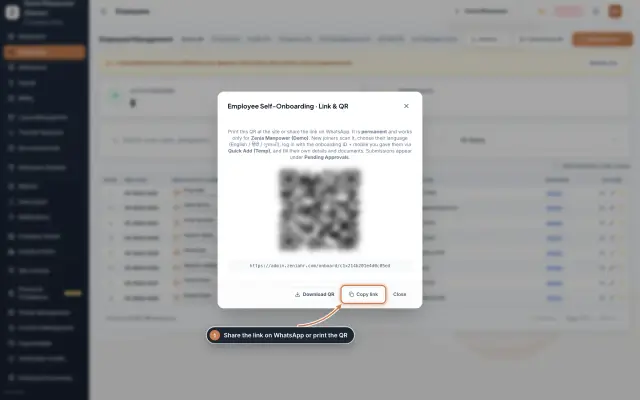 From a new joiner to their first payslipThe end to end journey where the admin panel and the employee app work together, from inviting a temporary joiner to their first payslip.End to endDiagram
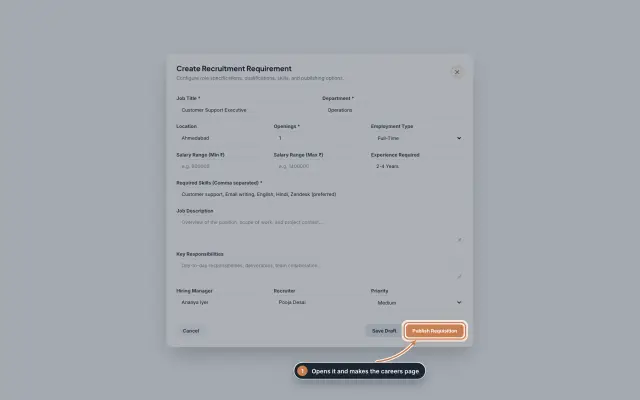 Recruitment Hub moduleOpen a job, share its careers page, see every applicant with a match score, and move them through screening, interviews, offers and joining, with hiring analytics.Module
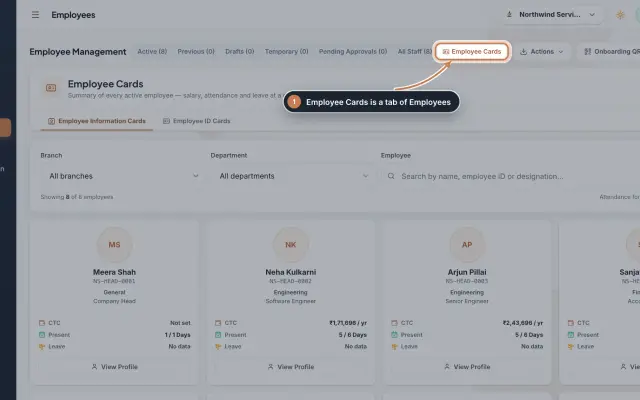 Employee Cards moduleSee every active employee on one card with pay, attendance and leave, and print ID cards from a ready design or your own artwork.Module
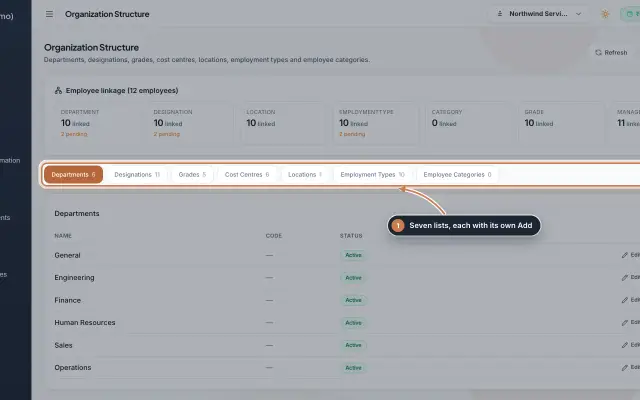 Organization moduleKeep the company's lists of departments, designations, grades, cost centres, locations, employment types and employee categories, and link each employee to them.Module
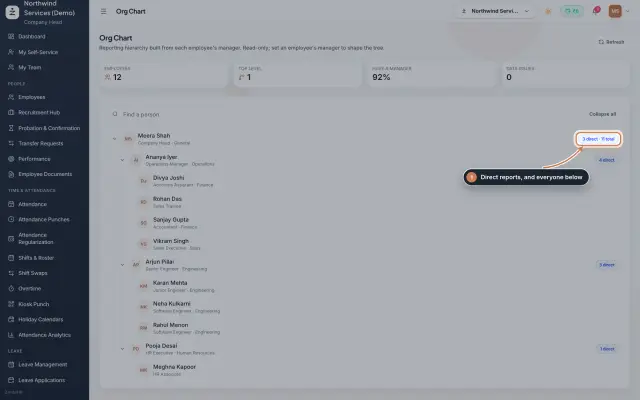 Org Chart moduleThe company's reporting tree, built from each person's reporting manager, with team sizes, a search and a check for broken reporting lines.Module
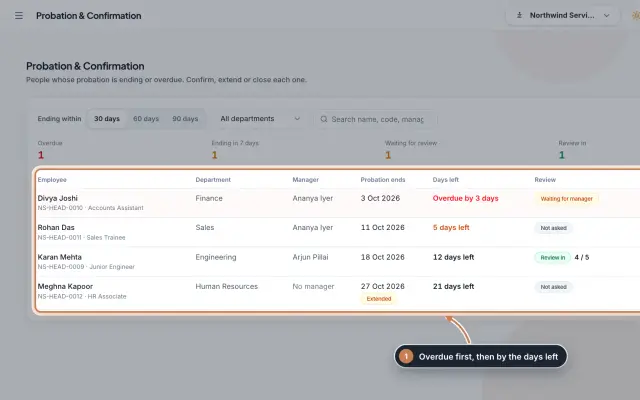 Probation & Confirmation moduleEveryone whose probation is ending or overdue in one queue; confirm with a letter, extend with a reason, record a not confirmed outcome or ask the manager for a review.Module
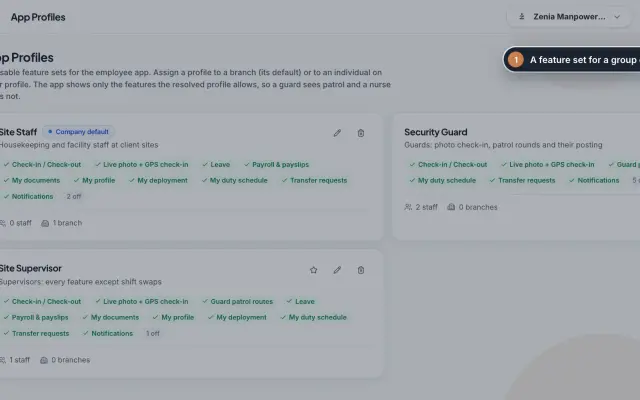 App Profiles moduleDecide which features each group of staff sees in the employee app, with named profiles for a branch, for one person or for the whole company.Module
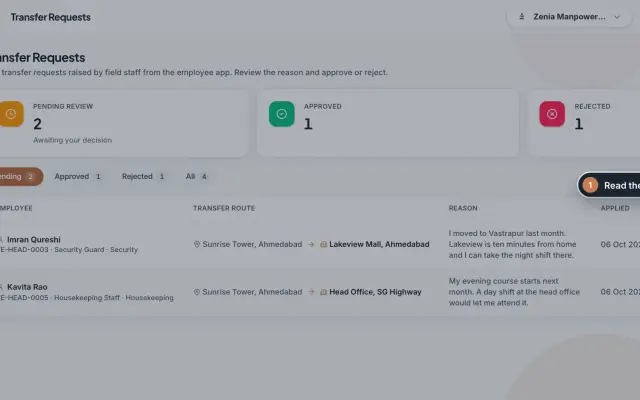 Transfer Requests moduleSite staff ask in the app to move to another site; HR reads the reason and approves or rejects, and an approval moves the person.Module
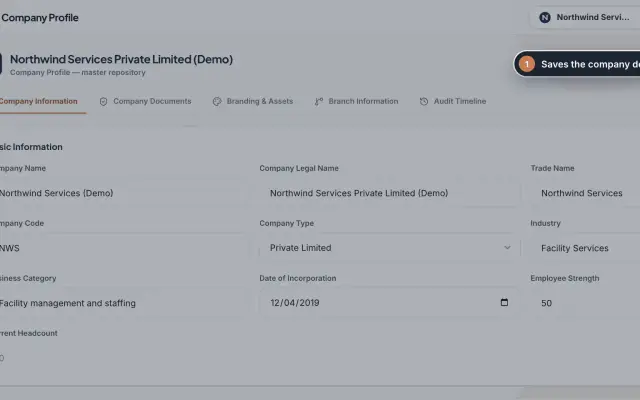 Company Profile moduleKeep your company's details, owners, certificates, branding images and branches in one place, with a timeline of every change.Module
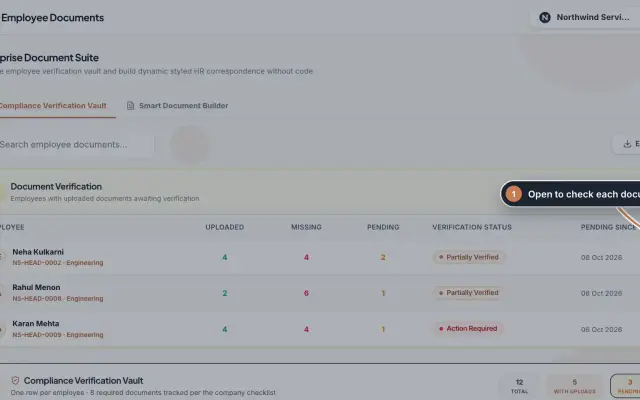 Employee Documents moduleCheck the documents each employee uploads against an eight-document checklist, verify or reject them, and make offer, appointment and other letters from ready-made styles.Module
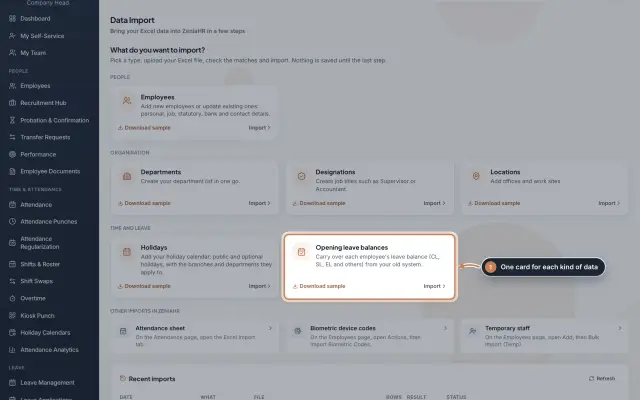 Data Import moduleBring your Excel or CSV data into ZeniaHR in four steps: employees, departments, designations, locations, holidays and opening leave balances, each checked row by row before anything is saved.Module
- Employee onboarding softwareSee how it works on the ZeniaHR website