Add an employee
Register a new employee master file step by step, from personal details to employment.
Before you start
- You need the Company Head or HR role.
- Keep the person's details handy: full name as per Aadhaar, mobile number, department, designation and monthly salary.
- To add someone who will fill in their own details and documents first, use Quick Add (Temp) instead and let them onboard themselves.
Steps
Open Employees and click Add Employee
In the sidebar, open Employees. At the top right of the list, click Add Employee.
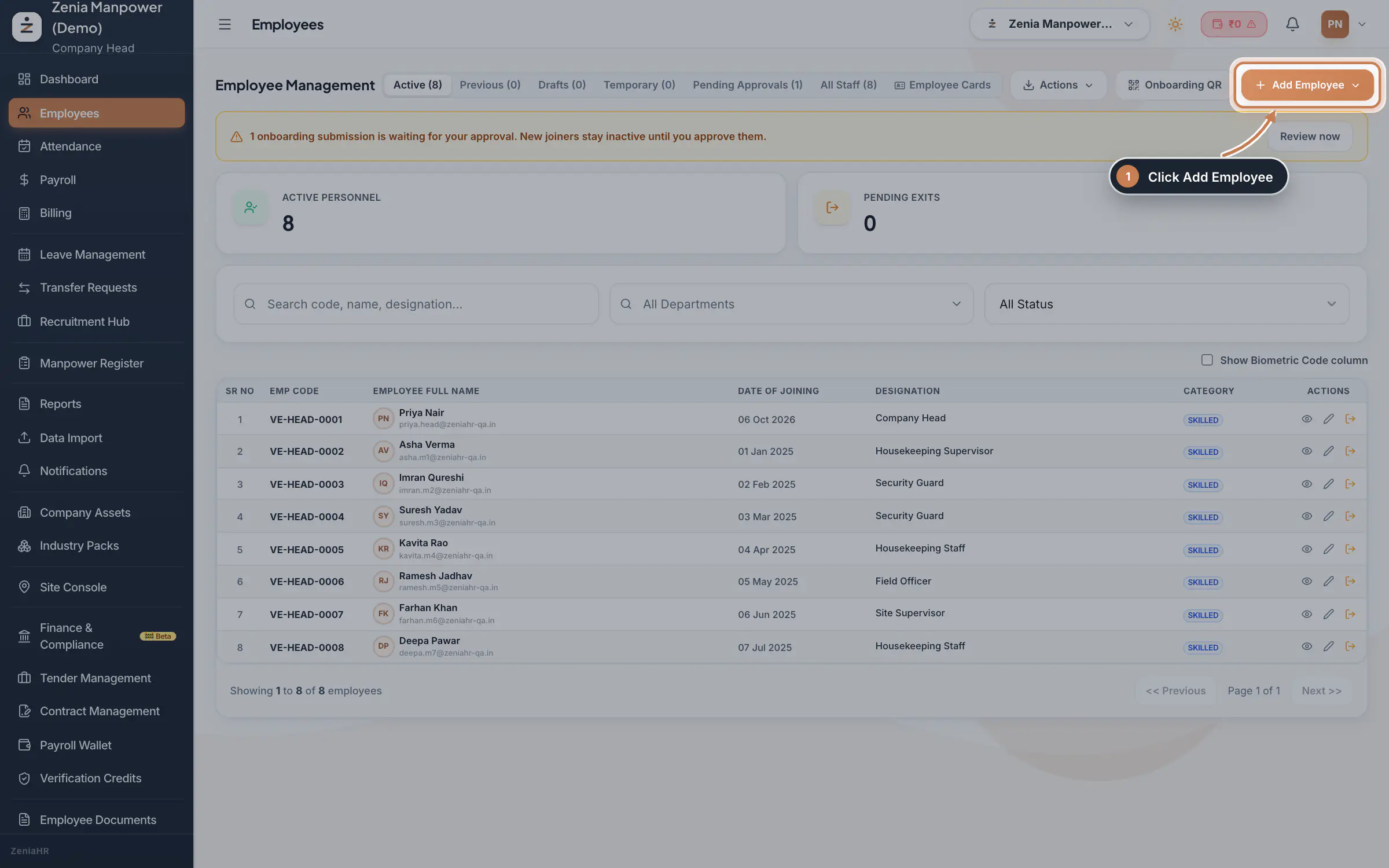 Full size
Step 1 Tip Use the search box first to check the person is not already on file.
Choose Add Full Employee
In the menu, click Add Full Employee. This opens the Register Master Employee File wizard, which has seven steps shown across the top.
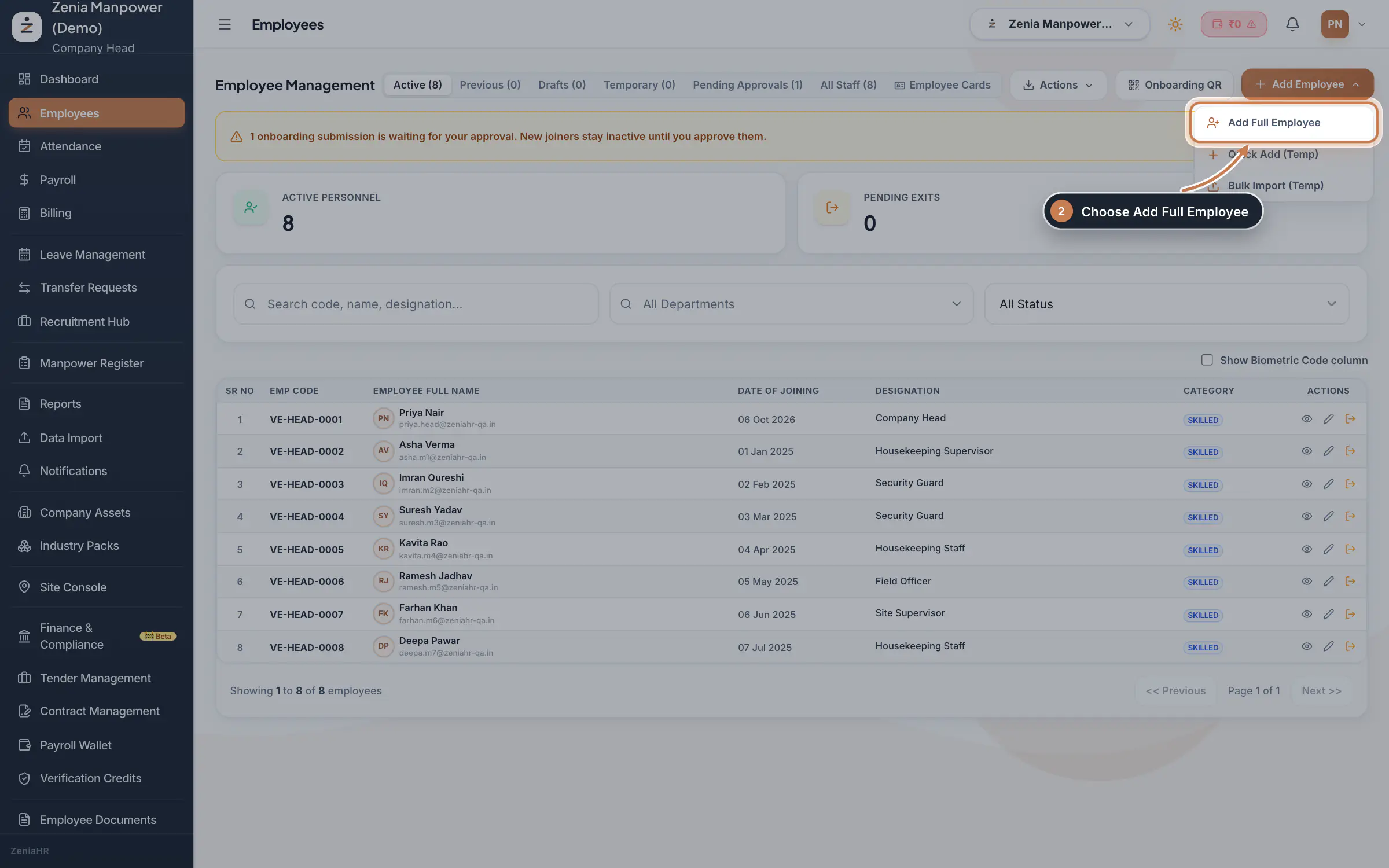 Full size
Step 2 Fill Personal Info
Enter the Aadhaar Full Name, then check Gender, Date of Birth and Marital Status. Choose the State and City, and type the 10 digit Mobile Number. Email Address is optional. Leave Employee Code on Auto Generate to let ZeniaHR issue the code on save. Click Save & Continue.
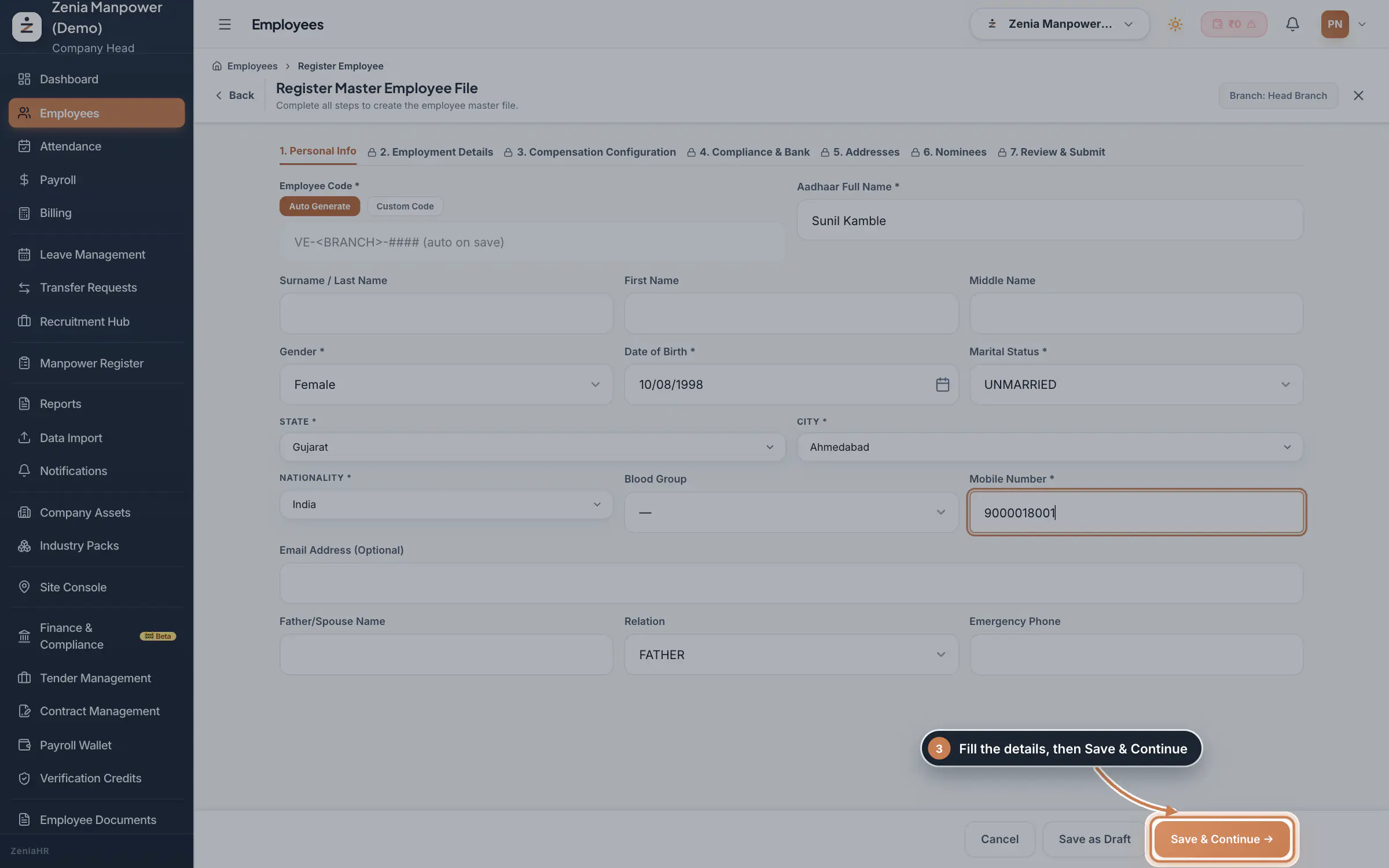 Full size
Step 3 Add Employment Details
Pick the Branch Location, then set the Department, Designation, Employment Class, Employment Type, Joining Date and the monthly Salary. You can type a new department or designation if it is not in the list. Click Save & Continue.
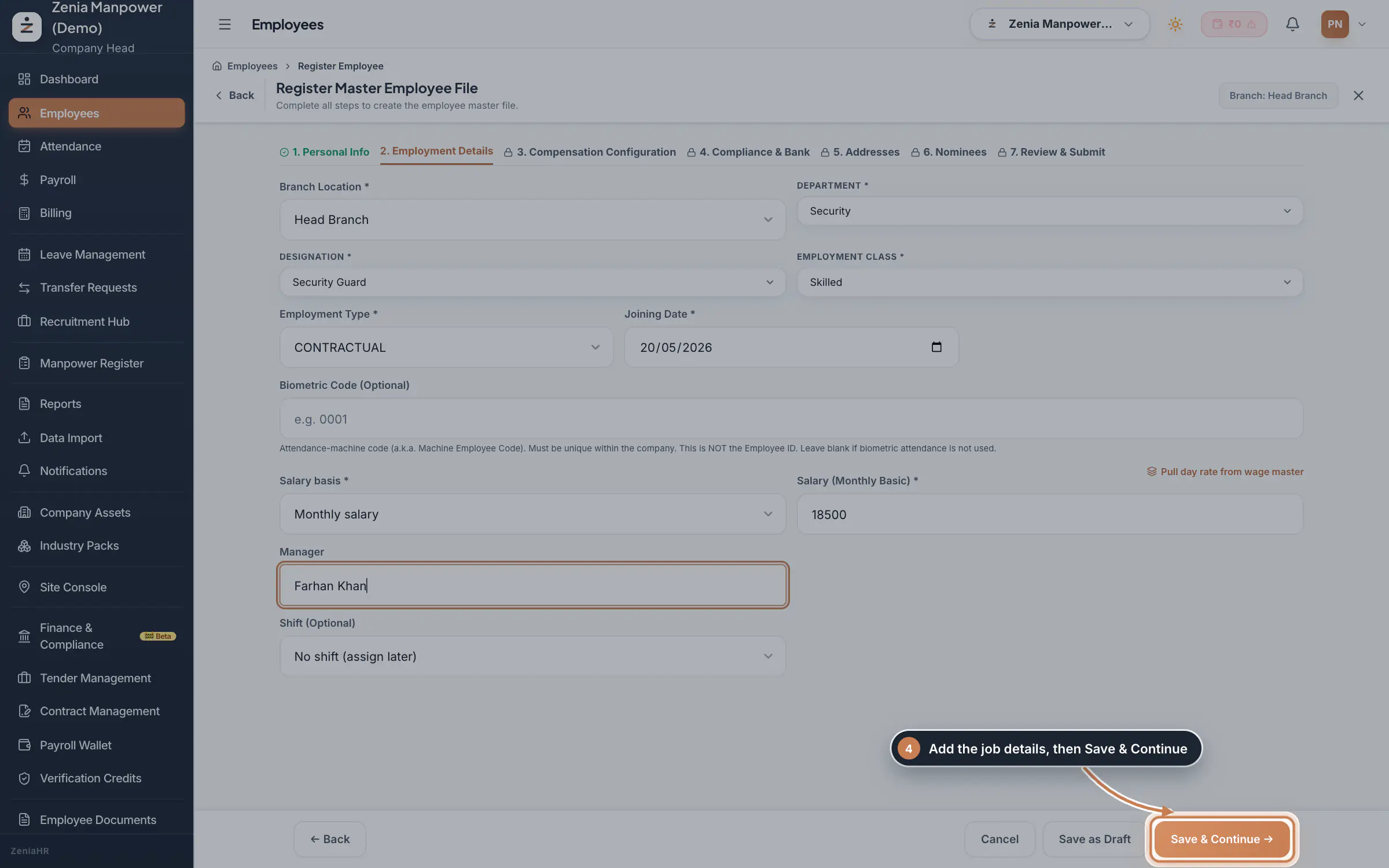 Full size
Step 4 Tip The Biometric Code is the attendance machine code, not the Employee ID. Leave it blank if you do not use biometric attendance.
Review and complete
The remaining steps, Compensation Configuration, Compliance & Bank, Addresses and Nominees, are optional and can be filled later from the employee profile. On Review & Submit, check the summary and click Complete Registration. The new employee is created as active and appears in the Employees list.
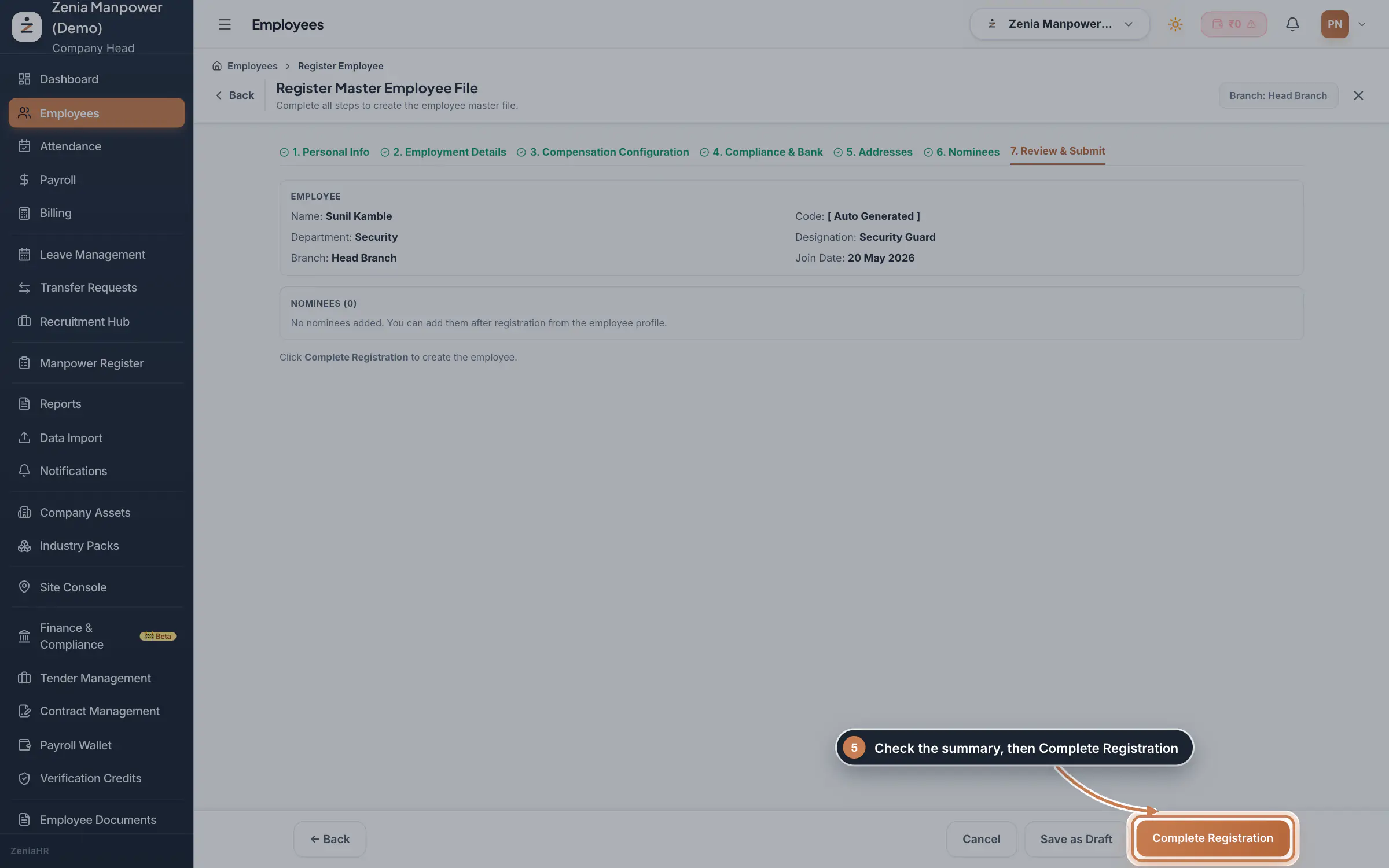 Full size
Step 5
Questions
What is the difference between Add Full Employee and Quick Add (Temp)?
Add Full Employee creates a complete, active employee record in one go. Quick Add (Temp) creates a temporary record with just a name and mobile number, so the joiner can complete their own profile and upload documents before HR approves them.
Can I add many employees at once?
Yes. Use Data Import in the sidebar to upload an Excel sheet, or Bulk Import (Temp) from the Add Employee menu for a batch of temporary joiners.
Do I have to fill every step before saving?
No. Only Personal Info and Employment Details are required. You can click Save as Draft at any step and finish the record later.
Related
 Employees moduleThe staff directory, where you add people, open an employee profile and approve new joiners.Module
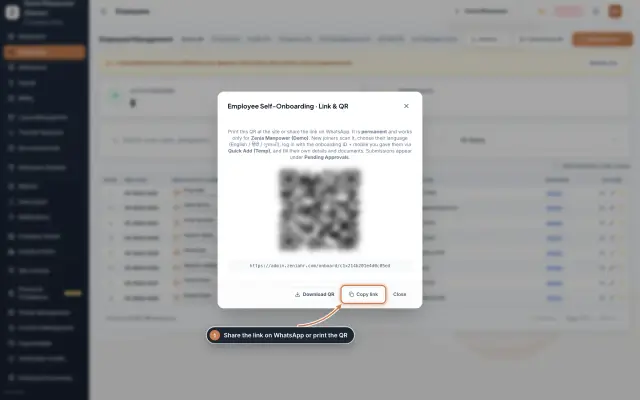 From a new joiner to their first payslipThe end to end journey where the admin panel and the employee app work together, from inviting a temporary joiner to their first payslip.End to endDiagram
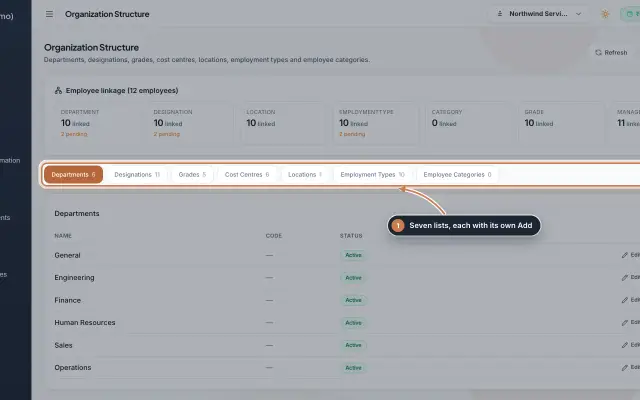 Organization moduleKeep the company's lists of departments, designations, grades, cost centres, locations, employment types and employee categories, and link each employee to them.Module
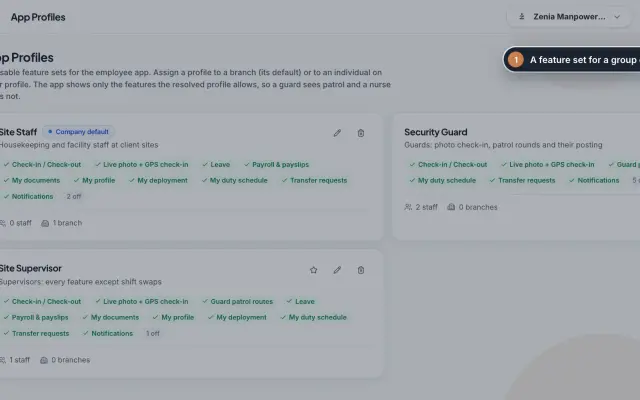 App Profiles moduleDecide which features each group of staff sees in the employee app, with named profiles for a branch, for one person or for the whole company.Module
- Employee onboarding softwareSee how it works on the ZeniaHR website