Payroll Wallet module
The prepaid credit that pays the ZeniaHR payroll processing fee, with its balance, usage, warnings and every credit and charge.
Key screens
Check the balance
In the sidebar, click Payroll Wallet. The balance card shows the credit left, the wallet status and when credit was last added, with the way to add funds under it: contact ZeniaHR support at support@zeniahr.com. The other cards show Today's Usage, This Month Usage, Total Recharged and Estimated Next Run.
 Full size
Step 1 Follow every credit and charge
The Transaction History lists every entry with its type, date and time, reference number, amount and the balance after it. Money in, such as credit added or a refund, has a green arrow pointing up; a payroll charge has a red arrow pointing down. Use the filter to show only Recharge, Payroll, Refund or Adjustment entries.
 Full size
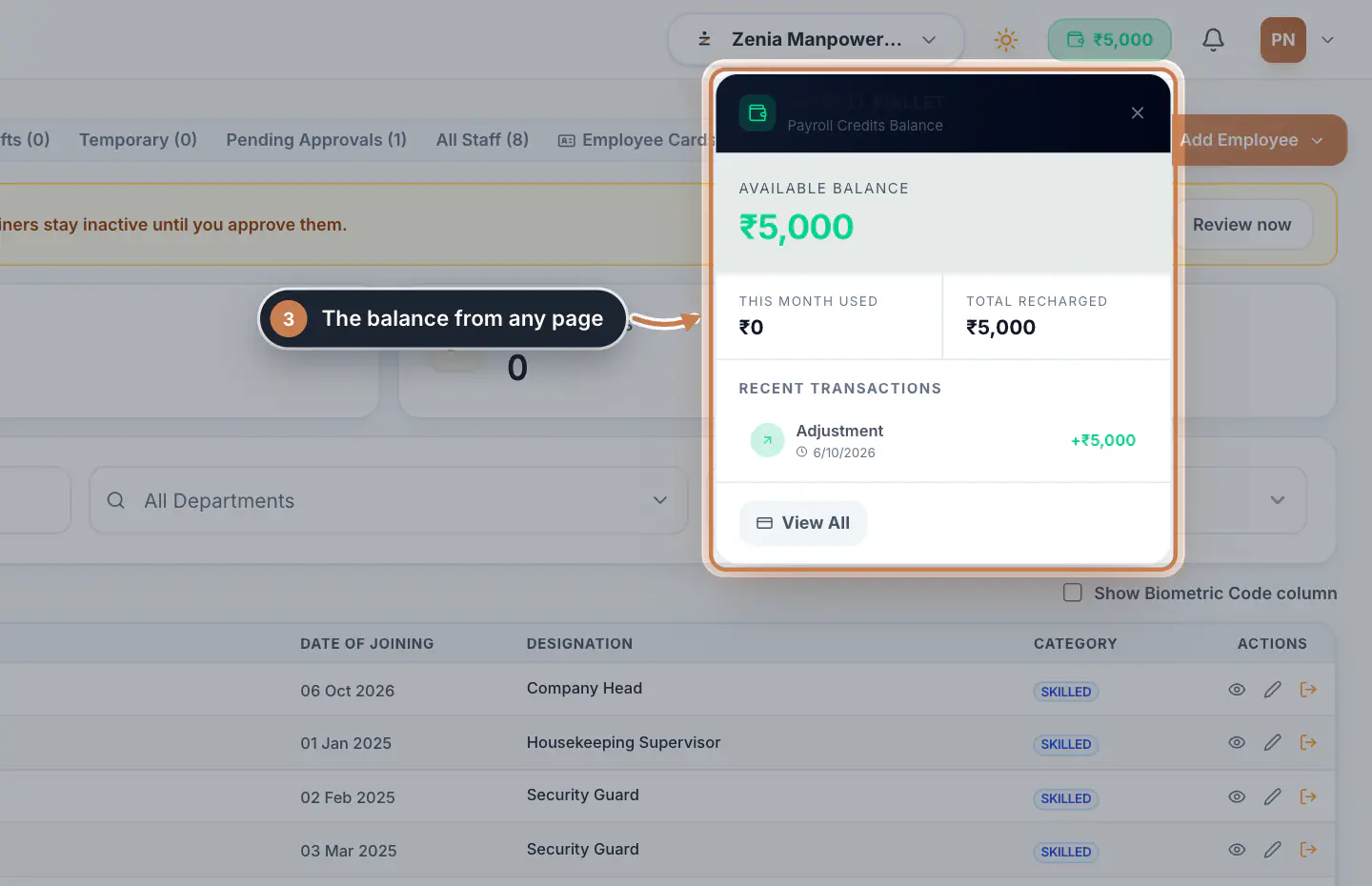
Step 2 See the balance from any page
Click the balance in the header, on any page. It shows the available balance, this month's use, the total credit added and the latest entries; View All opens the Payroll Wallet. The header balance turns amber or red with the same warnings as the page.
 Full size
Step 3
What it does
The Payroll Wallet holds the credit that pays ZeniaHR's processing fee each time payroll is generated. It does not pay salaries. The page shows the Available Balance, today's and this month's usage, the total credit added and an estimate for the next payroll run, followed by the Transaction History.
Each employee is charged only once per company and payroll period. Editing, recalculating or saving the same month's payroll again never charges again; only employees who are new to that period are charged.
Who uses it
- Company Head, HR and Finance can see the wallet.
- Credit is added by the ZeniaHR team. To add funds, contact ZeniaHR support at support@zeniahr.com.
How it connects
Every way of generating payroll passes through the wallet: generating payroll, pushing attendance to payroll and creating payroll entries. The balance also shows in the header of every page, so you can see it before a payroll run.
When the wallet warns you
- Critical: Payroll generation blocked (red) shows only when this month's payroll has employees who are not charged yet and the balance does not cover their fee. The card says how much the run needs and how much the balance is short, and payroll cannot be generated until credit is added.
- Low balance. (amber) shows when the balance is under ₹1,000 and your plan charges a fee per employee. Payroll still runs.
- When nothing is due, for example on a plan with no per-employee fee or when everyone in this month's payroll is already charged, there is no warning and payroll is never blocked, even at ₹0.
Questions
How do I add credit to the wallet?
Contact ZeniaHR support at support@zeniahr.com, or raise a support ticket from Help on your Dashboard. See Contact support.
Why is there no warning when the balance is ₹0?
Nothing is due. Your plan has no per-employee fee, or every employee in this month's payroll is already charged, so payroll runs without using the wallet.
Does editing payroll after a run use more credit?
No. Each employee is charged once for a payroll period. Recalculating, editing or saving the same month again does not charge again.
