Vendor Management module
Keep the suppliers, contractors and service providers your company works with, with their contact person, category, rating and status.
Key screens
See your vendors
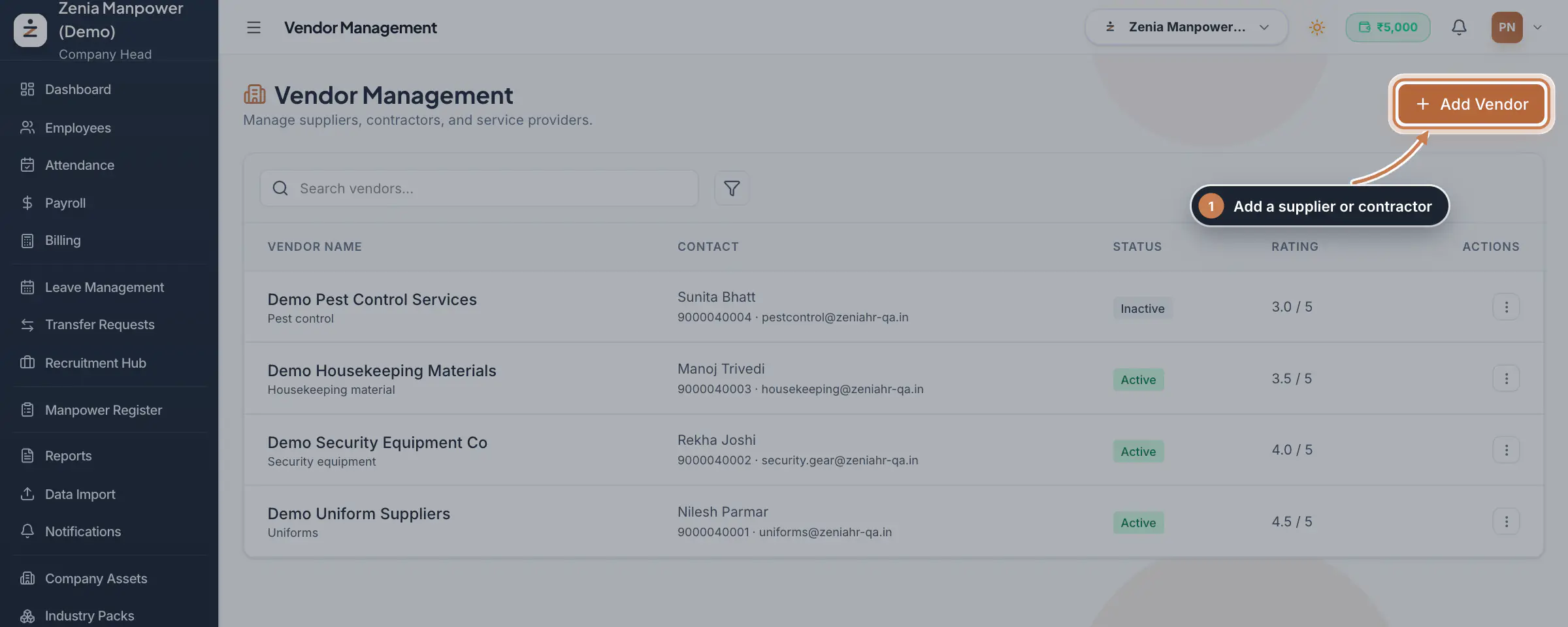
In the sidebar, open the Workplace group and click Vendor Management. Each row shows the vendor's name with its category under it, the contact person with their phone and email, the status and the rating. A vendor without a rating shows Not rated.
 Full size
Step 1 Add a vendor
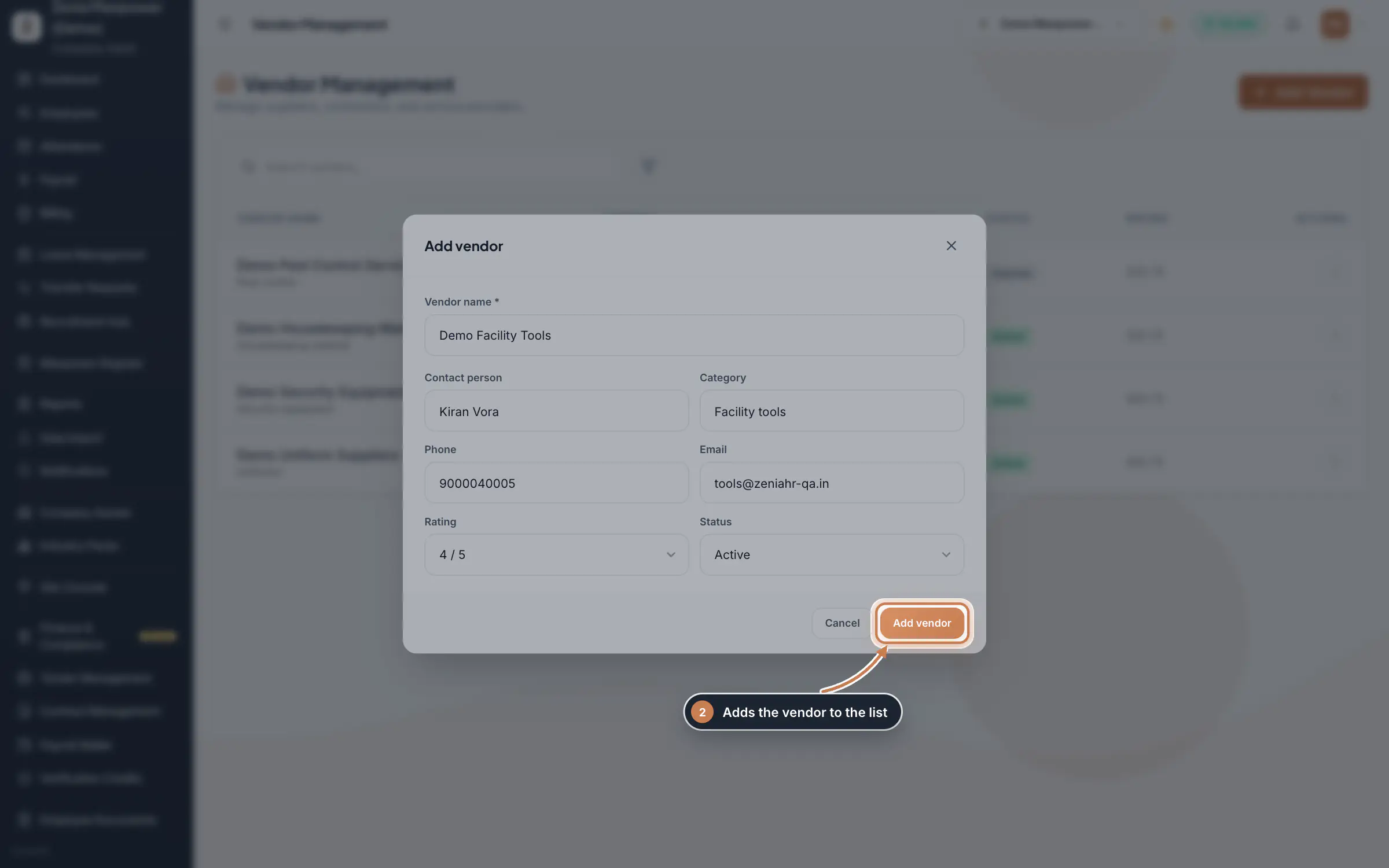
Click Add Vendor. Type the Vendor name, which is the only field you must fill, then the Contact person, a Category such as Uniforms, the Phone and the Email. Pick a Rating from 1 to 5 in half steps, or leave it Not rated, and the Status. Click Add vendor.
 Full size
Step 2 Tip Use the same category name for vendors of the same kind. The category filter lists the categories your vendors have.
Edit, deactivate or delete a vendor
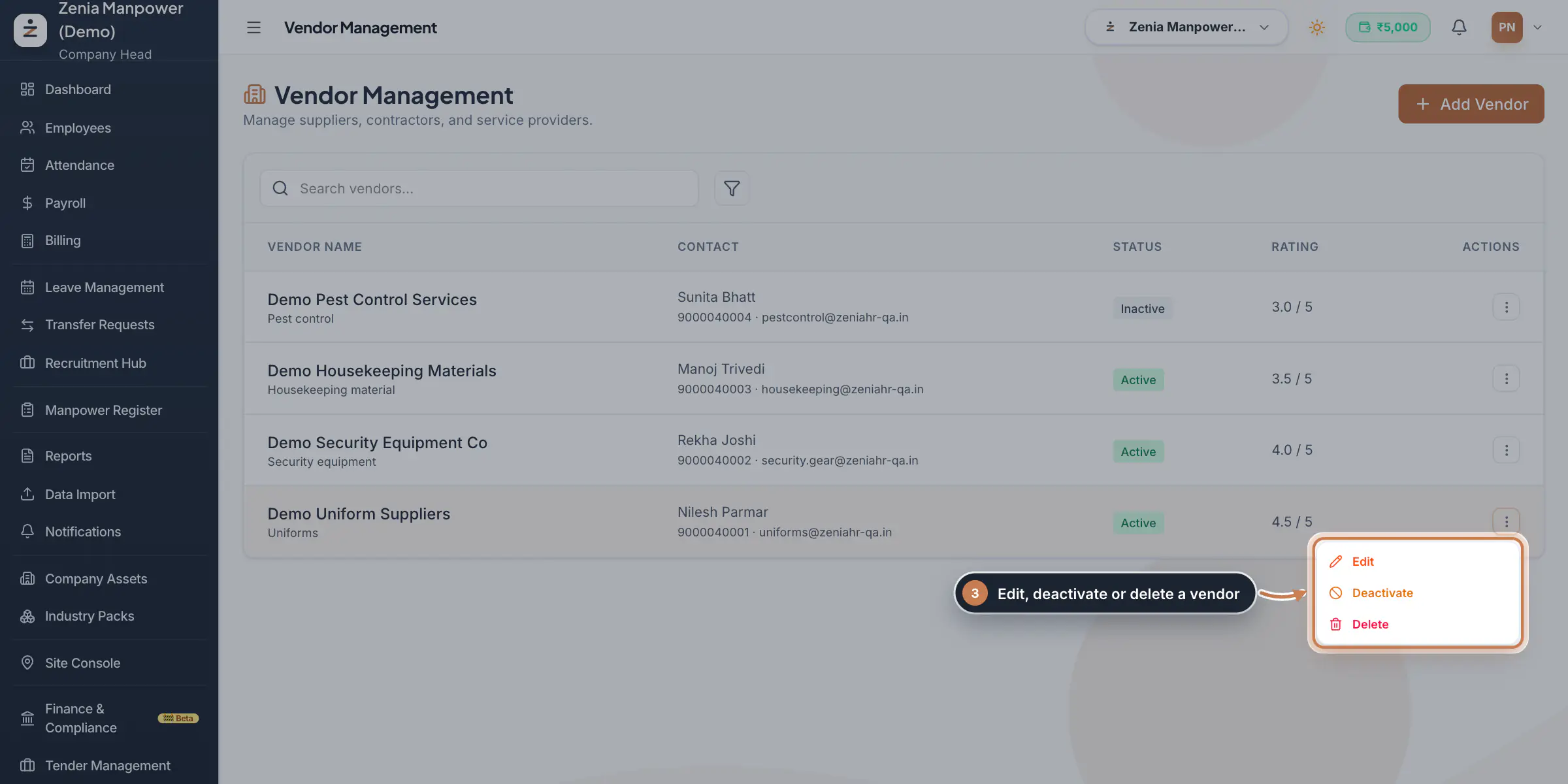
Click the three dots at the end of a vendor's row. Edit opens the same form; change what you need and click Save changes. Deactivate marks the vendor Inactive at once and keeps everything on file; an inactive vendor's menu shows Reactivate instead.
 Full size
Step 3 Delete a vendor for good
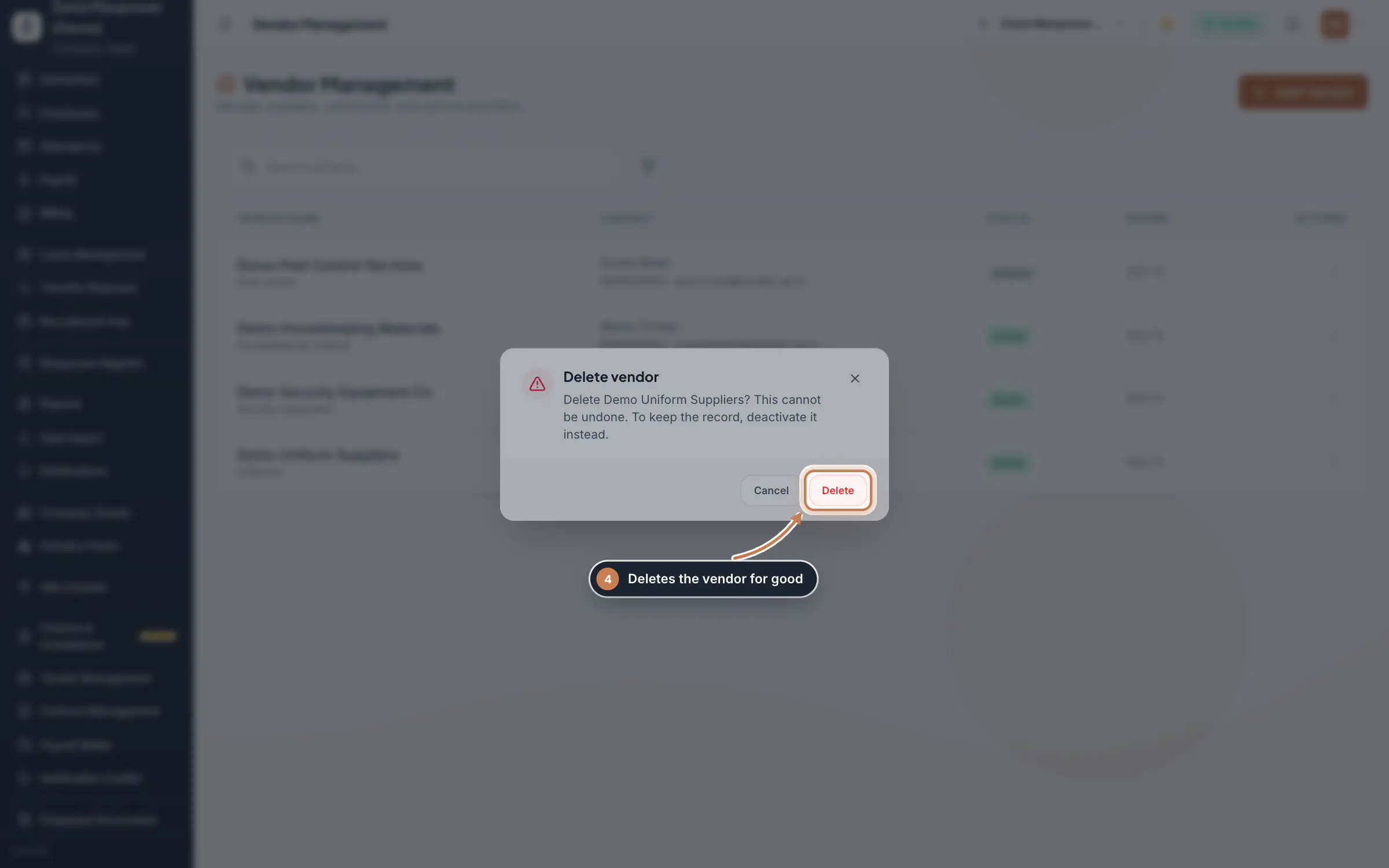
Delete asks first. Click Delete in the box to remove the vendor for good, or Cancel to keep it. To keep the record, deactivate the vendor instead.
 Full size
Step 4 Find a vendor
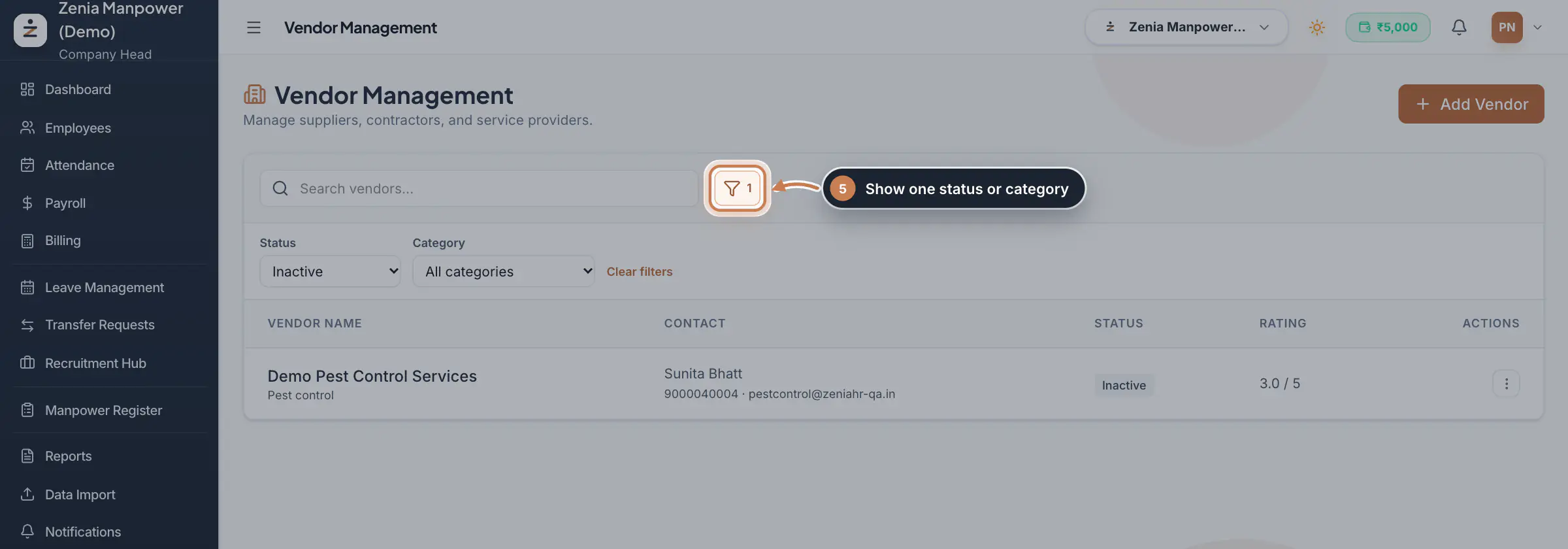
Type part of a name in Search vendors... and the list narrows as you type. Click the filter button next to it to show one Status (Active or Inactive) or one Category. The number on the button shows how many filters are on; Clear filters shows every vendor again.
 Full size
Step 5
What it does
Vendor Management keeps the list of suppliers, contractors and service providers your company works with, for example uniform, security equipment and housekeeping material suppliers. Each vendor has a name, a category, a contact person with phone and email, a rating out of 5 and a status: Active, or Inactive for a vendor you no longer use but want to keep on file.
Who uses it
- Company Head and HR add, edit, deactivate and delete vendors.
How it connects
This list is a directory only. To record a vendor's bills and what you have paid them, use Vendor Bills in the Billing console, which keeps its own list of the agencies and suppliers you pay.
Questions
Can I record what we owe a vendor here?
No. Vendor Management is a list only. Record bills and payments to vendors in Billing, under Vendor Bills.
What is the difference between Deactivate and Delete?
Deactivate keeps the vendor with all its details as Inactive, and Reactivate brings it back. Delete removes the vendor and cannot be undone.
Why is the vendor not saved?
The vendor needs a name, and the email, when you fill it, must be a complete address such as name@company.com.