Billing module
The Billing console of a manpower company, where you turn attendance on each contract into GST invoices and follow every payment.
Key screens
The billing dashboard
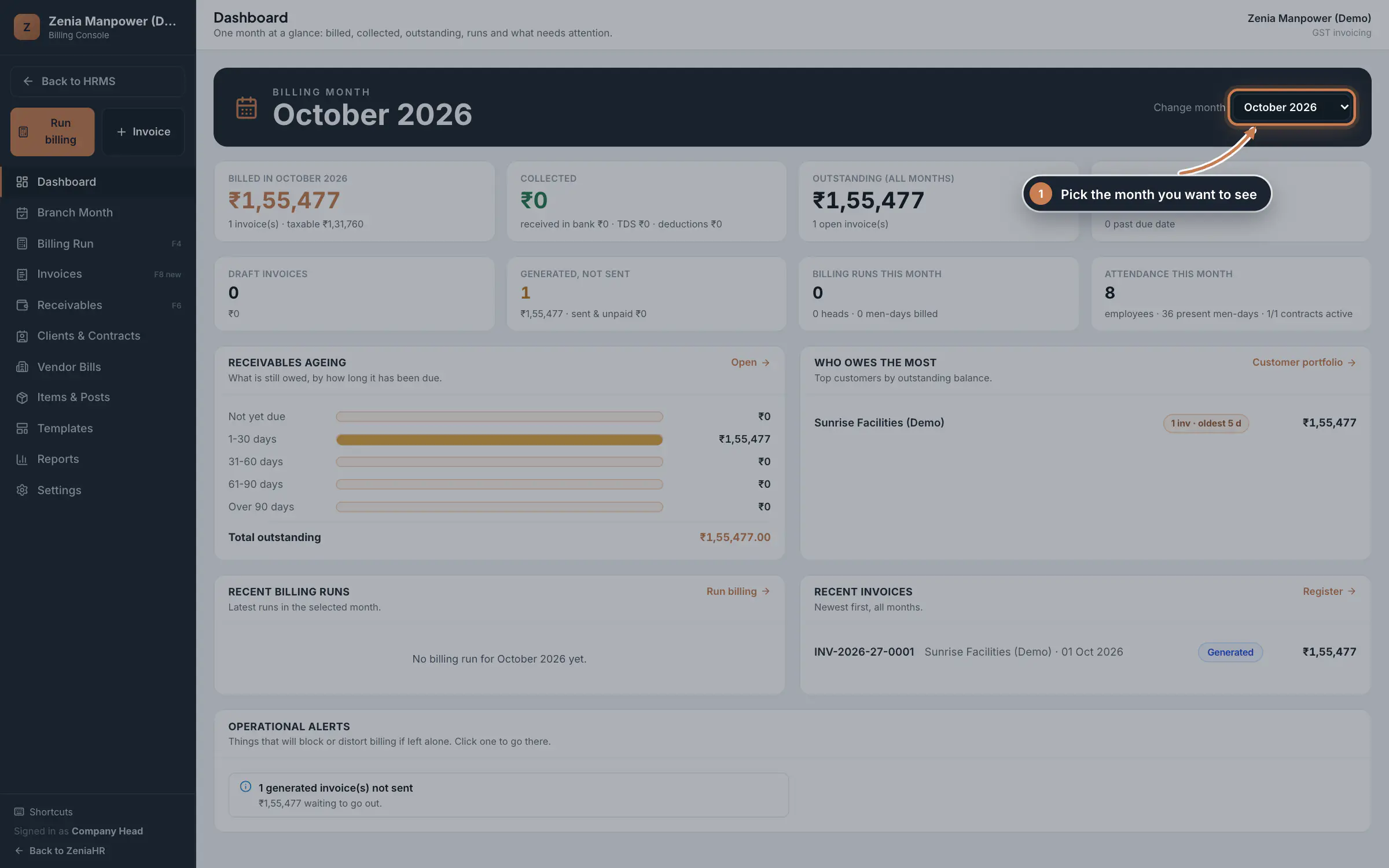
In the main sidebar, click Billing. The console opens in a new tab on the Dashboard, which shows one month at a glance: billed, collected, outstanding and overdue amounts, draft and unsent invoices, billing runs, attendance, receivables ageing and the clients who owe the most. Use the month selector to change the month. Operational alerts at the bottom list anything that will block billing; click one to go there.
 Full size
Step 1 Tip Keyboard shortcuts work across the console: F2 dashboard, F4 billing run, F6 receivables, F8 new invoice and F9 vendor bills.
Make a contract ready to bill
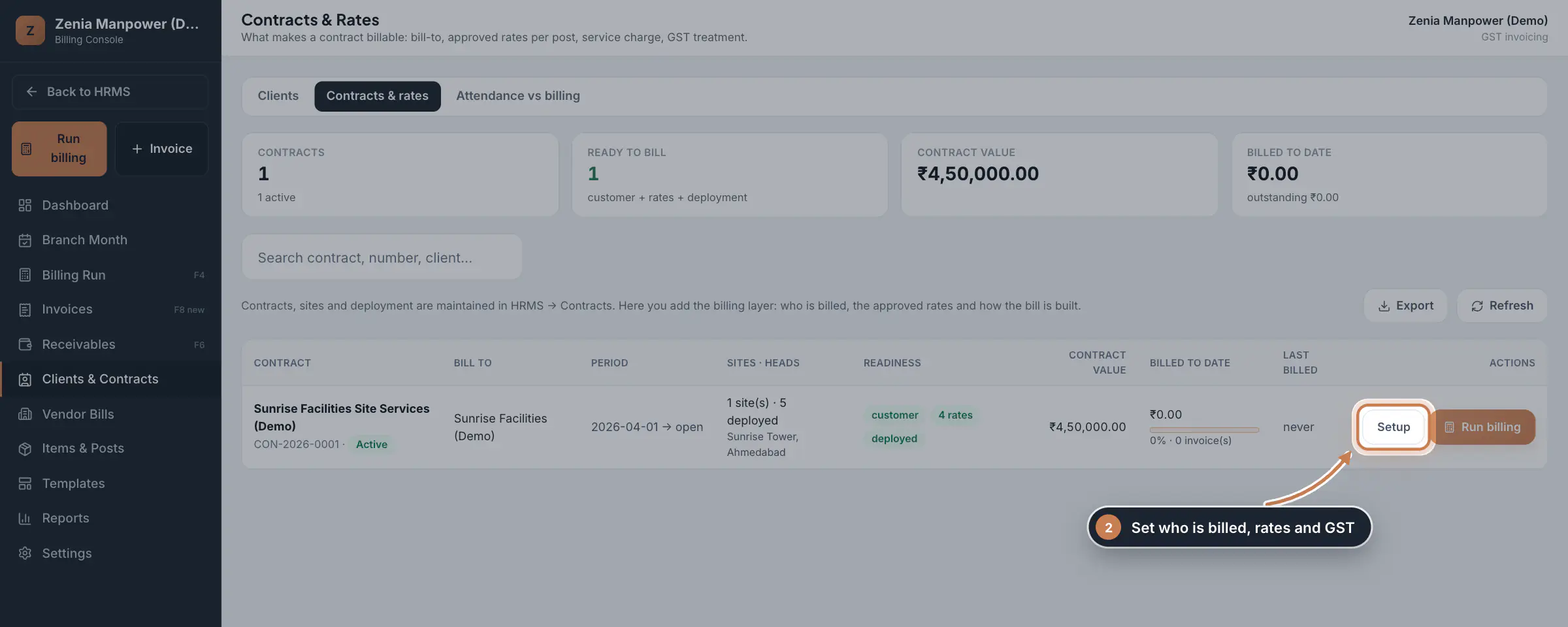
Click Clients & Contracts, then Contracts & rates. Each contract shows its client, period, sites and deployed heads, and a Readiness column. A contract is ready to bill when it has a customer, approved rates and deployed staff. Click Setup on a contract to add what is missing.
 Full size
Step 2 Set the billing profile and rate card
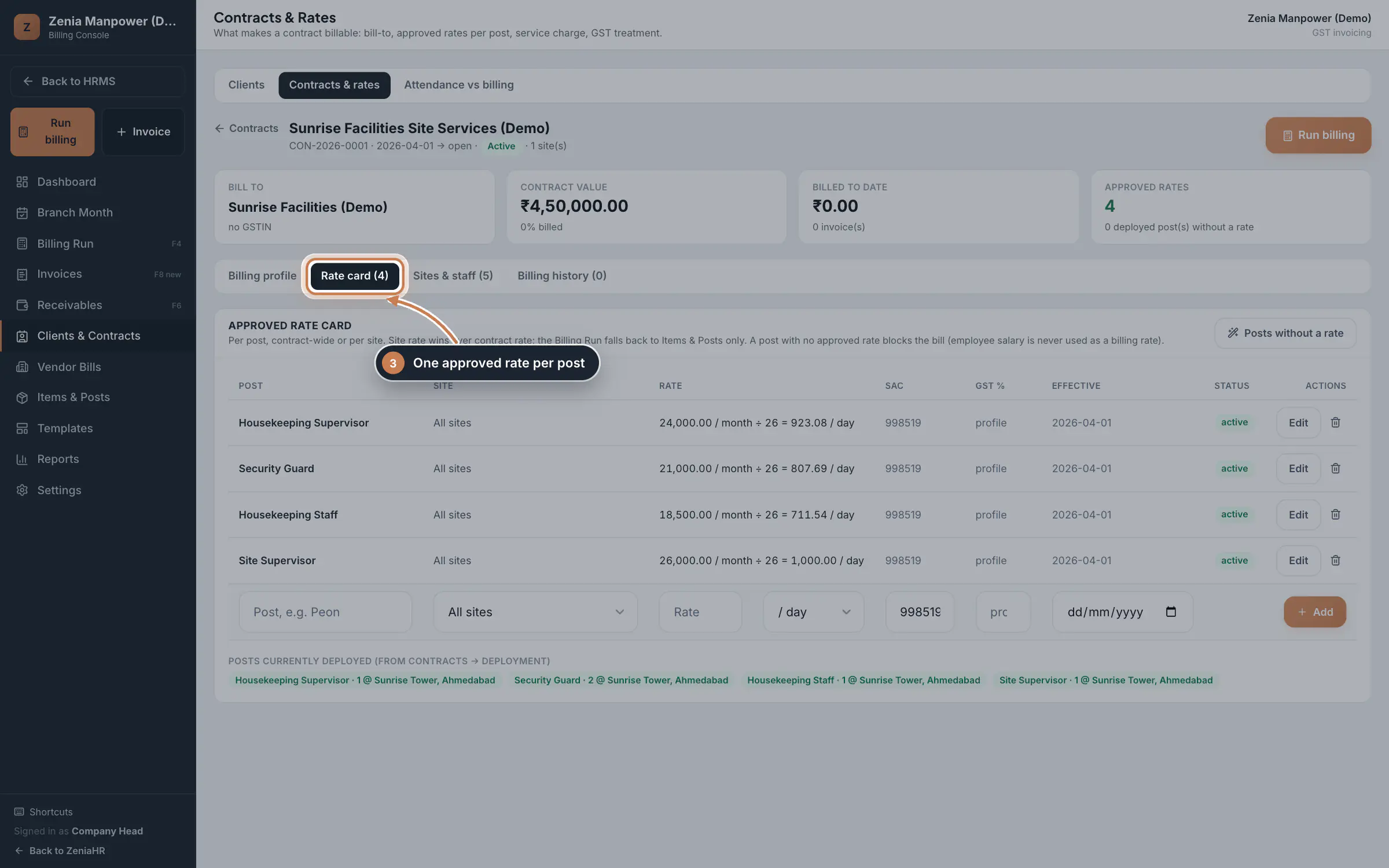
Inside Setup, the Billing profile tab sets the Bill to customer, the GST treatment, Service charge %, Credit days, work order and PO numbers, and whether you want one invoice per site. The Rate card tab holds one approved rate per post, by day or by month, for all sites or for one site. A site rate wins over the contract rate.
 Full size
Step 3 Tip A deployed post without an approved rate blocks the bill. The employee's salary is never used as a billing rate.
Run billing for a month
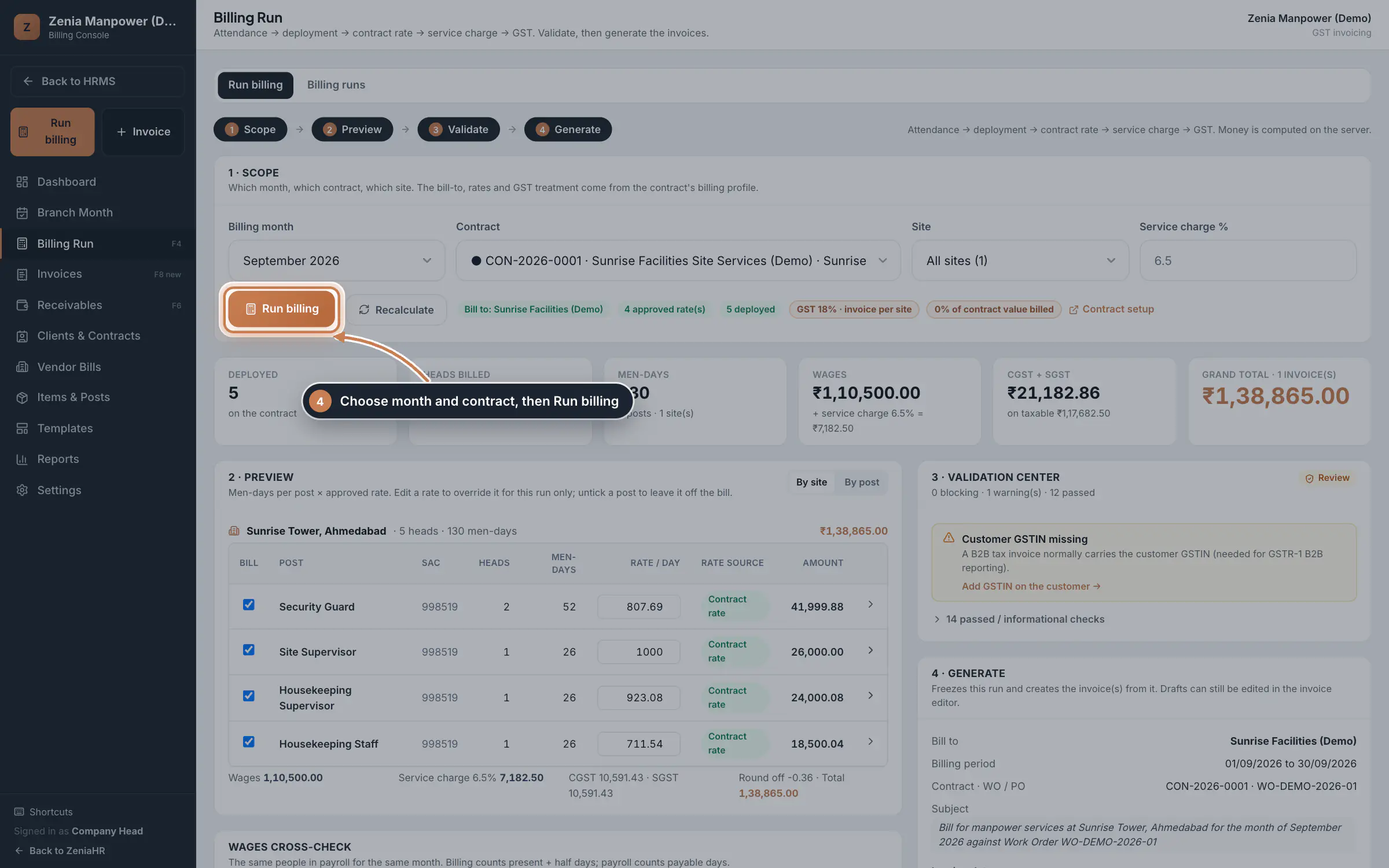
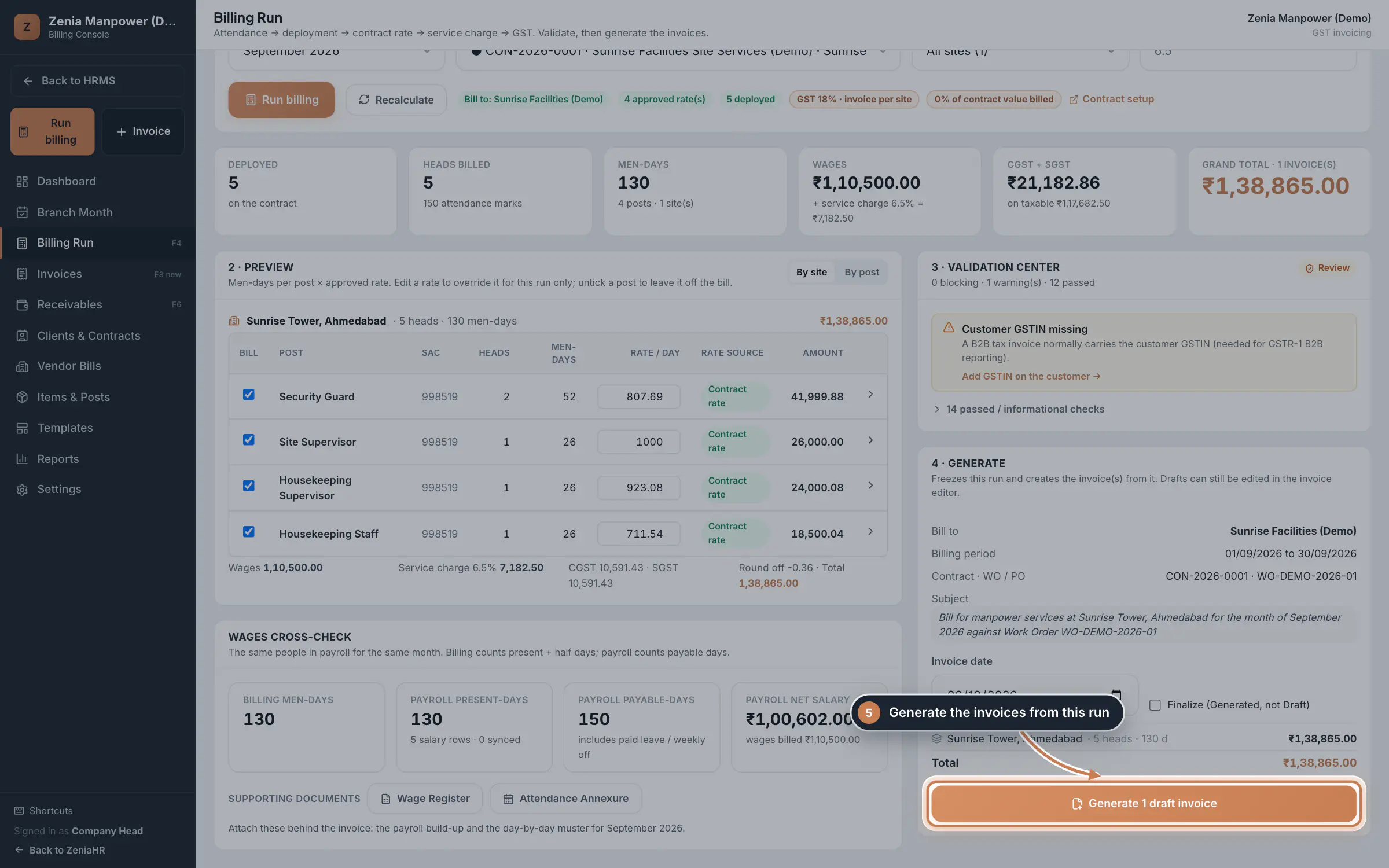
Click Billing Run. Choose the Billing month, the Contract and the Site, then click Run billing. The preview shows men-days per post multiplied by the approved rate, with the service charge, GST and grand total. You can change a rate for this run only, or untick a post to leave it off the bill. The Wages cross-check compares the billed men-days with payroll for the same people.
 Full size
Step 4 Validate and generate the invoices
The Validation Center lists blocking errors and warnings, such as a customer with no GSTIN, each with a link to fix it. In Generate, check the bill-to, billing period and subject, set the Invoice date, and click Generate. Invoices are created as drafts unless you tick Finalize (Generated, not Draft). Drafts can still be edited in the invoice editor.
 Full size
Step 5 The invoice register
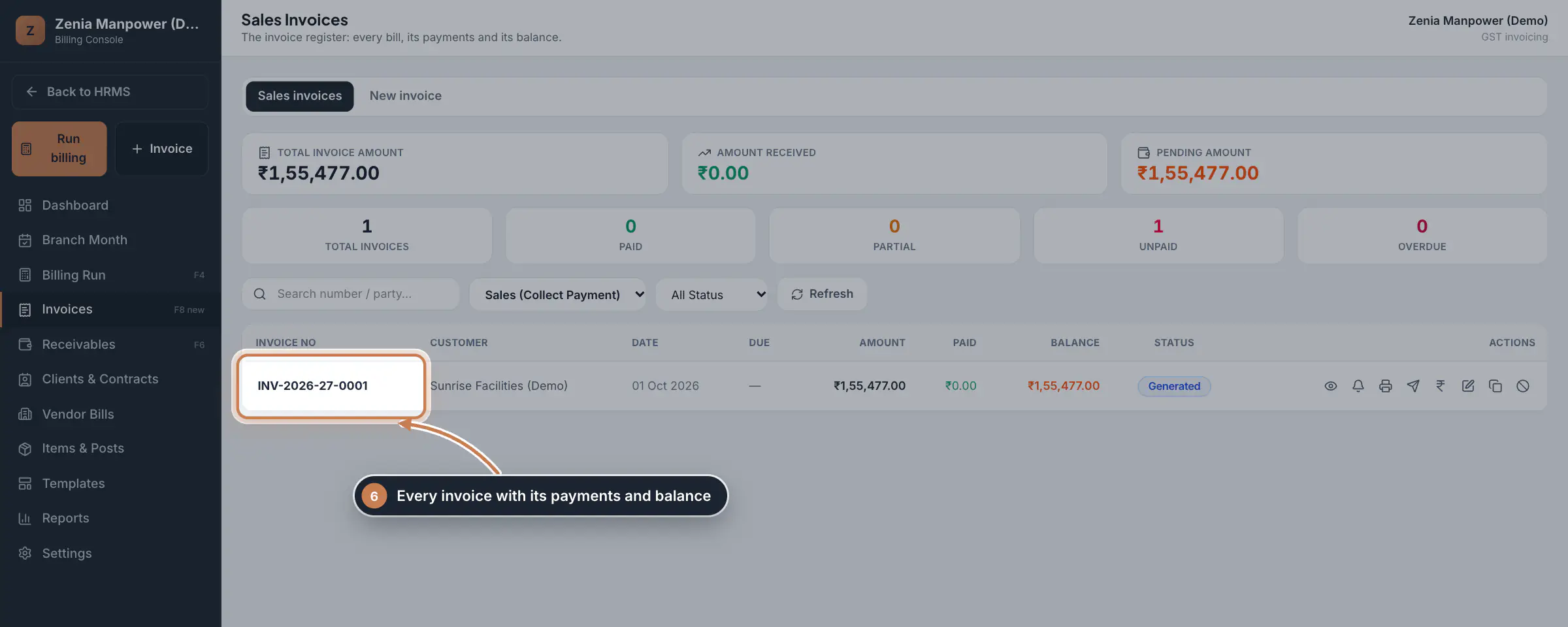
Click Invoices to see every sales invoice with its amount, payments and balance. The icons on each row let you view the invoice, open payment reminders, print or save it as PDF, email it to the customer, record a payment, edit, duplicate or cancel it. Use New invoice to write a bill by hand.
 Full size
Step 6 Collect payments
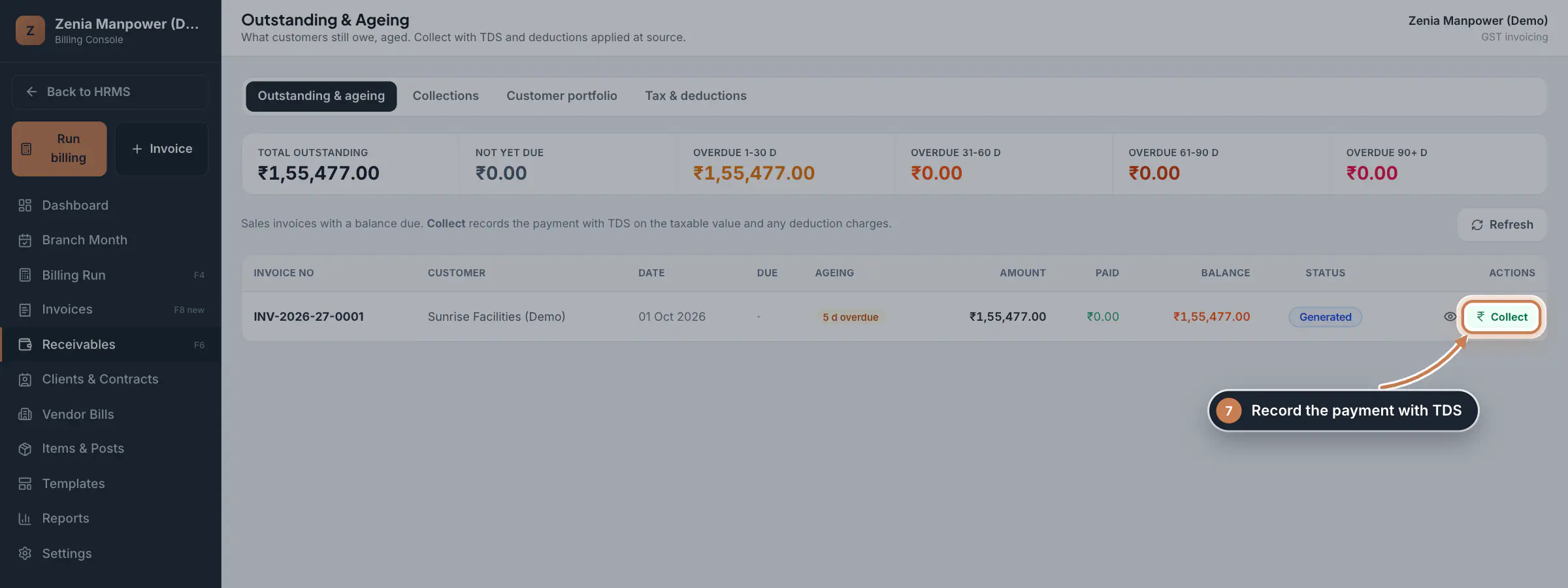
Click Receivables. Outstanding & ageing lists the invoices with a balance due, grouped by how long they have been due. Click Collect to record a payment with TDS on the taxable value and any deduction charges. The other tabs show Collections, the Customer portfolio and Tax & deductions figures you can give your accountant.
 Full size
Step 7
What it does
Billing is where a manpower company bills its clients. It opens as its own console in a new browser tab, with its own menu on the left: Dashboard, Branch Month, Billing Run, Invoices, Receivables, Clients & Contracts, Vendor Bills, Items & Posts, Templates, Reports and Settings.
A billing run follows one path: attendance, then deployment, then the contract rate, then the service charge, then GST. You check the result, and the console creates the invoices. After that you track what each client still owes and record payments with TDS and other deductions. All amounts are worked out on the server, so every user sees the same figures.
Who uses it
- Company Head, Finance and HR open the console and run billing.
- Company Head and Finance can also cancel or delete invoices and change the console Settings. Only the Company Head can change invoice Templates.
How it connects
Billing reads the contracts, sites and deployed staff kept in Contract Management, and the attendance marked for those staff. Each contract needs a billing layer before it can be billed: who is billed, the approved rate for each post and the GST treatment. You add that layer here, under Clients & Contracts. Branch Month also opens inside this console, so you can close a branch's attendance, payroll and bills from one place.
Questions
Why does a contract show as not ready to bill?
It is missing a customer, an approved rate for a deployed post, or deployed staff. The Readiness column under Contracts & rates shows which one. Staff are deployed in Contract Management, under Deployment.
Can I bill a client without a contract?
Yes. In Billing Run, choose No contract (department / company run) for the contract, then pick the department and the customer to bill.
Can I change a rate for just one month?
Yes. In the billing run preview, type the new rate on that post. It applies to this run only and does not change the contract's rate card.
Related
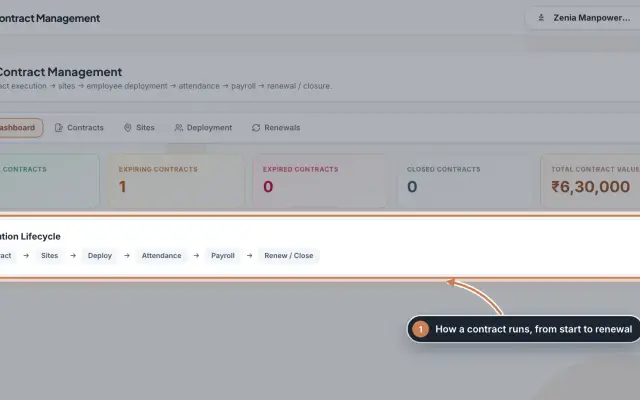 Contract Management moduleKeep every client contract with its sites and the staff deployed to each site, and renew contracts before they end.Module
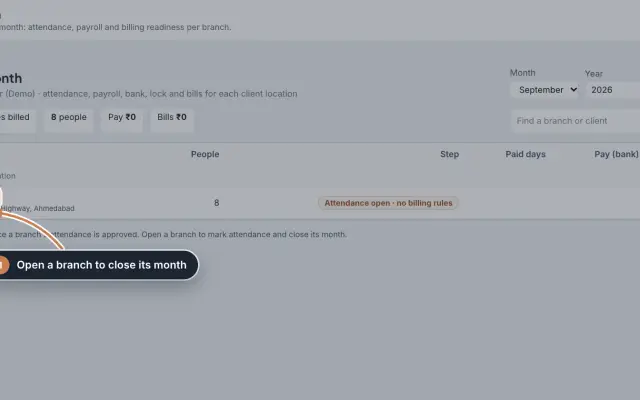 Branch Month moduleClose each branch's month in order, from attendance to payroll, the bank sheet and the client bills, and file EPF and ESIC for the whole company.Module
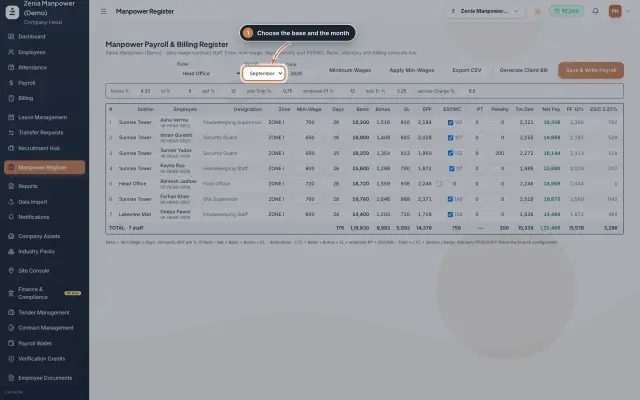 Manpower Register moduleOne sheet per base and month for daily-wage contract staff, where pay and the client bill are worked out together as you type.Module
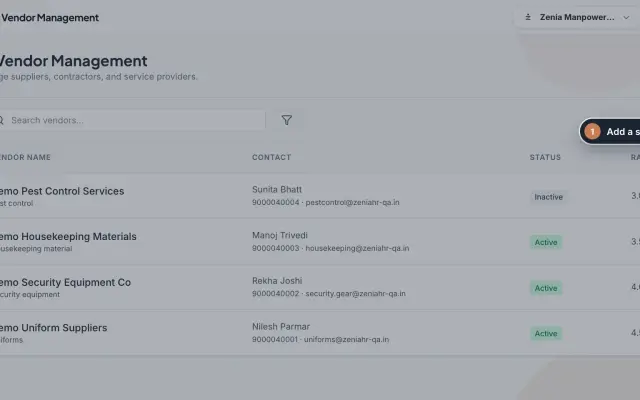 Vendor Management moduleKeep the suppliers, contractors and service providers your company works with, with their contact person, category, rating and status.Module
 Employees moduleThe staff directory, where you add people, open an employee profile and approve new joiners.Module
- Client billing for manpower firmsSee how it works on the ZeniaHR website