Sign in to ZeniaHR
Sign in to the web admin panel with your email, password and the picture check, sign out safely and reset a forgotten password.
Before you start
- You need a ZeniaHR login: the email and password your Company Head or HR team set up for you, or the ones you chose when you registered your company.
- Signing in on the web needs no code on your phone. An emailed code is used only to reset a forgotten password.
Steps
Enter your email and password
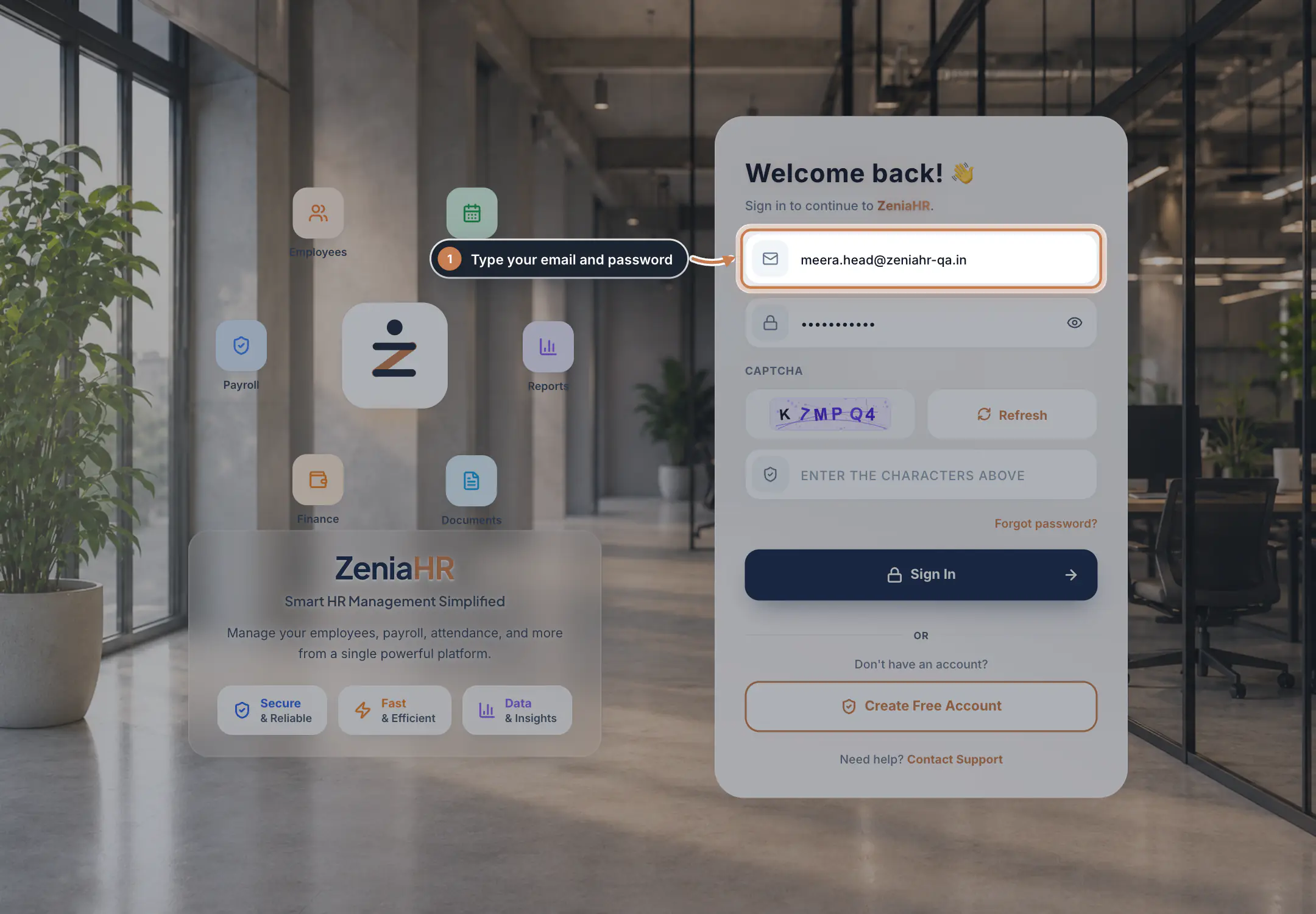
Go to admin.zeniahr.com. Type your email address in Enter your email and your password in Enter your password. Click the eye icon if you want to check what you typed.
 Full size
Step 1 Complete the picture check and sign in
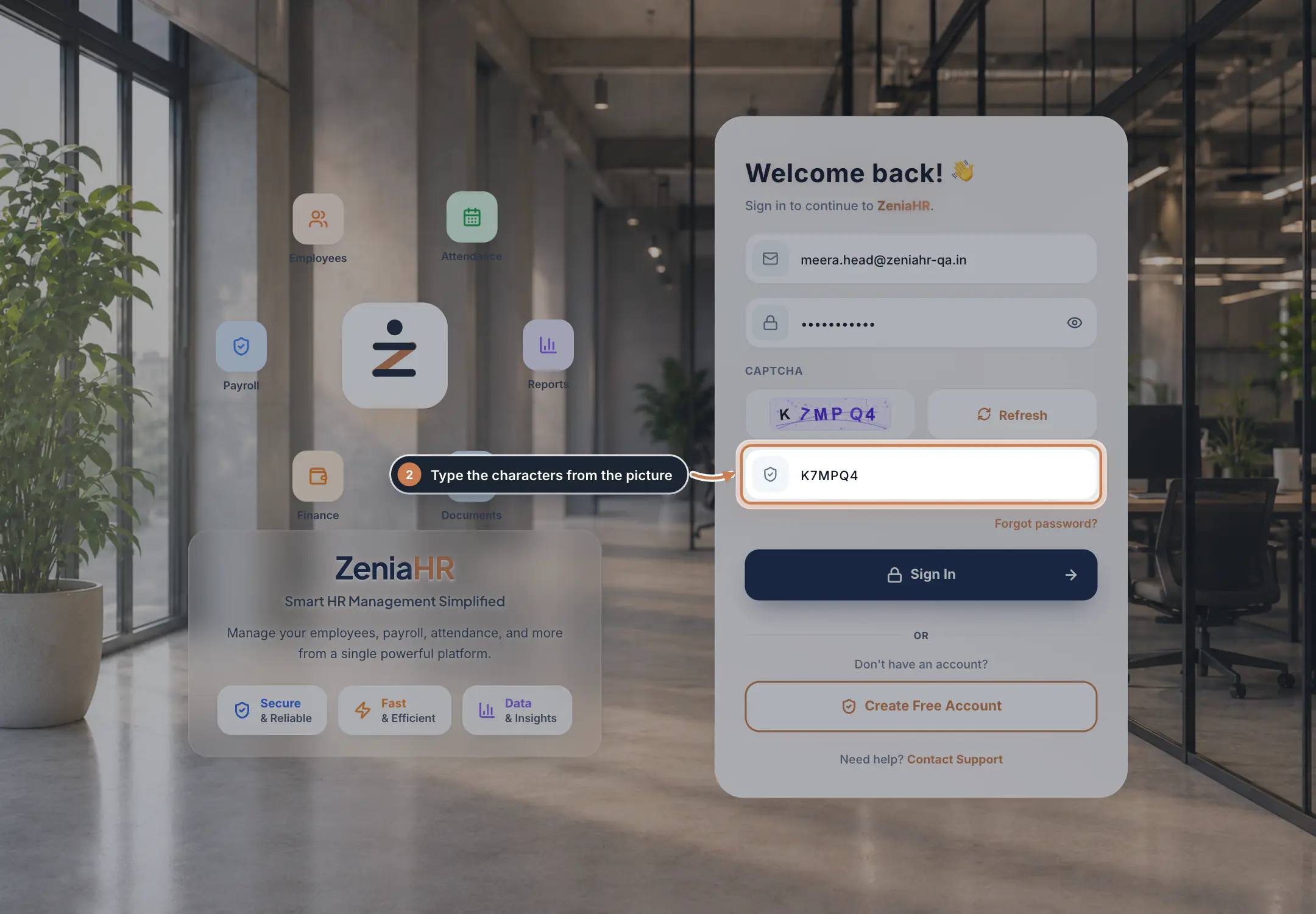
Under CAPTCHA, type the characters you see in the picture. Capital or small letters both work. If the picture is hard to read, click Refresh for a new one. Then click Sign In.
 Full size
Step 2 Tip Each picture works for one attempt only. After a failed sign in, a new picture appears and you type its characters.
Work in ZeniaHR, then sign out
Your Dashboard opens. If your login can work in more than one company or branch, ZeniaHR first shows Select a workspace: pick one and click Continue to Dashboard. You can switch later from the workspace menu at the top of the screen.
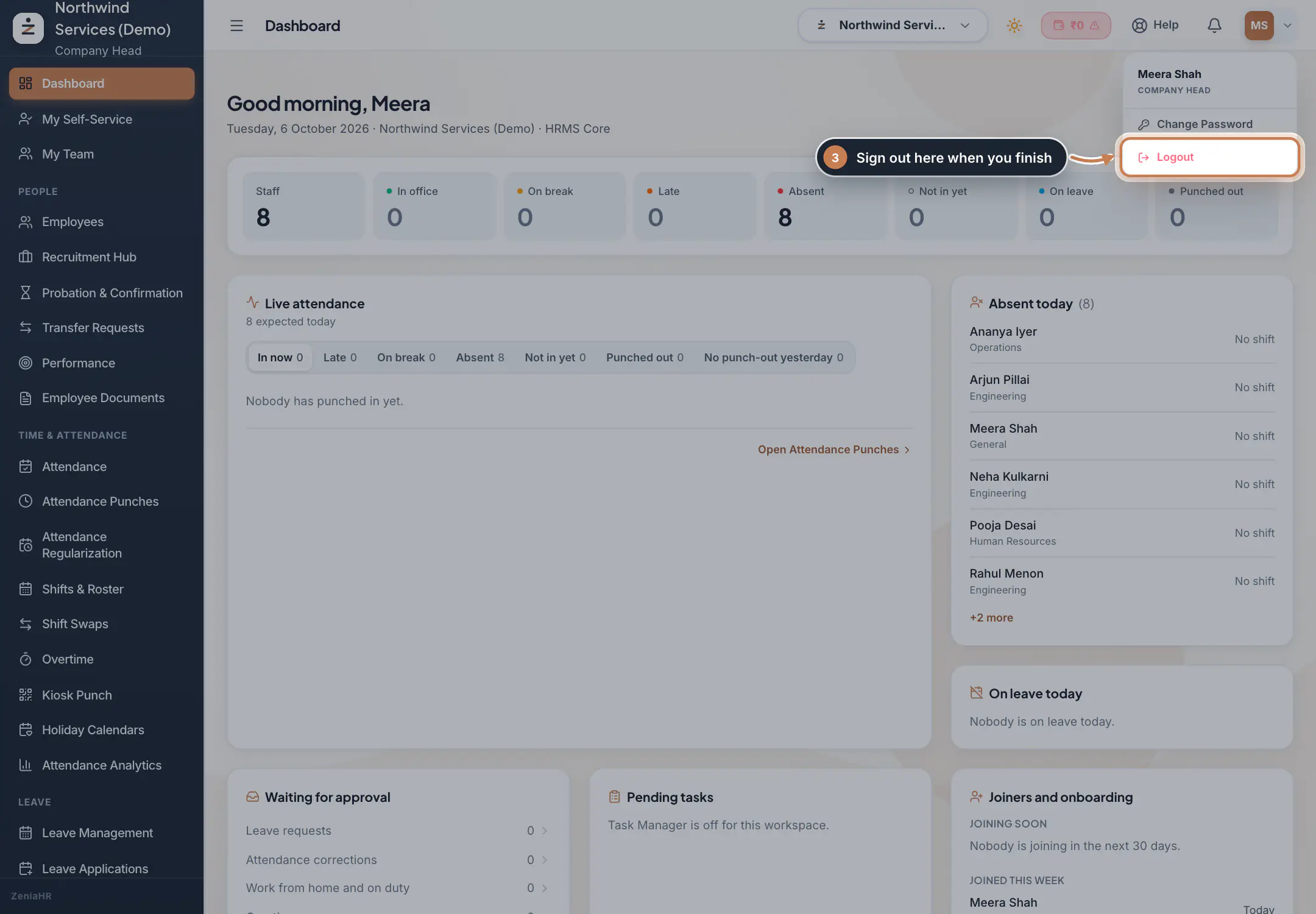
Click your picture or initials at the top right to open your account menu. Use Change Password to choose a new password, and Logout when you finish, especially on a shared computer.
 Full size
Step 3 Forgot your password? Click Forgot password?
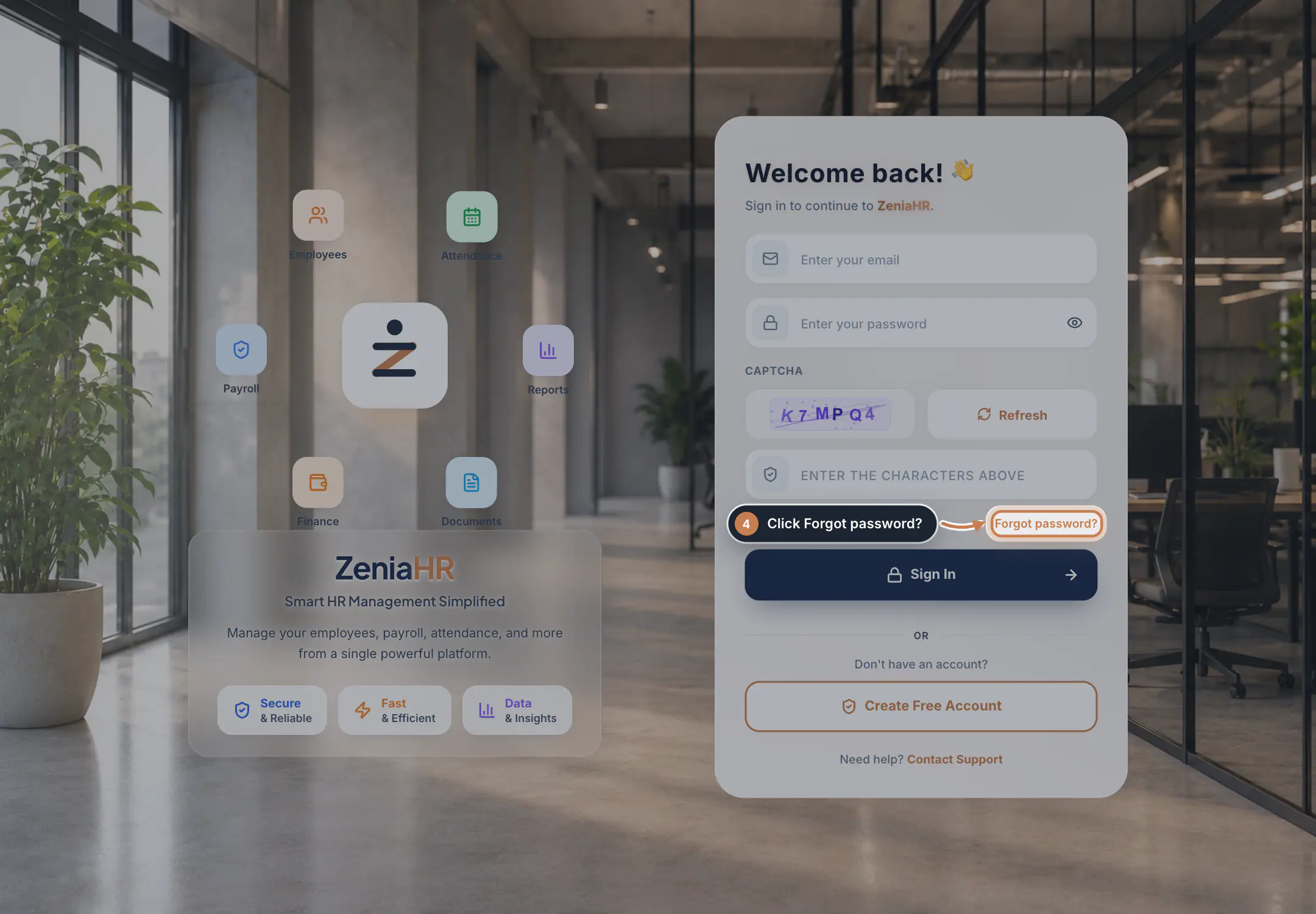
On the sign-in page, click Forgot password? under the CAPTCHA box.
 Full size
Step 4 Ask for a verification code
Type the email address you sign in with and click Send Verification Code. ZeniaHR emails you a 6-digit code.
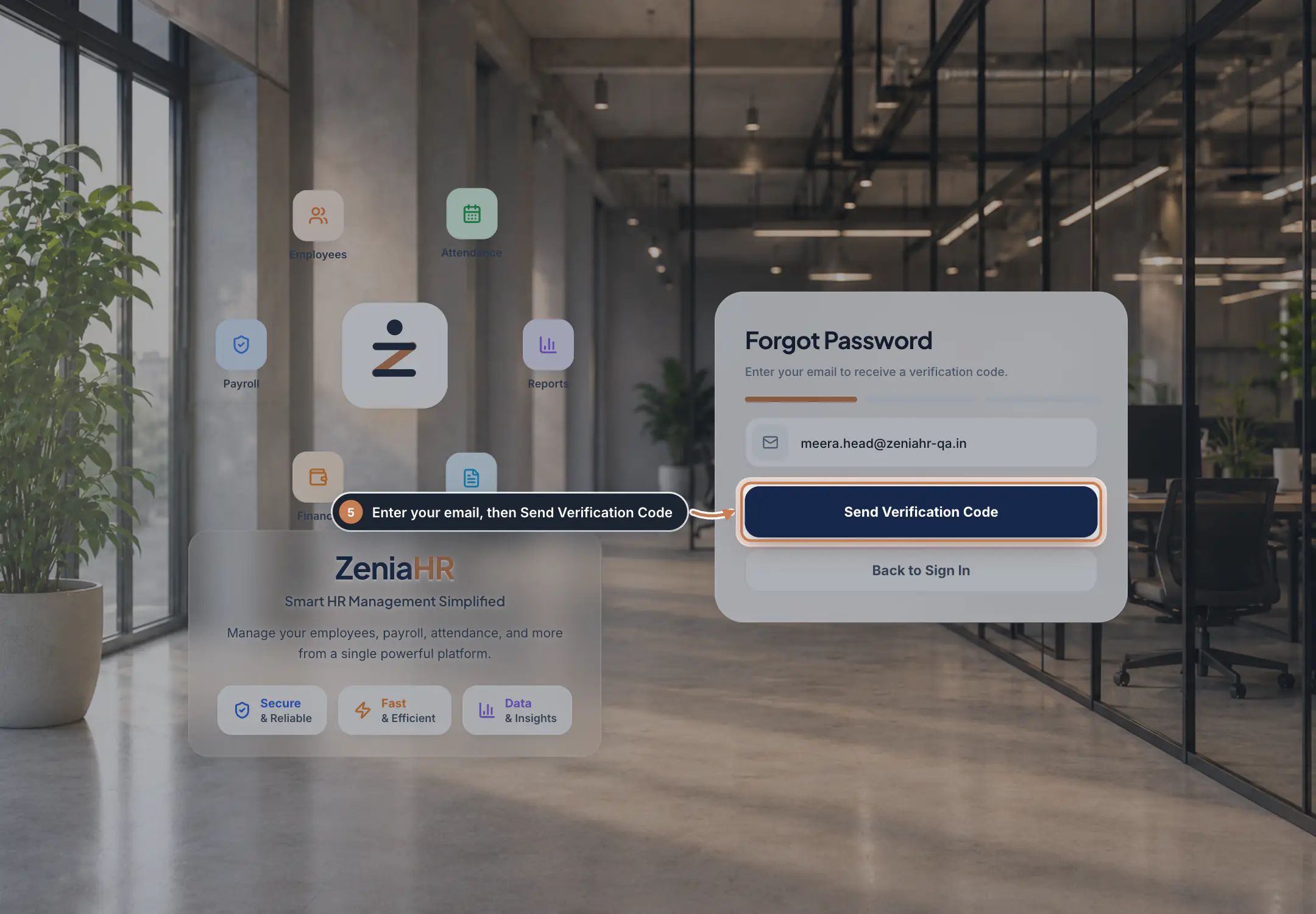 Full size
Step 5 Type the code
Type the 6-digit code from the email and click Verify Code. The code is valid for 10 minutes. If it does not arrive, click Resend code: you can ask for a new code once every 60 seconds, and only the newest code works.
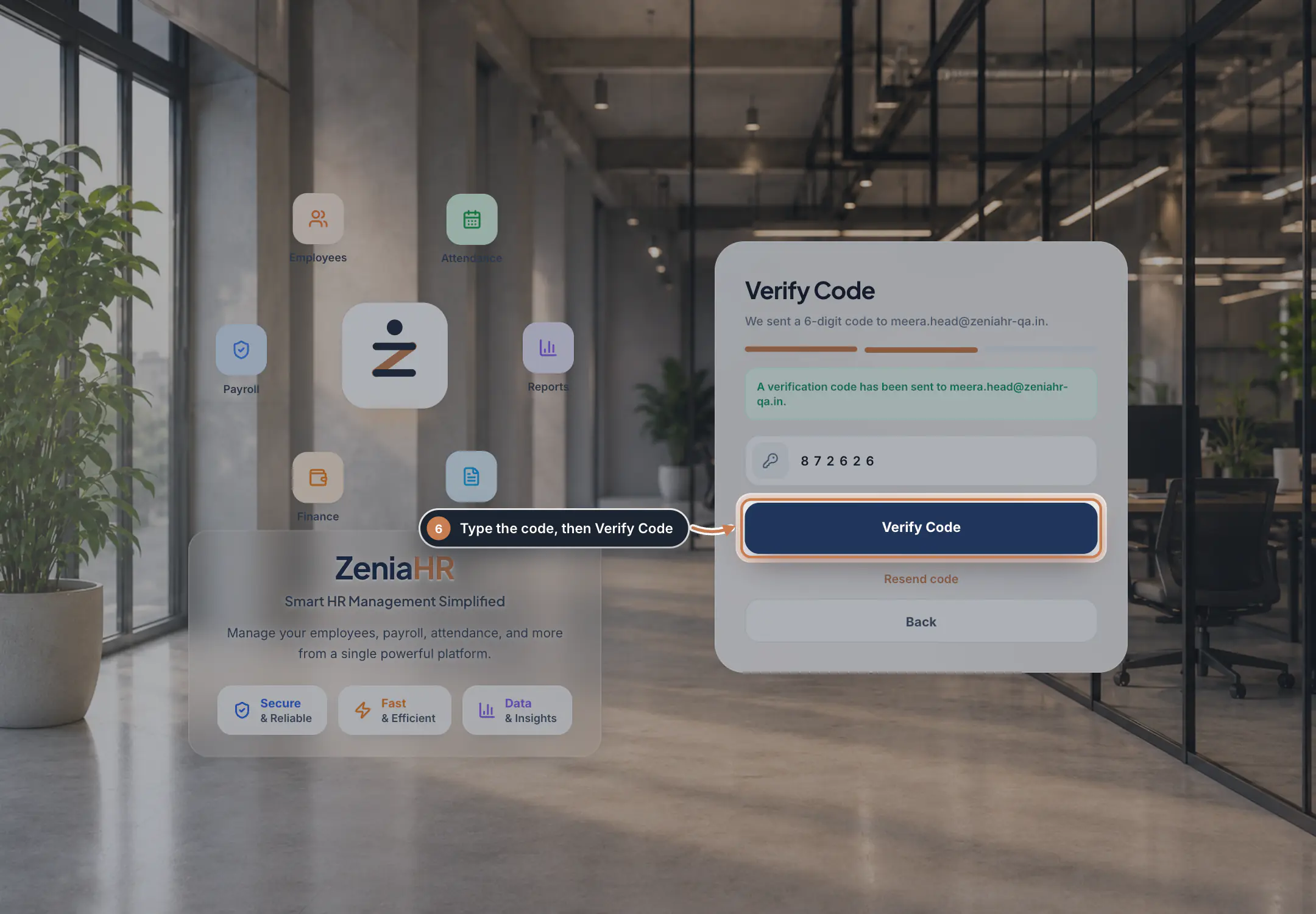 Full size
Step 6 Choose a new password
Type your new password and click Reset Password. It must have at least 8 characters, with a capital letter, a small letter, a number and a special character such as @ or #. When you see Your password has been reset successfully, sign in with the new password.
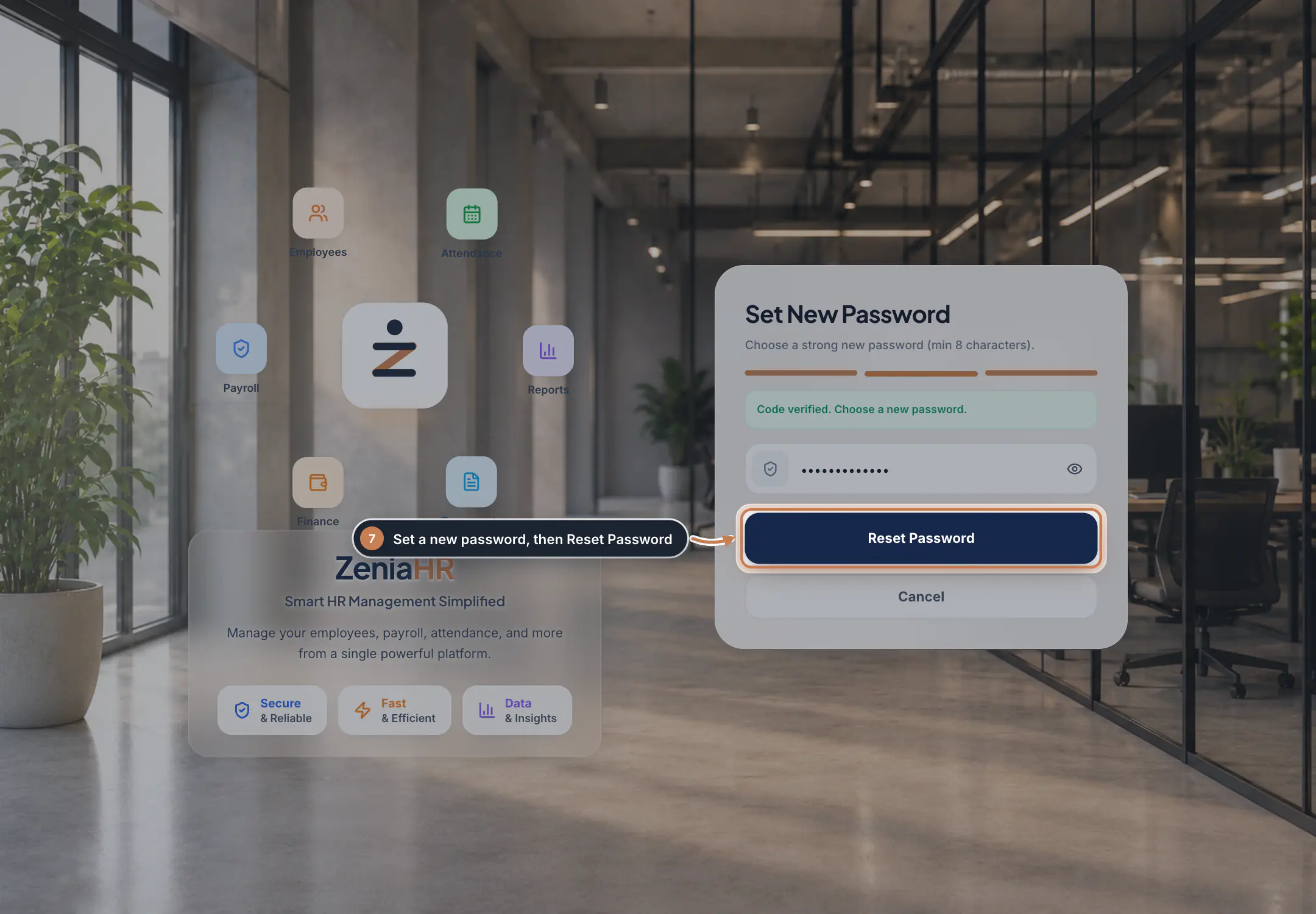 Full size
Step 7
Questions
Why was I signed out?
For your safety, ZeniaHR signs you out after 60 minutes without any activity, and your sign in ends when you close the browser. Sign in again to continue.
It says too many failed login attempts.
After several wrong passwords in a row, ZeniaHR pauses sign in for that email for a few minutes. The message tells you how long to wait. If you are not sure of your password, use Forgot password? instead of guessing.
I did not get the reset code.
Check your spam or junk folder, and make sure you typed the email you sign in with. Wait 60 seconds and click Resend code. If the code still does not arrive, your login may be inactive: ask your Company Head or HR team.
It says the code was wrong too many times.
After 5 wrong tries the code stops working. Click Resend code to get a new one.
It says Access Expired, Access Suspended or Access Blocked.
Your company's ZeniaHR workspace is not active, for example because its subscription has expired. Ask your Company Head to contact ZeniaHR support.
Do I need a code every time I sign in?
No. On the web you sign in with your email, your password and the picture check. ZeniaHR emails a code only when you reset your password, or when you verify your email while registering a company.
Related
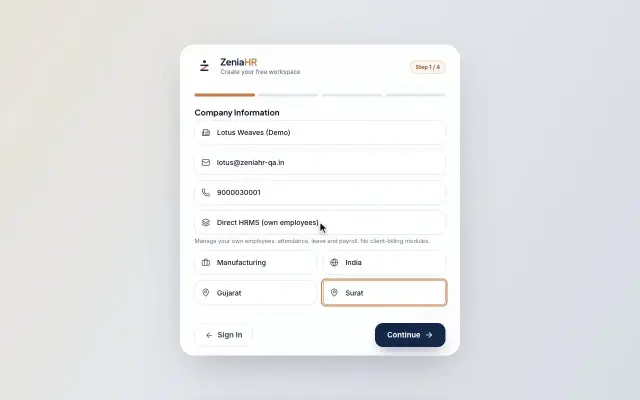 Register your companyCreate a free ZeniaHR workspace for your company in four short steps, verify your email and sign in for the first time.Guide29 s video
- Contact ZeniaHR supportRaise a support ticket from inside ZeniaHR, attach screenshots and follow the replies.Guide
- ZeniaHR for every businessSee how it works on the ZeniaHR website