Register your company
Create a free ZeniaHR workspace for your company in four short steps, verify your email and sign in for the first time.
Before you start
- Use an email address you can open right now. ZeniaHR sends a 6-digit code to it, and it becomes your sign-in.
- Keep your company's details handy: name, email, phone, state, city and head office address.
- Decide how your business works: do you deploy staff at client sites (manpower or staffing), or manage your own employees, or both?
Steps
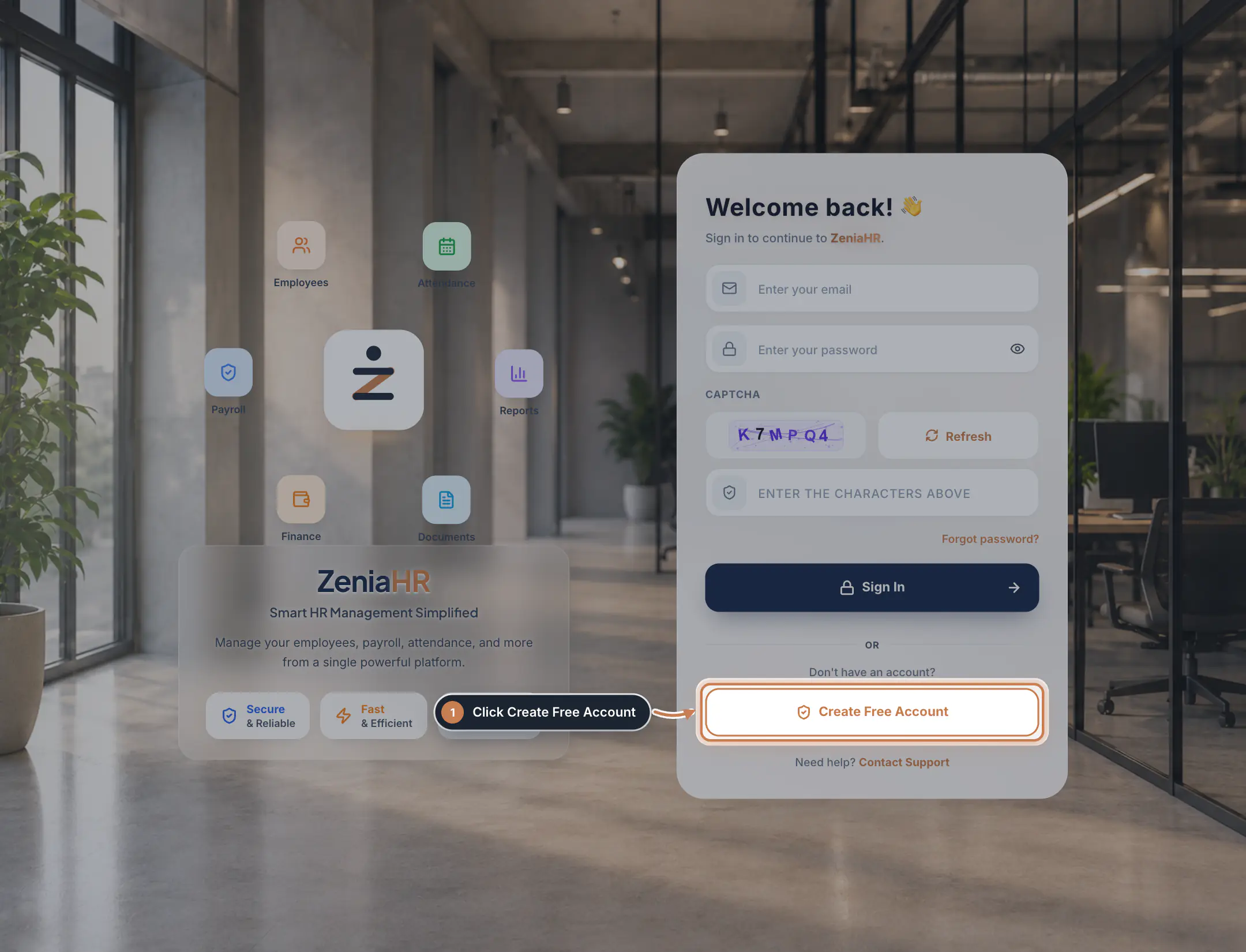
Open the sign-in page and click Create Free Account
Go to admin.zeniahr.com. Under Don't have an account?, click Create Free Account. The form has four steps; the bar at the top shows where you are.
 Full size
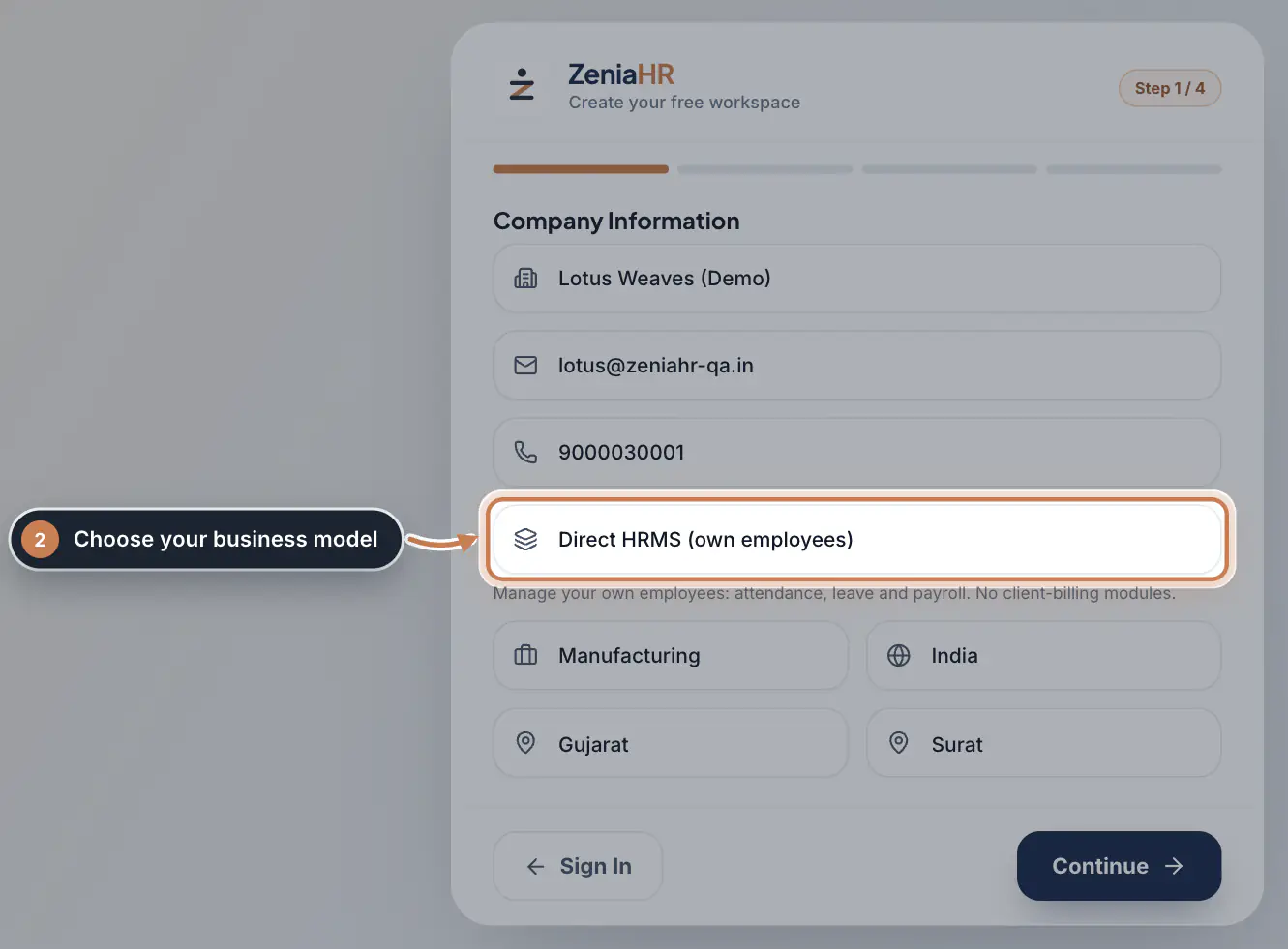
Step 1 Enter your company information
Type the Company name, Company email and Company phone. Then choose your business model: - Manpower / Staffing (clients, sites, billing) for agencies that deploy staff at client sites and bill clients. - Direct HRMS (own employees) for attendance, leave and payroll of your own staff, with no client billing. - Hybrid (both) if you do both.
Pick the Industry, check the Country and type the State and City. Every field on this step is required. Click Continue.
 Full size
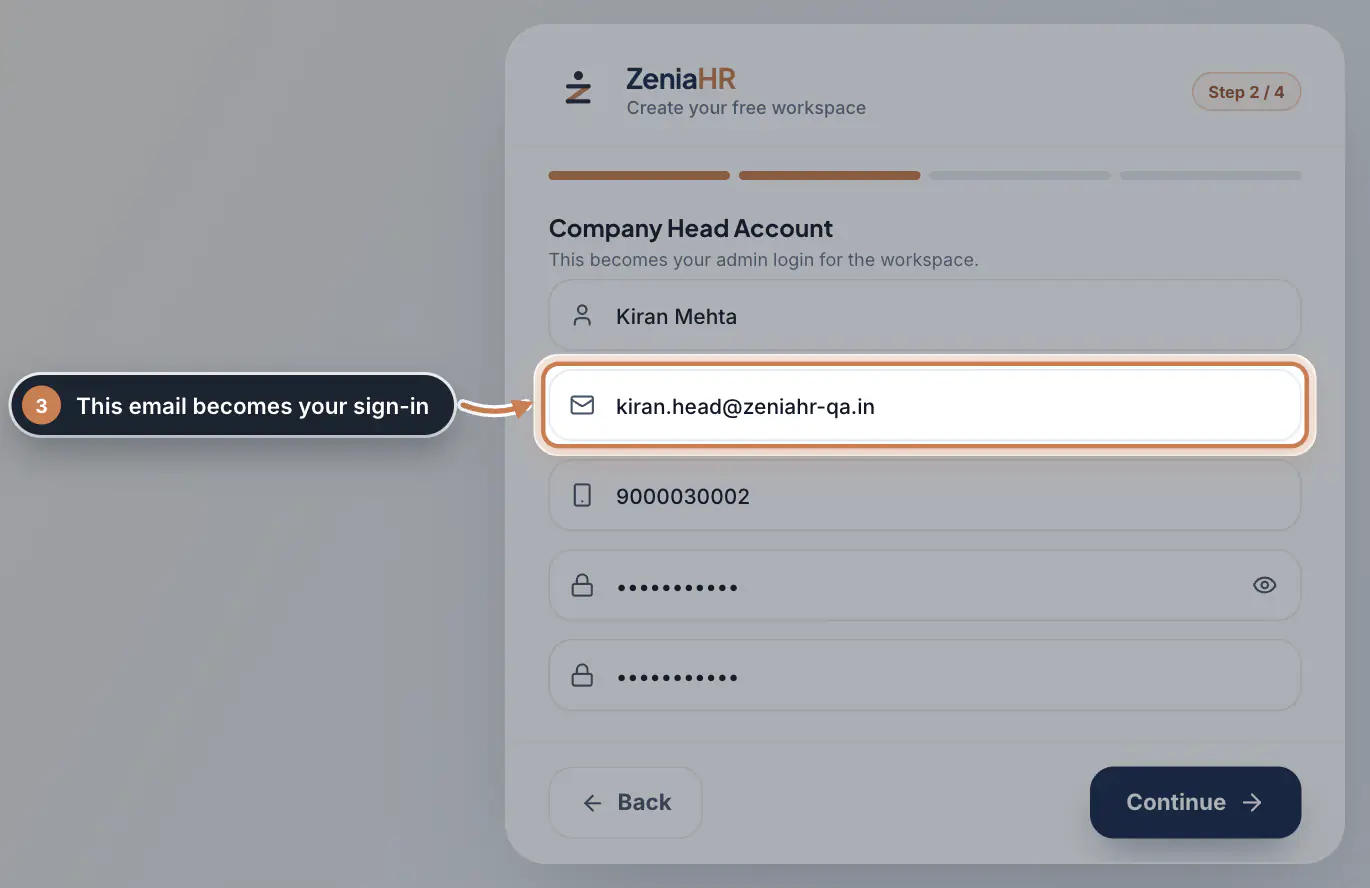
Step 2 Create the Company Head login
This person becomes the admin of the workspace. Enter the Full name, the Email (your login), the Mobile number and a Password of at least 8 characters with both letters and numbers. Type the password again in Confirm password and click Continue.
 Full size
Step 3 Tip The email on this step is the one you sign in with, and it can be used for only one account.
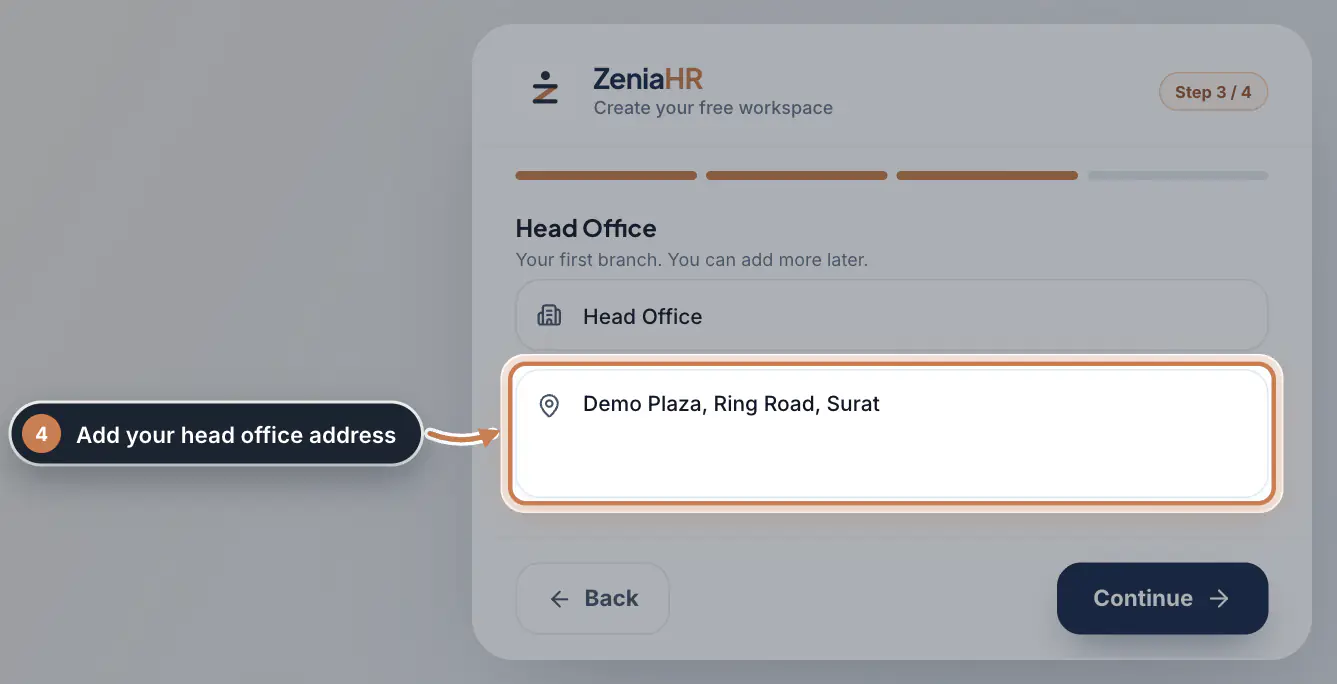
Add your head office
Your head office is your first branch. Keep the Branch name as Head Office or change it, type the Head office address and click Continue. You can add more branches later.
 Full size
Step 4 Choose a billing cycle and create the account
Every new workspace starts on the Free plan. Choose a Billing Cycle, Quarterly or Yearly: employee slots you buy later use the same cycle. Tick I agree to the Terms & Conditions and I agree to the Privacy Policy, type the characters from the picture under Security check (click Refresh for a new picture), then click Create Account.
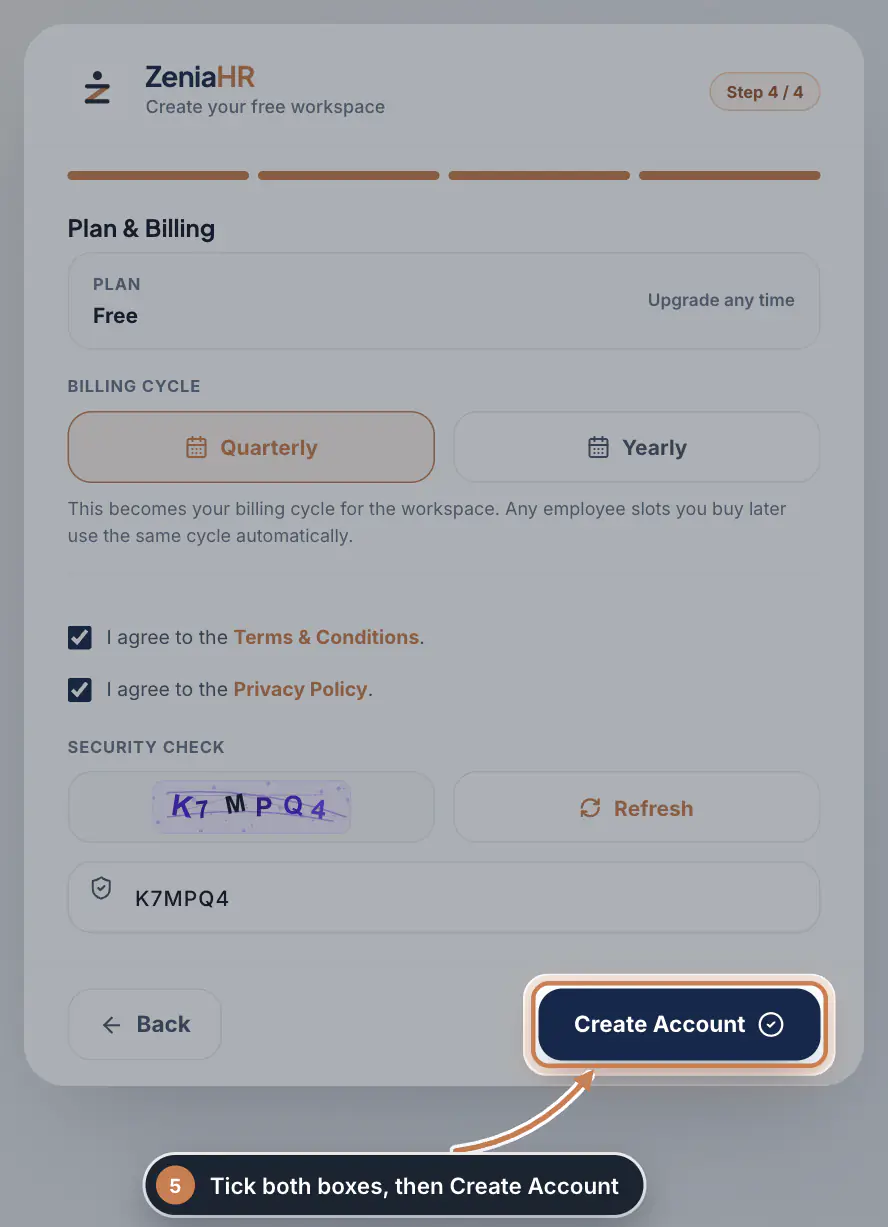 Full size
Step 5 Verify your email
Open the email from ZeniaHR and type the 6-digit code. Click Verify & Create Account. The code is valid for 10 minutes. If you typed a wrong email, click Back to form to correct it.
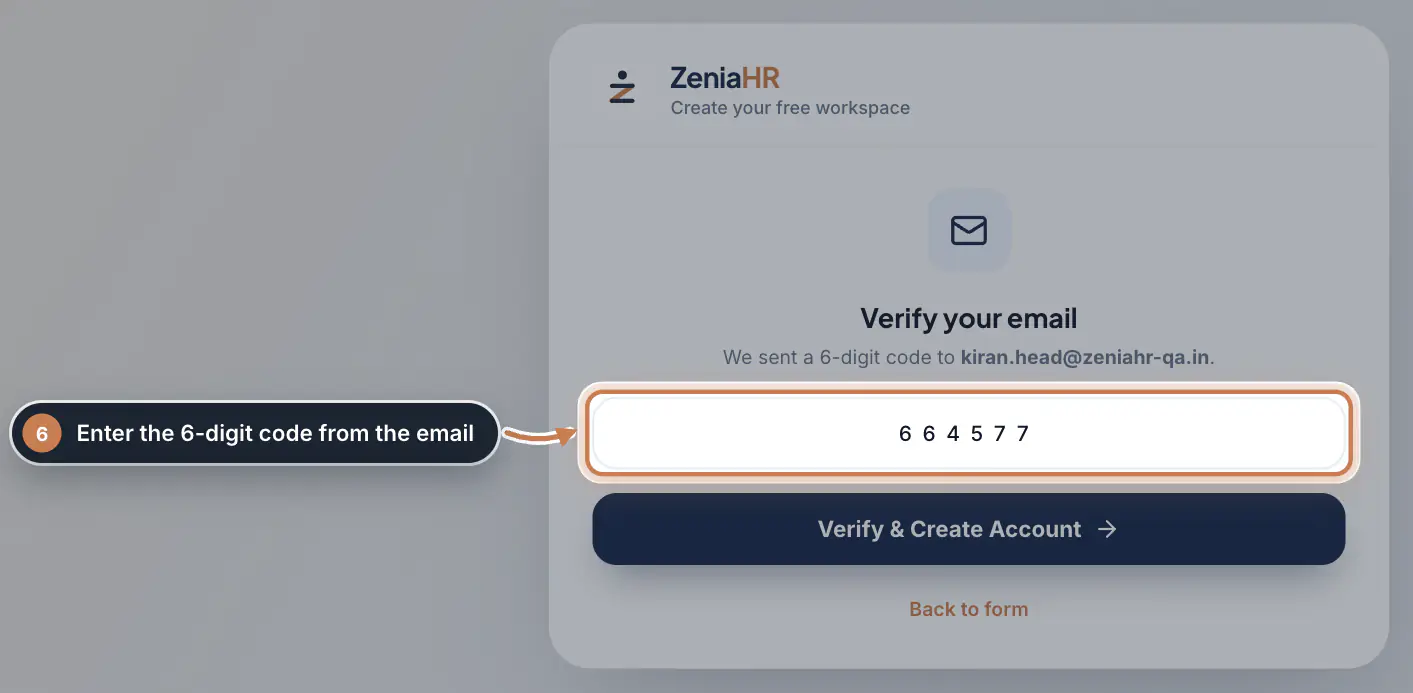 Full size
Step 6 Go to your dashboard
ZeniaHR creates your workspace, your head office and your Company Head login, and signs you in. The welcome screen shows your plan and billing cycle. Click Go to Dashboard.
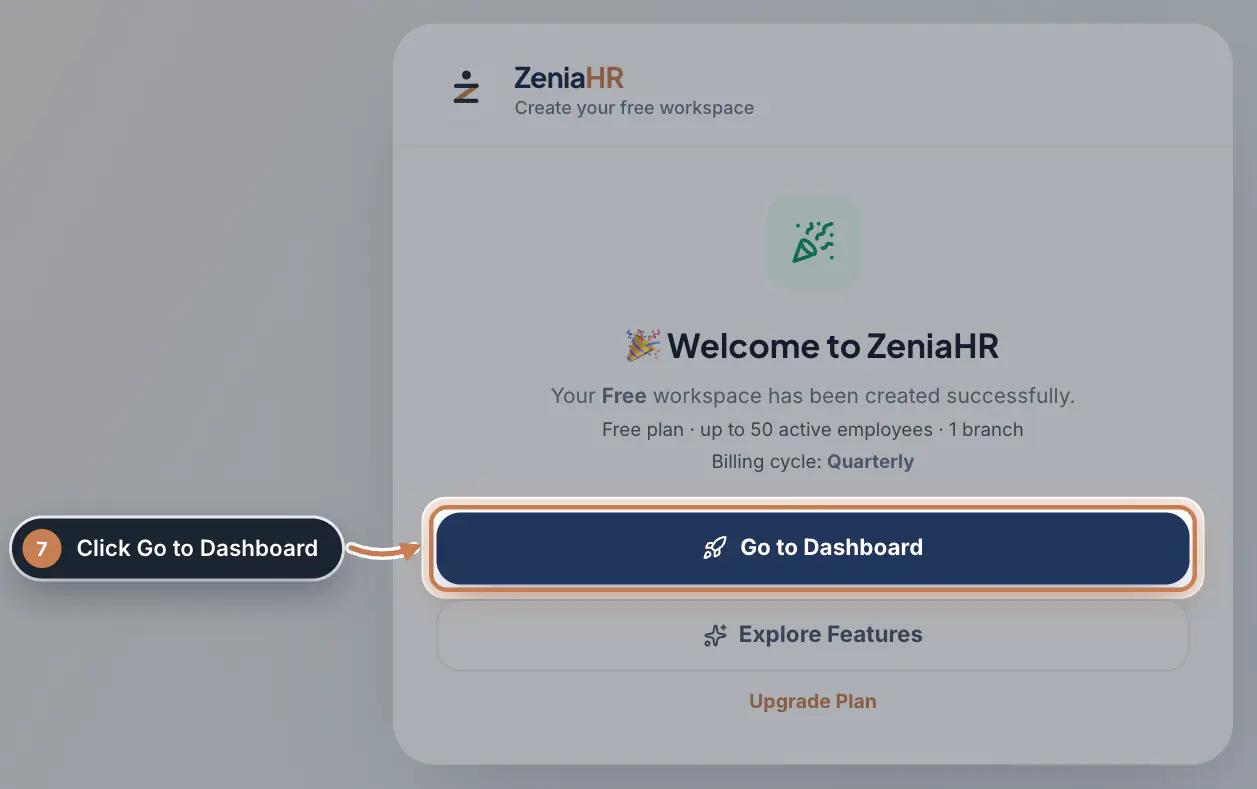 Full size
Step 7 Choose how to start
On your first sign in, ZeniaHR asks how you would like to start: - Start with Demo Data fills the workspace with 30 sample employees, attendance, payroll, departments, reports and invoices, so you can try every screen. - Start with an Empty Workspace gives you a blank company for your real employees.
Pick one and click Continue. This choice is shown only once, and you can still load demo data later from your dashboard.
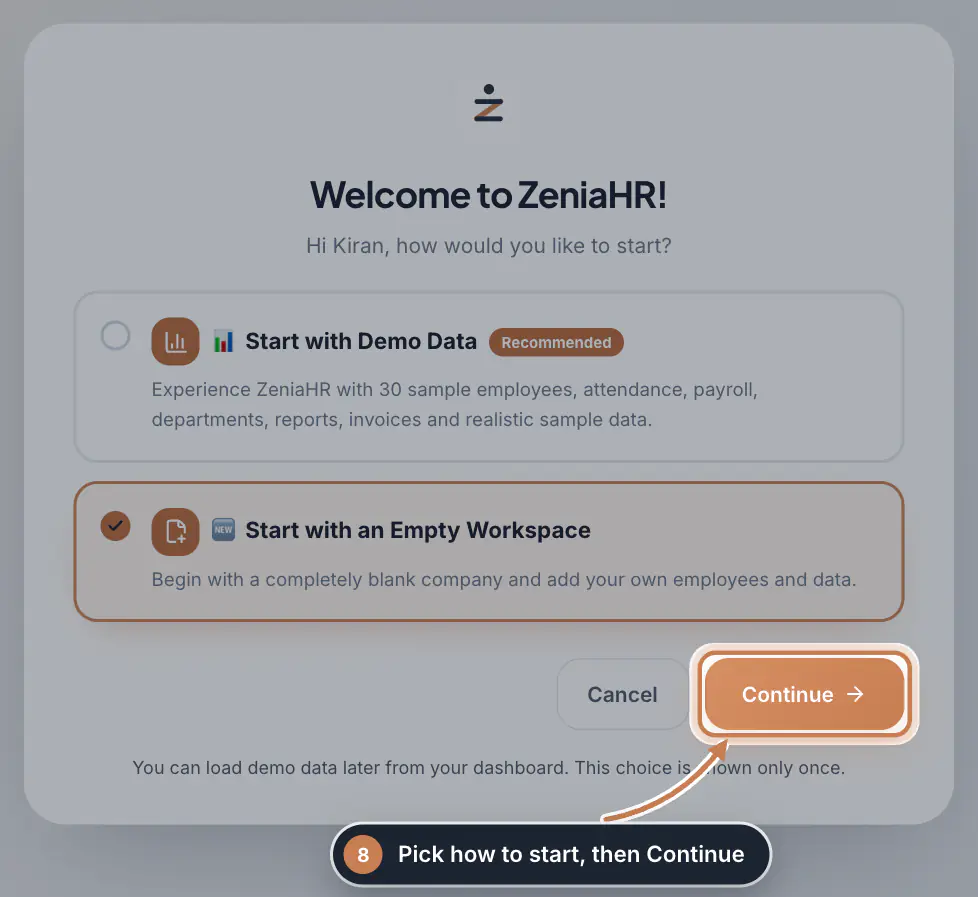 Full size
Step 8
Questions
Is the account really free?
Yes. Every company that registers itself starts on the Free plan, with no payment details asked. You can upgrade later.
I did not get the 6-digit code. What now?
Check your spam or junk folder. The code is valid for 10 minutes. If it has expired, click Back to form, then Create Account again to get a new code. If a new picture appears under Security check, type its characters and click Create Account again.
It says an account with this email already exists.
That email already has a ZeniaHR login. Go back to the sign-in page and sign in, or click Forgot password? there to set a new password. To register another company, use a different email for its Company Head.
Which business model should I choose?
Choose Manpower / Staffing if you deploy workers at client sites and raise client bills, Direct HRMS if you only manage your own employees, and Hybrid if you do both. The model decides which modules appear in your sidebar.
Related
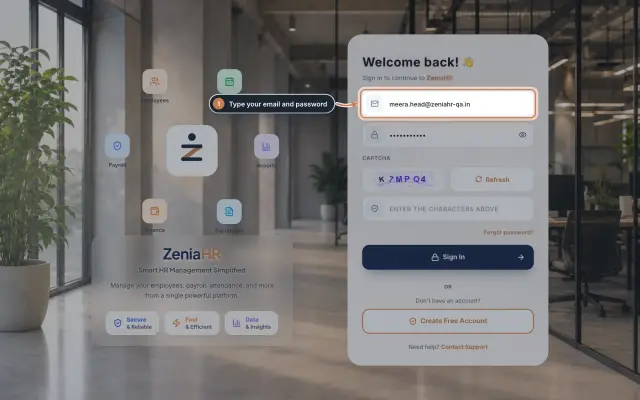 Sign in to ZeniaHRSign in to the web admin panel with your email, password and the picture check, sign out safely and reset a forgotten password.Guide
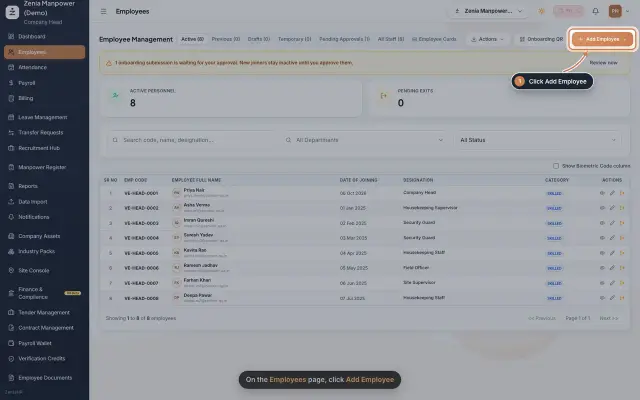 Add an employeeRegister a new employee master file step by step, from personal details to employment.Guide25 s video
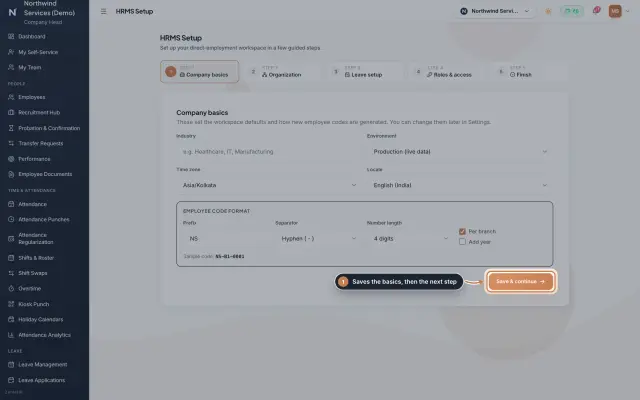 HRMS Setup moduleThe first-run wizard of an HRMS Core company: company basics and the employee code format, the organization lists, leave, roles and access, and a final check.Module
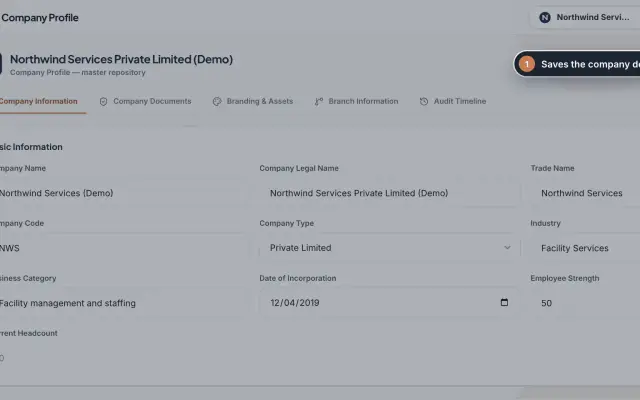 Company Profile moduleKeep your company's details, owners, certificates, branding images and branches in one place, with a timeline of every change.Module
- ZeniaHR for every businessSee how it works on the ZeniaHR website