Access Control module
Define roles with eight actions per module, a data scope and field masking, grant client and site access to people, and switch role-based enforcement on when you are ready.
Key screens
Create the roles and see the switch
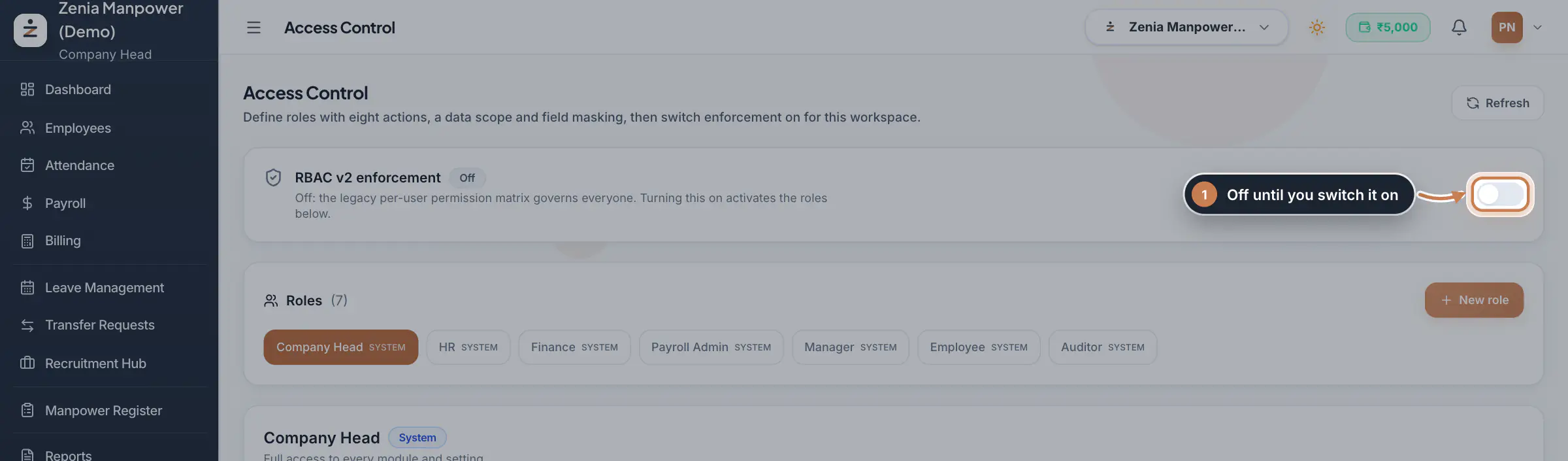
Open Settings and, under Security and access, click Access Control. The first time, click Seed default roles to create the standard set: Company Head, HR, Finance, Payroll Admin, Manager, Employee and Auditor. The switch at the top is RBAC v2 enforcement; leave it off until the roles are right, then turn it on and confirm.
 Full size
Step 1 Set a role's scope, masking and actions
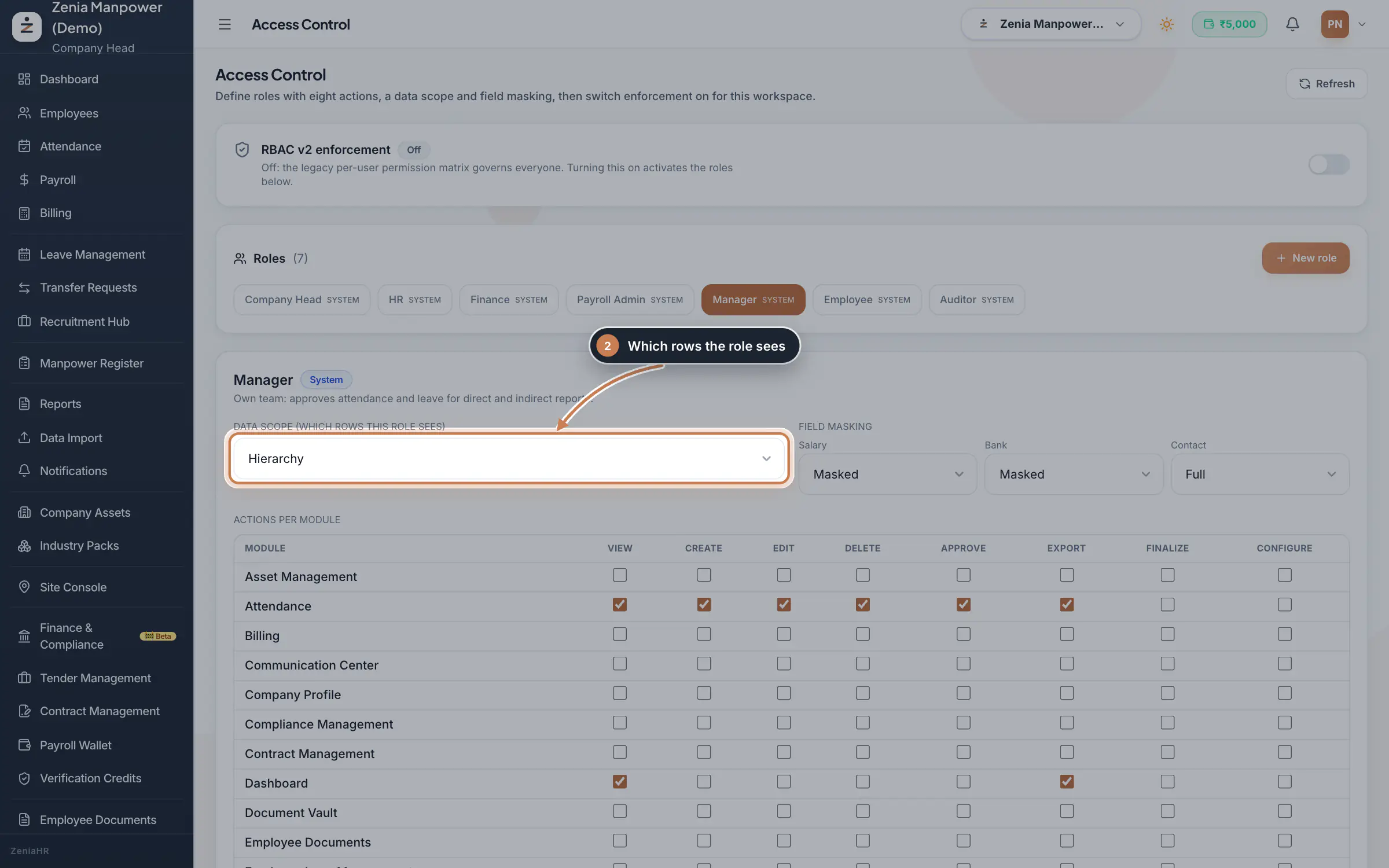
Click a role to open it. Data scope decides which records the role sees: All, Branch, Department, Hierarchy (the person's own team), Client, Site or Self. Under Field masking, show Salary, Bank and Contact details in Full, Masked or Hidden. In Actions per module, tick what the role may do in each module. Every change is saved as you make it.
 Full size
Step 2 Add your own role
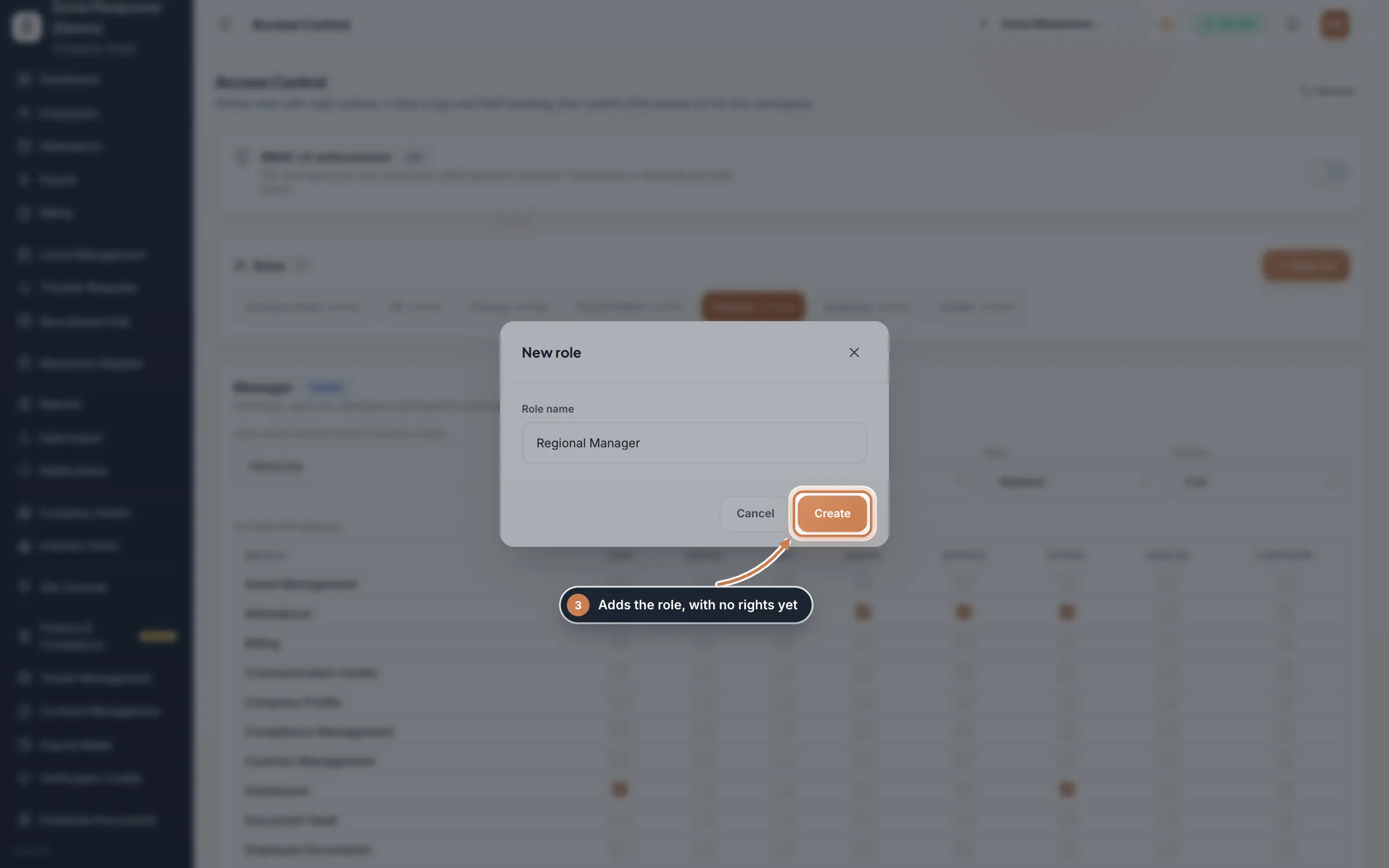
Click New role, type the Role name and click Create. The role starts with no rights: open it and set its scope, masking and actions. Delete role removes a role you added; the standard roles cannot be deleted.
 Full size
Step 3 Grant clients and sites to a person
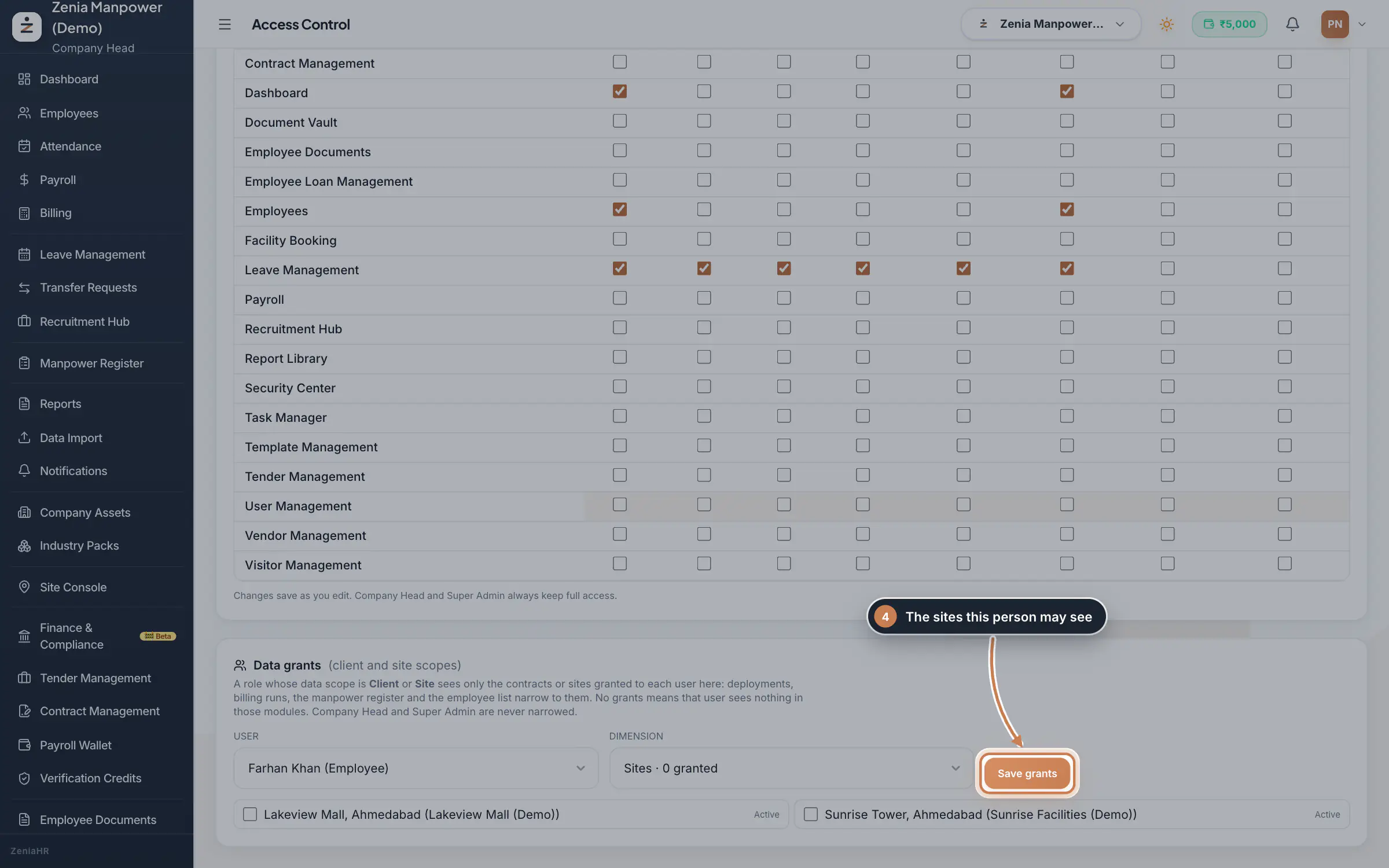
Under Data grants, pick the User and the Dimension, Clients or Sites, tick what they may see and click Save grants. A person whose role is limited to clients or sites sees only what is granted here in deployments, billing runs, the manpower register and the employee list; with no grants they see nothing there.
 Full size
Step 4
What it does
Access Control defines roles for your company. Each role has eight actions for every module (view, create, edit, delete, approve, export, finalize and configure), a data scope that decides which records it sees, and field masking for salary, bank and contact details. Data grants decide which clients and sites a person may see when their role is limited to clients or sites. Nothing changes for anyone until you switch RBAC v2 enforcement on.
Who uses it
- The Company Head sets up the roles and switches enforcement on. It is in Settings, under Security and access.
- The Company Head and Super Admin always keep full access.
How it connects
While enforcement is Off, the permission matrix under Settings, User Roles & Permissions governs everyone. When it is On, a user whose role has the same name as a role here, such as HR or Finance, gets that role's actions, scope and masking instead. Users whose role matches none keep the matrix.
Questions
Will saving a role change what people see today?
Not while enforcement is Off. The roles take effect only when you switch RBAC v2 enforcement on.
Who decides which role applies to a person?
Their user role. A role here applies to every user whose role has the same name, so set up the roles your users already have, such as HR, Finance or Employee.
How do I go back to the old permissions?
Switch enforcement off. Everyone returns to the permission matrix under User Roles & Permissions at once.
Related
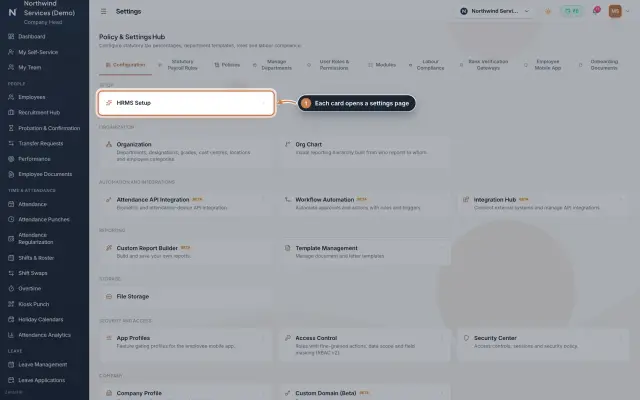 Settings moduleThe Policy & Settings Hub: a card for every settings page, and tabs for statutory rules, policies, departments, user permissions, modules, labour compliance, bank verification, the employee app and onboarding documents.Module
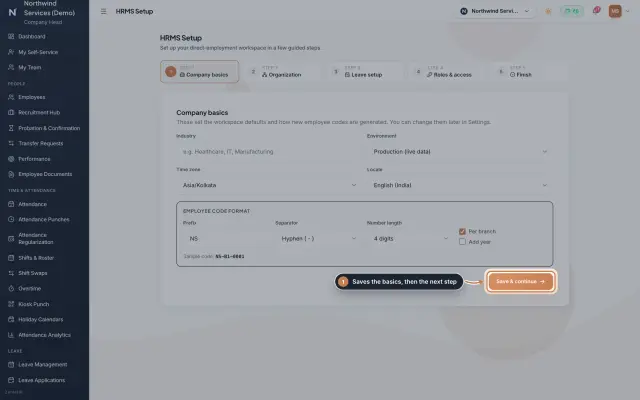 HRMS Setup moduleThe first-run wizard of an HRMS Core company: company basics and the employee code format, the organization lists, leave, roles and access, and a final check.Module
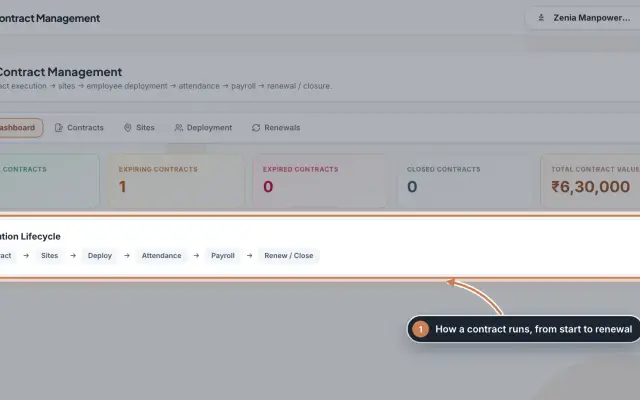 Contract Management moduleKeep every client contract with its sites and the staff deployed to each site, and renew contracts before they end.Module
- ZeniaHR for every businessSee how it works on the ZeniaHR website