Contract Management module
Keep every client contract with its sites and the staff deployed to each site, and renew contracts before they end.
Key screens
The contract dashboard
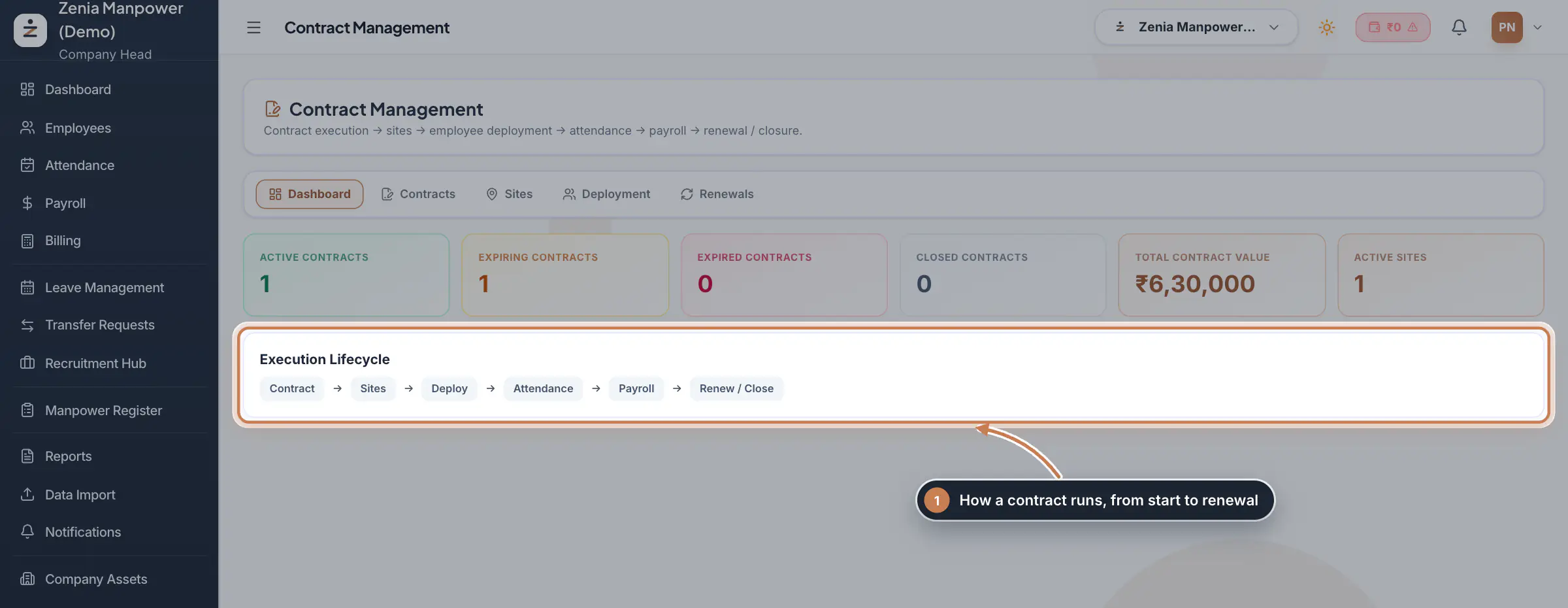
In the sidebar, click Contract Management. The Dashboard counts your active, expiring, expired and closed contracts, the total contract value and the active sites. The Execution Lifecycle shows the order every contract follows.
 Full size
Step 1 Add a contract
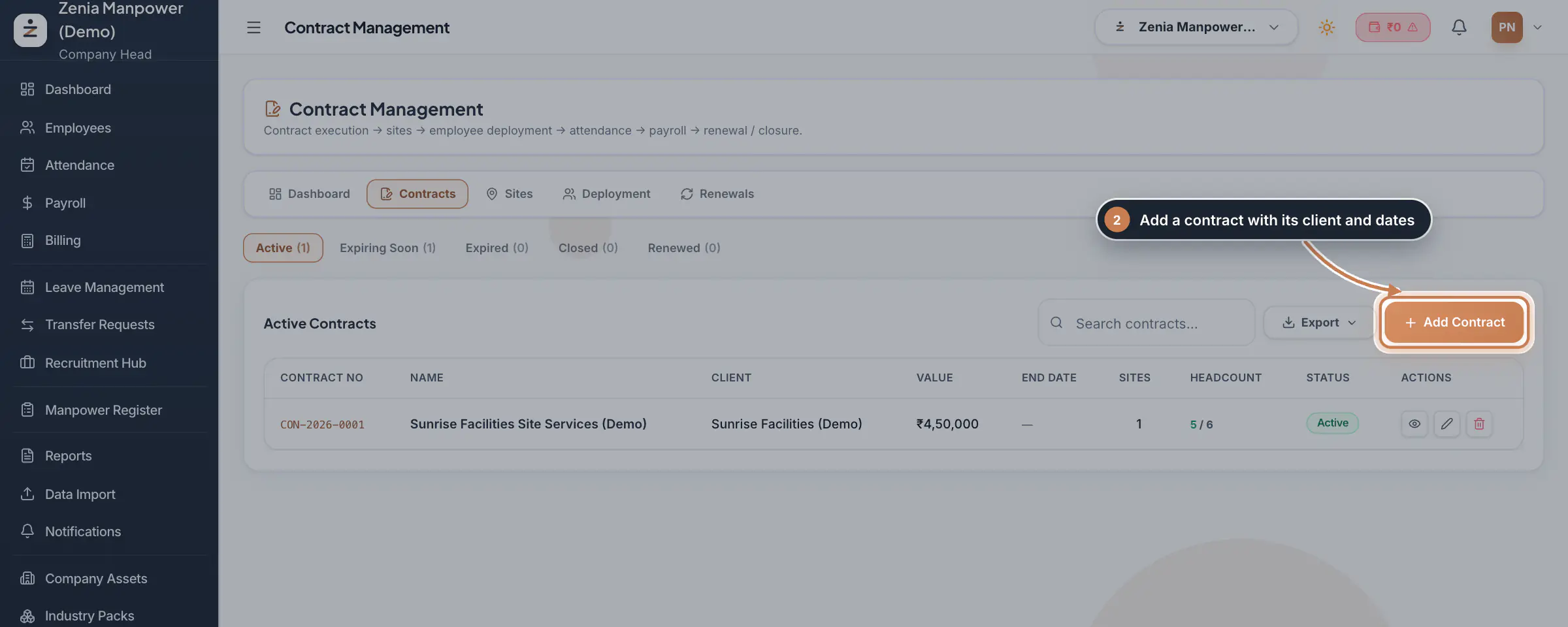
Click the Contracts tab. The list is split into Active, Expiring Soon, Expired, Closed and Renewed, with search and Export. Click Add Contract to create one. A contract whose end date is 90 days away or less moves to Expiring Soon by itself, and to Expired once the end date has passed.
 Full size
Step 2 Fill in the contract
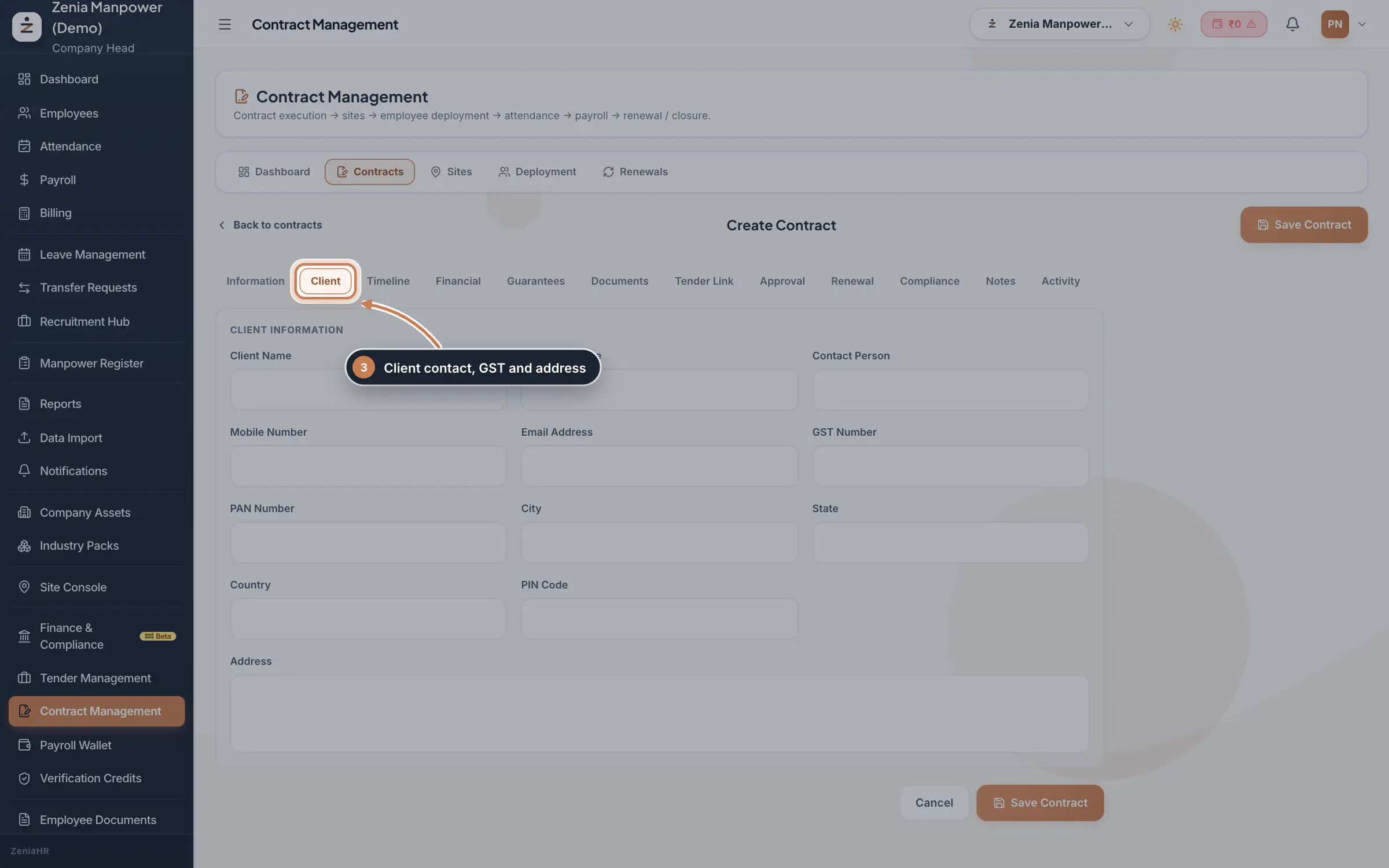
The form has tabs for Information, Client, Timeline, Financial, Guarantees, Documents, Tender Link, Approval, Renewal, Compliance and Notes. Only the contract title is required; the contract number is filled in for you when left blank. The Client tab holds the client's name, contact person, mobile, email, GST and PAN numbers and address. Click Save Contract when you are done.
 Full size
Step 3 Tip If the contract came from a tender, open Tender Link and pick the tender. Its details fill in the contract for you.
Add the sites
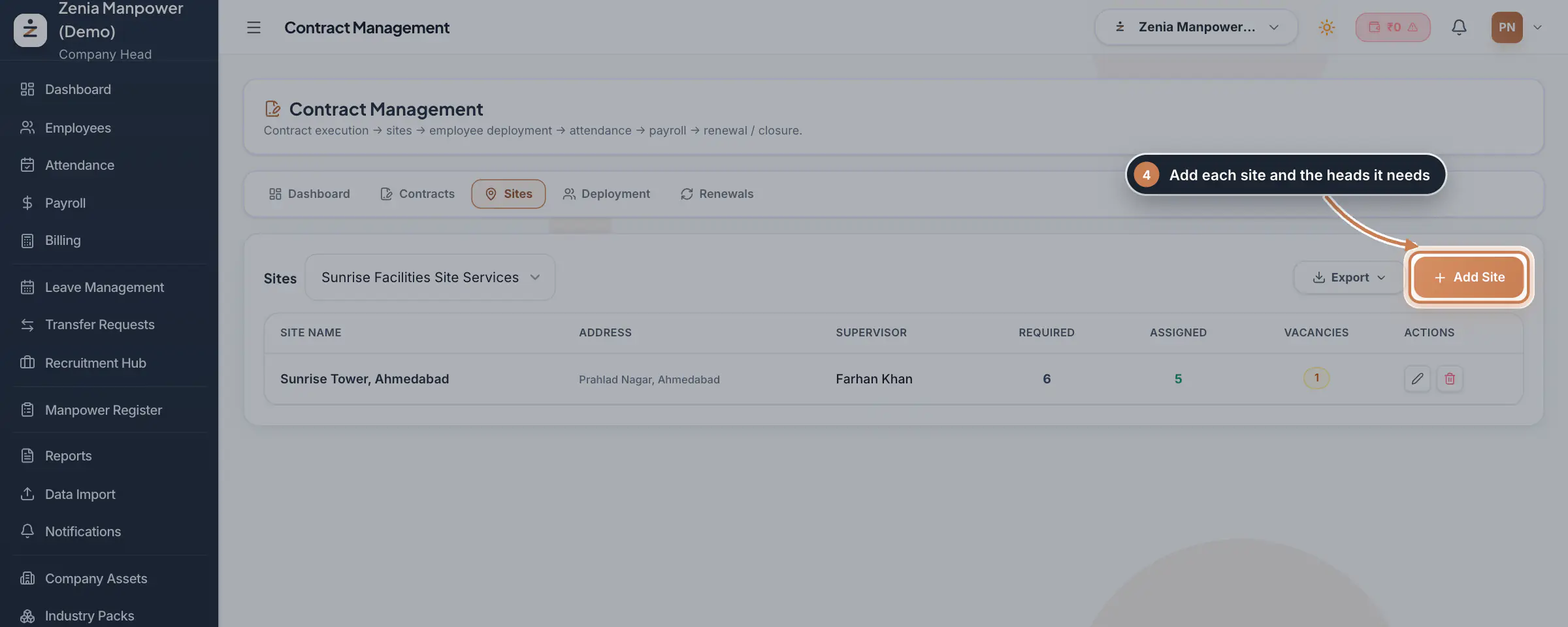
Click Sites and choose the contract. Click Add Site and enter the Site Name, Site Address, Site Supervisor and Required Headcount. The list shows, for each site, how many people are required, how many are assigned and how many places are still vacant.
 Full size
Step 4 Deploy employees to a site
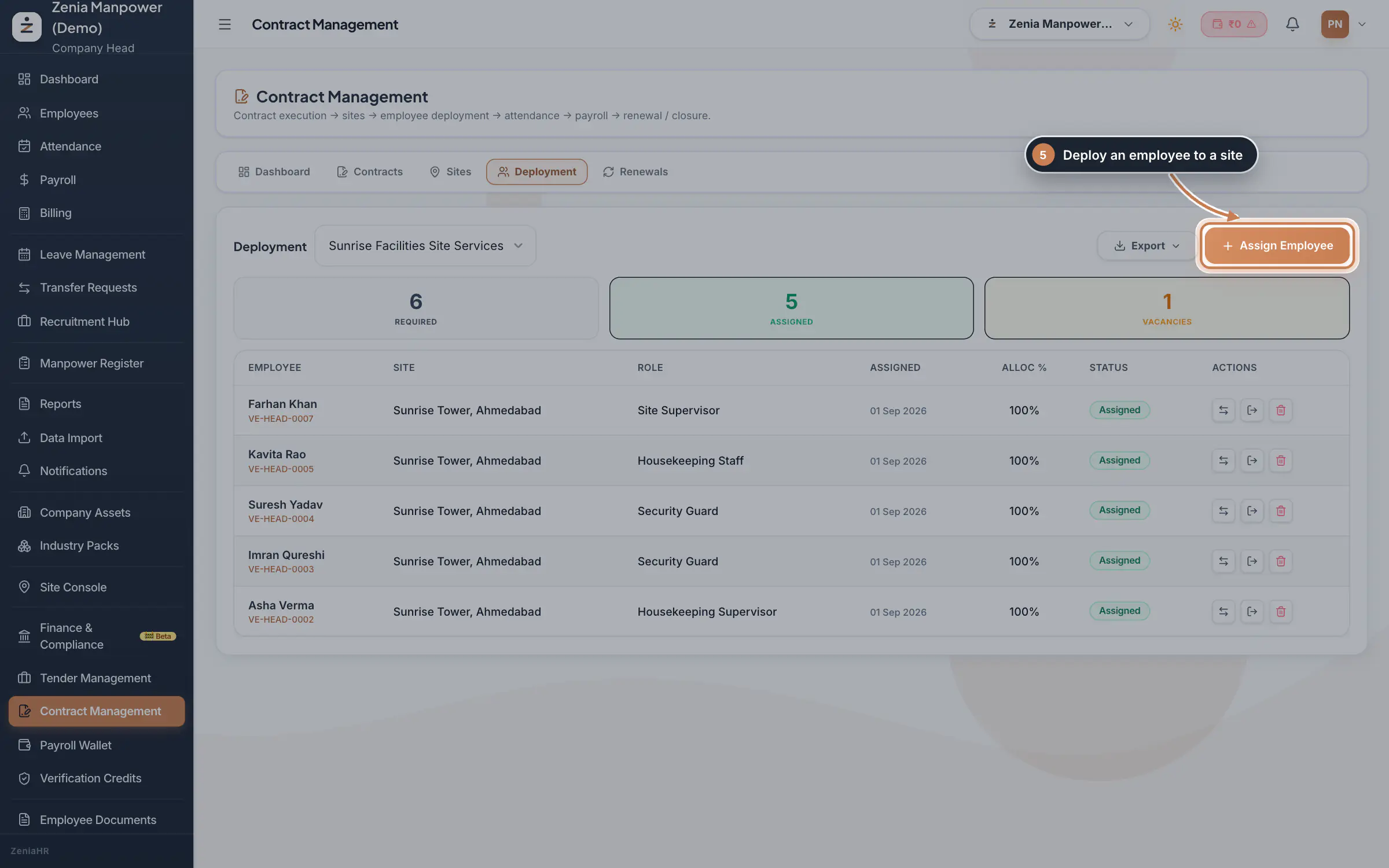
Click Deployment and choose the contract. Click Assign Employee, pick the Employee and the Site, and enter the Role at Site, Allocation % and Assignment Date. The icons on each row let you transfer the person to another site, release them or delete the deployment. The employee app then shows the person's site, client and role on the home screen.
 Full size
Admin panel · Step 5 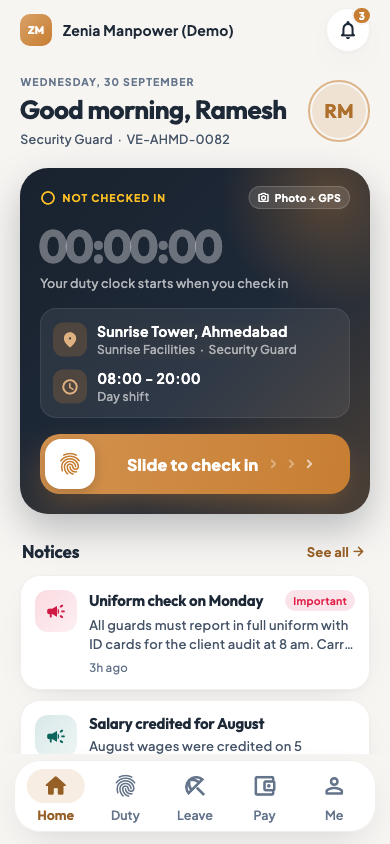 On the employee app
The employee app home screen with today's site, client and role
Renew contracts on time
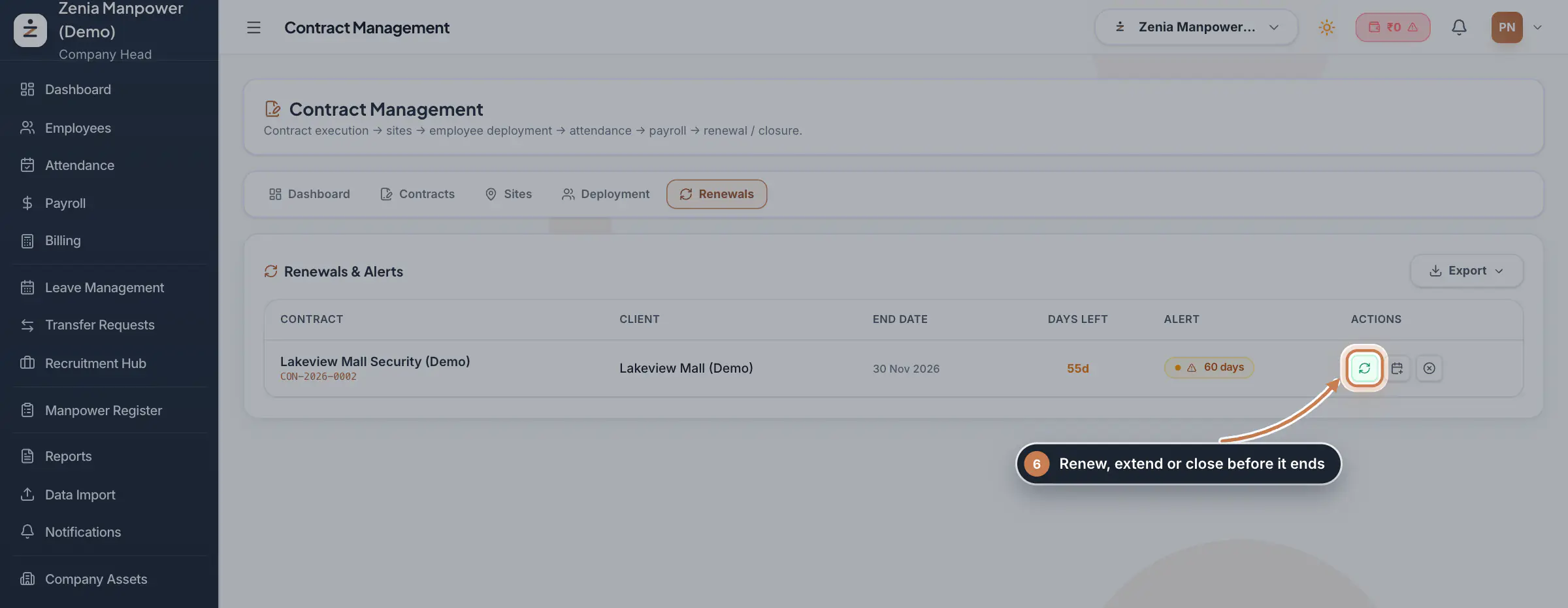
Click Renewals. It lists every contract that ends within 90 days or has already ended, with the days left and an alert. Use Renew or Extend to enter a new end date, which makes the contract active again, or Close to take it out of active tracking.
 Full size
Step 6
What it does
Contract Management holds the contracts you win from clients. A contract runs in one order: you add the contract, add its sites, deploy employees to each site, then their attendance and payroll follow, and at the end you renew or close it. The tabs at the top follow the same order: Dashboard, Contracts, Sites, Deployment and Renewals.
Who uses it
- Only the Company Head opens Contract Management, because contracts carry the company's commercial terms.
- Supervisors and HR then work with the deployed staff in Site Console, Attendance and Payroll.
How it connects
The employees you deploy come from the Employees module. Each deployment tells the rest of ZeniaHR where a person works: the employee app shows the site, the client and the role on the home screen, and the Billing console reads the deployed staff and their attendance to build each client's bill. In Billing, you then add the billing layer to the contract: who is billed and the approved rate for each post.
Questions
Can HR or a supervisor open Contract Management?
No. Only the Company Head can open it. HR and supervisors see the deployed staff in Site Console and the other modules.
What happens when I transfer an employee to another site?
The old deployment ends the day before the transfer date and a new one starts at the other site on that date. Each contract, and its bill, keeps only its own days, and the old row stays as a record of where the person worked.
Can one employee work at two sites?
Yes. Deploy the person to each site with an Allocation %, for example 50 and 50. The total for the same days cannot go over 100%.
Related
 The employee app for site staffA tour of the ZeniaHR app for manpower staff at client sites: signing in, checking in for duty, your days, wage slips, leave and your profile.GuideApp
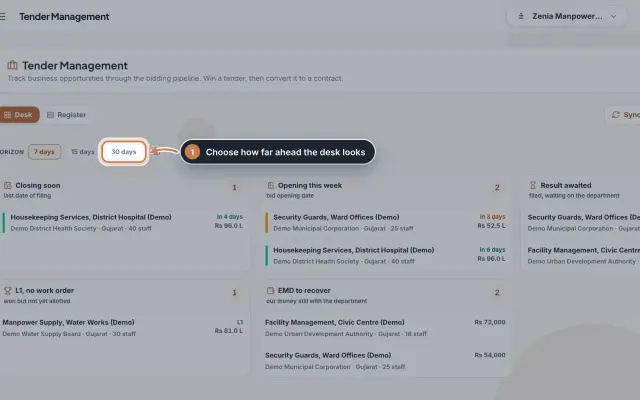 Tender Management moduleTrack every tender from the day it is published to the work order, with a desk that shows what needs action this week.Module
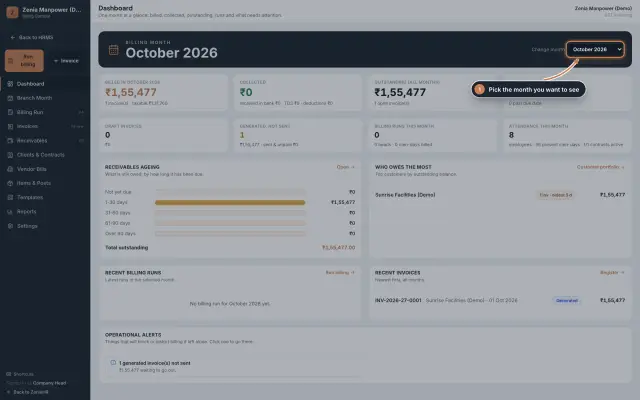 Billing moduleThe Billing console of a manpower company, where you turn attendance on each contract into GST invoices and follow every payment.Module
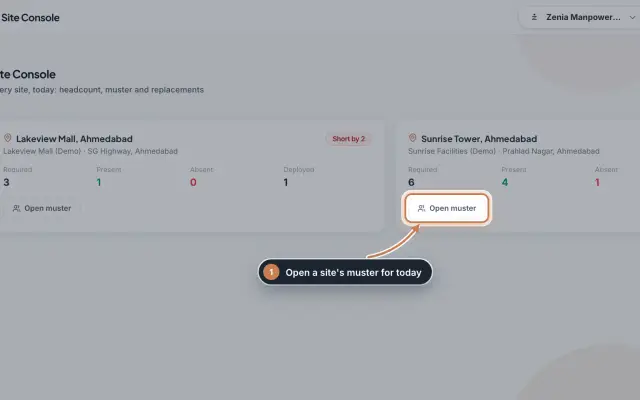 Site Console moduleToday's headcount at every client site, the muster of each site, and a one-click request to HR when someone is absent.Module
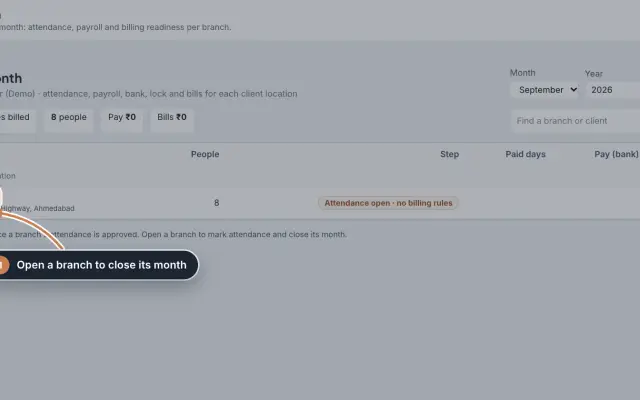 Branch Month moduleClose each branch's month in order, from attendance to payroll, the bank sheet and the client bills, and file EPF and ESIC for the whole company.Module
 Employees moduleThe staff directory, where you add people, open an employee profile and approve new joiners.Module
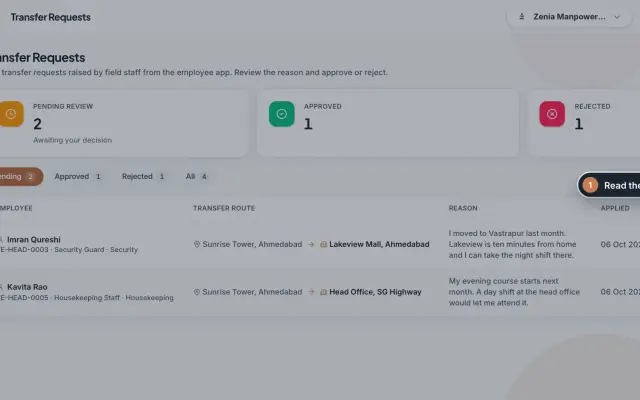 Transfer Requests moduleSite staff ask in the app to move to another site; HR reads the reason and approves or rejects, and an approval moves the person.Module
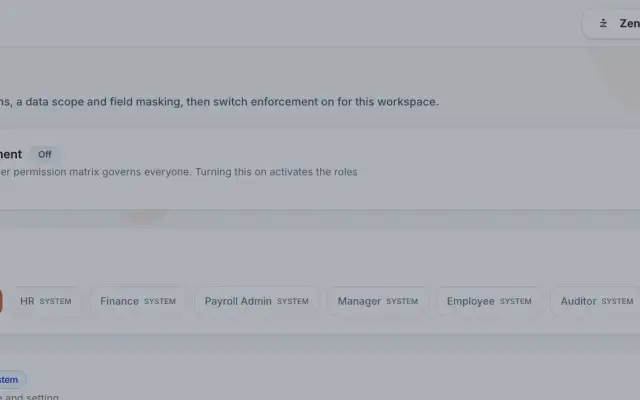 Access Control moduleDefine roles with eight actions per module, a data scope and field masking, grant client and site access to people, and switch role-based enforcement on when you are ready.Module
- Client billing for manpower firmsSee how it works on the ZeniaHR website