Company Assets module
Keep the company's branding files and bank accounts as separate records, import them from the Company Profile and mark the main one of each kind.
Key screens
See the branding assets and bank accounts
In the sidebar, click Company Assets. Each branding asset shows its kind and its link or text; each bank account shows its label, bank, the last four digits of the number and its purpose. The star marks the main entry; click the star on another row to make it the main one, or the bin to remove a row. Click Import from profile to copy what the Company Profile already holds.
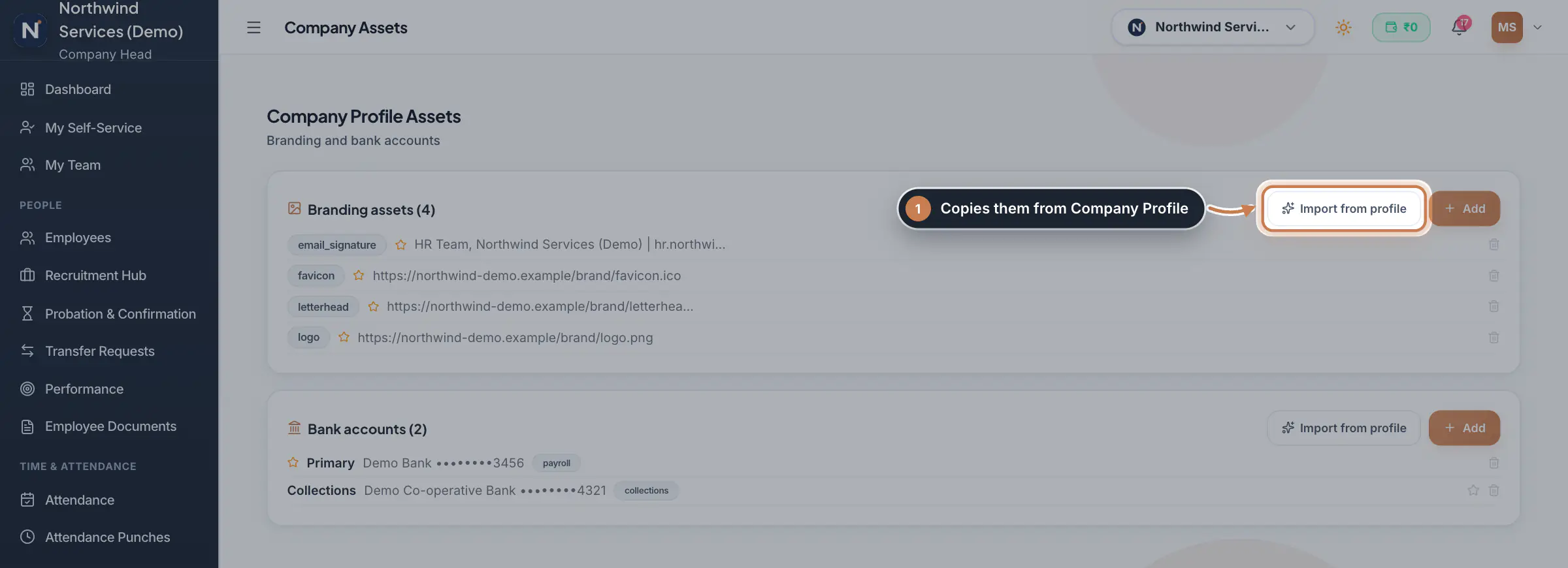 Full size
Step 1 Add a branding asset
Click Add in Branding assets. Pick the Kind, such as logo, letterhead or login_banner, and paste a link to the file, an image as a data URI, or the text for a text kind such as an email signature. Click Save. The new asset becomes the main one of its kind.
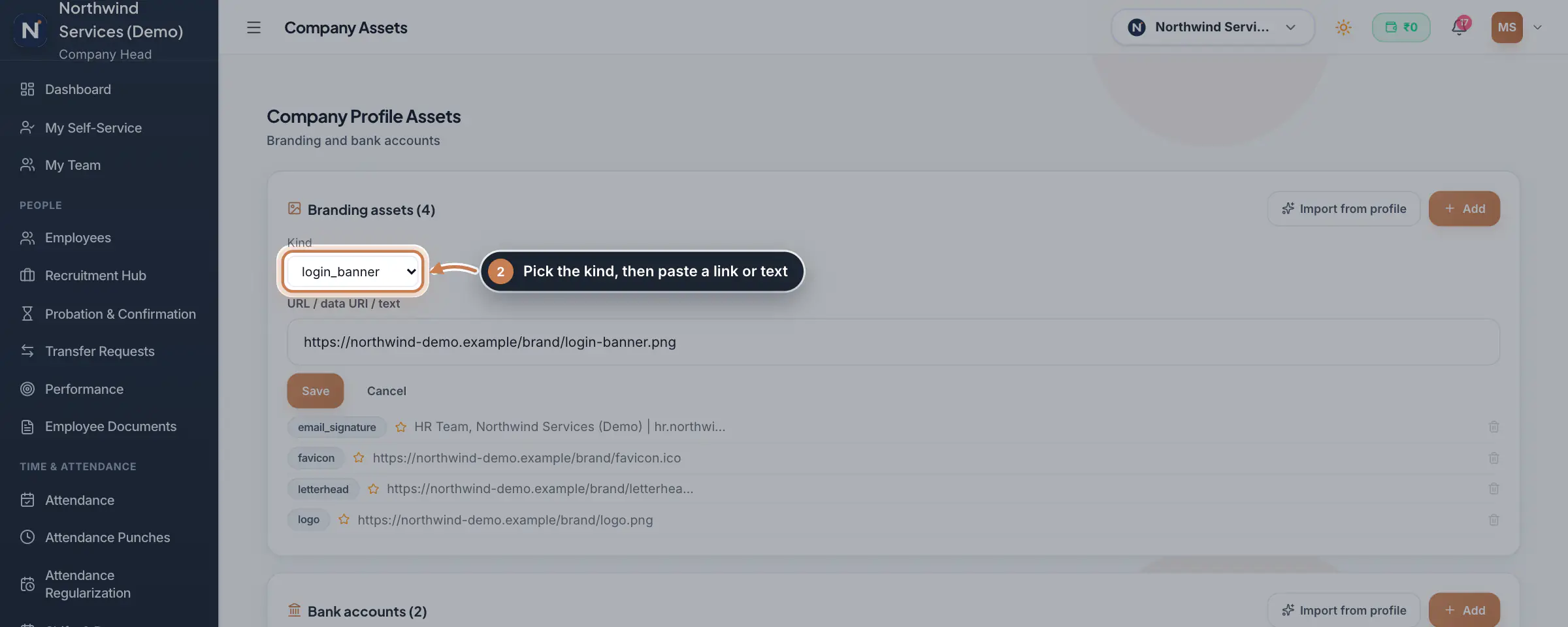 Full size
Step 2 Add a bank account
Click Add in Bank accounts. Type the Label, Bank name, Account holder, Account number and IFSC, pick the Purpose and click Save. The first account you add is the main one. After saving, only the last four digits of the number are shown.
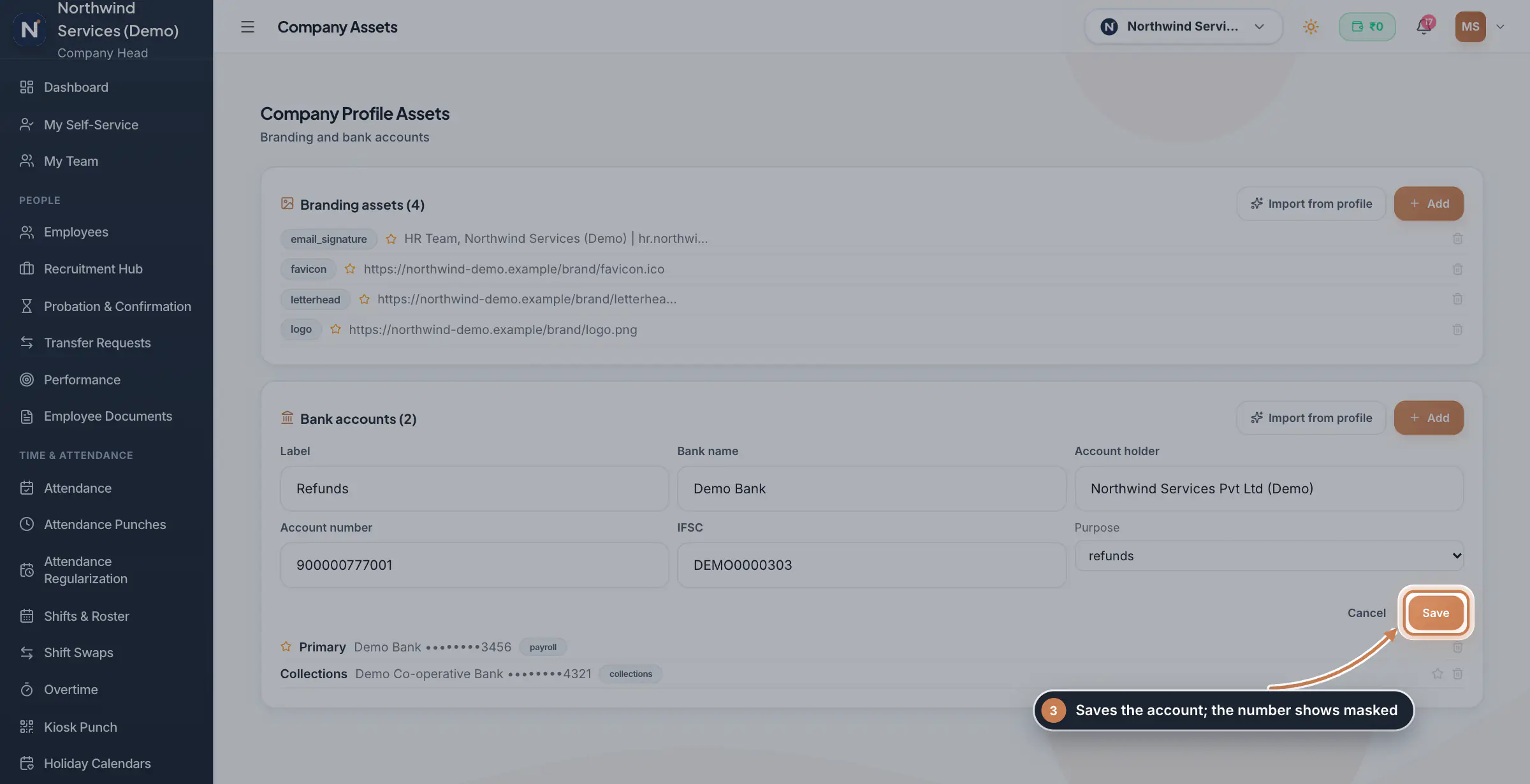 Full size
Step 3
What it does
Company Assets keeps two lists for your company. Branding assets are the logos, favicon, letterhead, seal, signatures, watermark, email signature, login banner and other branding items, each as a link, an image or a line of text. Bank accounts are the company's accounts with a label, the bank, the account holder, the account number, the IFSC and what the account is for: payroll, collections, refunds or general use. A star marks the main entry of each kind, and account numbers are always shown masked.
Who uses it
- The Company Head, and HR when they may edit the company profile, add and change entries. Anyone who may only view the company profile sees the lists read-only.
How it connects
Import from profile copies the logo, favicon, letterhead, seal, signature and email signature saved in Company Profile, and the bank details on the company record, into these lists. It skips what is already on the list and never changes the Company Profile. Payslips, invoices and letters print the images saved under Company Profile, Branding & Assets, so change those there.
Questions
Does Import from profile change my Company Profile?
No. It only copies: a branding kind that is not on the list yet, and the company's bank details when no account is listed.
Why can I not see the full account number?
The page always masks account numbers and shows only the last four digits, so they are safe on screen.
What do I need to fill to add a bank account?
The account number. The label starts as Primary; change it to something that tells the accounts apart, such as Payroll or Collections.
Related
 Company Profile moduleKeep your company's details, owners, certificates, branding images and branches in one place, with a timeline of every change.Module
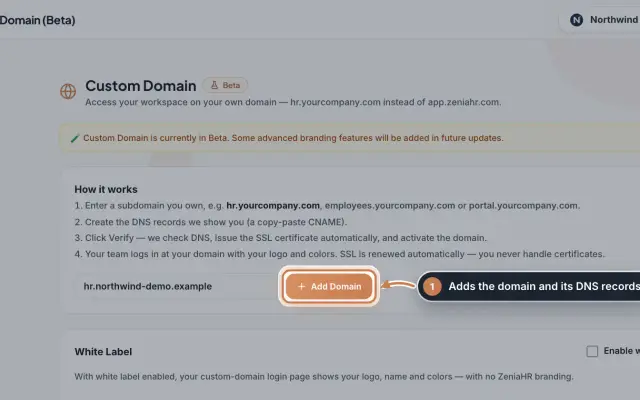 Custom Domain module (Beta)Open your ZeniaHR workspace on your own subdomain, such as hr.yourcompany.com, with the DNS records to create, automatic SSL and your own logo and colours on the sign-in page.Module
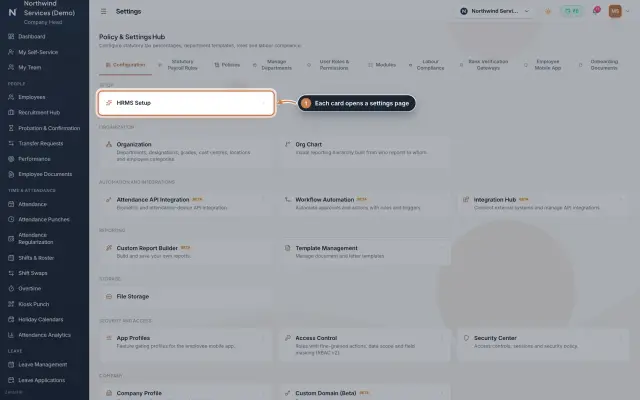 Settings moduleThe Policy & Settings Hub: a card for every settings page, and tabs for statutory rules, policies, departments, user permissions, modules, labour compliance, bank verification, the employee app and onboarding documents.Module
- ZeniaHR for every businessSee how it works on the ZeniaHR website