Company Profile module
Keep your company's details, owners, certificates, branding images and branches in one place, with a timeline of every change.
Key screens
Fill in the company details
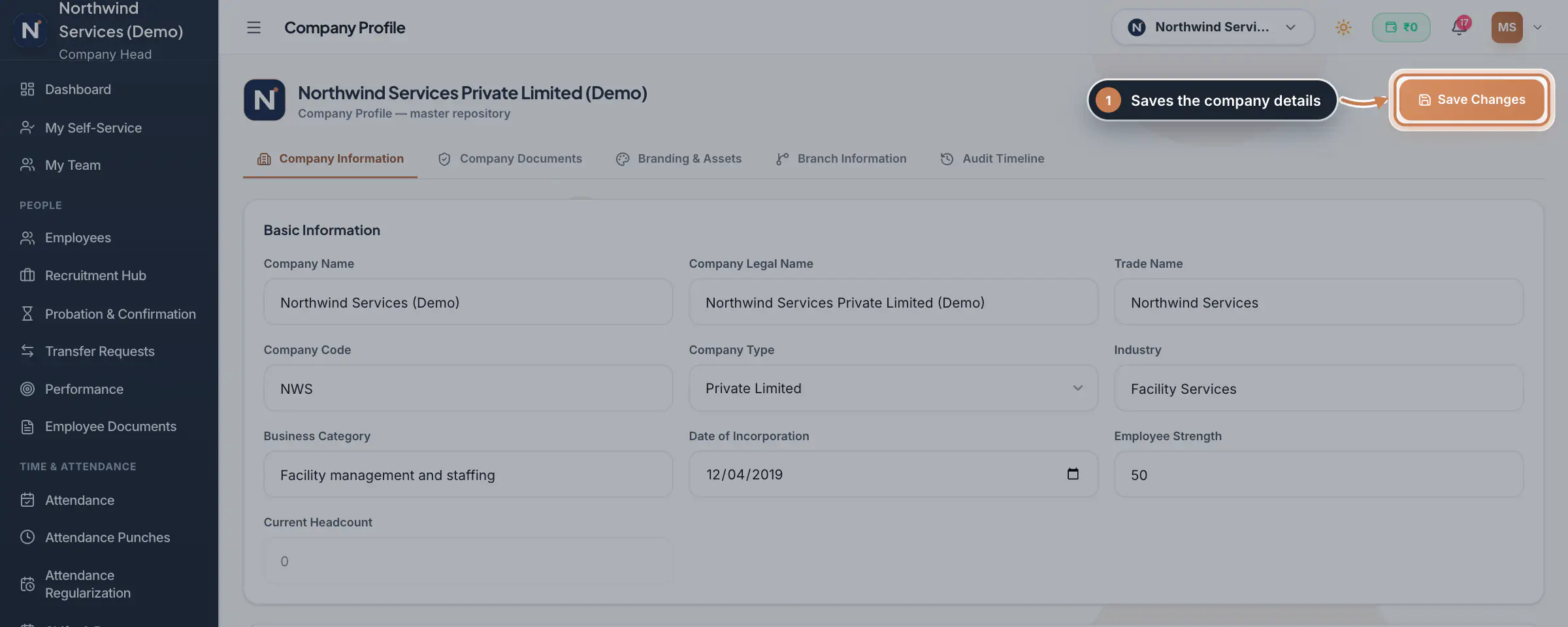
In the sidebar, click Company Profile. On Company Information, fill in the Basic Information: the Company Name, Company Legal Name, Trade Name, Company Code, Company Type, Industry, Business Category, Date of Incorporation and Employee Strength. Further down are the Registration Information (CIN, GST, PAN, TAN, MSME, Shop & Establishment, labour and factory licences, PT, PF and ESI codes and more), the Address and the Contact Details. Click Save Changes.
 Full size
Step 1 Tip The Company Name is the name in the sidebar and the workspace switcher. A new name shows there as soon as you save.
Add the owners and directors
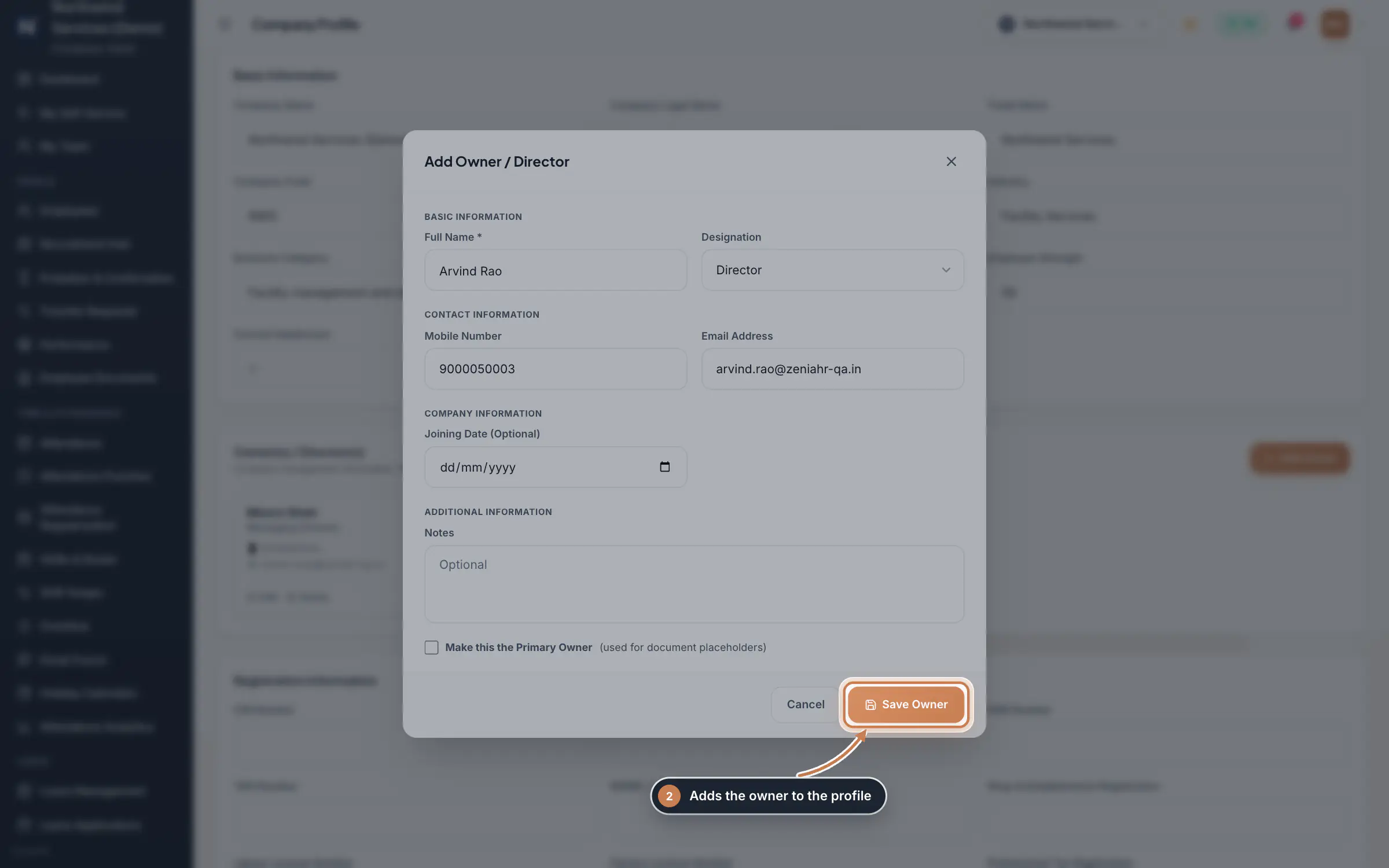
Under Owner(s) / Director(s), click Add Owner. Type the Full Name and pick the Designation, such as Director or Managing Director, then the Mobile Number, Email Address and, if you like, the Joining Date and Notes. Tick Make this the Primary Owner for the person whose details go into documents. Click Save Owner. Each owner's card has Edit and Delete.
 Full size
Step 2 Keep the company's documents
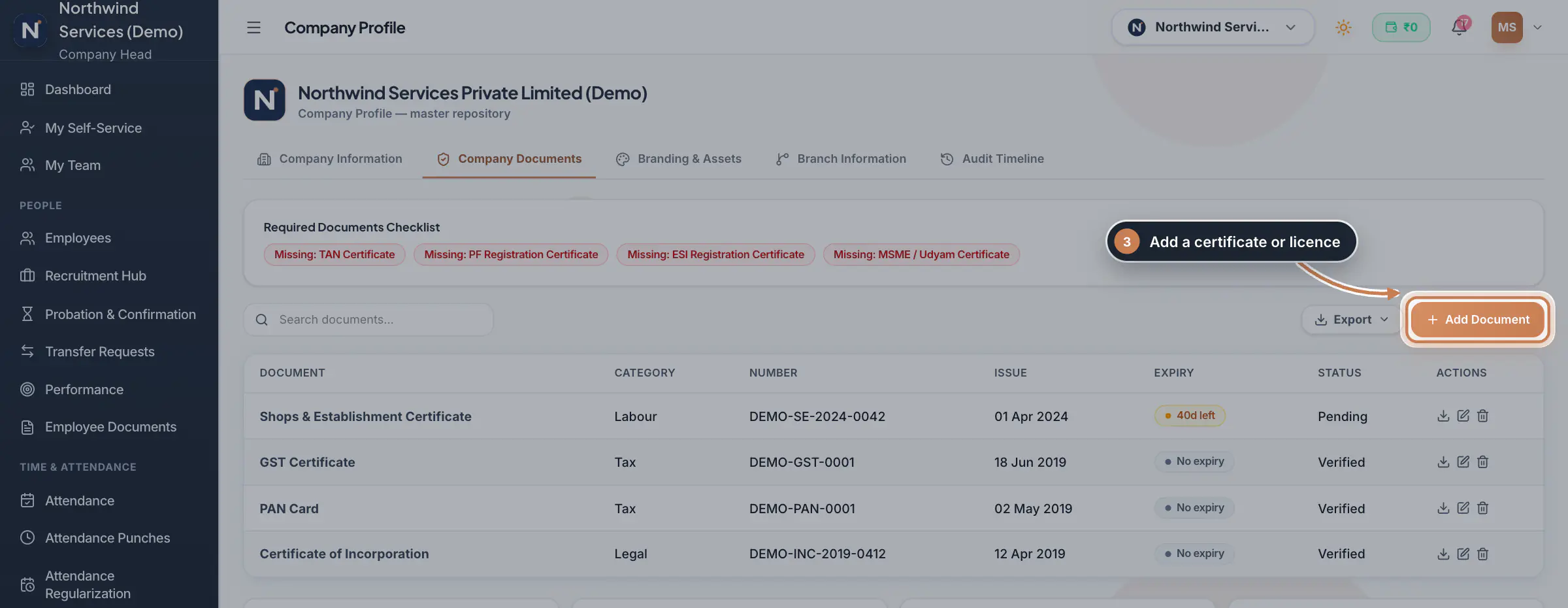
Click Company Documents. The Required Documents Checklist shows which standard documents are still missing, such as the TAN, PF and ESI registration certificates. Click Add Document and enter the Document Name, Category, Document Number, Issuing Authority, the issue, expiry and renewal dates, the Status and the file, up to 5 MB. The Expiry column counts the days left: amber within 90 days and red once it has expired. Further down, licences and registrations are grouped by category, such as Labour Compliance, each marked missing, active or expired.
 Full size
Step 3 Upload the branding images
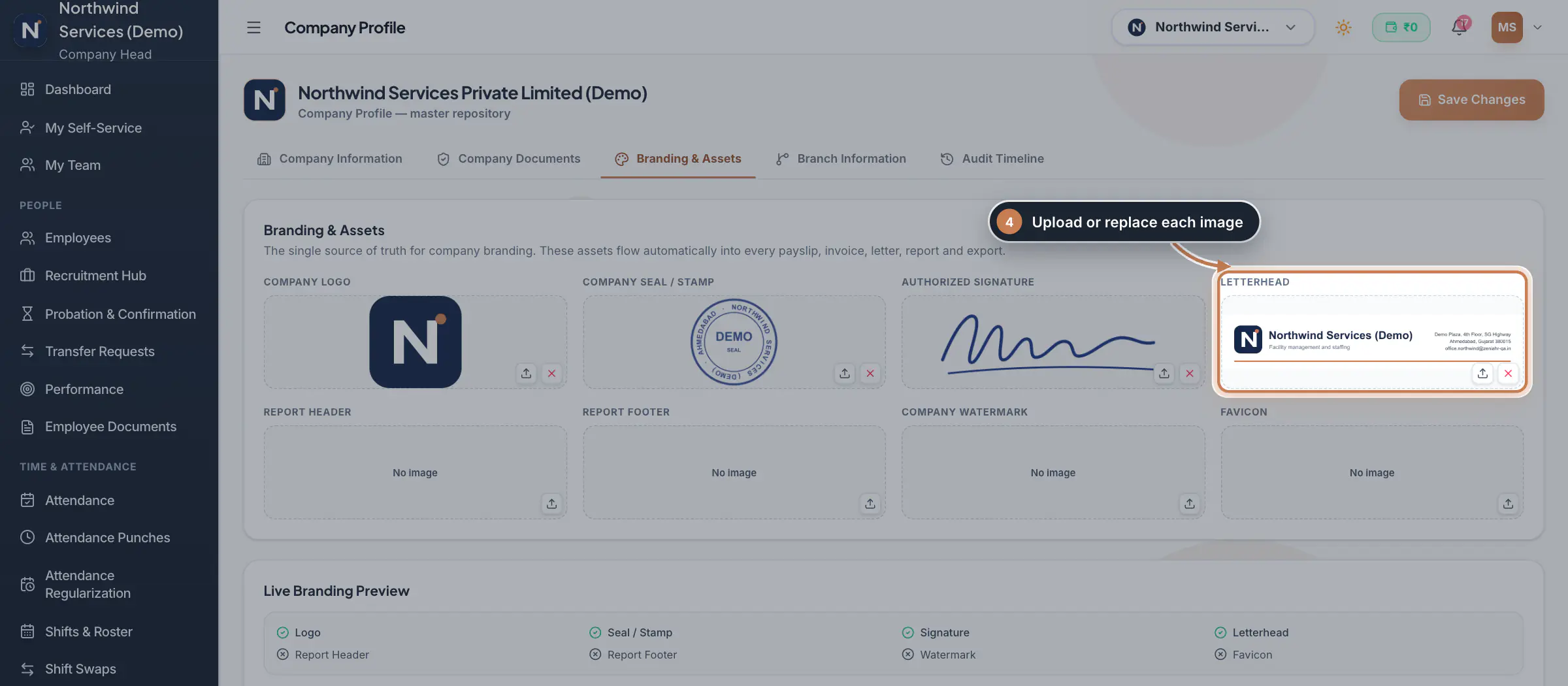
Click Branding & Assets. Use the upload button on each box to add the Company Logo, Company Seal / Stamp, Authorized Signature, Letterhead, Report Header, Report Footer, Company Watermark and Favicon, each an image up to 2 MB; the cross removes one. Click Save Changes. The Live Branding Preview below shows a payslip, an invoice, an offer letter and an attendance report with your images. In the employee app, the company name and logo show on the Me tab under Connected to, with the company's initials when there is no logo.
 Full size
Admin panel · Step 4 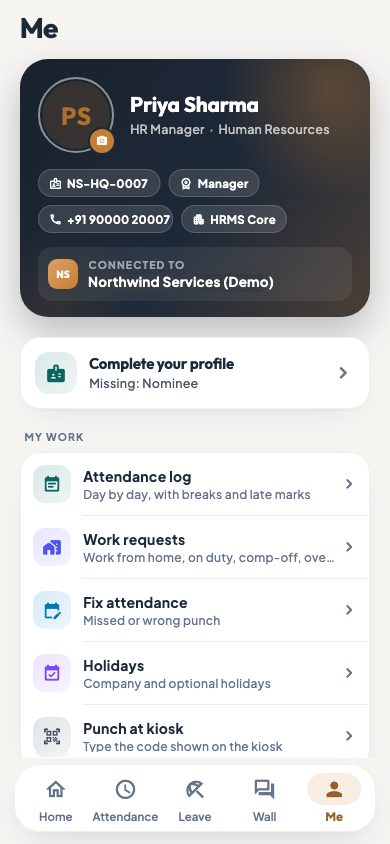 On the employee app
The employee app's Me tab, connected to the company
Add and manage branches
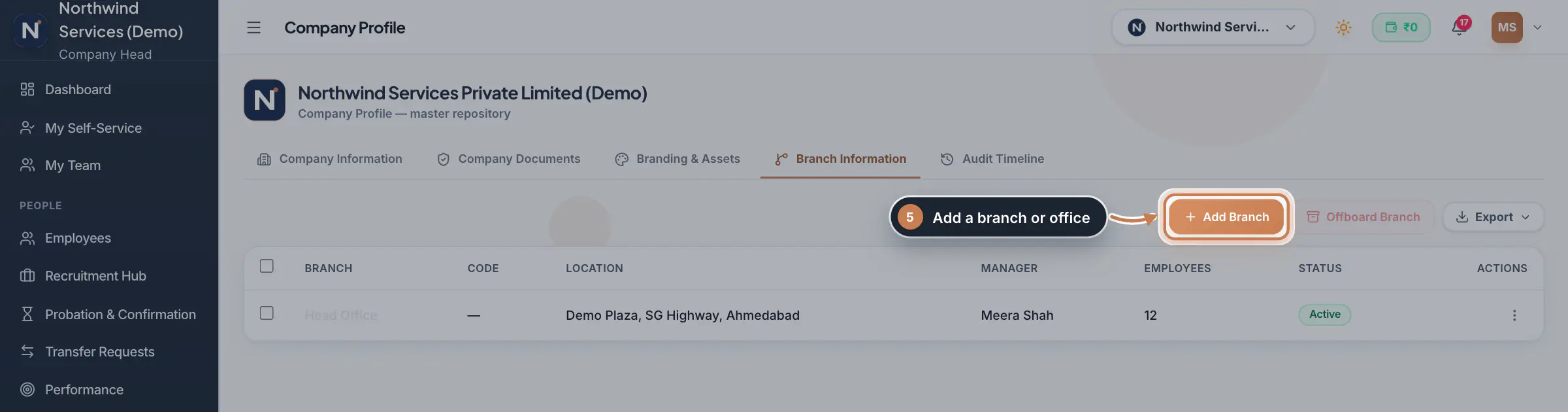
Click Branch Information. Each branch shows its code, location, manager, number of employees and status. Add Branch opens the branch form. The three dots on a row give View, Edit and Offboard. Offboarding closes a branch and its workforce, so only the Company Head can do it; an offboarded branch can be reactivated or archived. To offboard several branches at once, tick them and click Offboard Branch.
 Full size
Step 5 See who changed what
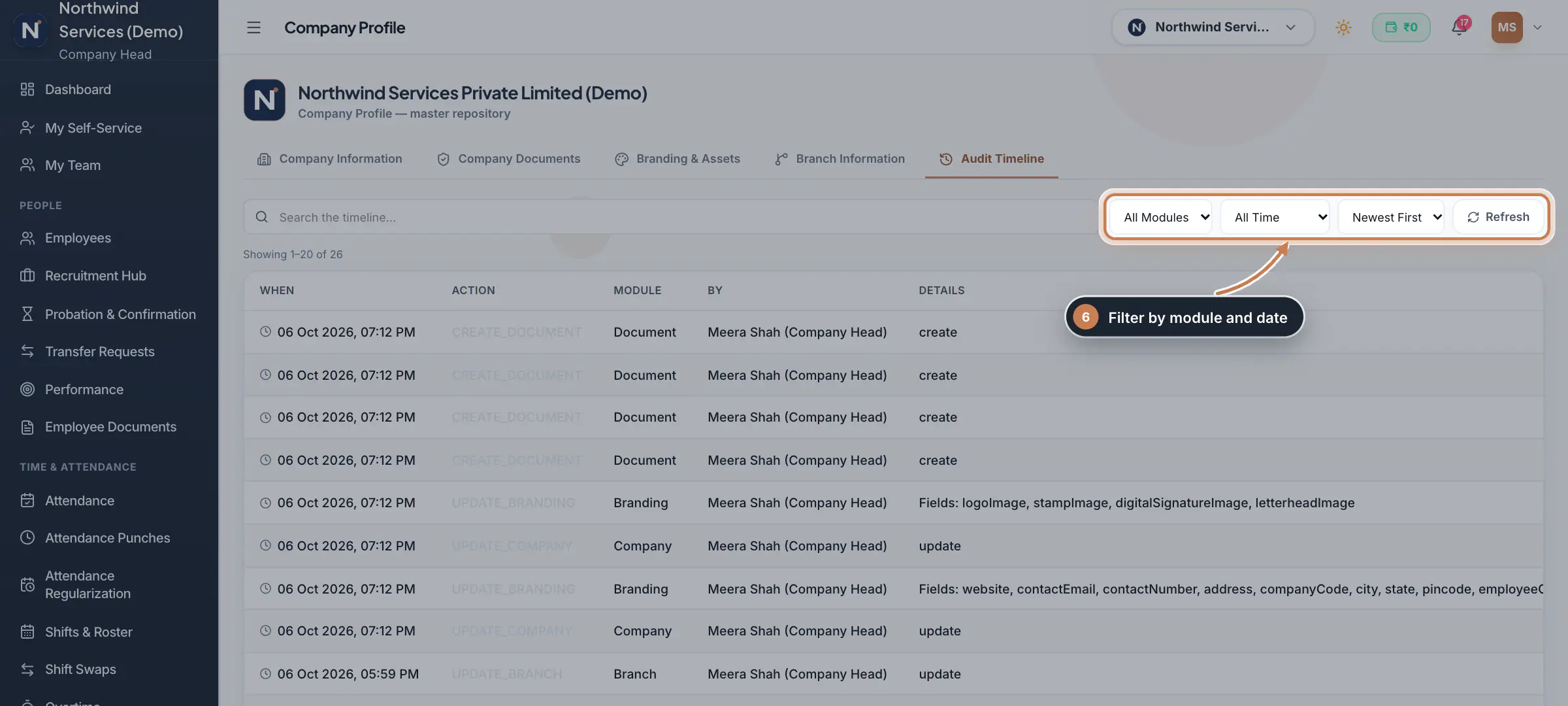
Click Audit Timeline. Every change to the company, its branches, branding and documents is listed with the time, the action, the module, who made it and the details. Search the timeline, or filter by module and date and sort newest or oldest first.
 Full size
Step 6
What it does
Company Profile is the master record of your company: its legal and trade names, type and industry, registration numbers, address and contacts, the owners and directors, the company's certificates and licences, the branding images used on payslips, invoices and letters, and the list of branches. The Audit Timeline shows every change and who made it.
Who uses it
- The Company Head keeps the profile. It is in the sidebar and in Settings, under Company. Other roles cannot open it.
- Employees see the company's name and logo in the employee app.
How it connects
The images under Branding & Assets flow into payslips, invoices, letters, reports and exports, and the logo and company name show in the employee app. The primary owner fills the owner details in document templates. The branches you add here are the branches you pick everywhere else, for example on an employee's record, and each branch can have its own default profile for the employee app.
Questions
Who can change the Company Profile?
Only the Company Head. Other roles do not see it in the sidebar or in Settings.
Where do the branding images appear?
On payslips, invoices, offer and other letters, reports and exports, wherever ZeniaHR prints your company's header, seal or signature. The logo and company name also appear in the employee app.
A document is about to expire. What do I do?
Upload the renewed document: open it with the edit icon, set the new expiry date and attach the new file, then save.
Related
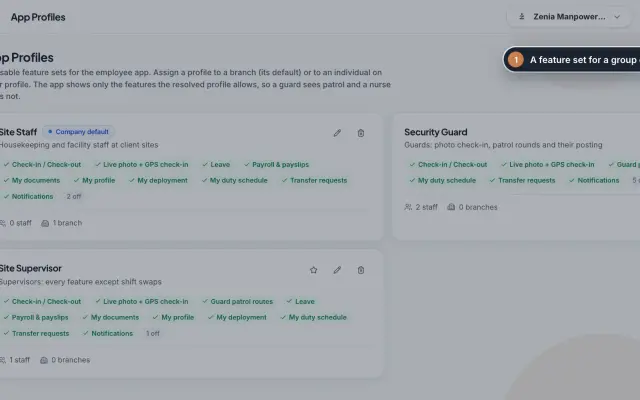 App Profiles moduleDecide which features each group of staff sees in the employee app, with named profiles for a branch, for one person or for the whole company.Module
 Employees moduleThe staff directory, where you add people, open an employee profile and approve new joiners.Module
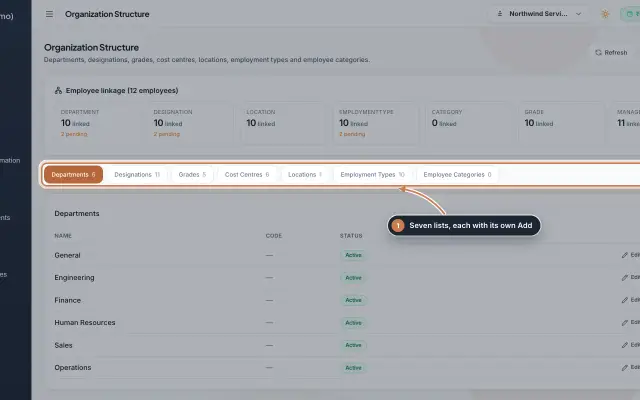 Organization moduleKeep the company's lists of departments, designations, grades, cost centres, locations, employment types and employee categories, and link each employee to them.Module
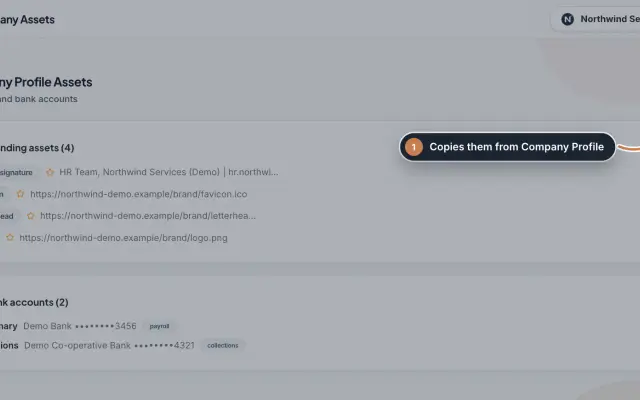 Company Assets moduleKeep the company's branding files and bank accounts as separate records, import them from the Company Profile and mark the main one of each kind.Module
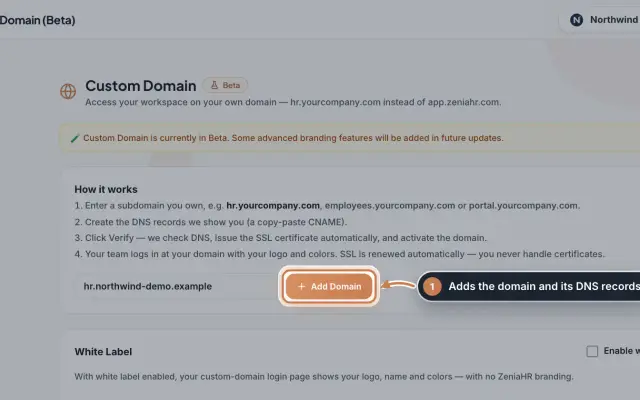 Custom Domain module (Beta)Open your ZeniaHR workspace on your own subdomain, such as hr.yourcompany.com, with the DNS records to create, automatic SSL and your own logo and colours on the sign-in page.Module
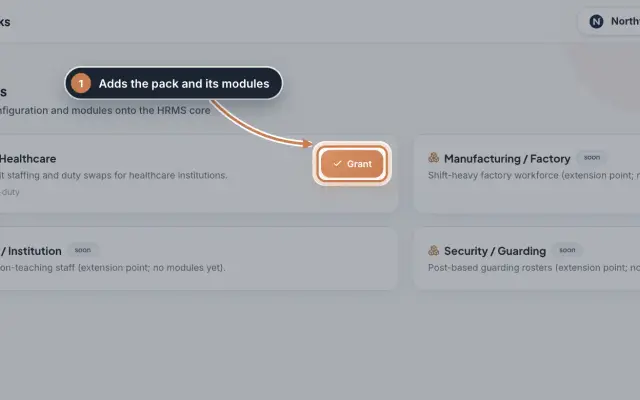 Industry Packs moduleAdd an industry's own settings and modules to your company, such as the Hospital / Healthcare pack with duty rosters, unit staffing and duty swaps.Module
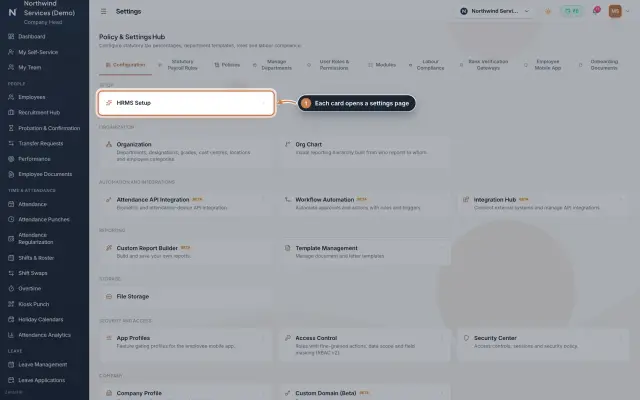 Settings moduleThe Policy & Settings Hub: a card for every settings page, and tabs for statutory rules, policies, departments, user permissions, modules, labour compliance, bank verification, the employee app and onboarding documents.Module
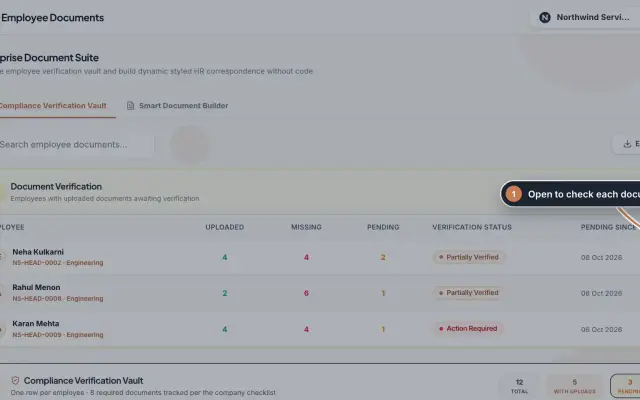 Employee Documents moduleCheck the documents each employee uploads against an eight-document checklist, verify or reject them, and make offer, appointment and other letters from ready-made styles.Module
- ZeniaHR for every businessSee how it works on the ZeniaHR website