Document Vault module (Beta)
The company's shared folders for papers that belong to no one employee, such as policies, contracts and registers, with secure links that run out.
Key screens
Open the vault
In the sidebar, open Workplace and click Document Vault. Folders shows the folders where you are, and Files lists each file with its date and size. Storage on the left counts the files and the space they use. Click Upload and pick a file, up to 25 MB, to add it to the folder you are in.
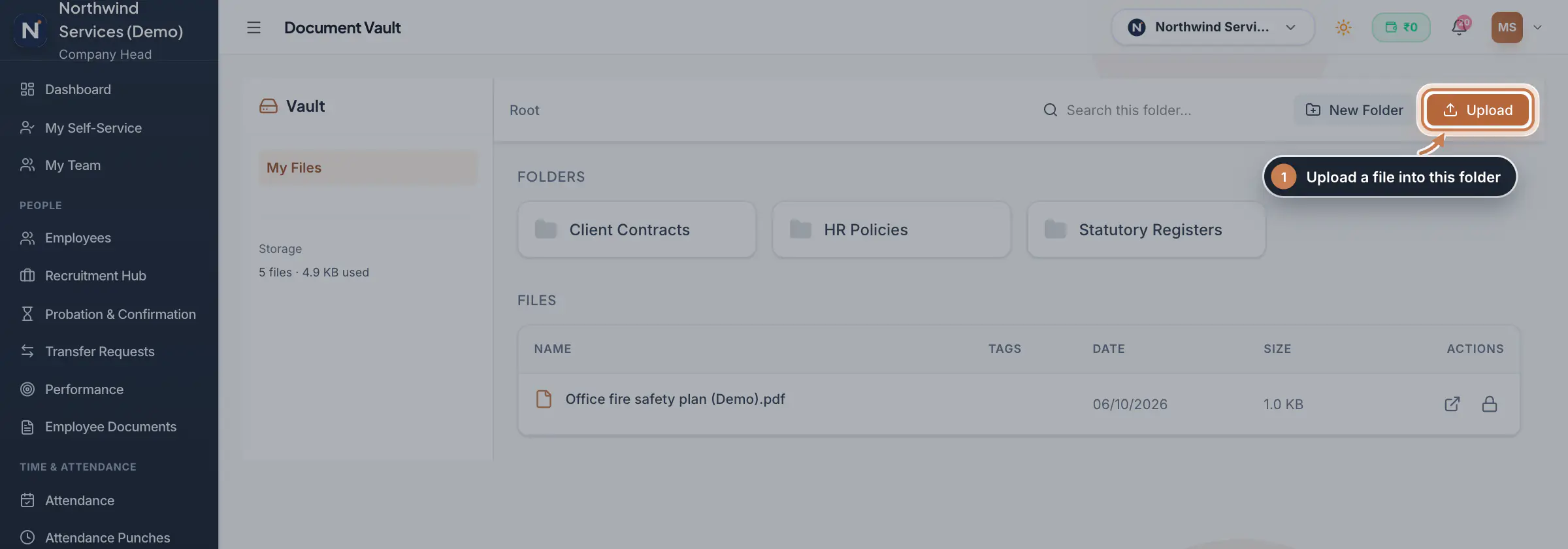 Full size
Step 1 Make a folder
Click New Folder, type the name and click OK. The folder is made inside the folder you are in, so you can keep folders within folders.
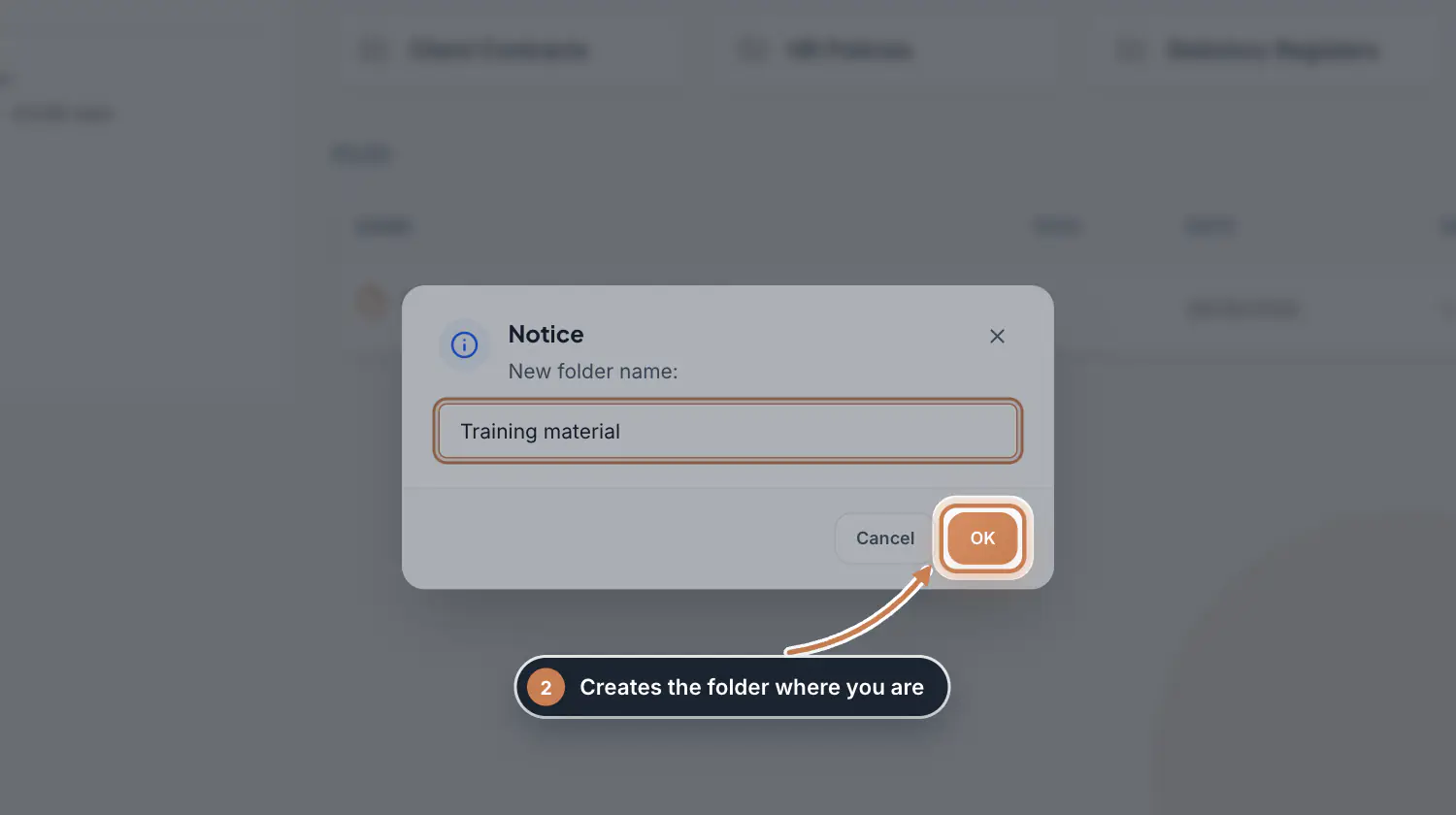 Full size
Step 2 Find and open a file
Click a folder to open it; the path at the top, such as Root / HR Policies, takes you back up. Type in Search this folder... to narrow the list by name. The open icon on a row opens the file in a new tab, where you can read or download it.
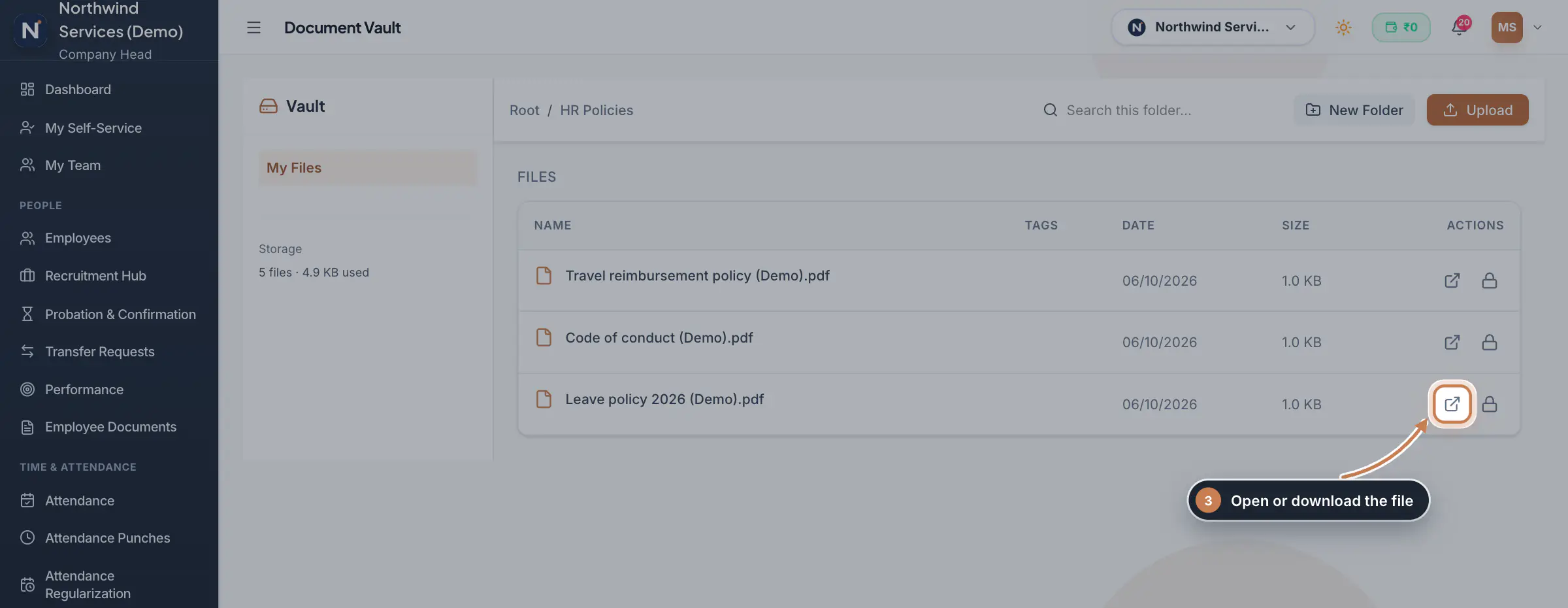 Full size
Step 3 Share a file with a secure link
Click the lock icon on a file. Set Expiry (Days), from 1 to 30, and Max Downloads, and add a password under Password Protect (Optional) if you want one. Apply Digital Watermark shows a watermark over the file, and Disable Print & Copy hides the download button on the shared page. Click Generate Secure Link, then copy the link and send it. After the expiry date, or once the downloads are used up, the link stops working.
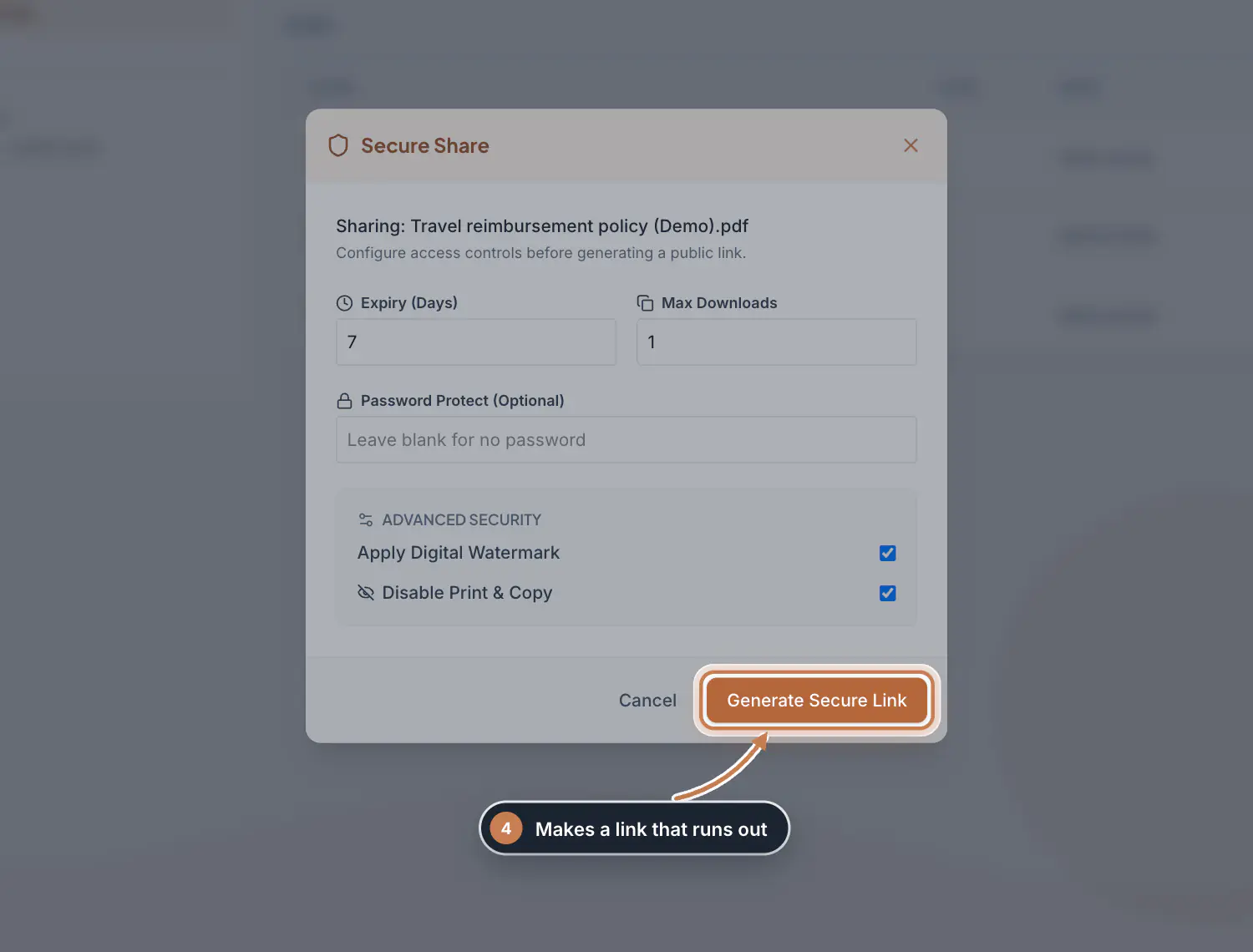 Full size
Step 4
What it does
Document Vault keeps the company's own files in folders: HR policies, client contracts, statutory registers and anything else that does not belong to one employee. You make folders, upload files into them and open them later. Secure Share makes a link to one file for someone outside ZeniaHR, with an expiry, a download limit, an optional password and a watermark. The vault is marked Beta.
Who uses it
- The Company Head and HR. It is in the Workplace group of the sidebar. Other roles get a no-access message.
How it connects
The vault is company-wide: every branch's files sit together, so people whose access is limited to some branches cannot open it. Files are kept in your company's file storage, so they also appear in File Storage under Settings. Documents of one employee, such as their ID or certificates, belong in Employee Documents instead.
Questions
Who can open a shared link?
Anyone who has the link, and the password if you set one. They see the file on a ZeniaHR page without signing in, until the link expires or the download limit is reached.
Can I rename or delete a file?
Not yet. The vault has no rename or delete, so check the file and its name before you upload it.
Why can a branch manager not open the vault?
The vault is shared by the whole company. Users whose access is limited to some branches cannot open it, so it never shows them another branch's files.
Related
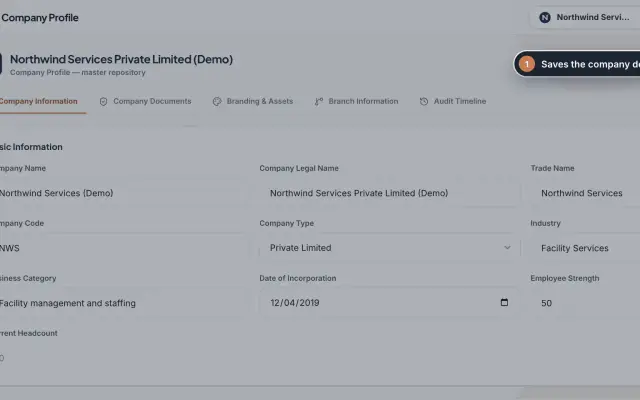 Company Profile moduleKeep your company's details, owners, certificates, branding images and branches in one place, with a timeline of every change.Module
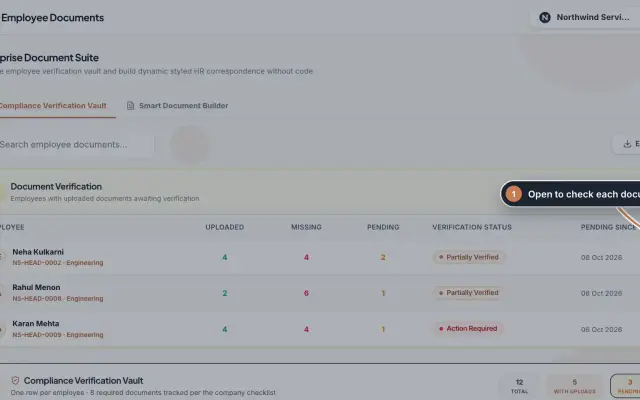 Employee Documents moduleCheck the documents each employee uploads against an eight-document checklist, verify or reject them, and make offer, appointment and other letters from ready-made styles.Module
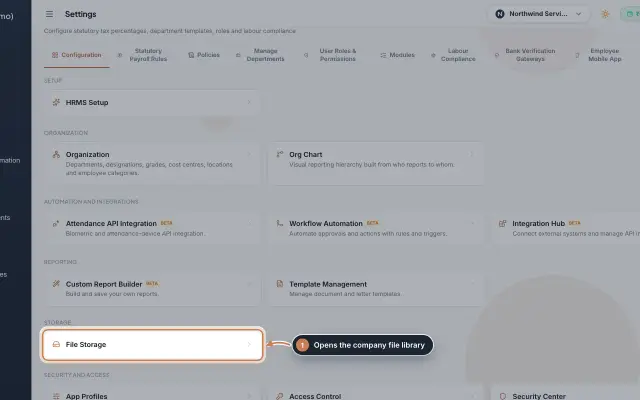 File Storage moduleThe company's file library in Settings: upload files of up to 25 MB, download them through short-lived secure links and delete what you no longer need.Module
- ZeniaHR for every businessSee how it works on the ZeniaHR website