Employee Documents module
Check the documents each employee uploads against an eight-document checklist, verify or reject them, and make offer, appointment and other letters from ready-made styles.
Key screens
See the uploads waiting for you
In the sidebar, click Employee Documents. Document Verification at the top lists each person with uploads waiting, with how many are uploaded, missing and pending and since when. Click the eye to open that person's documents. The tick verifies all of their pending uploads at once and the cross rejects them. In the app, employees open Me, then Documents, to see, open and upload their own.
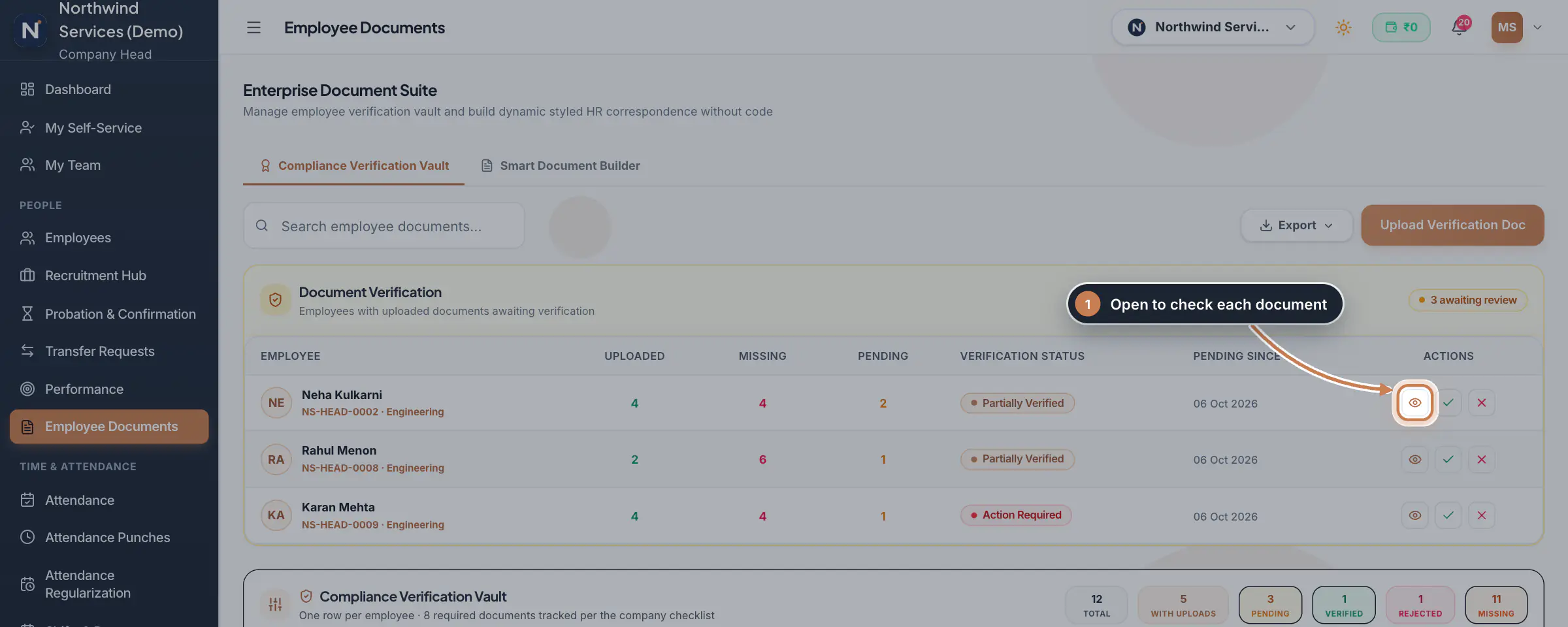 Full size
Admin panel · Step 1 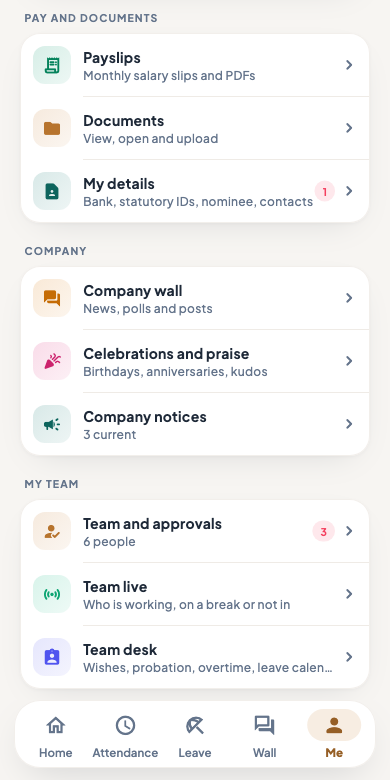 On the employee app
The employee app's Me tab, with Documents under Pay and documents
Verify or reject each document
The person's documents are grouped as identity, employment, education and financial documents, and each checklist document shows Missing until it is uploaded. Next to each upload, the icons preview it, download it, show its history, Verify it, Reject it, add a note or delete it. When you reject a document you can type the reason, which is kept with it; in the app, a rejected document asks the employee to upload it again. Click Back to all employees when you are done.
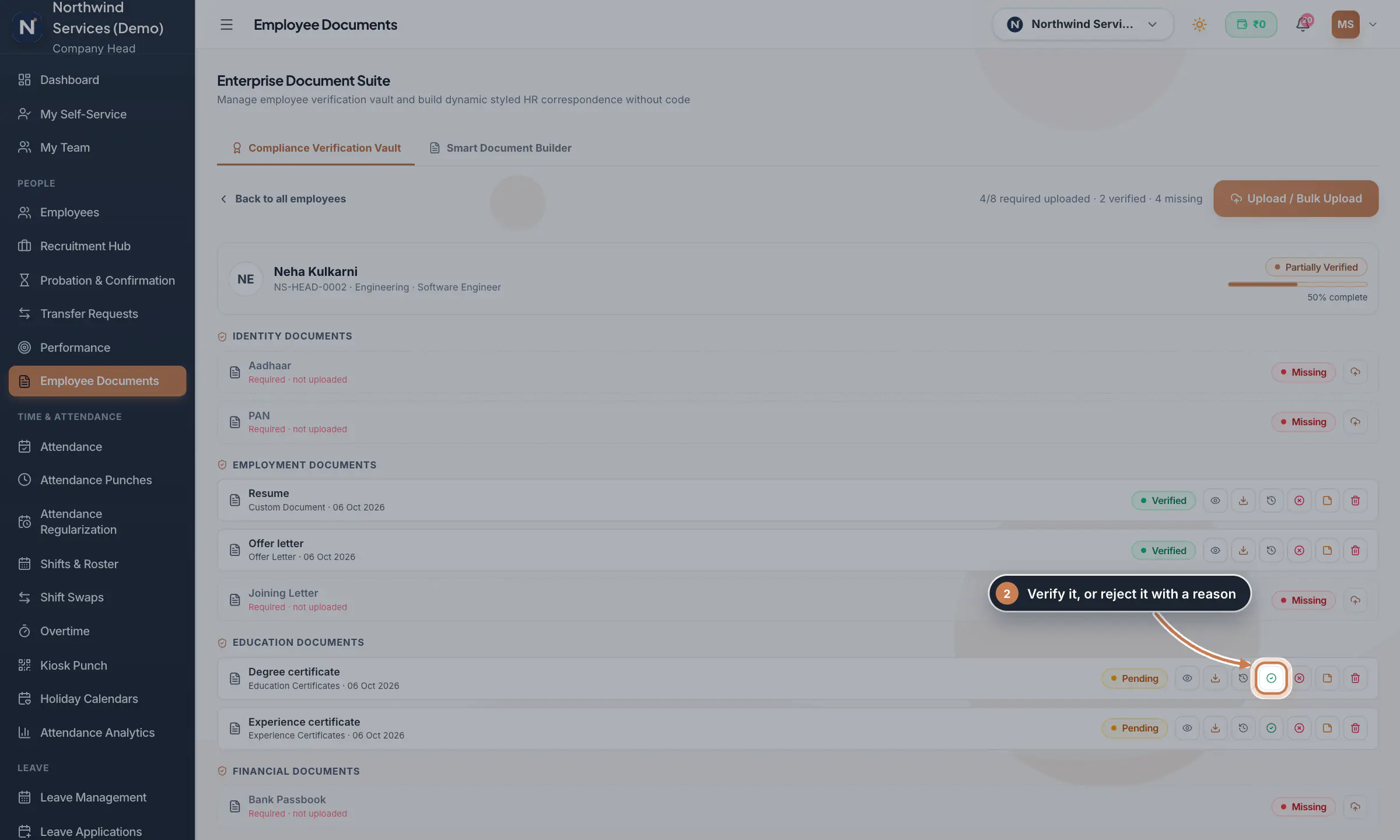 Full size
Step 2 Check everyone against the checklist
Further down, Compliance Verification Vault has one row per employee: how many of the 8 required documents are uploaded and missing, a progress bar and a status. Verified means all 8 are in and verified, Partially Verified that some are, Pending that none are verified yet and Action Required that a document was rejected. The counters at the top add up the whole company. Search by name, code or designation, or pick one status in the filter. Bulk Upload adds several files for one person, and the icons on a row open the person's documents or profile, upload, edit or download all their files.
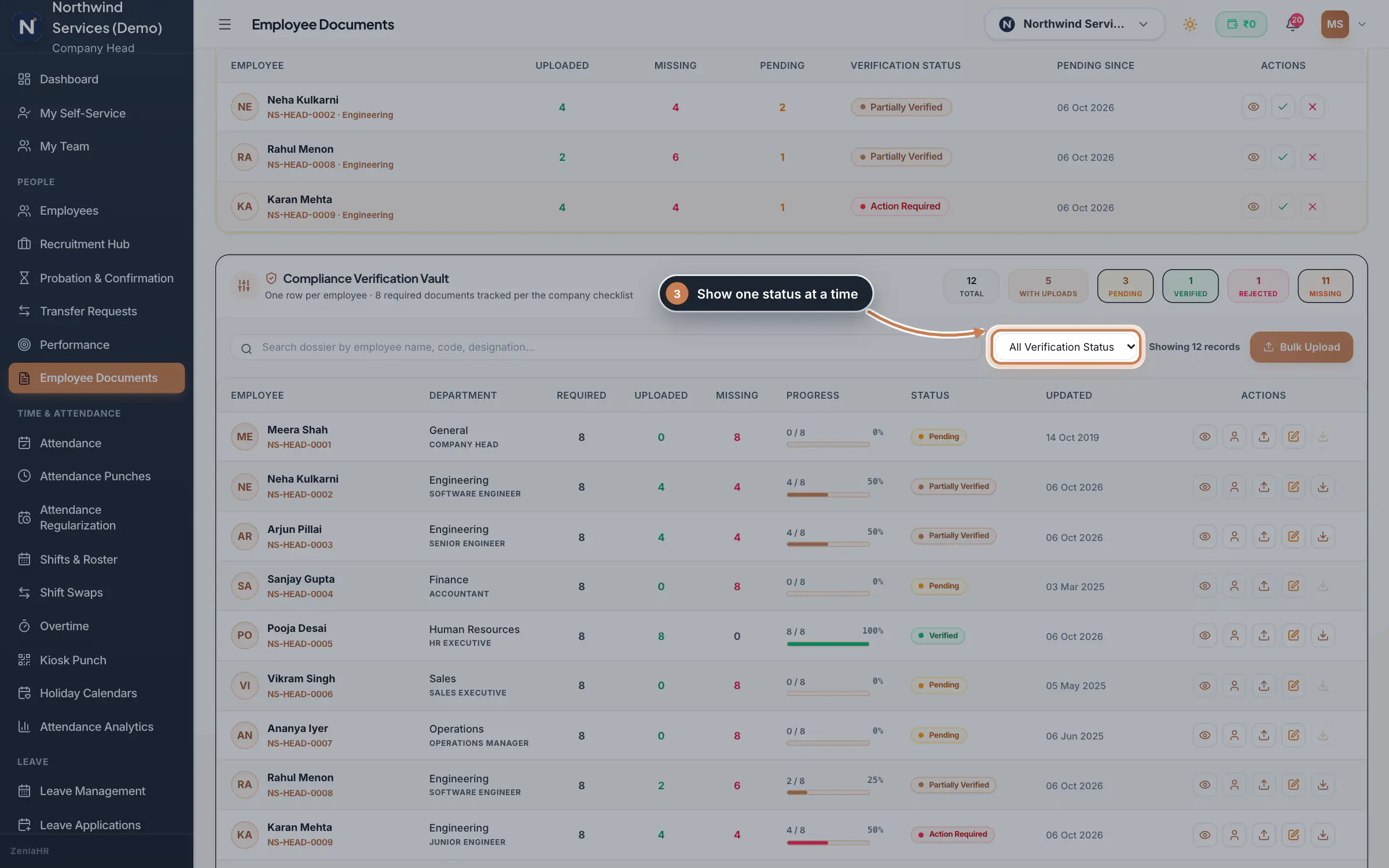 Full size
Step 3 Upload a document for an employee
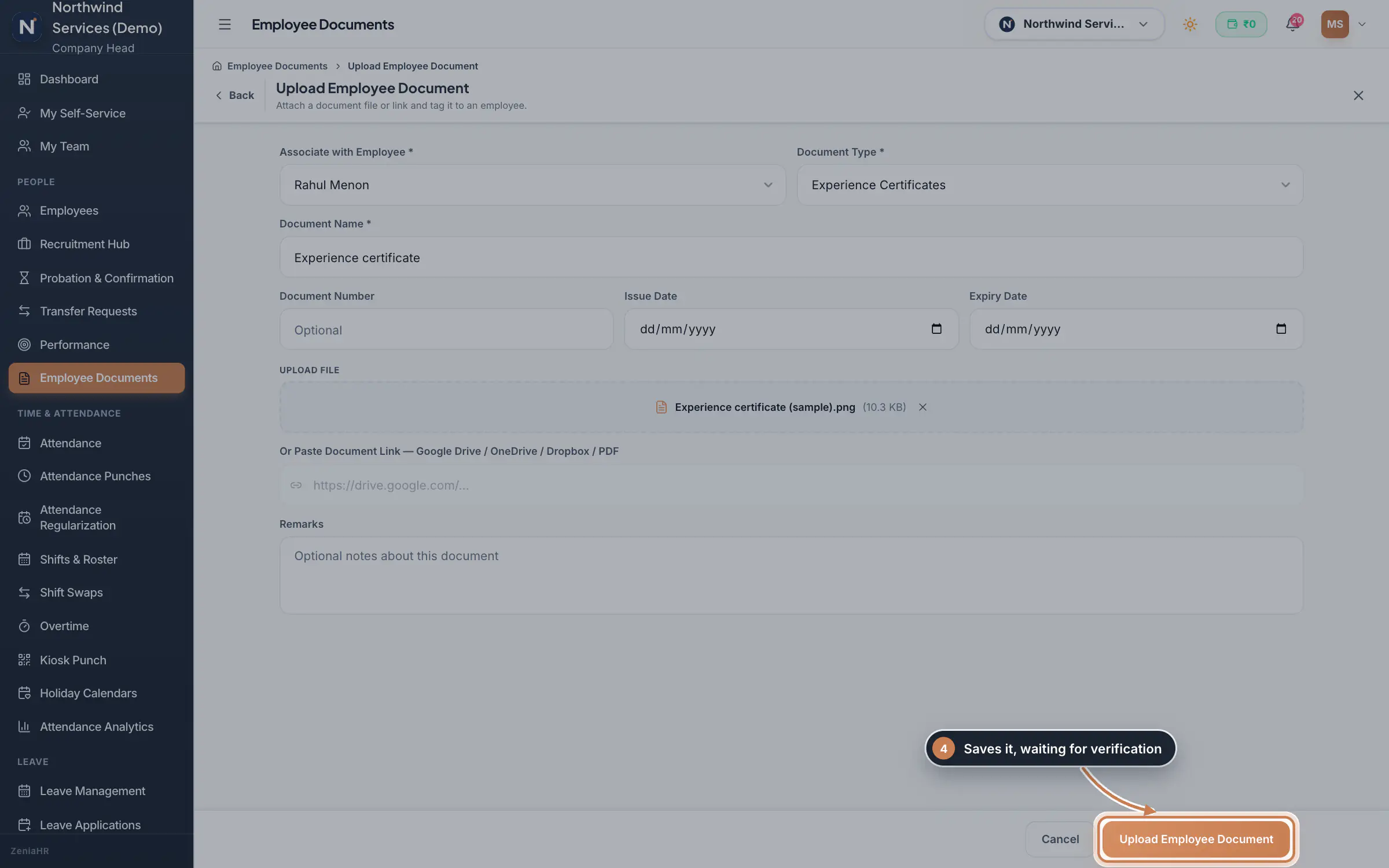
Click Upload Verification Doc at the top. Pick the employee under Associate with Employee, the Document Type and a Document Name; the Document Number, issue and expiry dates and Remarks are optional. Drop the file in the box, click Select File or take a photo with Camera (JPG, PNG, PDF, DOC or DOCX, up to 5 MB), or paste a link to the file instead. Click Upload Employee Document. The document is saved as pending, so it still needs a Verify.
 Full size
Step 4 Choose a letter and its style
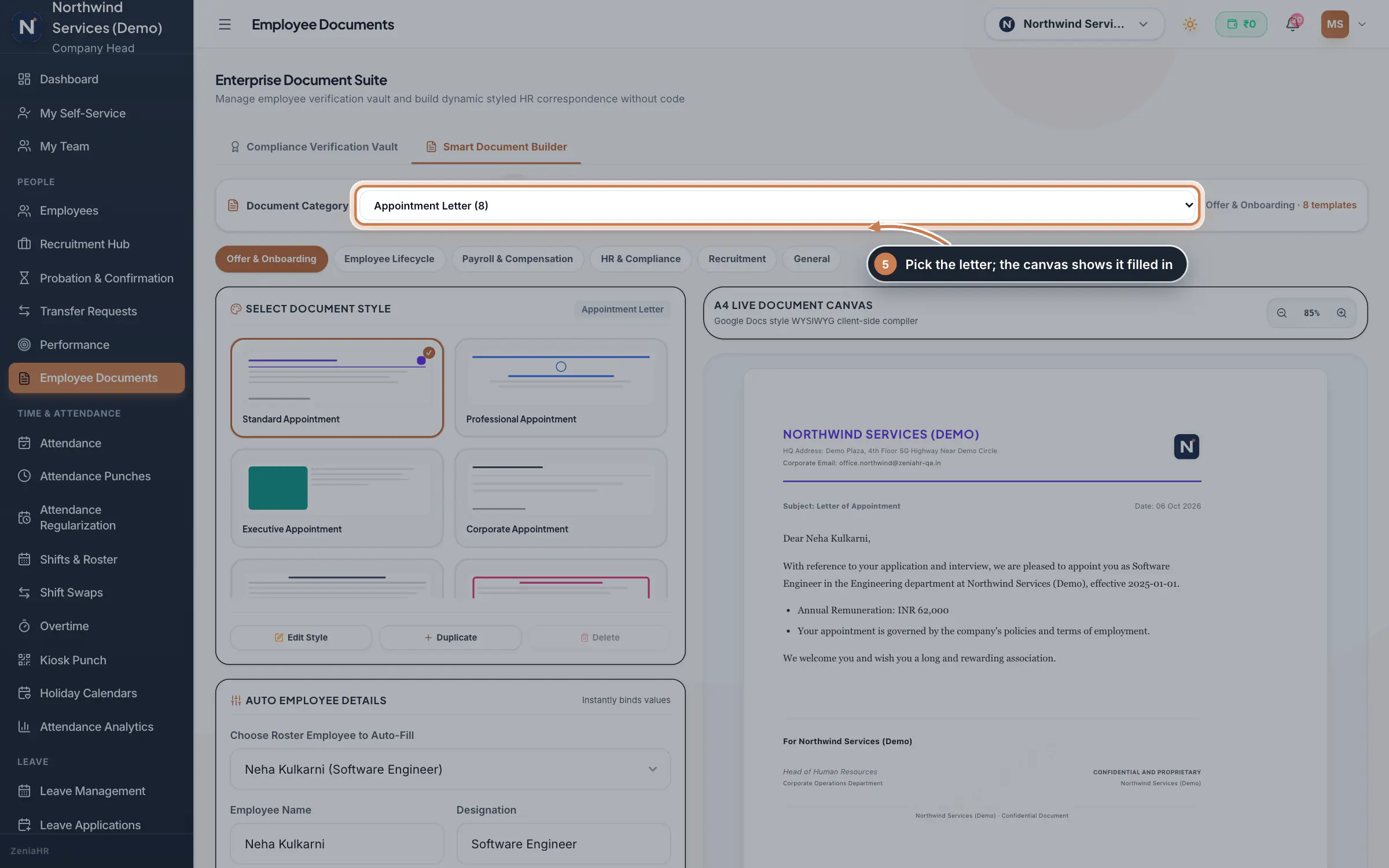
Click Smart Document Builder. Pick the letter under Document Category, or jump to a group with the buttons below it: Offer & Onboarding, Employee Lifecycle, Payroll & Compensation, HR & Compliance, Recruitment and General. Each kind of letter comes in eight styles; click one under Select Document Style. The A4 Live Document Canvas on the right shows the letter as it will print. To change the wording or the look, click Duplicate to make your own copy of the style, then Edit Style; Create Custom starts a new style from scratch.
 Full size
Step 5 Fill in the employee and download
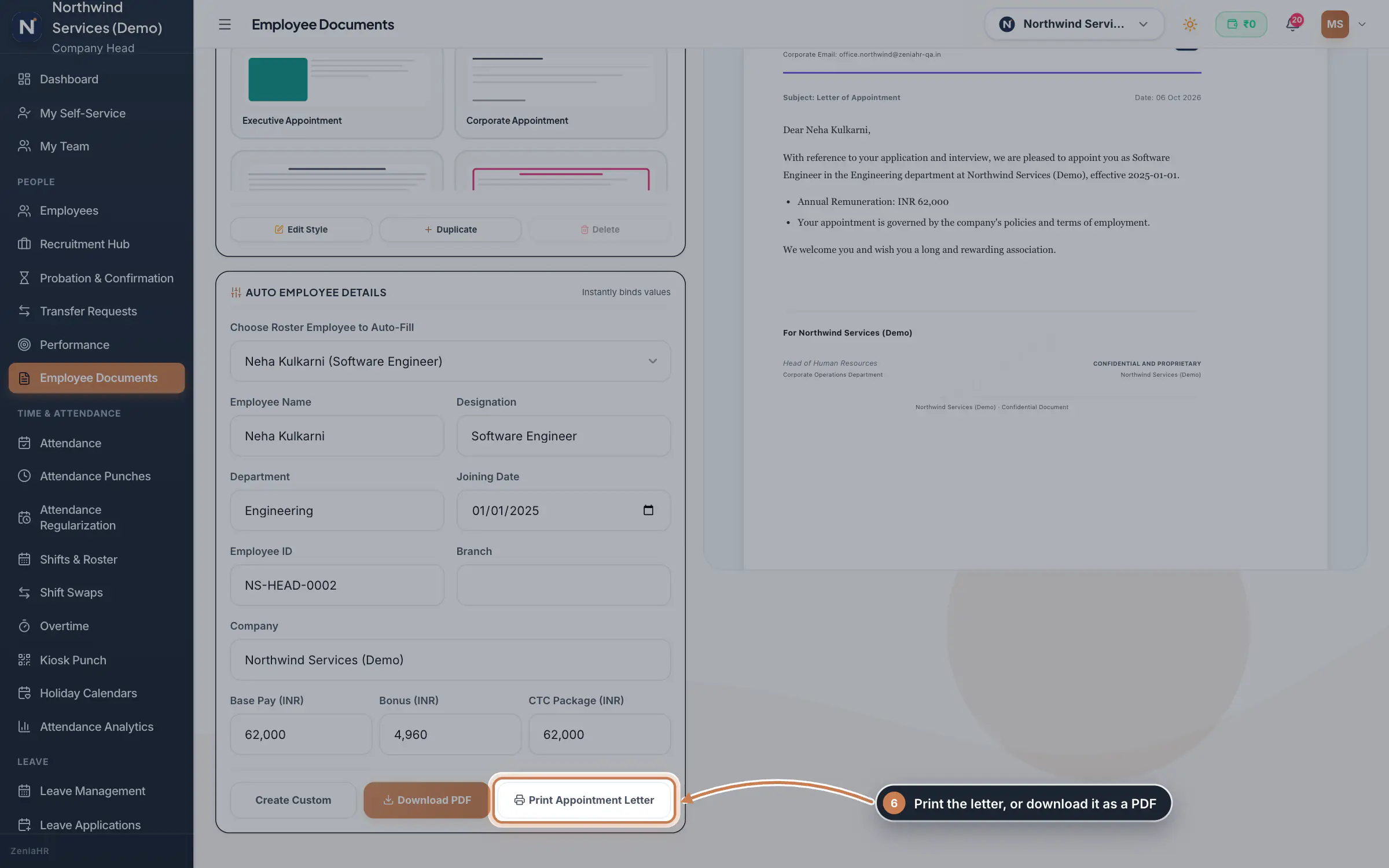
Under Auto Employee Details, choose the employee in Choose Roster Employee to Auto-Fill. Their name, designation, department, joining date, employee ID, branch, company and pay fill in, and the letter updates as you type. Click Download PDF to save the letter, or the print button to print it.
 Full size
Step 6 Tip Check the filled-in details before you download, especially the joining date and the pay, and correct them in the fields if needed.
What it does
Employee Documents opens the Enterprise Document Suite with two tabs. Compliance Verification Vault keeps every employee's documents and checks them against an eight-document checklist: Aadhaar, PAN, resume, offer letter, joining letter, bank passbook, degree certificate and experience certificate. New uploads wait for HR to verify or reject them. Smart Document Builder makes letters, such as offer, appointment, confirmation, experience and relieving letters, filled in with an employee's details and ready to download or print.
Who uses it
- Company Head, HR and Finance open it from Employee Documents in the sidebar. Verifying and rejecting is for the Company Head and HR.
- Employees upload their own documents in the employee app, under Me, Documents. Each upload waits here for verification.
How it connects
The people and their details come from Employees, and a person's uploads also show on their profile there. Letters use your company's name, logo, address and email from Company Profile. Company-wide papers that belong to no one person, such as policies and contracts, go in the Document Vault instead.
Questions
Which documents does the checklist ask for?
Eight: Aadhaar, PAN, resume, offer letter, joining letter, bank passbook, degree certificate and experience certificate. A document counts when its type or name matches, so name uploads plainly, such as "Degree certificate".
Can employees upload documents themselves?
Yes. In the employee app they open Me, then Documents, and upload a photo or a file. It arrives here as pending for HR to verify.
Where are the letters I make kept?
Letters are made on the spot from the employee's details and downloaded or printed; they are not filed automatically. To keep a signed copy, upload it to the employee's documents. The styles you create or duplicate are kept in the browser you made them in, so they do not follow you to another computer.
Related
 The employee app for office staffA tour of the ZeniaHR app for HRMS Core staff: signing in, starting your shift, attendance, leave, the company wall and your profile.GuideApp
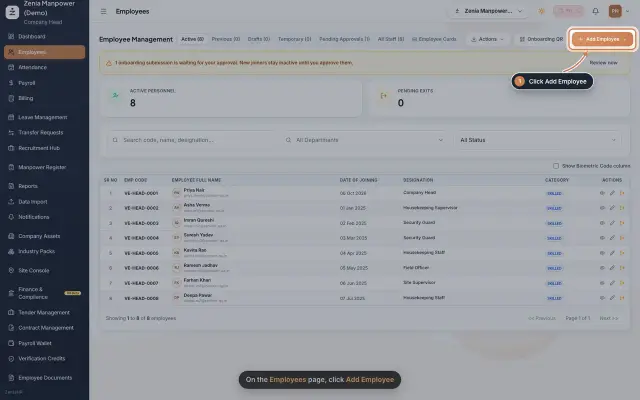 Add an employeeRegister a new employee master file step by step, from personal details to employment.Guide25 s video
 Employees moduleThe staff directory, where you add people, open an employee profile and approve new joiners.Module
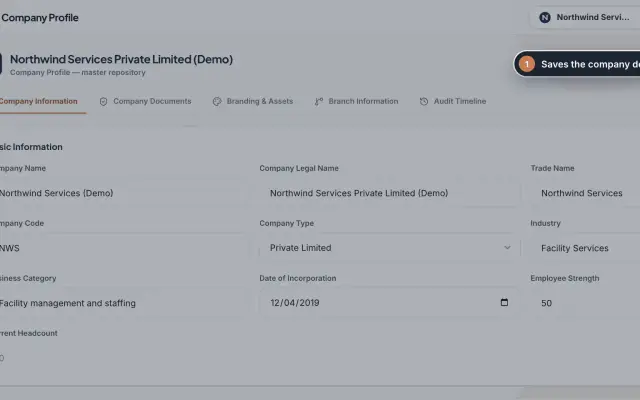 Company Profile moduleKeep your company's details, owners, certificates, branding images and branches in one place, with a timeline of every change.Module
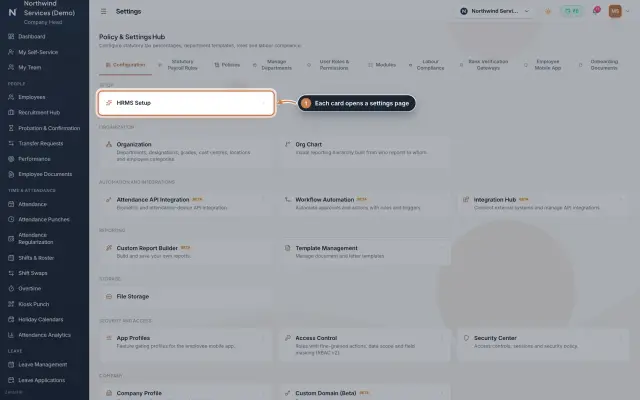 Settings moduleThe Policy & Settings Hub: a card for every settings page, and tabs for statutory rules, policies, departments, user permissions, modules, labour compliance, bank verification, the employee app and onboarding documents.Module
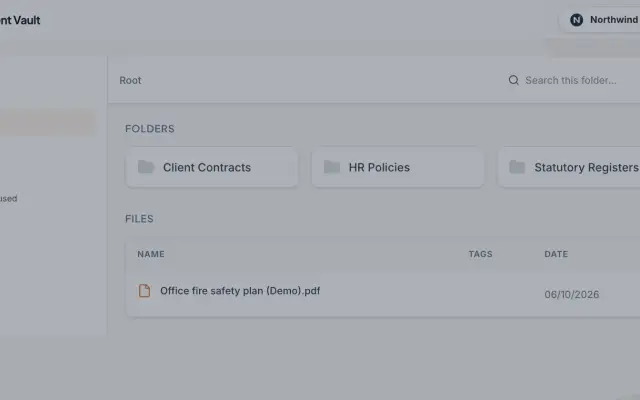 Document Vault module (Beta)The company's shared folders for papers that belong to no one employee, such as policies, contracts and registers, with secure links that run out.Module
- Employee onboarding softwareSee how it works on the ZeniaHR website