Tender Management module
Track every tender from the day it is published to the work order, with a desk that shows what needs action this week.
Key screens
The tender desk
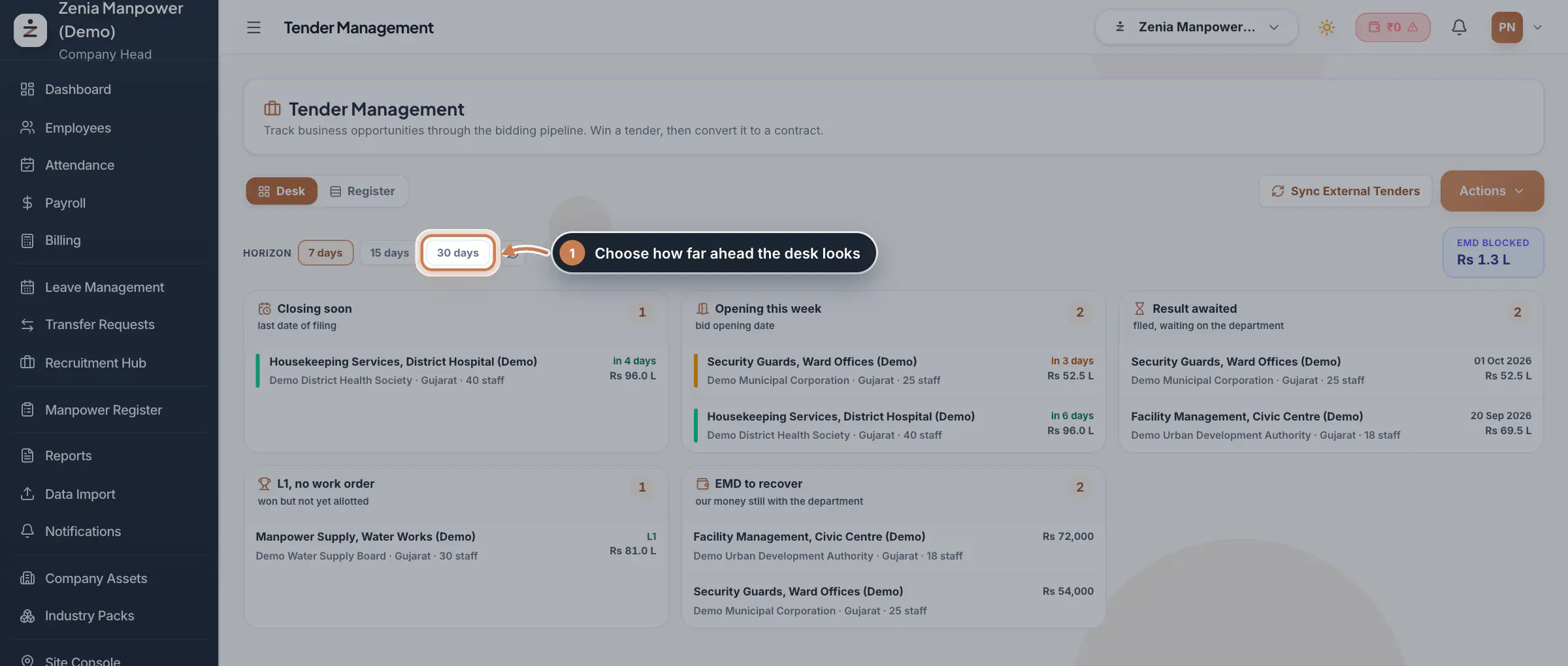
In the sidebar, click Tender Management. The Desk shows five queues: Closing soon (last date of filing), Opening this week (bid opening date), Result awaited (filed, waiting on the department), L1, no work order (won but not yet allotted) and EMD to recover (your money still with the department). Choose 7 days, 15 days or 30 days to set how far ahead it looks. EMD BLOCKED shows the total EMD still held. Click any tender to open its details.
 Full size
Step 1 The register
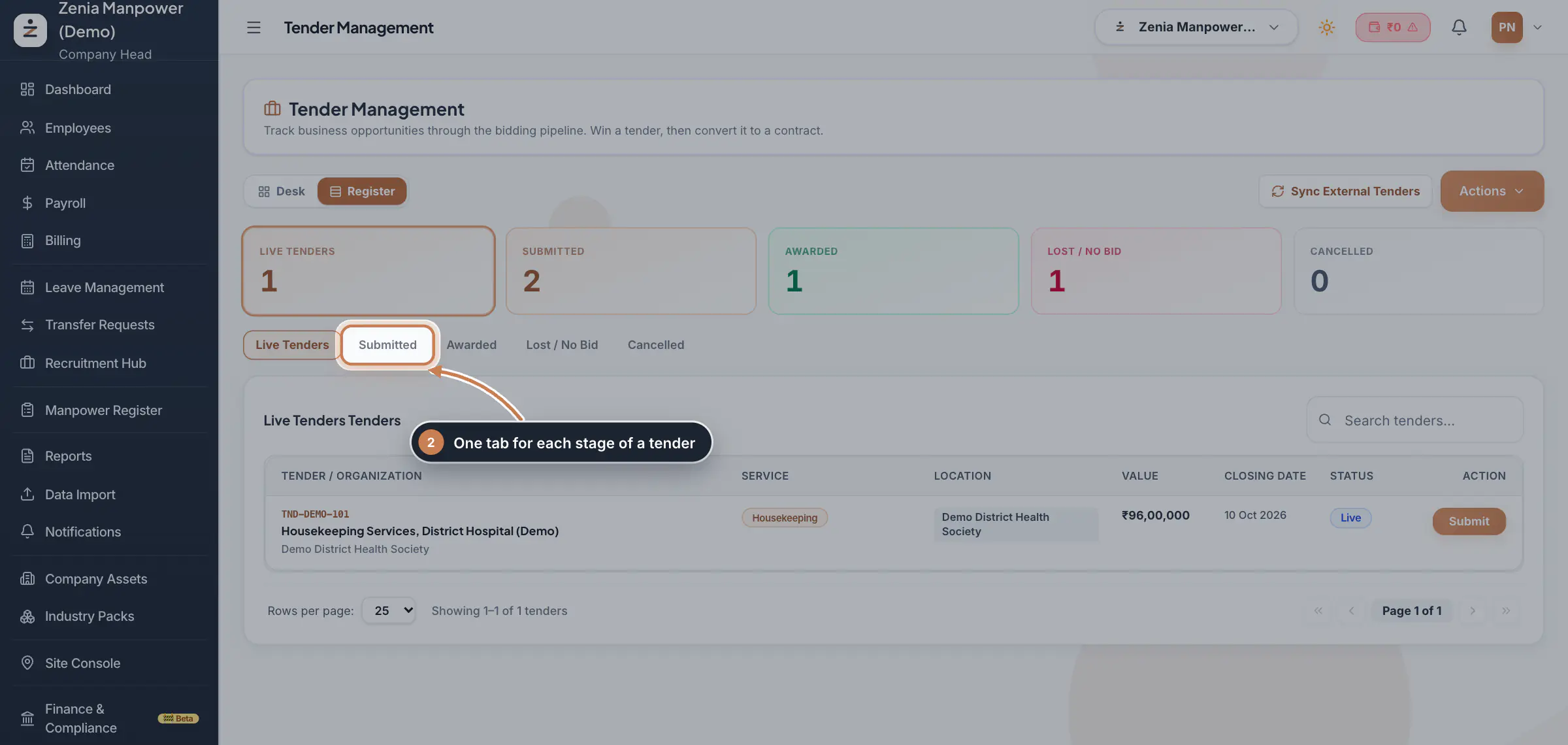
Click Register to see every tender. The counts at the top and the tabs below split tenders by stage. Each row shows the tender, service, value, closing date and status, with the next action: Submit for a live tender, Update Outcome for a submitted one, and Convert to Contract for a won one.
 Full size
Step 2 Add or import tenders
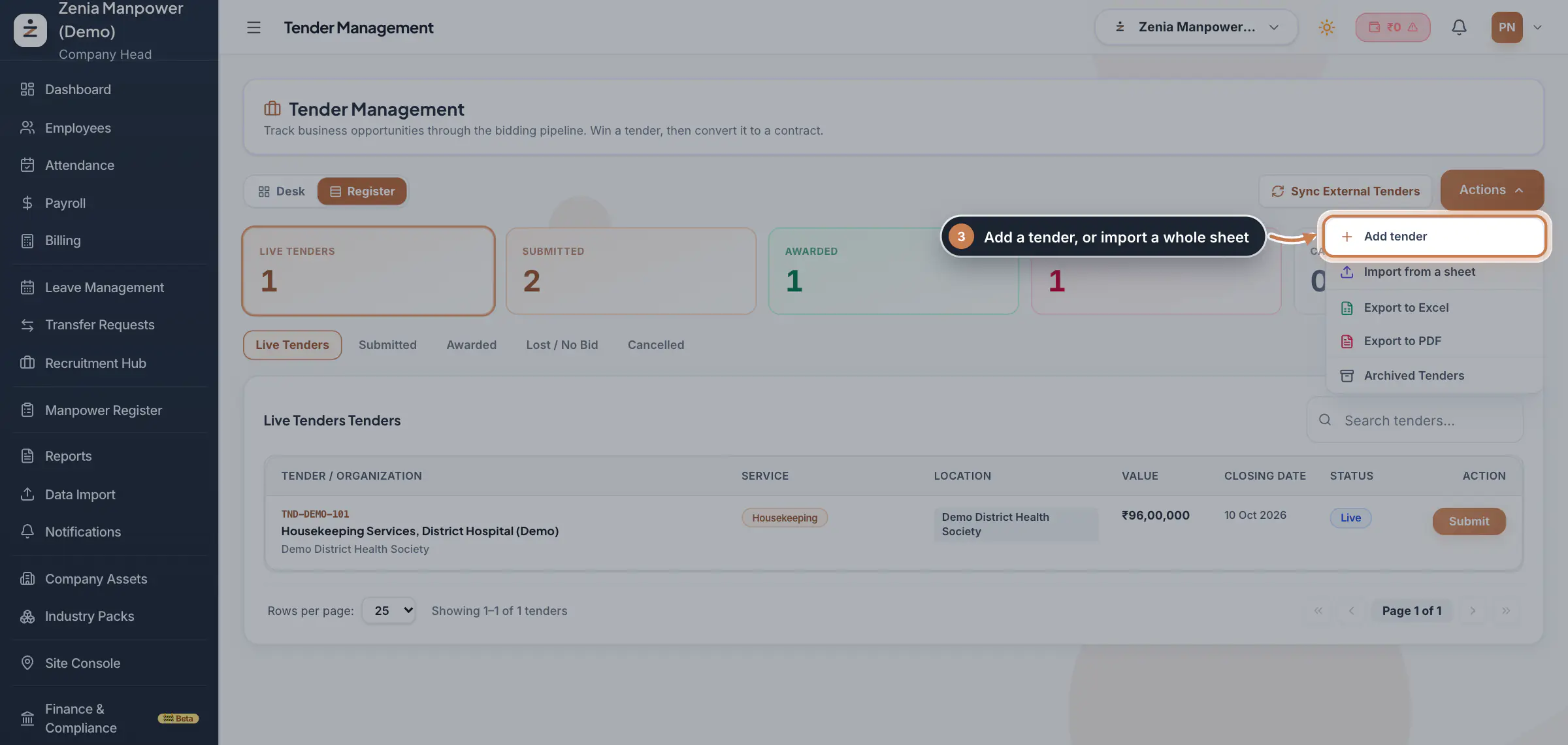
Click Actions. Use Add tender for one tender, or Import from a sheet to bring in many at once. The same menu has Export to Excel, Export to PDF and Archived Tenders. Sync External Tenders brings in the latest live tenders from the external feed; tenders you have already ruled on are never removed by a sync.
 Full size
Step 3 Fill in the tender
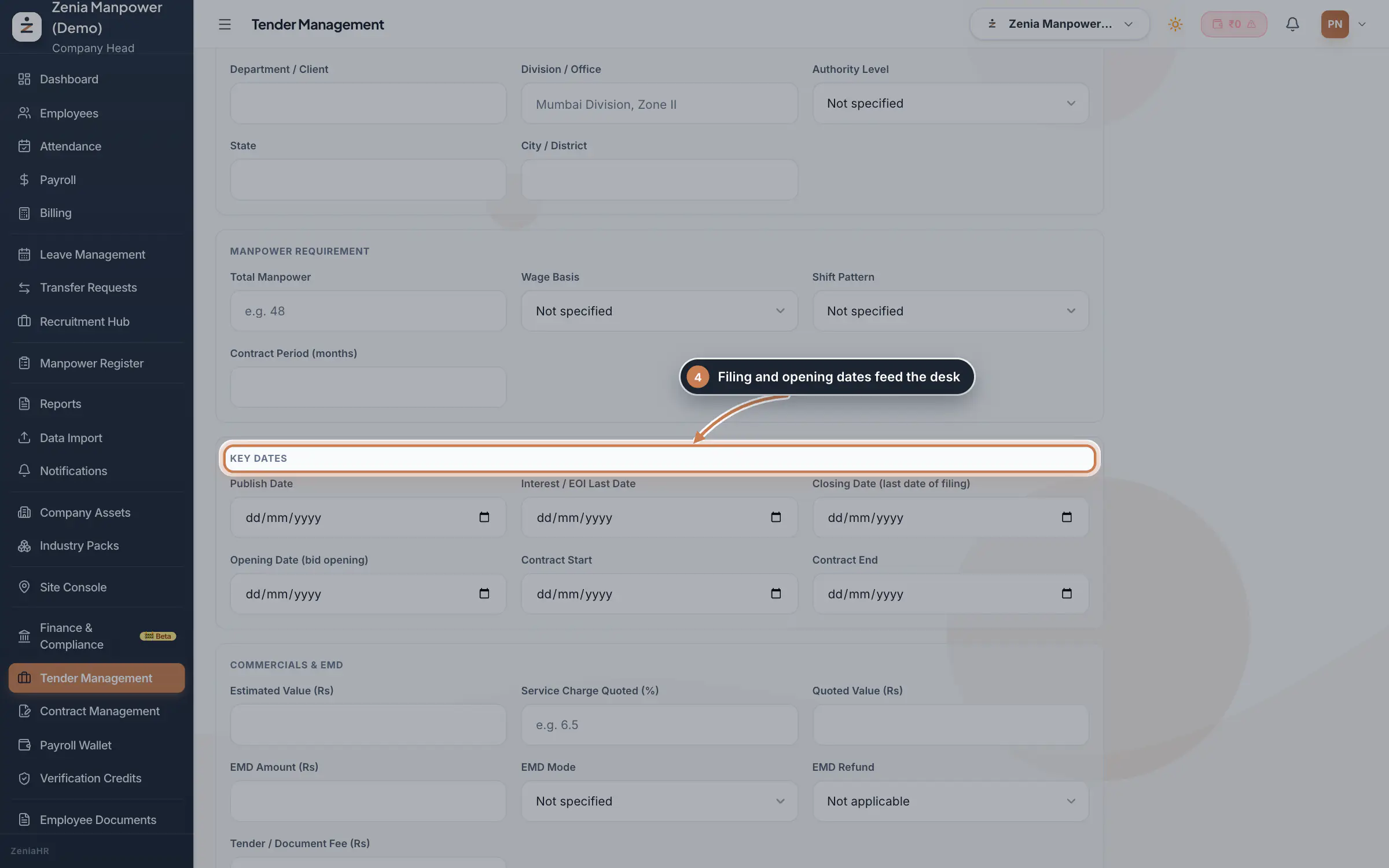
The form has six parts: Tender Details, Authority & Location, Manpower Requirement, Key Dates, Commercials & EMD and Documents & Notes. Only the tender name is required. Fill in the Closing Date (last date of filing) and the Opening Date (bid opening), because the desk queues are built from these dates. Record the EMD Amount and EMD Refund status so the desk can track EMD you still have to recover.
 Full size
Step 4 Submit, record the result, convert
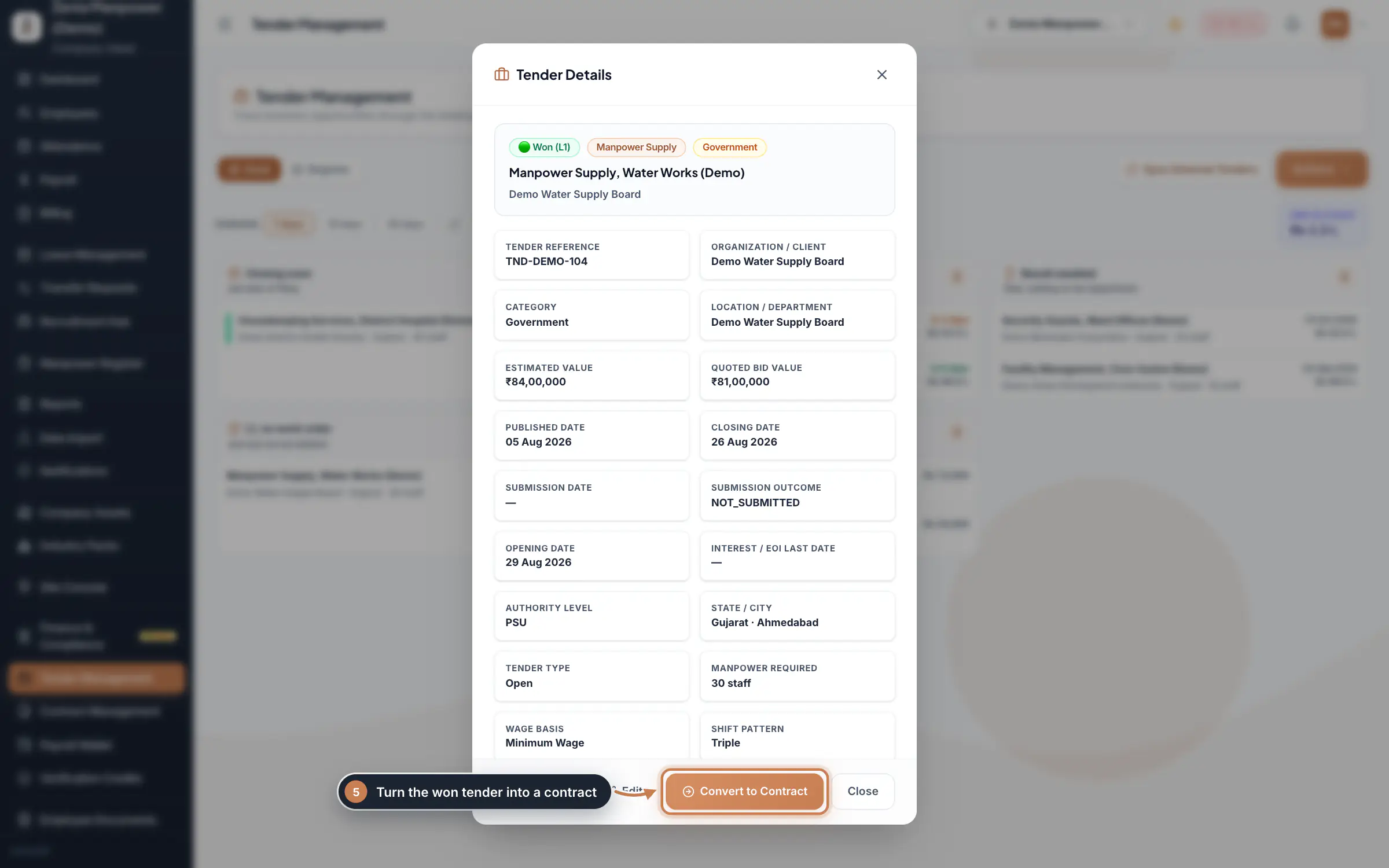
Open a tender to see all its details. Submit Bid records your submission. Once results are out, Update Outcome records the result, your rank and the L1 price. For a won tender, Record allotment saves the Allotment Date and Work Order Number, and Convert to Contract creates the contract from the tender.
 Full size
Step 5
What it does
Tender Management is the bidding desk of a manpower company. You keep each tender with its authority, manpower requirement, key dates and EMD, move it through its stages, and turn the ones you win into contracts. The stages are Live Tenders, Submitted, Awarded, Lost / No Bid and Cancelled.
It has two views. The Desk lists only what needs action soon. The Register lists every tender, one tab per stage, with search and paging.
Who uses it
- Only the Company Head opens Tender Management.
- The Company Head also adds, imports, edits and converts tenders, and runs Sync External Tenders.
How it connects
A won tender becomes a contract in Contract Management with one click. The contract is filled in from the tender, so you then only add its sites and deploy staff. A contract created this way keeps a link back to its tender.
Questions
Can I mark a tender we decided not to bid for?
Yes. Open the tender and click Not bidding. It moves to Lost / No Bid, so you keep a record of what you skipped.
Why should I record why we lost a bid?
The reason, your rank and the L1 price build a price history. Over time it shows whether you lose on price, documents or eligibility.
Related
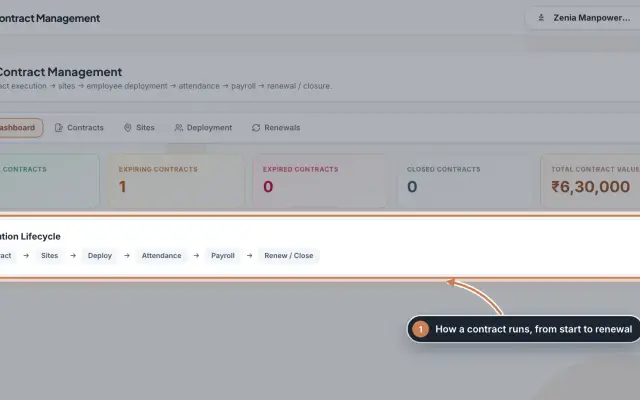 Contract Management moduleKeep every client contract with its sites and the staff deployed to each site, and renew contracts before they end.Module
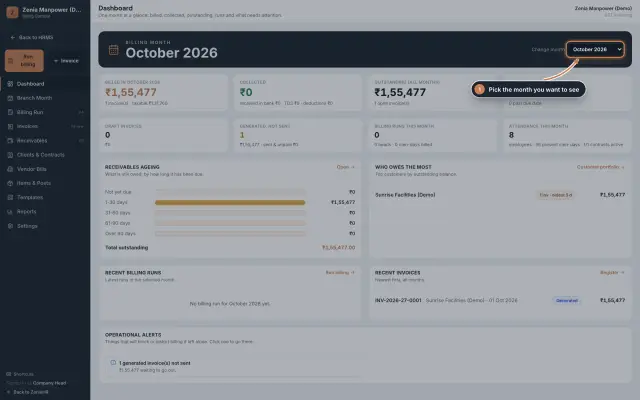 Billing moduleThe Billing console of a manpower company, where you turn attendance on each contract into GST invoices and follow every payment.Module
- Client billing for manpower firmsSee how it works on the ZeniaHR website