Verification Credits module
The full Verification Credits page: the credit meter and why checks may be paused, daily usage charts, the history of every bank verification with its details, and every recharge with its invoice.
Key screens
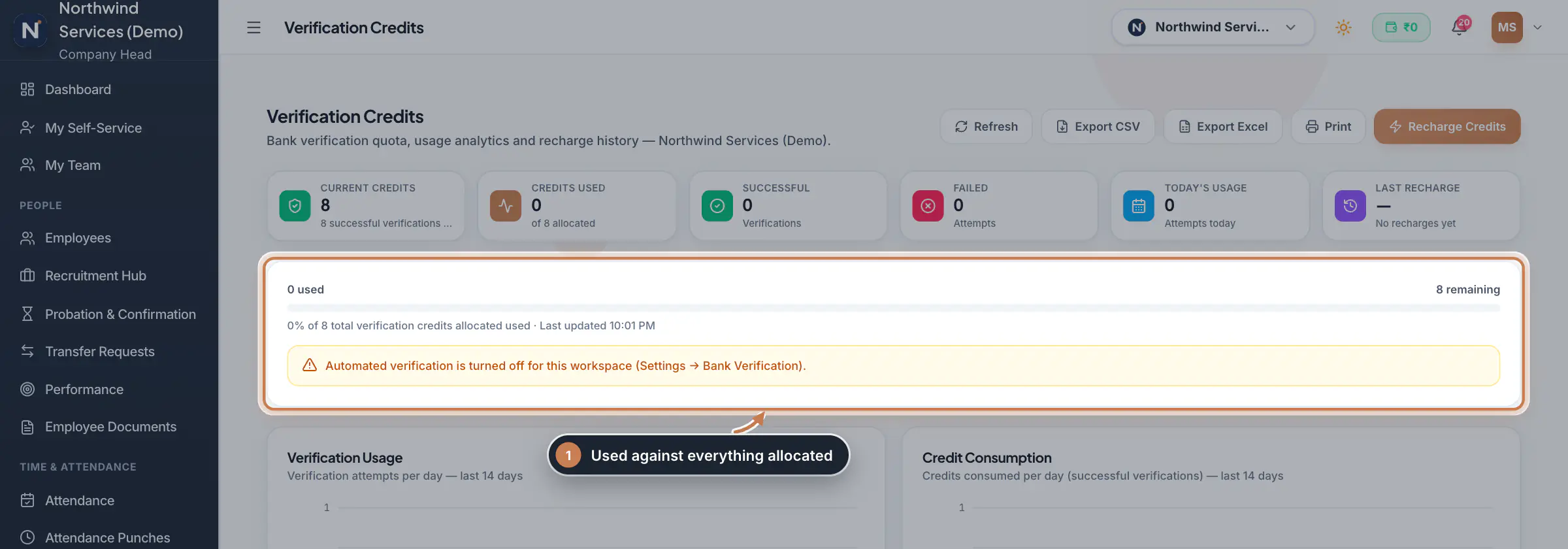
Read the credit meter
In the sidebar, click Verification Credits. Below the six balance cards, the meter shows how many credits are used and how many remain, and what share of all the credits ever allocated is used. When checks cannot run, a notice under the meter says why: automated verification is turned off in Settings, verification is suspended for your company, or no credits remain. Further down, Verification Usage charts the checks attempted each day and Credit Consumption the credits used each day, for the last 14 days. Refresh at the top reloads the page, and Export CSV, Export Excel and Print share the history.
 Full size
Step 1 Look up a verification
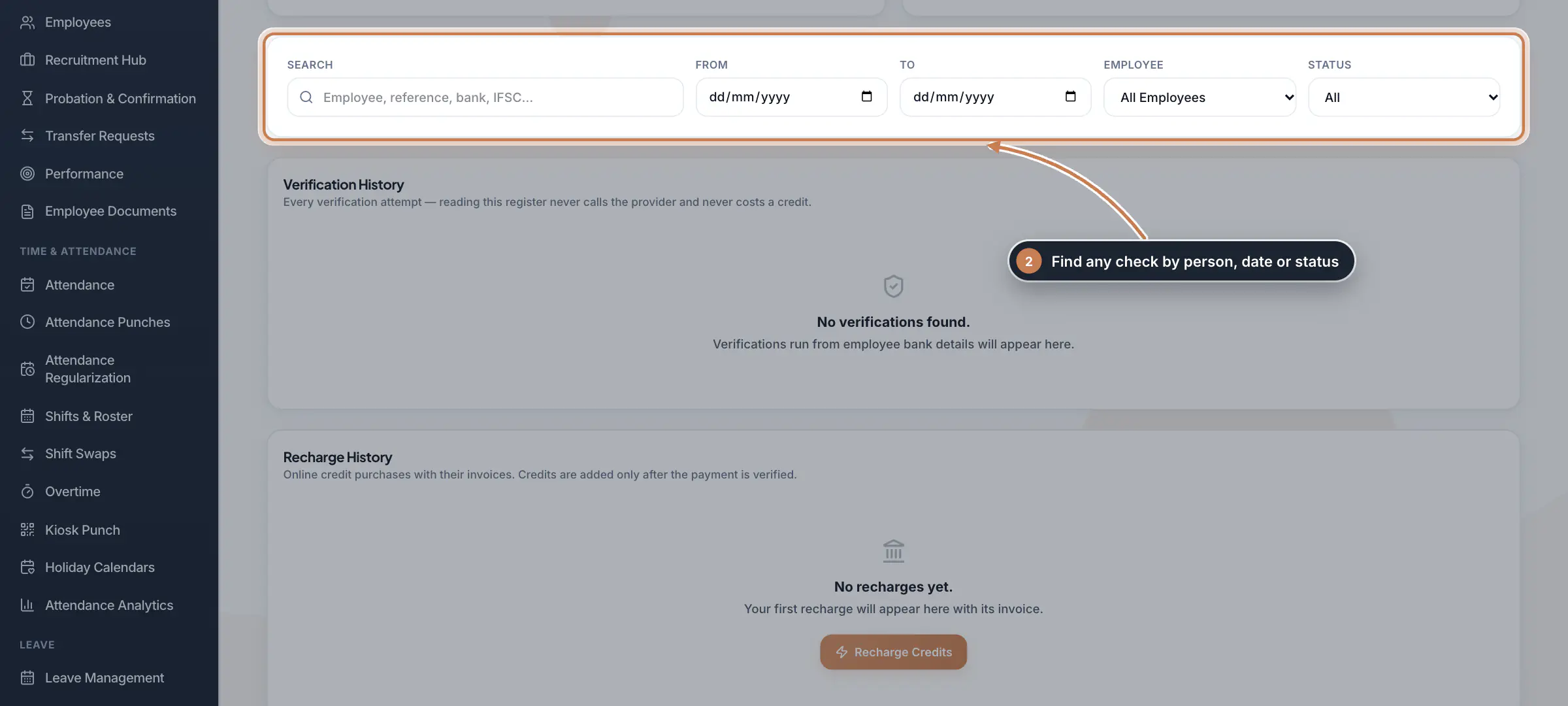
Use the filters to narrow Verification History: search by employee, reference, bank or IFSC, set a From and To date, or pick one Employee or a Status (Verified, Failed / Error or Pending). The history lists every attempt with its date, the employee, the type of check, the credits used, the status and the reference ID. Click the eye on a row to open its details: the response time, the employee's name and code, the account holder, the masked account number, IFSC and bank, the references and, for a failed check, the reason. Looking at the history never runs a check and never uses a credit.
 Full size
Step 2 Follow your recharges
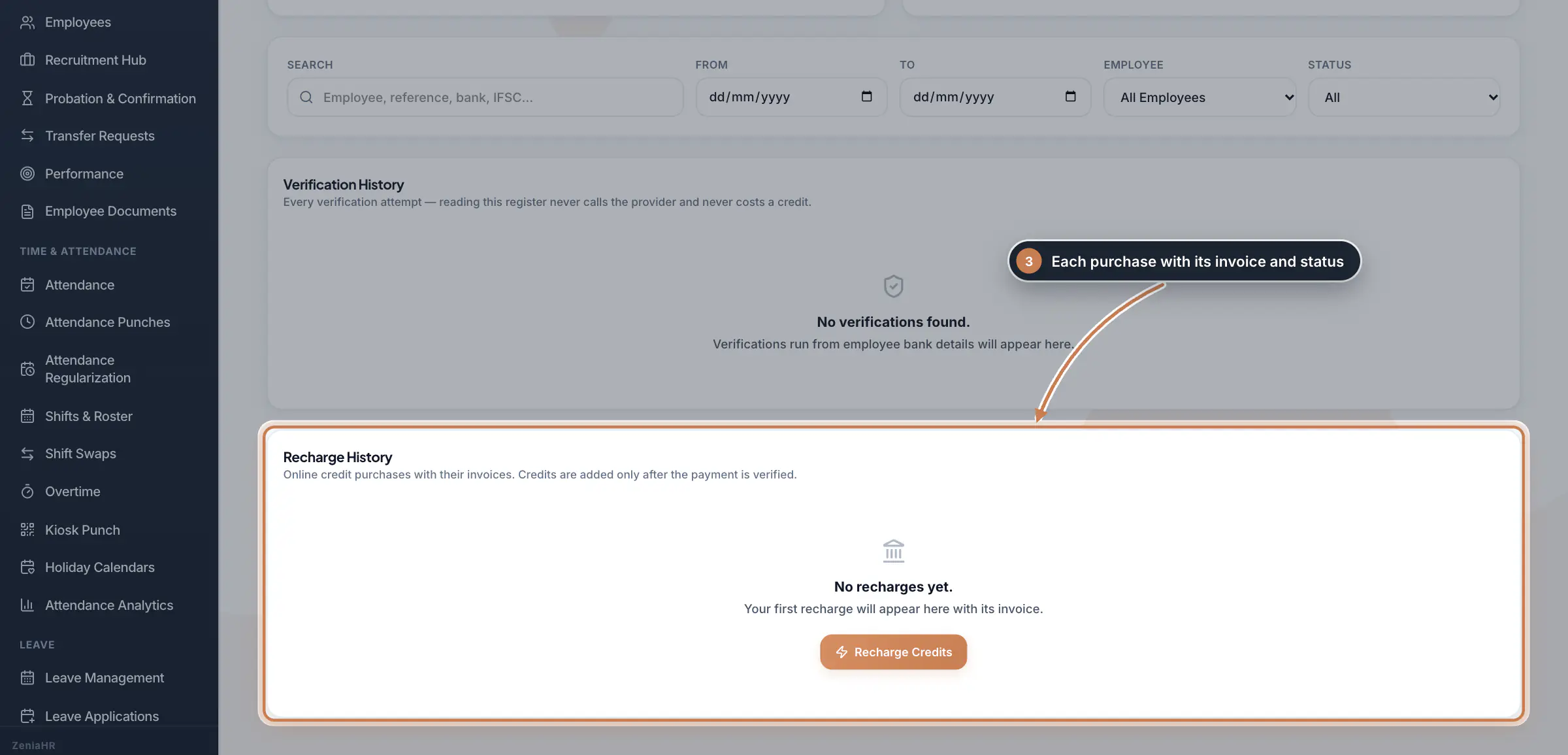
Recharge History lists every credit purchase with its date, order ID, the credits bought, the amount paid, the invoice and the status: Payment Pending, Processing, Awaiting Approval, Credits Added, Failed, Expired, Cancelled, Refunded or Under Review. Click the invoice number to download the invoice. If a payment you completed still shows as pending, the Company Head can click Verify now on its row to check it with the payment gateway; the credits are added once the payment is confirmed.
 Full size
Step 3
What it does
Verification Credits is the page behind your verification balance. Besides the balance cards described in Verification credits, it shows a credit meter with the reason when checks are paused, two charts of the last 14 days, the Verification History of every bank account check with its full details, and the Recharge History of every credit purchase with its invoice. One credit allows one successful bank verification; credits are a count of checks, never money.
Who uses it
- The Company Head, HR and Finance open it from Verification Credits in the sidebar. Employees cannot open it.
- Only the Company Head buys credits and checks a pending payment again. HR sees a note that purchasing is done by the Company Head, and can still see both histories.
How it connects
A check runs when an employee's bank account is verified as they are registered, and only while Enable API Verification is on under Settings, Bank Verification Gateways. Each successful check uses one credit and appears in the history here; a failed check uses none. Recharge Credits at the top opens the purchase, as described in Verification credits.
Questions
Why does the page say automated verification is turned off?
Bank accounts are checked only while Enable API Verification is on under Settings, Bank Verification Gateways. While it is off, bank details are entered by hand and no credits are used.
Do the charts or the history use credits?
No. Only a successful check of a bank account uses a credit. Opening, filtering, exporting and printing the history are free.
Why is a recharge waiting for approval?
Some recharges are approved by the ZeniaHR team before the credits are added. The status changes to Credits Added when they are.
Related
 Verification creditsWhat verification credits are, how many each bank account check uses, where to see your balance and how to get more credits.Guide
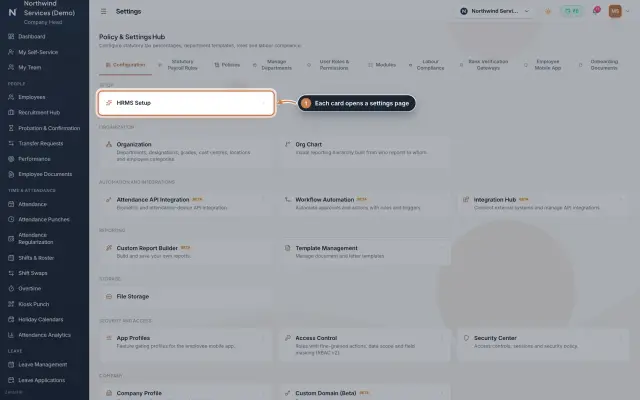 Settings moduleThe Policy & Settings Hub: a card for every settings page, and tabs for statutory rules, policies, departments, user permissions, modules, labour compliance, bank verification, the employee app and onboarding documents.Module
 Employees moduleThe staff directory, where you add people, open an employee profile and approve new joiners.Module
- Plans and pricingSee how it works on the ZeniaHR website