App Profiles module
Decide which features each group of staff sees in the employee app, with named profiles for a branch, for one person or for the whole company.
Key screens
See the company's profiles
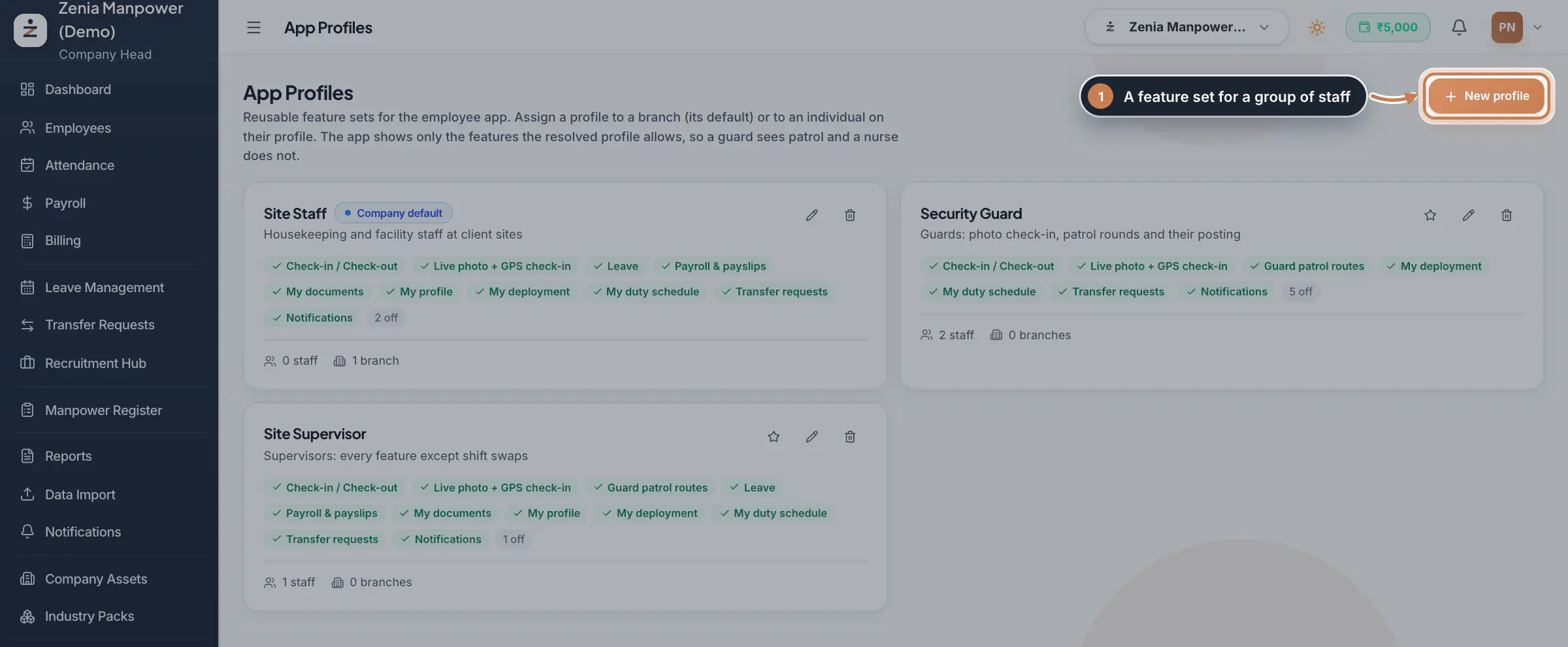
Open Settings and, under Security and access, click App Profiles. Each card lists the features that are on, how many are off, and how many staff and branches use the profile. The Company default badge marks the profile for everyone without another one. Use the star to make a profile the company default, the pencil to edit it and the bin to delete it.
 Full size
Admin panel · Step 1 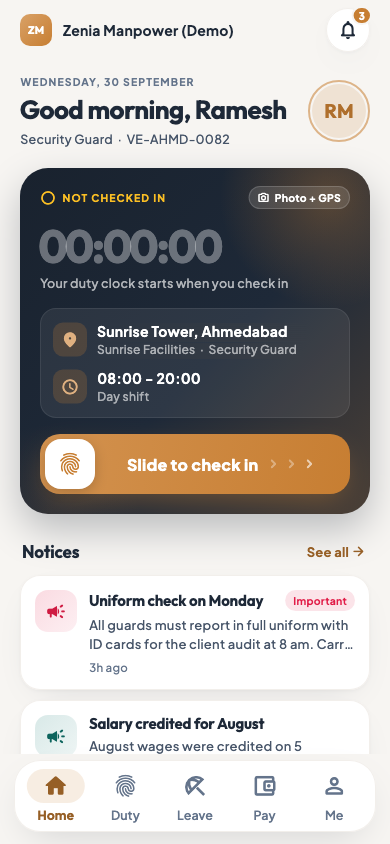 On the employee app
The employee app home with photo and GPS check-in
Create a profile
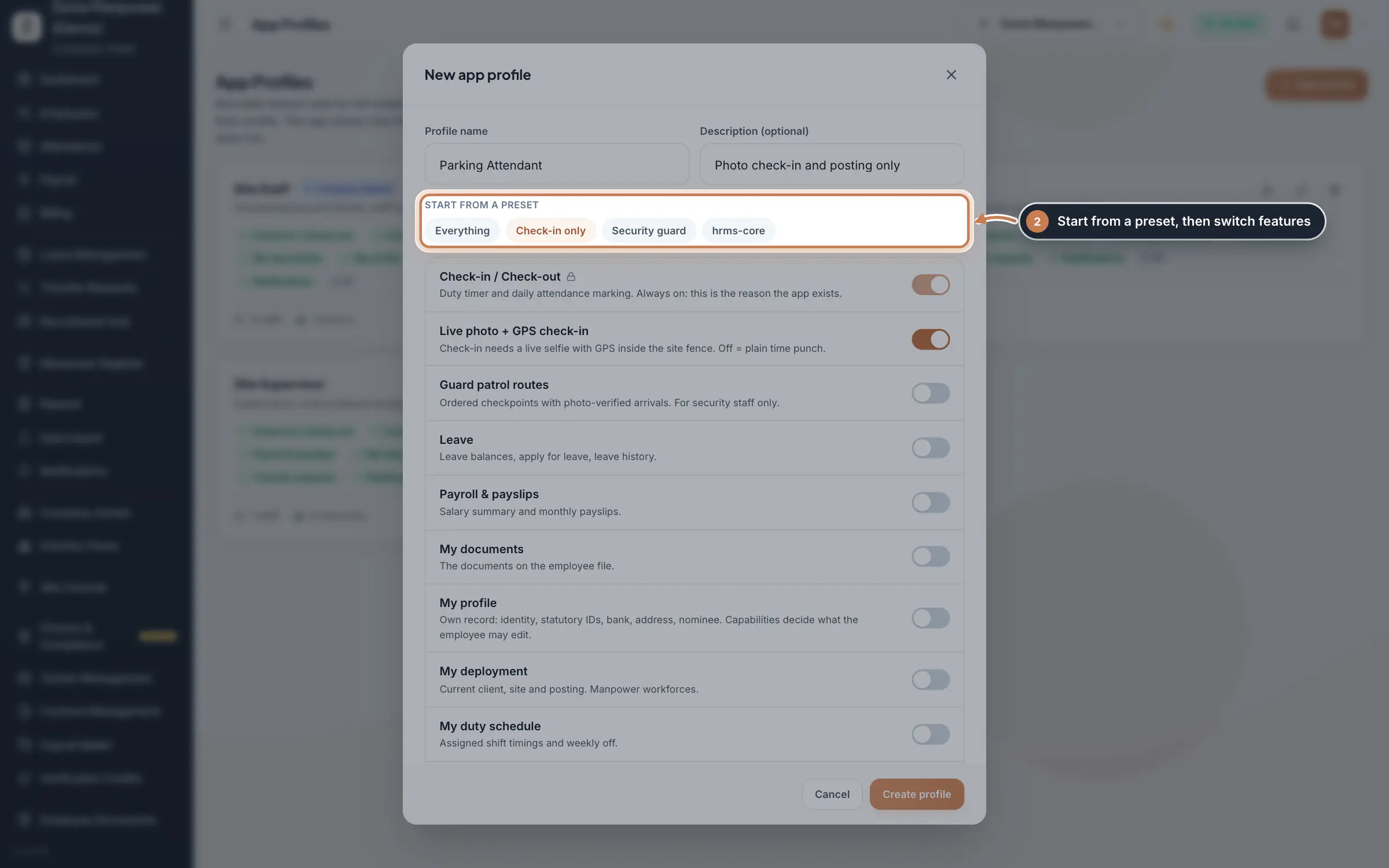
Click New profile. Type the Profile name and, if you like, a Description of who it is for. Under Start from a preset, click Everything, Check-in only or Security guard to set the switches in one go, then turn single features on or off. Tick Make this the company default at the bottom to use it for everyone without a branch or personal profile. Click Create profile.
 Full size
Step 2 Tip Live photo + GPS check-in makes staff take a live selfie inside the site's fence to check in. Turn it off for a plain time punch.
Give one person their own profile
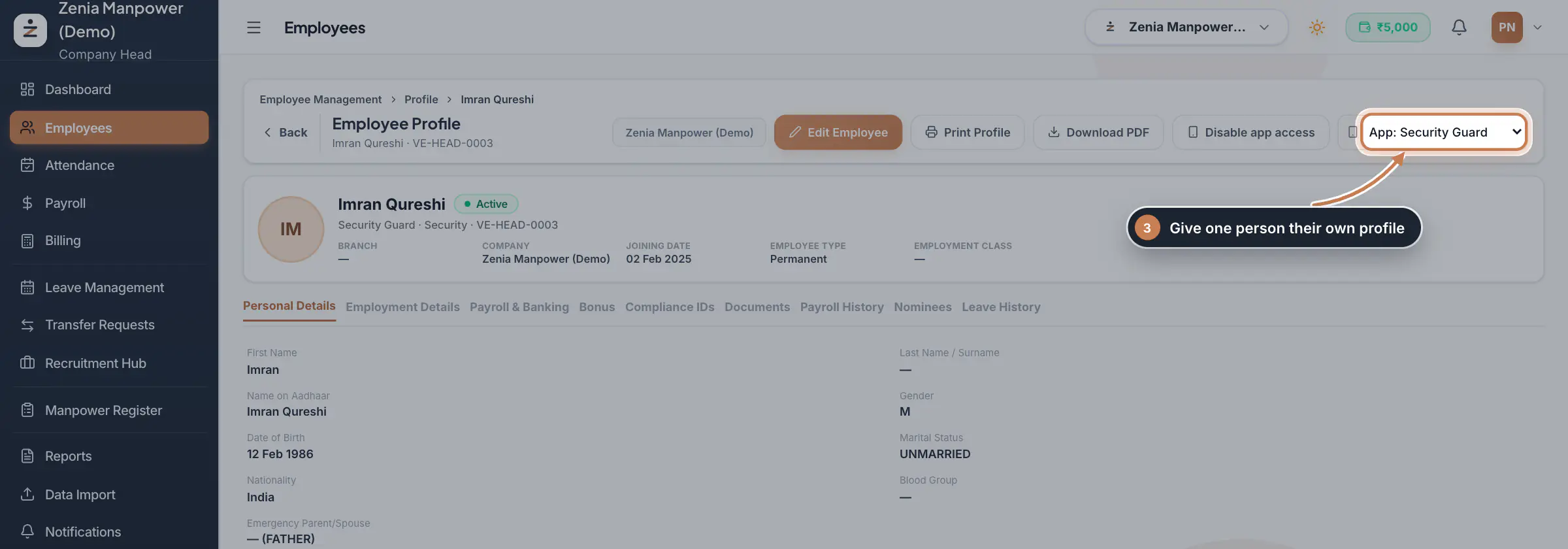
In Employees, open the person's profile. In the picker at the top right, choose App: and the profile, or App features: default to go back to the branch or company profile. The change is saved at once. You can also pick it under Employee App Features when you add or edit an employee.
 Full size
Step 3 Set the default for a branch
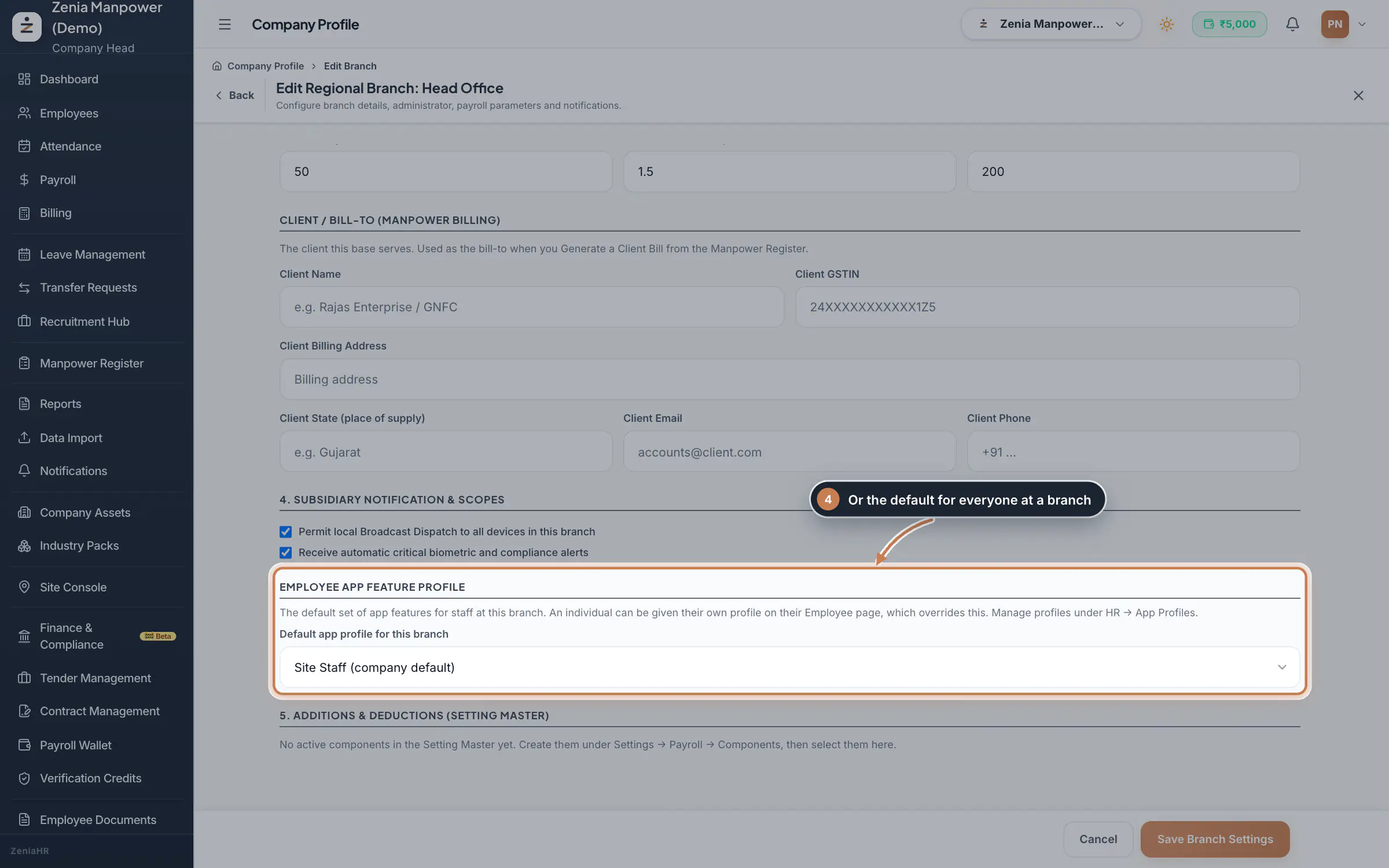
The Company Head opens Company Profile, clicks Branch Information, opens the branch's menu and clicks Edit. Under Employee App Feature Profile, pick the Default app profile for this branch, or Inherit company default, and click Save Branch Settings. Everyone at the branch who has no personal profile gets this one.
 Full size
Step 4
What it does
App Profiles are named sets of features for the ZeniaHR employee app, such as "Security Guard" or "Site Staff". Each profile switches features on or off: live photo and GPS check-in, guard patrol routes, leave, payslips, documents, the person's own profile, their deployment and duty schedule, transfer requests, shift swaps and notifications. Check-in and check-out is always on. The app then shows each person only the features of their profile, so a guard sees patrol rounds and an office worker does not.
Who uses it
- The Company Head and HR create and assign profiles. People who can only view employees see the profiles but cannot change them.
- Staff see the result in the app; nothing changes for them on the web.
How it connects
The app picks one profile for each person, the most specific one first: the profile on their own employee record, then the default of their branch, then the profile marked Company default. A profile is a complete set, so nothing is mixed between them. When none of these applies, the app follows the company-wide switches under Settings, Employee Mobile App, and with none of those either, staff see every feature. Turning off a feature such as Transfer requests hides it in the app; Disable app access on an employee's profile turns the whole app off for that person.
Questions
What happens when I delete a profile that people use?
ZeniaHR removes it from those people and branches first, and they fall back to their branch or company default. The company default itself cannot be deleted: make another profile the default first.
Can I switch off check-in?
No. Check-in and check-out is the reason the app exists, so it stays on in every profile.
A person still sees a feature I turned off. Why?
They may have their own profile, or their branch has a different default. The most specific profile wins: check the picker on their employee profile first, then their branch.
Related
 The employee app for site staffA tour of the ZeniaHR app for manpower staff at client sites: signing in, checking in for duty, your days, wage slips, leave and your profile.GuideApp
 The employee app for office staffA tour of the ZeniaHR app for HRMS Core staff: signing in, starting your shift, attendance, leave, the company wall and your profile.GuideApp
 Employees moduleThe staff directory, where you add people, open an employee profile and approve new joiners.Module
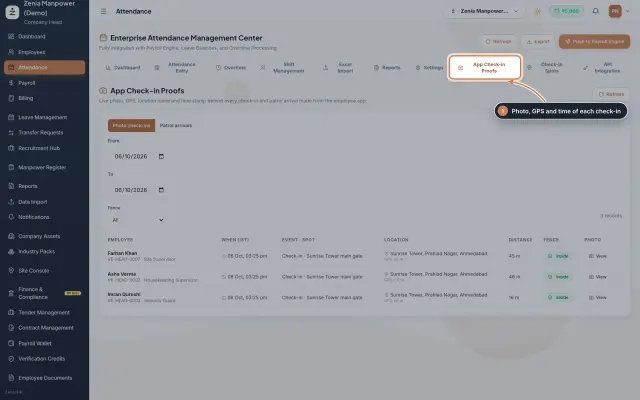 App check-ins and check-in spotsSee the live photo, GPS and time behind every check-in made from the employee app, and set the spots where staff may check in.Module
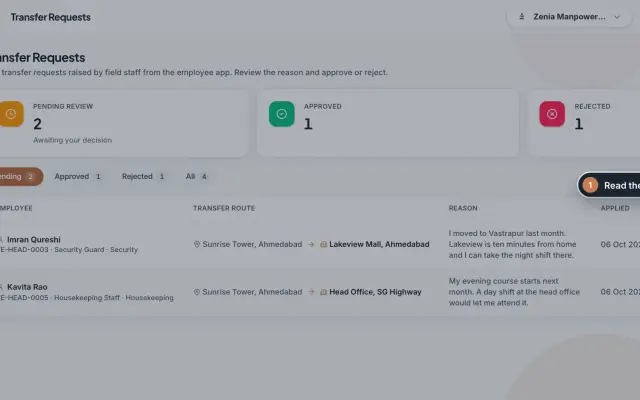 Transfer Requests moduleSite staff ask in the app to move to another site; HR reads the reason and approves or rejects, and an approval moves the person.Module
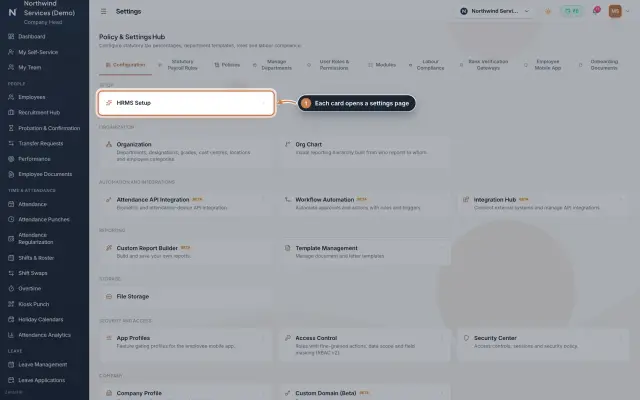 Settings moduleThe Policy & Settings Hub: a card for every settings page, and tabs for statutory rules, policies, departments, user permissions, modules, labour compliance, bank verification, the employee app and onboarding documents.Module
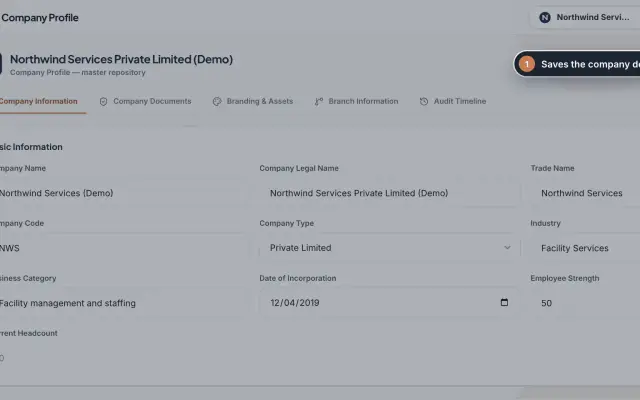 Company Profile moduleKeep your company's details, owners, certificates, branding images and branches in one place, with a timeline of every change.Module
- ZeniaHR for every businessSee how it works on the ZeniaHR website