Import employees from Excel
Add many employees at once, or update existing ones, by uploading an Excel or CSV file in Data Import.
Before you start
- You need the Company Head or HR role.
- Put one employee per row and the column headings in one row at the top. Your own headings are fine: ZeniaHR matches them to its fields for you.
- The file can be .xlsx, .xls or .csv, up to 15 MB and up to 10,000 rows.
- Not sure which columns to use? Click Download sample on the Employees card for a ready-made Excel file. Its two example rows (Employee ID SAMPLE-001 and SAMPLE-002) are never imported.
Steps
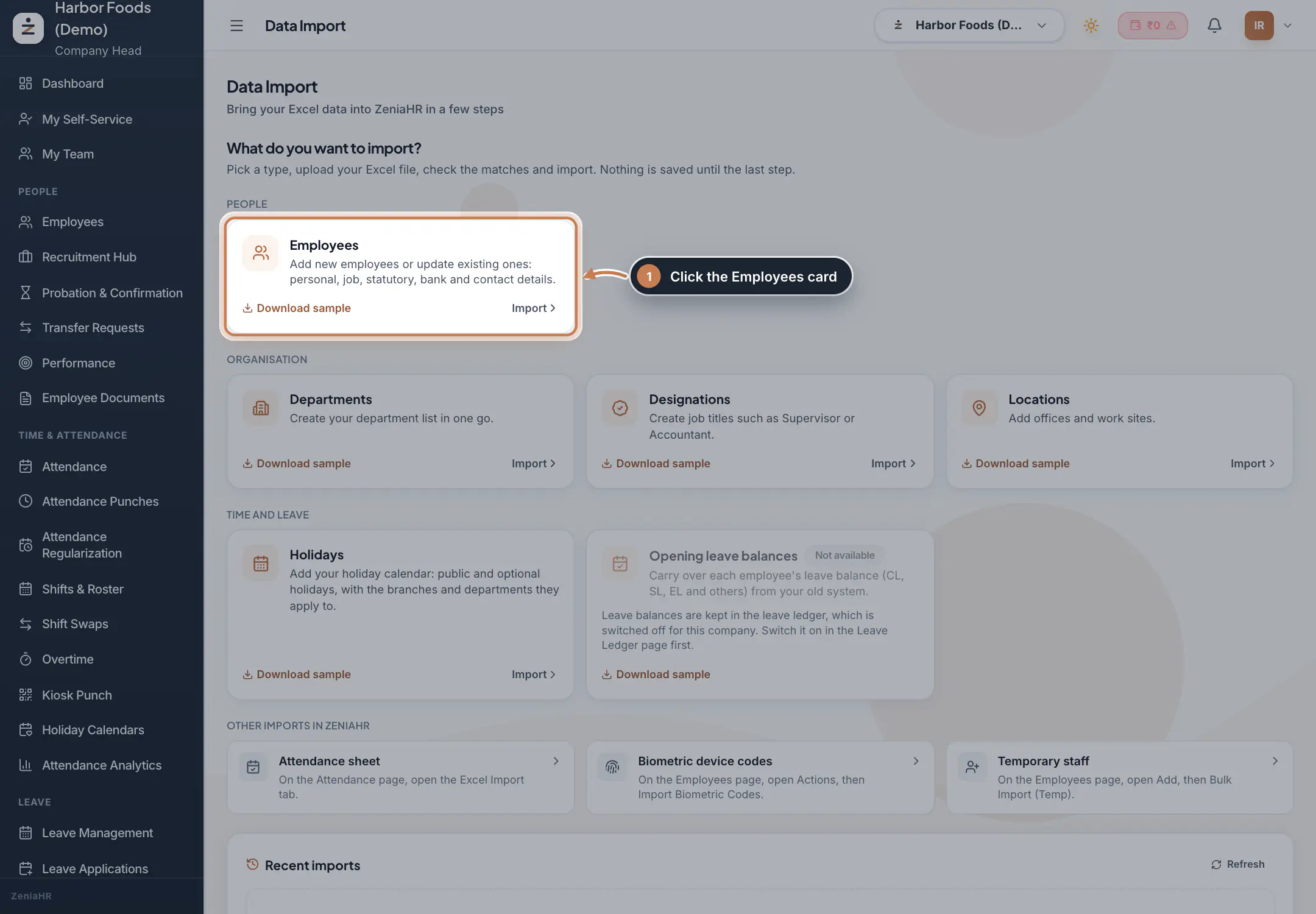
Open Data Import and choose Employees
In the sidebar, click Data Import. Under What do you want to import?, click the Employees card.
 Full size
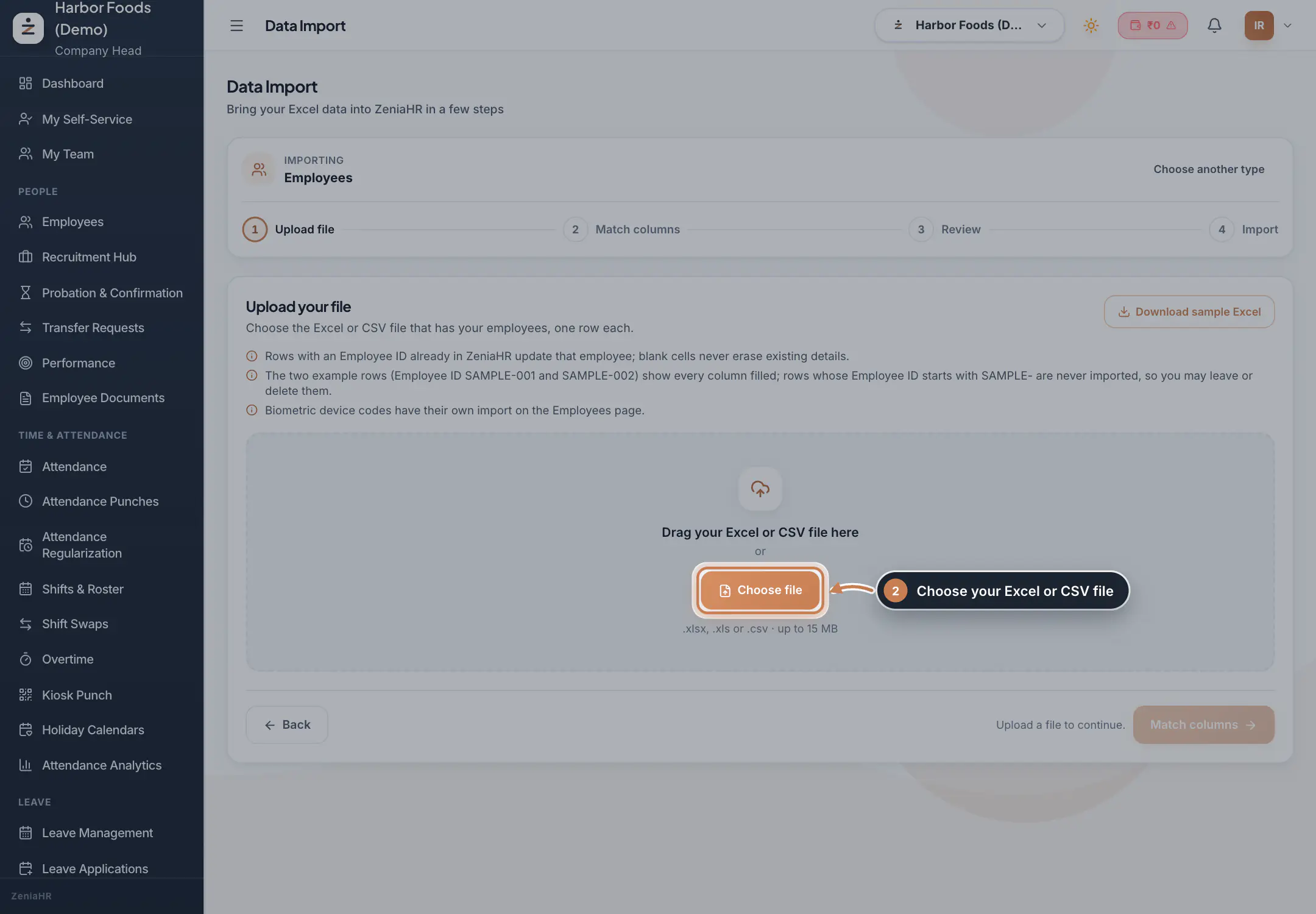
Step 1 Upload your file
Drag your file onto the page, or click Choose file and pick it.
 Full size
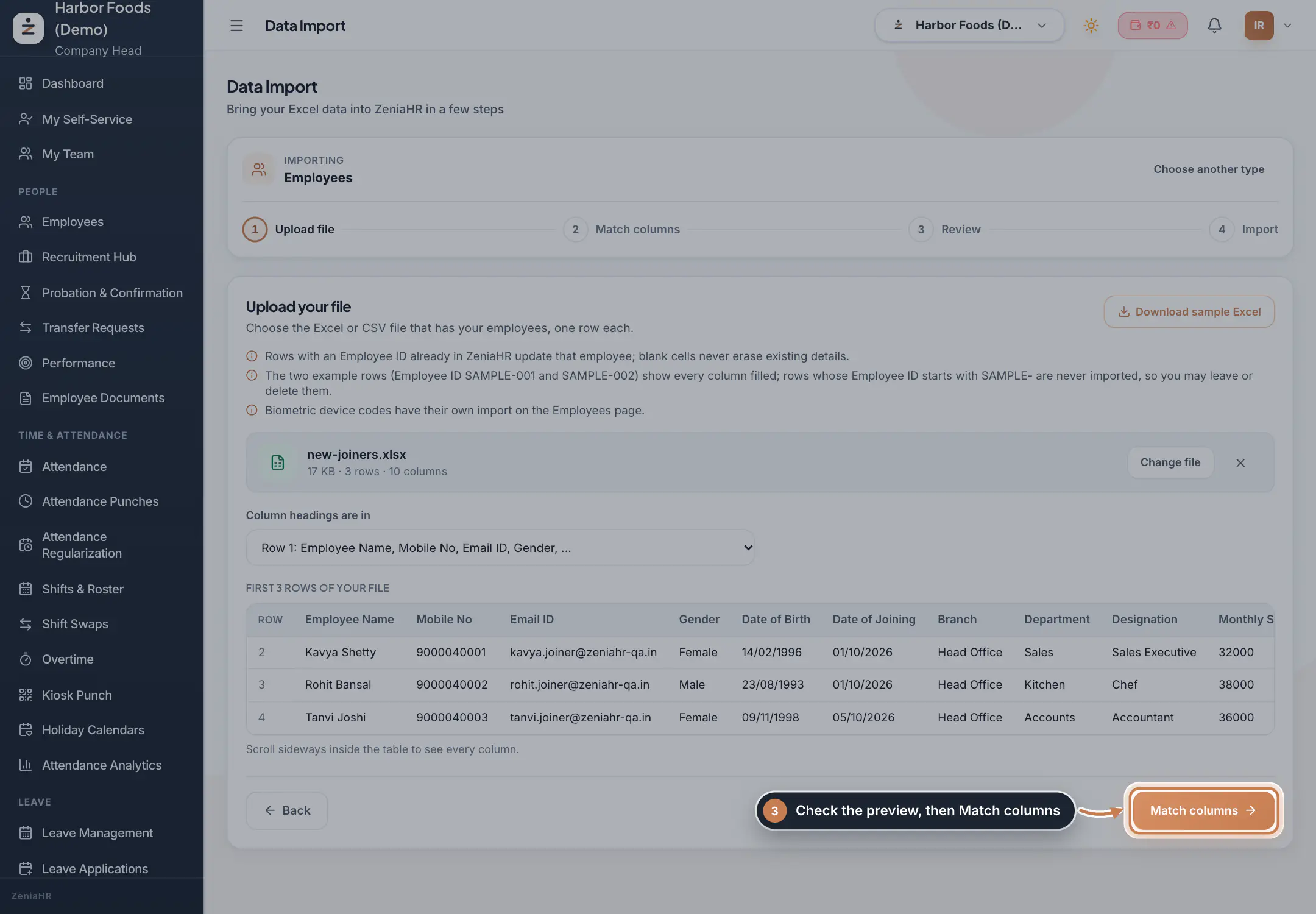
Step 2 Check the preview
ZeniaHR shows the file name, the number of rows and columns, and the first rows. If your headings are not in the first row, pick the right row under Column headings are in. Click Match columns.
 Full size
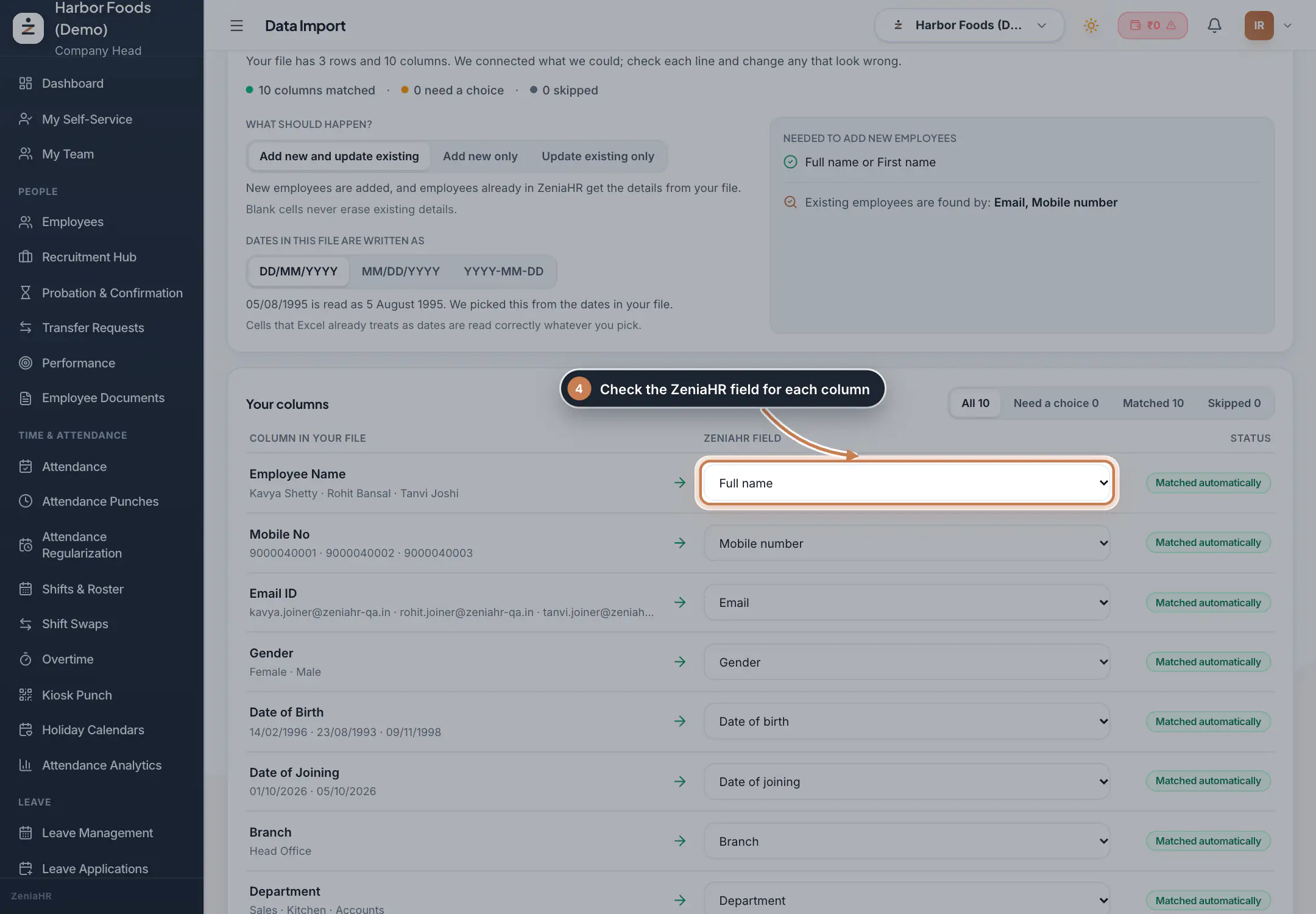
Step 3 Match the columns
Each column in your file is connected to a ZeniaHR field, and most are matched automatically. Check each line and pick another field, or Don't import this column, where needed. Above the list: - What should happen? Add new and update existing (the default), Add new only or Update existing only. Blank cells never erase details already in ZeniaHR. - Dates in this file are written as DD/MM/YYYY, MM/DD/YYYY or YYYY-MM-DD. ZeniaHR picks this from your dates; cells that Excel already treats as dates are read correctly either way.
Click Check data.
 Full size
Step 4 Review the check
ZeniaHR checks every row and counts what is Ready to add, what Will update and what Need fixing, with the reason for each row that needs fixing. It also tells you whether your plan has room for the new employees. Nothing is saved yet. Click Import with the number of rows, for example Import 3 rows.
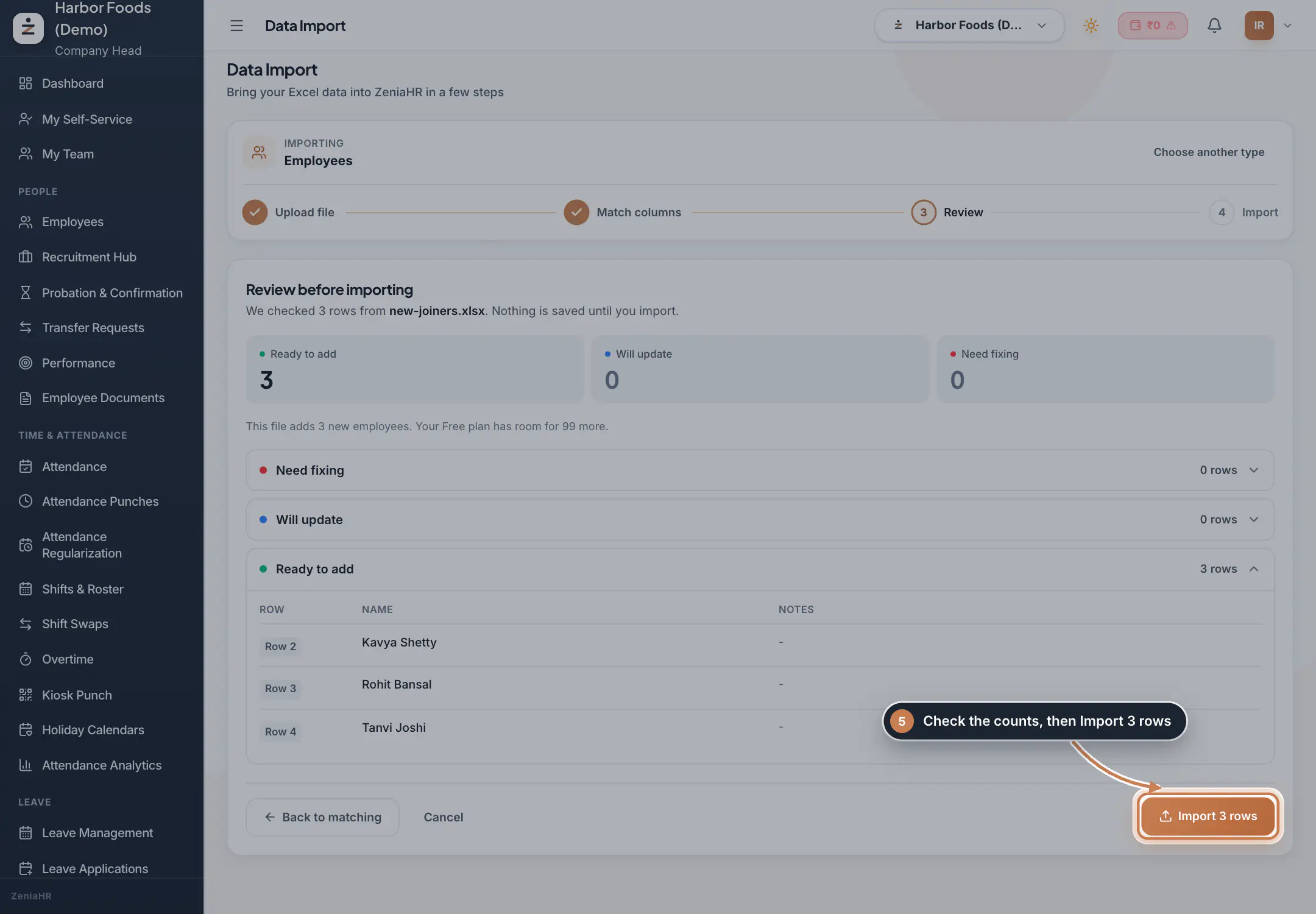 Full size
Step 5 Confirm the import
Click Import to start. The import runs in the background, so you can leave the page while it works; its result also appears under Recent imports on the Data Import page.
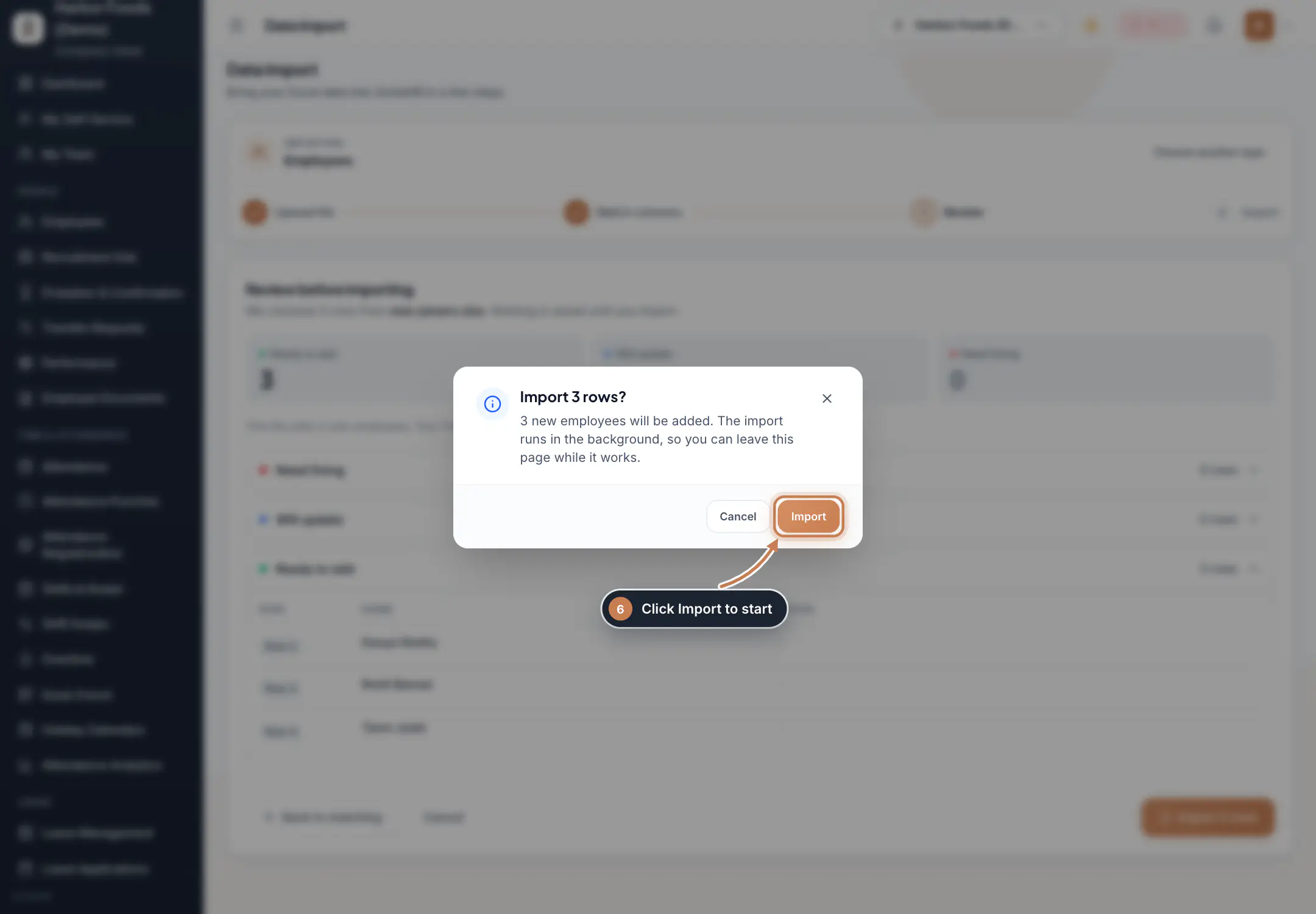 Full size
Step 6 Check the result
When you see Import finished, the counts show how many employees were Added, Updated and Not imported. Click Open Employees to see them, or Import another file.
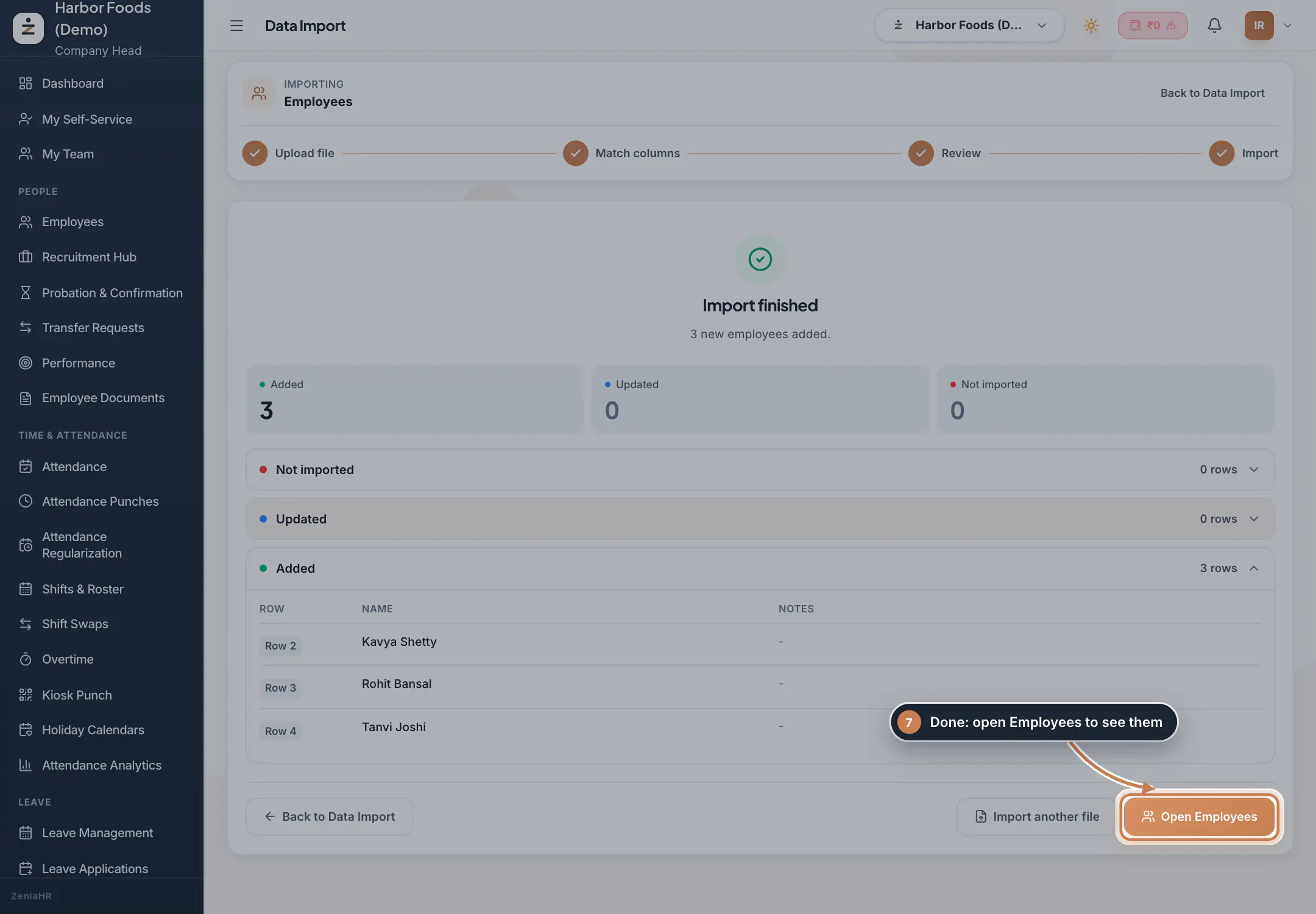 Full size
Step 7
Questions
How does ZeniaHR find employees who are already on file?
By Employee ID, Aadhaar, PAN, email or mobile number, using whichever of these columns your file has. The Match columns step shows which ones it will use. A row with an Employee ID that is already in ZeniaHR updates that employee.
What happens to rows that need fixing?
They are not imported. Fix them in your Excel file and upload it again, or go ahead and import the rows that are ready.
It says there are not enough employee slots.
Your plan's employee limit would be passed by this file. Remove some rows, or buy more employee slots, then check the file again.
Can the imported employees use the mobile app?
Yes, when their row has a mobile number. Rows without one are imported with a note that there is no mobile app sign in yet.
Can I import attendance, biometric codes or temporary staff here?
Those have their own imports: the Excel Import tab on the Attendance page, Import Biometric Codes under Actions on the Employees page, and Bulk Import (Temp) in the Add Employee menu on the Employees page.
My company runs both HRMS Core and Manpower. Which register do new employees join?
The register set by the Workplace switch in the sidebar. Switch the Workplace before you import to use the other register.
Related
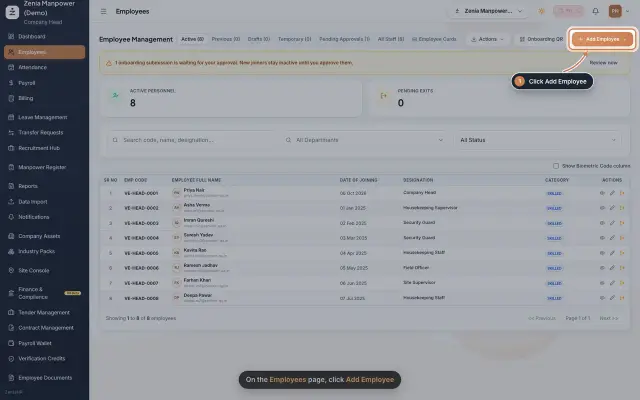 Add an employeeRegister a new employee master file step by step, from personal details to employment.Guide25 s video
 Employees moduleThe staff directory, where you add people, open an employee profile and approve new joiners.Module
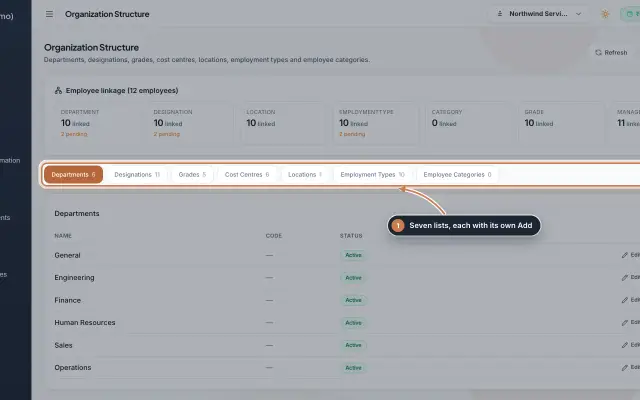 Organization moduleKeep the company's lists of departments, designations, grades, cost centres, locations, employment types and employee categories, and link each employee to them.Module
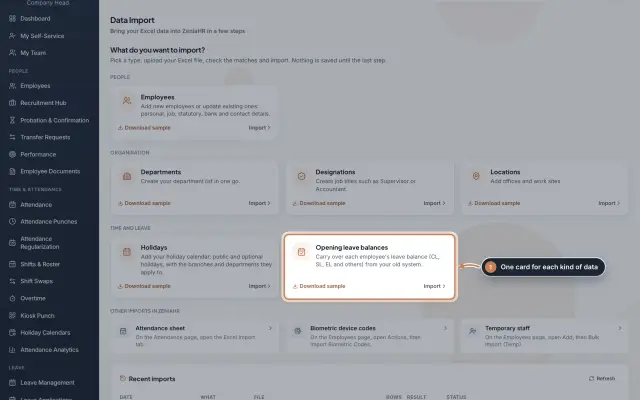 Data Import moduleBring your Excel or CSV data into ZeniaHR in four steps: employees, departments, designations, locations, holidays and opening leave balances, each checked row by row before anything is saved.Module
- Employee onboarding softwareSee how it works on the ZeniaHR website