Data Import module
Bring your Excel or CSV data into ZeniaHR in four steps: employees, departments, designations, locations, holidays and opening leave balances, each checked row by row before anything is saved.
Key screens
Choose what to import
In the sidebar, click Data Import. Under What do you want to import?, each card says what it brings in. Click Download sample on a card for a ready Excel file with the right column headings and an example row, fill it in, and click the card to start.
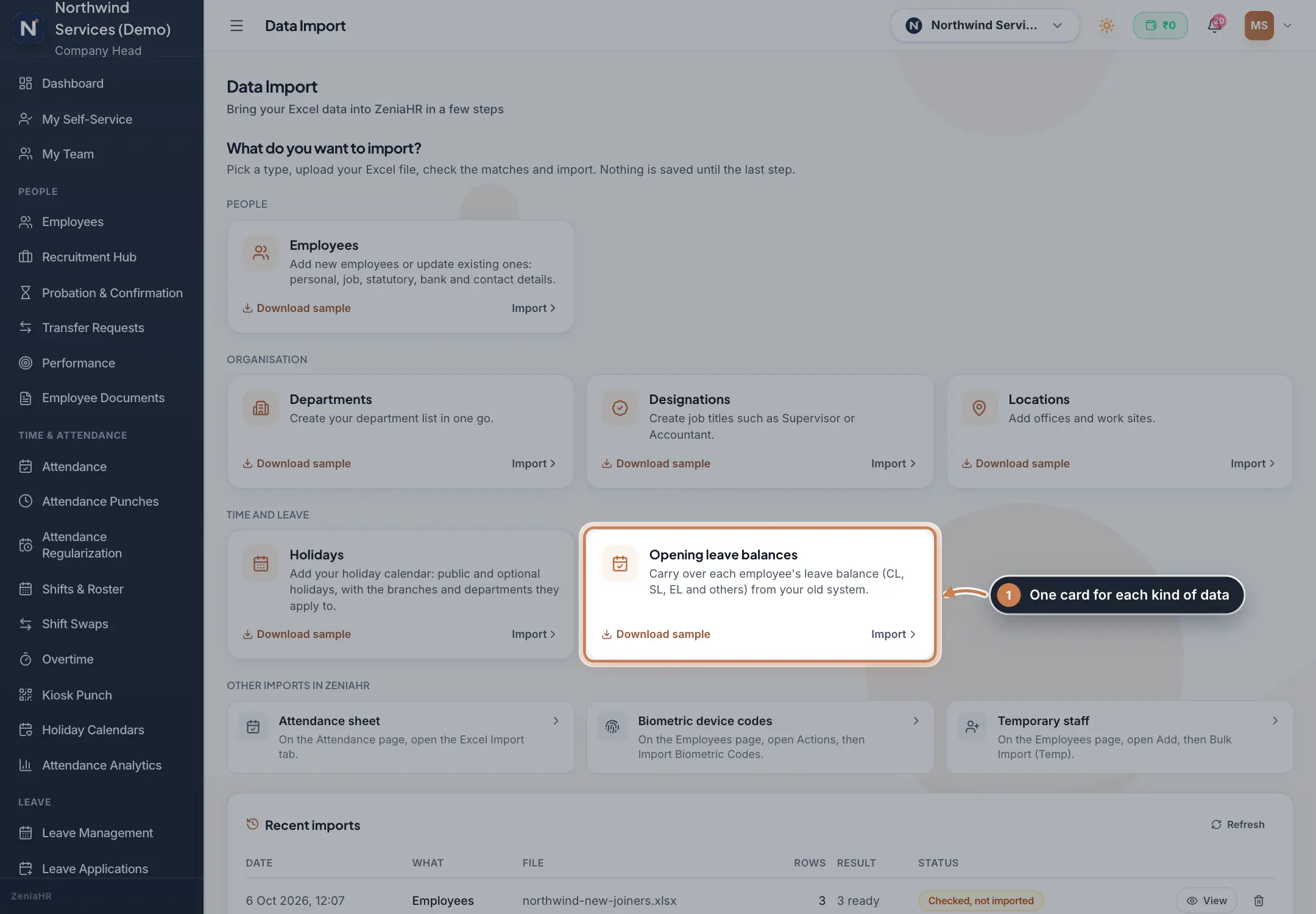 Full size
Step 1 Upload the file
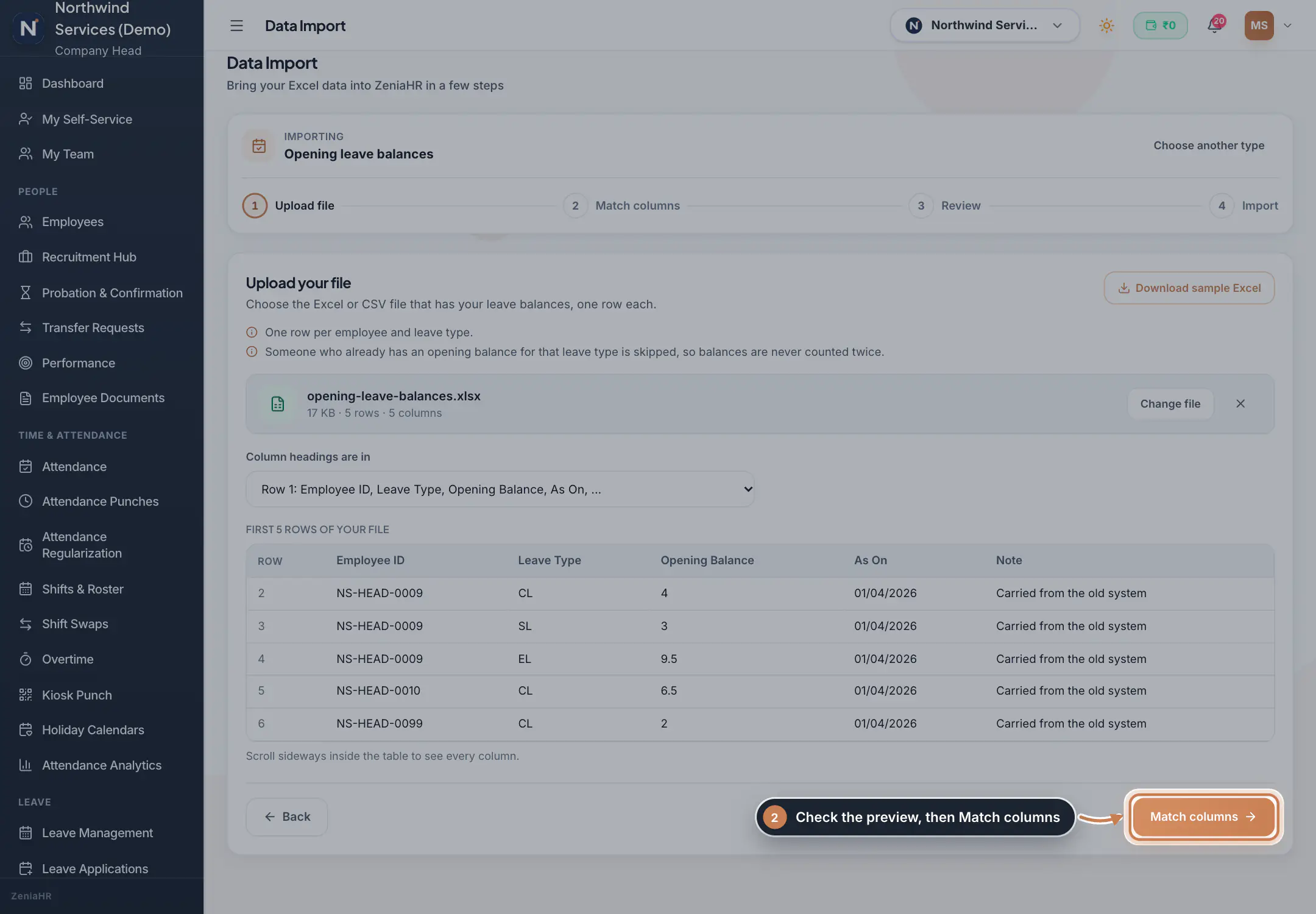
Drag the file onto the page or click Choose file (.xlsx, .xls or .csv). The notes above the box say how the file should look, for opening balances one row per employee and leave type. ZeniaHR shows the file's size, rows and columns and its first rows; if the headings are not in the first row, pick the right one under Column headings are in. Click Match columns.
 Full size
Step 2 Match the columns
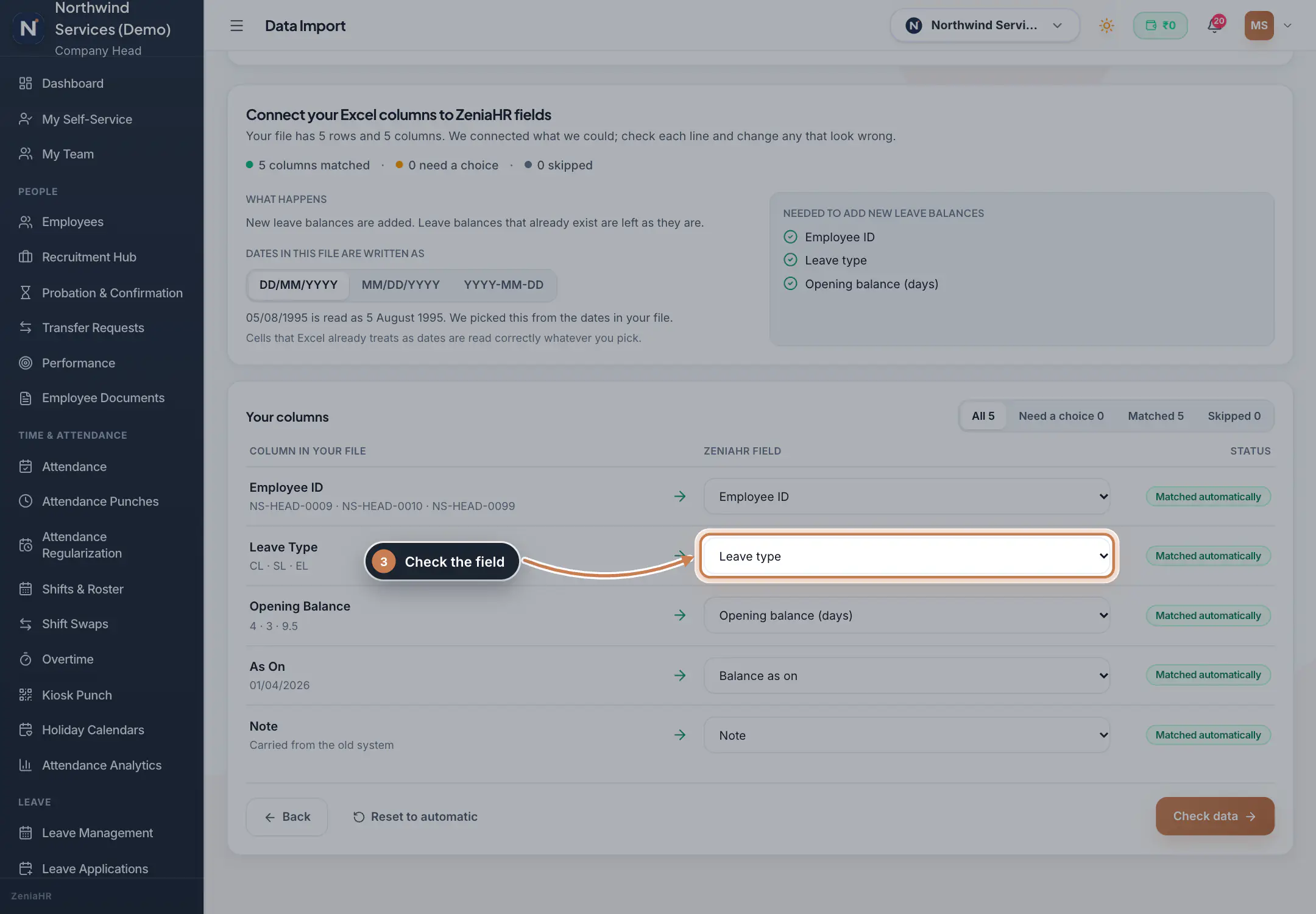
Each column of your file is connected to a ZeniaHR field and marked Matched automatically, or Same as last import when an earlier file had the same heading. Check each line, pick another field or Don't import this column where needed, and make sure the date style is right. The box on the right lists the fields every row must have, for opening balances the Employee ID, Leave type and Opening balance (days). Click Check data.
 Full size
Step 3 Review and import
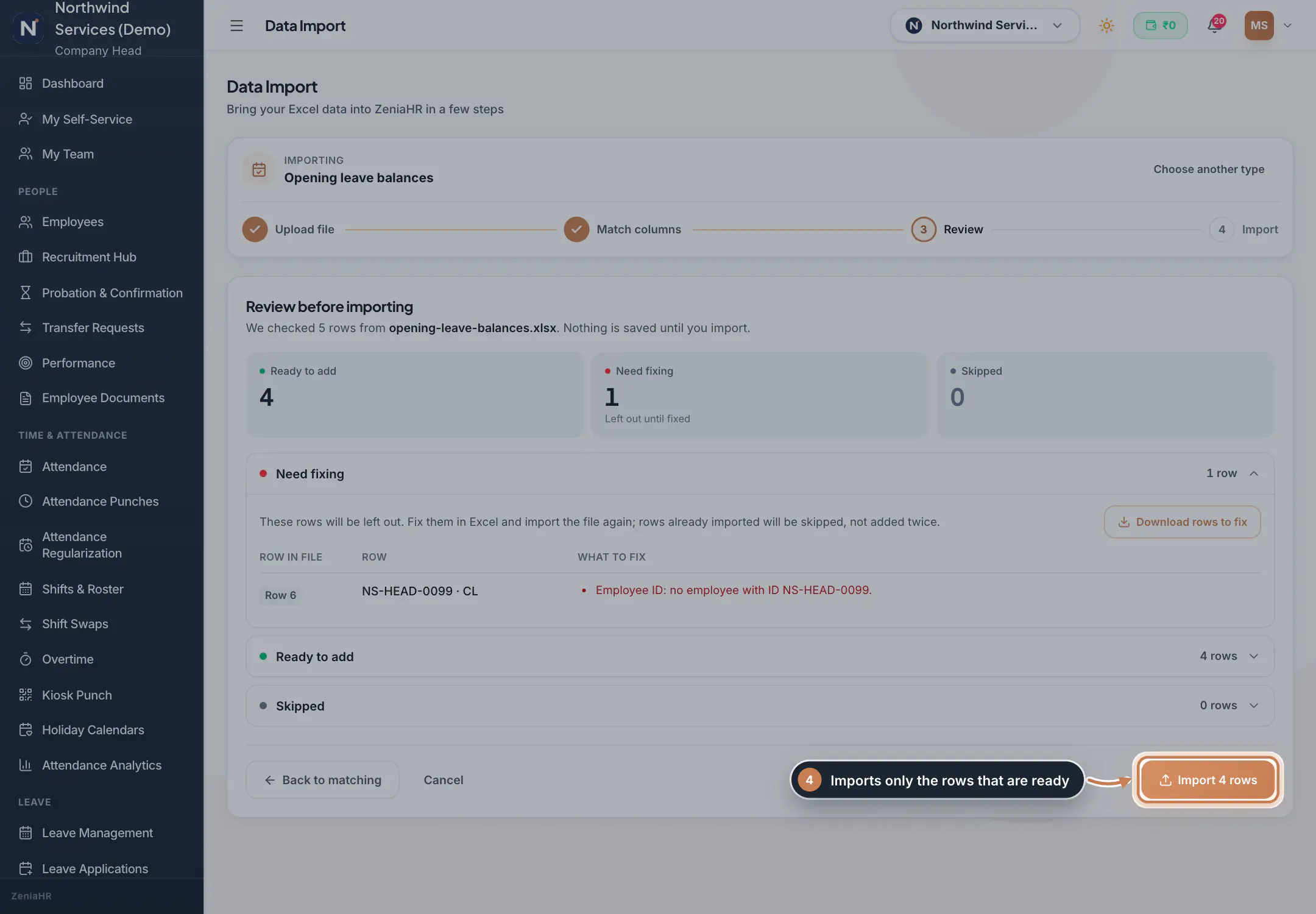
ZeniaHR checks every row and counts what is Ready to add, what Need fixing and what is Skipped, with the reason for each, for example an employee ID that does not exist. Rows that need fixing are left out; Download rows to fix gives you just those rows in Excel. Click Import with the number of rows to import the rest, or Back to matching to change the matches.
 Full size
Step 4 See past imports
Recent imports lists each file with its date, type, rows, result and status. Click View to see its counts and the rows that were left out, and the bin to delete the stored copy of the file; anything already imported stays in ZeniaHR.
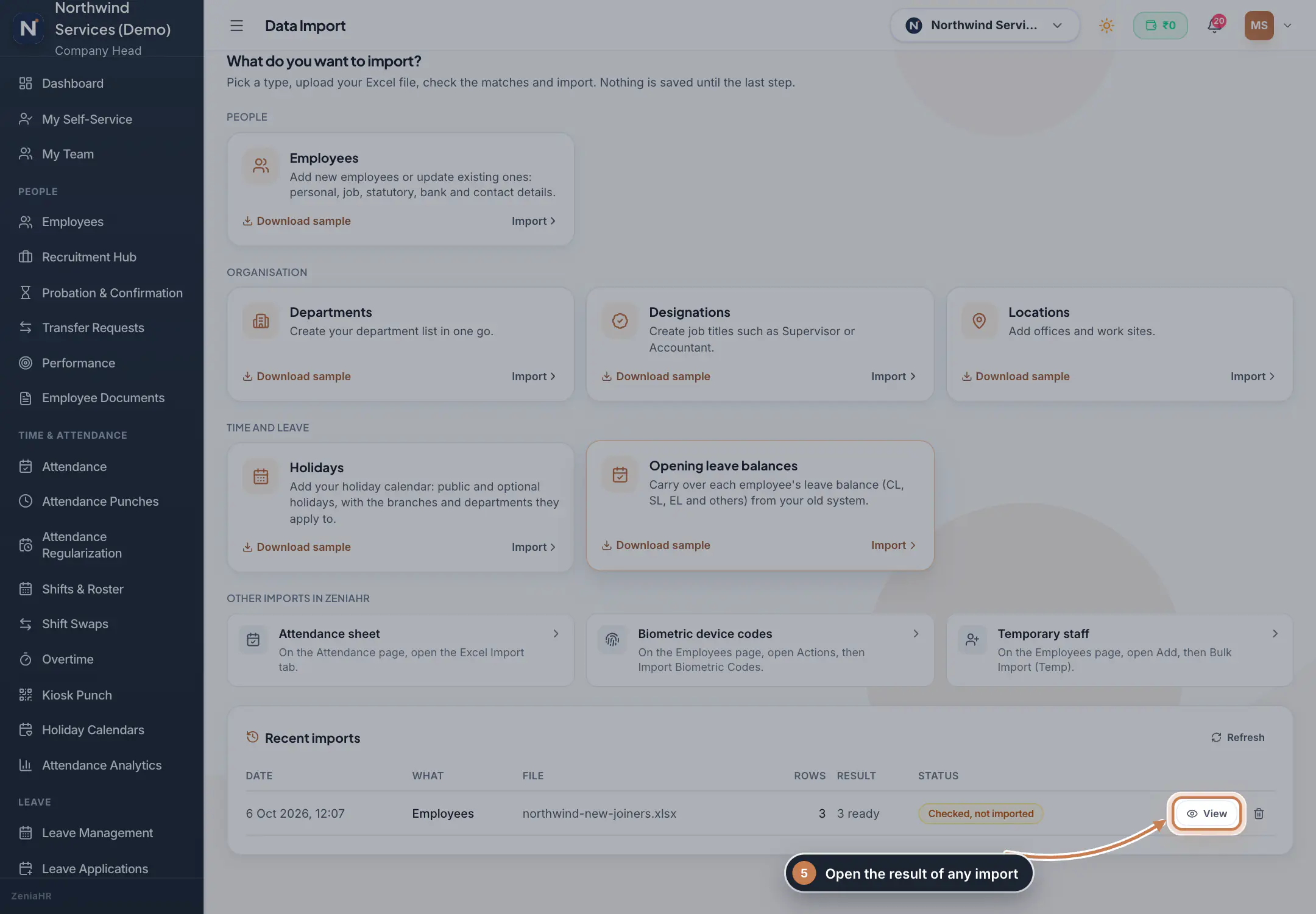 Full size
Step 5
What it does
Data Import brings data from an Excel or CSV file into ZeniaHR. Pick what you are importing, upload the file, check how its columns are matched to ZeniaHR fields, review the check of every row, and import; nothing is saved until the last step. Besides Employees, covered step by step in Import employees from Excel, you can import Departments, Designations and Locations (offices and work sites), your Holidays, and each employee's Opening leave balances from your old system. Recent imports keeps the result of every file.
Who uses it
- The Company Head and HR. HRMS Core companies find it under Company & Tools in the sidebar.
- A user who manages only some branches can import only for those branches.
How it connects
Departments, designations and locations join the lists in Organization and are offered on every employee record. Holidays join the holiday calendar of Holiday Calendars. Opening leave balances are posted to the Leave Ledger as the starting balance of each leave type, so that ledger must be switched on first. Attendance sheets, biometric device codes and temporary staff have imports of their own, listed under Other imports in ZeniaHR with where to find them.
Questions
What if a department or holiday is already in ZeniaHR?
It is skipped, never added twice. A department, designation or location counts as the same when the name matches; a holiday when the name and date match.
Can I import an opening balance again?
No. An employee who already has an opening balance for a leave type is skipped, so balances are never counted twice. Change a balance on the Leave Ledger page instead.
Why can I not choose Opening leave balances?
Leave balances are kept in the leave ledger. When it is switched off for your company, the card says so; switch it on in Leave Ledger first.
Which columns does each import take?
- Departments and Designations: name, code and description.
- Locations: name, code, address, city and state.
- Holidays: name, date, whether it is optional, whether it repeats every year, category, and the branches and departments it applies to (blank means all).
- Opening leave balances: employee ID, leave type (its code, such as CL, or its name), days, the date the balance is as on (blank means today) and a note.
Related
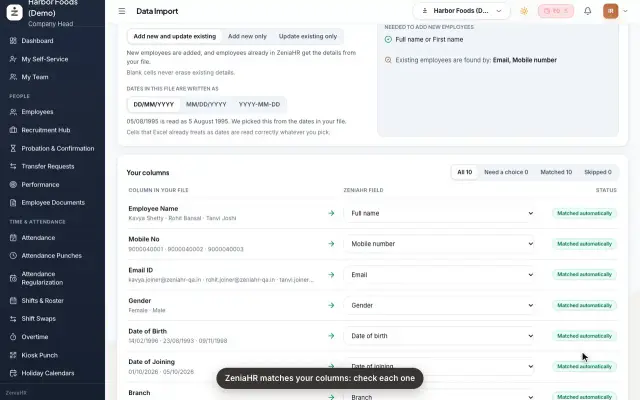 Import employees from ExcelAdd many employees at once, or update existing ones, by uploading an Excel or CSV file in Data Import.Guide25 s video
 Employees moduleThe staff directory, where you add people, open an employee profile and approve new joiners.Module
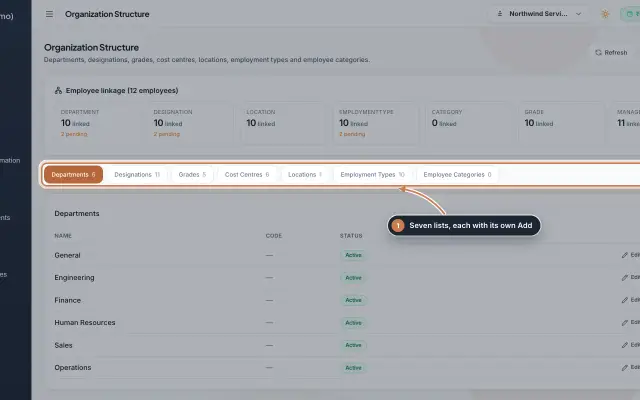 Organization moduleKeep the company's lists of departments, designations, grades, cost centres, locations, employment types and employee categories, and link each employee to them.Module
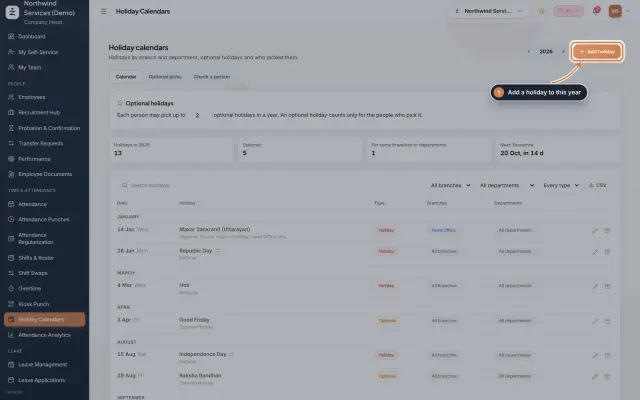 Holiday Calendars moduleKeep the year's holidays by branch and department, set optional holidays and how many each person may pick, and check which holidays a person gets.Module
 Leave Ledger moduleLeave balances built from monthly accrual, approved leave and comp-off, with year-end carry forward, manual entries and leave encashment.Module
- ZeniaHR for every businessSee how it works on the ZeniaHR website