Recruitment Hub module
Open a job, share its careers page, see every applicant with a match score, and move them through screening, interviews, offers and joining, with hiring analytics.
Key screens
Create a requirement
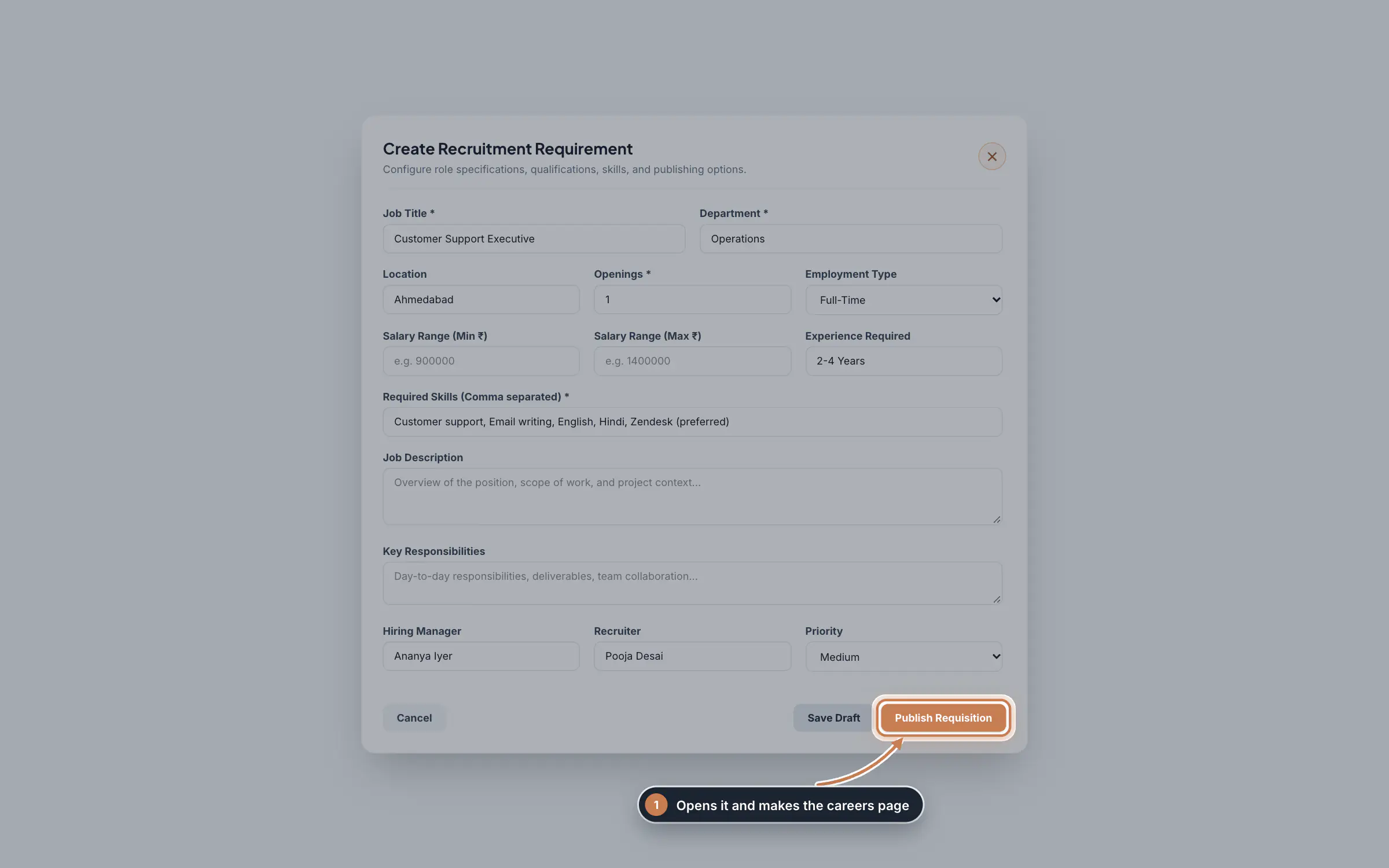
In the sidebar, click Recruitment Hub, then Create Requirement. Enter the Job Title, Department, Location, Openings, Employment Type, salary range and Experience Required, the Required Skills separated by commas, the Job Description and Key Responsibilities, and the Hiring Manager, Recruiter and Priority. Click Save Draft to finish later, or Publish Requisition to open the job.
 Full size
Step 1 Tip Write "(preferred)" after a nice-to-have skill, such as "AWS (preferred)". It then counts as a preferred skill rather than a required one in the match score.
Share the job
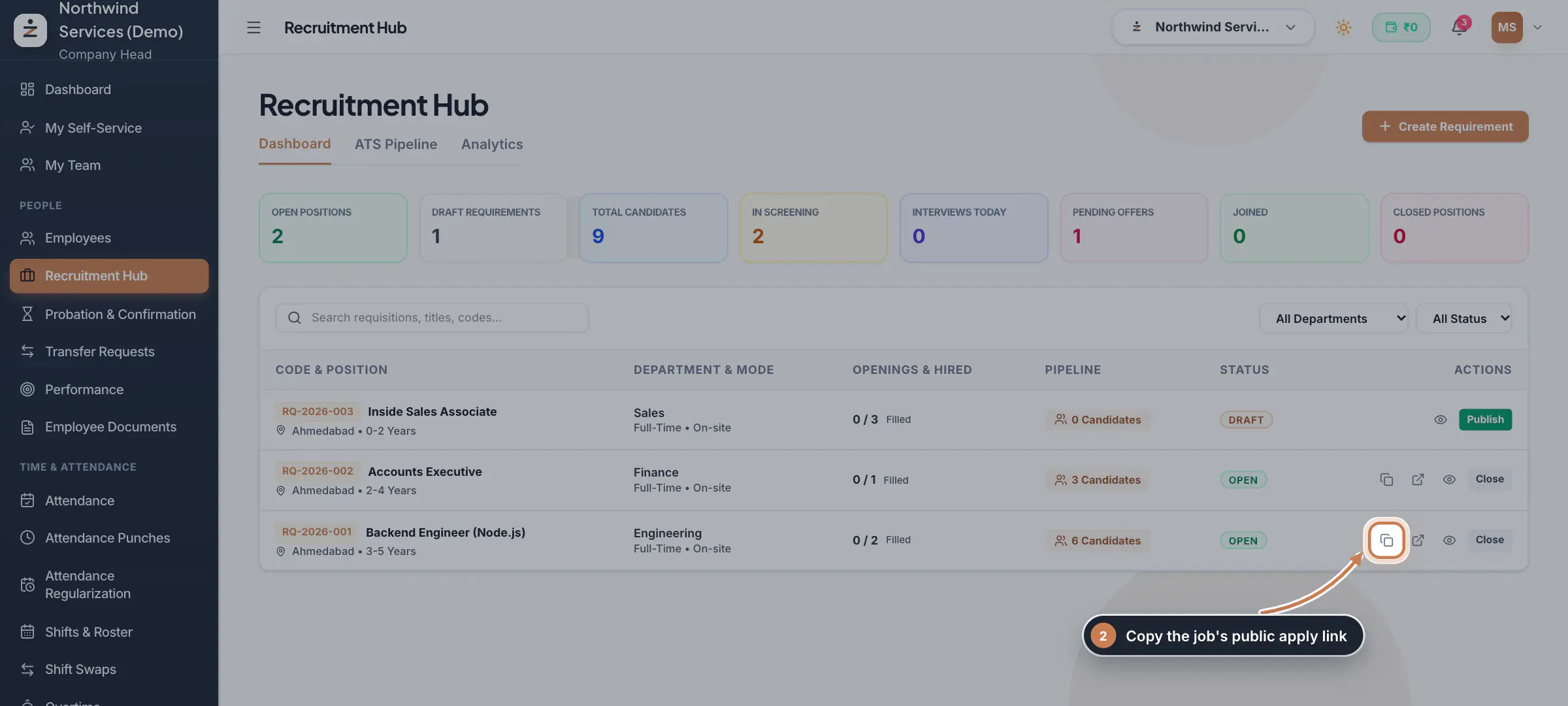
Click Dashboard. The tiles count open and draft positions, candidates, people in screening, interviews today, pending offers, joiners and closed positions. Each requirement shows its code, openings filled, the number of candidates (click it to open them on the pipeline) and its status. For an open job, the copy icon copies its public apply link and the arrow icon opens its careers page; the eye opens the requirement to edit it, and Publish or Close opens or ends it.
 Full size
Step 2 Candidates apply on the careers page
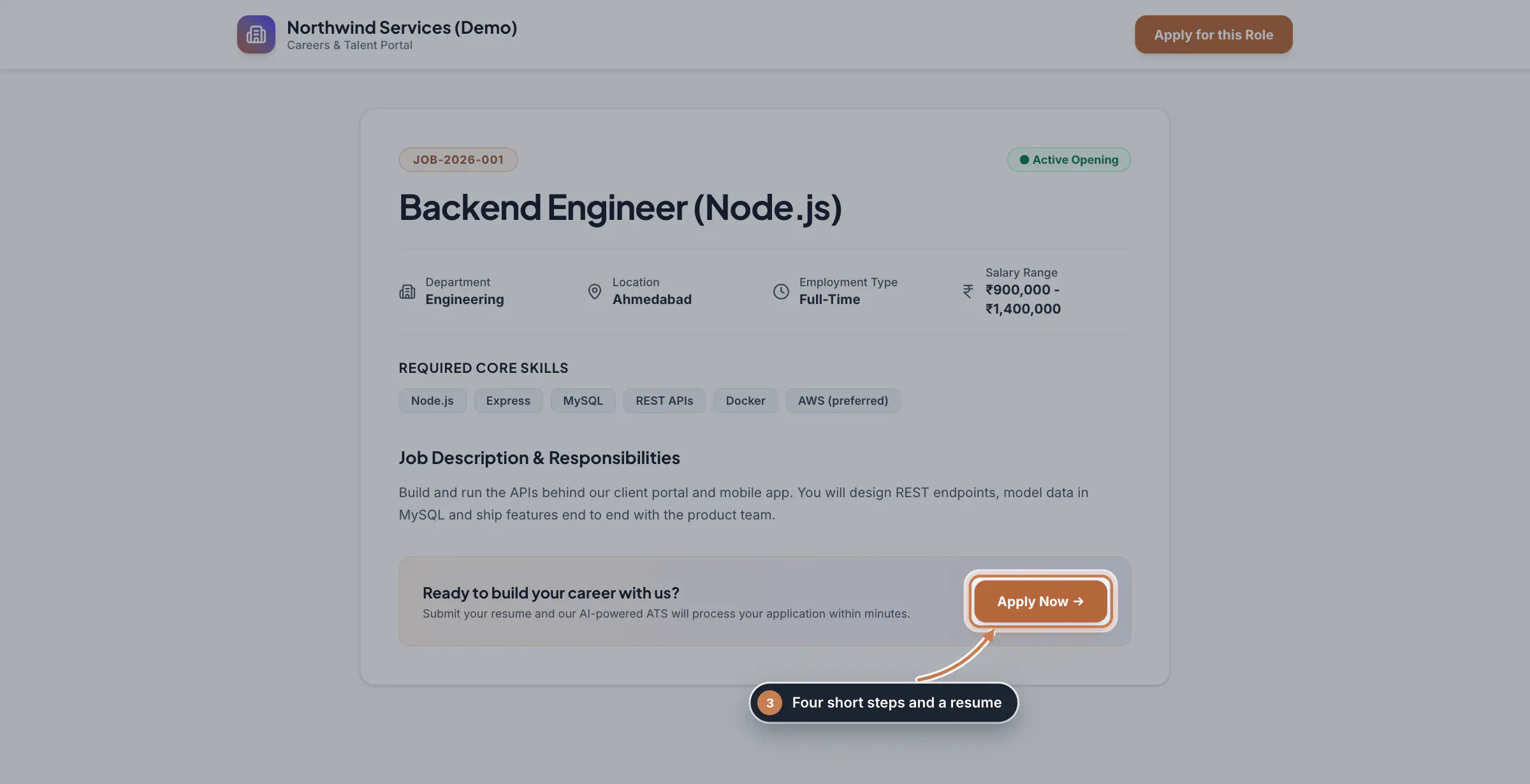
Anyone with the link sees the job, its skills and description. Apply Now opens a four-step form: personal details, education, work experience and skills, and the resume as a PDF or Word file up to 10 MB. Each application arrives on the pipeline under New.
 Full size
Step 3 Work the pipeline
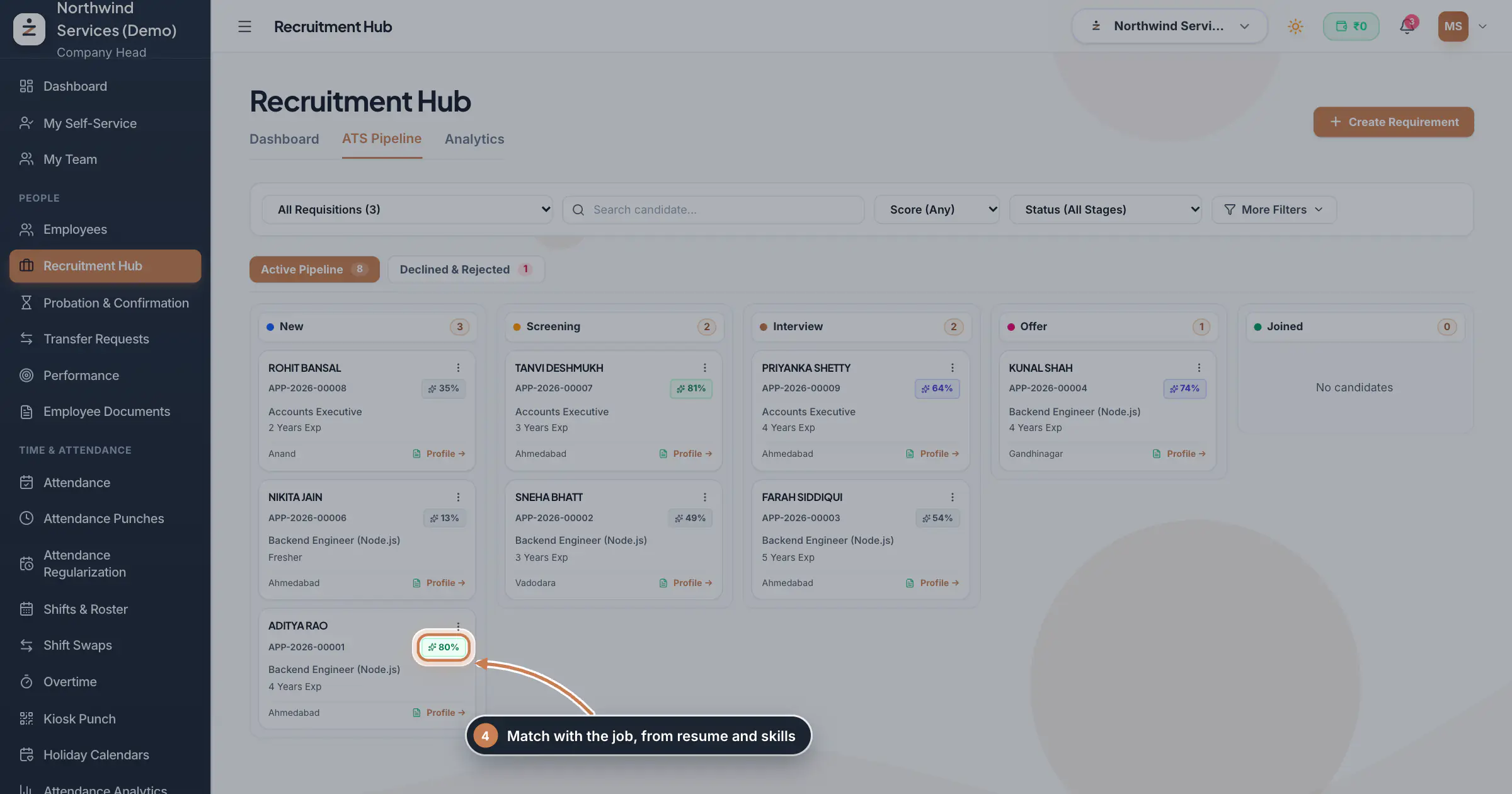
Click ATS Pipeline. Candidates sit in New, Screening, Interview, Offer and Joined; Declined & Rejected keeps the others. Each card shows the application code, the match score, the job, the experience and the city. Narrow the board by requirement, by name, by Score (for example 70% or more) or by Status, or use More Filters.
 Full size
Step 4 Review a candidate and move them on
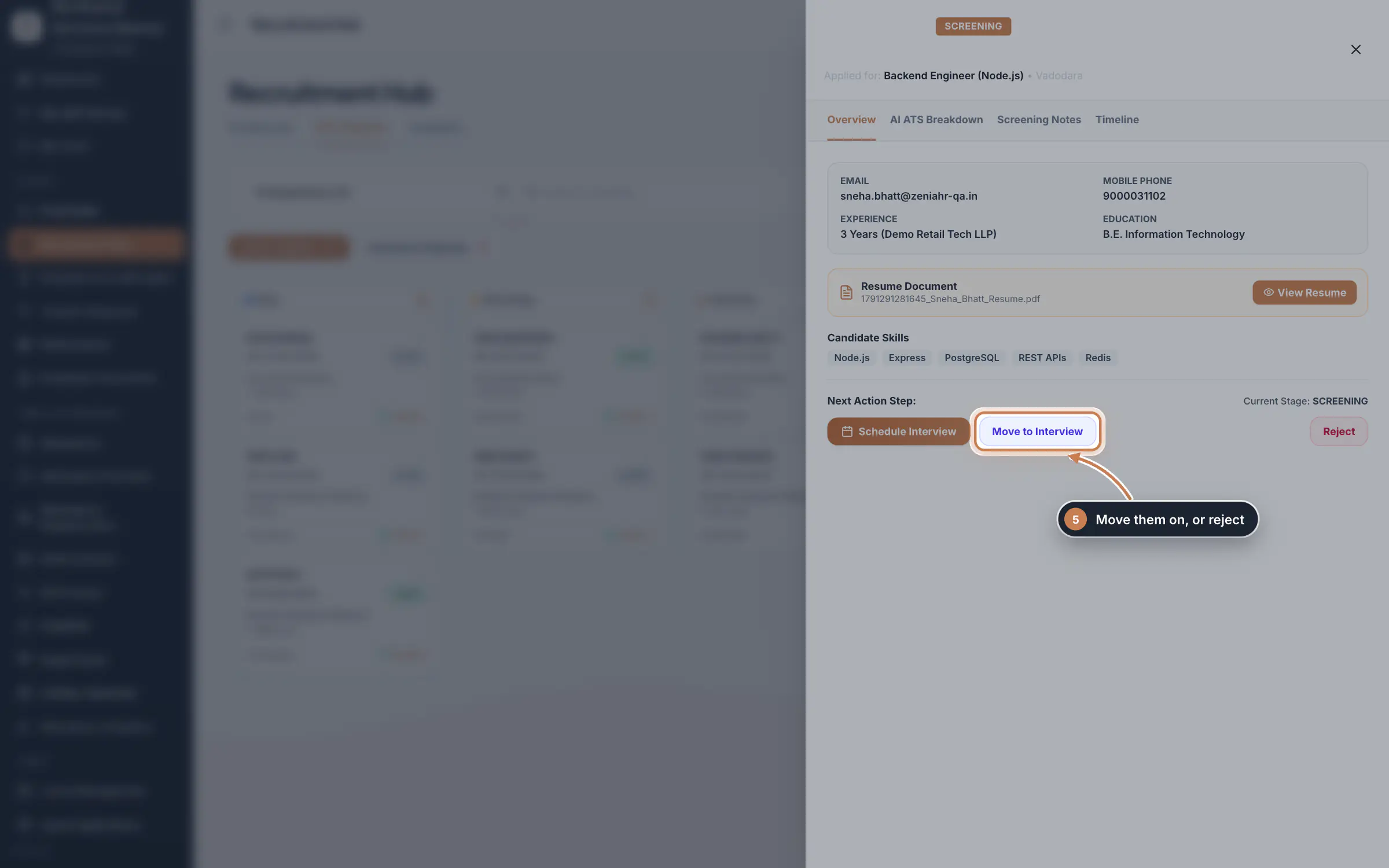
Click a card. Overview shows the contact details, experience, education, the resume (View Resume) and the skills. Under Next Action Step, the buttons follow the stage: Move to Screening, Schedule Interview, Move to Interview, Select Candidate, Create & Send Offer Letter, Move to Temporary Employee, Mark as Joined (skip onboarding) or Reject. Screening Notes keeps your notes with a shortlist, keep or reject decision, and Timeline shows everything that happened.
 Full size
Step 5 Read the match score
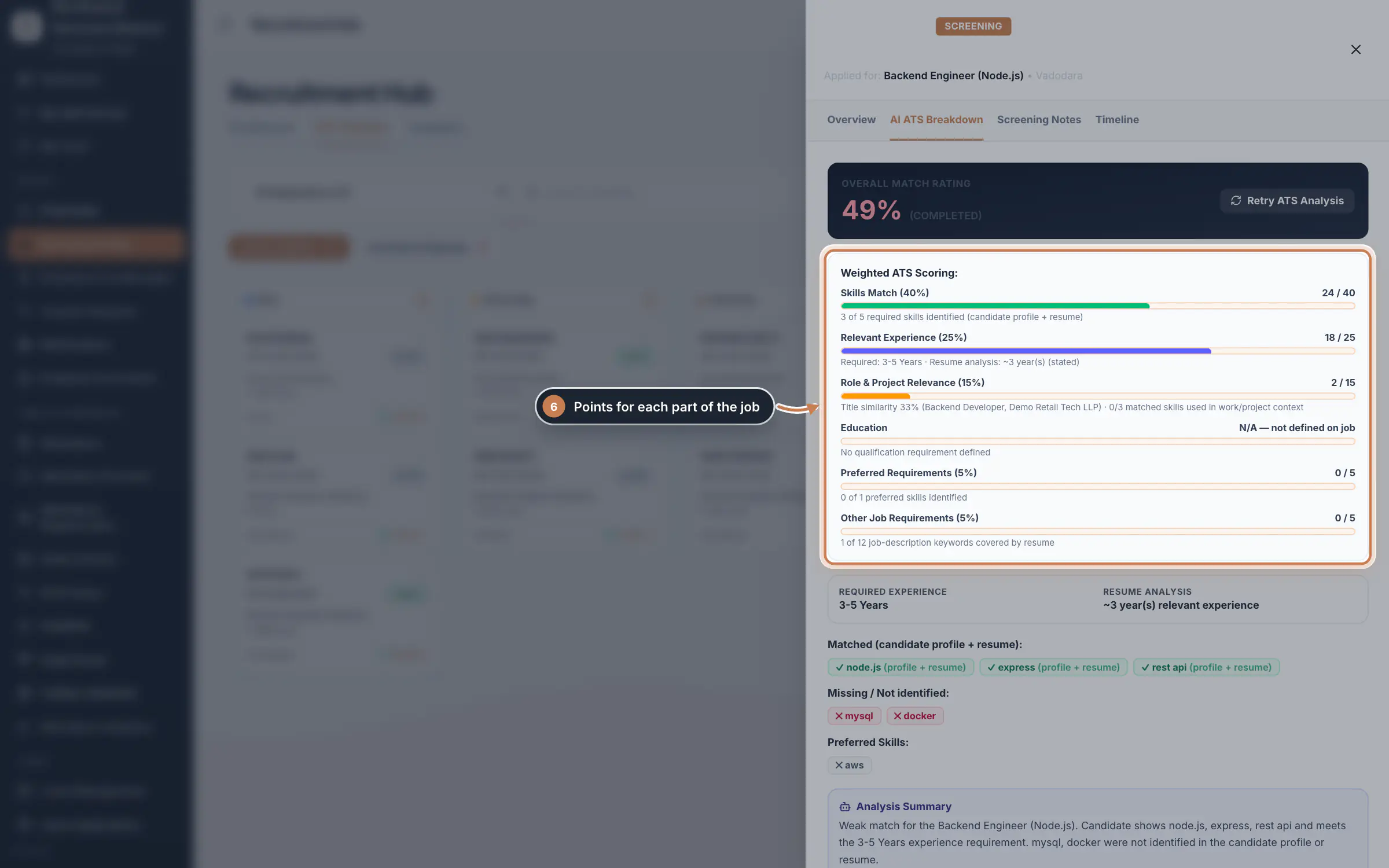
Open AI ATS Breakdown. The score adds up points for skills (40), relevant experience (25), role and project relevance (15), education (10), preferred skills (5) and other job requirements (5); a part the job does not define is skipped and the rest are scaled to 100. Below, you see which skills were matched, which are missing and a short summary. Retry ATS Analysis works it out again; ZeniaHR also does this by itself when you change the job's title, skills, description or experience.
 Full size
Step 6 Schedule an interview
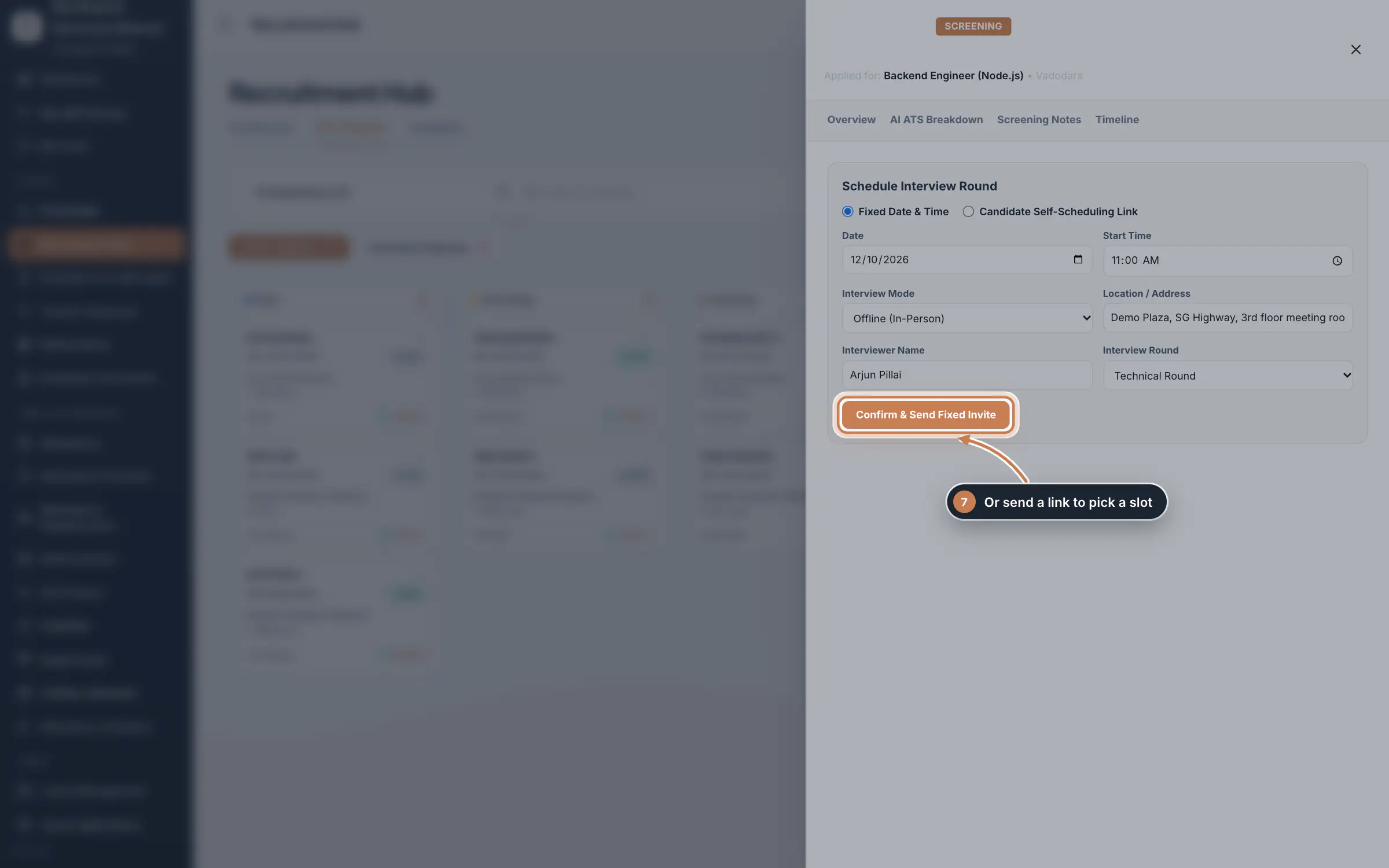
Click Schedule Interview. Choose Fixed Date & Time and set the date and start time, or Candidate Self-Scheduling Link to let the candidate pick a free slot in the days and hours you allow. Pick the Interview Mode: online with a meeting link, in person with the address, or by phone. Enter the Interviewer Name and the Interview Round, then click Confirm & Send Fixed Invite or Send Scheduling Invitation. After the interview, Submit Interview Feedback records ratings and a select, reject or hold decision.
 Full size
Step 7 See the hiring funnel
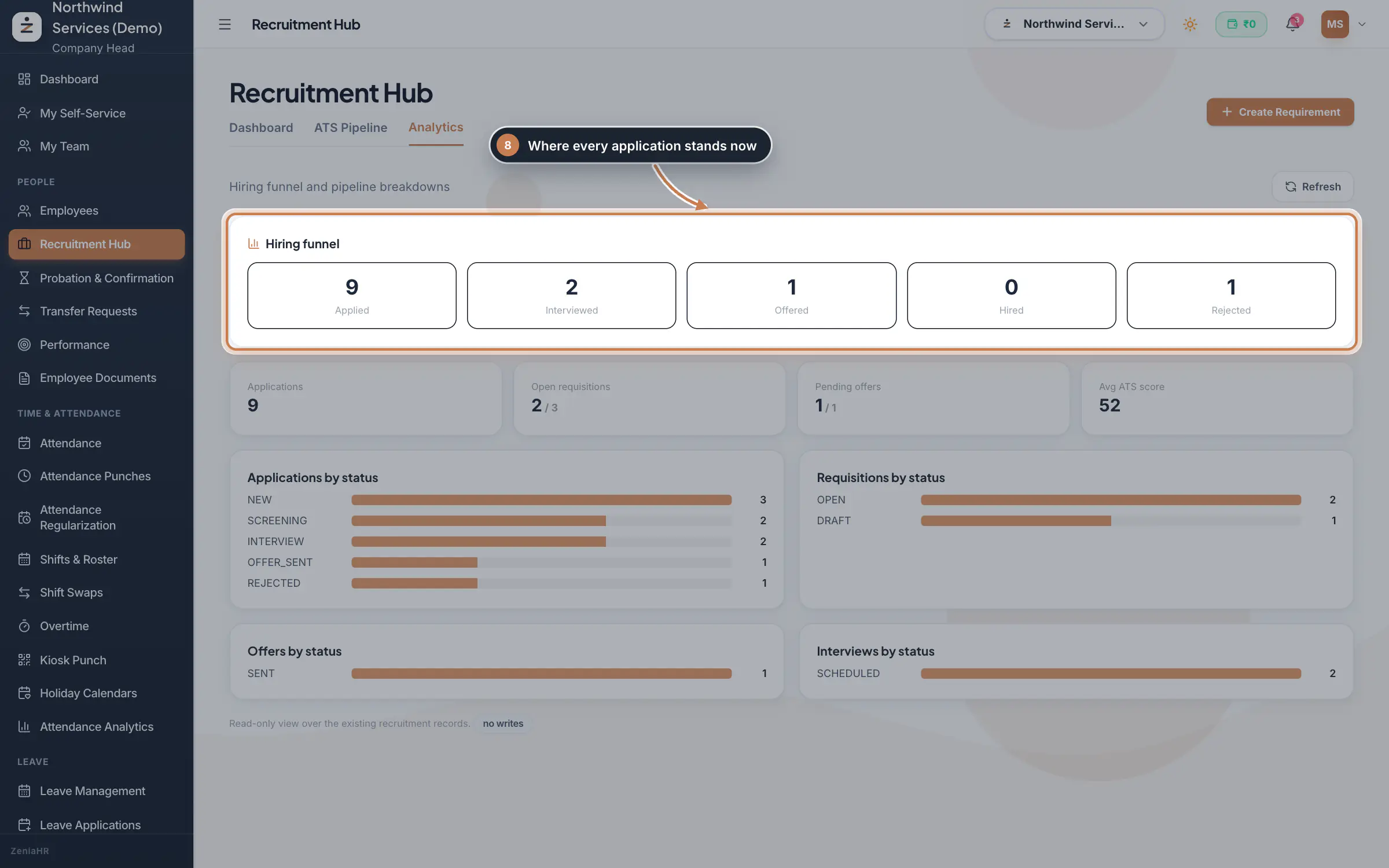
Click Analytics. The Hiring funnel counts where applications stand now: applied, interviewed, offered, hired and rejected. The tiles show applications, open requisitions, pending offers and the average match score, and the lists break down applications, requisitions, offers and interviews by status.
 Full size
Step 8
What it does
Recruitment Hub runs hiring from the job opening to the first day. You create a requirement for each role and publish it, which gives the job a public careers page with an apply form. Every application lands on the ATS Pipeline with a match score worked out from the resume and the skills the job asks for. From there you screen candidates, schedule interviews, send offers and, when they join, turn them into employees. Dashboard lists your requirements and Analytics shows the hiring funnel.
Who uses it
- The Company Head and HR run the hub from Recruitment Hub in the sidebar.
- In HRMS Core companies, managers see the applicants for jobs where they are the hiring manager or recruiter, or for their own department, in the employee app, and can shortlist or pass them. Interviews, offers and joining stay on the web.
- Candidates never sign in: they apply on the job's careers page and answer interview and offer emails.
How it connects
When a candidate joins, ZeniaHR creates the employee in Employees with their app login, either directly with Mark as Joined (skip onboarding) or through a temporary employee who finishes onboarding first with Move to Temporary Employee. A requirement closes by itself once all its openings are filled. Interview invites and offers go to the candidate by email when your company's email sending is set up.
Questions
How do I add a candidate who sent their resume by email?
Send them the job's public apply link from the Dashboard tab. Every application comes in through the careers page, so each one has the same details and a match score.
What happens when I send an offer?
The candidate gets an email with the offer and buttons to accept or decline. Accepting keeps them in Offer for you to finish joining; declining moves them to Declined & Rejected, where you can revise and resend the offer.
Why did the requirement close by itself?
All its openings are filled: as many candidates as openings have joined. To hire more, open the requirement with the eye icon, raise the openings and click Update & Publish.
Related
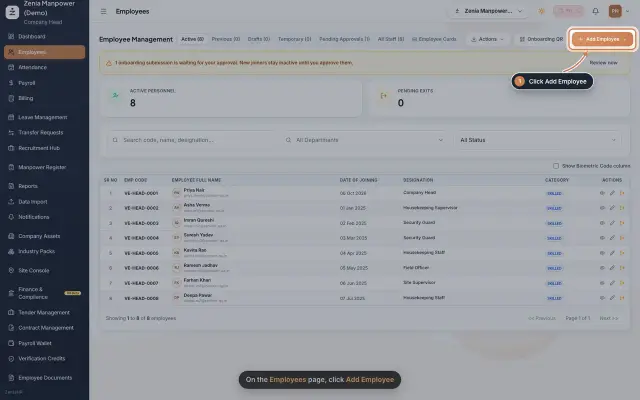 Add an employeeRegister a new employee master file step by step, from personal details to employment.Guide25 s video
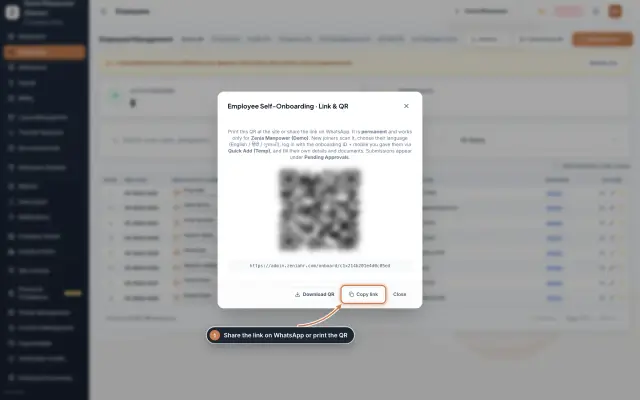 From a new joiner to their first payslipThe end to end journey where the admin panel and the employee app work together, from inviting a temporary joiner to their first payslip.End to endDiagram
 Employees moduleThe staff directory, where you add people, open an employee profile and approve new joiners.Module
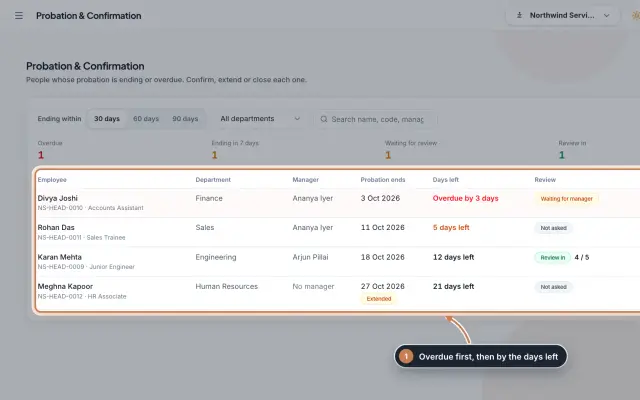 Probation & Confirmation moduleEveryone whose probation is ending or overdue in one queue; confirm with a letter, extend with a reason, record a not confirmed outcome or ask the manager for a review.Module
- Employee onboarding softwareSee how it works on the ZeniaHR website