Probation & Confirmation module
Everyone whose probation is ending or overdue in one queue; confirm with a letter, extend with a reason, record a not confirmed outcome or ask the manager for a review.
Key screens
See who is due
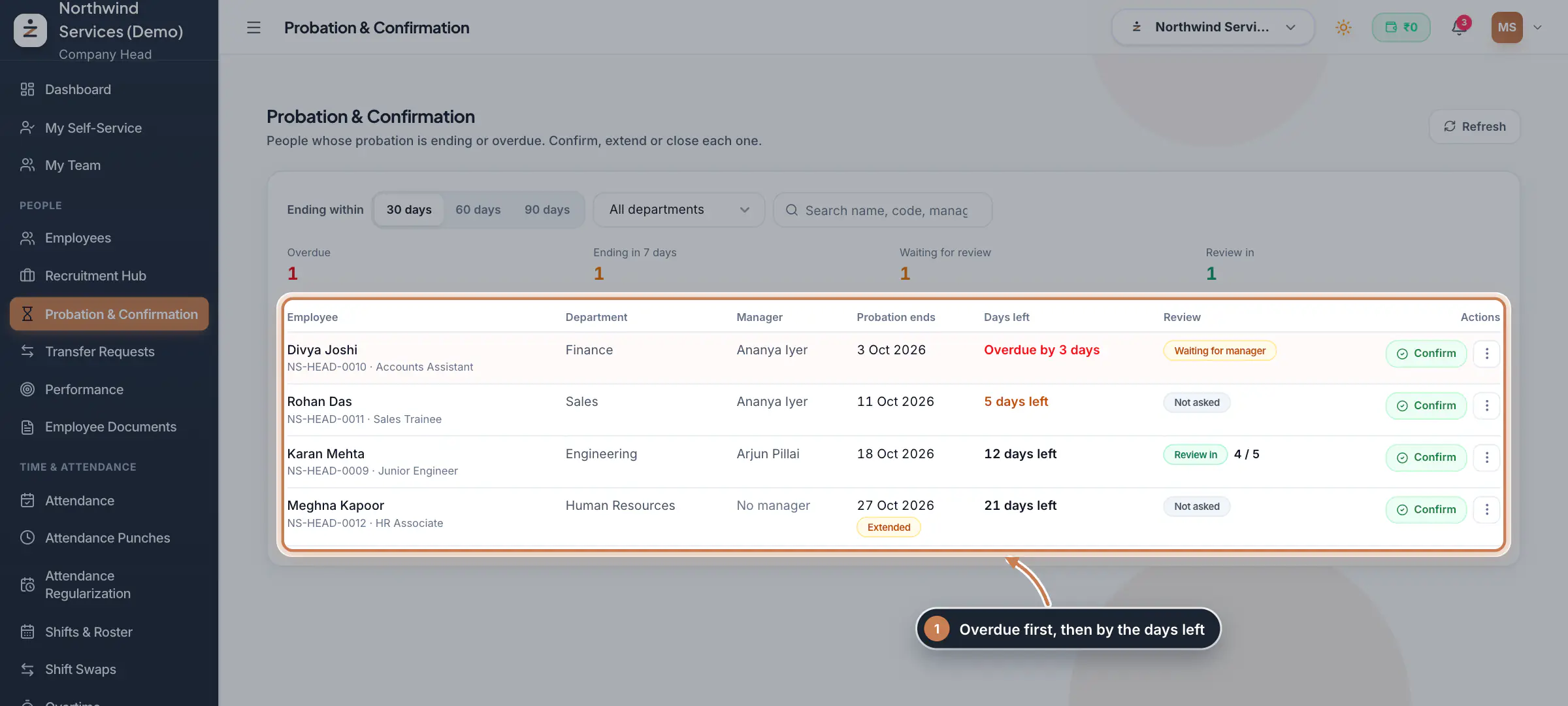
In the sidebar, under People, click Probation & Confirmation. Choose how far ahead to look with Ending within: 30 days, 60 days or 90 days; overdue probations always show. Filter by department or search by name, code or manager. The counts show who is Overdue, who ends in the next 7 days, who is Waiting for review and whose Review in has arrived. Each row shows the manager, the end date (marked Extended after an extension), the days left and where the manager's review stands.
 Full size
Step 1 Confirm someone
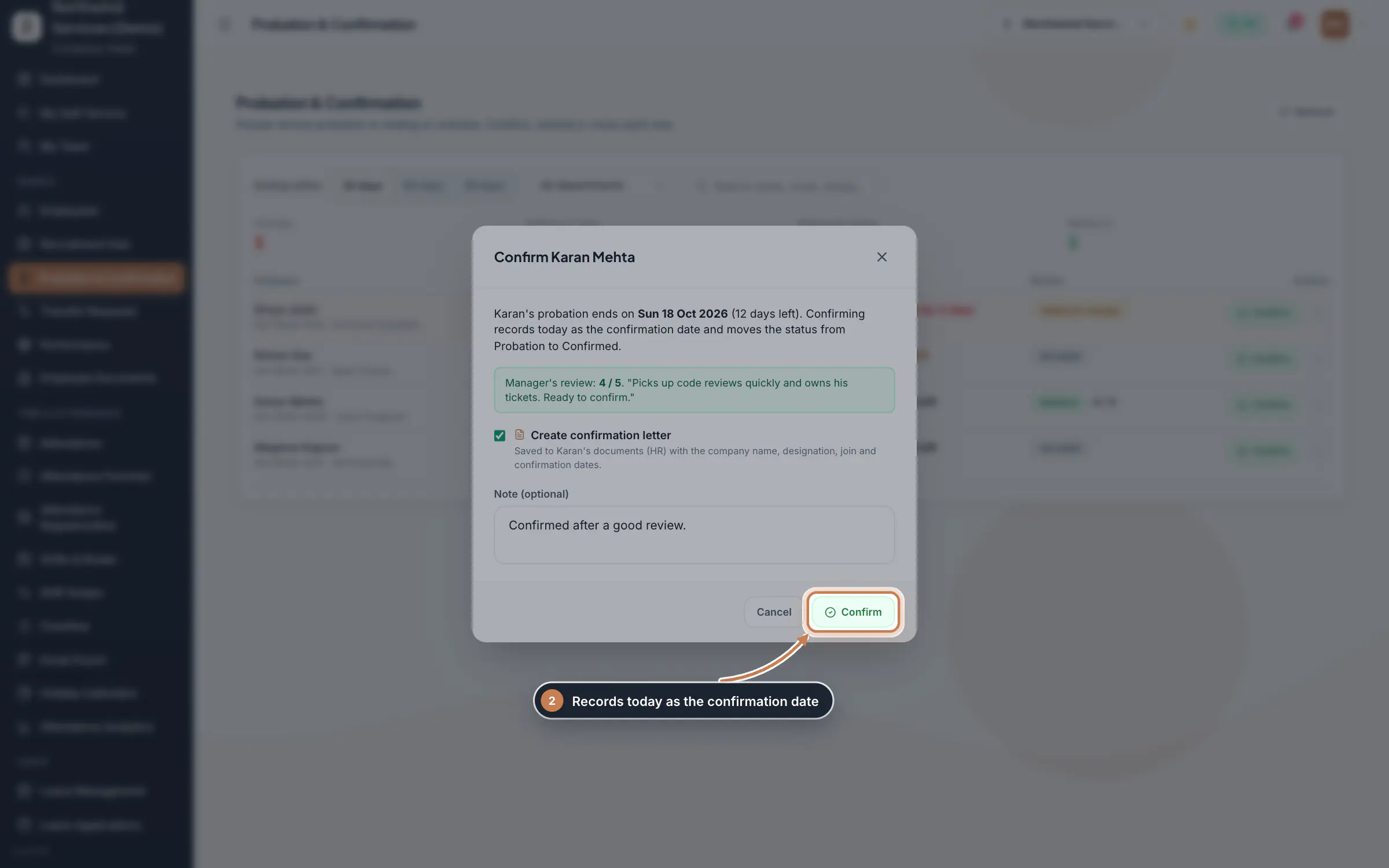
Click Confirm on the row. The form shows the end date and the manager's rating and comment when they have sent the review. Leave Create confirmation letter ticked to save a letter to the person's documents with the company name, their designation and their join and confirmation dates. Add a note if you like and click Confirm: today becomes the confirmation date and the status moves from probation to confirmed.
 Full size
Step 2 Tip If the manager has not sent the review yet, the form warns you, but you can still confirm.
Ask the manager, or close the probation
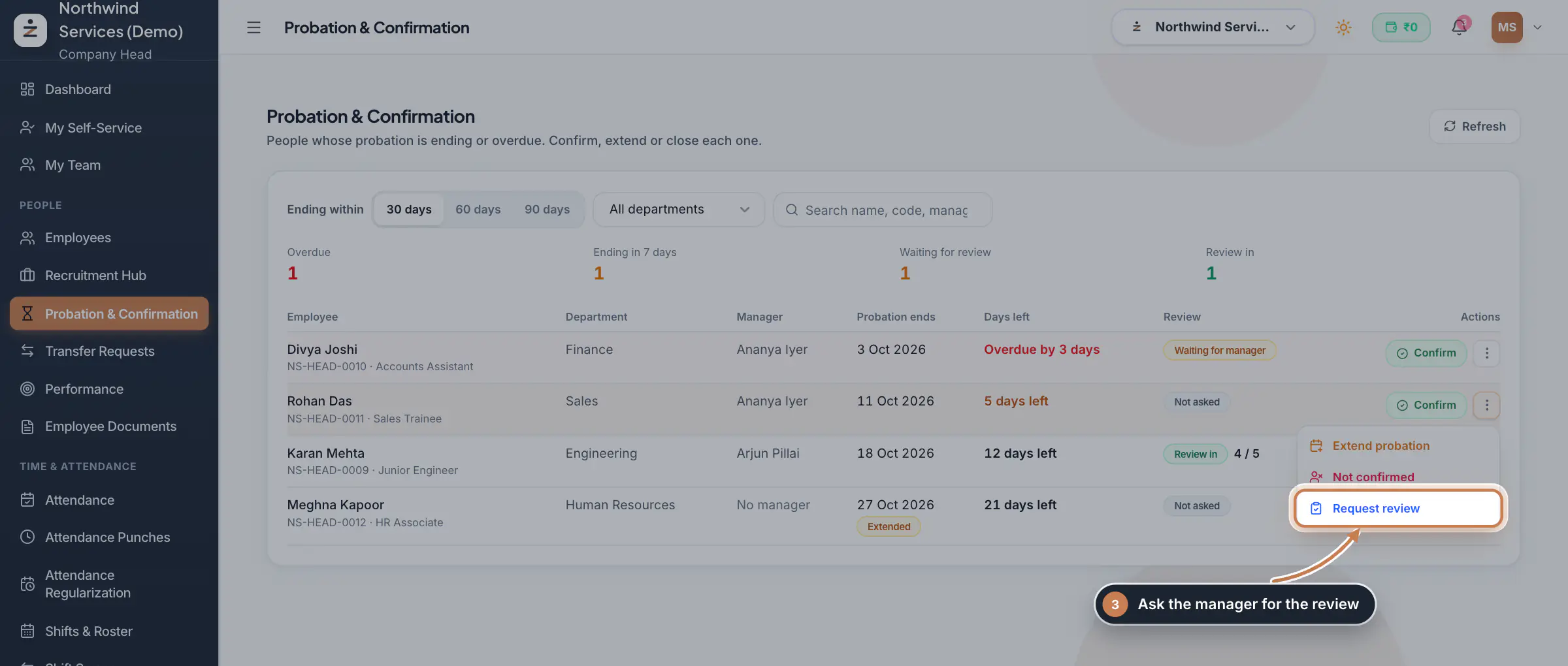
Click the three dots on the row. Request review sends the reporting manager a notification asking for the probation review; the row then says Waiting for manager, and Ask for the review again sends it again. A person without a reporting manager cannot be sent for review. Not confirmed ends the probation: choose End the employment (Terminated) or The person resigns (Resigned), give the reason and click Record outcome. The exit itself, such as the last day and the settlement, follows in your usual offboarding steps.
 Full size
Step 3 Extend a probation
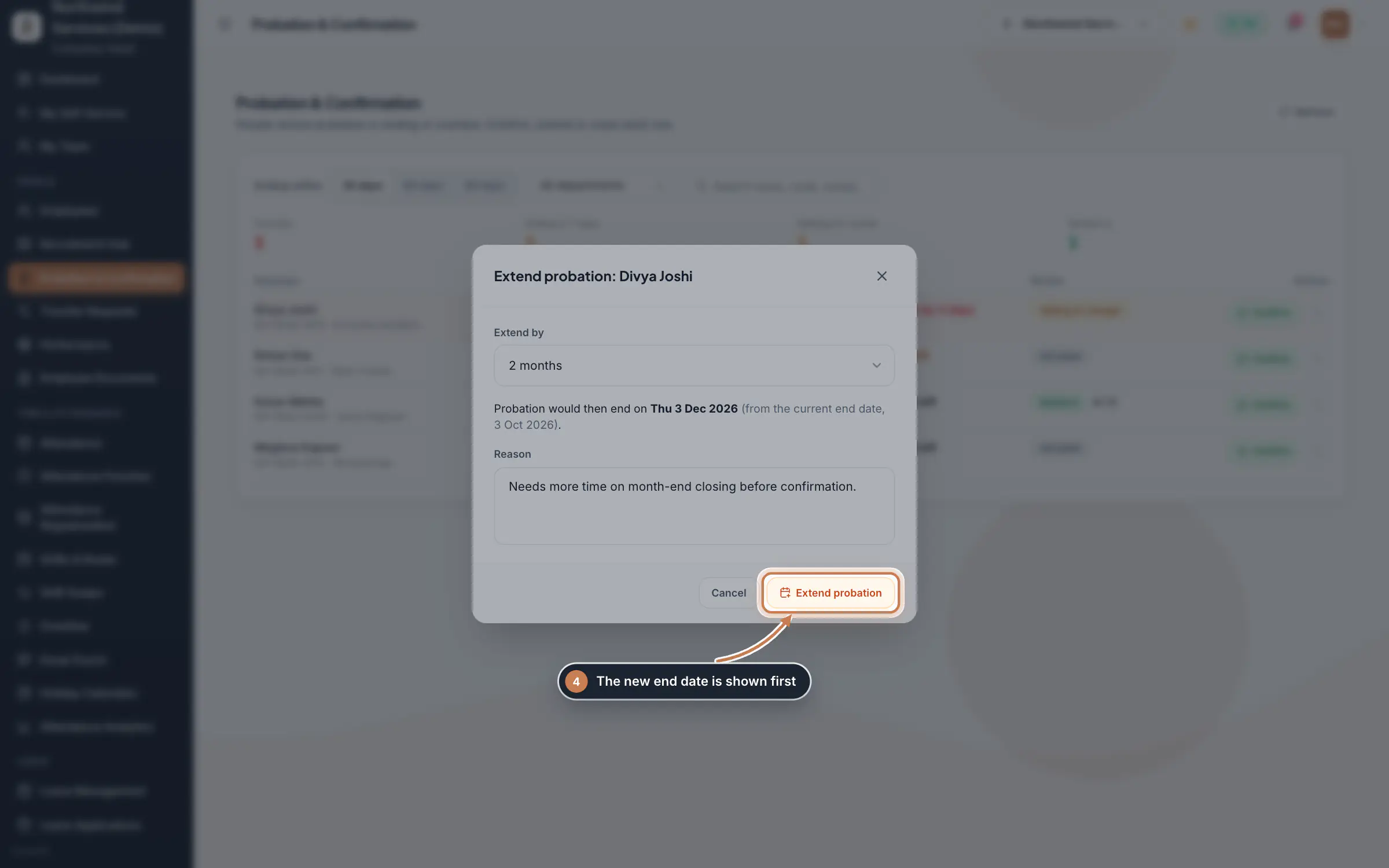
In the row menu, click Extend probation. Choose Extend by, from 1 to 12 months. The form shows the new end date, counted from the current end date. Write the Reason and click Extend probation. The row is then marked Extended, with the number of extensions.
 Full size
Step 4
What it does
Probation & Confirmation lists the people whose probation ends soon or has already ended, with the overdue ones on top. For each person HR can confirm them, with a confirmation letter saved to their documents, extend the probation by some months, record that they were not confirmed, or ask their manager for the probation review.
Who uses it
- HR and the Company Head work the queue. People who can only view employees see the list without the actions.
- Managers rate their team member's probation from 1 to 5 with a comment, on the web under My Team, Probation reviews, or in the employee app.
How it connects
The length of probation comes from Settings, Policies, Work terms and probation: by default 6 months for permanent staff and 3 for trainees, counted from the join date. The same card sets how many days before the end a reminder goes out, whether confirmation needs the manager's review, what happens when nobody acts, and the notice period during probation and once confirmed. One person's probation is changed on their profile in Employees, under Work terms. The manager is the person's reporting manager, set on their profile.
Questions
Where does the probation end date come from?
From the join date and the probation months for the person's employment type in Work terms and probation, unless their own work terms set other months or an end date, or the probation was extended.
What happens if nobody acts when probation ends?
That is a company setting under Work terms and probation: keep the person in probation and escalate, or confirm automatically.
Can a manager confirm their team member?
No. The manager sends the review with a rating and a comment; HR or the Company Head confirms.
Related
 Employees moduleThe staff directory, where you add people, open an employee profile and approve new joiners.Module
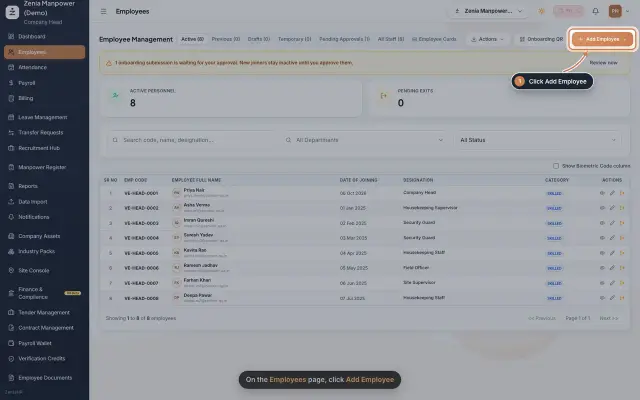 Add an employeeRegister a new employee master file step by step, from personal details to employment.Guide25 s video
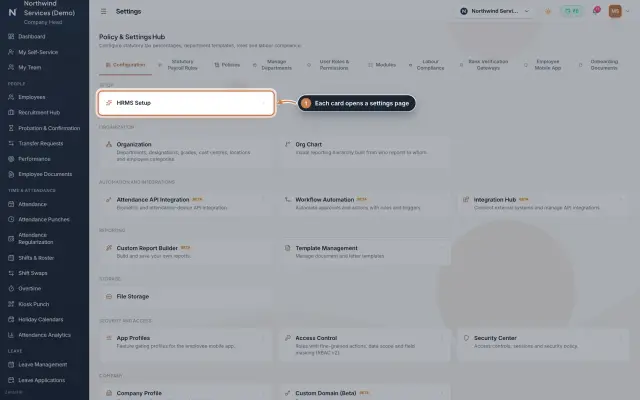 Settings moduleThe Policy & Settings Hub: a card for every settings page, and tabs for statutory rules, policies, departments, user permissions, modules, labour compliance, bank verification, the employee app and onboarding documents.Module
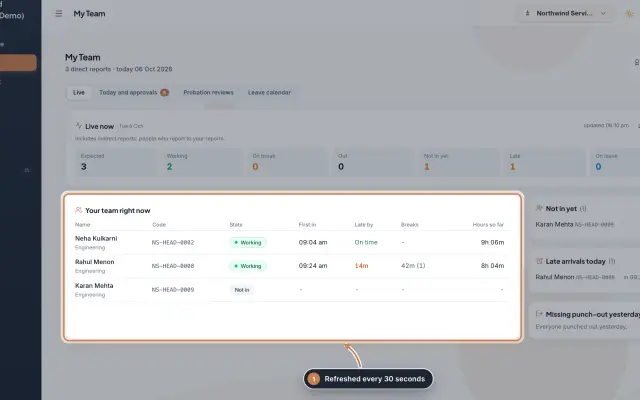 My Team moduleA manager's page for the people who report to them: who is working right now, the requests waiting on them, probation reviews, the team's leave and praise.Module
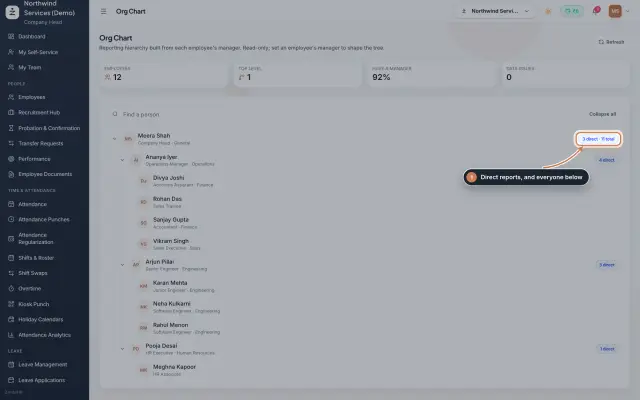 Org Chart moduleThe company's reporting tree, built from each person's reporting manager, with team sizes, a search and a check for broken reporting lines.Module
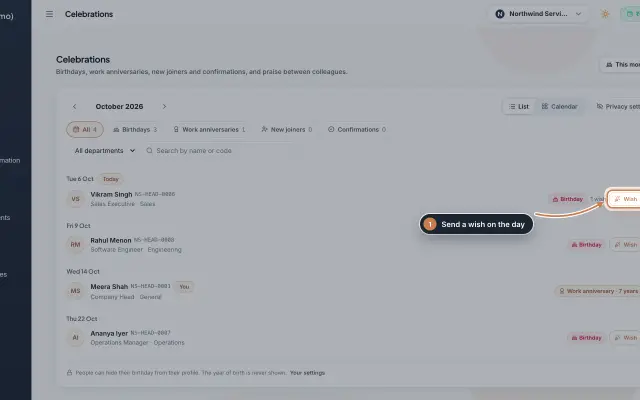 Celebrations moduleBirthdays, work anniversaries, new joiners and confirmations month by month, with wishes, birthday privacy, and praise between colleagues with a monthly leaderboard.Module
- Employee onboarding softwareSee how it works on the ZeniaHR website