Reports module
Quick headcount reports, run with one click from your live employee records: by department, by status, by designation and, for HRMS Core companies, by salary band, each ready to download as CSV.
Key screens
Pick a report
In the sidebar, click Reports. Available reports lists the reports your company can run. Click one to run it; the result opens on the right.
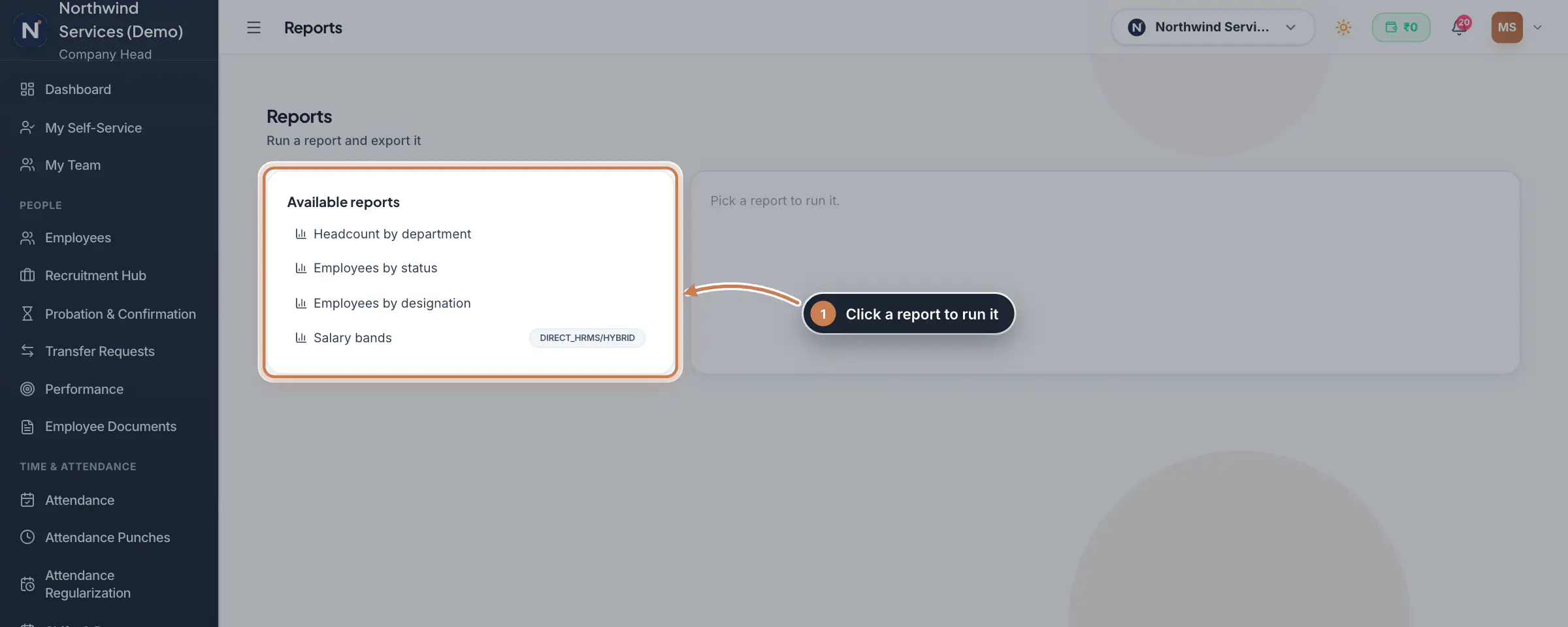 Full size
Step 1 Read and download the result
The result shows the report's name, the number of rows and a table, for example each department with its headcount. Click CSV to download it for Excel or Google Sheets, or Re-run to run it again after a change.
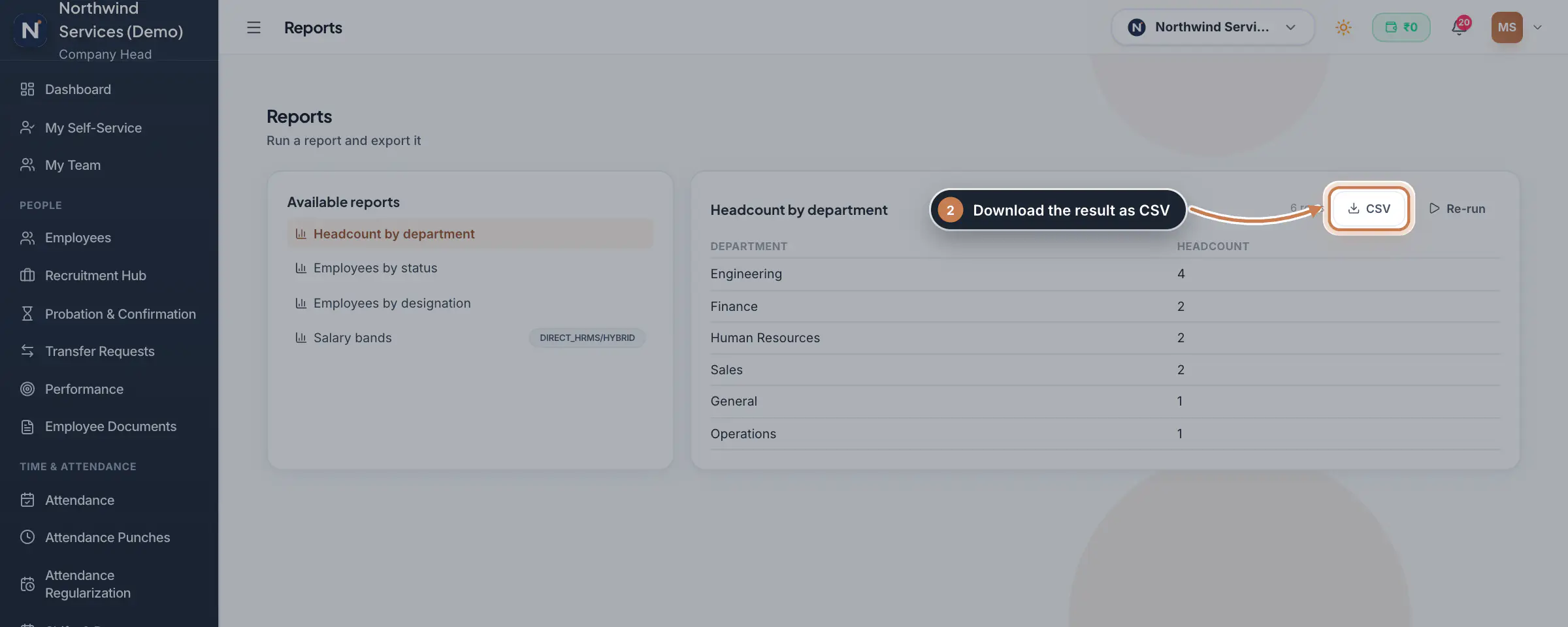 Full size
Step 2 See the salary bands
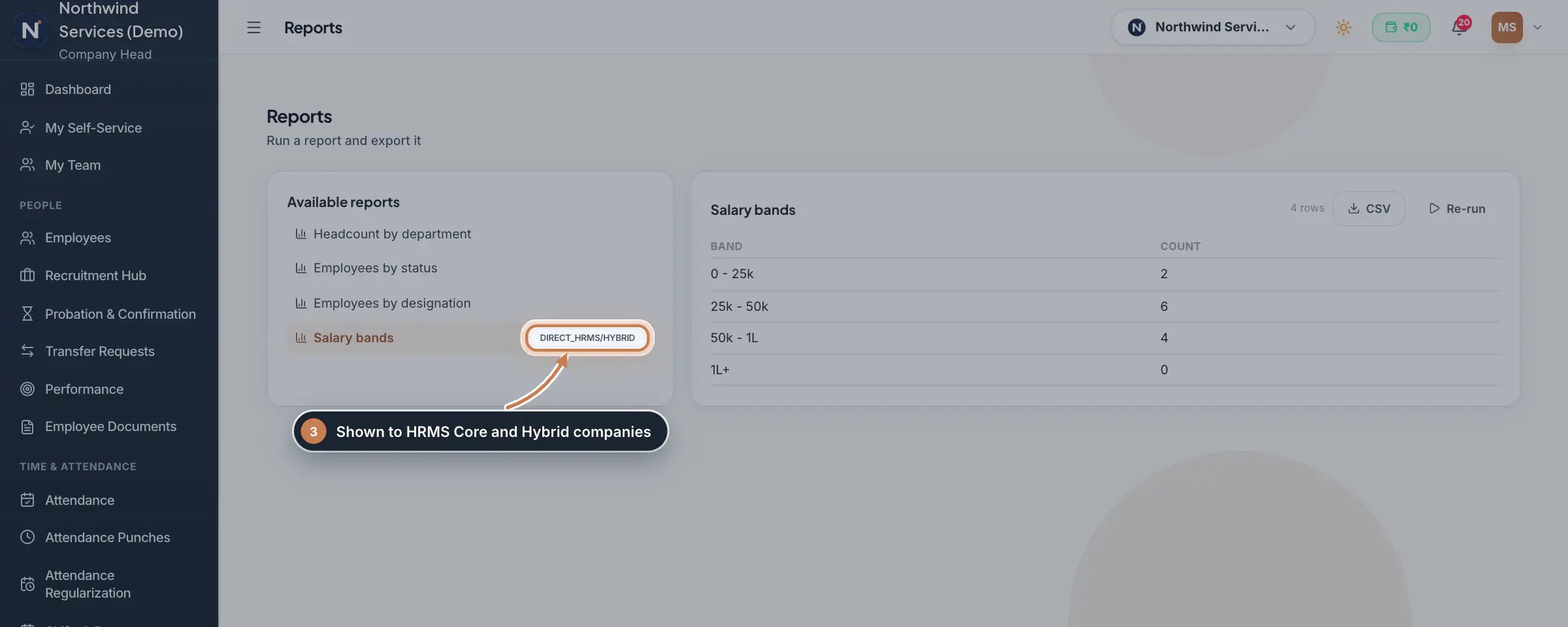
A report marked DIRECT_HRMS/HYBRID is shown only to HRMS Core and Hybrid companies. Salary bands counts the active employees whose monthly salary falls in each band; an employee with no salary on file counts in the lowest band.
 Full size
Step 3
What it does
Reports runs a small set of ready-made summary reports on your live employee records and shows the result as a table you can download. Headcount by department and Employees by designation count the active employees in each department and designation, Employees by status counts every employee by status, such as Active, Resigned or Offboarded, and Salary bands counts the active employees in four monthly salary bands: up to ₹25,000, ₹25,000 to ₹50,000, ₹50,000 to ₹1 lakh, and above ₹1 lakh. For payroll, attendance, leave and statutory reports, use the Report Library.
Who uses it
- The Company Head, HR and Finance, and anyone else whose role can view reports. HRMS Core companies find it under Company & Tools in the sidebar.
- A user who manages only some branches sees the figures of those branches only.
How it connects
Every figure comes from the employee records in Employees at the moment you run the report, so a joiner or an exit shows up the next time you run it. Salary bands is shown only to HRMS Core and Hybrid companies, and reads the monthly salary on each employee record.
Questions
A department is missing. Why?
Headcount by department counts active employees only. A department with no active employee does not appear, and active employees with no department are counted under (unassigned).
Can I add my own report here?
No. To choose your own columns, filters and charts, use the Custom Report Builder in Settings. Payroll, attendance, leave and statutory registers are in the Report Library.
Related
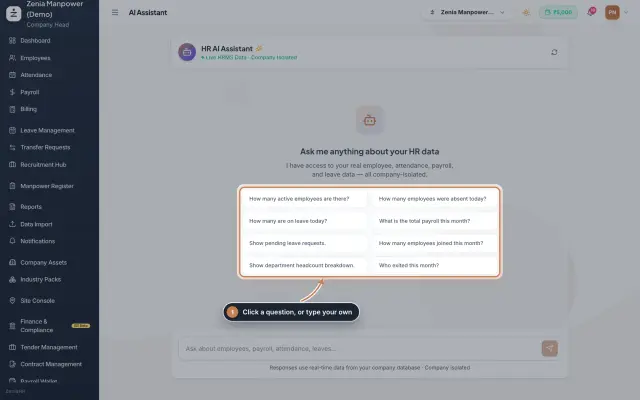 AI Assistant moduleAsk quick questions about your HR data in plain words, such as how many employees are active, who is on leave today or this month's payroll total, and get the answer from your live data, plus short how-to answers.Module
 Employees moduleThe staff directory, where you add people, open an employee profile and approve new joiners.Module
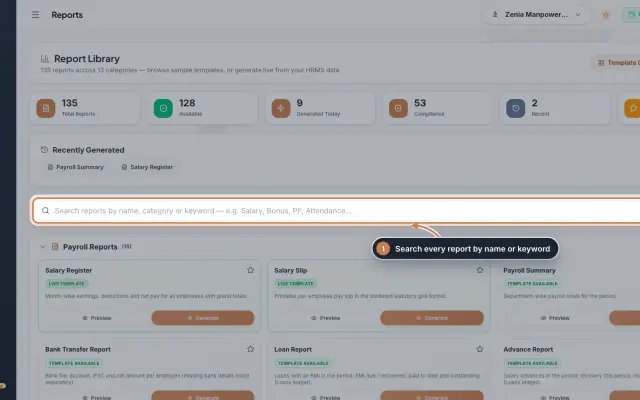 Report Library module135 ready reports in 13 groups, from the salary register and payslips to attendance, leave, employee, document, PF, ESI, tax, bonus and wage registers, generated live from your data as a document you can edit, print and export.Module
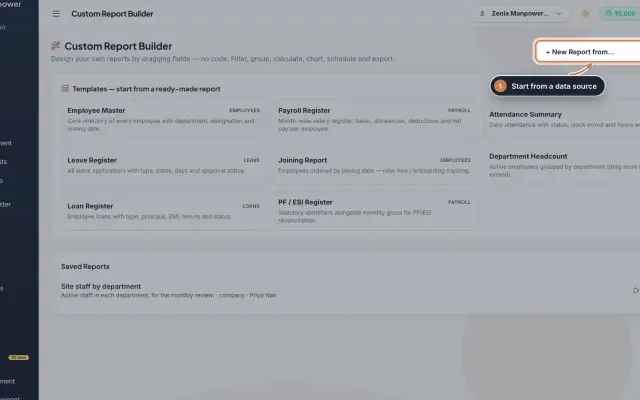 Custom Report Builder module (Beta)Design your own reports without code: pick a data source, add fields, filter, sort, group, add formulas and a chart, then save, export to Excel, CSV, PDF or Word, and email it on a schedule.Module
- ZeniaHR for every businessSee how it works on the ZeniaHR website