Report Library module
135 ready reports in 13 groups, from the salary register and payslips to attendance, leave, employee, document, PF, ESI, tax, bonus and wage registers, generated live from your data as a document you can edit, print and export.
Key screens
Find a report
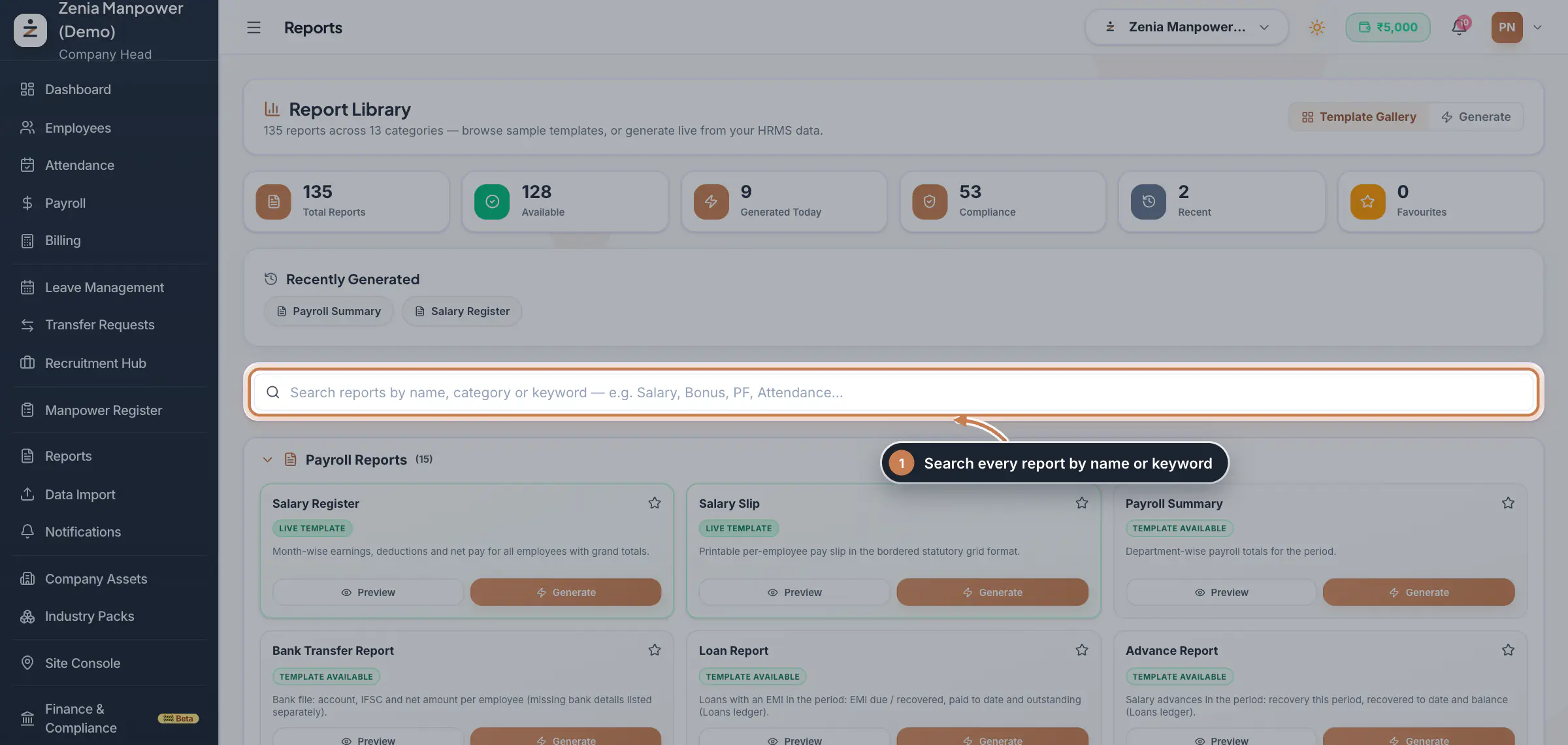
In the sidebar, click Report Library. The Template Gallery opens with counters for the total and available reports, those made today, the compliance reports, your recent ones and your favourites, then Recently Generated for a quick way back. Type in the search box, for example Salary, PF or Attendance, or scroll the groups. Each card has a badge: Live Template, Template Available, Coming Soon or Requires Setup. Click the star on a card to pin it under Favourite Reports in this browser.
 Full size
Step 1 Make a live template
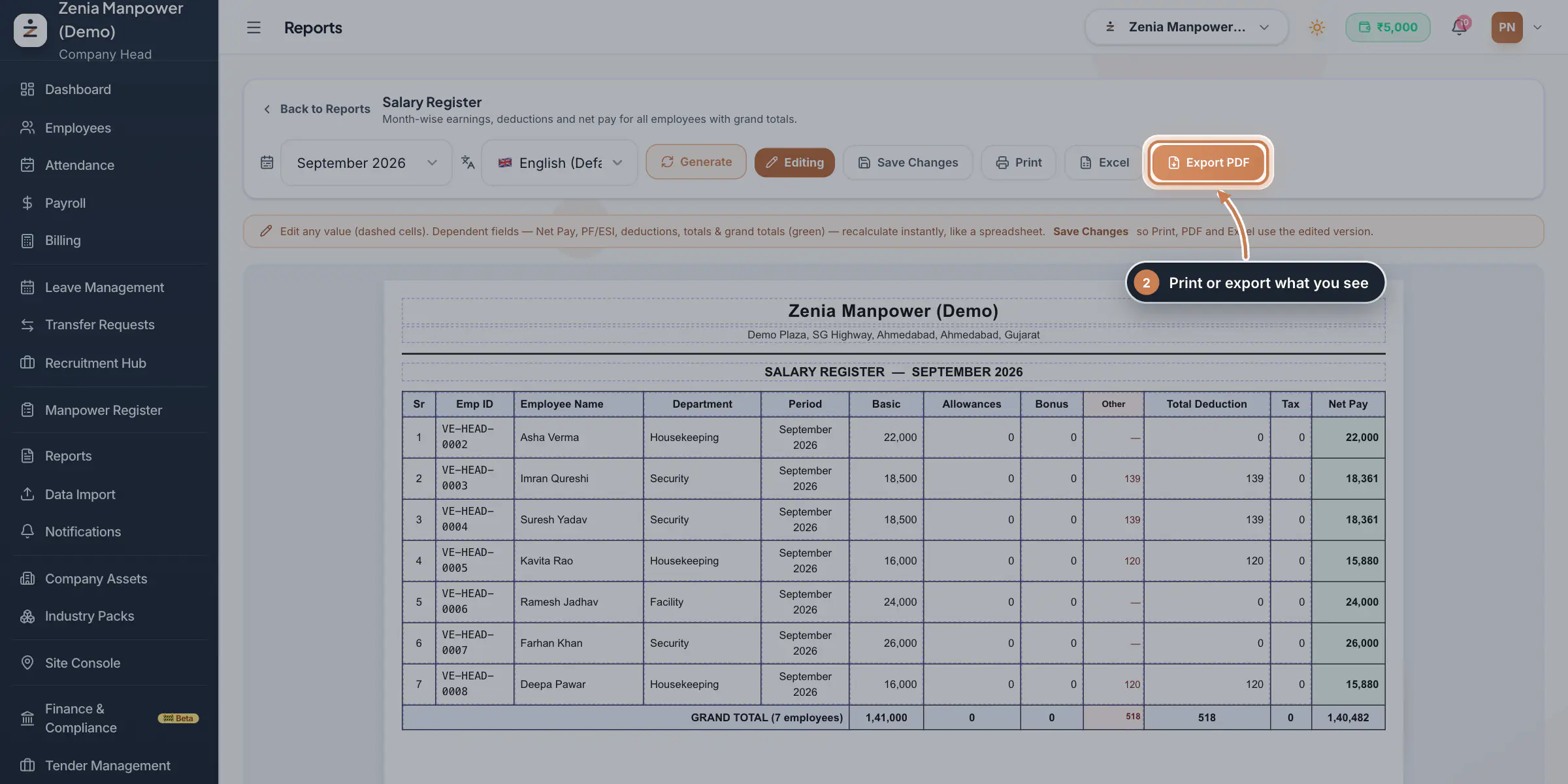
The Salary Register, the Salary Slip and Form 16 are live templates in their statutory layouts. Click Preview or Generate on the card, pick the payroll month (for Form 16, the financial year) and the language (English, Hindi or Gujarati), and click Generate. The Salary Register shows each employee's basic pay, allowances, bonus, deductions, tax and net pay with the grand total. With Editing on, you can correct a dashed cell and the totals that depend on it recalculate; Save Changes keeps your edits for printing in this browser only, never in the payroll. Click Print, Excel or Export PDF.
 Full size
Step 2 Generate any report
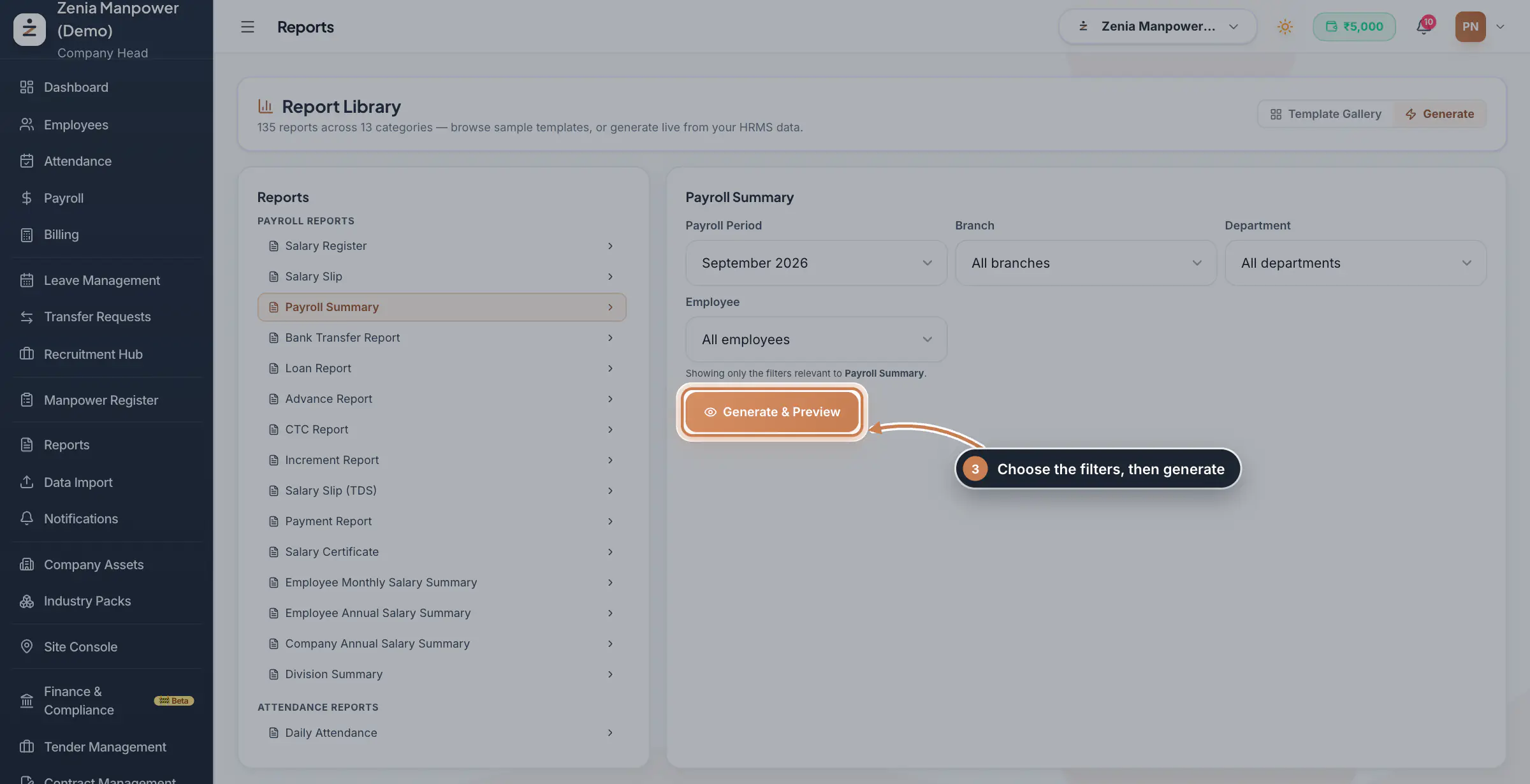
On any other card, Preview shows a short sample of the report, made from your latest data (or from built-in sample data when you have none yet), so you can see its layout; Generate opens it in Generate mode. There, the reports are listed by group on the left. Click one, and set the filters it uses, such as Payroll Period, Financial Year, Branch, Department, From Date, To Date or Employee. Click Generate & Preview.
 Full size
Step 3 Edit, print or export the result
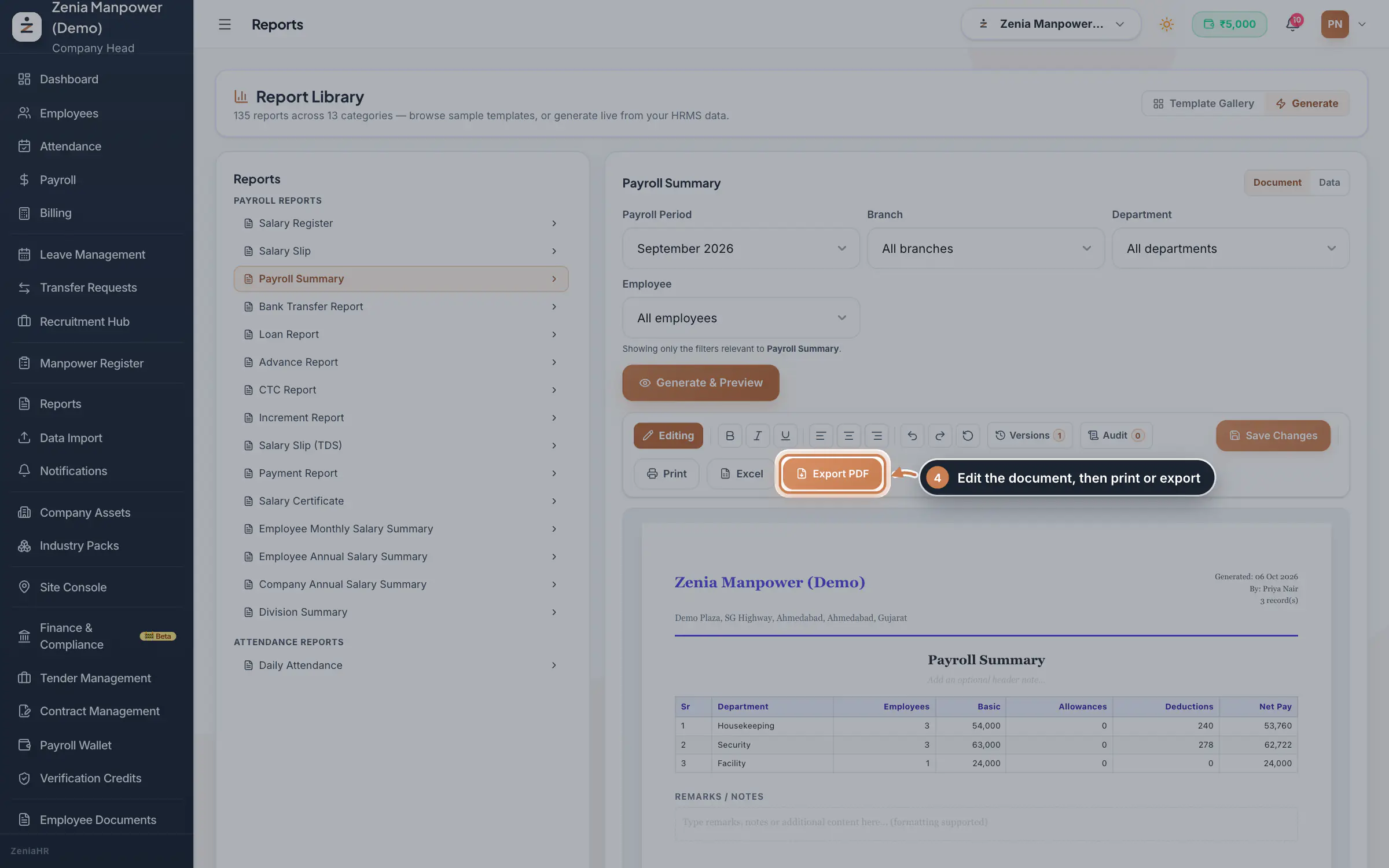
The report opens as a document with your company's name, address and the date it was made. Type a note under the title or in Remarks / Notes, format text with the toolbar, and click Save Changes; Versions and Audit list the saved versions and the changes, in this browser. Click Print, Excel or Export PDF. Click Data at the top right to see the plain table, with Print, Excel, PDF and CSV; the ECR File Generator also offers Notepad (.txt), the file the EPFO portal takes.
 Full size
Step 4
What it does
The Report Library holds 135 ready reports in 13 groups: Payroll, Attendance, Leave, Employee, Document and Compliance Reports, Statutory Registers, PF, ESI and Tax Reports, Gratuity & Settlement, Bonus Reports and Wage Reports. Each one is made from your live data for the month, dates, branch, department or employee you choose, and opens as a document in your company's name that you can adjust, print, or export to PDF and Excel. The PF group also makes the ECR file to upload to the EPFO portal.
Who uses it
- The Company Head and HR open it from Report Library in the sidebar.
- On the Free plan, eight core reports, such as the Salary Register, Salary Slip and Payroll Summary, can be made; the others show Premium and open on the paid plans.
How it connects
Payroll reports read the payroll of the month you pick, so run payroll for that month first. The PF, ESI, PT and wage figures follow your Statutory Payroll Rules, the employee and document reports read Employees and Employee Documents, and the loan and advance reports read Finance & Compliance. Every report is noted in the library's history, which feeds Generated Today and Recently Generated.
Questions
It says no payroll has been generated yet.
Payroll reports need the payroll of a month. Run payroll for that month, then pick it under Payroll Period.
Do my edits change the payroll?
No. Edits change only the printed report, and they are kept in the browser you made them in. To change the figures themselves, correct the payroll and generate the report again.
Why does a report show Premium?
On the Free plan only eight core reports can be made. The others are part of the paid plans.
Where is the ECR file for the EPFO portal?
In the PF Reports group: the Electronic Challan Cum Return (ECR) card opens the ECR generator, and ECR File Generator in Generate mode exports it as a text file.
Related
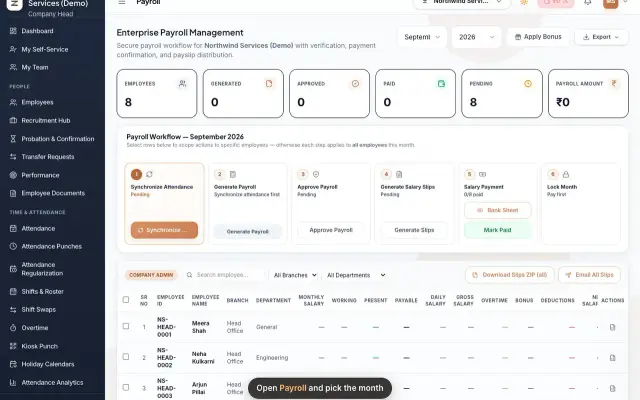 Run payroll and share payslipsRun the monthly payroll for your own employees in six steps, from synchronizing attendance to approving salaries, generating payslips, sharing them and paying.Guide29 s video
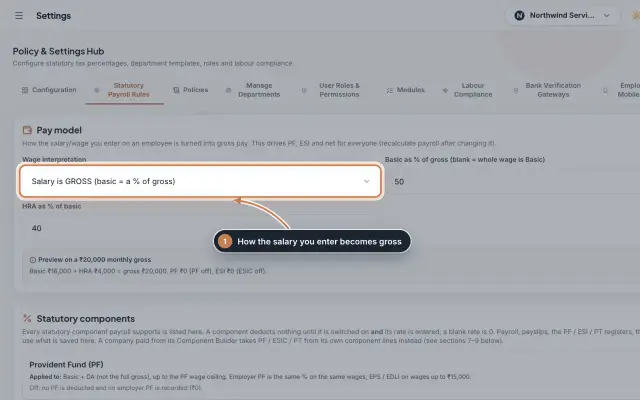 Statutory Payroll RulesSet how the salary you enter becomes gross pay, switch PF, ESIC and Professional Tax on with their rates, keep state PT slabs and day rates, and check a worked example before you save.Module
 Employees moduleThe staff directory, where you add people, open an employee profile and approve new joiners.Module
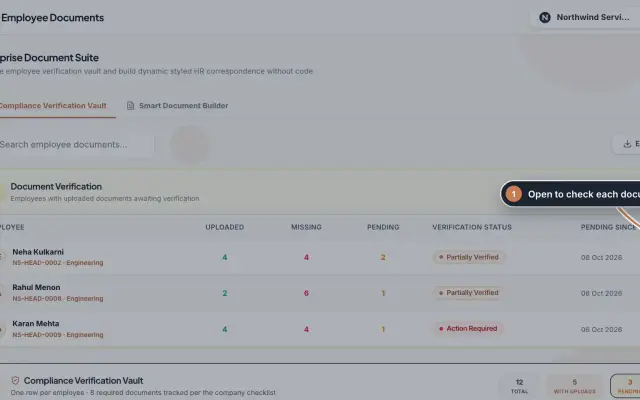 Employee Documents moduleCheck the documents each employee uploads against an eight-document checklist, verify or reject them, and make offer, appointment and other letters from ready-made styles.Module
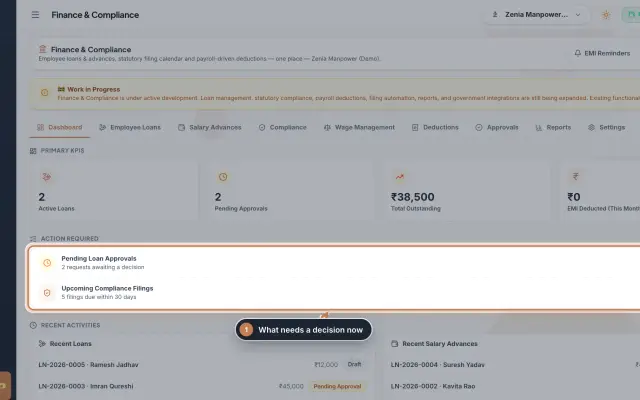 Finance & Compliance module (Beta)Employee loans and salary advances with their EMI schedules and approvals, the statutory filing calendar for PF, ESI, PT, TDS, GST and LWF, and loan and compliance reports, in one place.Module
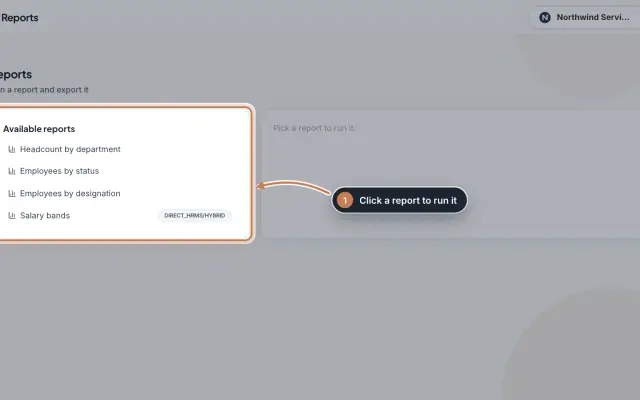 Reports moduleQuick headcount reports, run with one click from your live employee records: by department, by status, by designation and, for HRMS Core companies, by salary band, each ready to download as CSV.Module
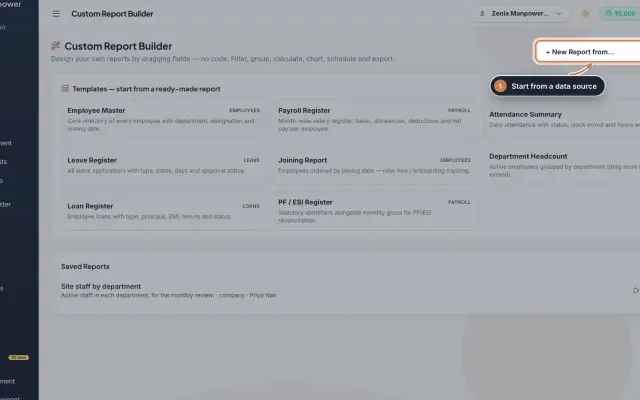 Custom Report Builder module (Beta)Design your own reports without code: pick a data source, add fields, filter, sort, group, add formulas and a chart, then save, export to Excel, CSV, PDF or Word, and email it on a schedule.Module
- ZeniaHR for every businessSee how it works on the ZeniaHR website