Custom Report Builder module (Beta)
Design your own reports without code: pick a data source, add fields, filter, sort, group, add formulas and a chart, then save, export to Excel, CSV, PDF or Word, and email it on a schedule.
Key screens
Start a report
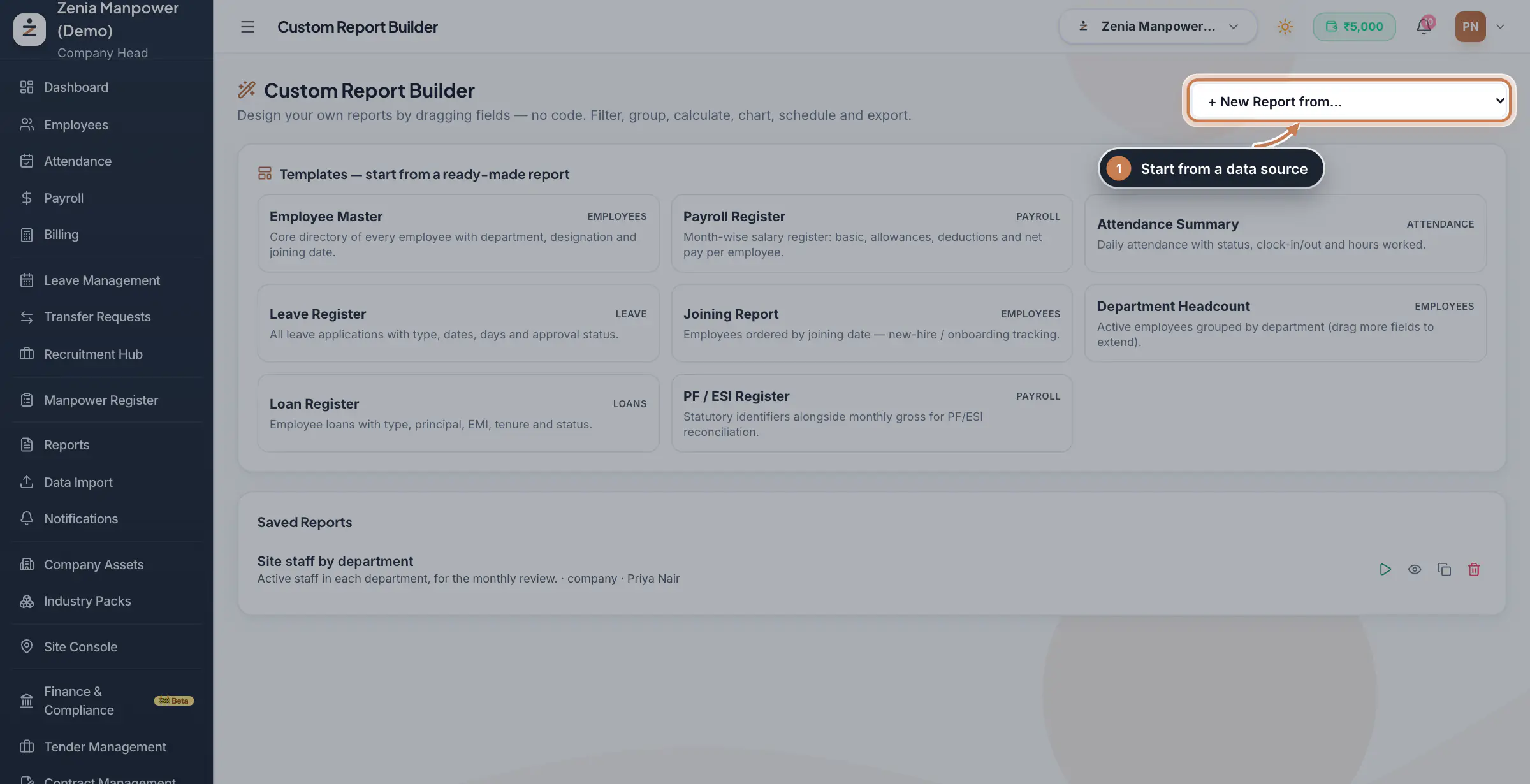
Pick a data source under + New Report from… to start an empty report, or click a template under Templates, such as Employee Master, Payroll Register, Attendance Summary, Leave Register, Joining Report, Department Headcount, Loan Register or PF / ESI Register. The designer opens with the report's fields already in place.
 Full size
Step 1 Open a saved report
Saved Reports lists your reports and those shared with the company, with their description, who can see them and who made them. Click the play icon to run one, the eye to open it, the copy icon to duplicate it, or the bin to delete it.
 Full size
Step 2 Choose the fields
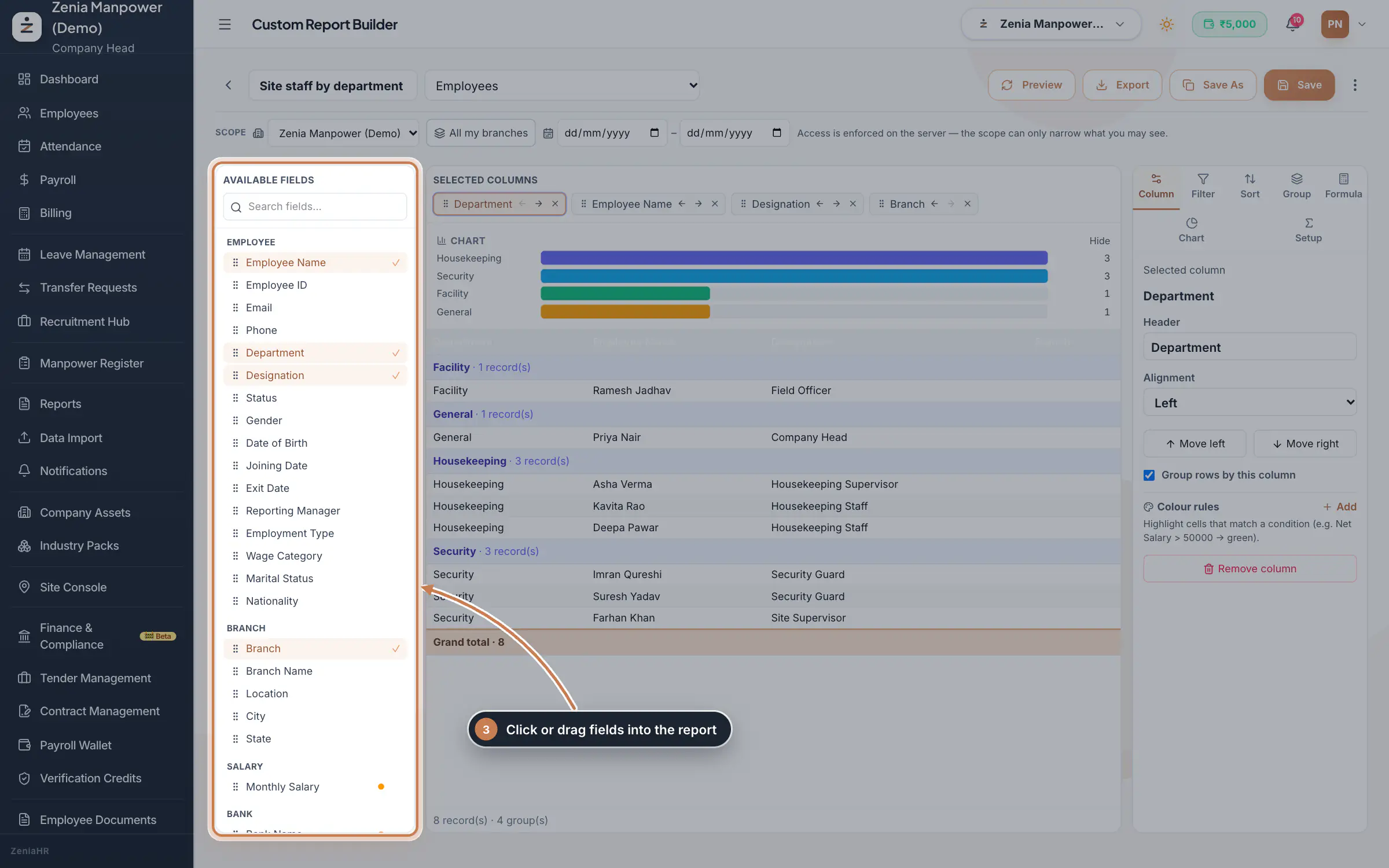
The designer shows the report's name and data source at the top and, below it, the Scope: the company, the branches and an optional date range. Under Available Fields, search for a field and click it, or drag it onto the report; it appears under Selected Columns, where the arrows move it and the cross removes it. The chart and a live preview of the rows follow every change, with record counts, group subtotals and the grand total.
 Full size
Step 3 Filter, sort, group and calculate
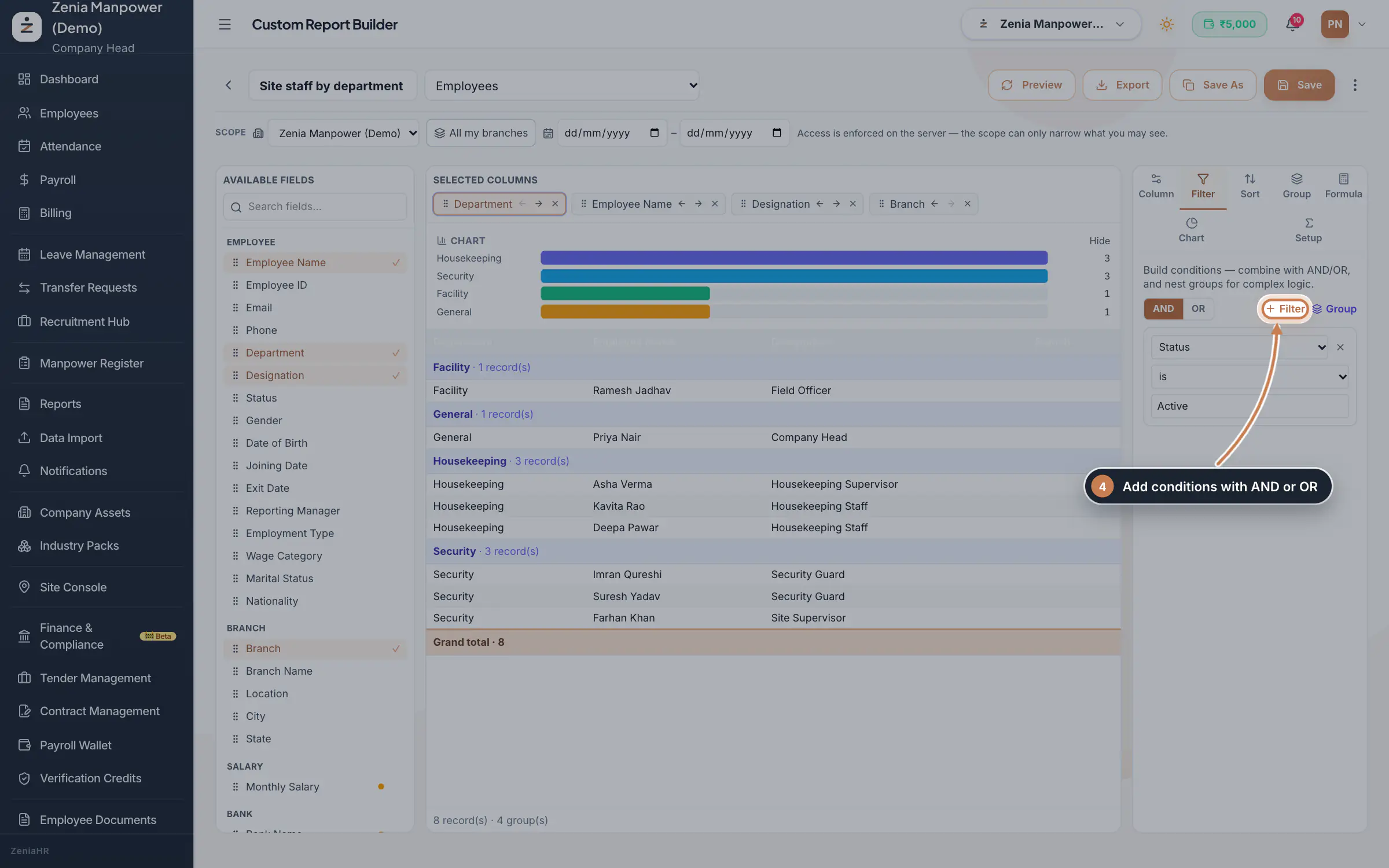
Use the tabs on the right. Column sets the selected column's heading, alignment, total, grouping and colour rules, such as a green fill for a salary above a set amount. Filter keeps only the rows that match your conditions; combine them with AND or OR and nest them in groups. Sort orders the rows, Group groups them with subtotals, Formula adds a calculated column, such as basic pay plus allowances, and Chart draws a bar, pie or line chart. Setup decides who can see the saved report: only you, or everyone in the company.
 Full size
Step 4 Save and export
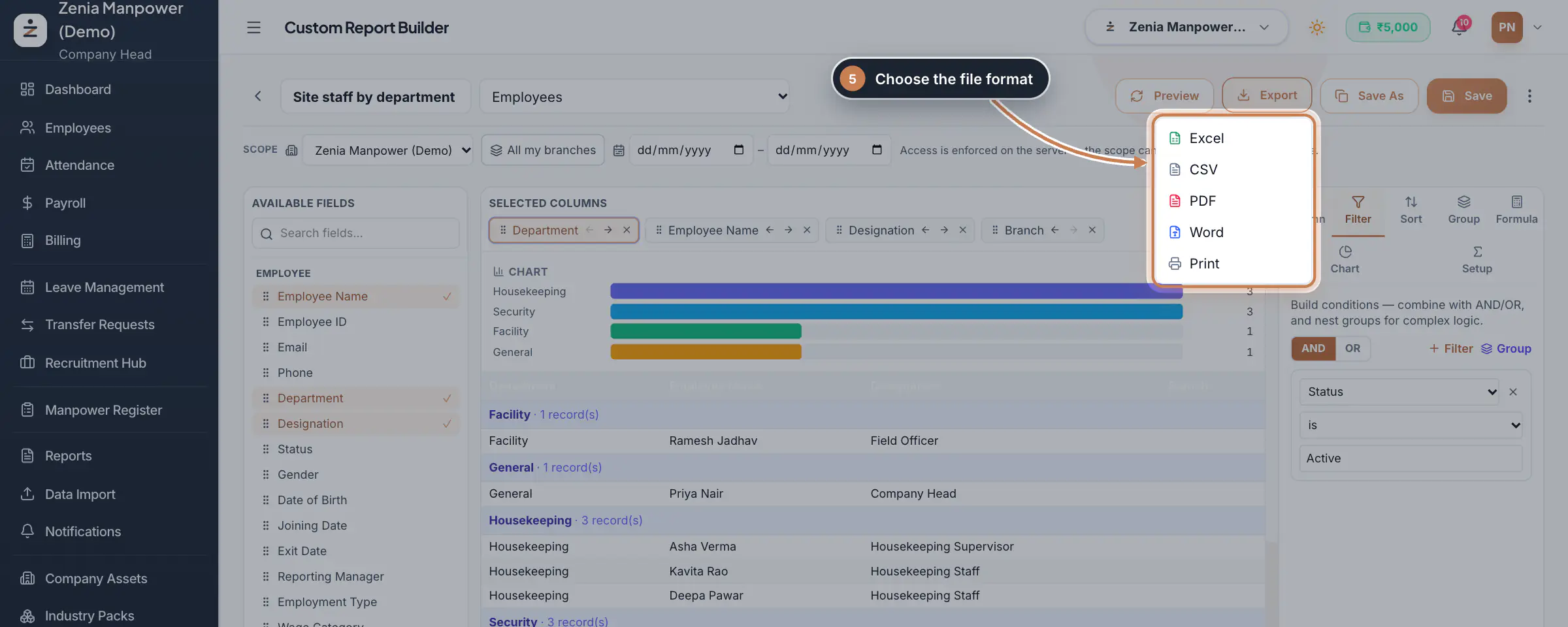
Click Save, or Save As for a copy under a new name. Click Export and choose Excel, CSV, PDF, Word or Print. The three-dot menu has Version history… to go back to an earlier saved version.
 Full size
Step 5 Email it on a schedule
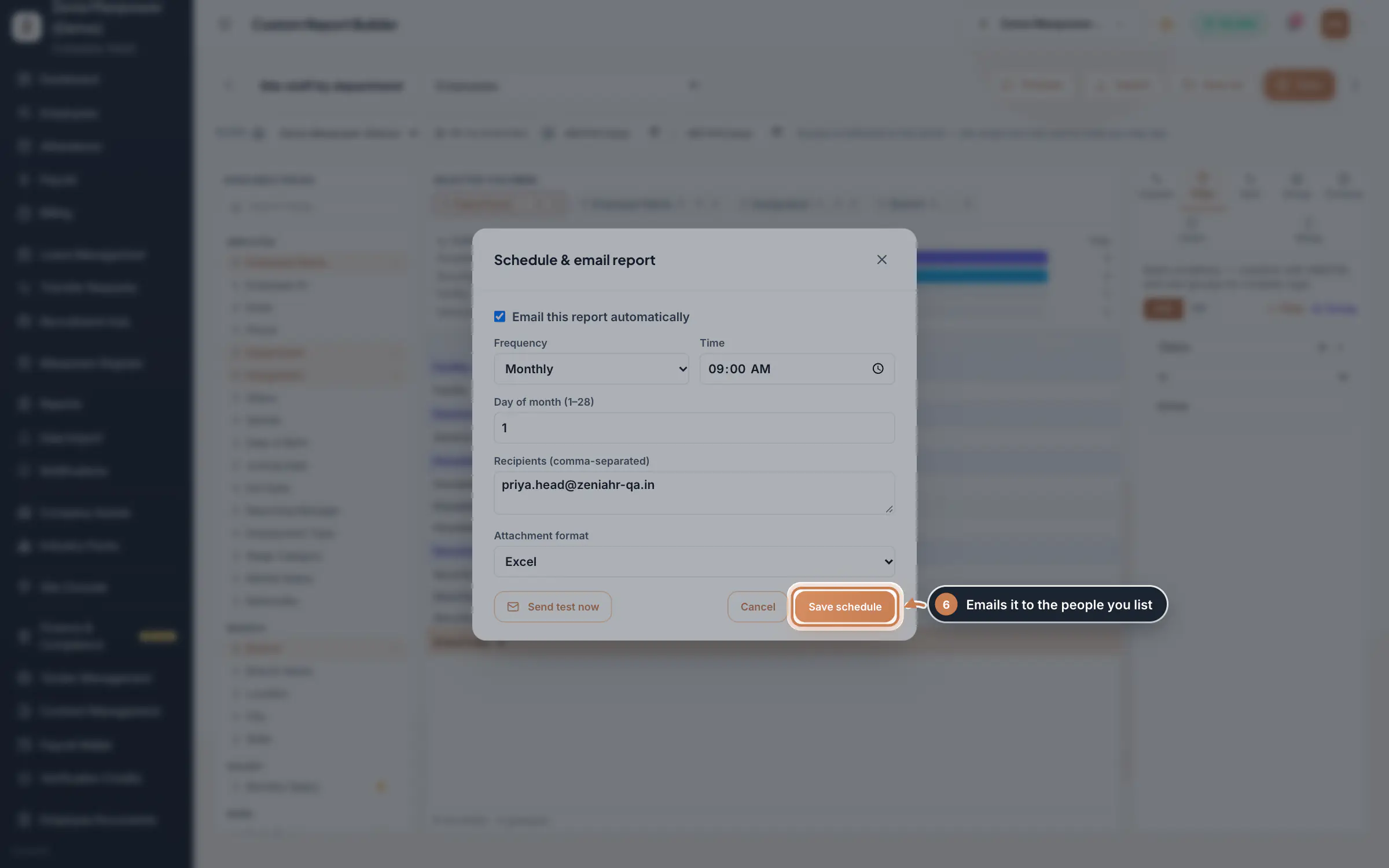
In the three-dot menu, click Schedule & email… (save the report first). Tick Email this report automatically, choose Daily, Weekly or Monthly, the time and the day, type the recipients' email addresses separated by commas and pick Excel or CSV for the attachment. Reports go only to people with an active ZeniaHR login in your company; any other address is left out. Send test now sends it once to check, and Save schedule turns the schedule on. Send now in the same menu emails the report to the schedule's recipients straight away.
 Full size
Step 6
What it does
Custom Report Builder lets you make the report you need when no ready report fits. Start from a data source, such as Employees, Employee + Payroll, Employee + Attendance, Employee + Leave, Employee Loans, Contracts or Deployments (Employee + Site + Contract), or from one of eight templates. Add the fields you want as columns, then filter, sort and group the rows, add totals, formulas and a chart, and see a live preview as you go. Save the report for yourself or for everyone in the company, export it, or have it emailed on a schedule. The module is marked Beta.
Who uses it
- The Company Head, HR and Finance. Open Settings; on the Configuration tab, under Reporting, click Custom Report Builder.
- Salary, bank and identity fields, marked with a dot in the field list, are shown only to the Company Head, HR and Finance; for other roles they stay out of the report.
How it connects
Every report reads your live data each time it runs, and only within what your own login may see: a user who manages some branches gets only those branches. For ready-made statutory and payroll registers, use the Report Library; for one-click headcount summaries, Reports.
Questions
Why can I not see the salary fields?
Salary, bank and identity fields are shown only to the Company Head, HR and Finance.
Will others in the company see my report?
Only if you set it to Everyone in the company under Setup. A private report is seen only by you.
Does a scheduled report show today's data?
Yes. Each time it is sent, the report runs again on your live data. Emails go out only when email sending is set up for ZeniaHR.
Related
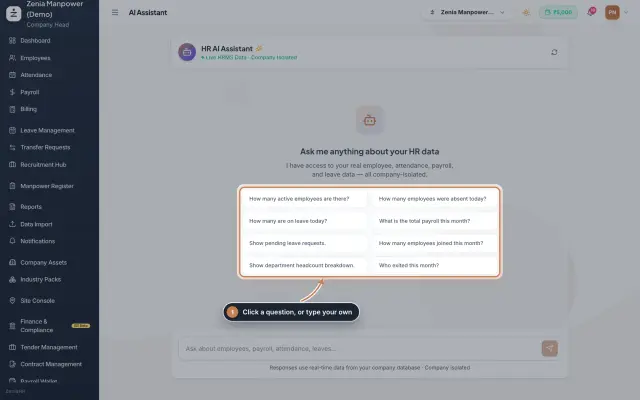 AI Assistant moduleAsk quick questions about your HR data in plain words, such as how many employees are active, who is on leave today or this month's payroll total, and get the answer from your live data, plus short how-to answers.Module
 Employees moduleThe staff directory, where you add people, open an employee profile and approve new joiners.Module
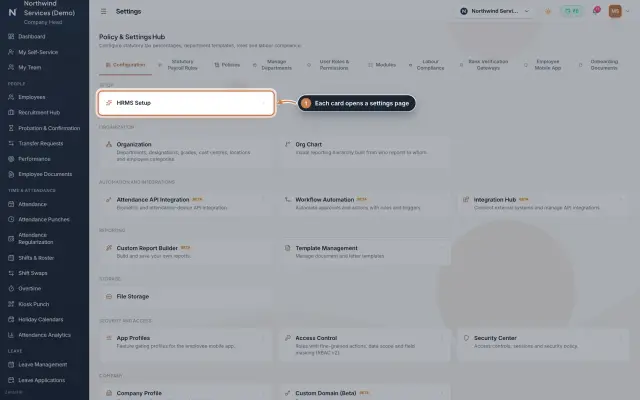 Settings moduleThe Policy & Settings Hub: a card for every settings page, and tabs for statutory rules, policies, departments, user permissions, modules, labour compliance, bank verification, the employee app and onboarding documents.Module
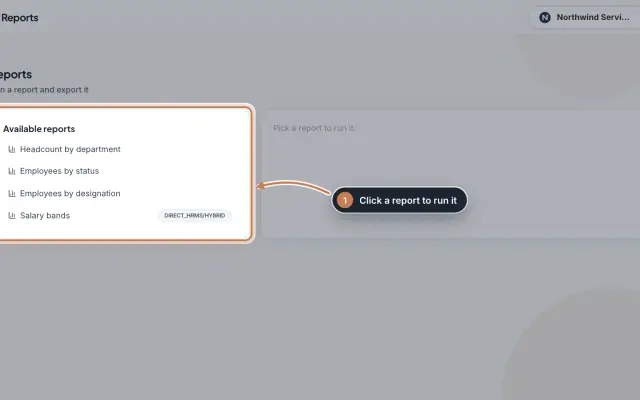 Reports moduleQuick headcount reports, run with one click from your live employee records: by department, by status, by designation and, for HRMS Core companies, by salary band, each ready to download as CSV.Module
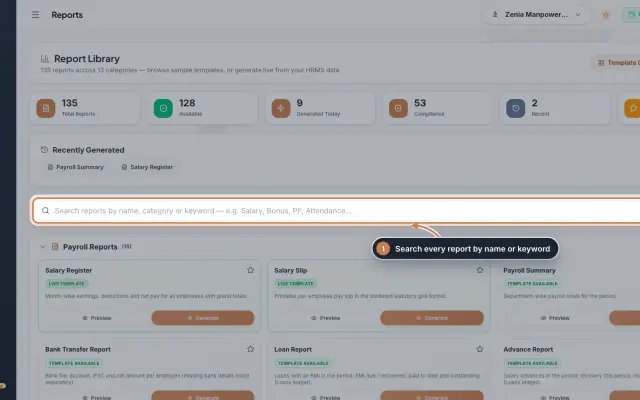 Report Library module135 ready reports in 13 groups, from the salary register and payslips to attendance, leave, employee, document, PF, ESI, tax, bonus and wage registers, generated live from your data as a document you can edit, print and export.Module
- ZeniaHR for every businessSee how it works on the ZeniaHR website