The employee app for site staff
A tour of the ZeniaHR app for manpower staff at client sites: signing in, checking in for duty, your days, wage slips, leave and your profile.
Before you start
- Your company has added you as an employee with your mobile number.
- Install the ZeniaHR app on your phone. The first time you open it, a short tour shows what it can do.
Steps
Sign in with your mobile number
Type your Mobile number, tick I agree to the Terms & Conditions and Privacy Policy, and tap Continue. The app texts you a one-time password. New joiners and existing employees sign in the same way.
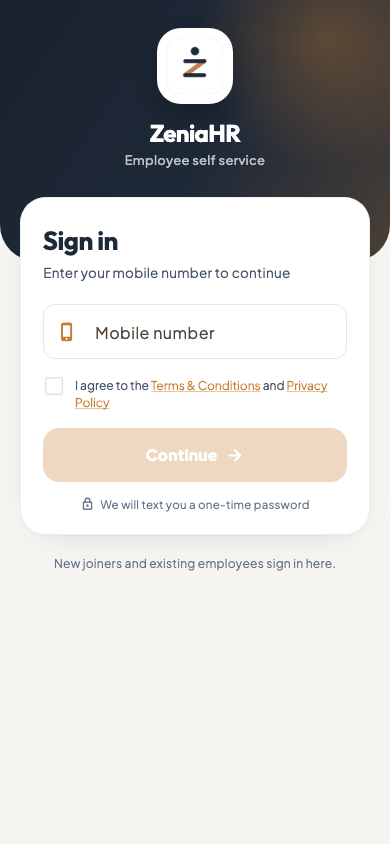
Employee app · Step 1 Tip If the app says the number is not registered, ask your HR team to check the mobile number on your record.
Enter the code
Type the 6-digit code from the text message and tap Verify and continue. If the code does not arrive, wait for the countdown and tap Resend OTP. Never share this code with anyone.
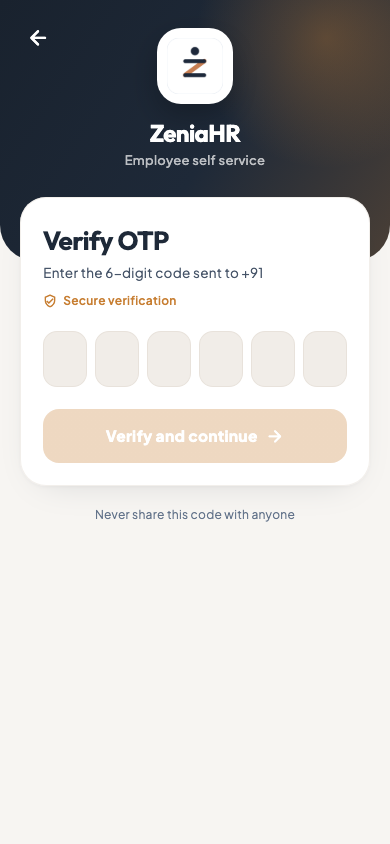
Employee app · Step 2 Check in for duty
The home screen shows where you are posted today: the site, the client, your role and your shift. When you reach the site, use Slide to check in. When the card shows Photo + GPS, the app takes your photo and your location and checks that you are at your site. At the end of the day, use Slide to check out in the same place.
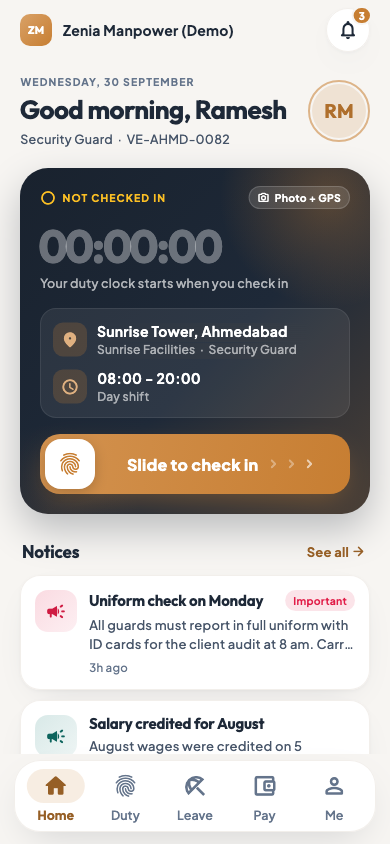
Employee app · Step 3 See your month at a glance
Scroll down for Quick actions (My schedule, My posting, Apply leave, My pay, Documents and Transfer), This month with your payable days and how many were present, half days, leave, holidays and absent, your Leave balance and the next holiday. Company notices also appear on the home screen.
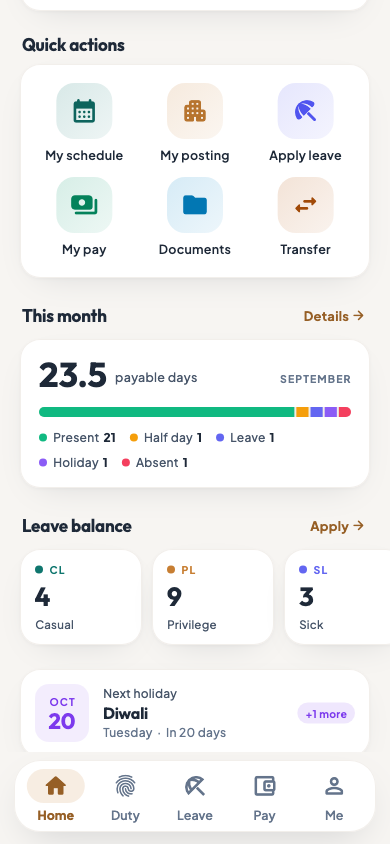
Employee app · Step 4 Duty: your days
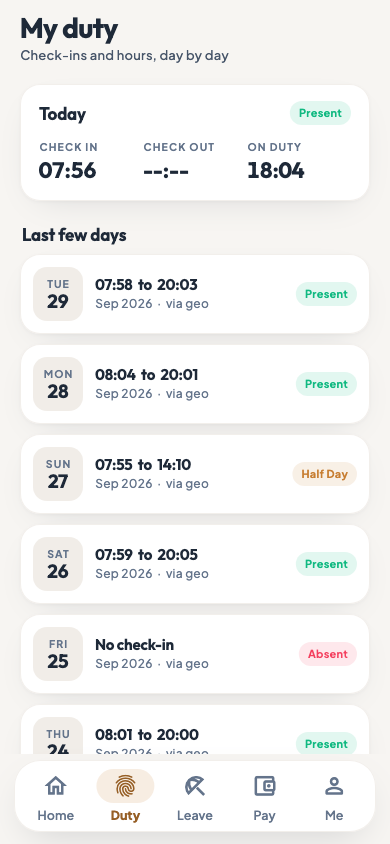
Tap Duty to see today's check-in, check-out and time on duty, and the last few days with their times and status, such as present, half day or absent.
Employee app · Step 5 Pay: your wage slips
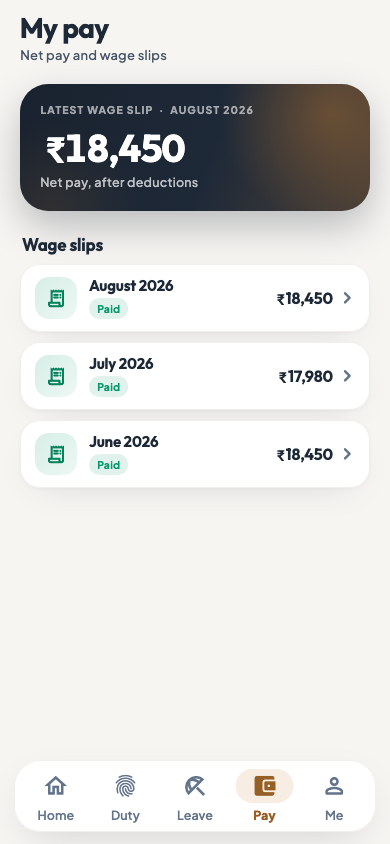
Tap Pay to see your latest net pay and your wage slips month by month. Tap a month to open the wage slip with its earnings, deductions and net pay.
Employee app · Step 6 Leave: balance and requests
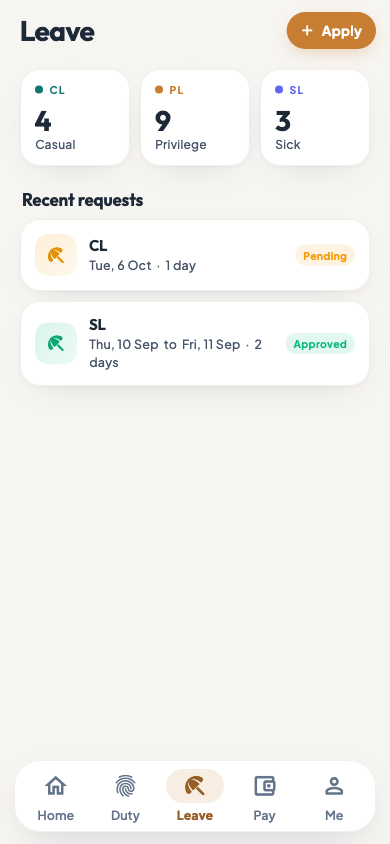
Tap Leave to see your leave balance and your recent requests with their status. To ask for leave, tap Apply, pick the Leave type and the dates, write the Reason and tap Submit request.
Employee app · Step 7 Me: your profile and settings
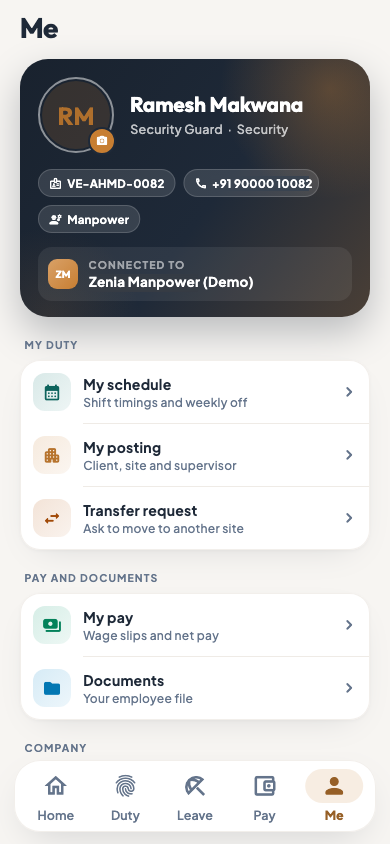
Tap Me to see your name, role, employee code and mobile number, and the company you are connected to. From here you can open My schedule, My posting, Transfer request, My pay, Documents and Company notices, change Notifications and Appearance, replay the App tour, read the terms and the privacy policy, and Log out.
Employee app · Step 8
Questions
Why can I not check in?
You are outside the area of your check-in spot. The app tells you how far away you are. Move closer to your site and try again. If you are at the right place, tell your supervisor.
I am a site supervisor. What else do I see?
The home screen also shows My sites, with each site's headcount for today. Tap a site to see who is present and to ask HR to cover for someone who is absent. See Site Console.
Related
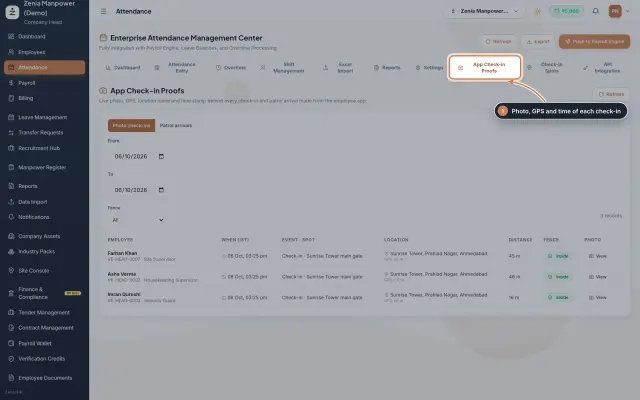 App check-ins and check-in spotsSee the live photo, GPS and time behind every check-in made from the employee app, and set the spots where staff may check in.Module
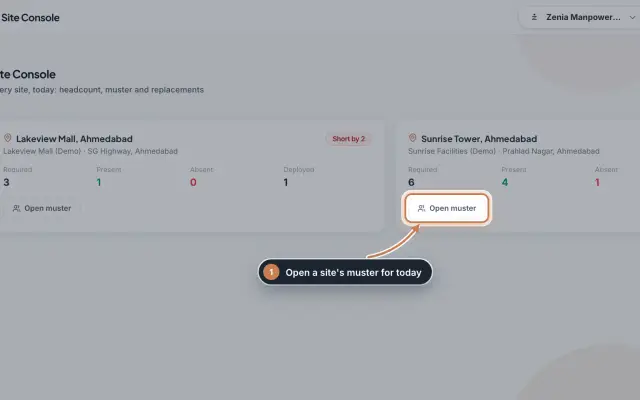 Site Console moduleToday's headcount at every client site, the muster of each site, and a one-click request to HR when someone is absent.Module
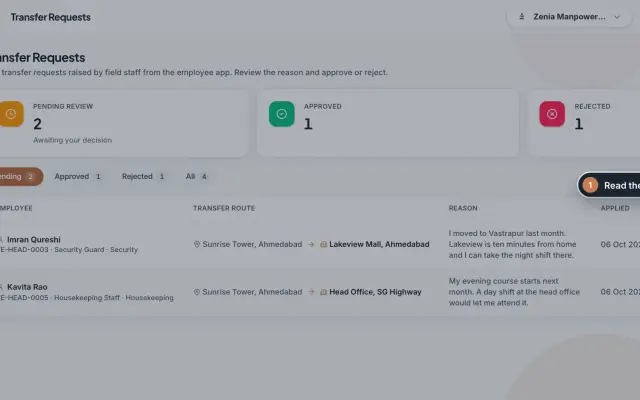 Transfer Requests moduleSite staff ask in the app to move to another site; HR reads the reason and approves or rejects, and an approval moves the person.Module
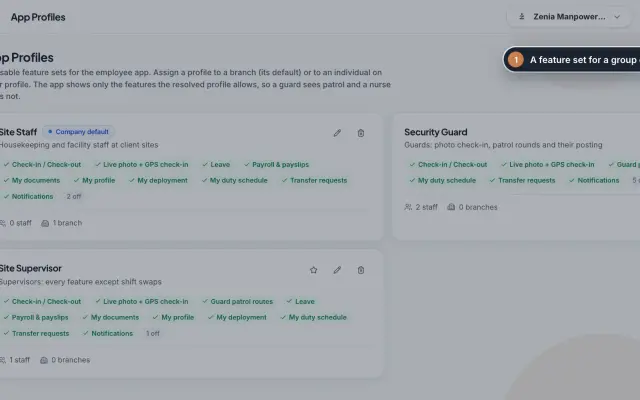 App Profiles moduleDecide which features each group of staff sees in the employee app, with named profiles for a branch, for one person or for the whole company.Module
- ZeniaHR for every businessSee how it works on the ZeniaHR website