Transfer Requests module
Site staff ask in the app to move to another site; HR reads the reason and approves or rejects, and an approval moves the person.
Key screens
See the requests waiting for you
In the sidebar, click Transfer Requests. The tiles count the requests Pending review, Approved and Rejected, and the filters show Pending, Approved, Rejected or All. Each row shows the employee with their code, designation and department, the Transfer route from the current site to the one they want, the reason and the date applied. In the app, staff tap Me, Transfer request and Request transfer, type the Preferred site or location and the Reason, and tap Submit request.
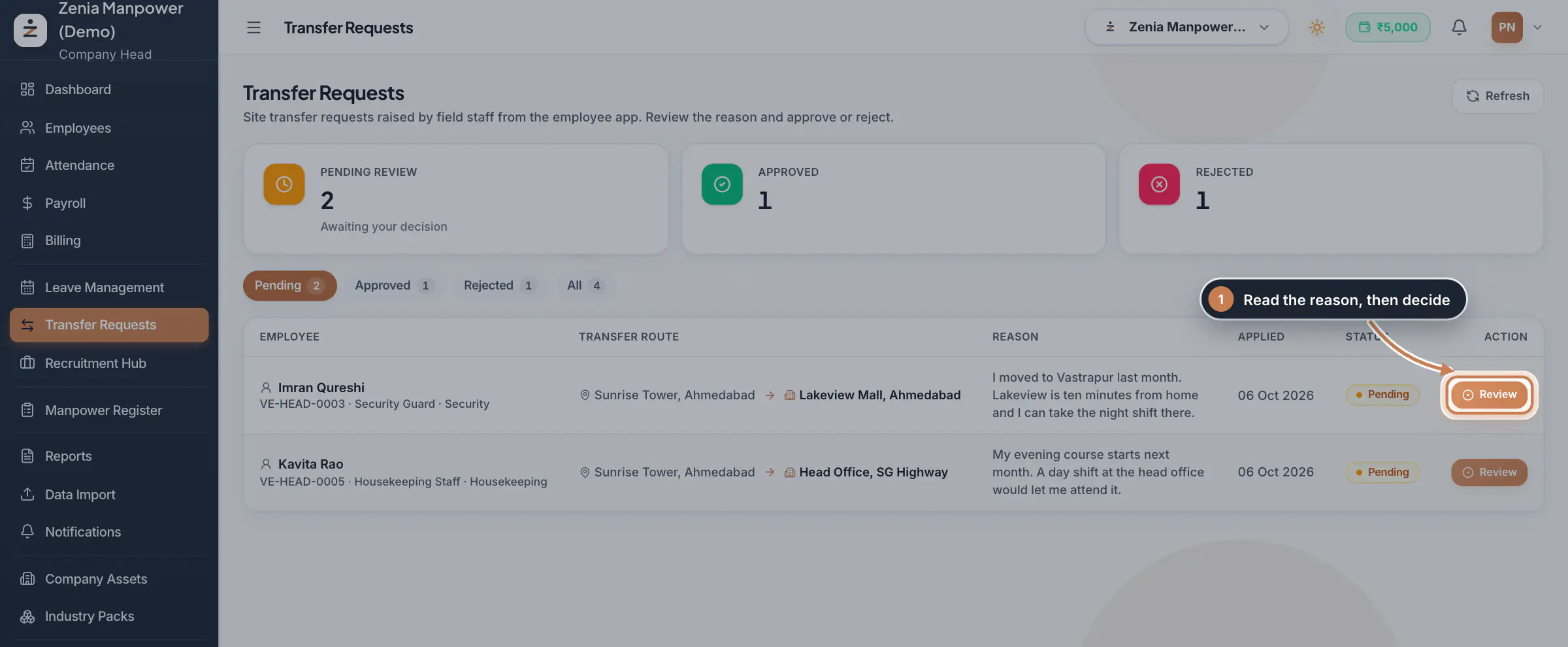 Full size
Admin panel · Step 1 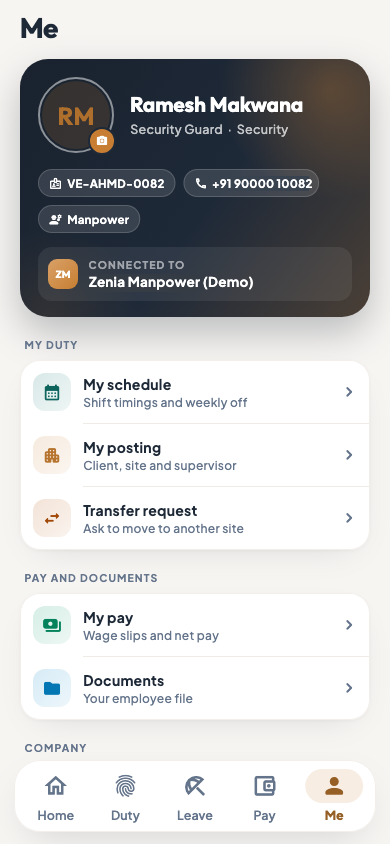 On the employee app
The Me tab of the employee app with Transfer request
Approve or reject a request
Click Review. You see the current and preferred site, the employee, the date applied and the reason given. Type a Review note if you like, for example the date the move takes effect or whom to report to; the employee sees it with your decision. Then click Approve or Reject.
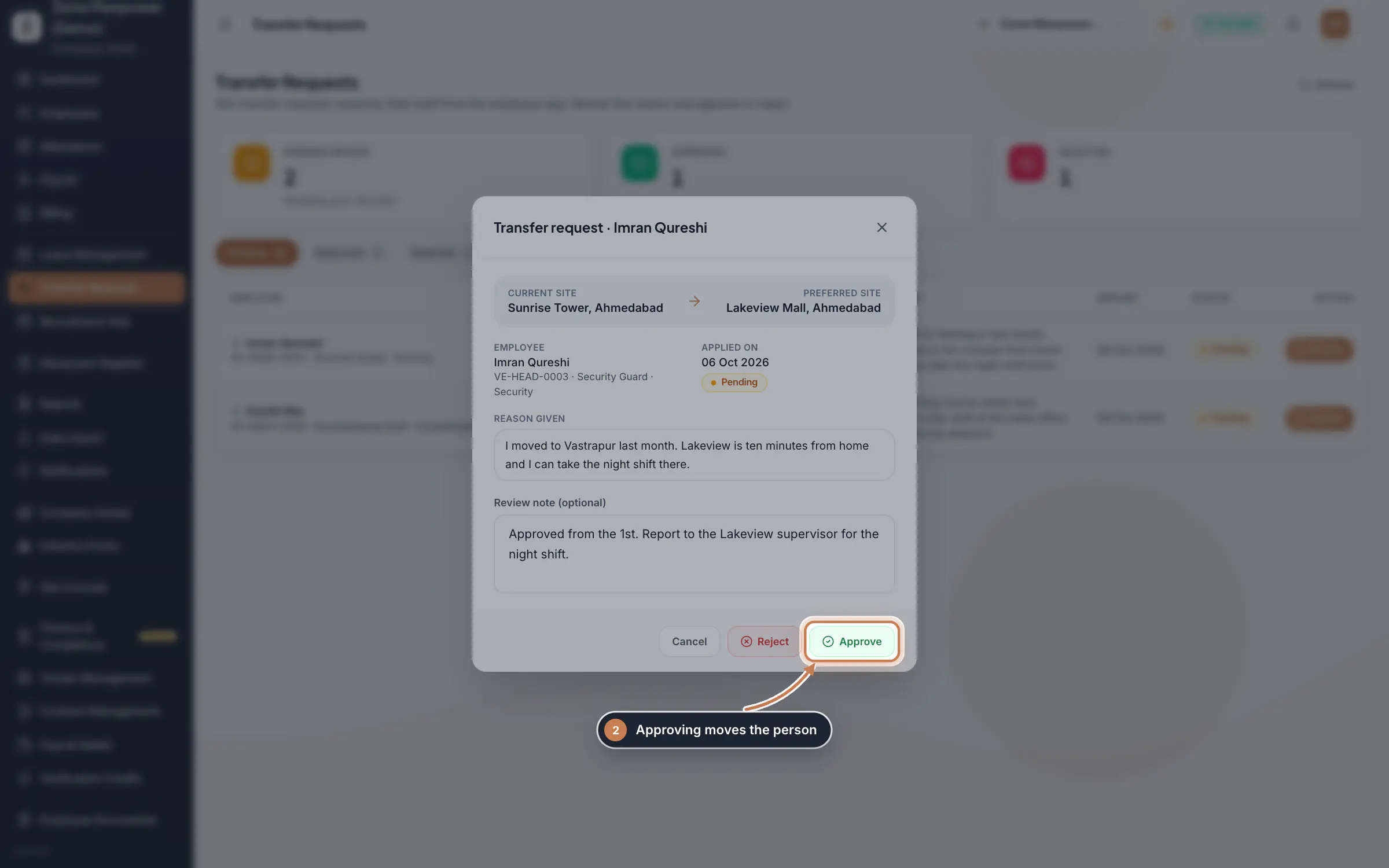 Full size
Step 2 Tip Before you approve a move to a contract site, check that the site has a vacant place. The Company Head sees the required, assigned and vacant places of each site in Contract Management, under Sites.
Look back at decided requests
Click All, Approved or Rejected. A decided request shows who decided it and on which date. Click View to read the reason and the review note.
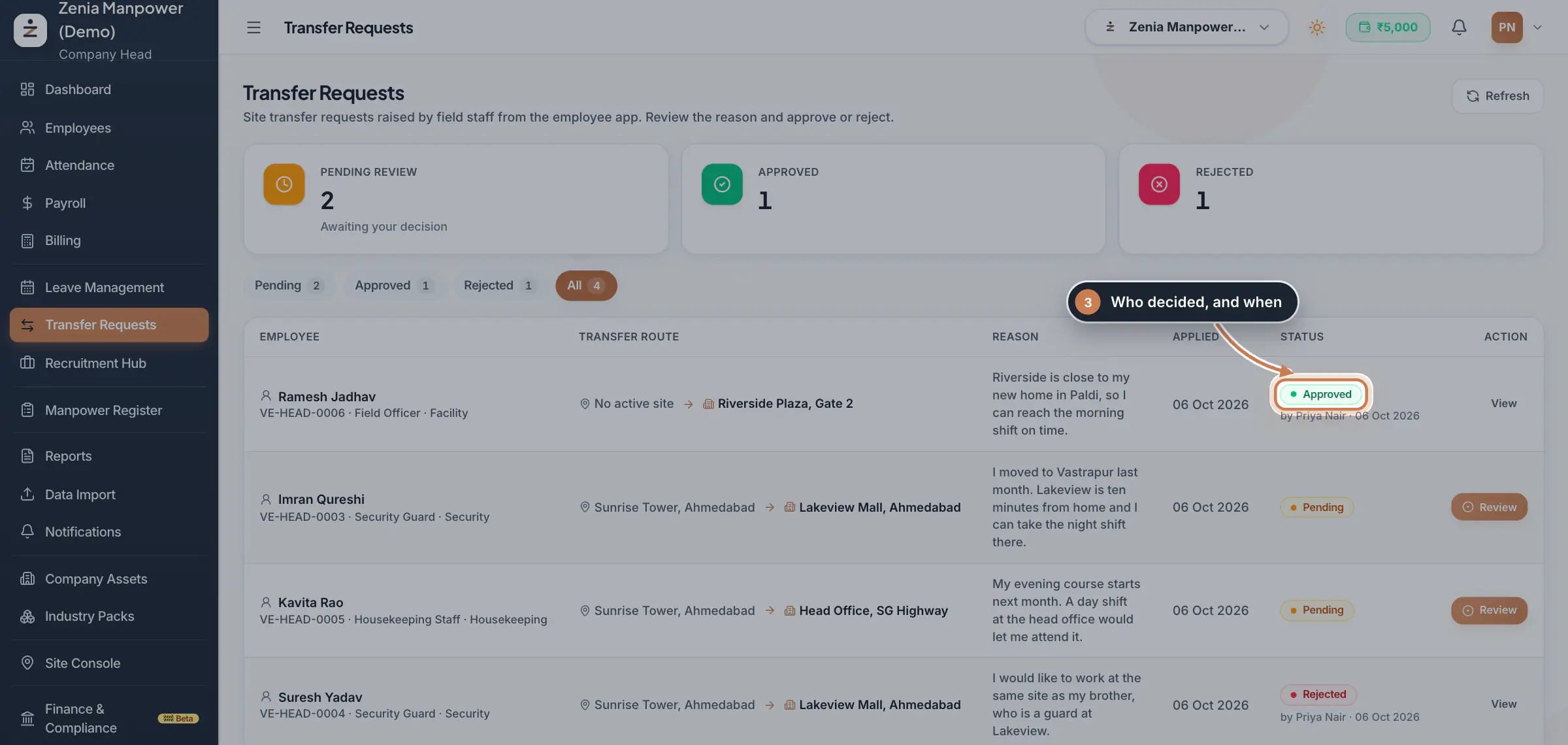 Full size
Step 3
What it does
Transfer Requests is where HR decides the requests that site staff raise in the employee app to move to another site or location. Each request shows where the person works now, where they want to go and why. HR approves or rejects it with a note the employee sees, and an approval moves the person.
Who uses it
- Staff ask in the app: tap Me, then Transfer request, then Request transfer.
- The Company Head and HR review the requests. People who can only view employees see the list with Awaiting HR instead of Review.
How it connects
The current site on a request is the person's latest active deployment from Contract Management. When you approve, the person's location becomes the site they asked for. If that name is one of your branches, they move to that branch. If it is one of your contract sites, their current deployment ends as Transferred and a new deployment at the new site starts the same day, so the Site Console, the site's headcount and the client's bill follow. The employee gets a notification in the app and sees your decision and note under Transfer request. Whether staff see Transfer request in the app at all is set by their app profile.
Questions
What exactly does approving change?
The person's location becomes the place they asked for. If it matches the name of one of your branches, the person moves to that branch; if it matches a contract site, the open deployment is released and a new one starts at that site today. A place that is neither, such as a building you have not set up as a site, only changes the location on the person's record.
Can an employee raise a second request?
Not while one is waiting. The app says the person already has a transfer request awaiting review. Once you decide it, they can ask again.
Why does a request say No active site?
The person had no active deployment when they asked, for example a field officer who is not posted at any site. Deploy people under Contract Management, Deployment.
Can I change my mind after approving?
Not on this page. Move the person back in Contract Management under Deployment, which records the transfer there.
Related
 The employee app for site staffA tour of the ZeniaHR app for manpower staff at client sites: signing in, checking in for duty, your days, wage slips, leave and your profile.GuideApp
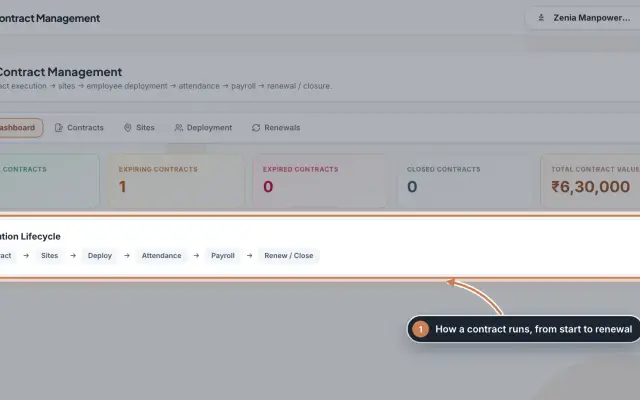 Contract Management moduleKeep every client contract with its sites and the staff deployed to each site, and renew contracts before they end.Module
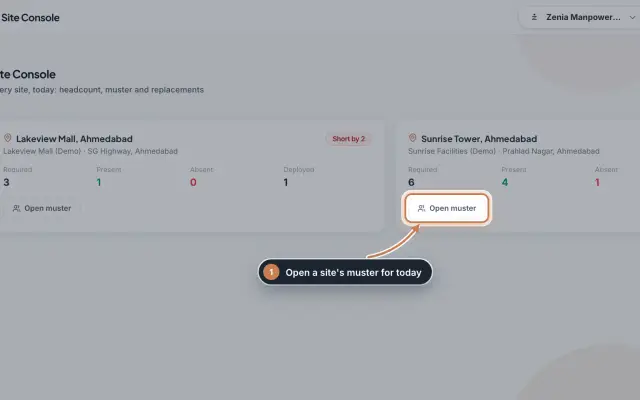 Site Console moduleToday's headcount at every client site, the muster of each site, and a one-click request to HR when someone is absent.Module
 Employees moduleThe staff directory, where you add people, open an employee profile and approve new joiners.Module
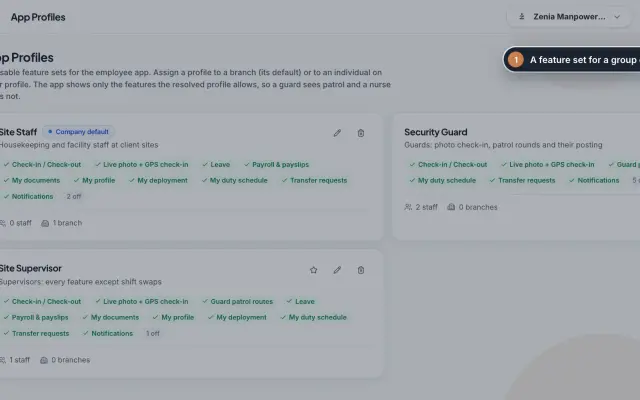 App Profiles moduleDecide which features each group of staff sees in the employee app, with named profiles for a branch, for one person or for the whole company.Module
- Employee onboarding softwareSee how it works on the ZeniaHR website