App check-ins and check-in spots
See the live photo, GPS and time behind every check-in made from the employee app, and set the spots where staff may check in.
Key screens
Review app check-ins
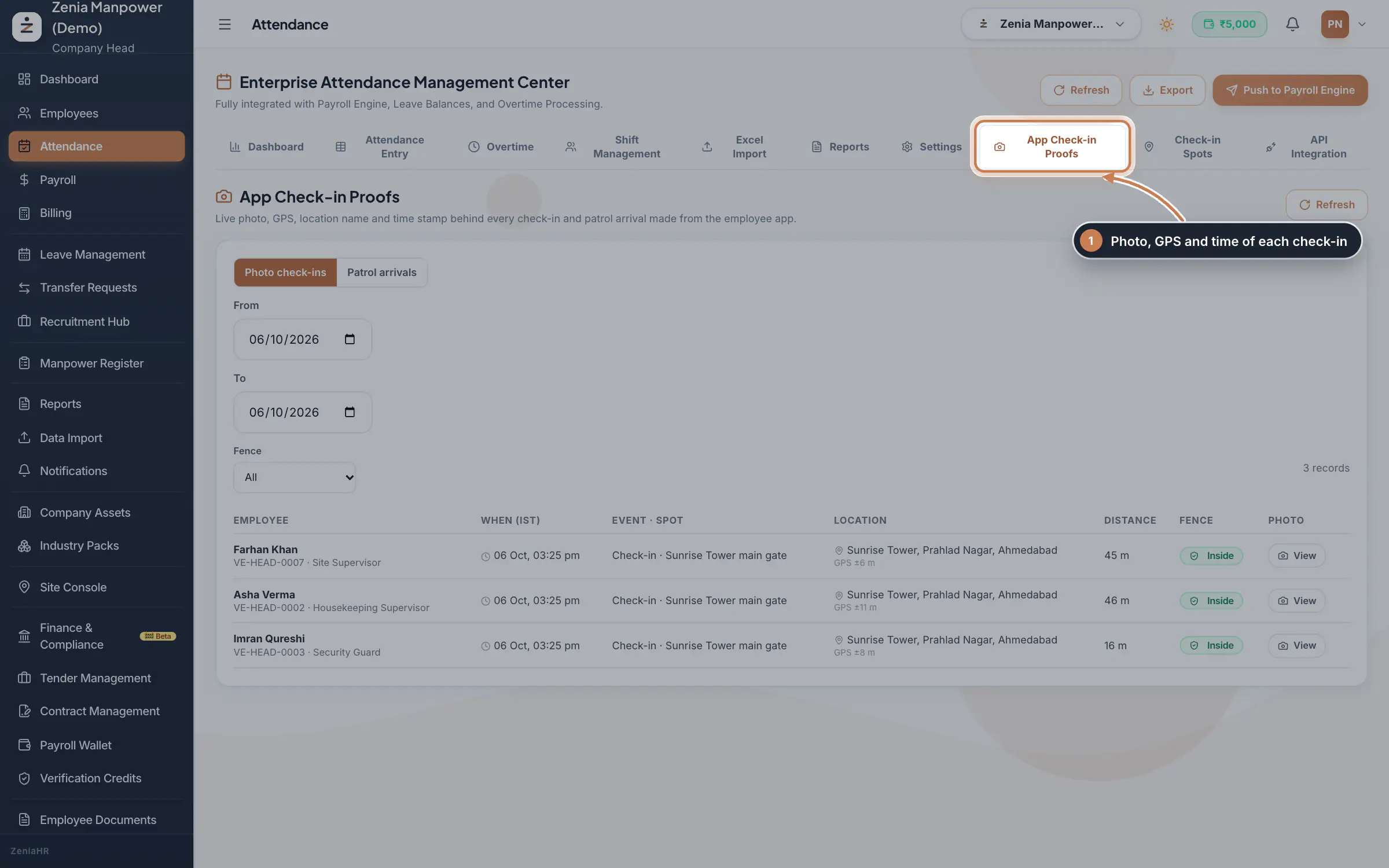
In the sidebar, click Attendance, then the App Check-in Proofs tab. Choose Photo check-ins or Patrol arrivals, set the From and To dates, and filter by Fence to see only check-ins inside or outside a spot. Each row shows the employee, the time, the spot, the location, the distance from the spot and the fence result. In the app, staff use Slide to check in, take their photo and confirm.
 Full size
Admin panel · Step 1 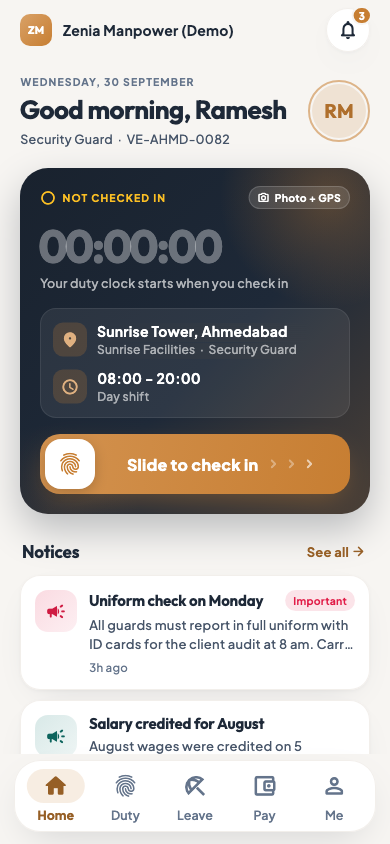 On the employee app
The employee app home screen with Slide to check in
Open one proof
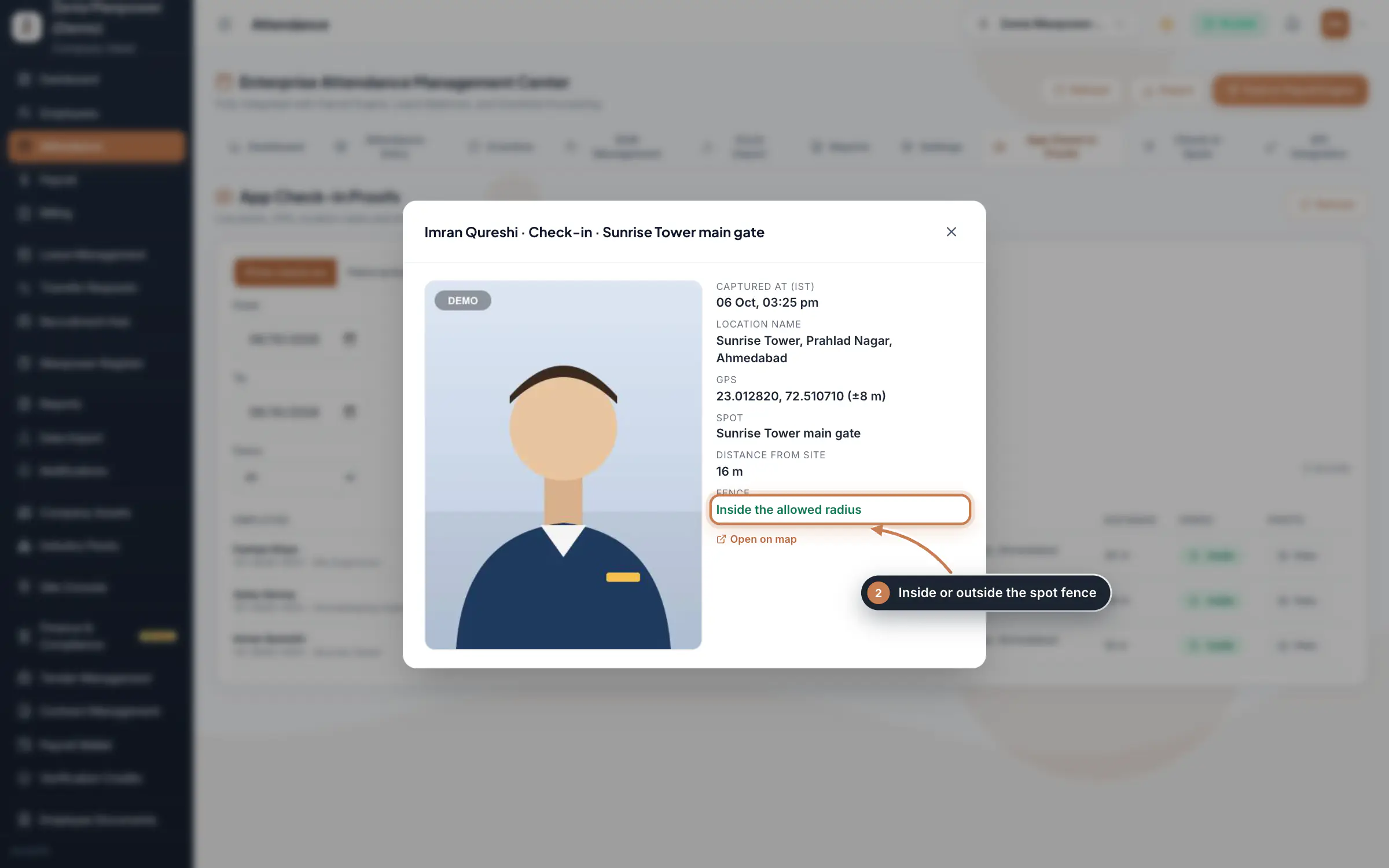
Click View on a row. You see the live photo, Captured at (IST), the Location name, the GPS position with its accuracy, the Spot, the Distance from site and whether it was inside the allowed radius. Open on map shows the point on a map. Staff see their own check-ins day by day in the app, under Duty.
 Full size
Admin panel · Step 2 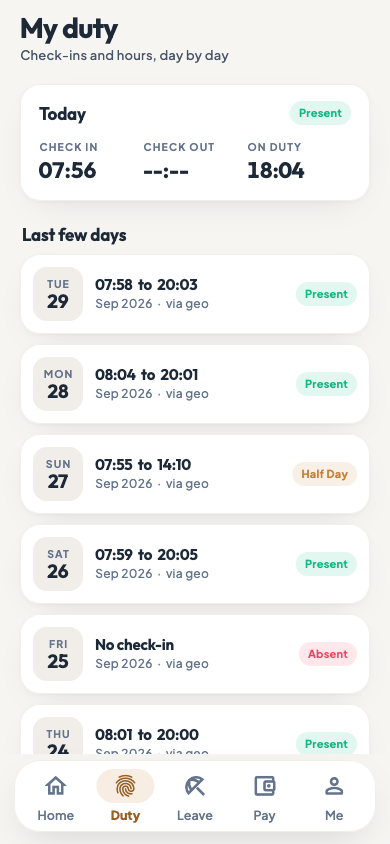 On the employee app
The Duty tab of the employee app with check-ins day by day
Manage check-in spots
Click the Check-in Spots tab. Each spot shows its branch or site, coordinates, radius and status. Use the icons on a row to edit or archive a spot; an archived spot stops matching check-ins and can be restored. Click New spot to add one.
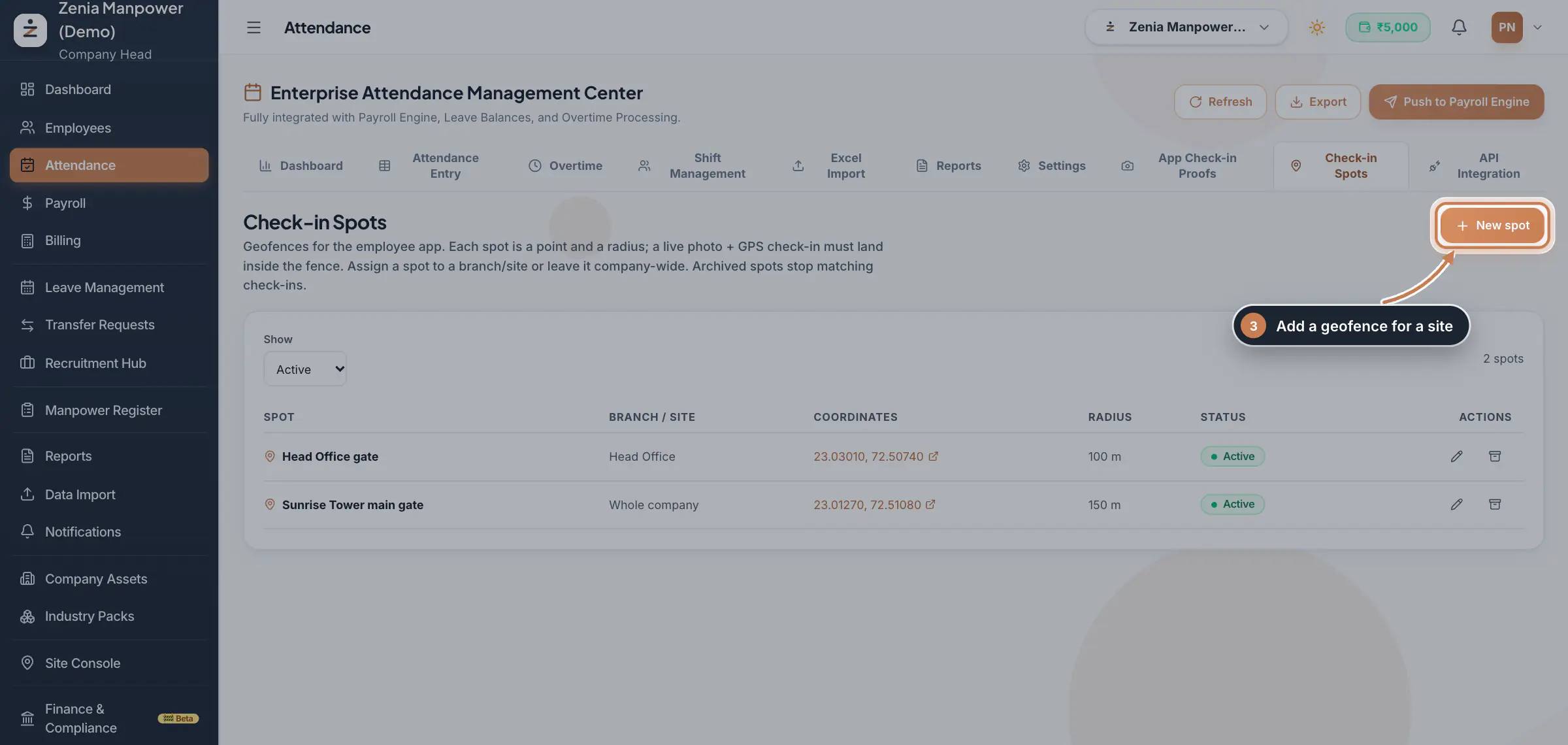 Full size
Step 3 Add a spot
Enter the Spot name and, if it belongs to one branch, pick the Branch / Site; otherwise it is for the whole company. Standing at the site, click Use my current location to fill in the Latitude and Longitude, then set the Radius (metres) to cover the site. The radius is a whole number from 3 to 5000 metres. Click Create spot.
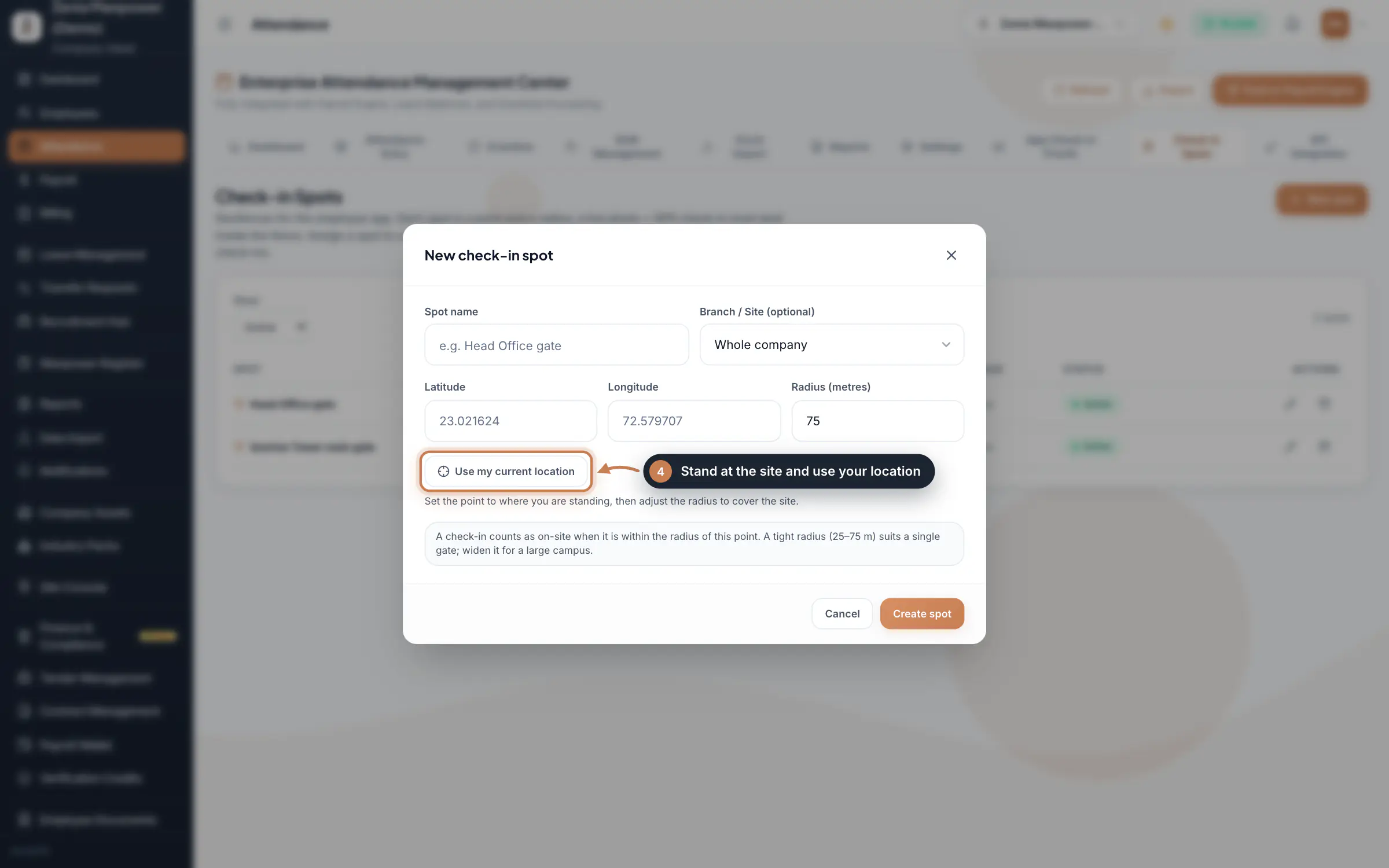 Full size
Step 4 Tip A small radius suits a single gate. Make it wider for a large campus.
What it does
When staff check in from the employee app, the app takes a live photo, the GPS position with its accuracy, the location name and the exact time, and checks the position against the nearest check-in spot. App Check-in Proofs shows that evidence for every check-in and patrol arrival. Check-in Spots holds the spots themselves: each one is a point and a radius, for example a site gate, for the whole company or for one branch.
Both are tabs of Attendance. The proofs page is read only: nothing on it changes attendance.
Who uses it
- Company Head and HR review the proofs and manage the spots.
- Staff check in and out from the employee app.
How it connects
Each app check-in also marks the day's attendance: a check-in sets the clock-in time and marks the person present, and a check-out sets the clock-out and the hours worked. When your company has spots, the app only accepts a check-in made inside a spot's radius and tells the person how far away they are. Without spots, the location is still captured.
Questions
Why was a staff member unable to check in?
They were outside the radius of the nearest spot. The app shows how far they are from the spot. Move closer, or widen the spot's radius if the site is larger.
Can HR change a check-in from this page?
No. The proofs are read only. Correct the attendance itself in Attendance.
Related
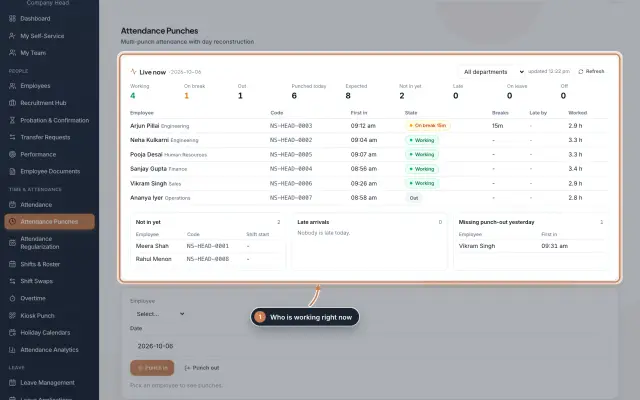 Attendance: punches and the daily registerHow punches reach HRMS Core, how to follow them live, record a missed punch, read each employee's day log, keep the daily register and close the month for payroll.Guide
 The employee app for site staffA tour of the ZeniaHR app for manpower staff at client sites: signing in, checking in for duty, your days, wage slips, leave and your profile.GuideApp
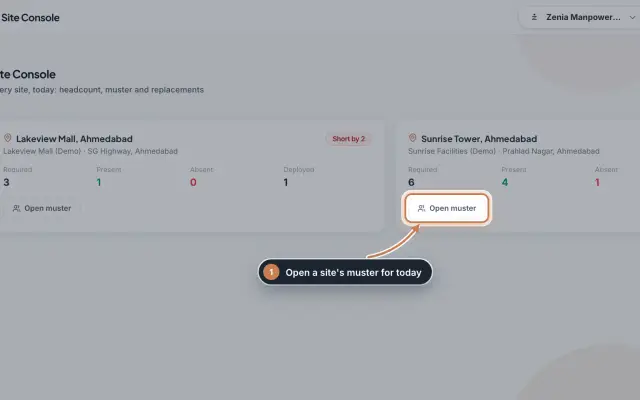 Site Console moduleToday's headcount at every client site, the muster of each site, and a one-click request to HR when someone is absent.Module
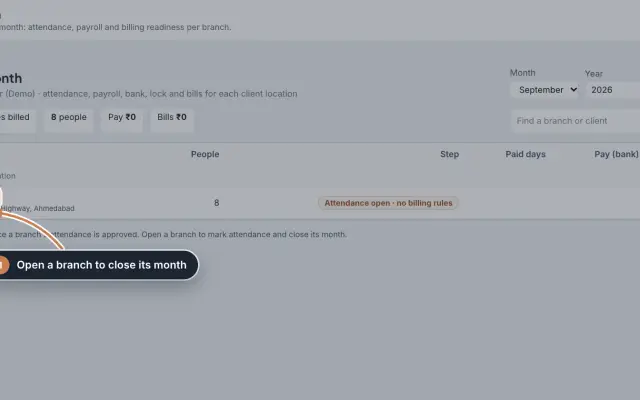 Branch Month moduleClose each branch's month in order, from attendance to payroll, the bank sheet and the client bills, and file EPF and ESIC for the whole company.Module
 Employees moduleThe staff directory, where you add people, open an employee profile and approve new joiners.Module
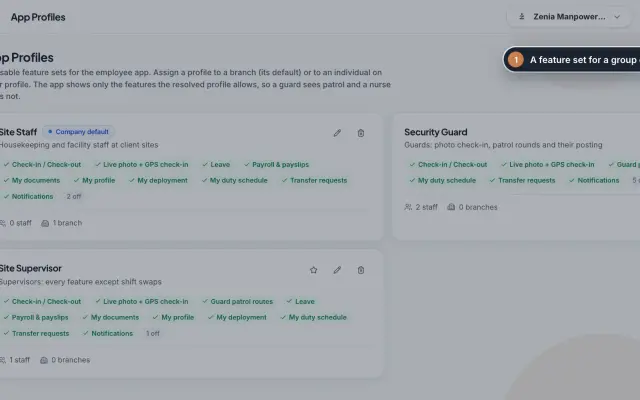 App Profiles moduleDecide which features each group of staff sees in the employee app, with named profiles for a branch, for one person or for the whole company.Module
- Attendance softwareSee how it works on the ZeniaHR website