Attendance Analytics module
One month of attendance in charts: late against on time day by day, lateness and breaks by department, an absence map and the people late most often.
Key screens
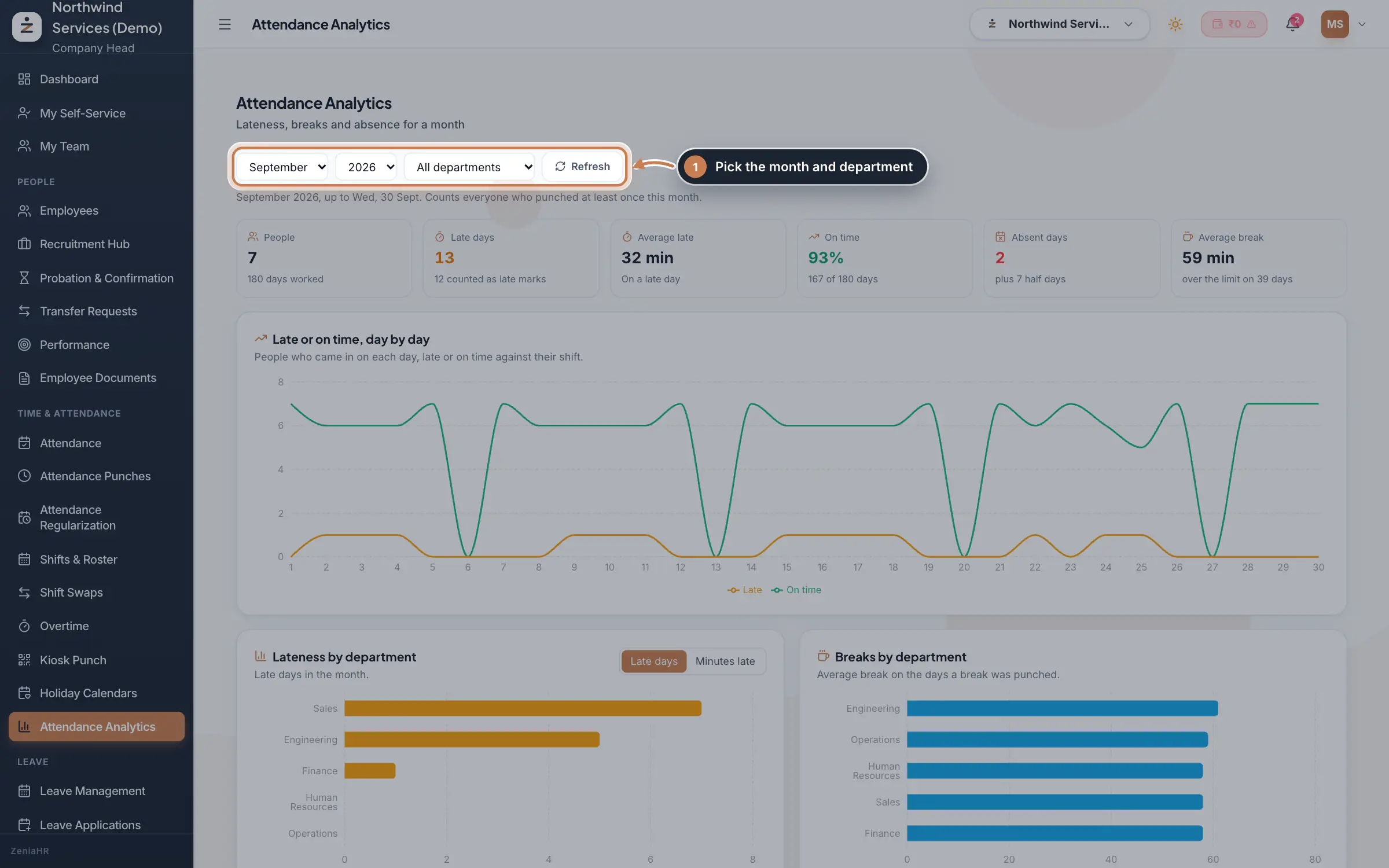
Pick the month
In the sidebar, under Time & Attendance, click Attendance Analytics. Pick the Month, the Year and, if you like, one department, then click Refresh when you want the latest punches. The line under the filters says which days are counted: the current month runs up to today. The tiles show the People who punched and the days they worked, the Late days and how many counted as late marks, the Average late on a late day, the share of days On time, the Absent days with the half days, and the Average break with how many days a break ran over the shift's break time. Late or on time, day by day draws both counts for every day of the month.
 Full size
Step 1 Tip When the chart says some worked days had no shift, those days were not checked for lateness. Give those people a shift or a default shift in Shifts & Roster.
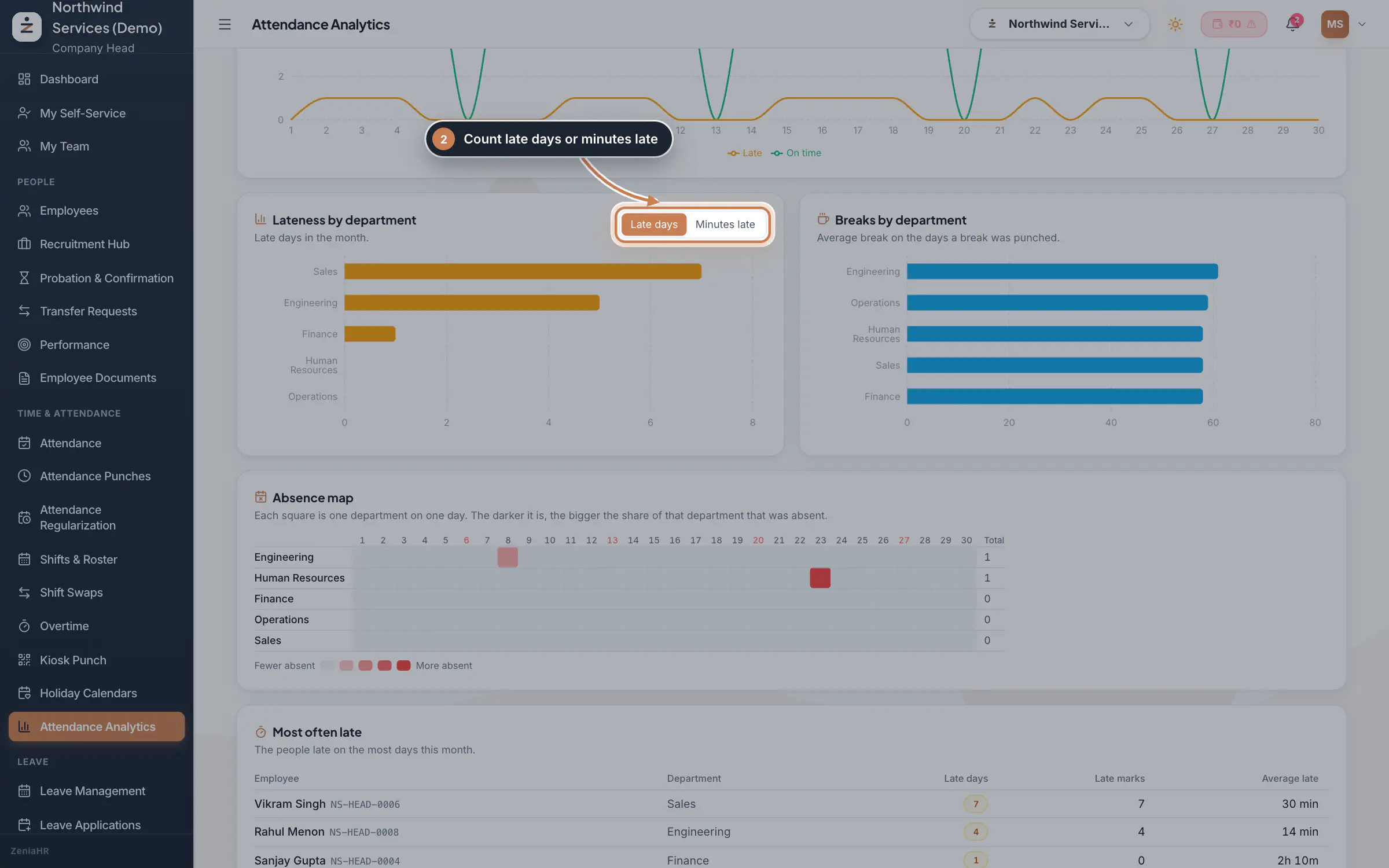
Compare departments
Lateness by department shows the late days of each department; switch to Minutes late to compare the average minutes late instead. Breaks by department shows the average break on the days a break was punched, so a team that takes long breaks stands out.
 Full size
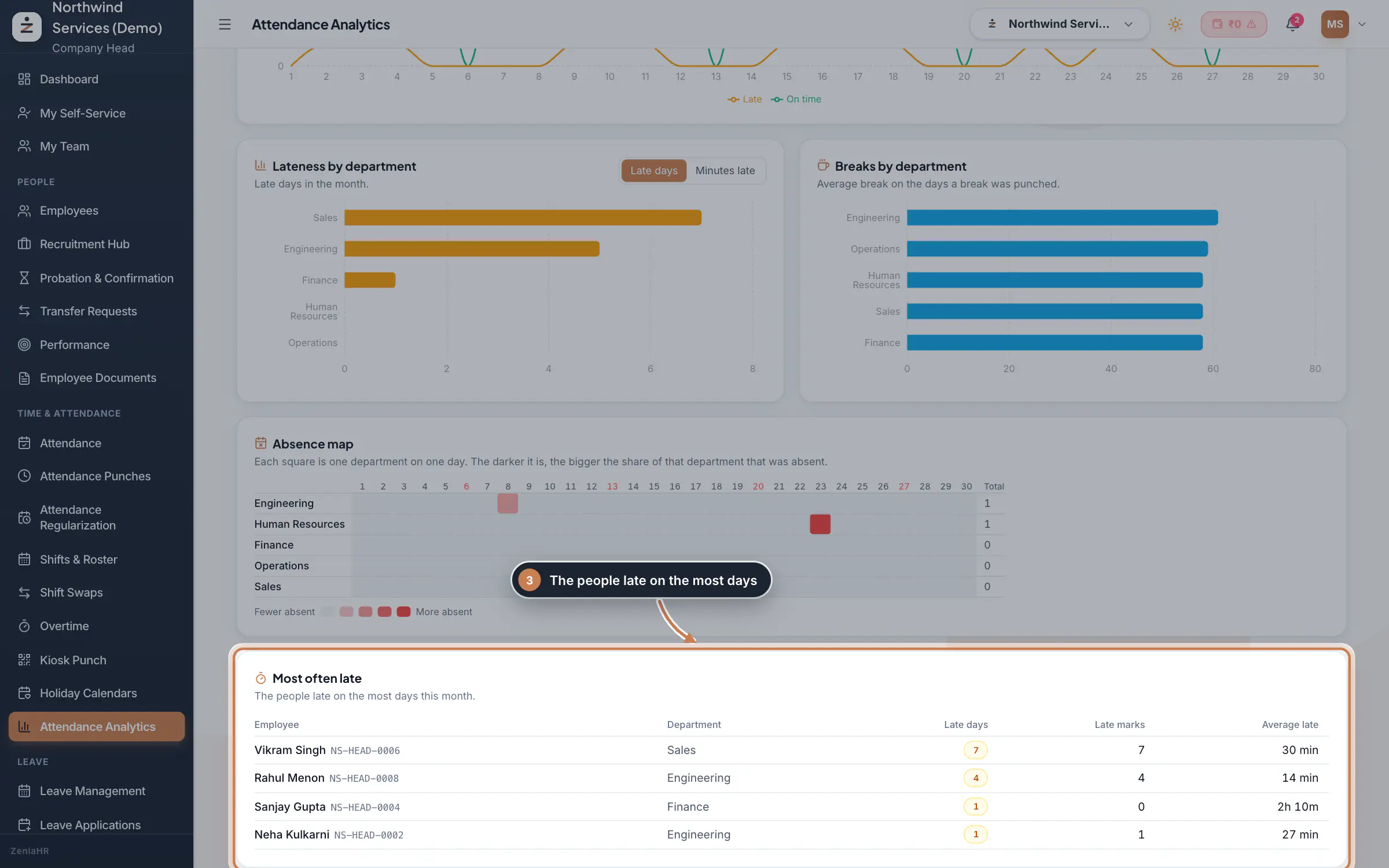
Step 2 Find absences and repeat lateness
The Absence map has a row for each department and a square for each day. The darker the square, the bigger the share of that department that was absent that day; Sundays are marked in red in the header and the Total column adds up the month. Point at a square to see the count. Most often late lists the people late on the most days, with their department, late days, late marks (when the attendance rules are on) and their average minutes late.
 Full size
Step 3
What it does
Attendance Analytics turns a month of punches into a few numbers and charts: how many people came in, how often they were late and by how much, how long their breaks were, who was absent on which day, and who was late most often. It reads the same days that Attendance Punches builds, so its numbers agree with the monthly summary and payroll.
The page only reads. Nothing you do here changes attendance.
Who uses it
- The Company Head and HR. The page needs Reports view access; without it, it asks you to get that access from your admin.
How it connects
Lateness is measured against each person's shift from Shifts & Roster plus the grace time, so days without a shift are not judged late or on time. Late marks count only when the attendance rules are on in Settings, Policies. Absences, half days and breaks come from the punches on Attendance Punches, after approved leave, holidays and corrections.
Questions
Why does the page say nobody has punched?
No one in the chosen month, or in the chosen department, has a punch yet. Pick another month or All departments. A month in the future has not started yet.
Why are late marks fewer than late days?
A late day becomes a late mark only when the attendance rules are on, and only for the days the rules count. Turn the rules on in Settings, Policies, under Attendance rules.
Can I export these charts?
Not from this page. For the day-by-day detail of one person, use Day log on Attendance Punches and click Download CSV.
Related
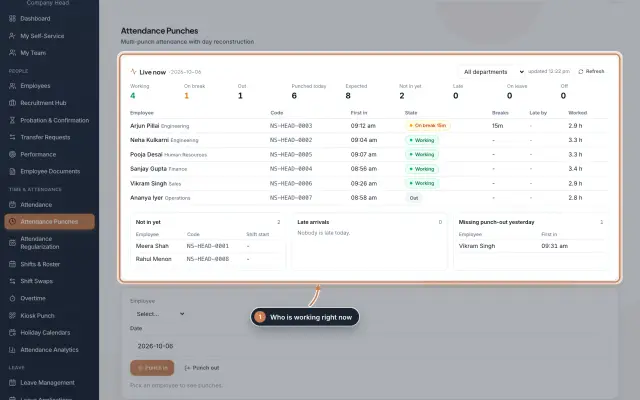 Attendance: punches and the daily registerHow punches reach HRMS Core, how to follow them live, record a missed punch, read each employee's day log, keep the daily register and close the month for payroll.Guide
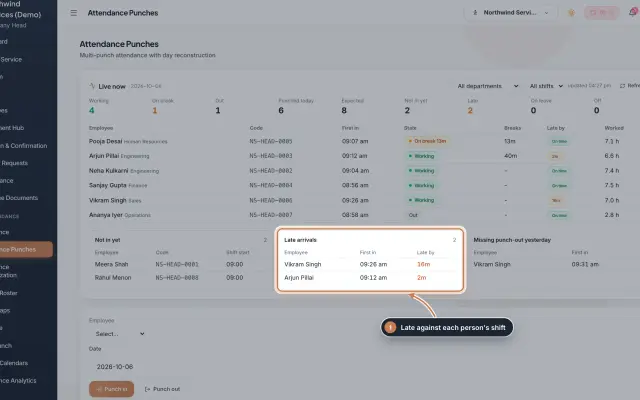 Attendance Punches moduleThe punch register of HRMS Core: who is in right now, every punch of a day, the month's payable days and the penalties the attendance rules add.Module
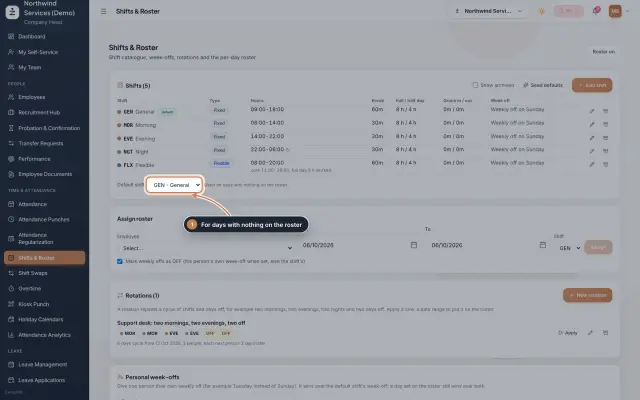 Shifts & Roster moduleKeep your shifts, give everyone a default shift, roster people for date ranges or on a repeating rotation, and set personal weekly offs.Module
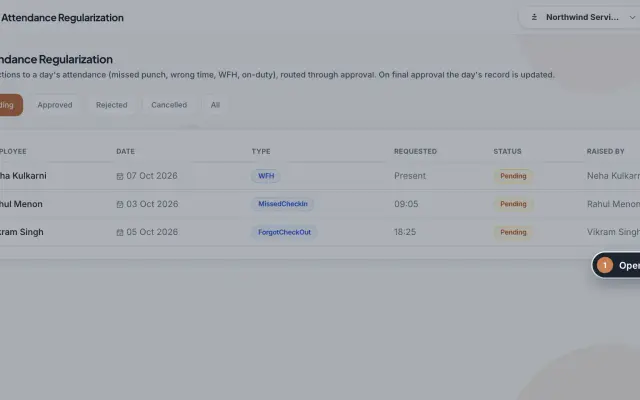 Attendance Regularization moduleCorrect a day's attendance through approval: a missed or forgotten punch, a wrong time, work from home or on duty, decided by the manager and then HR.Module
- Attendance softwareSee how it works on the ZeniaHR website