Attendance Regularization module
Correct a day's attendance through approval: a missed or forgotten punch, a wrong time, work from home or on duty, decided by the manager and then HR.
Key screens
See the requests waiting for a decision
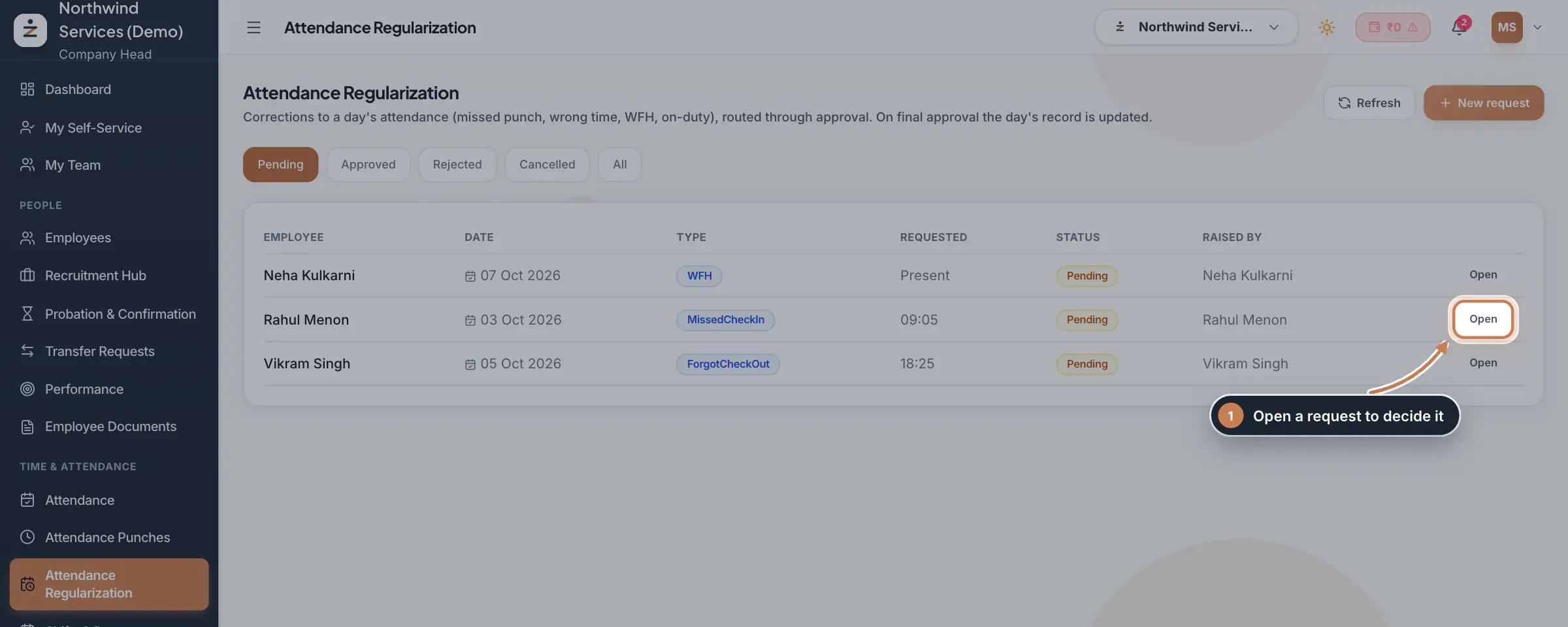
In the sidebar, under Time & Attendance, click Attendance Regularization. The Pending list shows each request with the employee, the date, the Type, what was Requested (the times or the status), the Status and who Raised by. Click a row, or Open, to see it in full. Managers see the same requests from their team on the app home under Needs your attention, and decide them under Team and approvals.
 Full size
Admin panel · Step 1 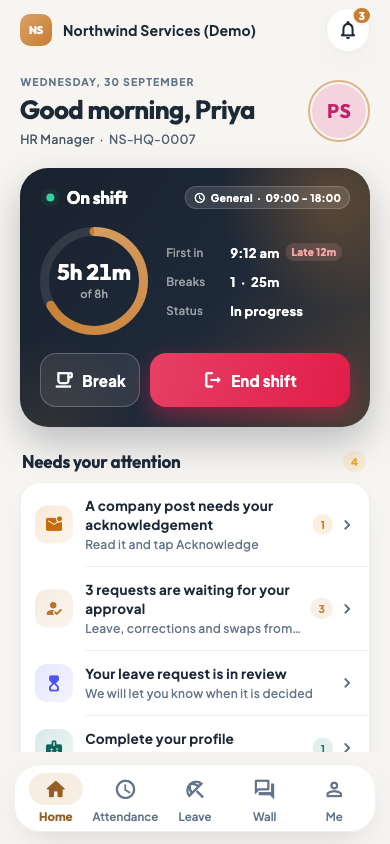 On the employee app
The app home of a manager with requests waiting for approval
Open a request and decide
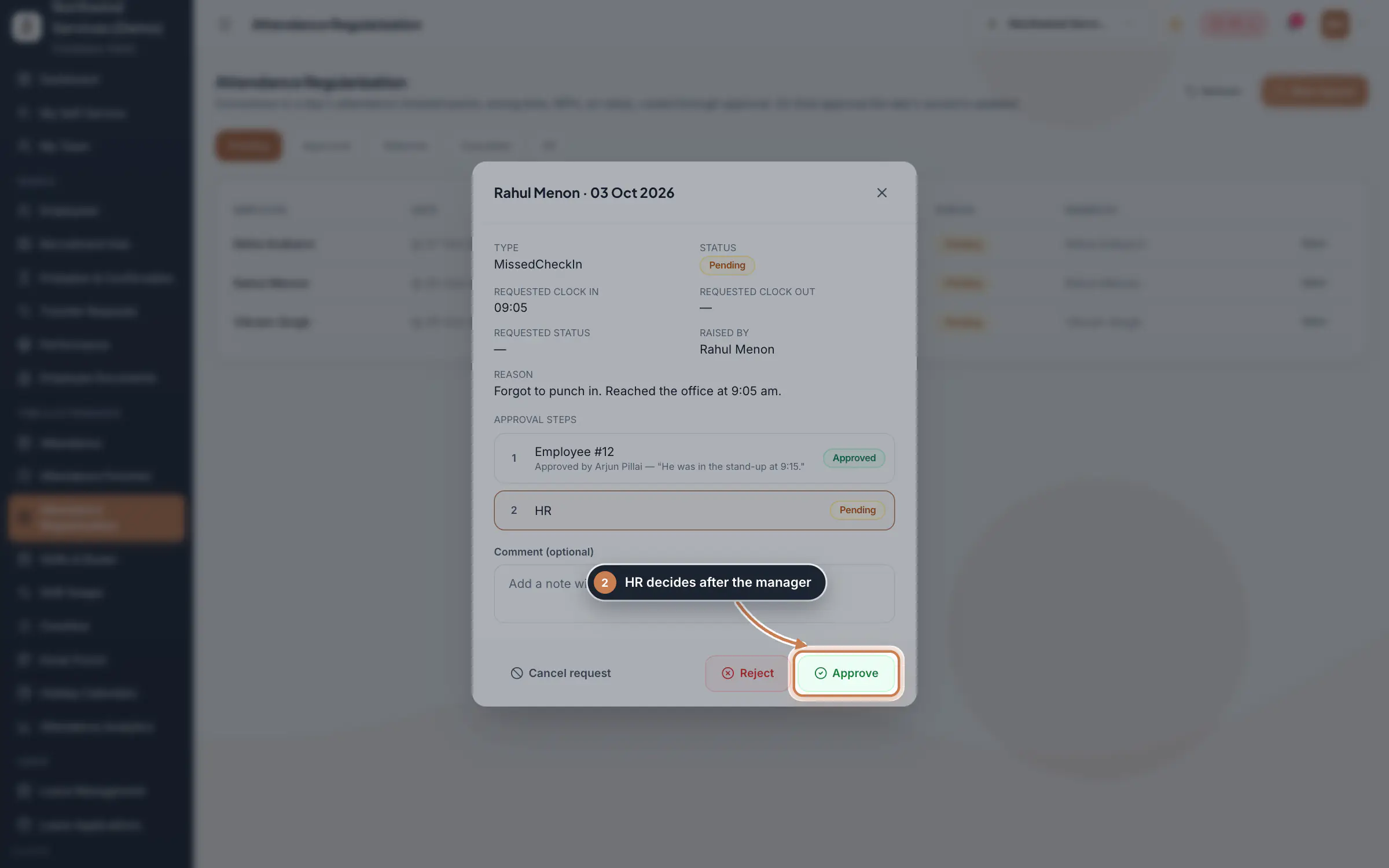
The request shows the Type, the requested clock in, clock out or status, who raised it and the Reason. Approval steps lists who decides, in order: for a request an employee raised, their reporting manager first, then HR. The step waiting now is outlined, and a decided step shows who decided it and their comment. Add a Comment if you like, then click Approve or Reject. Cancel request withdraws it and closes its approval.
 Full size
Step 2 Tip The corrected times reach the day only on the final approval. After the manager's step, the request still shows as Pending until HR decides.
Raise a request for someone
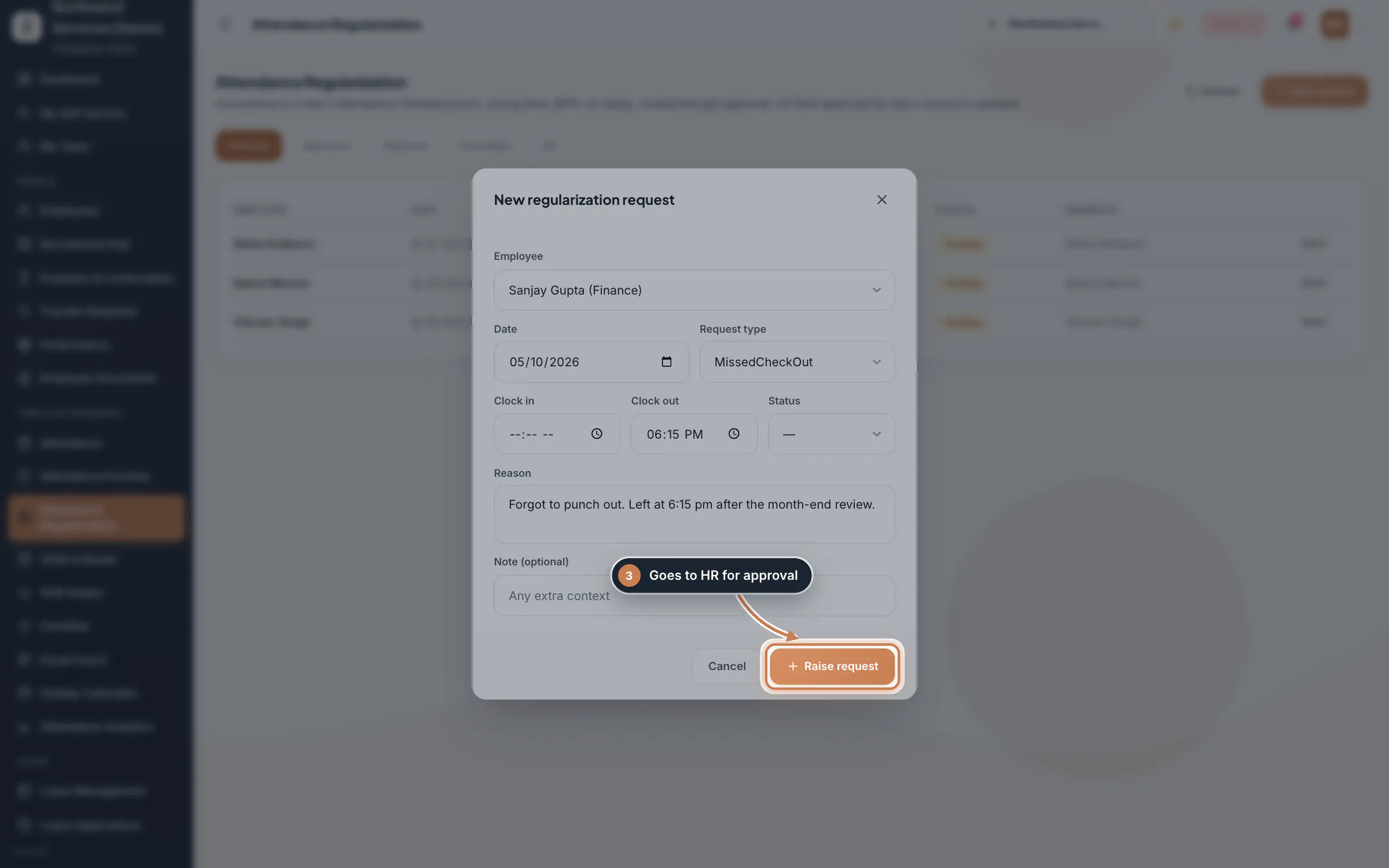
Click New request. Pick the Employee, the Date and the Request type, then fill in only what changes: Clock in, Clock out, or the Status for the whole day, such as Present, HalfDay or OnDuty. A Reason is required and the Note is optional. Click Raise request. A request HR raises goes straight to the HR step, so you can open it and approve it at once.
 Full size
Step 3 Look back at decided requests
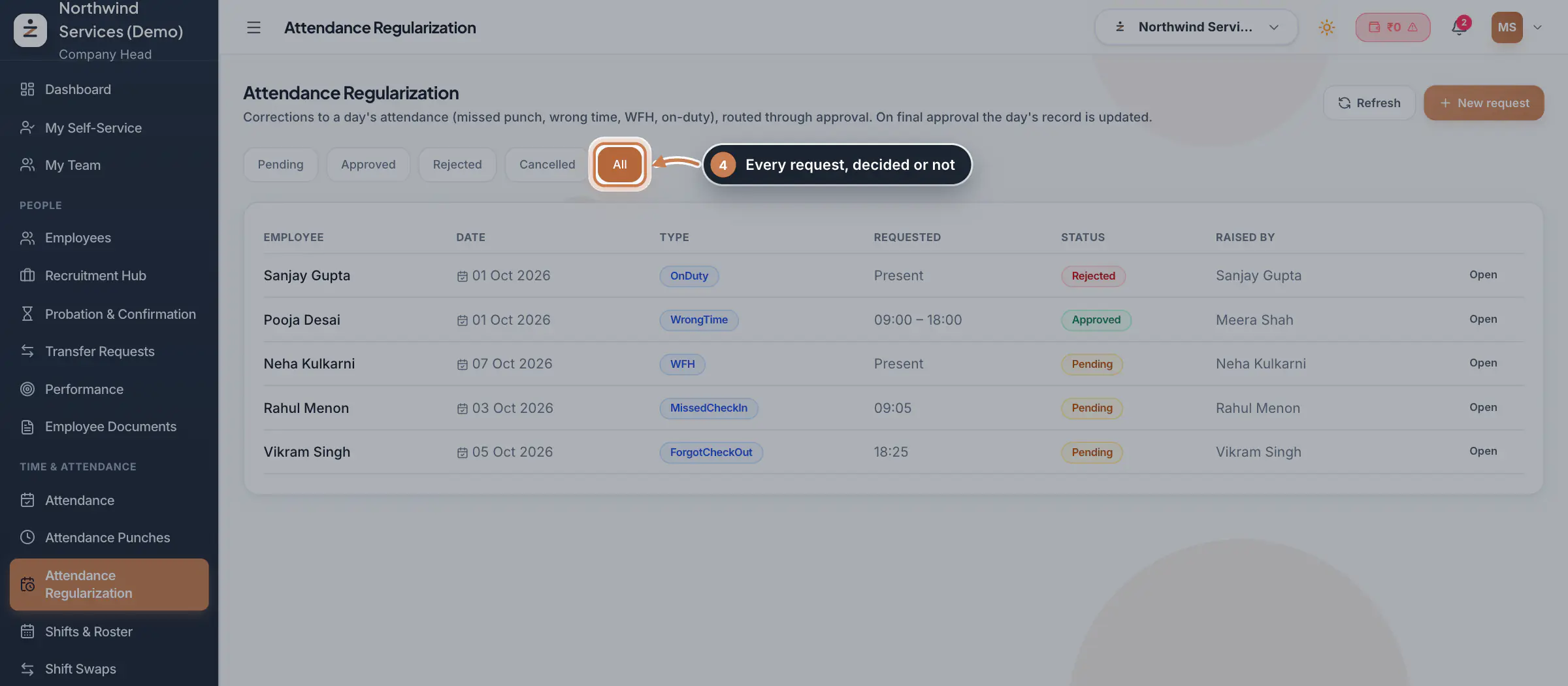
Use Approved, Rejected, Cancelled and All to see the other requests. Raised by shows the employee's name for a request they raised, or the name of the HR user who raised it. Open any request to read its approval steps and comments.
 Full size
Step 4
What it does
Attendance Regularization holds the requests to correct a day's attendance: a missed check-in or check-out, a forgotten punch-out, a wrong time, work from home, on duty, a status correction, or anything else. Each request goes through approval, and when the last step approves it, ZeniaHR writes the corrected times or status to that day. Nothing changes on the day while a request is waiting.
Who uses it
- Employees raise requests themselves: in the app under Me, Fix attendance, or on the web in My Self-Service.
- The person's reporting manager decides first, in the app or on the web under My Team. HR then decides on this page. The Company Head can decide any step.
- HR can also raise a request for anyone from this page; it then needs only the HR step.
How it connects
An approved correction updates the day in the daily register and in the days built from the punches on Attendance Punches, so late marks, half days, the monthly summary and payroll all read the corrected day. The attendance rules in Settings, Policies can limit how many corrections each person may raise in a month and how many days back they may go; work from home and on duty follow the work terms in the same place, with their own monthly limit. The app also raises an early exit request by itself when someone confirms they are leaving early.
Questions
Why can an employee not raise a correction?
The attendance rules may limit corrections: a number per month, and how many days back a request may go. If the month was finalized on Attendance Punches, it must be reopened first. Work from home and on duty have their own monthly limit under the work terms.
Does approving a request change the punches?
The original punches stay as they are. The approved correction is applied on top of them when ZeniaHR builds the day, and the day's register entry is updated with the corrected times or status.
Who can approve at each step?
The manager step can be decided by that manager or by the Company Head. The HR step can be decided by HR or the Company Head.
Related
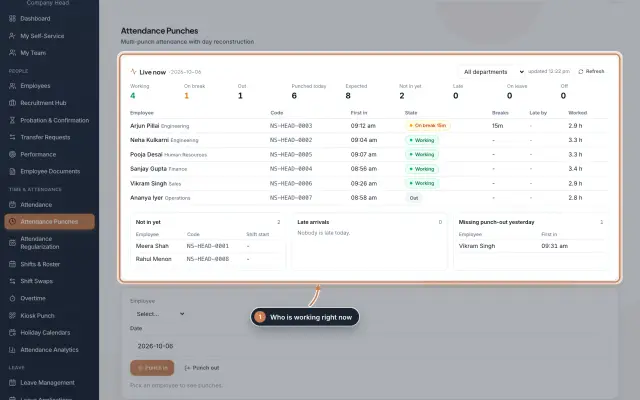 Attendance: punches and the daily registerHow punches reach HRMS Core, how to follow them live, record a missed punch, read each employee's day log, keep the daily register and close the month for payroll.Guide
 The employee app for office staffA tour of the ZeniaHR app for HRMS Core staff: signing in, starting your shift, attendance, leave, the company wall and your profile.GuideApp
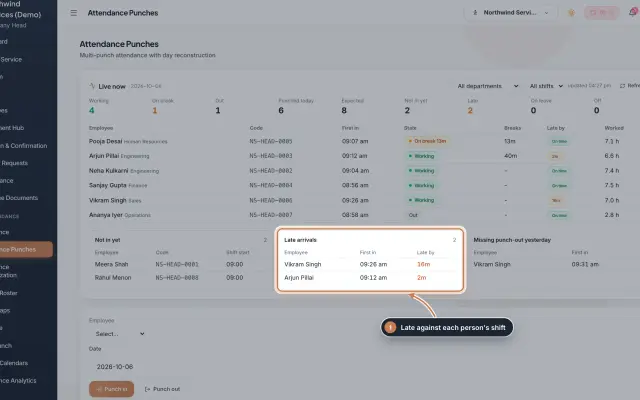 Attendance Punches moduleThe punch register of HRMS Core: who is in right now, every punch of a day, the month's payable days and the penalties the attendance rules add.Module
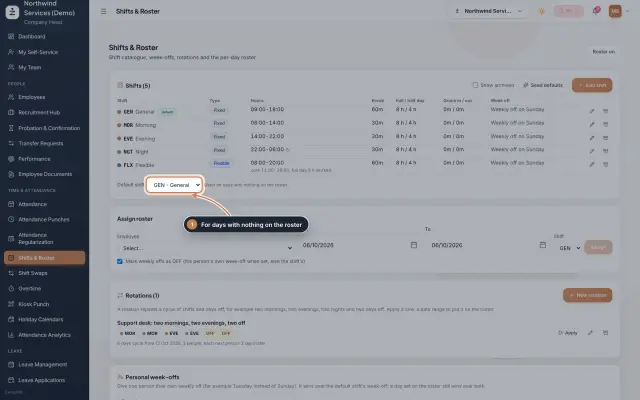 Shifts & Roster moduleKeep your shifts, give everyone a default shift, roster people for date ranges or on a repeating rotation, and set personal weekly offs.Module
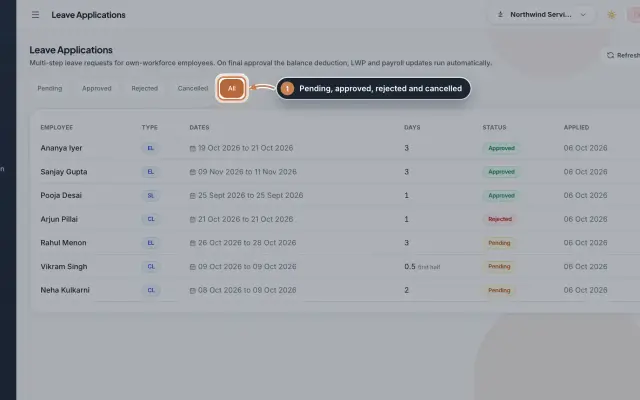 Leave Applications moduleEvery leave application with the days the rules count, its approval steps from the manager to HR, and what happens on approval or when approved leave is cancelled.Module
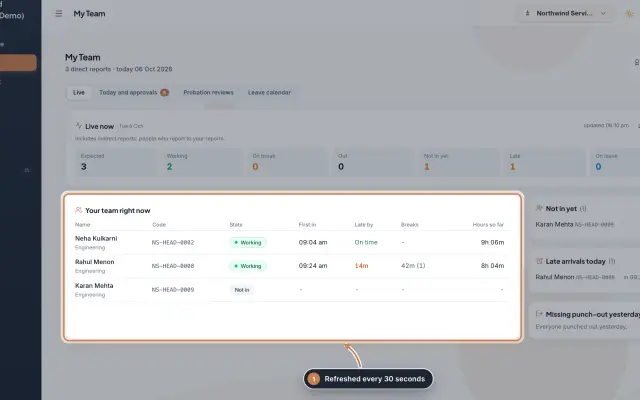 My Team moduleA manager's page for the people who report to them: who is working right now, the requests waiting on them, probation reviews, the team's leave and praise.Module
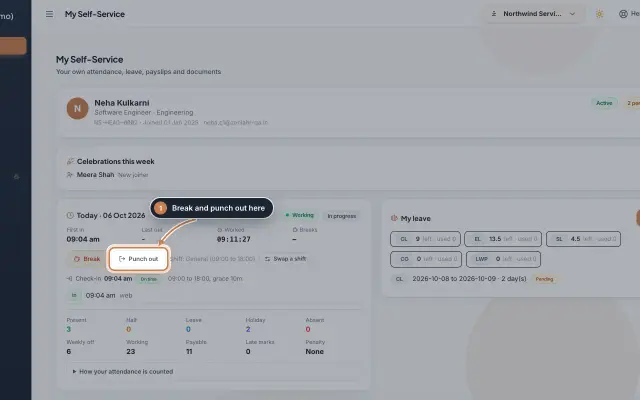 My Self-Service moduleEvery employee's own page on the web: punch in and out, see the month's attendance, apply for leave, ask for corrections and work from home, pick optional holidays and find payslips.Module
- Attendance softwareSee how it works on the ZeniaHR website