Shifts & Roster module
Keep your shifts, give everyone a default shift, roster people for date ranges or on a repeating rotation, and set personal weekly offs.
Key screens
Check your shifts and the default shift
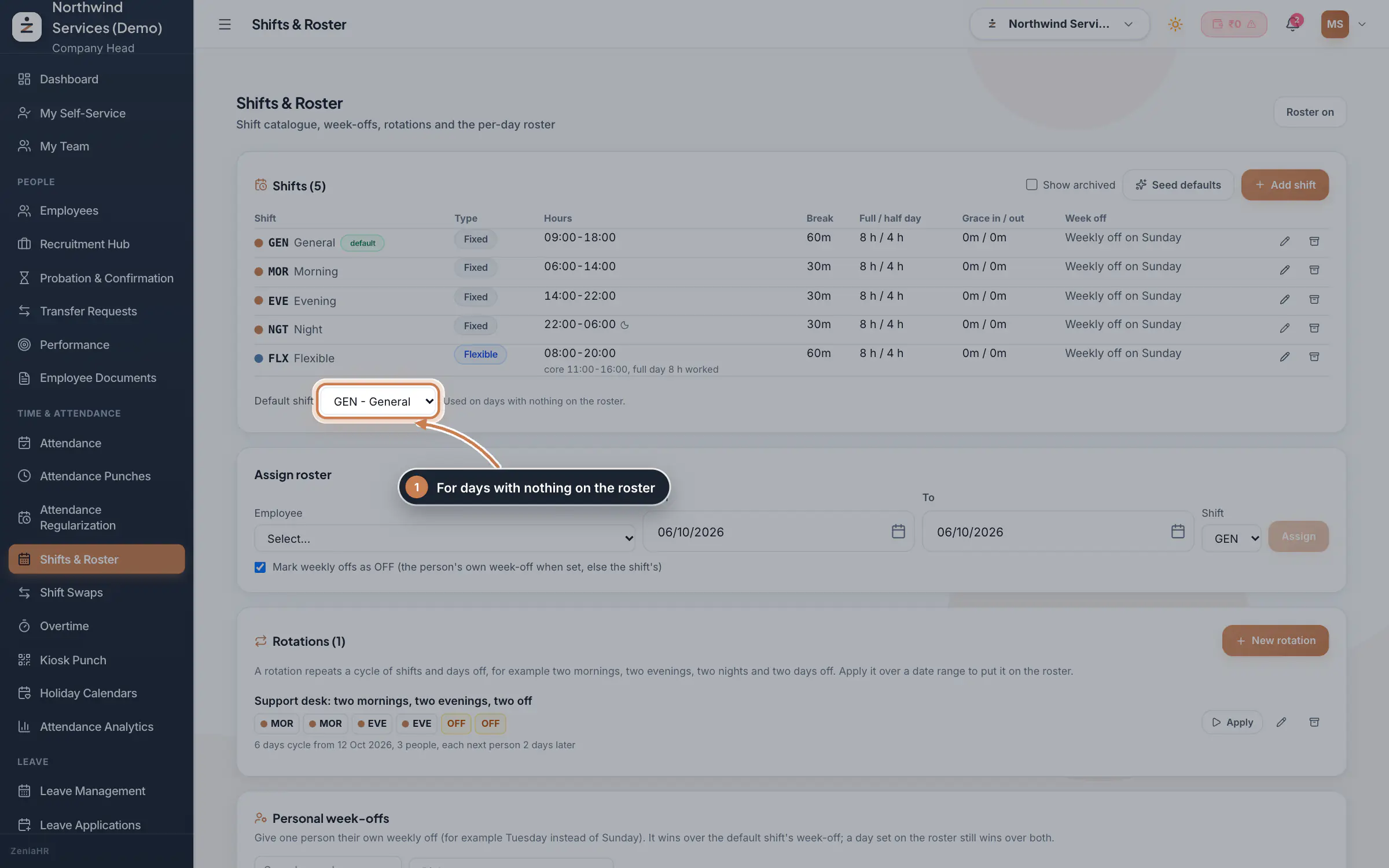
In the sidebar, under Time & Attendance, click Shifts & Roster. Each shift shows its code and name, its Type, its Hours, the Break, the hours for a Full / half day, the Grace in / out and its Week off. Seed defaults adds four ready shifts: General, Morning, Evening and Night. Pick the Default shift: it applies to everyone on every day that has nothing on the roster. The button at the top right shows whether the roster is switched on. In the app, staff see the day's shift and its times above Start shift.
 Full size
Admin panel · Step 1 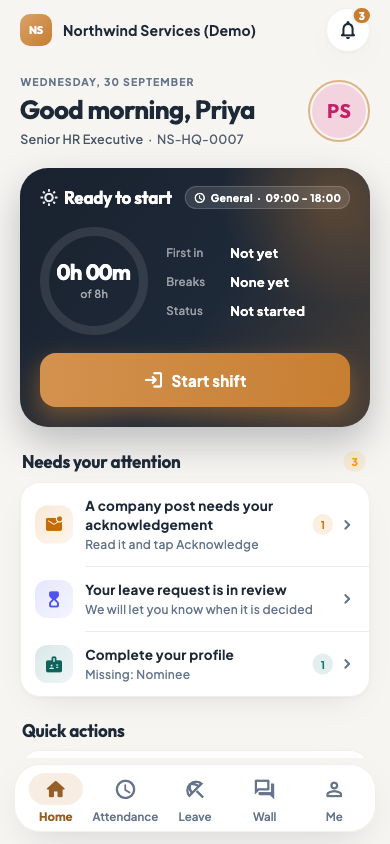 On the employee app
The employee app home screen with today's shift
Tip Archive a shift you no longer use with the archive icon. Tick Show archived to see it again and restore it.
Add or edit a shift
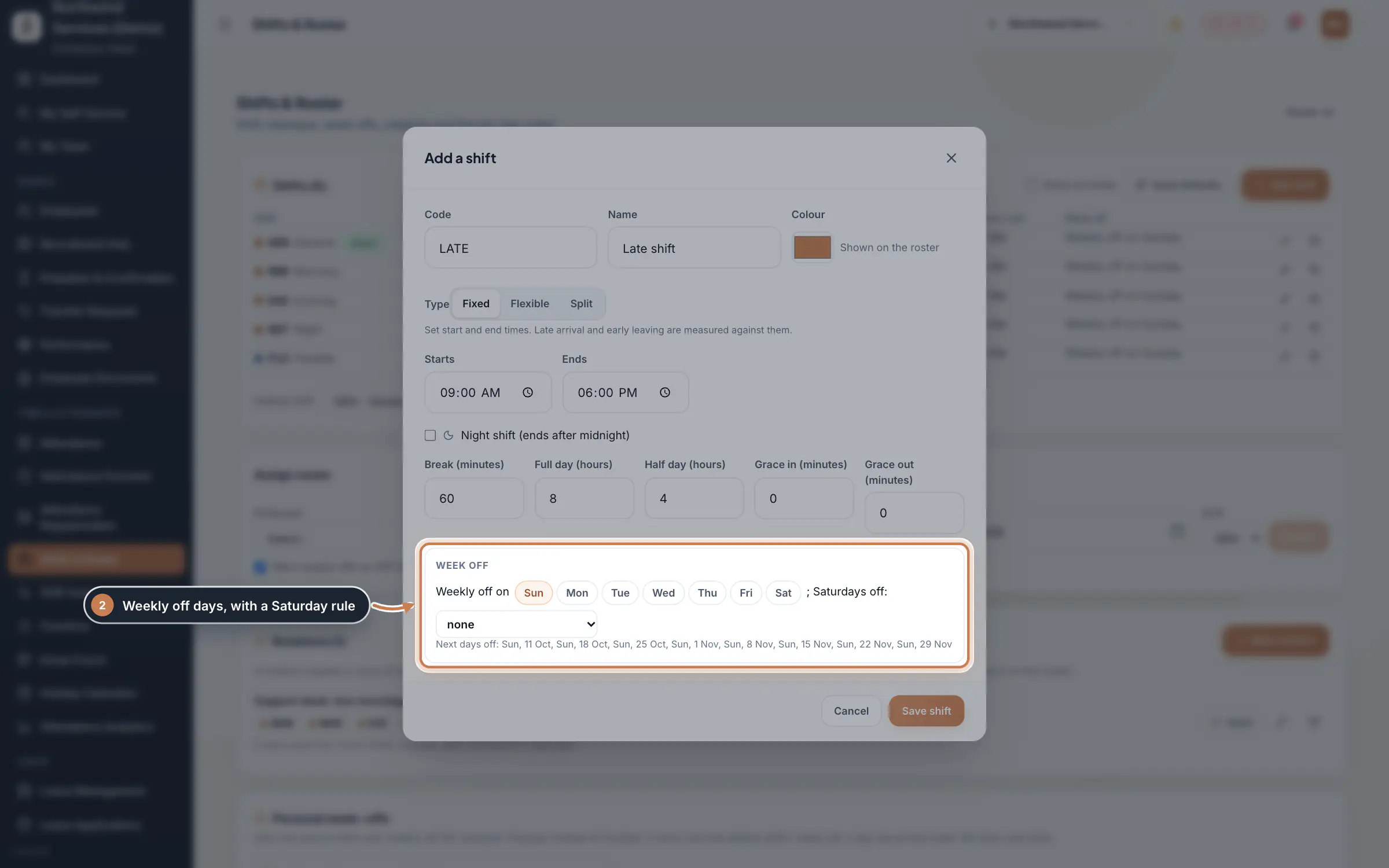
Click Add shift, or the pencil on a row. Enter a Code and a Name and pick a Colour for the roster. Choose the Type: Fixed has a start and an end, Flexible lets people choose their hours with optional core hours, and Split has two windows in one day. Set the times, the Break (minutes), the hours for a full and a half day, and the Grace in and Grace out. Under Week off, click the weekly off days and pick a Saturdays off rule, such as 2nd and 4th; the next days off are listed below so you can check them. Click Save shift.
 Full size
Step 2 Roster a person for a date range
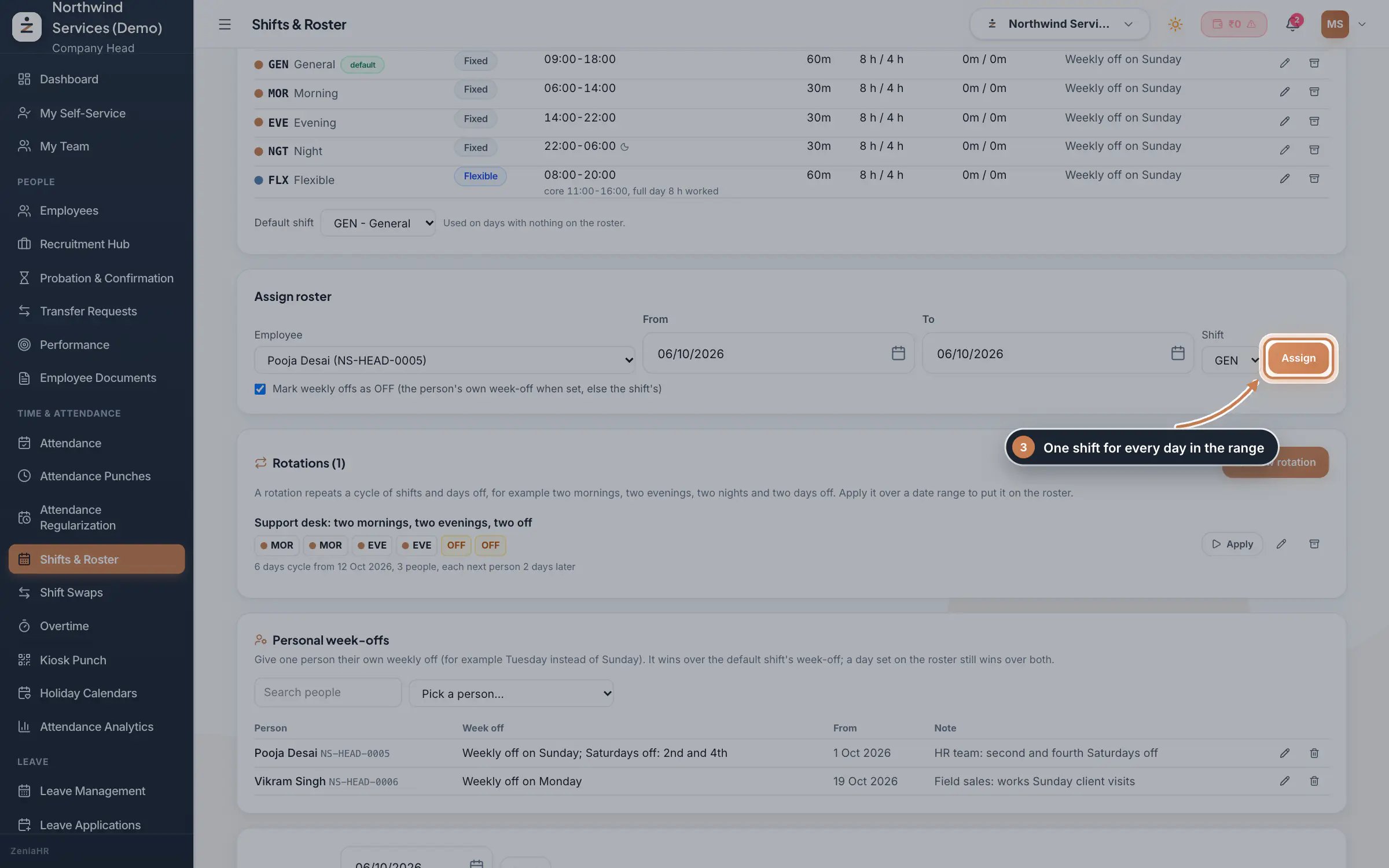
Under Assign roster, pick the Employee, the From and To dates and the Shift, or OFF for days off, then click Assign. Leave Mark weekly offs as OFF ticked so the person's weekly offs in that range stay off.
 Full size
Step 3 Repeat a cycle with a rotation
A rotation repeats a cycle of shifts and days off, for example two mornings, two evenings and two days off. Click New rotation, give it a name and a start date, add the days of the cycle in order, tick the people on it, and choose how many days later in the cycle each next person starts. To put it on the roster, click Apply on the rotation, pick the From and To dates (up to 92 days at a time), click Preview to see every person's days, then Apply. Keep Keep days changed by an approved shift swap ticked so swaps already approved are not undone.
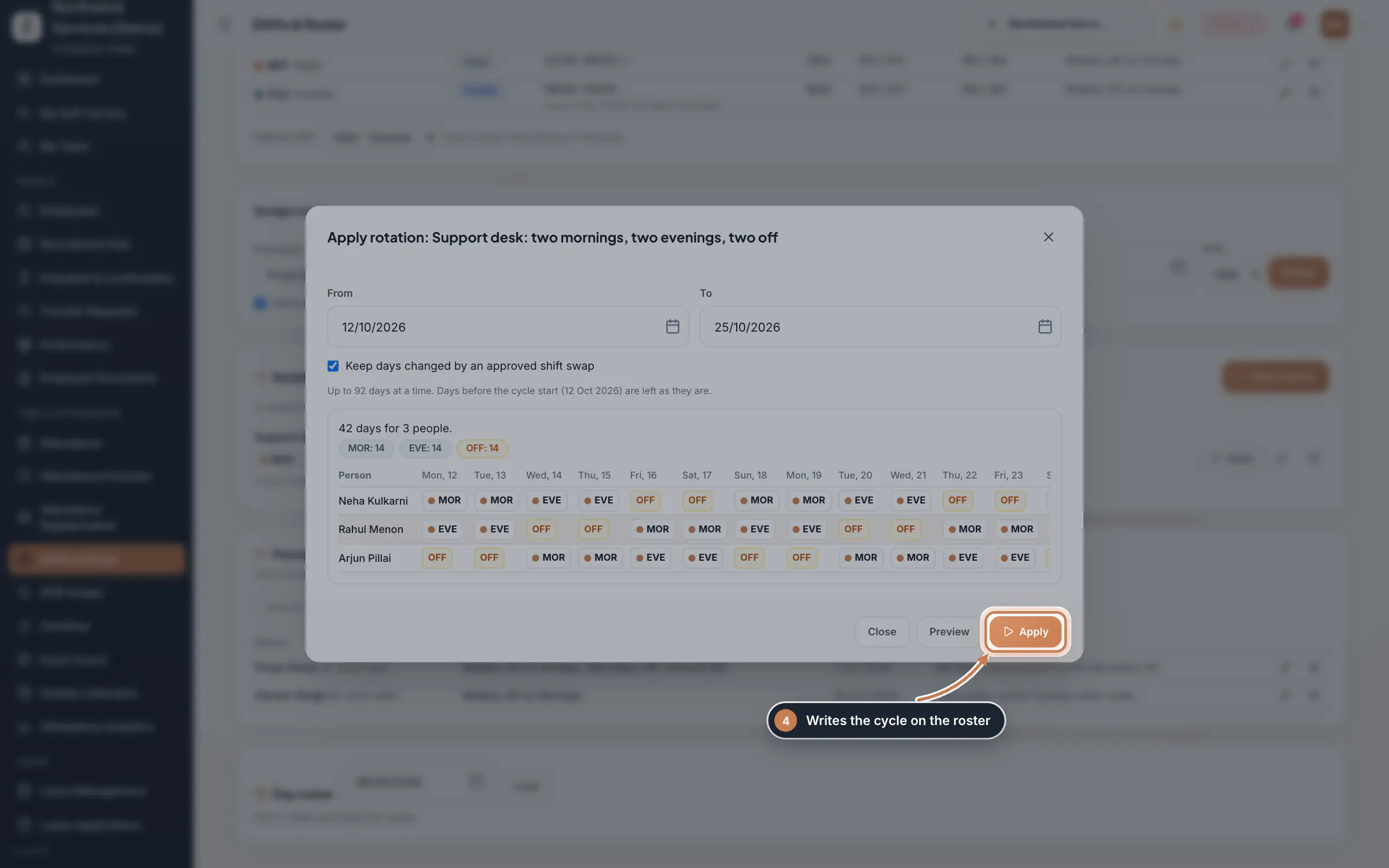 Full size
Step 4 Give someone their own weekly off
Under Personal week-offs, pick the person. You see what they follow now, for example the default shift's week-off. Choose their own weekly off days and Saturday rule, the date it starts from and a note, then click Save personal week-off. The list shows everyone with their own weekly off; use the icons to change or remove one, and the person goes back to the shift's week-off.
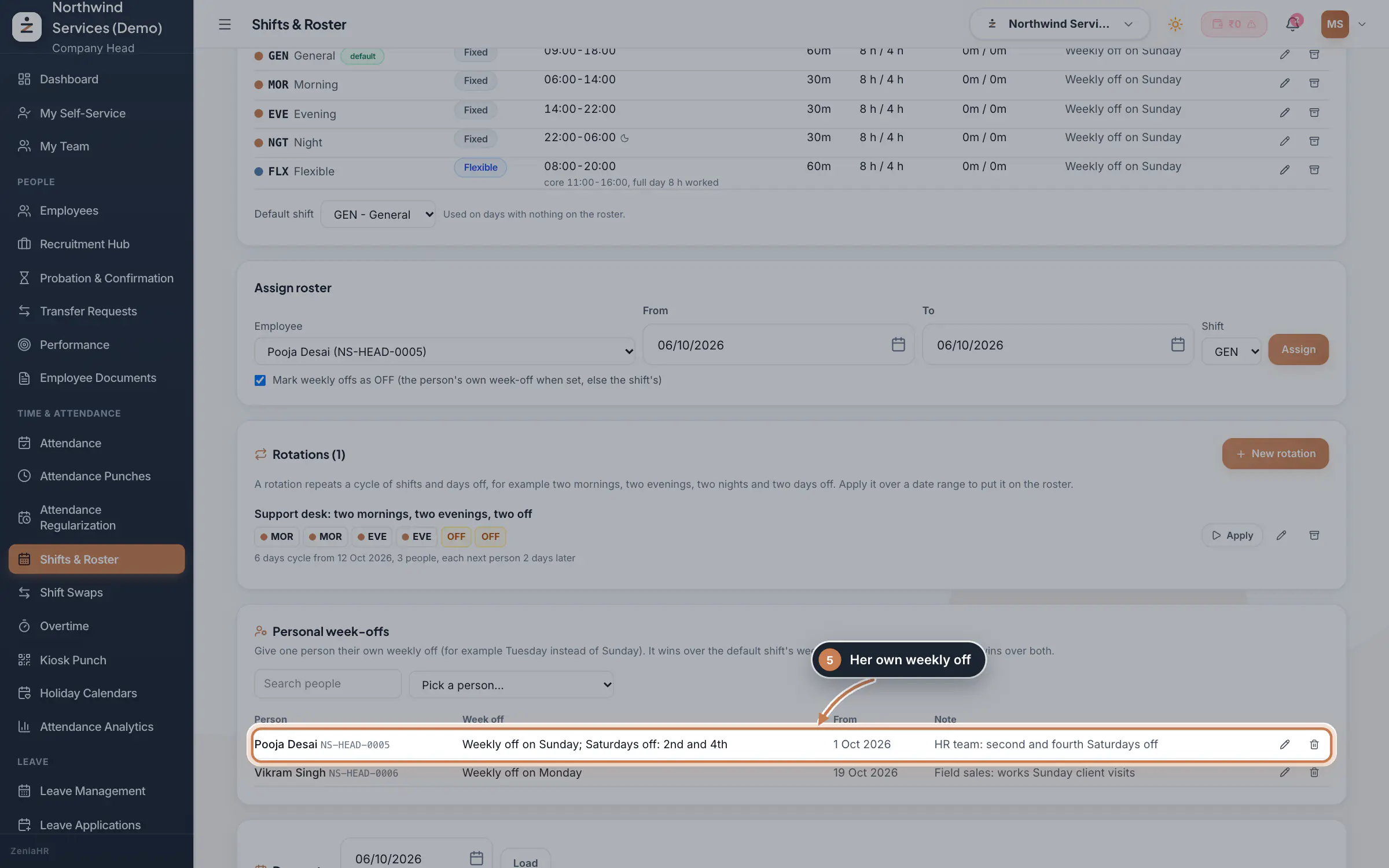 Full size
Step 5 See the roster of a day
Under Day roster, pick a date and click Load. You see how many people are on each shift and everyone with a day on the roster: rotation marks a day set by a rotation, and swapped a day changed by an approved shift swap. People who simply follow the default shift are not listed.
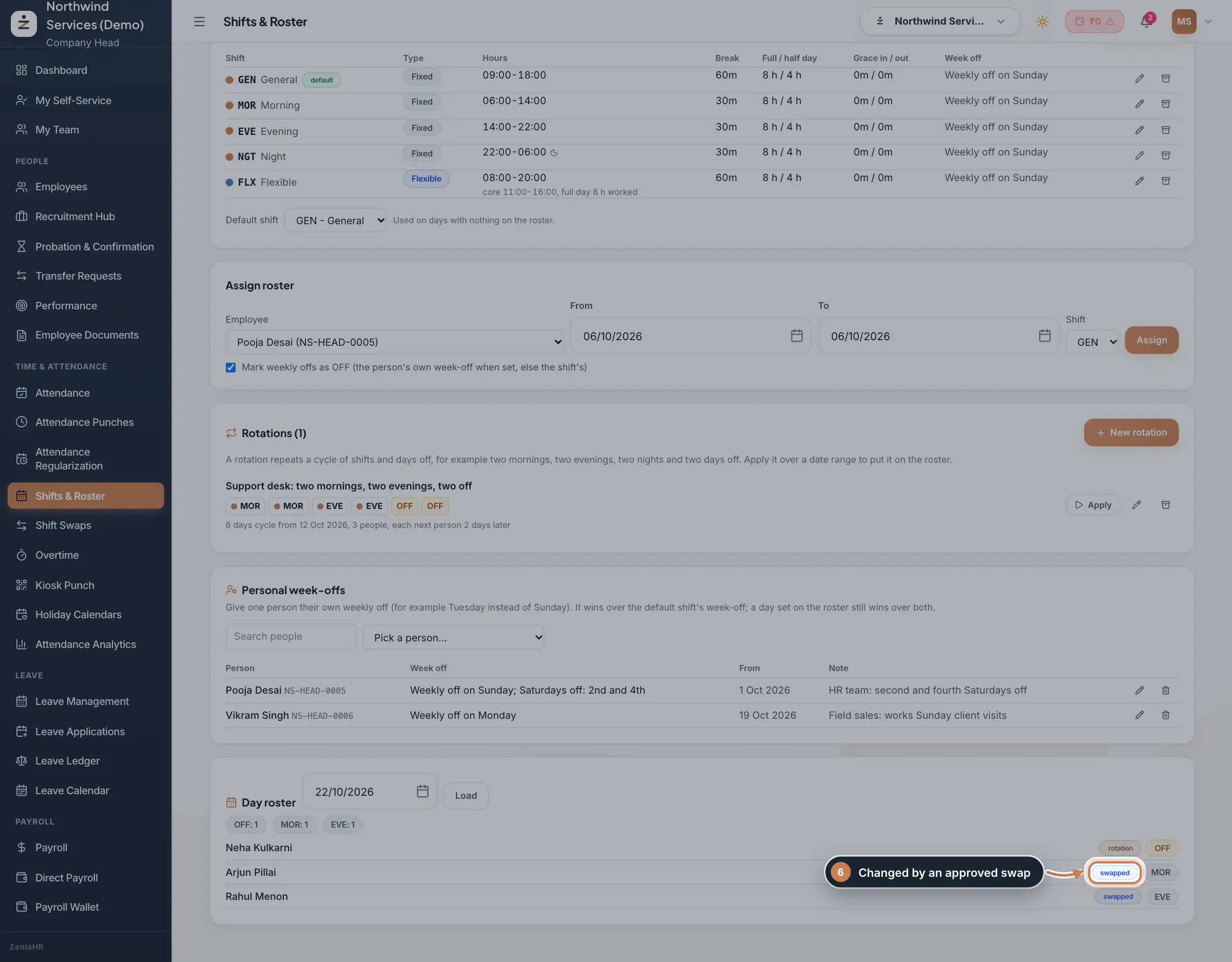 Full size
Step 6
What it does
Shifts & Roster decides which shift each person works on each day. You keep a list of shifts with their hours, break, grace time and weekly offs, pick one as the Default shift, and put people on other shifts or days off where they differ: for a date range, on a repeating rotation, or with a weekly off of their own.
For any one day, a day set on the roster wins over a personal week-off, and a personal week-off wins over the default shift's week-off.
Who uses it
- The Company Head and HR set up the shifts and the roster.
- Staff see their shift for the day in the app, and can trade a shift with a colleague in Shift Swaps.
How it connects
Attendance Punches measures lateness from each person's shift start plus the grace time, counts a full or half day from the shift's hours, and takes the weekly off from here. Overtime counts the hours beyond the shift's full day. An approved swap in Shift Swaps changes the two people's days on the roster, and leave and holidays are worked out on the days the roster says are working days.
Questions
Which grace time counts when a shift's grace is 0?
A shift's own Grace in wins when it is more than 0 minutes. When it is 0, the grace time of the attendance rules in Settings, Policies applies instead.
How do I roster a night shift?
Give the shift an end time earlier than its start, for example 22:00 to 06:00; ZeniaHR ticks Night shift for you and counts the hours after midnight on the day the shift started.
What happens to a rotation day that someone swapped?
With Keep days changed by an approved shift swap ticked, applying the rotation again leaves those days as swapped. Untick it to write the rotation over them too.
Related
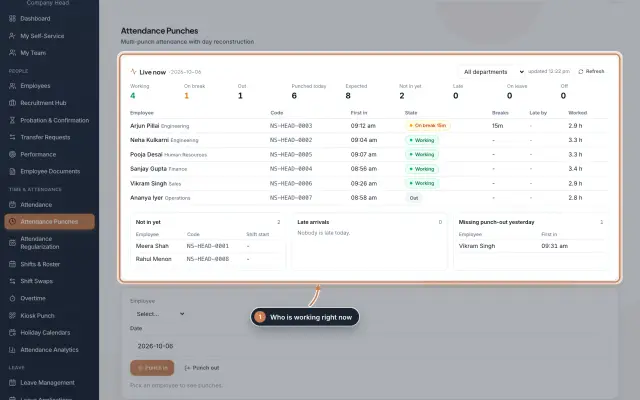 Attendance: punches and the daily registerHow punches reach HRMS Core, how to follow them live, record a missed punch, read each employee's day log, keep the daily register and close the month for payroll.Guide
 The employee app for office staffA tour of the ZeniaHR app for HRMS Core staff: signing in, starting your shift, attendance, leave, the company wall and your profile.GuideApp
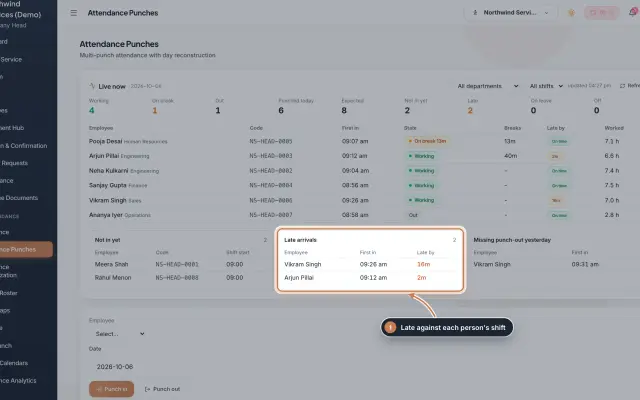 Attendance Punches moduleThe punch register of HRMS Core: who is in right now, every punch of a day, the month's payable days and the penalties the attendance rules add.Module
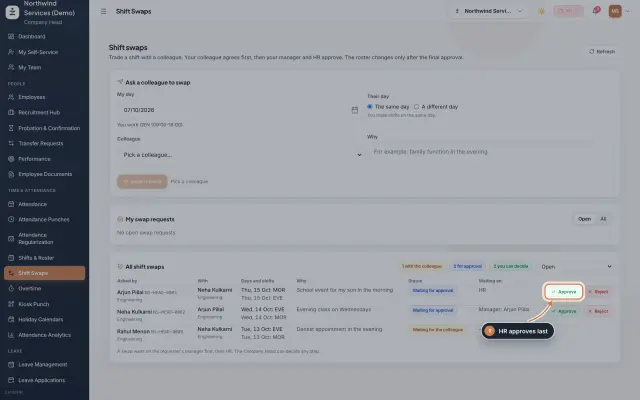 Shift Swaps moduleStaff trade shifts with a colleague; the colleague agrees first, then the manager and HR approve, and only then the roster changes.Module
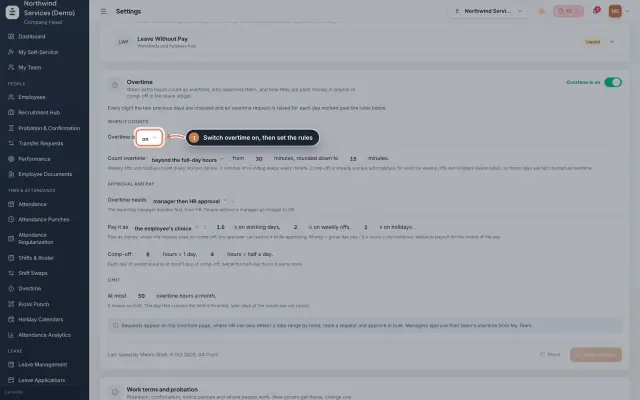 Overtime moduleOvertime found in the punches or raised by HR, approved by the manager and HR, and paid as money in payroll or as comp-off in the leave ledger.Module
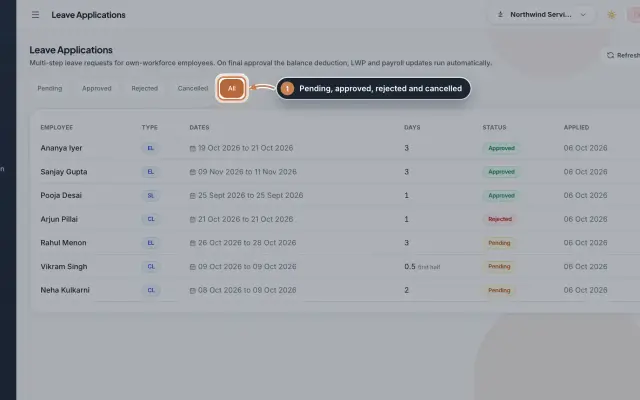 Leave Applications moduleEvery leave application with the days the rules count, its approval steps from the manager to HR, and what happens on approval or when approved leave is cancelled.Module
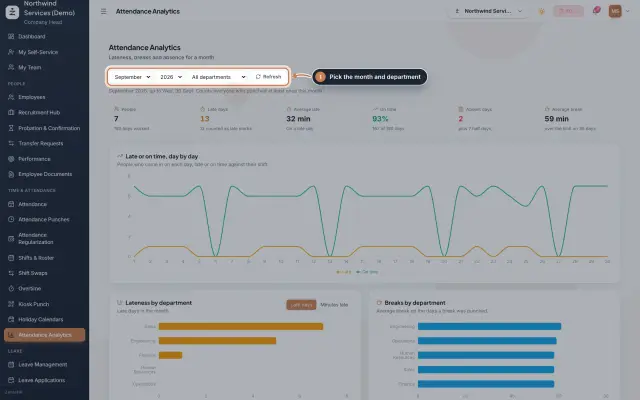 Attendance Analytics moduleOne month of attendance in charts: late against on time day by day, lateness and breaks by department, an absence map and the people late most often.Module
- Attendance softwareSee how it works on the ZeniaHR website