Attendance Punches module
The punch register of HRMS Core: who is in right now, every punch of a day, the month's payable days and the penalties the attendance rules add.
Key screens
See who is late today
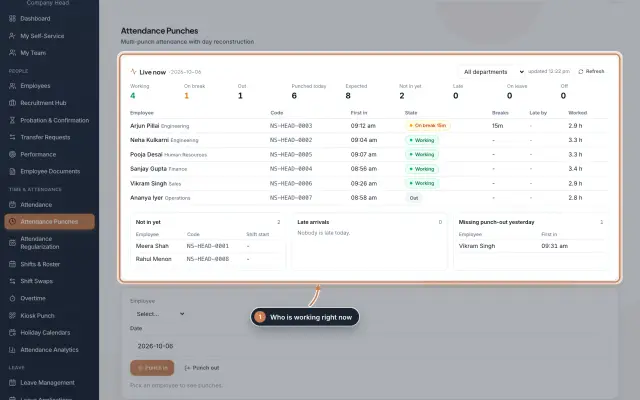
In the sidebar, under Time & Attendance, click Attendance Punches. Live now refreshes by itself every 30 seconds. Late by compares each person's first punch with the start of their shift plus the grace time, so it shows a dash for anyone without a shift that day. Use the department and shift filters to narrow the board. Under the table, Late arrivals lists who came in late and by how much, Not in yet shows each missing person's shift start, and Missing punch-out yesterday lists the days someone left open. A person on a break shows as On break with the minutes so far, exactly as their app shows it.
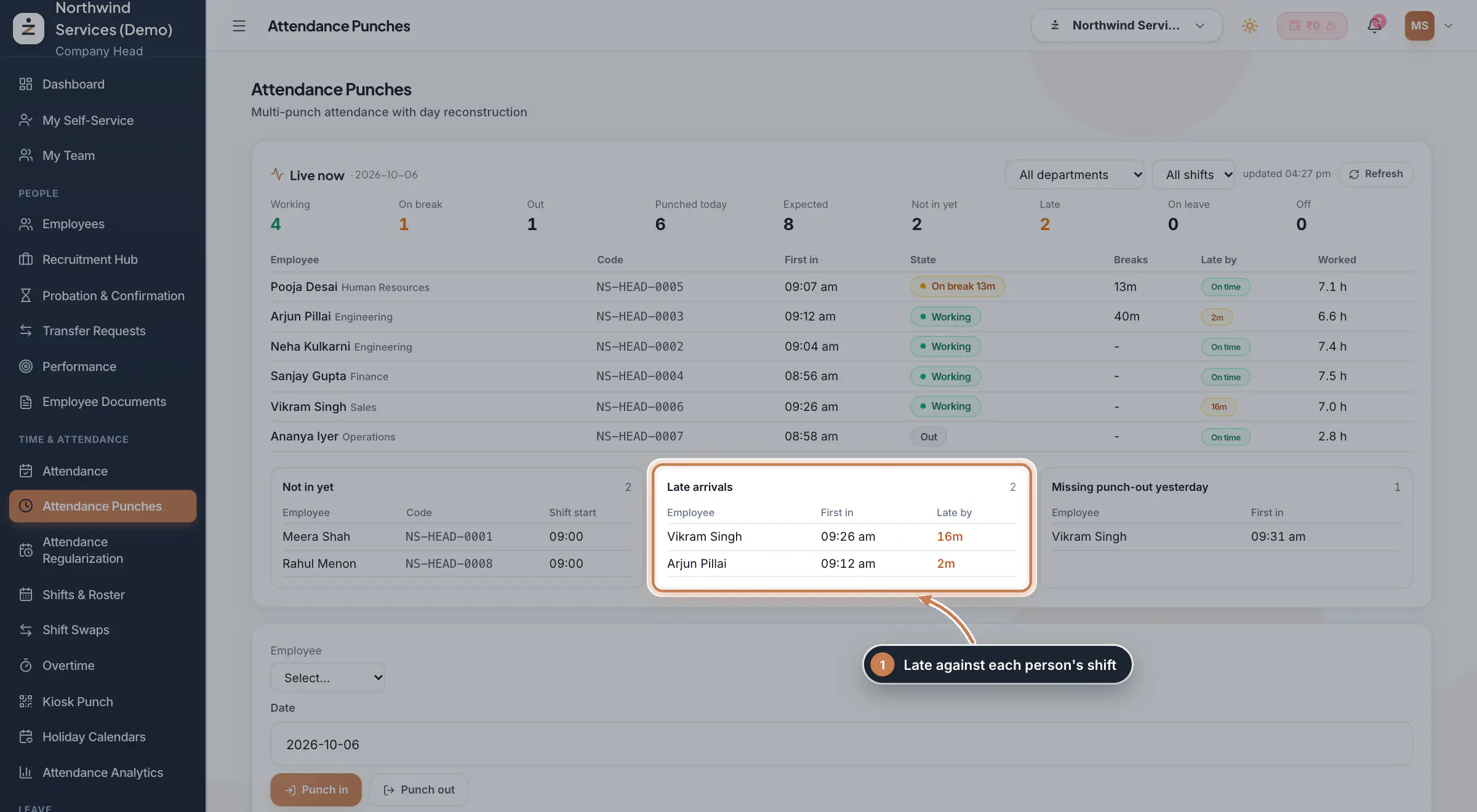 Full size
Admin panel · Step 1 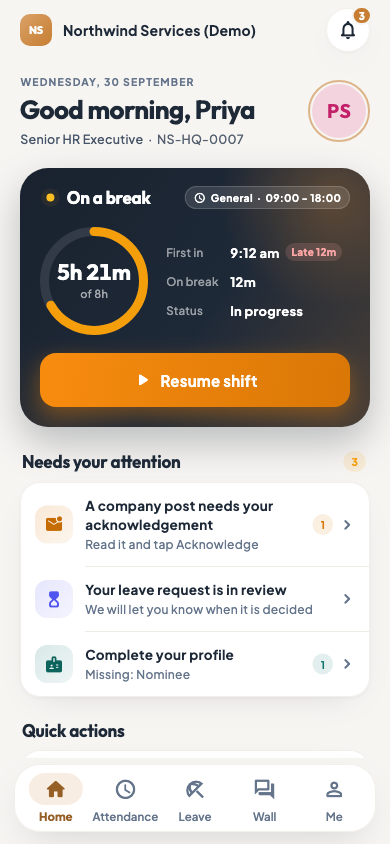 On the employee app
The employee app home screen during a break
Tip To record a missed punch or keep the daily register, see the guide Attendance: punches and the daily register.
Check one person's punches on a day
In the box under the board, pick the Employee and type the Date as year, month and day, for example 2026-10-03. You see the First in, Last out, Hours and Status of that day, then every punch in order: in, break, resume and out, each with where it came from, such as web, mobile, kiosk or biometric. To cancel a wrong punch, click the void icon at the end of its row and confirm: the punch leaves the list and the day is rebuilt without it. It is not deleted; ZeniaHR keeps it on record as voided. In the app, staff see the same day under Attendance with their In, Break out, Break in and Out times.
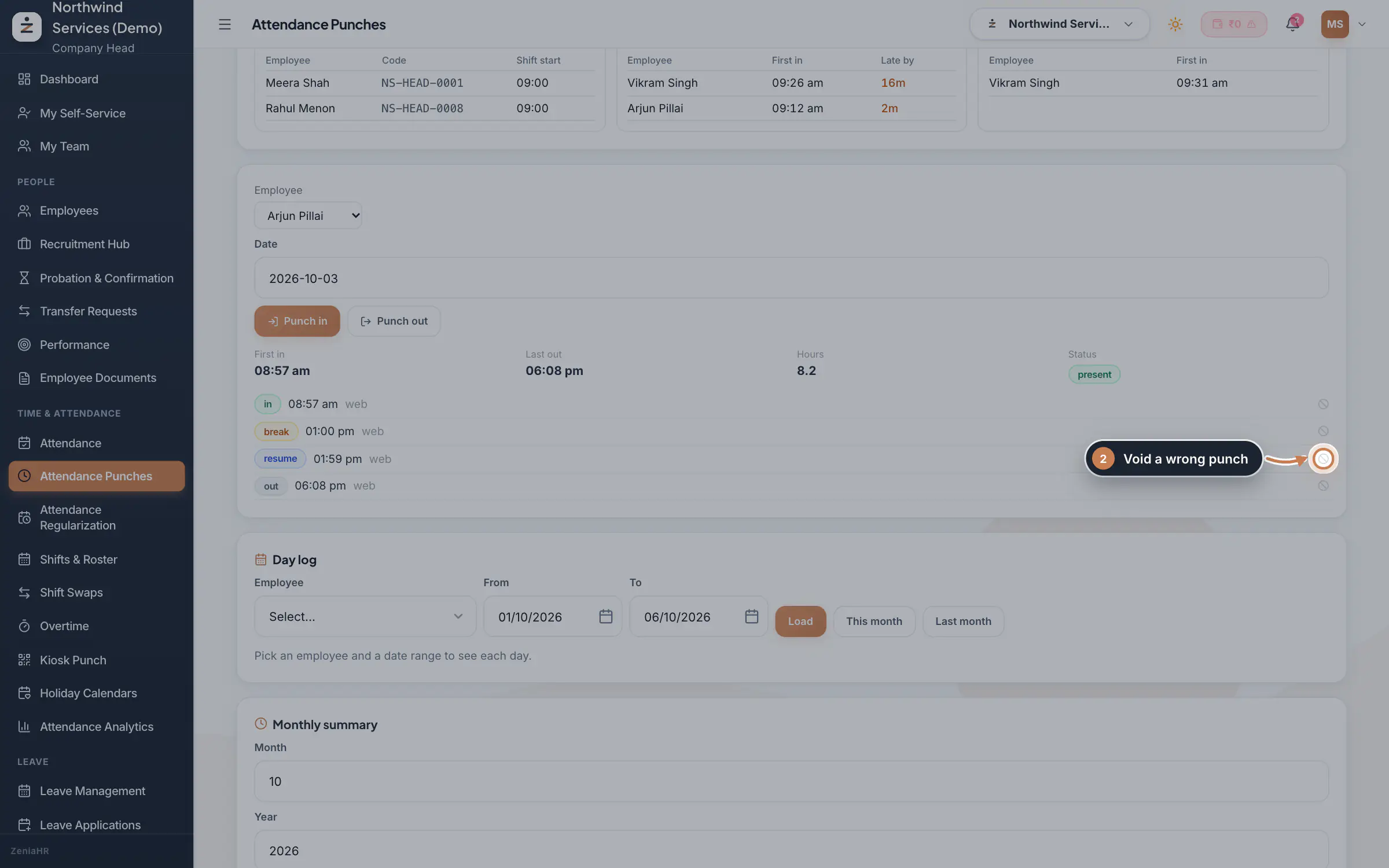 Full size
Admin panel · Step 2 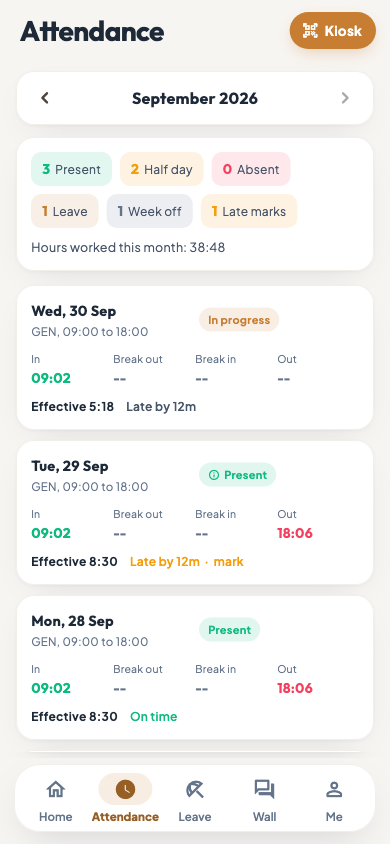 On the employee app
The Attendance tab of the employee app with each day's punches
Read the month's payable days
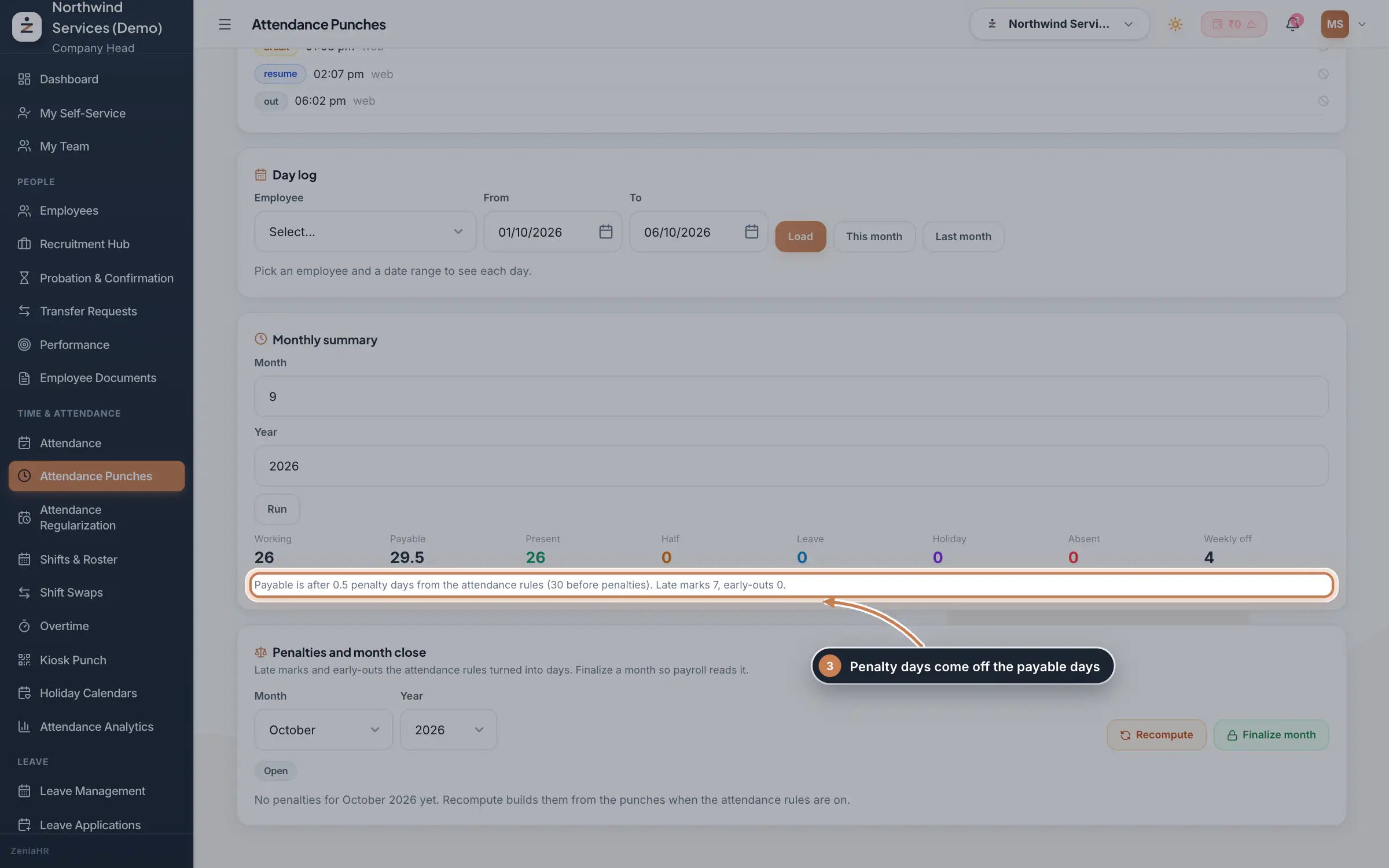
Monthly summary works on the employee picked in the punch box above. Type the Month as a number (9 for September) and the Year, then click Run. Working is the number of working days on the person's roster, and Payable is the days paid: days worked, weekly offs, holidays and paid leave, less any penalty days. Present, Half, Leave, Holiday, Absent and Weekly off break the month down. When the attendance rules took days off, a line under the numbers says how many, the payable days before them, and the late marks and early-outs behind them.
 Full size
Step 3 Waive or restore a penalty
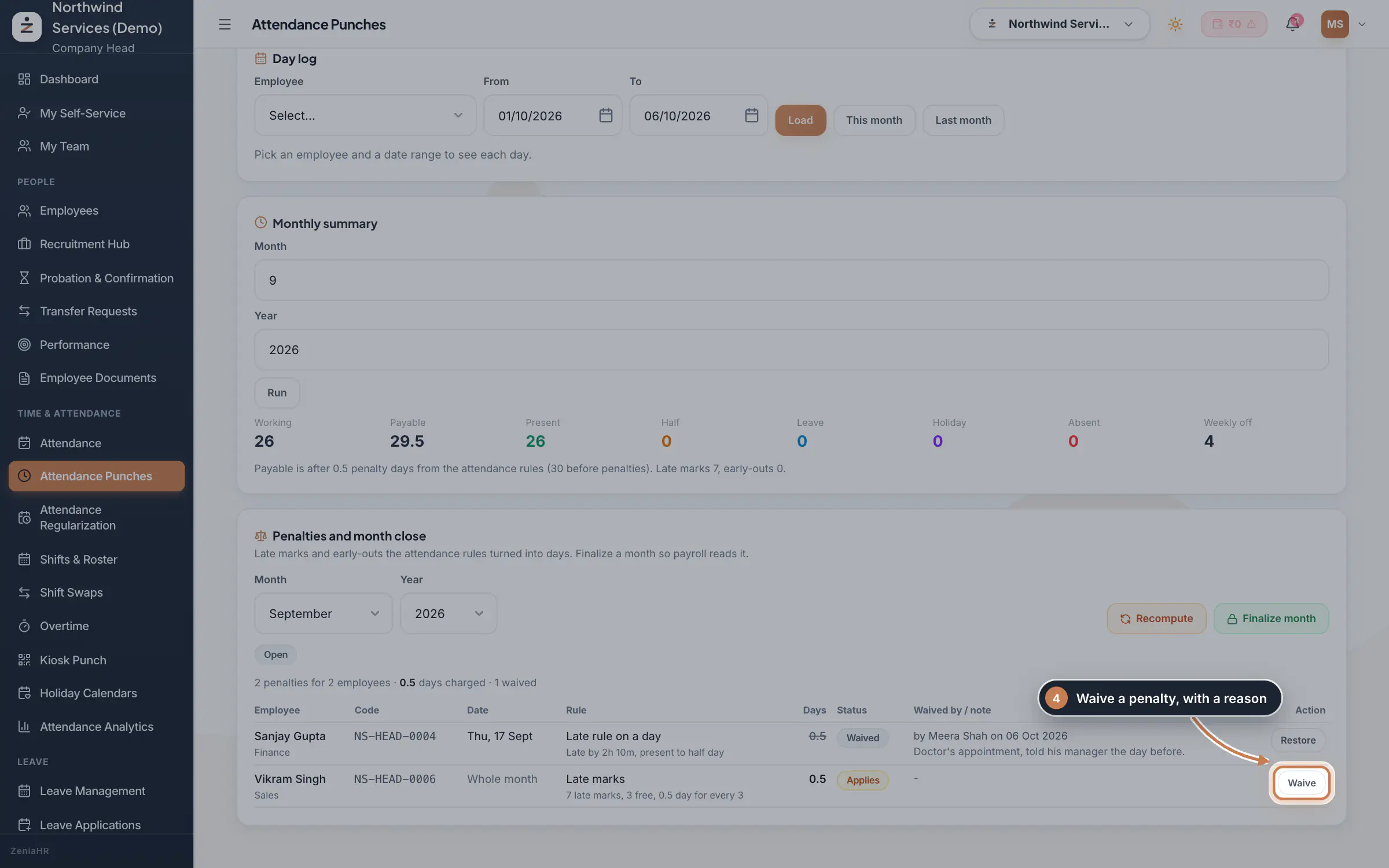
Under Penalties and month close, pick the Month and Year. Each penalty shows the person, the date (or Whole month), the rule with its working, for example Late marks with "7 late marks, 3 free, 0.5 day for every 3", and the days it costs. Click Waive, give a reason, and the penalty stops counting: the row keeps who waived it, when and why, and Restore puts it back. Recompute rebuilds the month's penalties from the punches and the rules, and Finalize month locks the month for payroll.
 Full size
Step 4
What it does
Attendance Punches keeps every punch your staff make, exactly as it came in: from the employee app, a kiosk, a biometric machine, an Excel import, or HR on the web. From those punches ZeniaHR rebuilds each day: the first in, the last out, the breaks, the hours worked, how late or early the person was against their shift, and whether the day counts as present, a half day or absent.
The page has five parts, from top to bottom: Live now for today, a punch box for one person and one day, the Day log, the Monthly summary and Penalties and month close.
Who uses it
- The Company Head and HR follow the day here and correct punches.
- Employees punch from the app with Start shift, Break, Resume shift and End shift, or at a kiosk.
How it connects
Each day takes its shift from Shifts & Roster: the shift start and its grace time decide who is late, and the roster decides the weekly off. Approved leave and the holidays in Holiday Calendars mark those days, and an approved request in Attendance Regularization corrects a day. Overtime finds extra hours in these punches and Attendance Analytics charts the month. The attendance rules in Settings, Policies turn late marks and early leaving into penalty days, and once you finalize a month here, Payroll pays the days built from these punches.
Questions
Why does someone show a dash under Late by?
They have no shift that day, or a flexible shift without a core start time. Give them a shift in Shifts & Roster, or set a default shift there for days with nothing on the roster.
What happens to a punch I void?
It no longer shows or counts: the day's first in, last out, hours and status are worked out again without it. The punch is kept on record as voided rather than deleted. If you voided the wrong one, correct the day with a request in Attendance Regularization.
Why is the Monthly summary showing the wrong person?
It always uses the employee picked in the punch box at the top of the page. Pick the person there first, then click Run.
Do penalties change pay before the month is finalized?
No. Penalties count when payroll reads the month, which happens after you click Finalize month. Until then you can waive, restore or recompute them freely.
Related
 Attendance: punches and the daily registerHow punches reach HRMS Core, how to follow them live, record a missed punch, read each employee's day log, keep the daily register and close the month for payroll.Guide
 The employee app for office staffA tour of the ZeniaHR app for HRMS Core staff: signing in, starting your shift, attendance, leave, the company wall and your profile.GuideApp
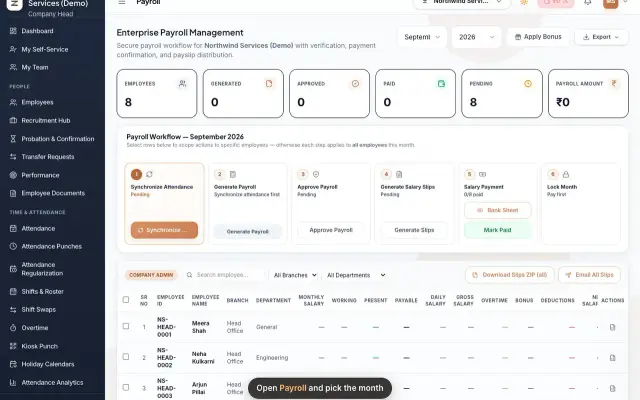 Run payroll and share payslipsRun the monthly payroll for your own employees in six steps, from synchronizing attendance to approving salaries, generating payslips, sharing them and paying.Guide29 s video
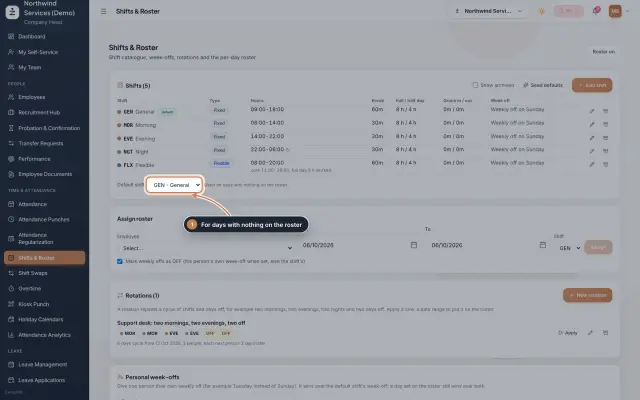 Shifts & Roster moduleKeep your shifts, give everyone a default shift, roster people for date ranges or on a repeating rotation, and set personal weekly offs.Module
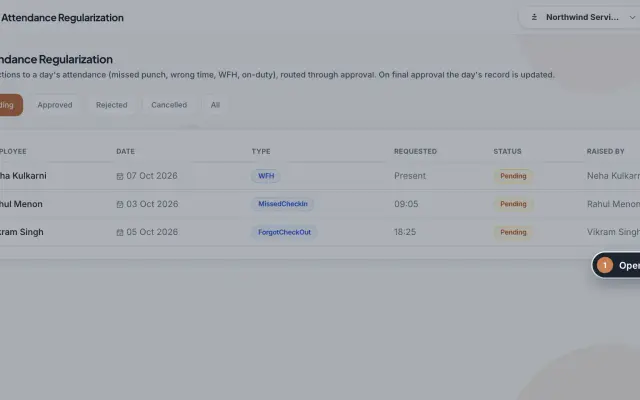 Attendance Regularization moduleCorrect a day's attendance through approval: a missed or forgotten punch, a wrong time, work from home or on duty, decided by the manager and then HR.Module
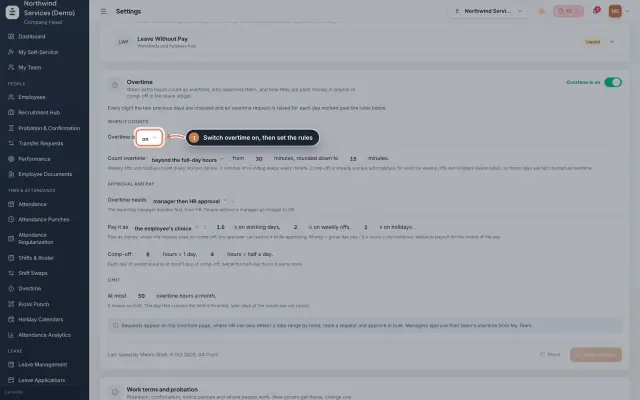 Overtime moduleOvertime found in the punches or raised by HR, approved by the manager and HR, and paid as money in payroll or as comp-off in the leave ledger.Module
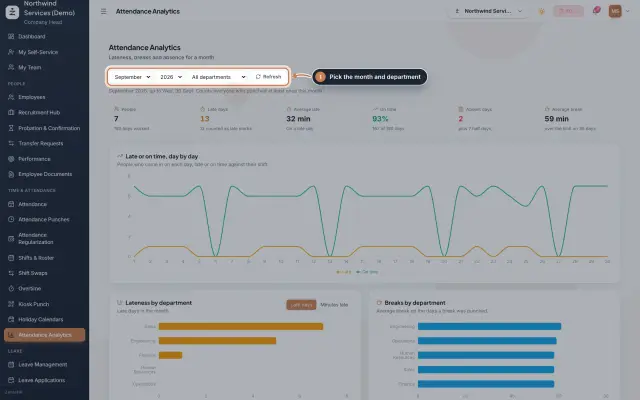 Attendance Analytics moduleOne month of attendance in charts: late against on time day by day, lateness and breaks by department, an absence map and the people late most often.Module
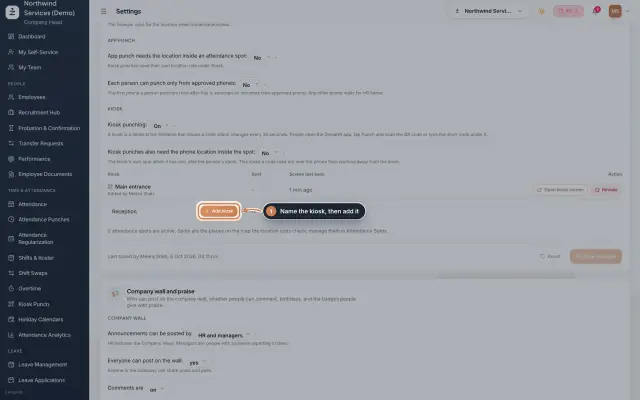 Kiosk Punch moduleTurn a tablet at the entrance into a punch kiosk: it shows a code that changes every 30 seconds, and staff scan or type it in the app to punch.Module
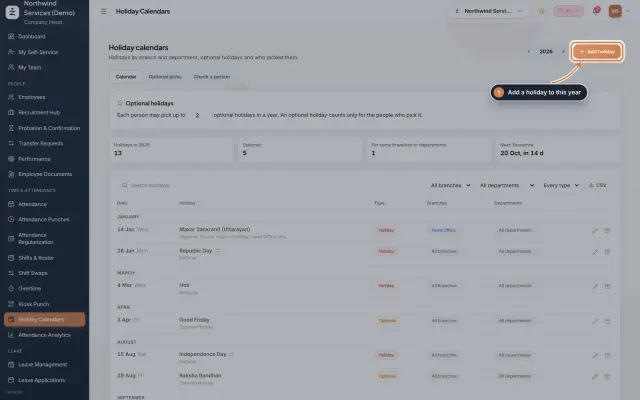 Holiday Calendars moduleKeep the year's holidays by branch and department, set optional holidays and how many each person may pick, and check which holidays a person gets.Module
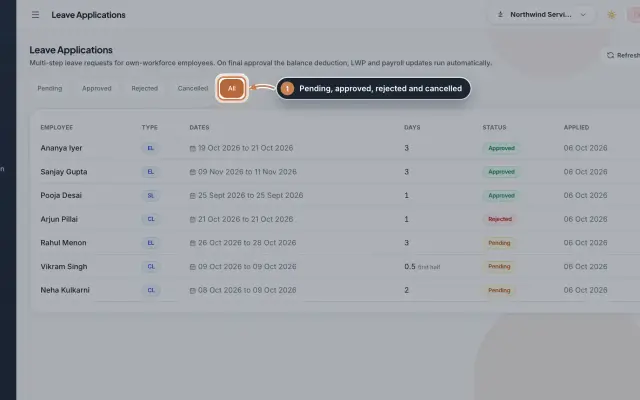 Leave Applications moduleEvery leave application with the days the rules count, its approval steps from the manager to HR, and what happens on approval or when approved leave is cancelled.Module
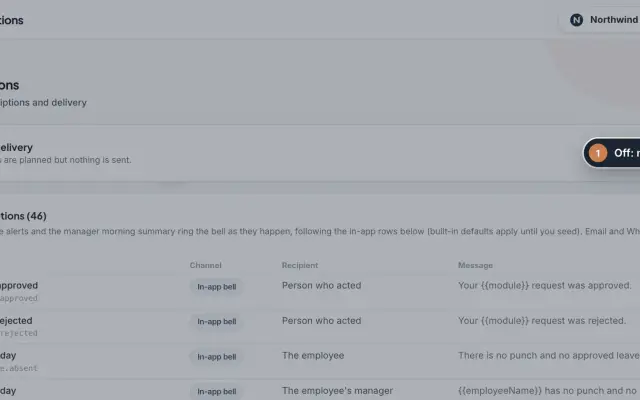 Notifications moduleDecide who hears about which event, on which channel and with which message, and switch live delivery of email and WhatsApp copies on when you are ready.Module
- Attendance softwareSee how it works on the ZeniaHR website