Holiday Calendars module
Keep the year's holidays by branch and department, set optional holidays and how many each person may pick, and check which holidays a person gets.
Key screens
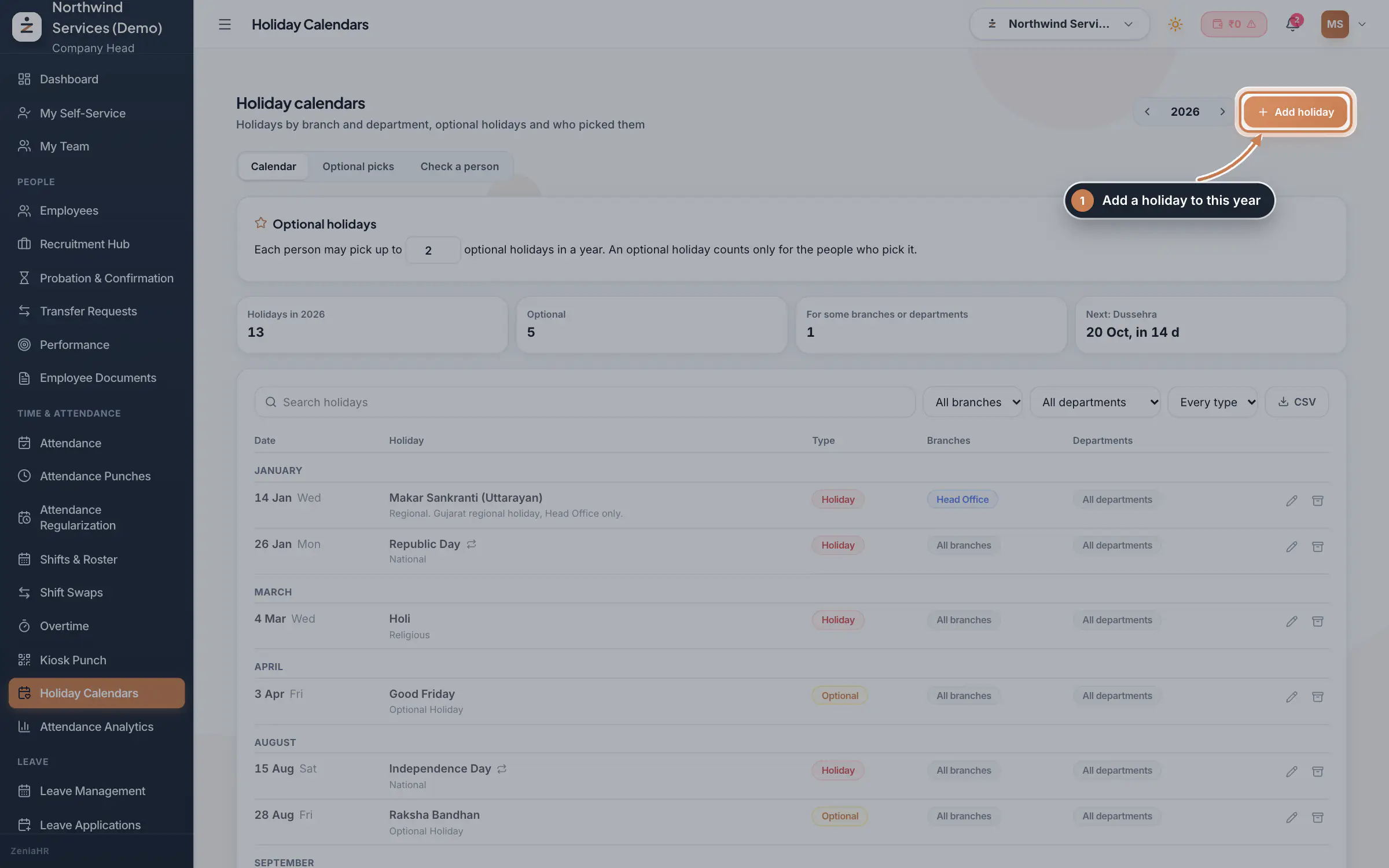
See the year's holidays
In the sidebar, under Time & Attendance, click Holiday Calendars, and pick the year with the arrows. The totals show the holidays in the year, how many are optional, how many apply only to some branches or departments, and the next one. Search and filter by branch, department or type, and click CSV to download the list. Each holiday shows its date and weekday, its category and note, a repeat mark when it falls on the same date every year, whether it is a Holiday or Optional, and where it applies. Use the pencil to change one and the archive icon to remove it from the year; an archived holiday can be restored.
 Full size
Admin panel · Step 1 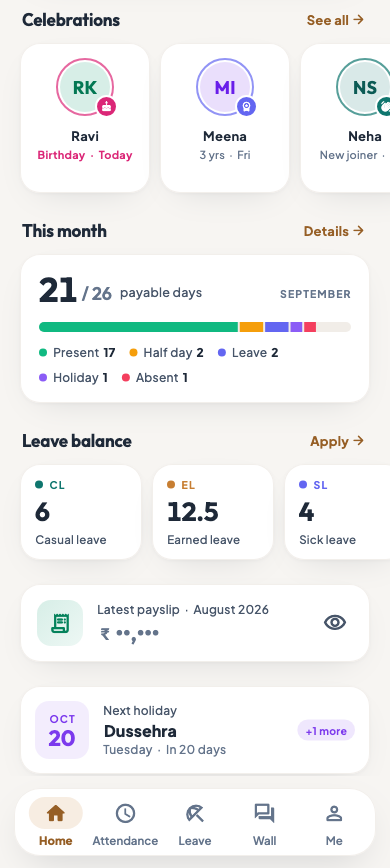 On the employee app
The employee app home screen with the next holiday
Tip Under Optional holidays, set how many optional holidays each person may pick in a year and click Save limit.
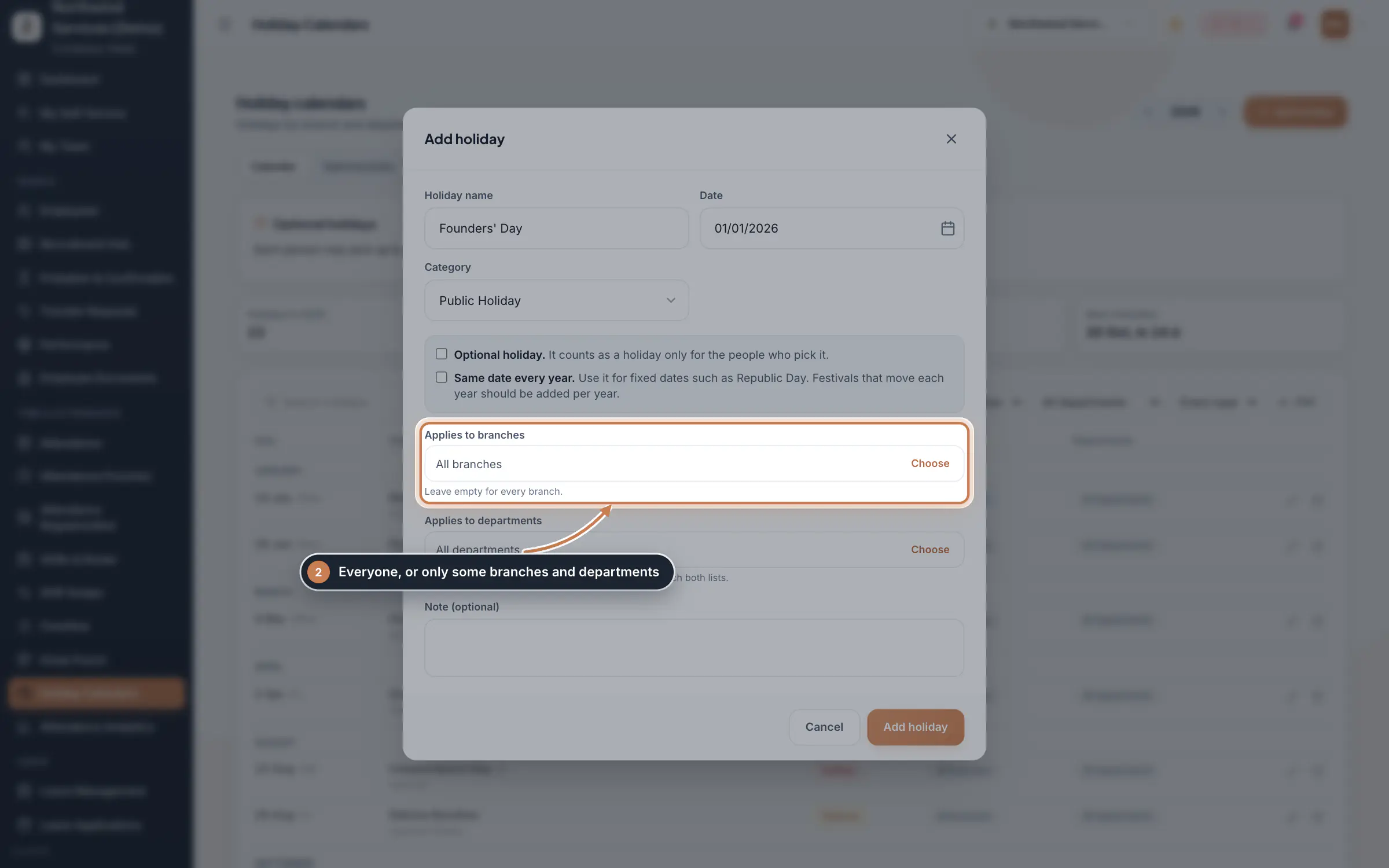
Add a holiday
Click Add holiday. Enter the Holiday name, the Date and a Category, such as National, Religious, Regional or Company. Tick Optional holiday if it counts only for the people who pick it, and Same date every year for fixed dates such as Republic Day; festivals that move each year are added for each year. Leave Applies to branches and Applies to departments empty for everyone, or click Choose to pick some. Add a note if you like and click Add holiday.
 Full size
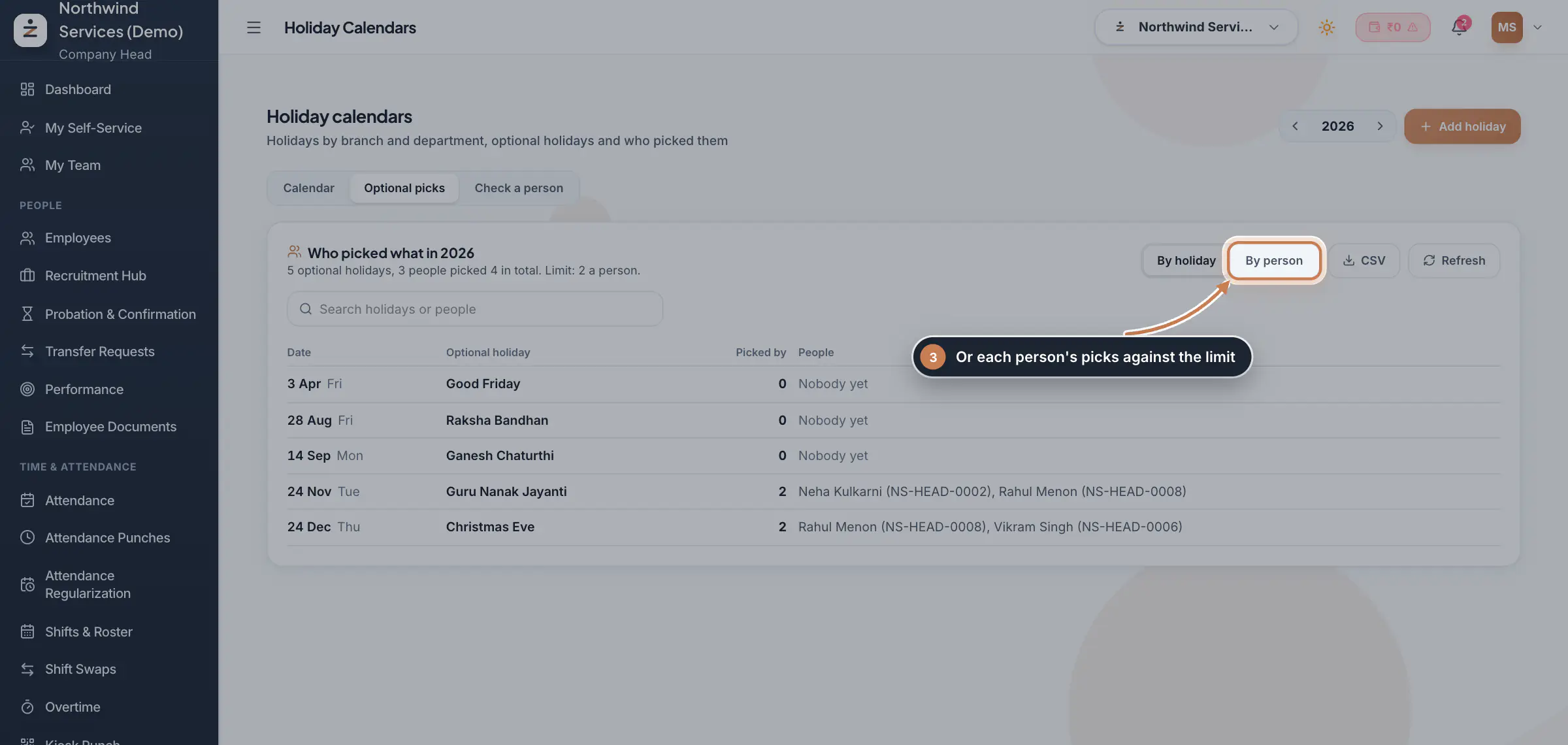
Step 2 See who picked which optional holiday
Click Optional picks. By holiday lists each optional holiday with how many people picked it and who they are. By person lists each person with their picks against the limit, and marks a pick that no longer applies, for example after the holiday was archived or the person moved branch. Search, CSV and Refresh work on both views.
 Full size
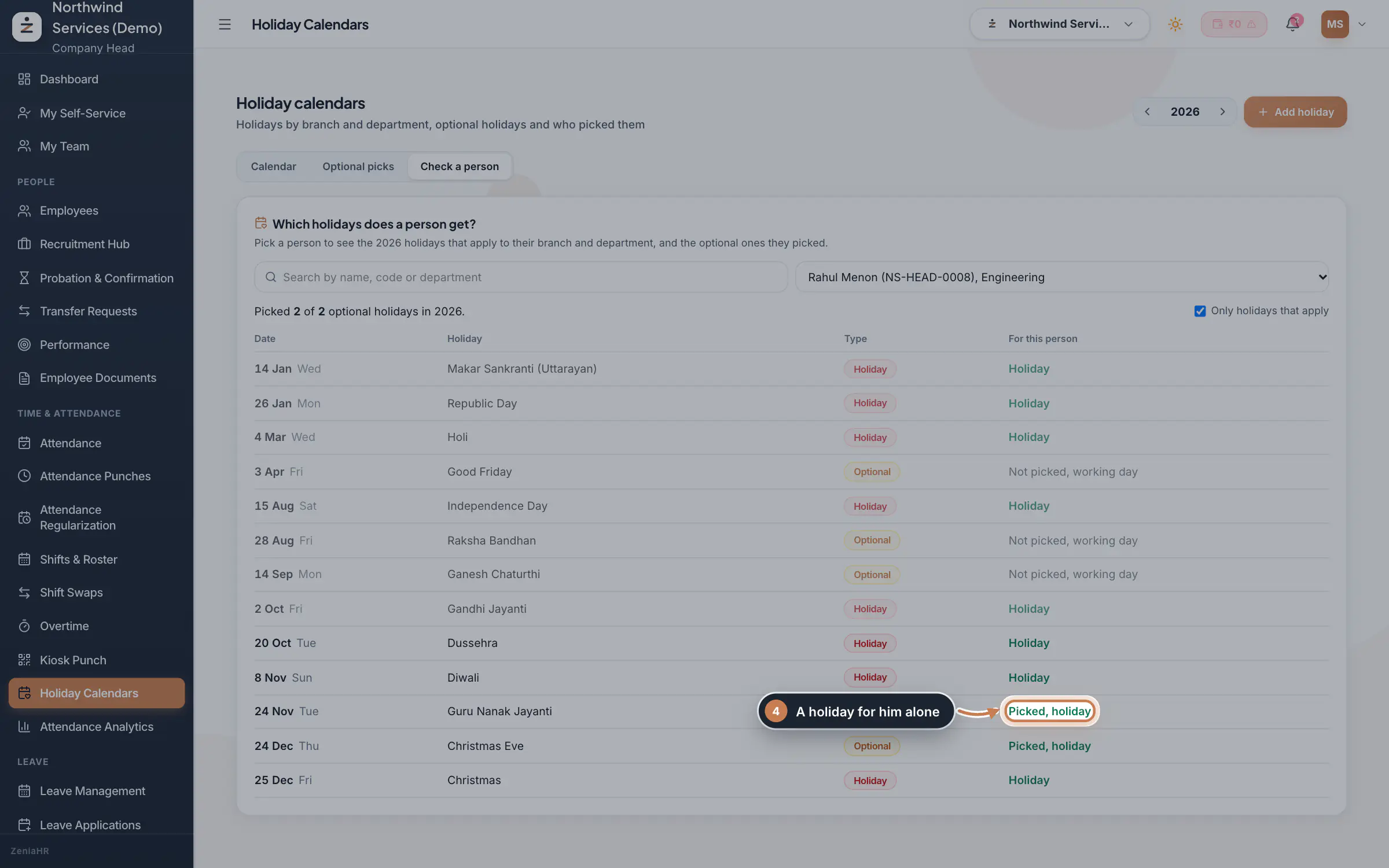
Step 3 Check a person's holidays
Click Check a person and choose someone. You see how many optional holidays they picked and, for each holiday, what it means for them: Holiday, Picked, holiday, Not picked, working day, Already a holiday or Does not apply. Untick Only holidays that apply to see the whole list.
 Full size
Step 4
What it does
Holiday Calendars keeps your company's holiday list, year by year. Each holiday can apply to every branch and department or only to some, can repeat on the same date every year, and can be optional: an optional holiday counts only for the people who pick it, up to the number of optional holidays you allow each person in a year.
Who uses it
- The Company Head and HR keep the list.
- Staff see the next holiday on the app's home screen and pick their optional holidays in the app under Me, Holidays.
How it connects
A holiday counts in attendance, leave and payroll for the people it applies to: a person must match both its branches and its departments. On Attendance Punches the day is a paid holiday, Leave Applications does not charge it unless the sandwich rule of the leave type counts it, and work on a holiday earns comp-off in the Leave Ledger or is paid at the holiday rate on Overtime. The same list shows in the Communication Center.
Questions
Why does a holiday not count for someone?
It applies to other branches or departments, or it is optional and they did not pick it. Check a person shows the reason for each holiday.
Can staff pick more optional holidays than the limit?
No. Once they reach the limit they must drop a pick before they can make another, and they can change picks only for today or later. If you lower the limit, picks made before stay and show as over the limit under By person.
Is an optional holiday a day off before anyone picks it?
No. An optional holiday is a working day for everyone who has not picked it, and a holiday only for those who did.
Related
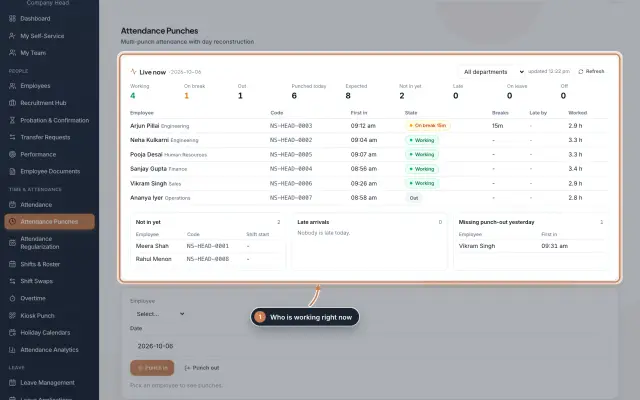 Attendance: punches and the daily registerHow punches reach HRMS Core, how to follow them live, record a missed punch, read each employee's day log, keep the daily register and close the month for payroll.Guide
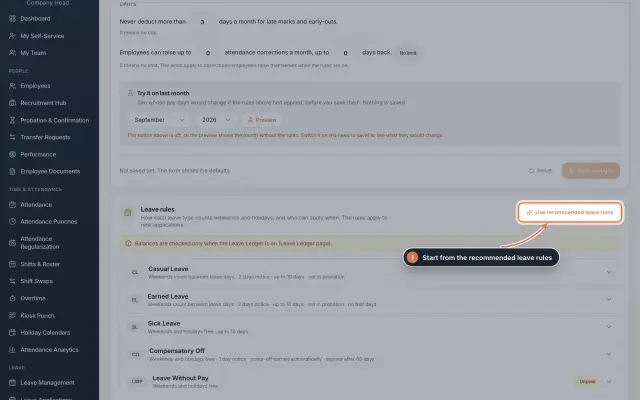 Leave: rules, applications and approvalsSet up your leave types and their rules, apply for leave on an employee's behalf with a live check of the days, and approve or reject applications.Guide
 The employee app for office staffA tour of the ZeniaHR app for HRMS Core staff: signing in, starting your shift, attendance, leave, the company wall and your profile.GuideApp
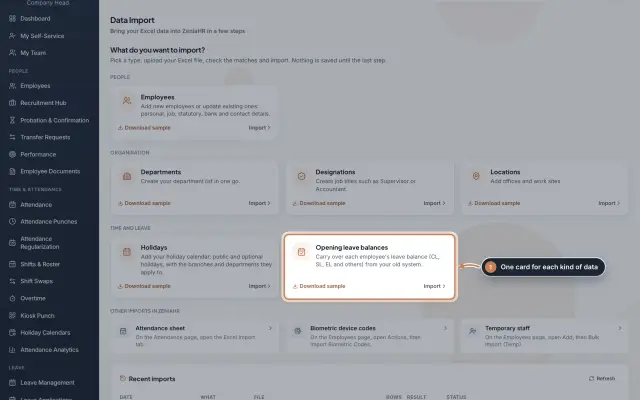 Data Import moduleBring your Excel or CSV data into ZeniaHR in four steps: employees, departments, designations, locations, holidays and opening leave balances, each checked row by row before anything is saved.Module
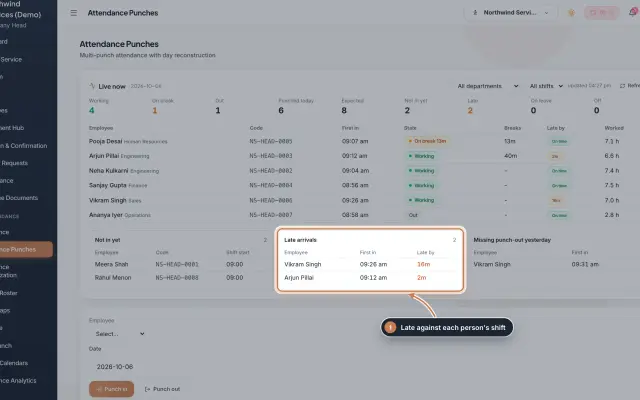 Attendance Punches moduleThe punch register of HRMS Core: who is in right now, every punch of a day, the month's payable days and the penalties the attendance rules add.Module
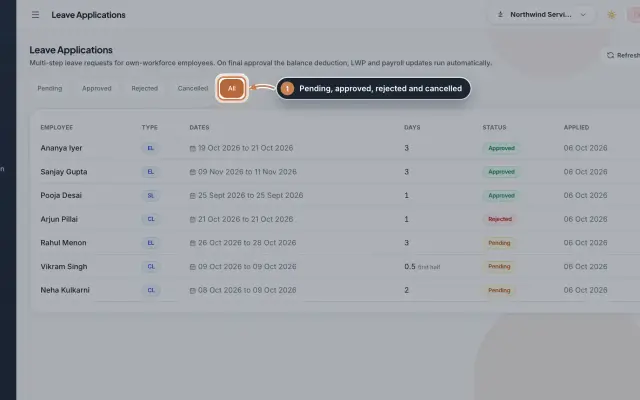 Leave Applications moduleEvery leave application with the days the rules count, its approval steps from the manager to HR, and what happens on approval or when approved leave is cancelled.Module
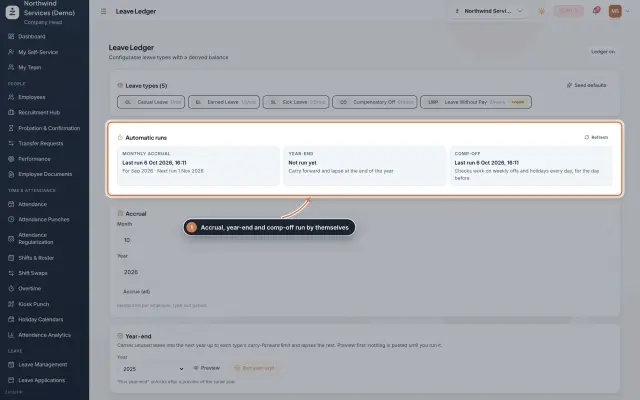 Leave Ledger moduleLeave balances built from monthly accrual, approved leave and comp-off, with year-end carry forward, manual entries and leave encashment.Module
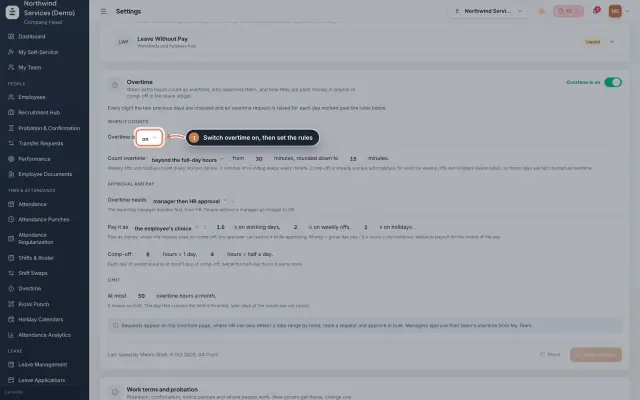 Overtime moduleOvertime found in the punches or raised by HR, approved by the manager and HR, and paid as money in payroll or as comp-off in the leave ledger.Module
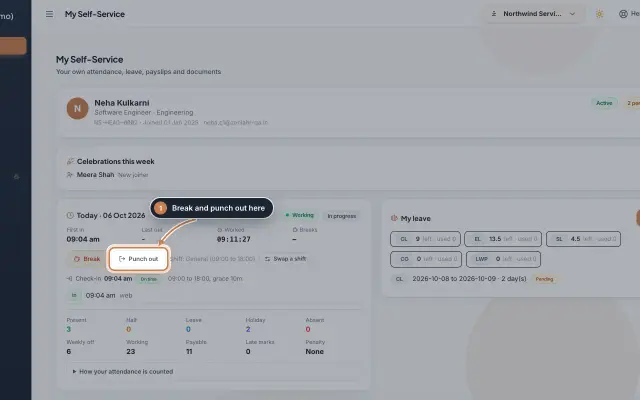 My Self-Service moduleEvery employee's own page on the web: punch in and out, see the month's attendance, apply for leave, ask for corrections and work from home, pick optional holidays and find payslips.Module
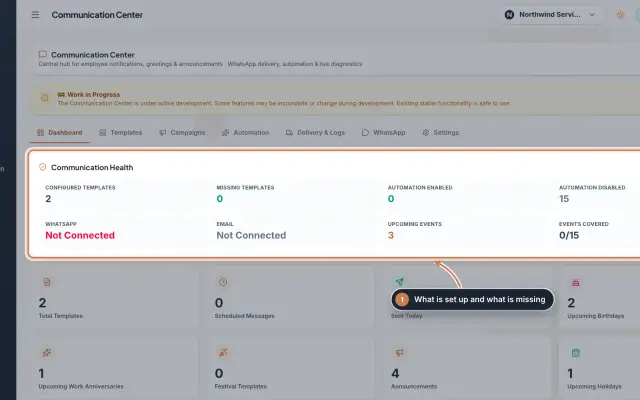 Communication Center module (Beta)Greeting and notice templates, birthday and anniversary wishes, announcements for the employee app and WhatsApp delivery with a safe test mode, in one place.Module
- Attendance softwareSee how it works on the ZeniaHR website