Finance & Compliance module (Beta)
Employee loans and salary advances with their EMI schedules and approvals, the statutory filing calendar for PF, ESI, PT, TDS, GST and LWF, and loan and compliance reports, in one place.
Key screens
See what needs attention
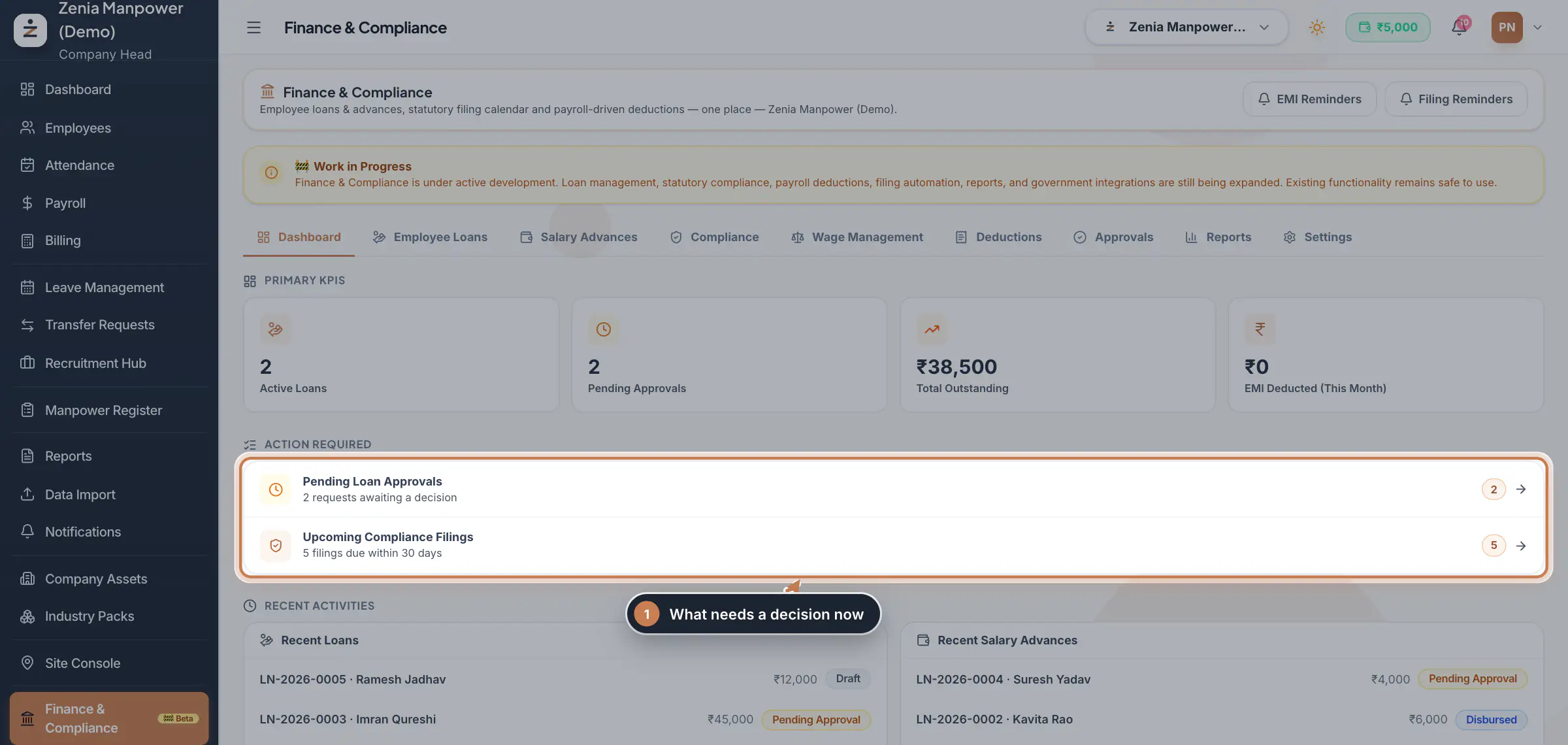
In the sidebar, click Finance & Compliance. Dashboard shows the active loans, the requests waiting for approval, the total still to be recovered and this month's EMI deductions. Action Required lists only what needs you, such as pending loan approvals and filings due within 30 days; click a line to open it. Below are the recent loans, advances, EMI deductions and compliance actions, and quick actions to start a loan or an advance. EMI Reminders and Filing Reminders at the top send reminders for the EMIs and filings due within 30 days or overdue: to HR and the Company Head, and for an EMI to the employee too, in the app's notifications, and by email to HR and the Company Head when email sending is set up.
 Full size
Step 1 Find a loan
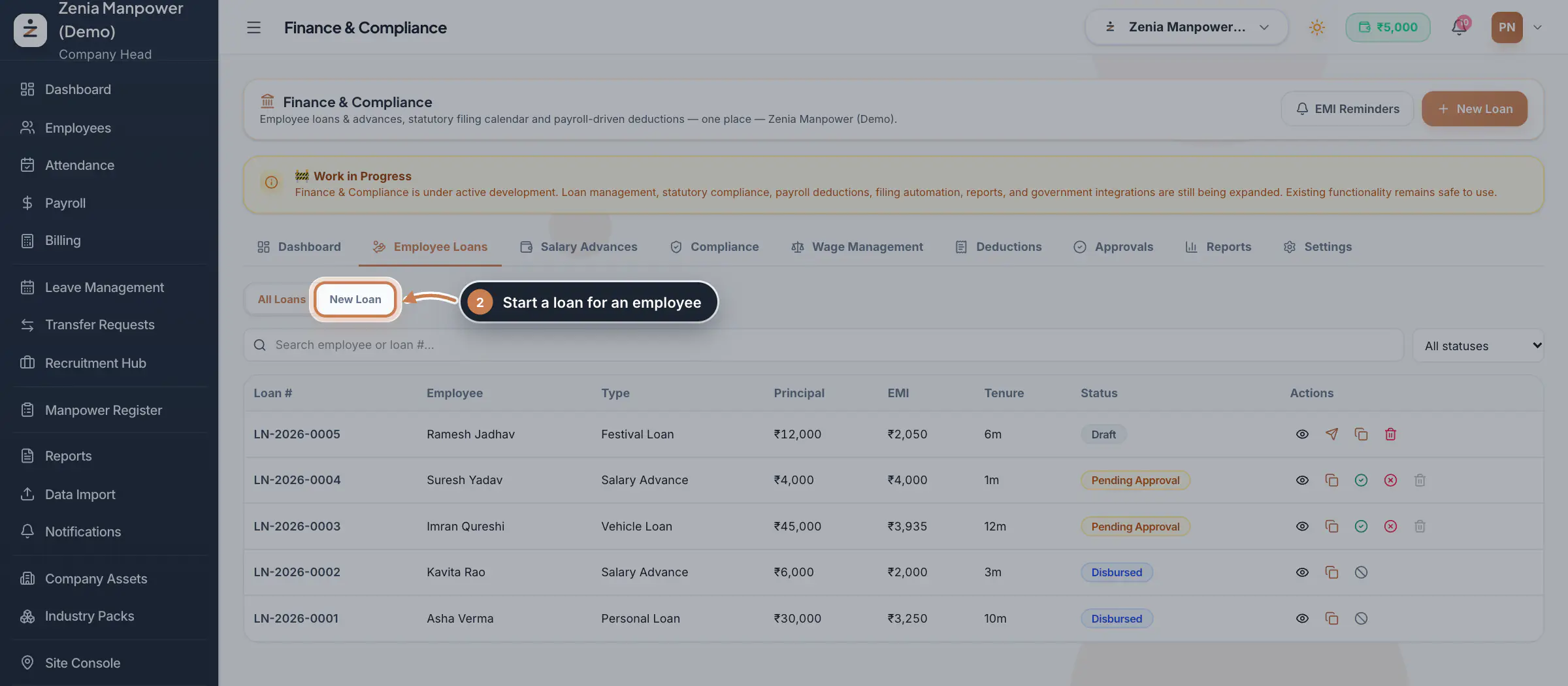
Click Employee Loans. All Loans lists every loan and advance with its number, employee, type, principal, EMI, tenure and status: Draft, Pending Approval, Approved, Disbursed, Running, Completed, Closed or Rejected. Search by employee or loan number, or pick a status. The icons on a row view it, submit a draft, copy it as a new draft, approve or reject it, mark it disbursed, close it or delete a draft.
 Full size
Step 2 Create a loan
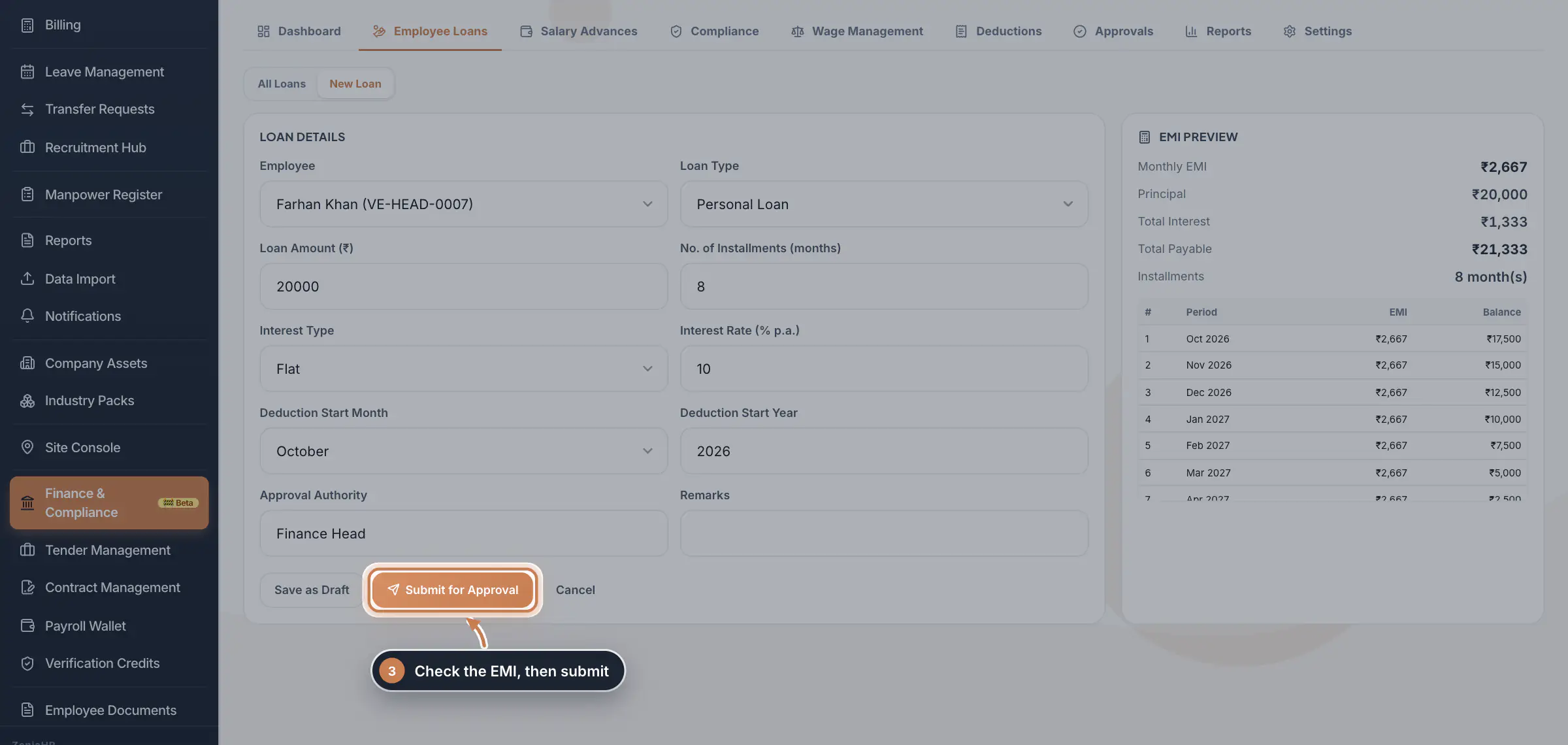
Click New Loan. Pick the Employee and the Loan Type; the type fills in its interest type and rate. Enter the Loan Amount, the No. of Installments (months), the Interest Type (Flat, Reducing or none) and Interest Rate, the month and year the deductions start, and who approves it. The EMI Preview on the right shows the monthly EMI, the total interest, the total to be repaid and each month's instalment and balance. Click Submit for Approval, or Save as Draft to finish later.
 Full size
Step 3 Give a salary advance
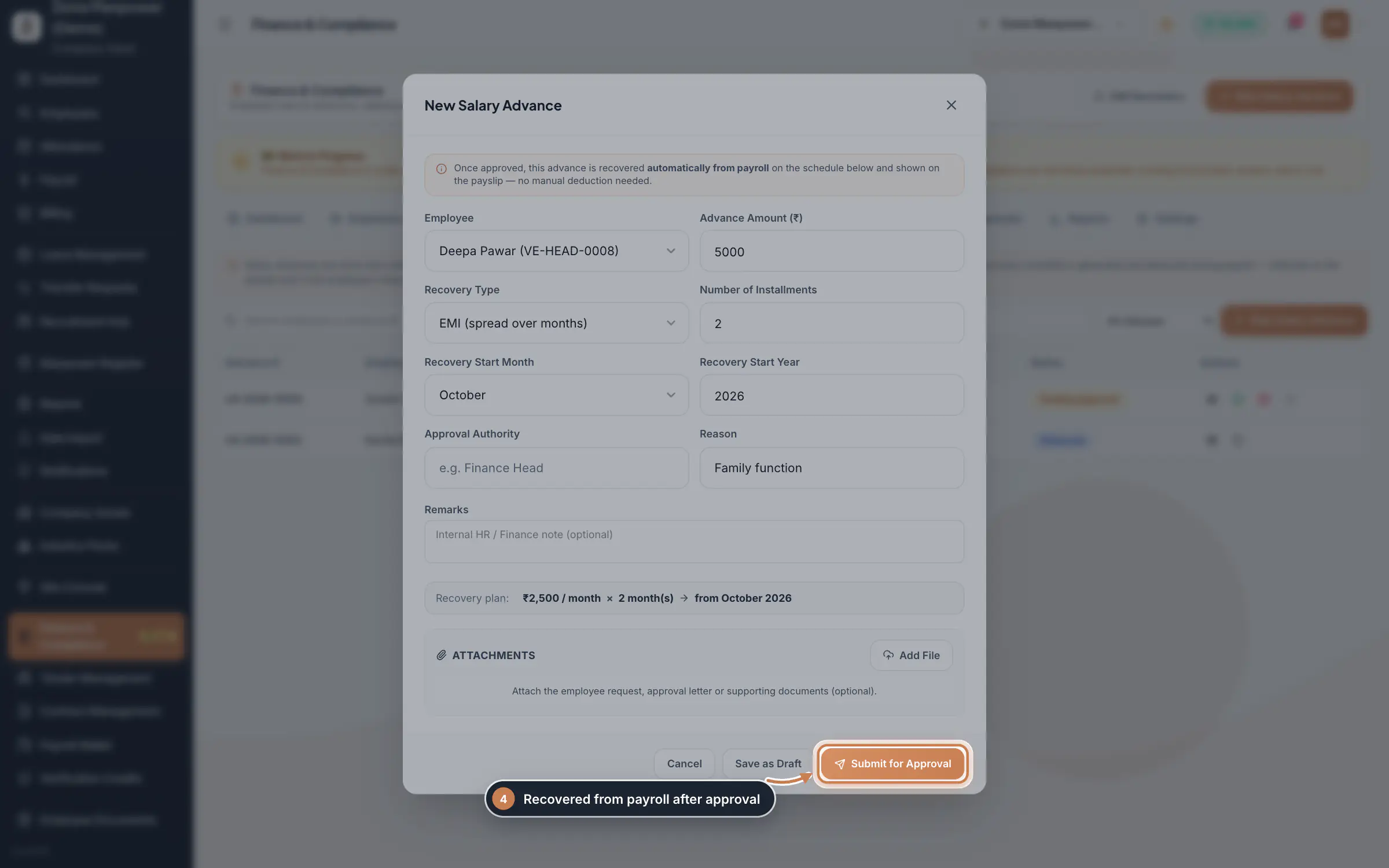
Click Salary Advances, then New Salary Advance. Pick the employee and enter the Advance Amount. Under Recovery Type, choose One-Time to recover it in a single month, or EMI to spread it over a number of instalments, then the month recovery starts and the reason. The Recovery plan line shows what will be deducted each month. Attach the request or approval letter with Add File if you like, and click Submit for Approval. Advances carry no interest.
 Full size
Step 4 Approve or reject requests
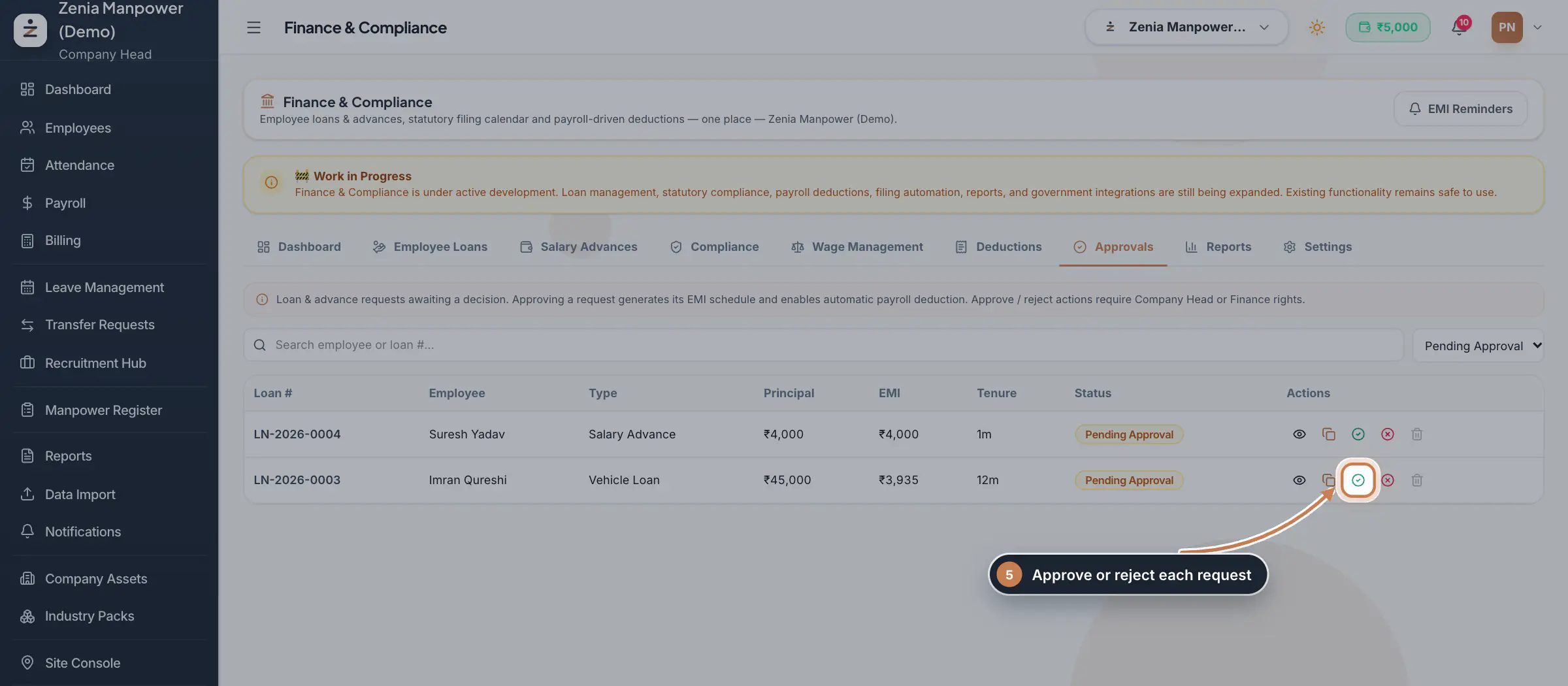
Click Approvals to see every loan and advance waiting for a decision. Click the tick to approve or the cross to reject; a rejection asks for the reason. Approving builds the instalment schedule and starts the payroll deductions from the chosen month. When the money has been paid to the employee, mark the loan Disbursed with its row's icon.
 Full size
Step 5 Follow a loan's instalments
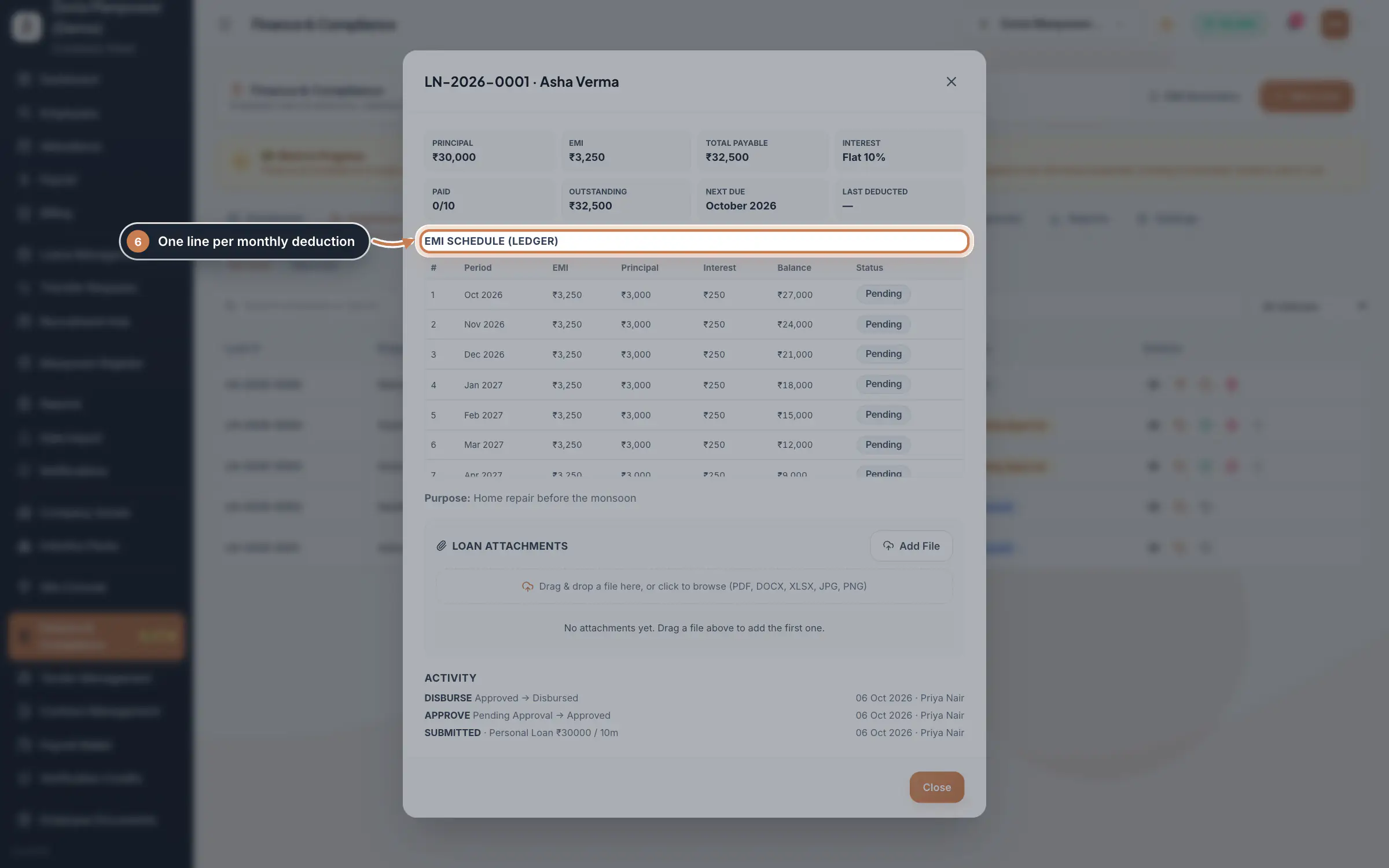
Click the eye on a loan to open it. The top shows the principal, EMI, total payable, interest, instalments paid, the amount outstanding, the next due month and the last deduction. EMI Schedule (Ledger) has a line for each month with the EMI, its principal and interest, the balance and whether it is Paid or Pending. Add papers under Loan Attachments; Activity records who submitted, approved and disbursed it.
 Full size
Step 6 Keep the filing calendar
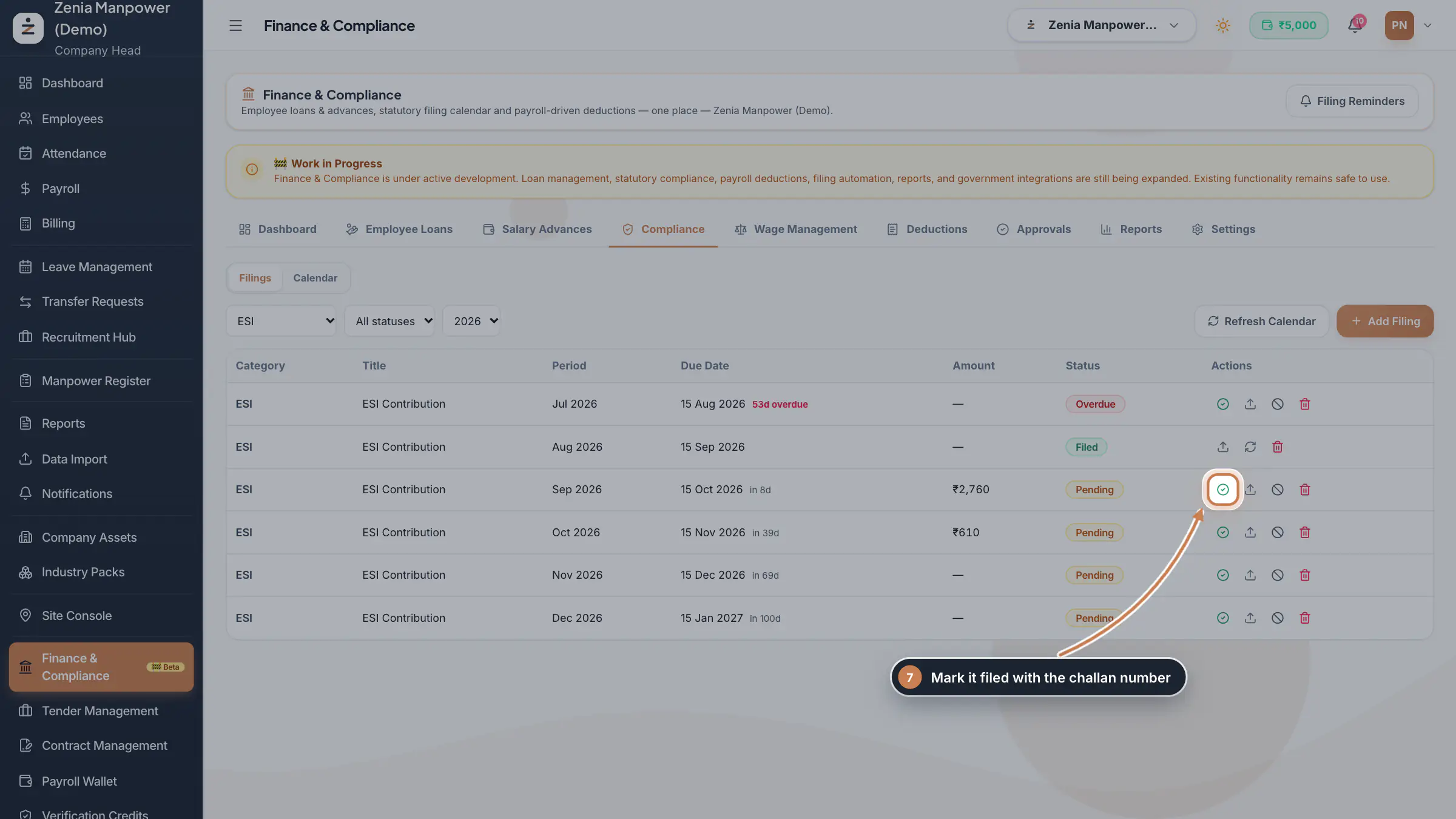
Click Compliance. Filings lists each statutory filing with its period, due date, amount and status: Pending, Overdue (with the days overdue), Filed or Waived. Filter by category, status and year, or click Calendar to see the year month by month. On a row, click the tick to mark it filed with the filed date, the amount paid and the challan, ARN or acknowledgement number, and the upload arrow to attach the challan. Refresh Calendar adds the filings that follow from your statutory setup, and Add Filing adds one of your own, such as a licence renewal.
 Full size
Step 7 Run the reports
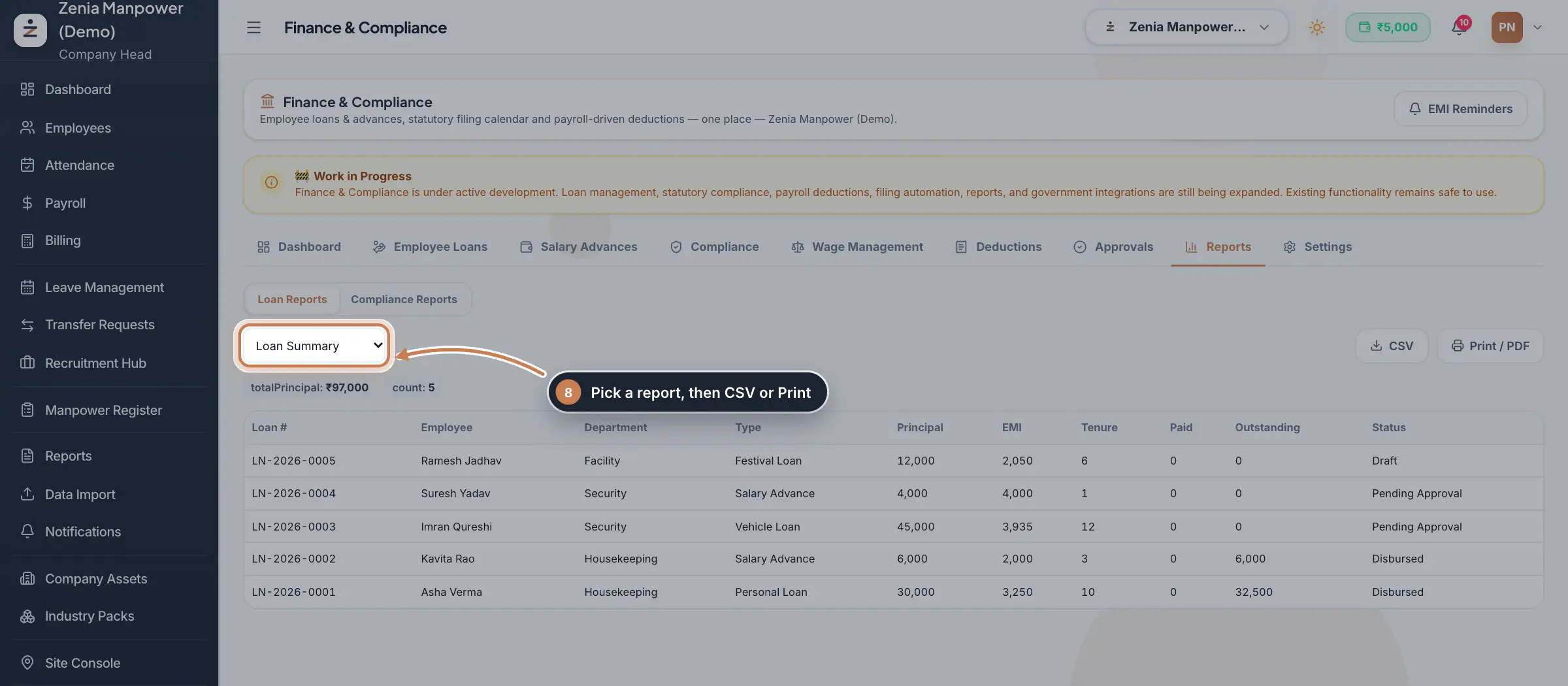
Click Reports. Under Loan Reports, pick the Loan Summary, Loan Ledger, Outstanding Report, Monthly Deduction, Completed Loans or Interest Report, then click CSV or Print / PDF. Compliance Reports totals the pending, overdue and filed filings and their amounts by category. Deductions shows the same statutory summary next to a note on how PF, ESI, PT, LWF and TDS are worked out in payroll.
 Full size
Step 8 Set up loan types
Click Settings. Loan Types lists the loan products, such as Salary Advance, Personal Loan, Festival Loan and Vehicle Loan, each with its default interest type and rate. Click Add Loan Type, or the eye on a type to change it: its name and code, default interest, the largest amount and tenure allowed, and whether it is active. Under Compliance Calendar, Refresh Calendar and Send Filing Reminders do the same as on the other tabs.
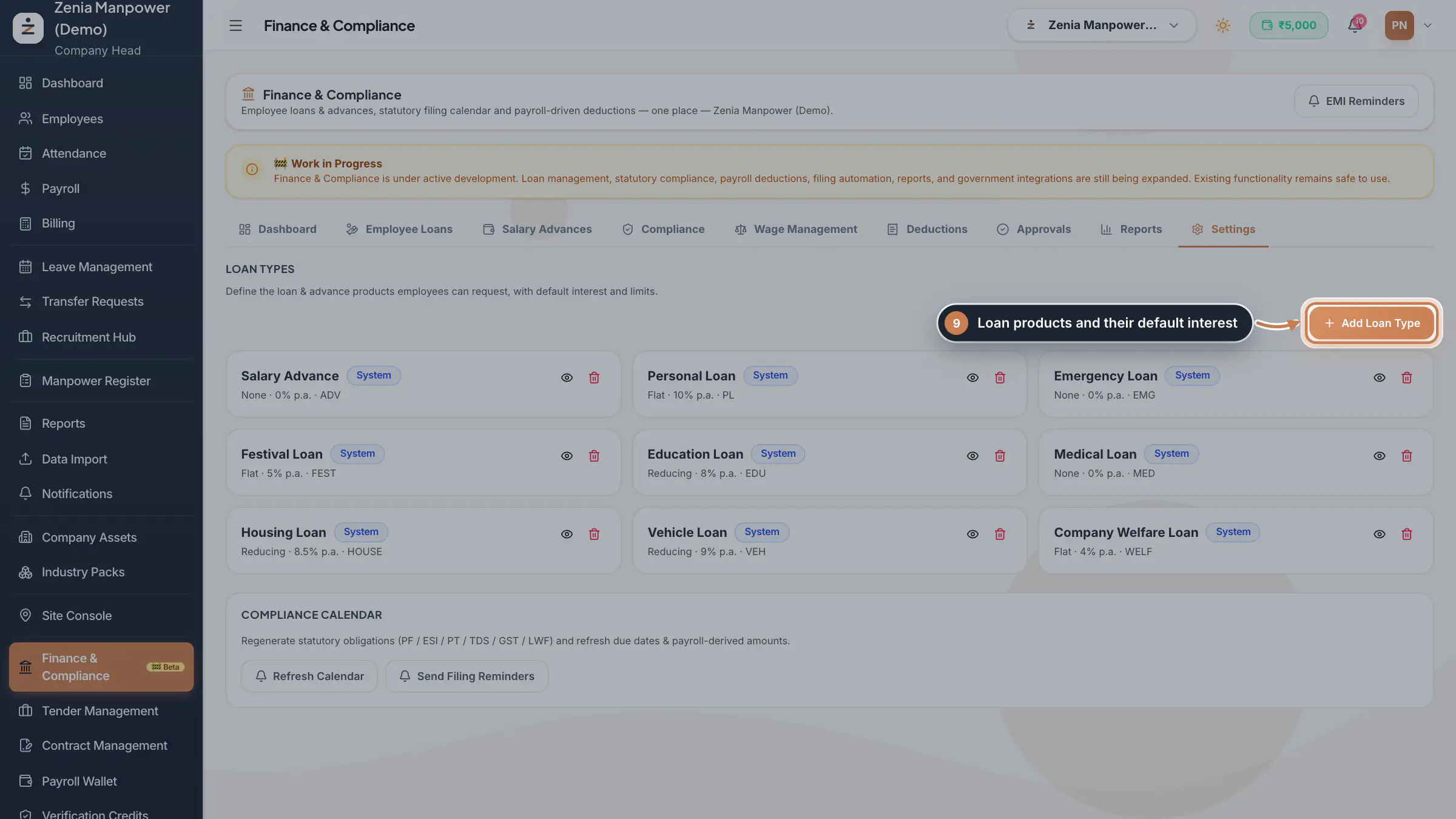 Full size
Step 9
What it does
Finance & Compliance keeps two kinds of company money matters together. On the loans side, you give employees loans and salary advances: ZeniaHR works out the monthly EMI, builds the instalment schedule when a loan is approved and recovers each instalment from payroll, where it shows on the payslip. On the compliance side, a filing calendar lists each statutory return and payment that falls due, such as the PF ECR, ESI contribution, Professional Tax, TDS, GST and Labour Welfare Fund, so you can mark each one filed and keep its challan. The module is marked Beta and shows a Work in Progress note while it is being finished.
Who uses it
- The Company Head, HR and Finance open it from Finance & Compliance in the sidebar (in the Payroll group for HRMS Core companies). It is a premium module: on the Free plan it shows a small lock in the sidebar.
- HR and Finance create loans, advances and filings. Approving and rejecting loans is for the Company Head and Finance, and so is closing a loan, deleting a draft and waiving a filing.
How it connects
Approved loans and advances are recovered in Payroll: each month's instalment is deducted when the payroll for that month is worked out, and shows on the payslip as a loan or advance line. The compliance calendar is made from your company's statutory setup in Settings, Statutory Payroll Rules, and its amounts come from payroll. Wage Management opens the same state minimum wage master as Settings, Labour Compliance. Detailed statutory registers, challans and the ECR file are in the Report Library.
Questions
When is the first EMI deducted?
In the deduction start month you chose, when that month's payroll is worked out after the loan is approved. Nothing is deducted for a draft, a pending or a rejected loan.
Can a loan be deleted?
Only a draft. A loan that was submitted, approved or rejected stays as a company record; close an approved loan instead to stop its remaining deductions.
Why is Finance & Compliance locked?
It is part of the paid plans. On the Free plan it shows a small lock in the sidebar; the Company Head can upgrade from there.
Where are the PF and ESI registers and the ECR file?
In the Report Library, under PF Reports, ESI Reports and Statutory Registers.
Related
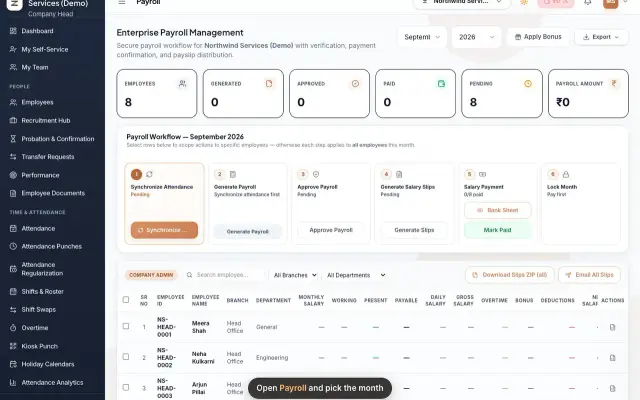 Run payroll and share payslipsRun the monthly payroll for your own employees in six steps, from synchronizing attendance to approving salaries, generating payslips, sharing them and paying.Guide29 s video
 Employees moduleThe staff directory, where you add people, open an employee profile and approve new joiners.Module
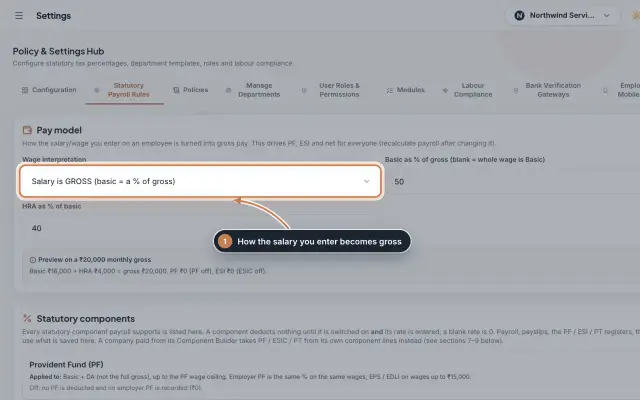 Statutory Payroll RulesSet how the salary you enter becomes gross pay, switch PF, ESIC and Professional Tax on with their rates, keep state PT slabs and day rates, and check a worked example before you save.Module
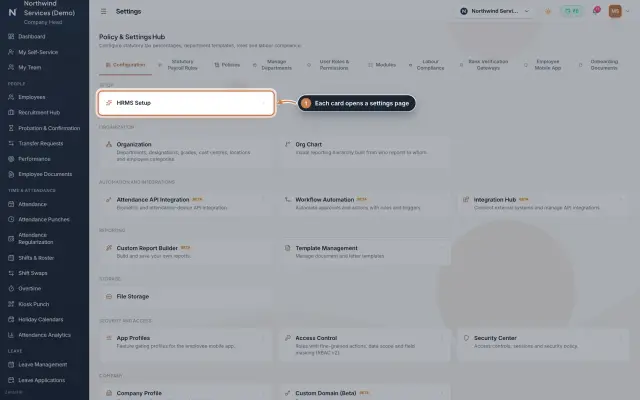 Settings moduleThe Policy & Settings Hub: a card for every settings page, and tabs for statutory rules, policies, departments, user permissions, modules, labour compliance, bank verification, the employee app and onboarding documents.Module
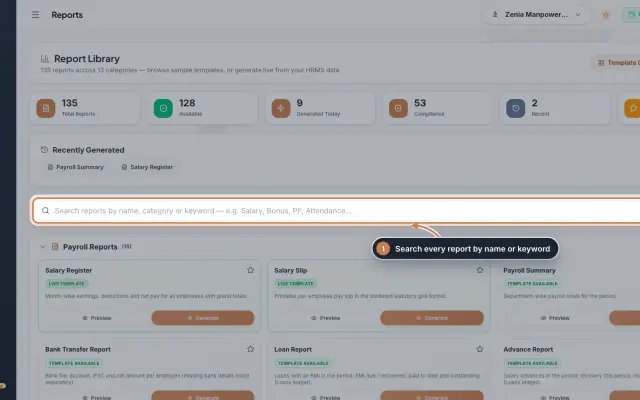 Report Library module135 ready reports in 13 groups, from the salary register and payslips to attendance, leave, employee, document, PF, ESI, tax, bonus and wage registers, generated live from your data as a document you can edit, print and export.Module
- Payroll softwareSee how it works on the ZeniaHR website