Run payroll and share payslips
Run the monthly payroll for your own employees in six steps, from synchronizing attendance to approving salaries, generating payslips, sharing them and paying.
Before you start
- You need the Company Head, HR or Finance role.
- Each employee needs a monthly salary on their profile. Employees without one are not paid in the run.
- Make sure the month's attendance and leave are complete. Payroll reads them when you synchronize attendance.
Steps
Open Payroll and pick the month
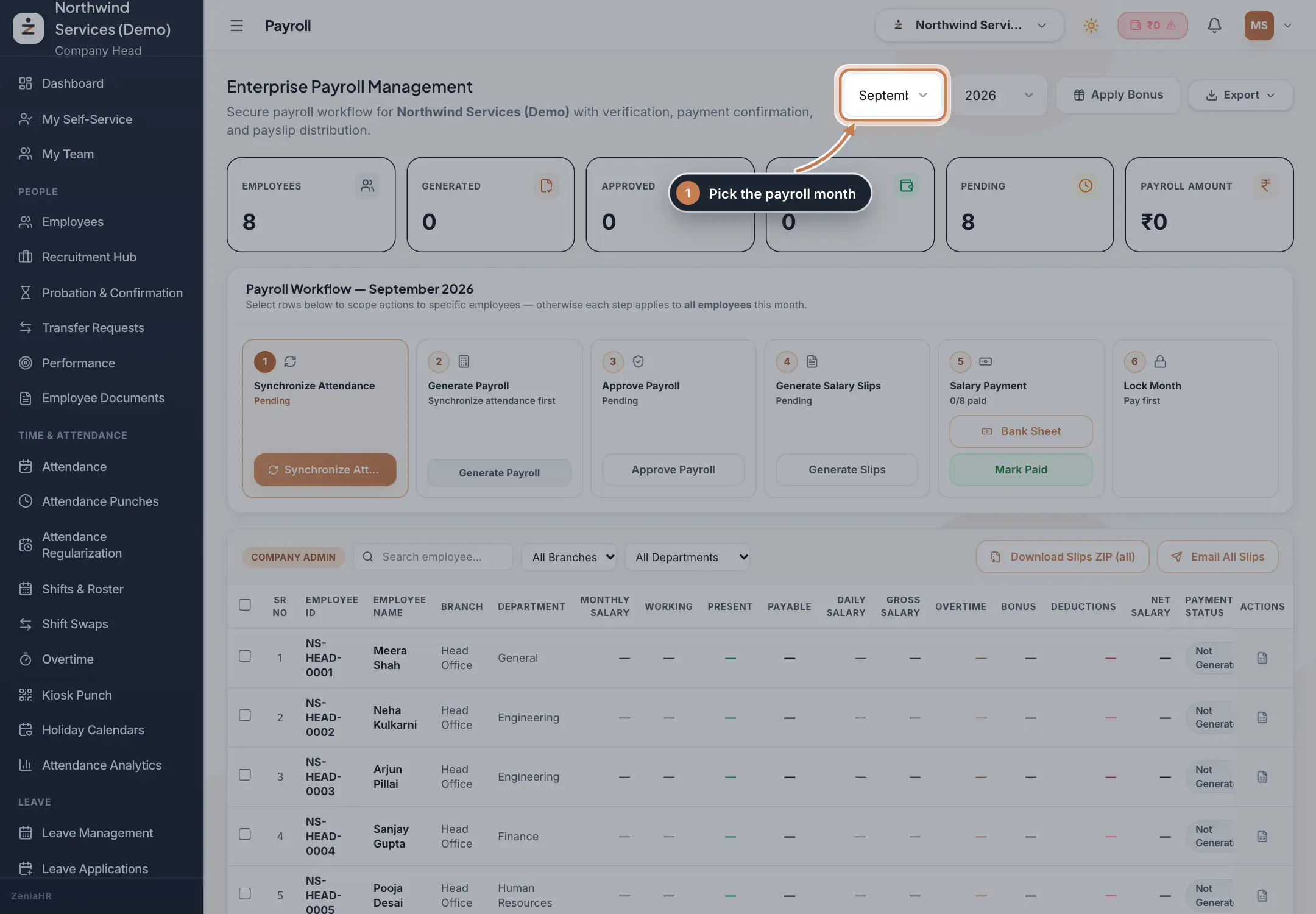
In the sidebar, under Payroll, click Payroll. At the top right, choose the month and the year. The cards show how many employees there are and how many are Generated, Approved, Paid and Pending, with the total Payroll Amount. Below them, Payroll Workflow shows the six steps for that month.
 Full size
Step 1 Tip Each step applies to all employees of the month. To act on some people only, tick their rows in the table first.
Synchronize attendance
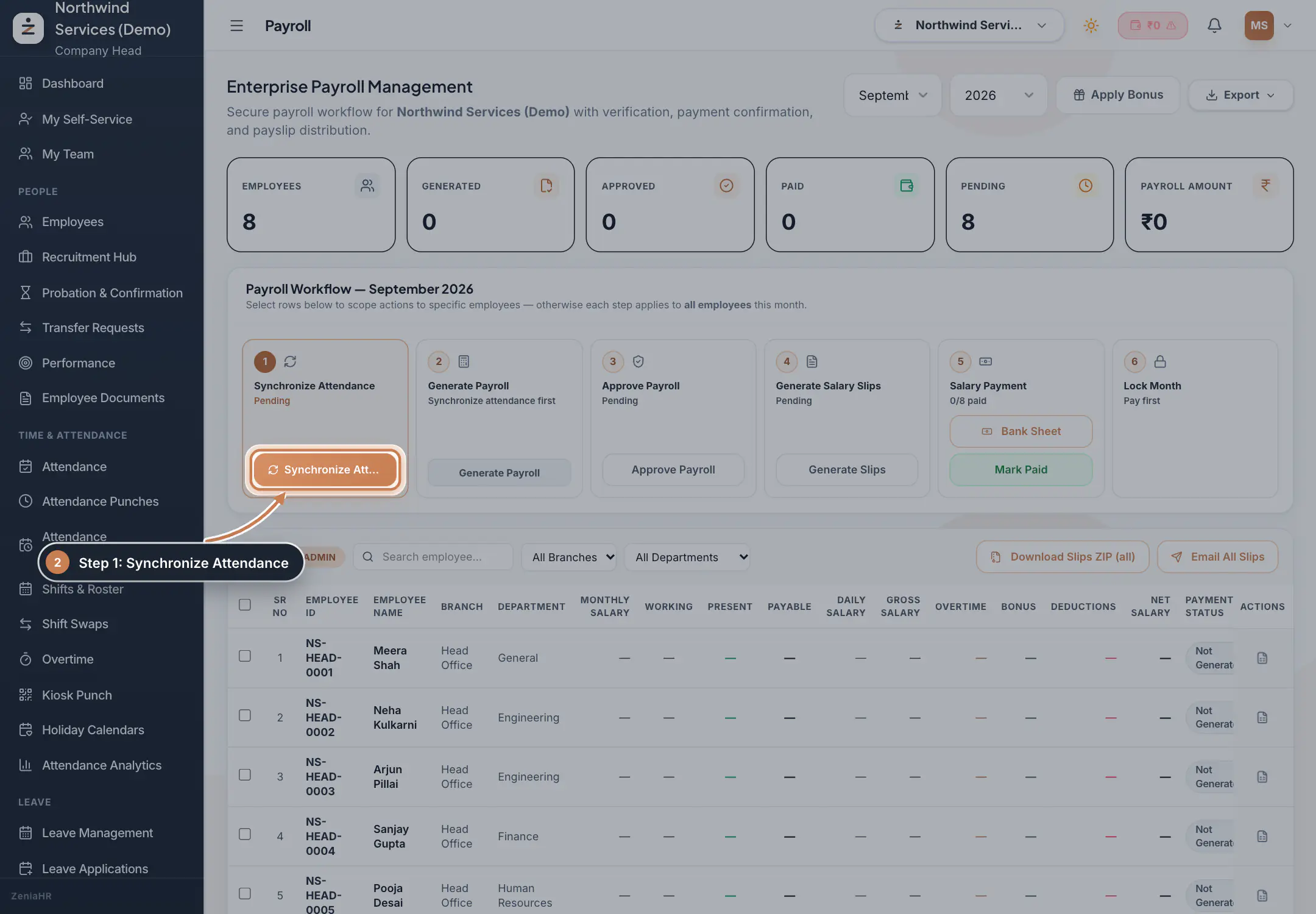
Click Synchronize Attendance. ZeniaHR reads the month's attendance, leave and overtime for everyone and works out their payable days.
 Full size
Step 2 Check the attendance summary
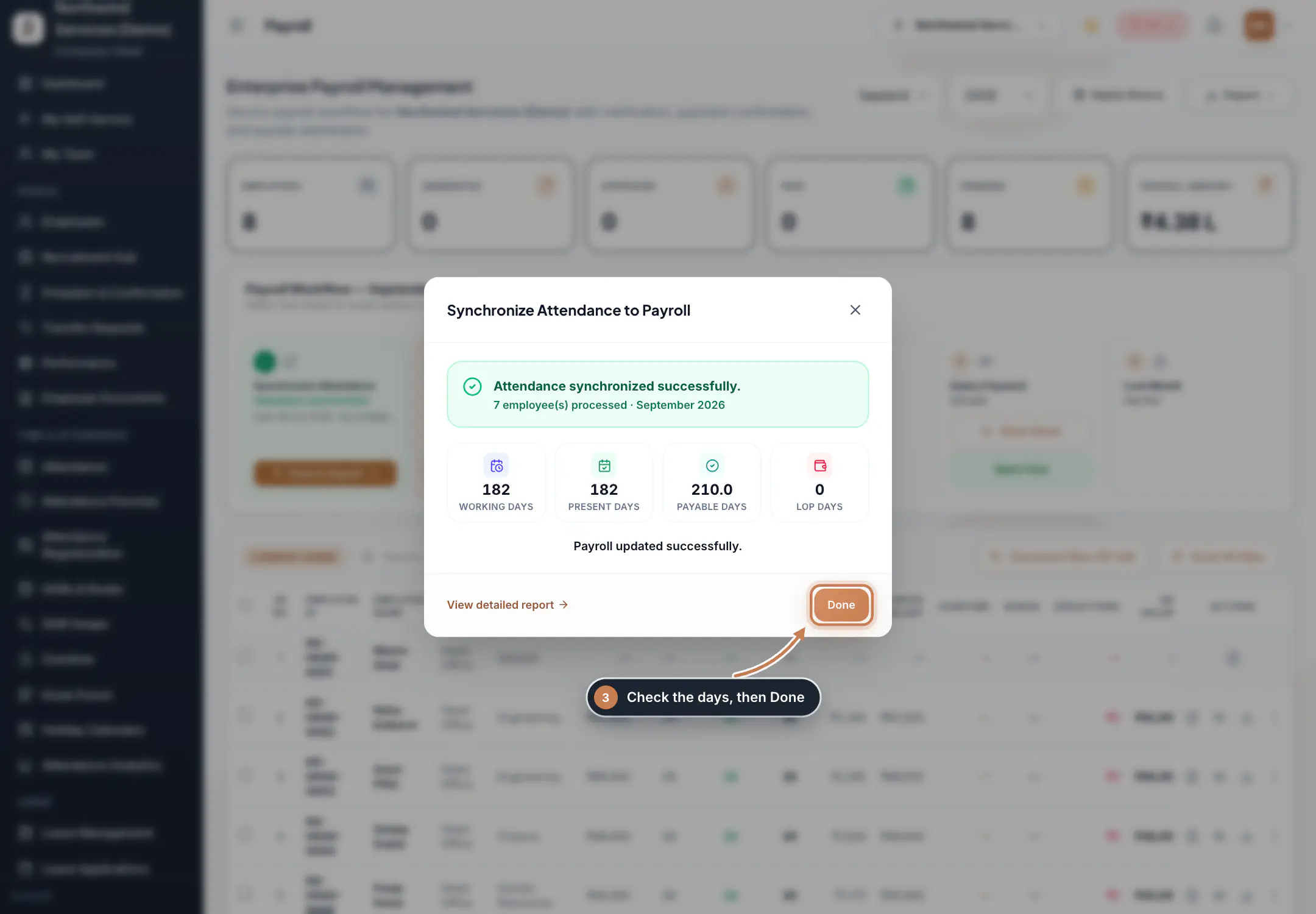
The summary shows the Working Days, Present Days, Payable Days and LOP Days it found, and how many employees were processed. Click View detailed report to see each person, or Done to continue.
 Full size
Step 3 Generate the payroll
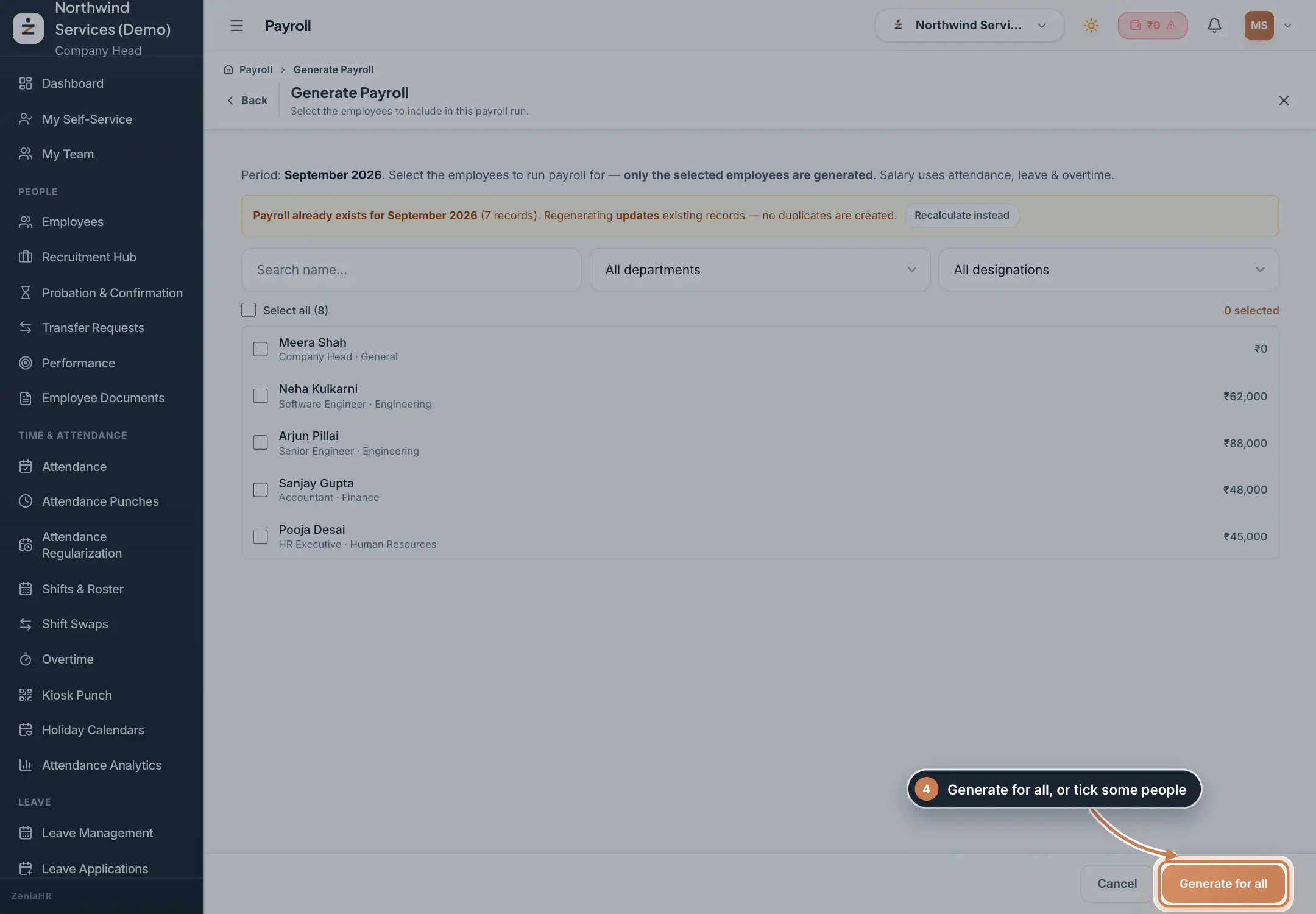
Click Generate Payroll. Tick the employees to include, or leave them all unticked and click Generate for all. Salaries are worked out from the payable days, with unpaid leave and approved overtime applied. Running it again for the same month updates the existing records; it never creates duplicates.
 Full size
Step 4 Approve the payroll
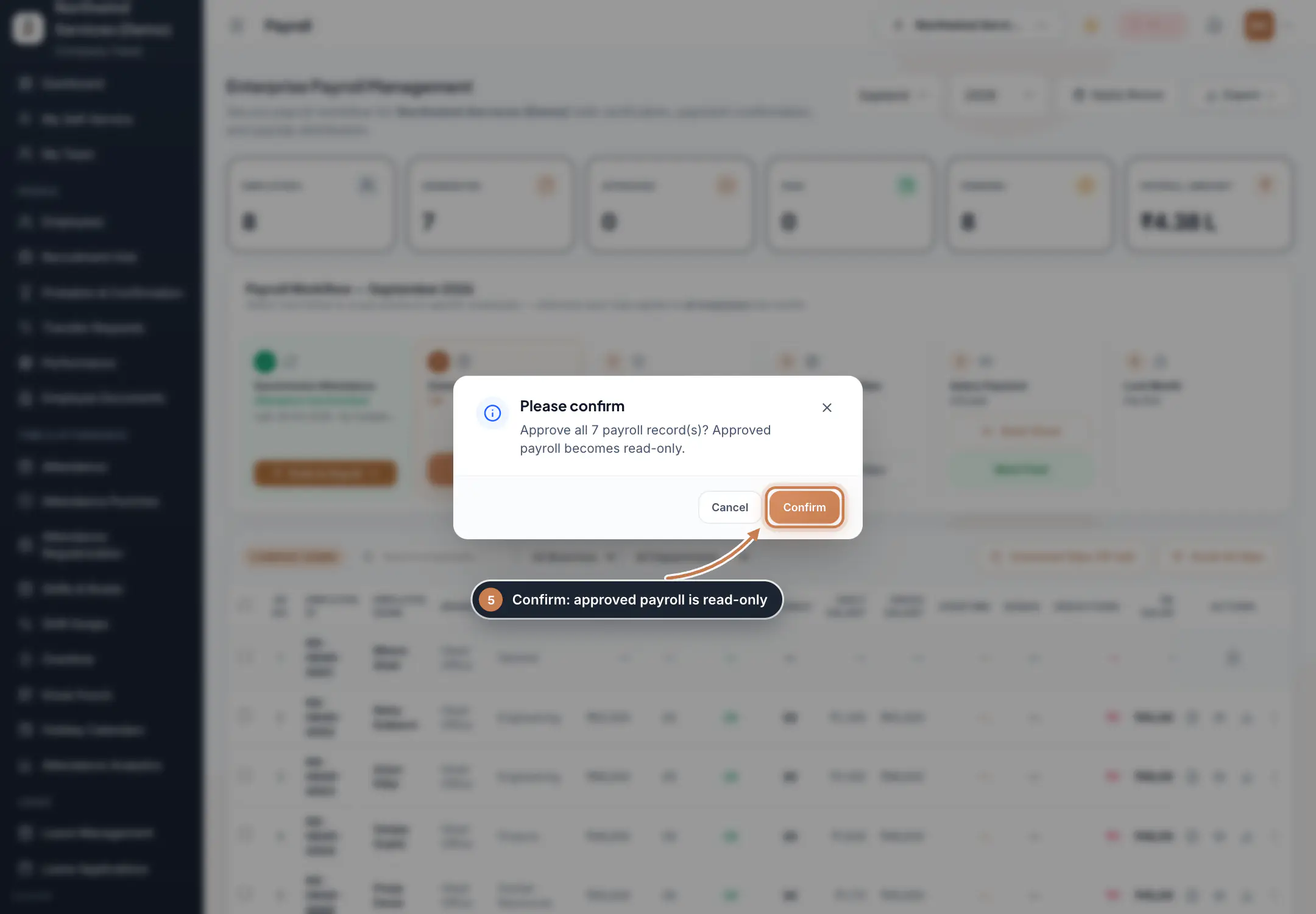
Check the salaries in the table, then click Approve Payroll and Confirm. Approved payroll becomes read-only.
 Full size
Step 5 Generate the salary slips
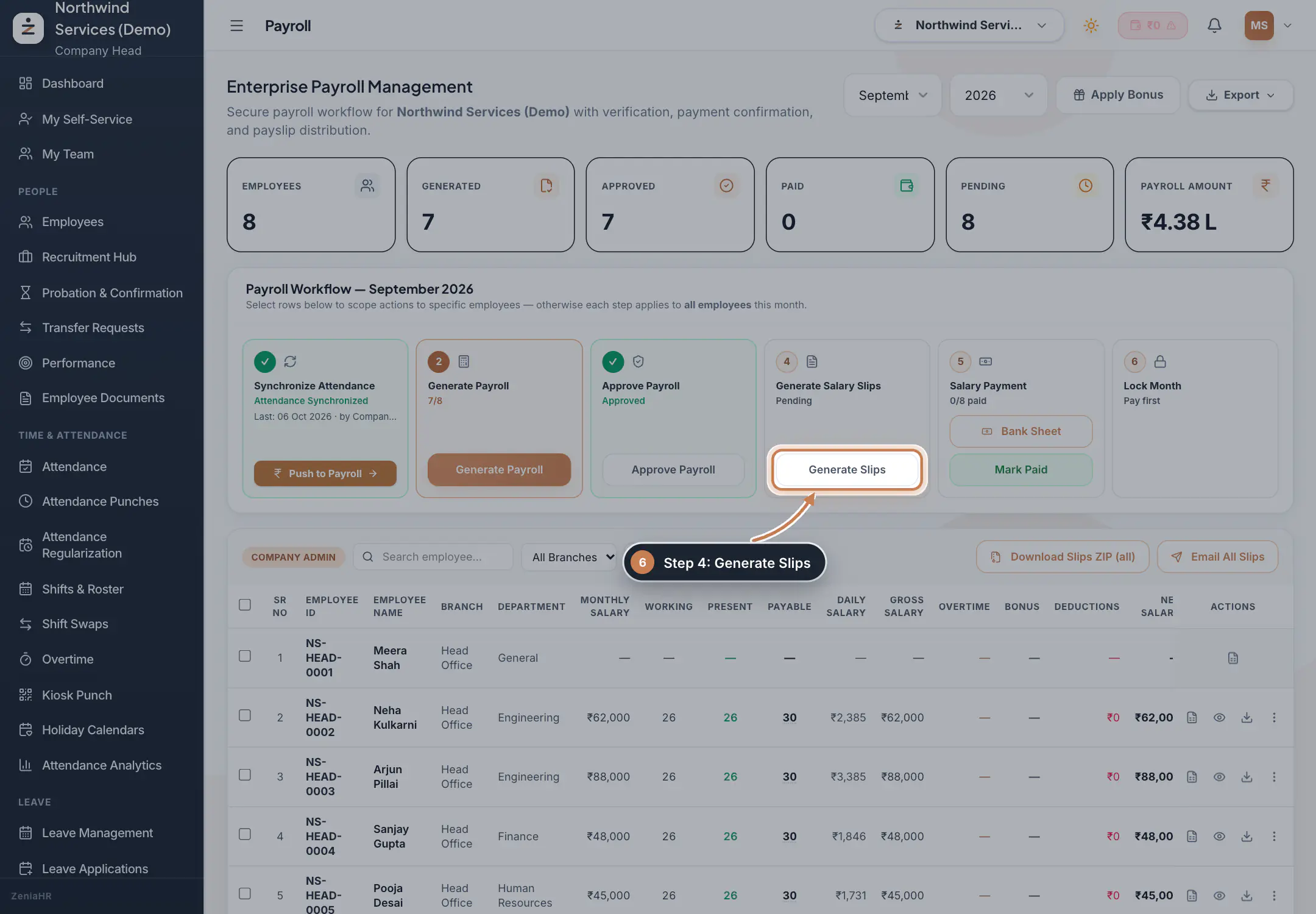
Click Generate Slips. ZeniaHR creates a payslip for every employee in the run and downloads them to your computer as one ZIP file.
 Full size
Step 6 Share the payslips
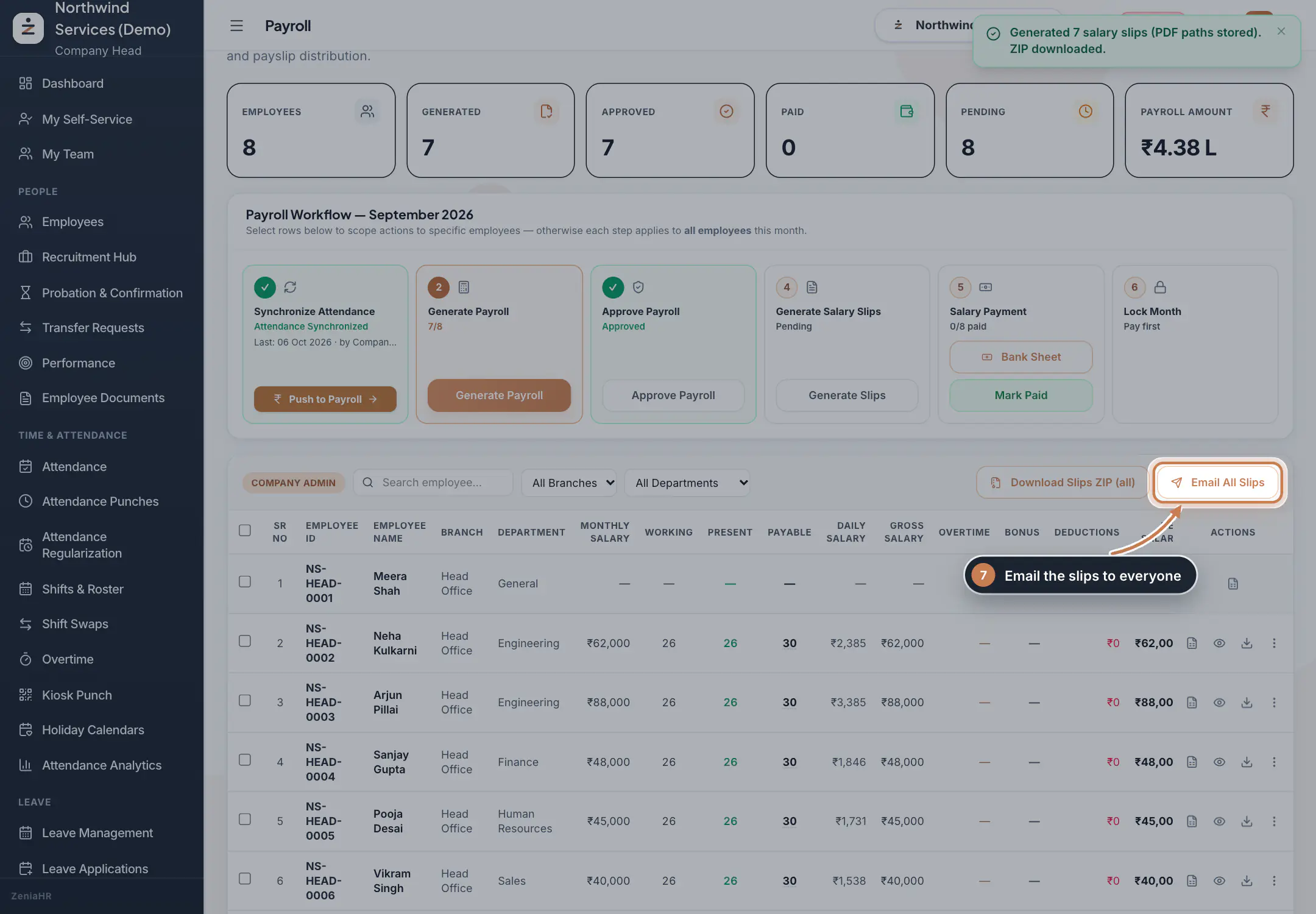
Click Email All Slips and confirm to email each employee their payslip, or click Download Slips ZIP (all) to keep a copy. In the table, the icons at the end of each row let you open, preview or download one person's slip. Employees can also download their payslips from the ZeniaHR app.
 Full size
Step 7 Pay the salaries and lock the month
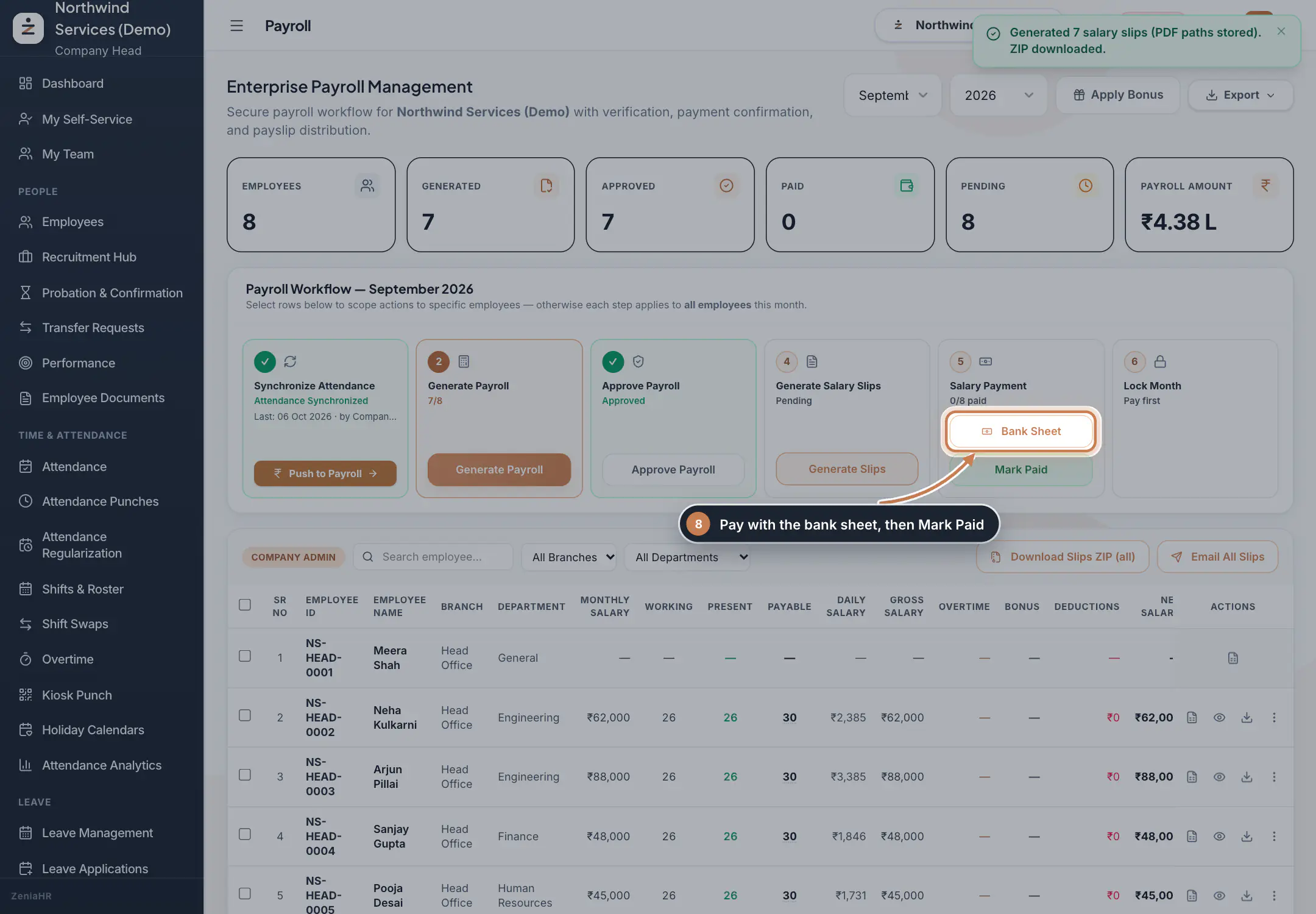
Under Salary Payment, click Bank Sheet to download the salary transfer sheet for your bank. When the salaries are paid, click Mark Paid. Finally, use Lock Month to close the month so its payroll can no longer change.
 Full size
Step 8
Questions
An employee shows Not Generated. Why?
They have no monthly salary on their profile, so there is nothing to pay. Add their salary, then synchronize attendance and generate the payroll again.
Attendance changed after I generated payroll. What do I do?
Synchronize attendance again, then generate the payroll again: the existing records are updated with the new days. This works only while the month is not locked.
Can I run payroll for only some employees?
Yes. Tick their rows in the payroll table before you start a step, or tick them on the Generate Payroll page. Each step then applies only to them.
The month is locked and I need to change something.
A locked month cannot be synchronized or changed. Only a Company Head can unlock it, and gives a reason that is kept in the audit log. Unlocking never deletes the payment records. Make the change, then lock the month again.
Related
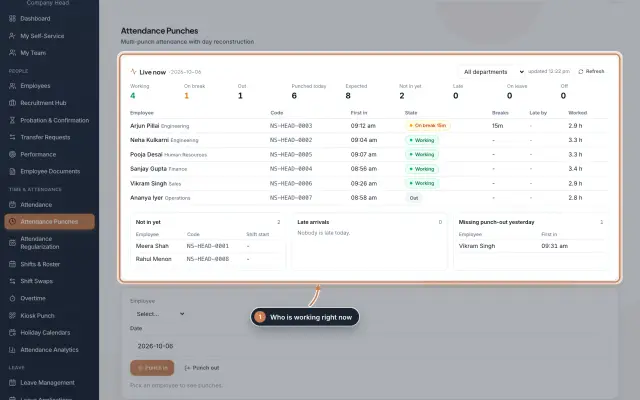 Attendance: punches and the daily registerHow punches reach HRMS Core, how to follow them live, record a missed punch, read each employee's day log, keep the daily register and close the month for payroll.Guide
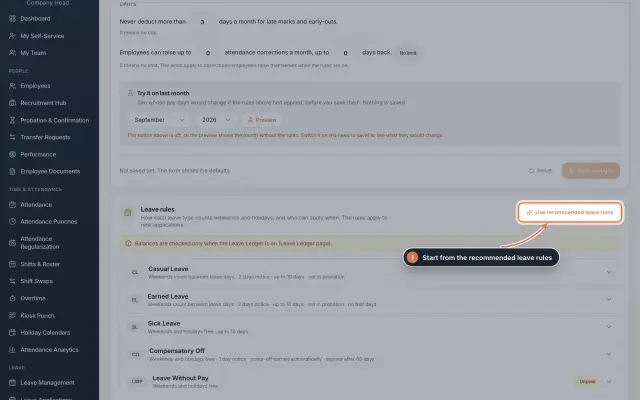 Leave: rules, applications and approvalsSet up your leave types and their rules, apply for leave on an employee's behalf with a live check of the days, and approve or reject applications.Guide
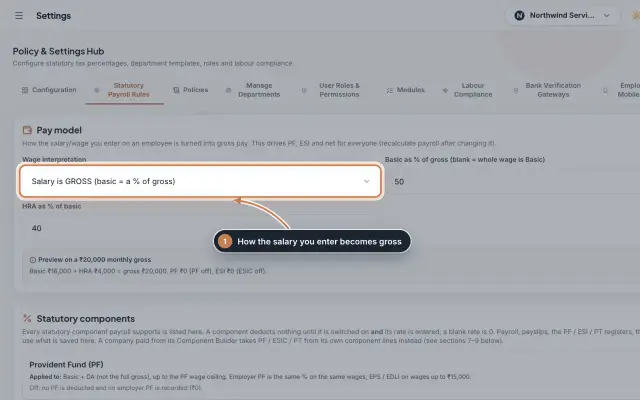 Statutory Payroll RulesSet how the salary you enter becomes gross pay, switch PF, ESIC and Professional Tax on with their rates, keep state PT slabs and day rates, and check a worked example before you save.Module
 Payroll Wallet moduleThe prepaid credit that pays the ZeniaHR payroll processing fee, with its balance, usage, warnings and every credit and charge.Module
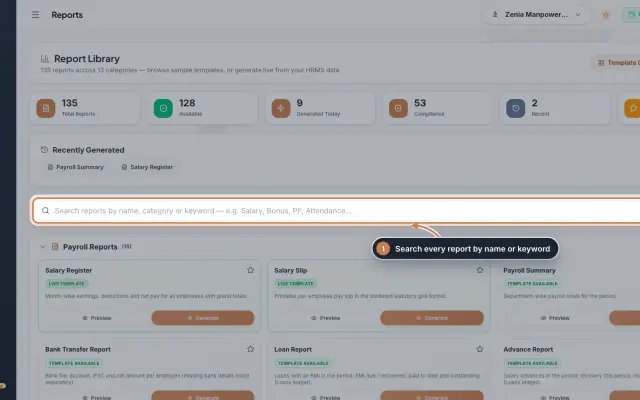 Report Library module135 ready reports in 13 groups, from the salary register and payslips to attendance, leave, employee, document, PF, ESI, tax, bonus and wage registers, generated live from your data as a document you can edit, print and export.Module
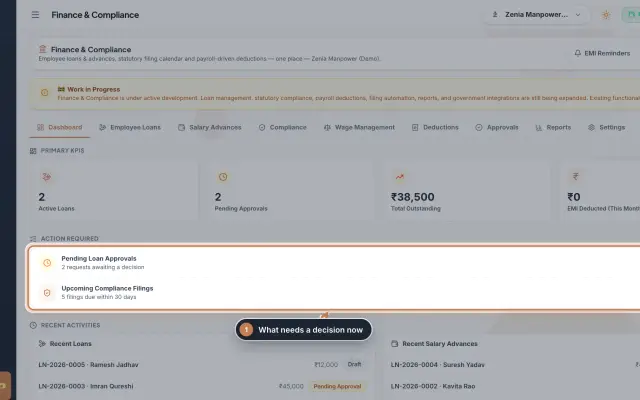 Finance & Compliance module (Beta)Employee loans and salary advances with their EMI schedules and approvals, the statutory filing calendar for PF, ESI, PT, TDS, GST and LWF, and loan and compliance reports, in one place.Module
- Payroll softwareSee how it works on the ZeniaHR website