Leave Calendar module
See who is on leave, day by day, for a whole month: approved leave, leave waiting for approval and half days, by department.
Key screens
Read the month
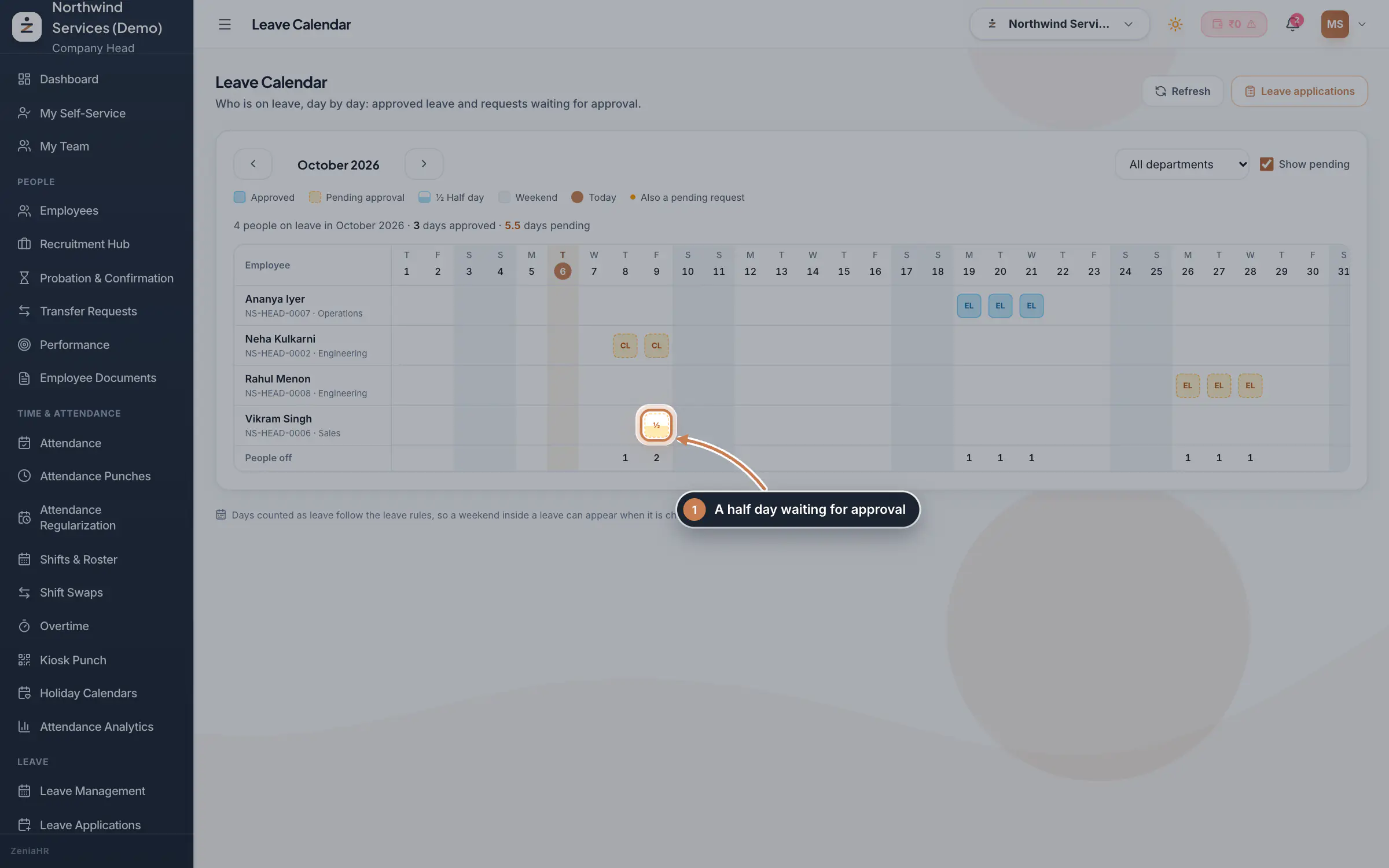
In the sidebar, under Leave, click Leave Calendar. Use the arrows to move between months; This month brings you back. The line above the grid counts the people on leave, the days approved and the days pending. Each square shows the leave type, such as CL or EL: a solid square is approved, a dashed one is waiting for approval, and a small dot marks a day that also has another request pending. The Days column gives each person's approved days, plus pending days after a plus sign. Point at a square to see the leave type and its status. Leave applications opens the applications to decide them.
 Full size
Step 1 Narrow the view
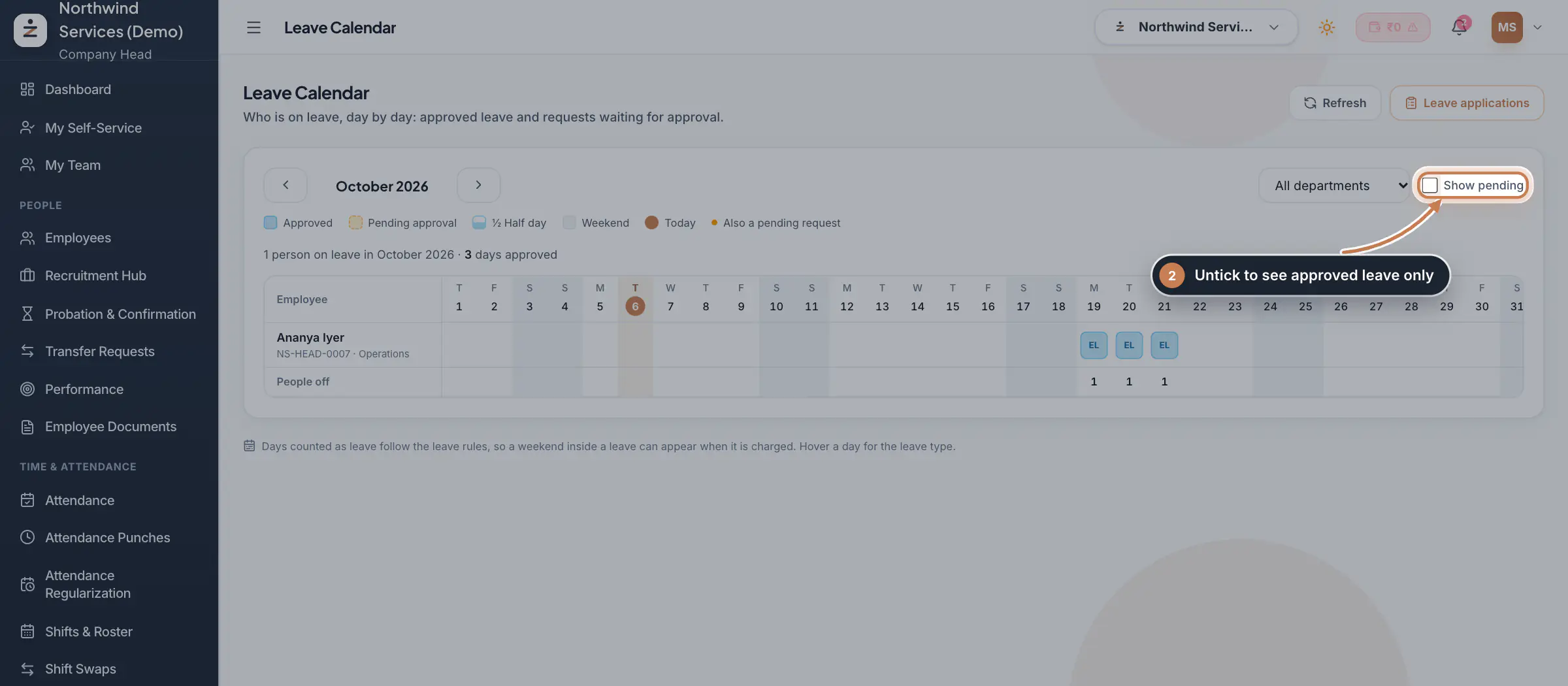
Pick a department to see only its people. Untick Show pending to see approved leave only, the leave you can count on when planning.
 Full size
Step 2
What it does
Leave Calendar shows one month as a grid: a row for each person with leave that month and a column for each day. Approved leave and leave still waiting for approval have different colours, a half day is half filled with a ½, weekends are shaded and today is marked. The People off row at the bottom counts how many people are away each day, so you can spot a day when too many are off before you approve more leave.
The page only reads. Nothing you do here changes a leave.
Who uses it
- The Company Head and HR, for the whole company.
- Managers see the same calendar for their own team on the web under My Team, Leave calendar, and in the app.
How it connects
The calendar shows the applications on Leave Applications: approved ones and, if you choose, the ones still pending. The days shown are the days the leave rules count for each person, using their own weekly offs from Shifts & Roster and the holidays from Holiday Calendars, so a weekend or holiday inside a leave can appear when the rules charge it. The Saturday and Sunday columns are shaded.
Questions
Why is someone missing from the calendar?
Only people with approved leave, or pending leave when Show pending is ticked, in the chosen month and department appear. Rejected and cancelled applications are not shown.
Why does a holiday show as leave?
The leave rules count it: for example a holiday between two leave days counts as leave under the sandwich rule of that leave type. The application's Dates counted as leave on Leave Applications lists the same days.
Related
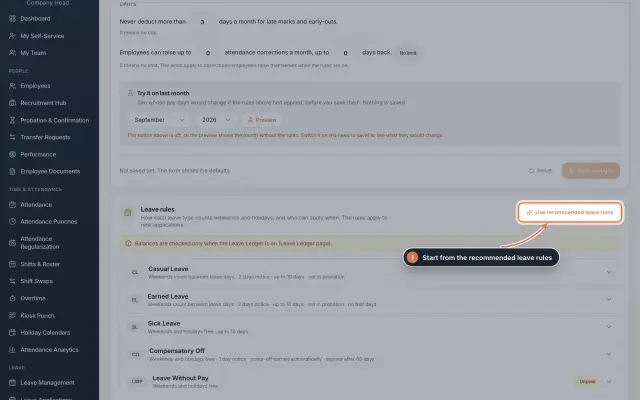 Leave: rules, applications and approvalsSet up your leave types and their rules, apply for leave on an employee's behalf with a live check of the days, and approve or reject applications.Guide
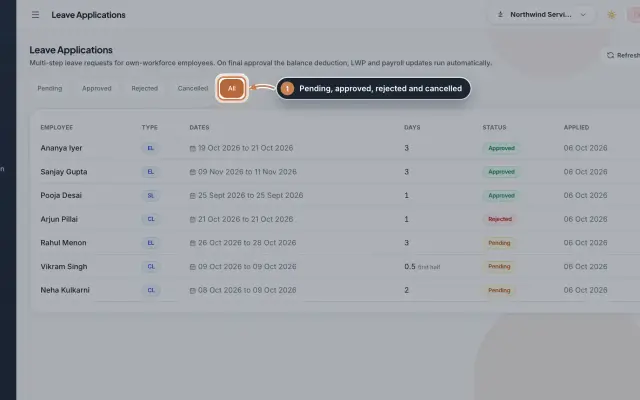 Leave Applications moduleEvery leave application with the days the rules count, its approval steps from the manager to HR, and what happens on approval or when approved leave is cancelled.Module
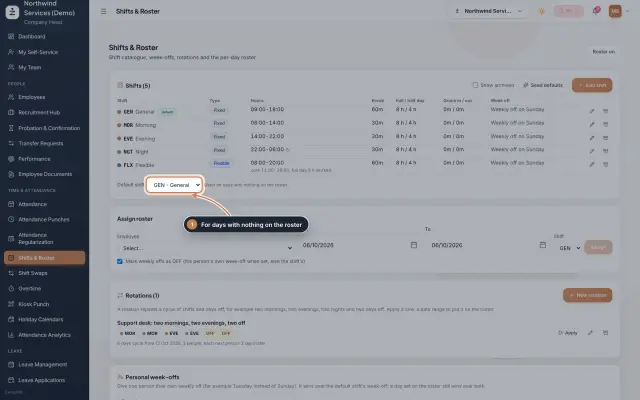 Shifts & Roster moduleKeep your shifts, give everyone a default shift, roster people for date ranges or on a repeating rotation, and set personal weekly offs.Module
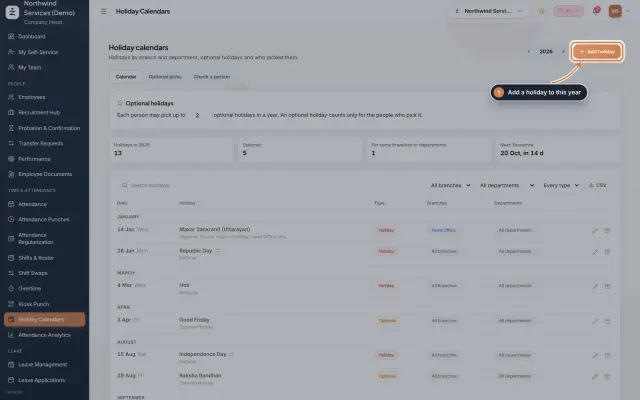 Holiday Calendars moduleKeep the year's holidays by branch and department, set optional holidays and how many each person may pick, and check which holidays a person gets.Module
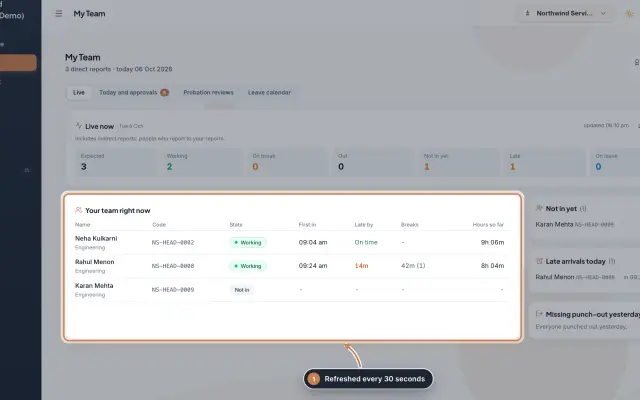 My Team moduleA manager's page for the people who report to them: who is working right now, the requests waiting on them, probation reviews, the team's leave and praise.Module
- Attendance softwareSee how it works on the ZeniaHR website