Leave: rules, applications and approvals
Set up your leave types and their rules, apply for leave on an employee's behalf with a live check of the days, and approve or reject applications.
Before you start
- You need the Company Head or HR role.
- Employees can apply for leave themselves from the ZeniaHR app or My Self-Service. Their applications arrive on the same Leave Applications page.
- Balances are checked when someone applies only when the Leave Ledger is on (on the Leave Ledger page).
Steps
Start from the recommended leave rules
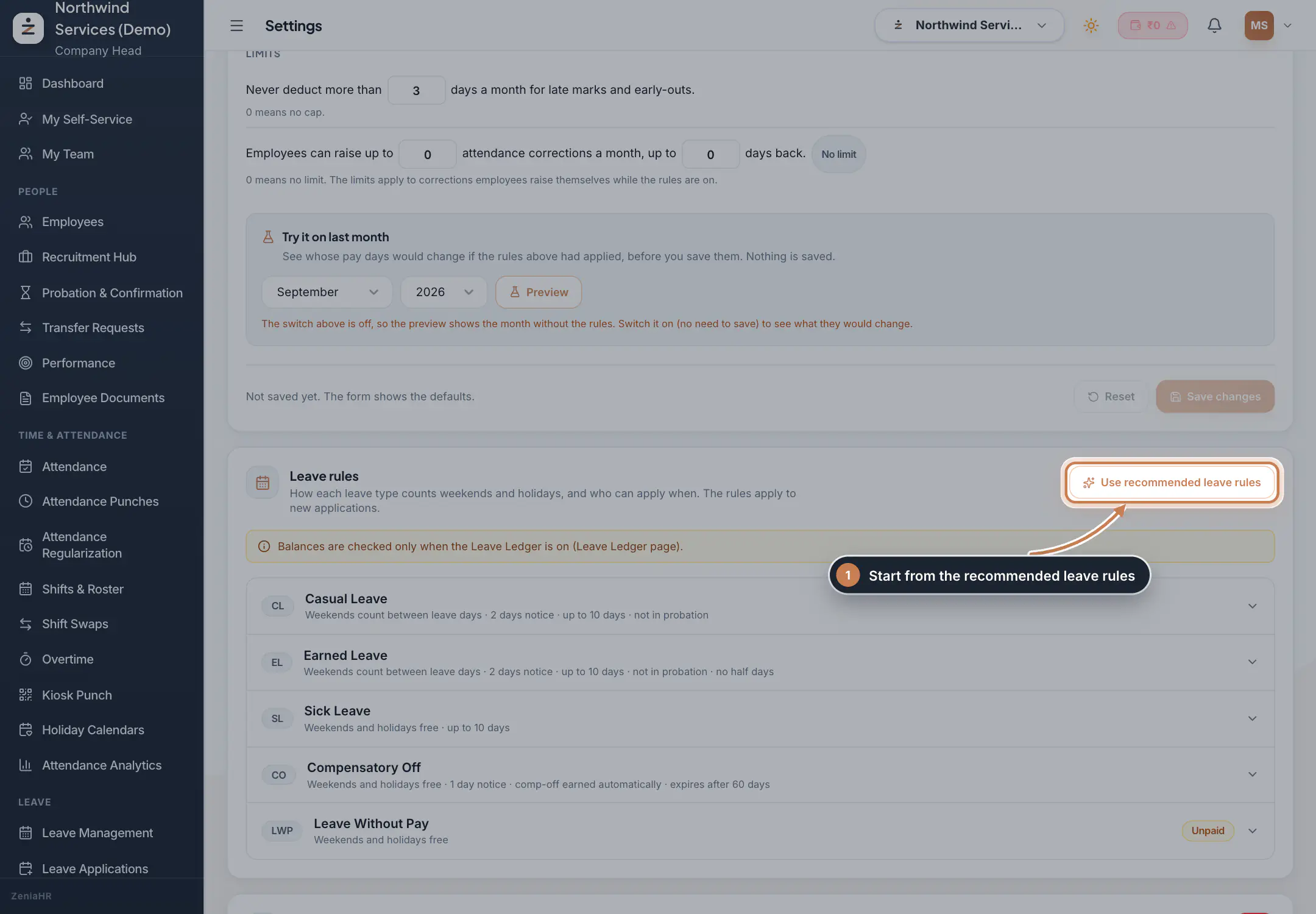
Go to Settings, open the Policies tab and scroll to Leave rules. If you have no leave types yet, click Use recommended leave rules: ZeniaHR creates Casual Leave, Earned Leave, Sick Leave, Compensatory Off and Leave Without Pay with the recommended rules. Each line sums up a type's rules, for example how weekends count and how much notice is needed.
 Full size
Step 1 Change a leave type's rules
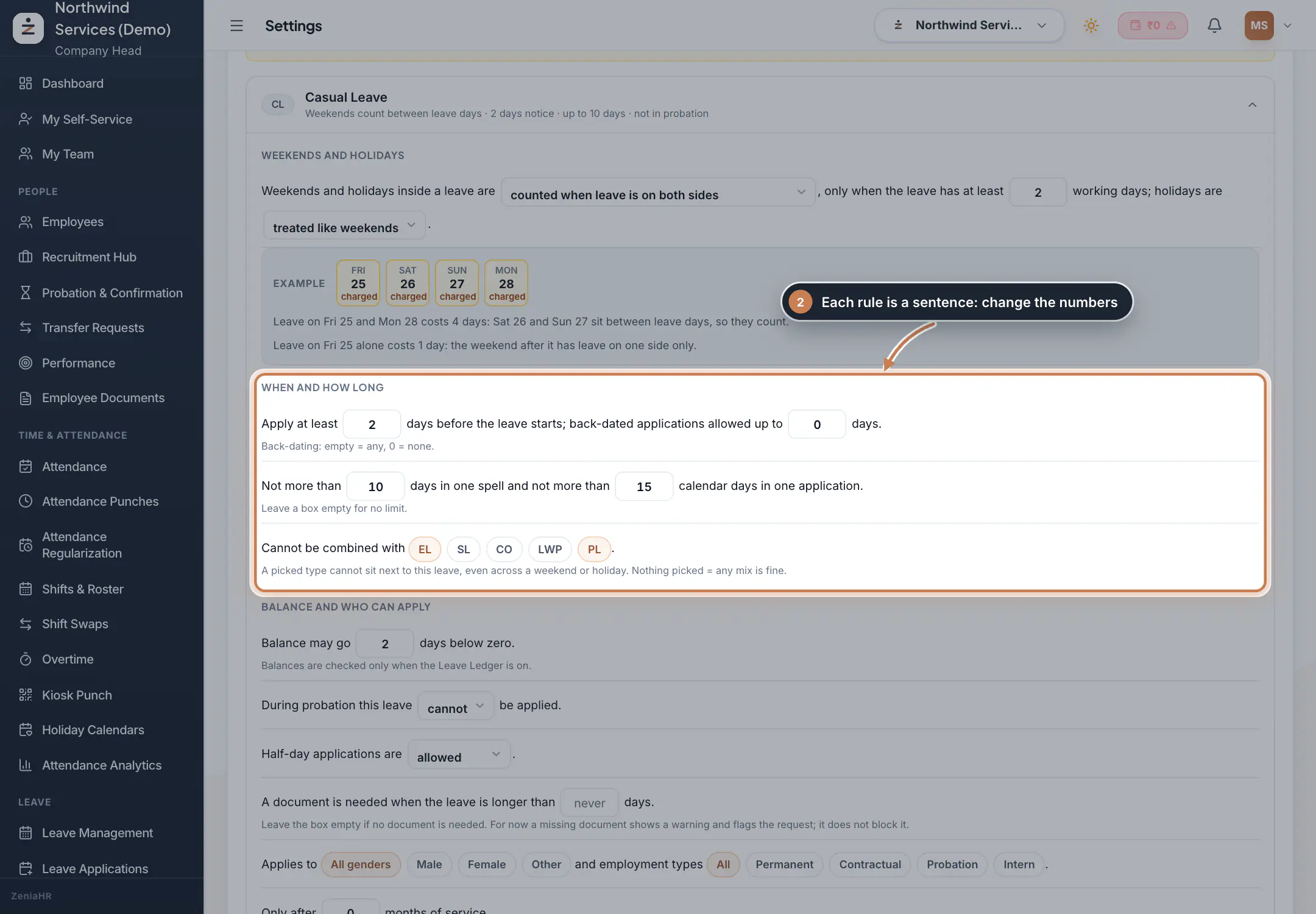
Click a leave type to open it. Its rules read as sentences, and you change the words and numbers in them: - Weekends and holidays: whether weekends and holidays inside a leave count, with a worked example. - When and how long: how many days of notice are needed, how far back an application may go, the longest spell and application, and the types it cannot be combined with. - Balance and who can apply: how far the balance may go below zero, whether people on probation can use it, half days, when a document is needed, and who the type applies to.
Save each type when you are done. The rules apply to new applications.
 Full size
Step 2 Apply on an employee's behalf
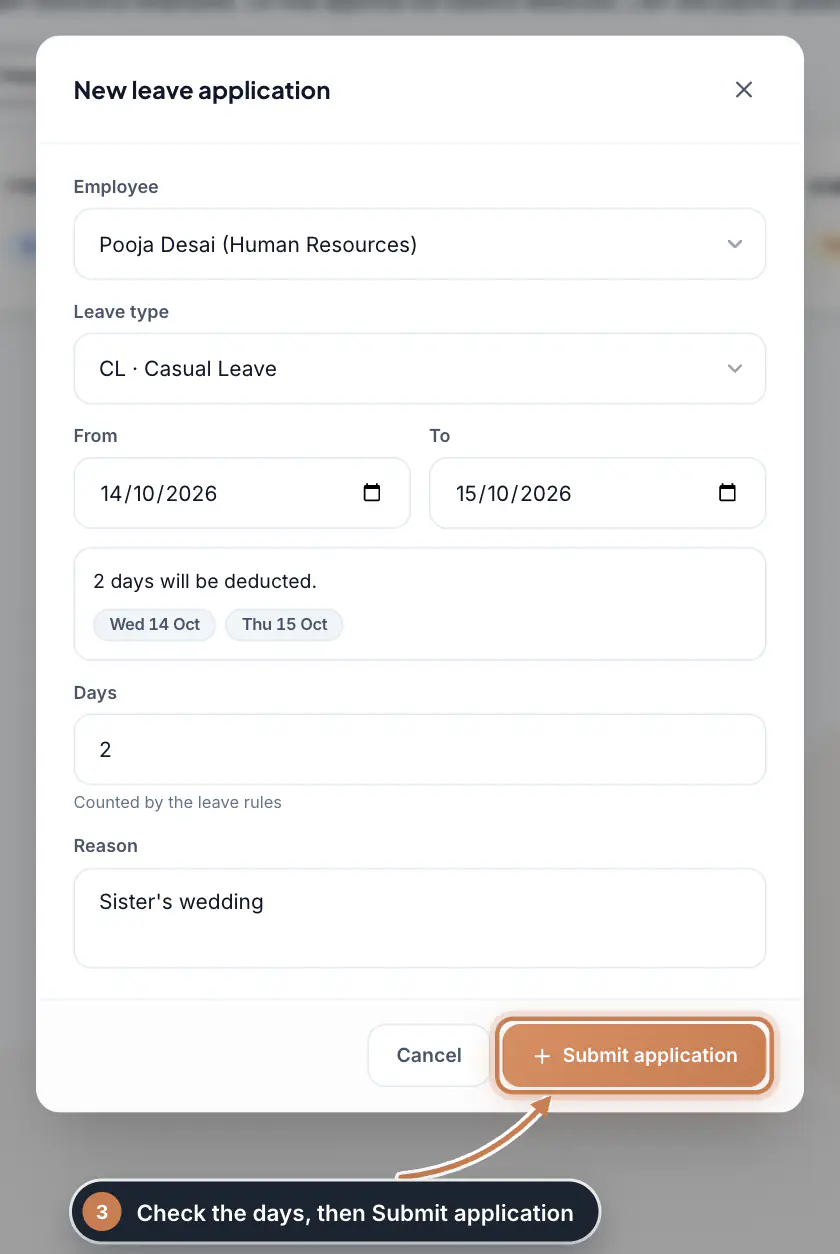
In the sidebar, under Leave, click Leave Applications, then New application. Pick the Employee and the Leave type, set From and To (tick Half day for half a day), and add a Reason. ZeniaHR checks the rules as you type: it shows how many days will be deducted and which dates, and warns you or blocks the application when a rule is broken. Click Submit application.
 Full size
Step 3 Open a pending application
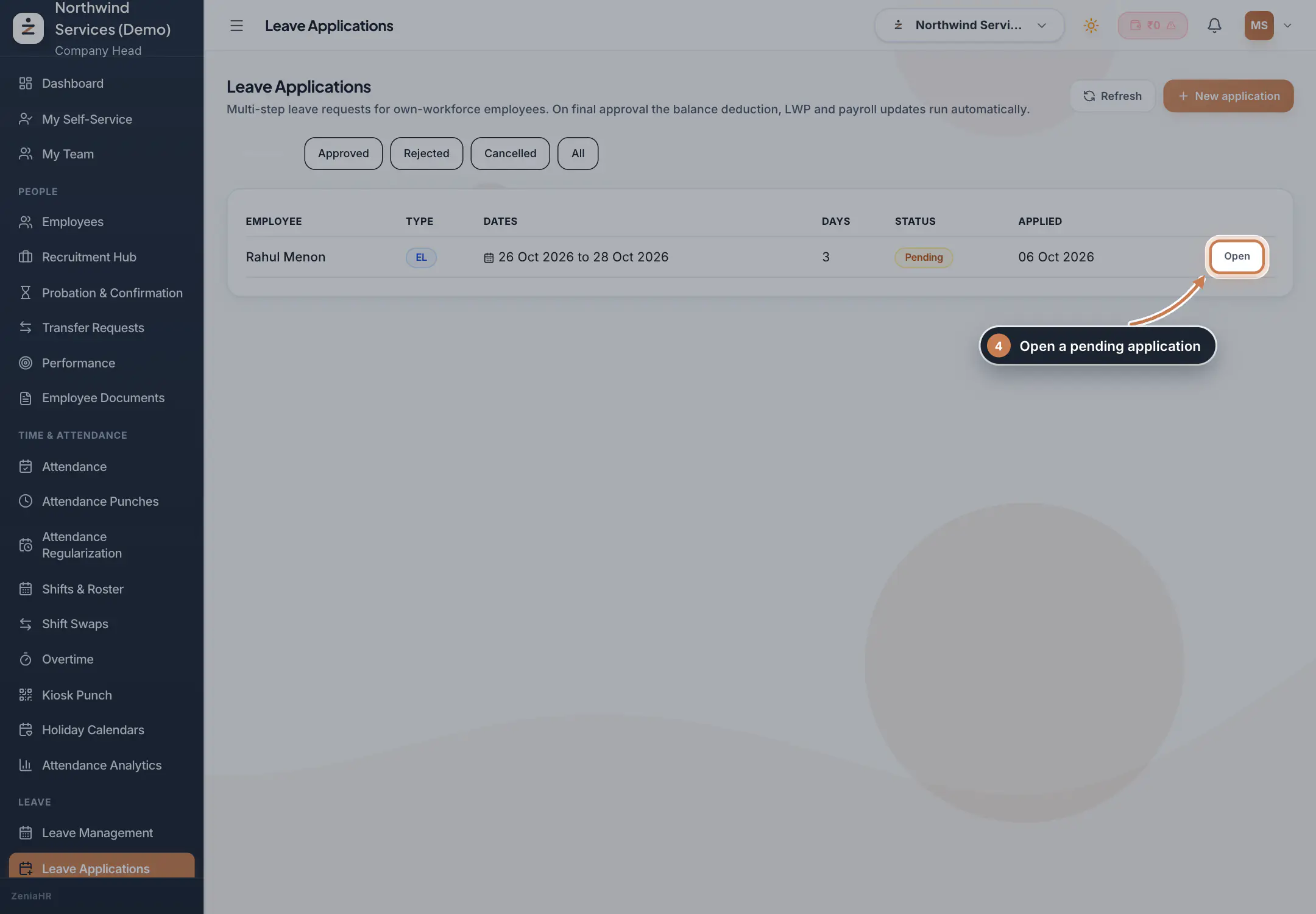
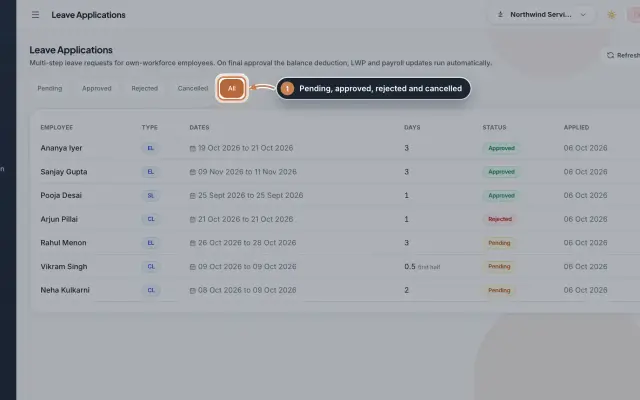
New applications wait in the Pending list with the employee, leave type, dates, days and the date applied. Use Approved, Rejected, Cancelled and All to see the others. Click Open on an application.
 Full size
Step 4 Approve or reject
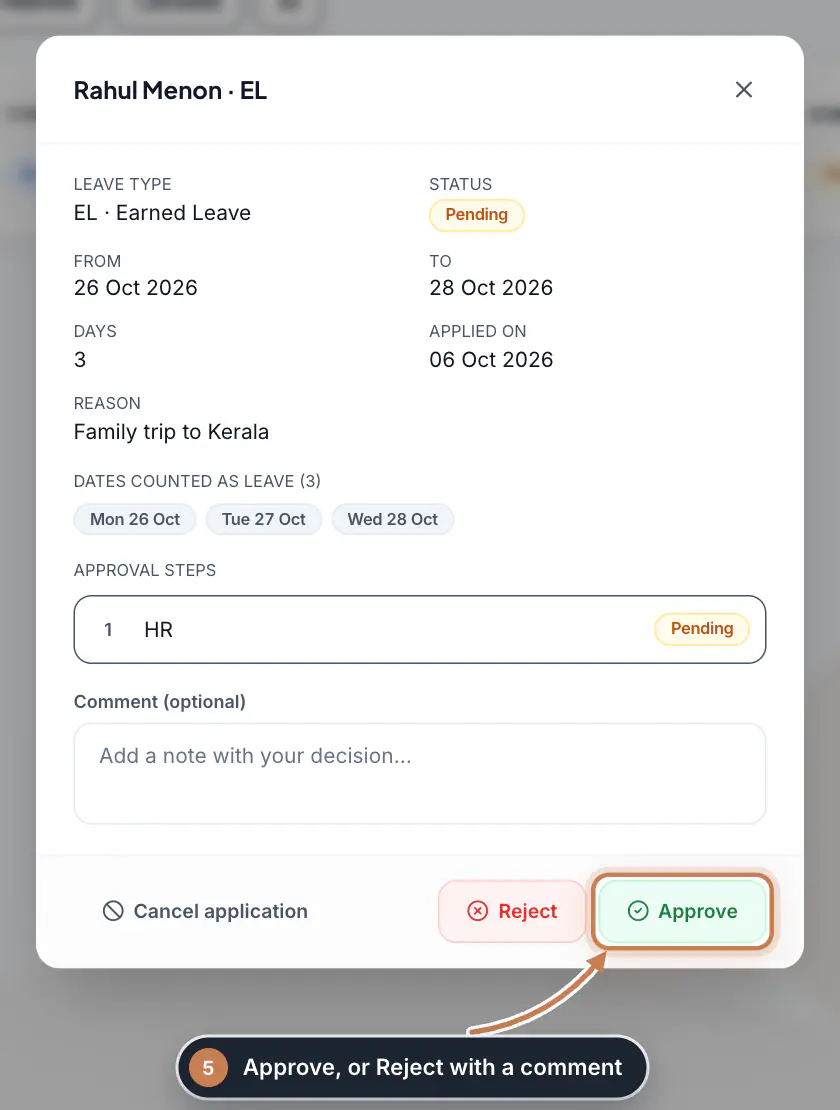
Check the dates counted as leave and the Approval steps, which show who decides and in what order. Add a comment if you like, then click Approve or Reject. When the last step approves, ZeniaHR deducts the balance, applies any leave without pay and updates payroll automatically.
 Full size
Step 5
Questions
What does "weekends count between leave days" mean?
With this rule, a weekend that sits between two leave days counts as leave. For example, leave on a Friday and the next Monday costs 4 days, because the Saturday and Sunday in between count. Leave on the Friday alone costs 1 day.
Why can an employee not apply for Casual or Earned Leave?
In the recommended rules, these two types cannot be used during probation and need 2 days of notice. Open the type under Leave rules to change this.
Can I cancel leave that was already approved?
Yes. Open the application and click Cancel approved leave, then give a reason. The days go back to the employee's balance. If the attendance month of that leave is already finalized, reopen the month first.
Where do I see each employee's leave balance?
On the Leave Ledger page; switch the ledger on there to keep balances and have them checked when people apply. Leave Management, Administration also lists each employee's total allocation, leave used and leave remaining.
Related
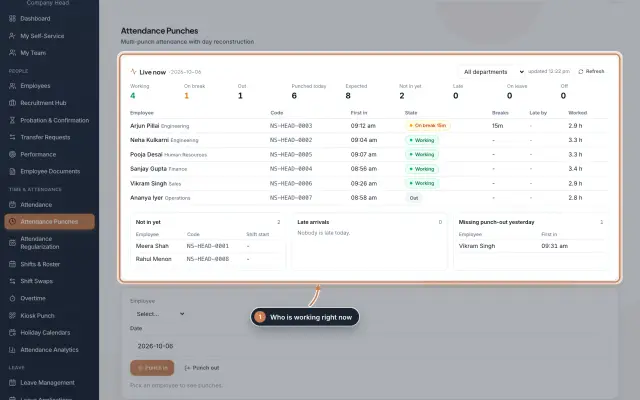 Attendance: punches and the daily registerHow punches reach HRMS Core, how to follow them live, record a missed punch, read each employee's day log, keep the daily register and close the month for payroll.Guide
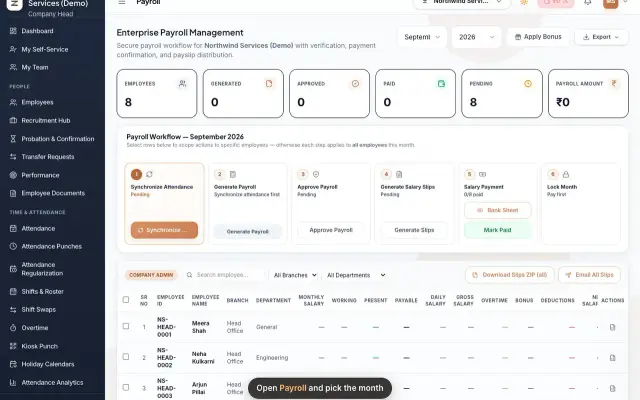 Run payroll and share payslipsRun the monthly payroll for your own employees in six steps, from synchronizing attendance to approving salaries, generating payslips, sharing them and paying.Guide29 s video
 Leave Applications moduleEvery leave application with the days the rules count, its approval steps from the manager to HR, and what happens on approval or when approved leave is cancelled.Module
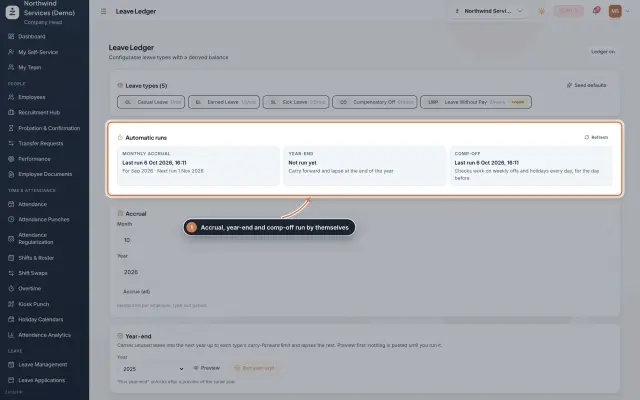 Leave Ledger moduleLeave balances built from monthly accrual, approved leave and comp-off, with year-end carry forward, manual entries and leave encashment.Module
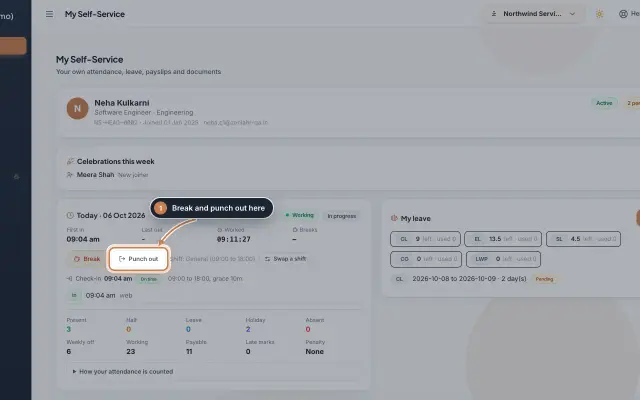 My Self-Service moduleEvery employee's own page on the web: punch in and out, see the month's attendance, apply for leave, ask for corrections and work from home, pick optional holidays and find payslips.Module
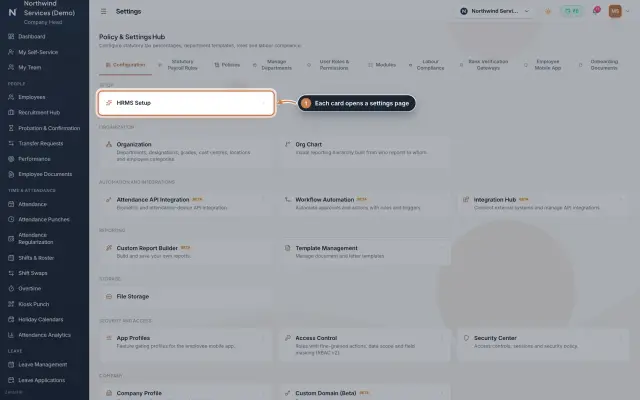 Settings moduleThe Policy & Settings Hub: a card for every settings page, and tabs for statutory rules, policies, departments, user permissions, modules, labour compliance, bank verification, the employee app and onboarding documents.Module
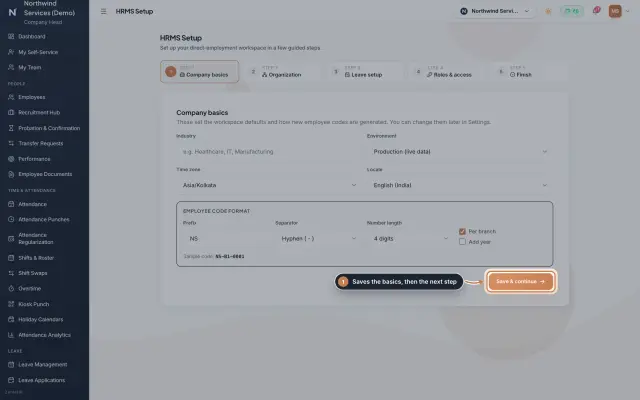 HRMS Setup moduleThe first-run wizard of an HRMS Core company: company basics and the employee code format, the organization lists, leave, roles and access, and a final check.Module
- Attendance softwareSee how it works on the ZeniaHR website