Leave Management module
The company-wide view of leave: requests and their status, each person's allowance and wallet, the history of decisions and the audit log.
Key screens
Start from the dashboard
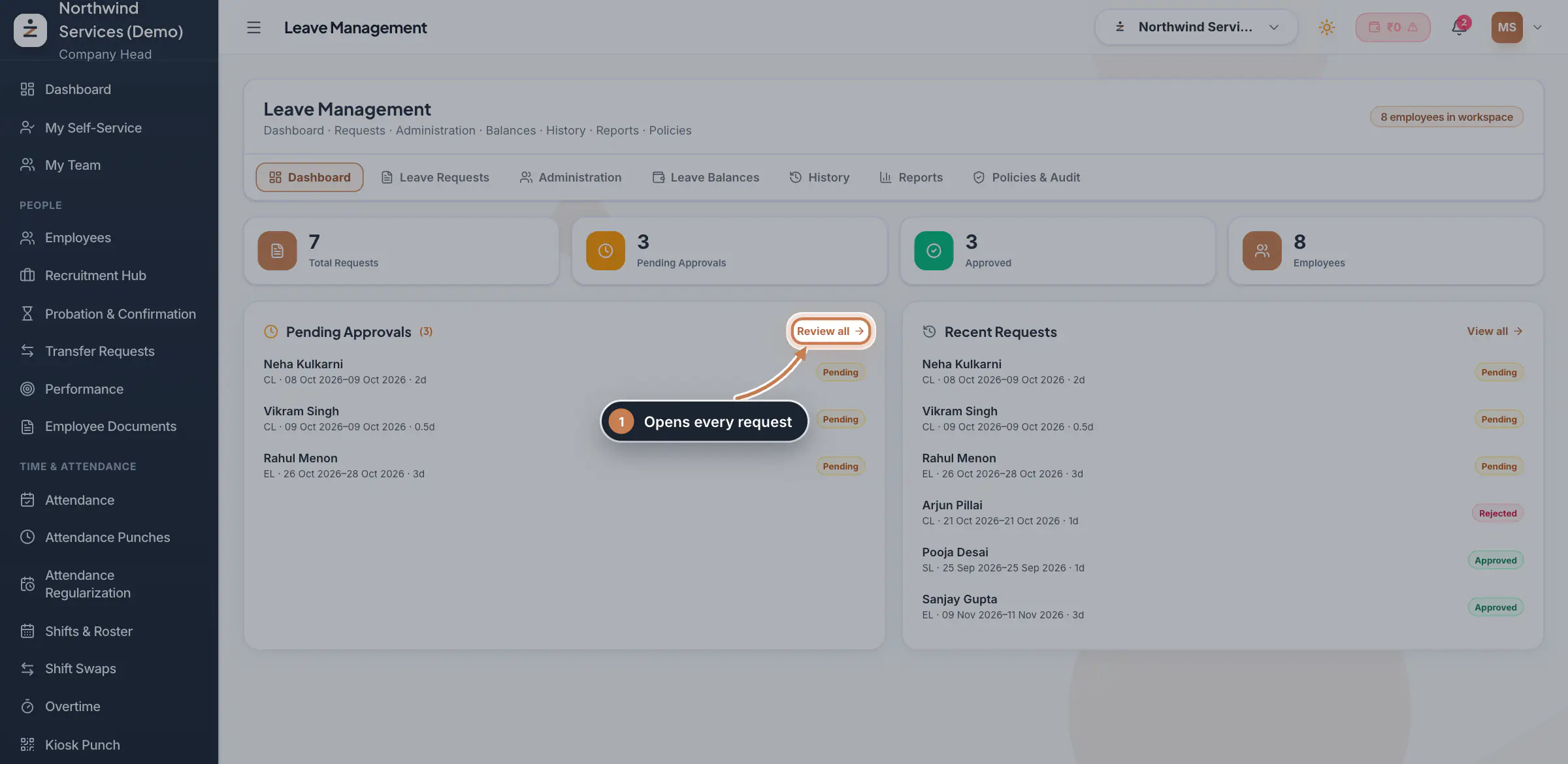
In the sidebar, under Leave, click Leave Management. The Dashboard counts the total requests, those waiting for approval, those approved and the employees, then lists the pending approvals and the most recent requests with their status. Review all and View all open the full list.
 Full size
Step 1 Find any request
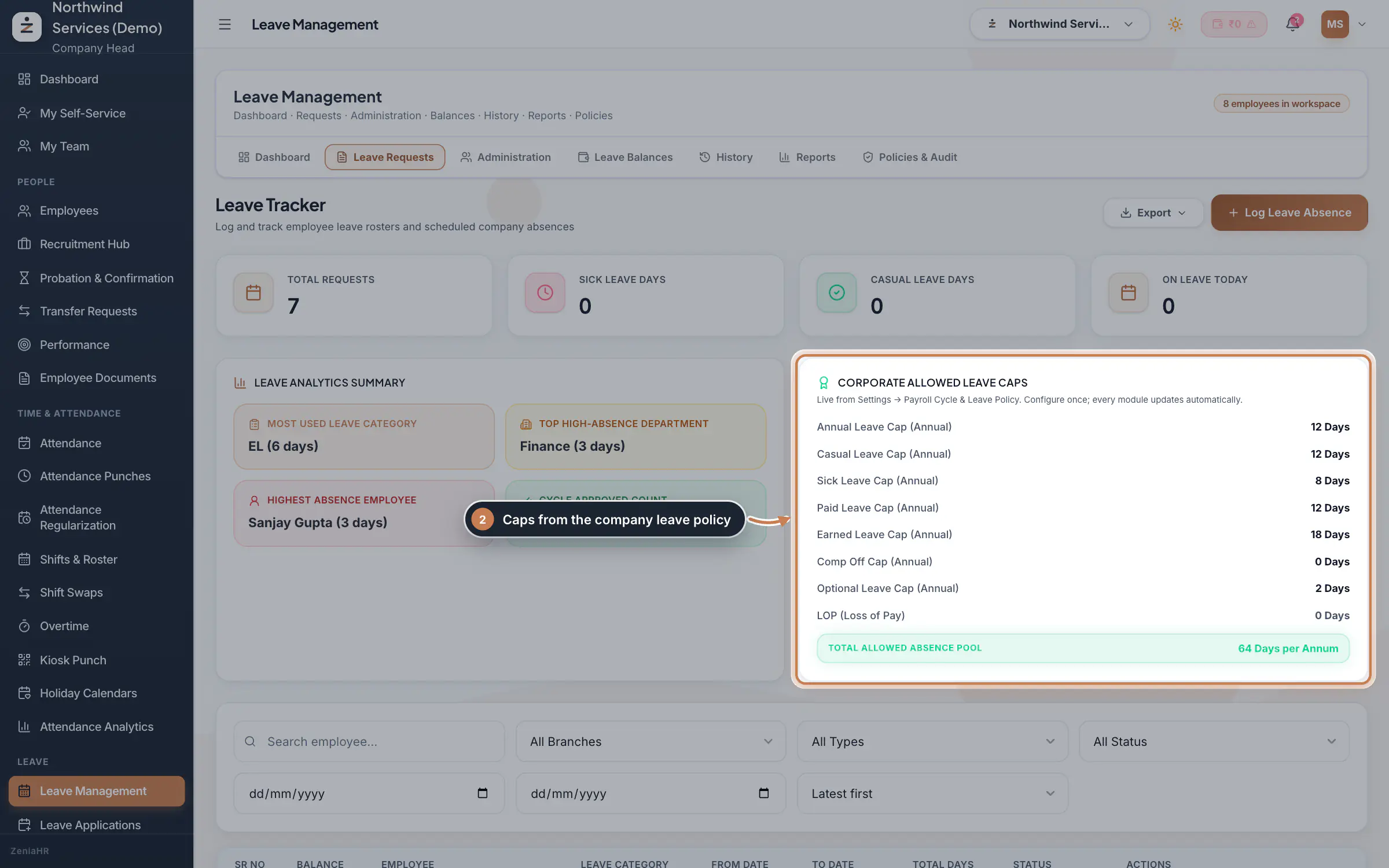
Click Leave Requests. The Leave Tracker shows a summary, such as the leave type used most and the department with the most absence, and the Corporate allowed leave caps read from your leave policy. Below them, search by employee and filter by type, status and dates, then sort by the newest or oldest. Click View on a request to see it in full, or Export to download the list. Staff follow the same requests in the app under Leave.
 Full size
Admin panel · Step 2 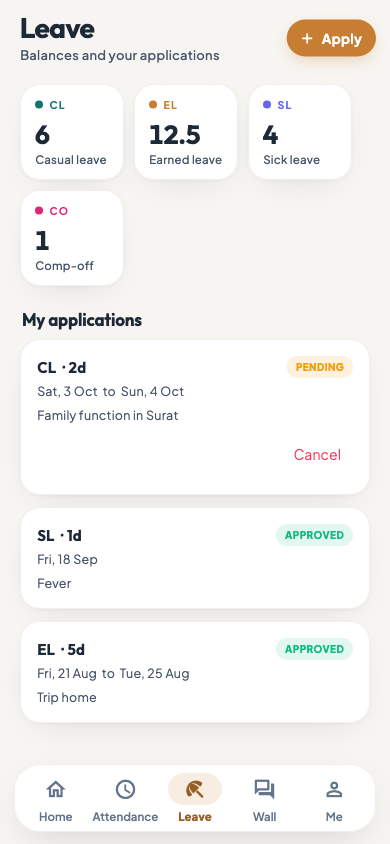 On the employee app
The Leave tab of the employee app with balances and applications
Tip To decide an application that has approval steps, open it on Leave Applications, so the manager's step and HR's step are both recorded.
Add or deduct leave for someone
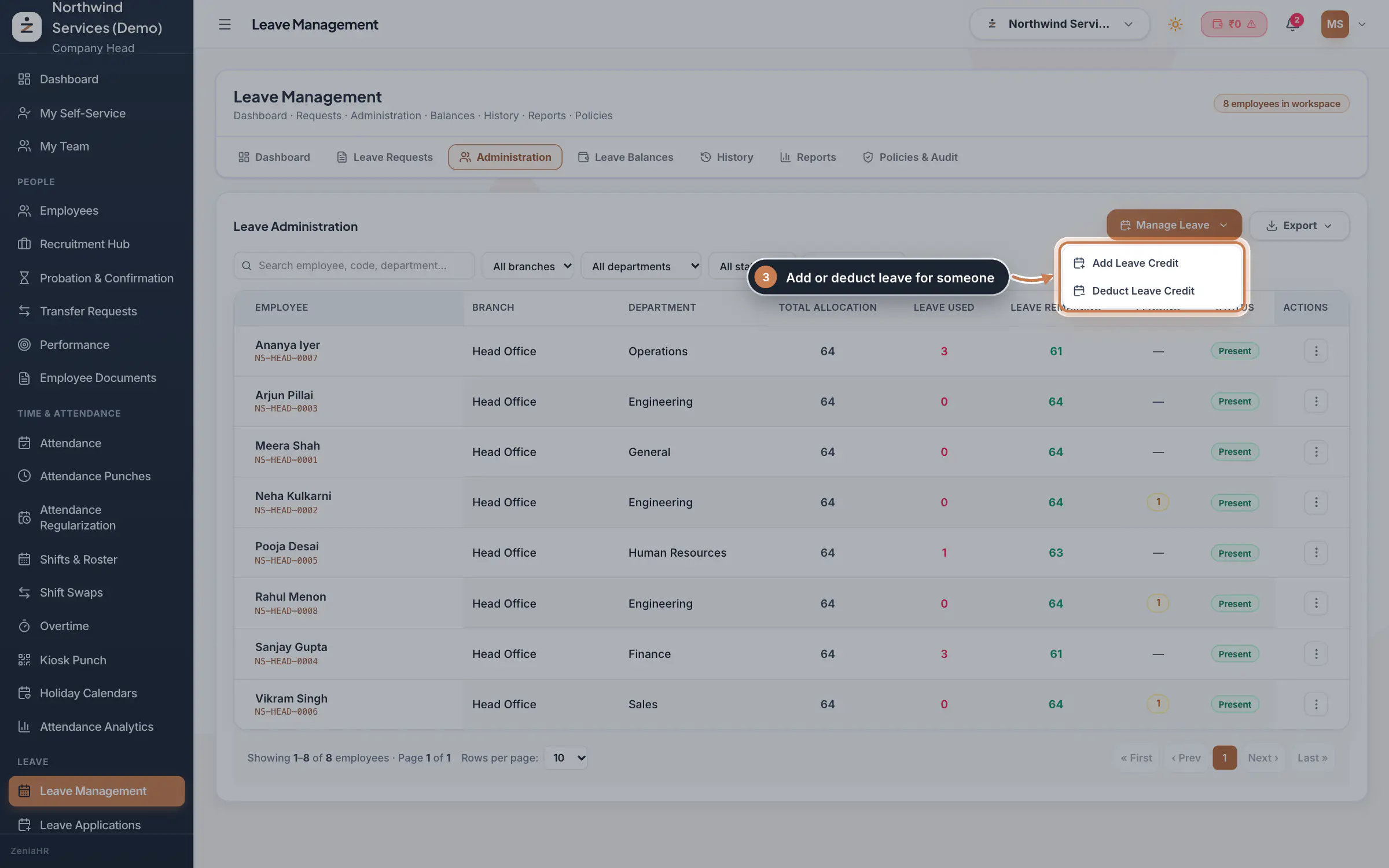
Click Administration. Each person shows their Total allocation, Leave used, Leave remaining and any pending requests. Filter by branch, department, status or leave type, or search. Click Manage Leave, then Add Leave Credit or Deduct Leave Credit, to change someone's allowance with a reason; the change is written to the audit log.
 Full size
Step 3 Look at each person's wallet
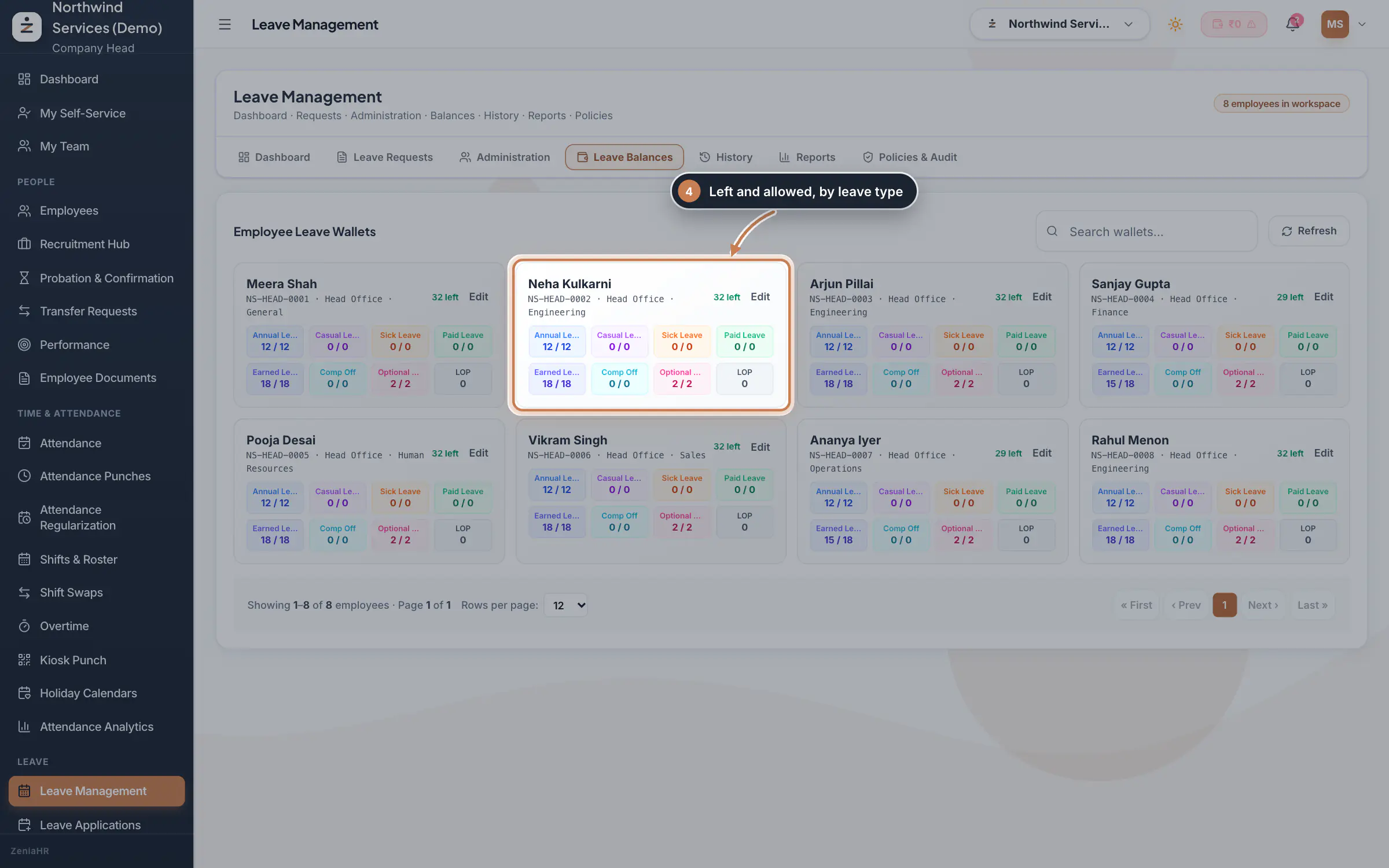
Click Leave Balances. Each card is one person's leave wallet: for every leave type, the days left out of the days allowed, the loss of pay days, and the total left. Search for a person, and click Edit to correct their wallet.
 Full size
Step 4 See the decisions over a period
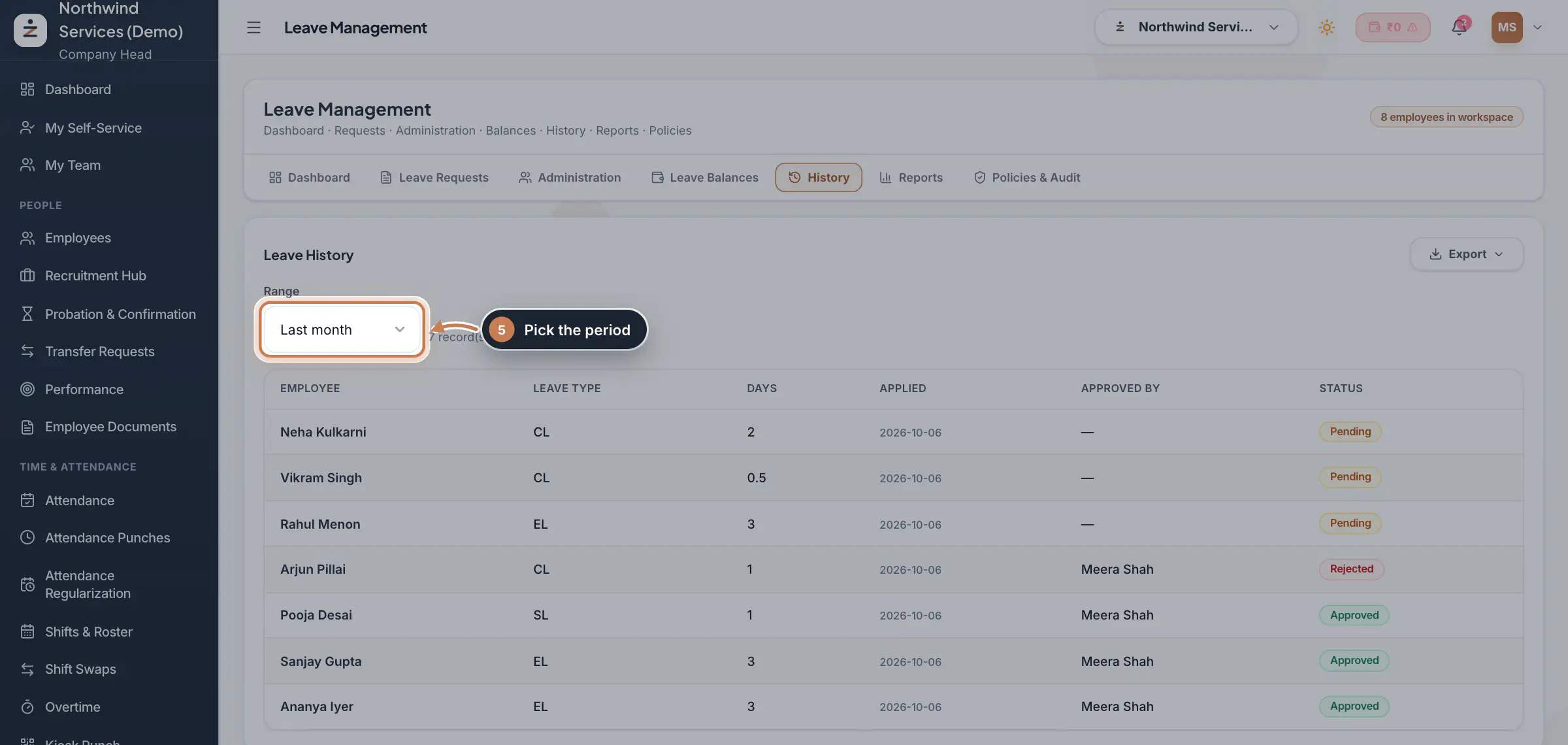
Click History and pick the Range: the last 7 days, the last month, the last year or your own dates. Each row shows the employee, the leave type, the days, when it was applied, who approved it and its status. Use Export to keep a copy. Reports sums up the pending requests and approved days, with a summary per employee.
 Full size
Step 5 Check the audit log
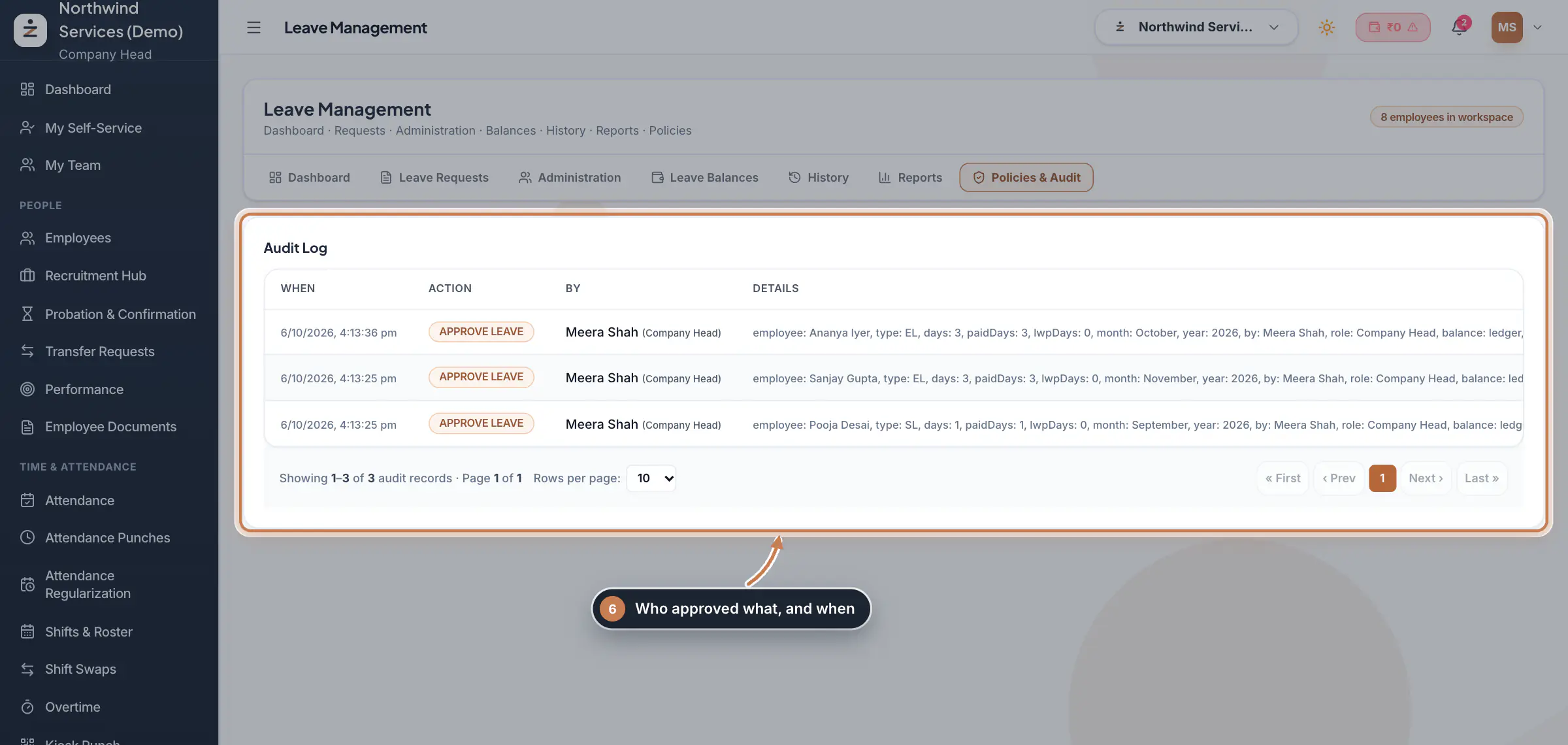
Click Policies & Audit. The Audit Log lists every leave action with when it happened, what it was (for example APPROVE LEAVE), who did it with their role, and the details: the person, the leave type, the days paid and unpaid, and which balance was charged.
 Full size
Step 6
What it does
Leave Management is the overview of leave across your company, in seven tabs: Dashboard, Leave Requests, Administration, Leave Balances, History, Reports and Policies & Audit. It lists every leave request, whoever raised it, shows each person's leave allowance and what they have used, and keeps a log of who approved what.
The allowances on Administration, Leave Balances and Reports come from the leave caps of your company leave policy, set in Settings, Statutory Payroll Rules, under Payroll Cycle & Leave Policy. When the Leave Ledger is switched on, the balance checked when someone applies, and charged when leave is approved, is the ledger's balance for each leave type instead: see it, and correct it, on the Leave Ledger page.
Who uses it
- The Company Head and HR.
- Staff apply for leave from the app or My Self-Service, and their requests appear here.
How it connects
The requests here are the same ones as on Leave Applications, where each application shows its approval steps and is decided step by step. Approved leave marks the days on Attendance Punches and in Payroll, and shows on the Leave Calendar.
Questions
Why do the balances here differ from the Leave Ledger?
They are two different balances. Leave Balances and Administration follow your company leave policy's caps. When the Leave Ledger is on, leave applications are checked against and charged to the ledger, which builds its balances from monthly accrual and approved leave. Use the Leave Ledger page for those balances.
Can I record leave for someone here?
Log Leave Absence on Leave Requests records leave for someone, but for HRMS Core staff use New application on Leave Applications instead: it checks the leave rules as you type and sends the application through its approval steps.
Where do I set the leave caps?
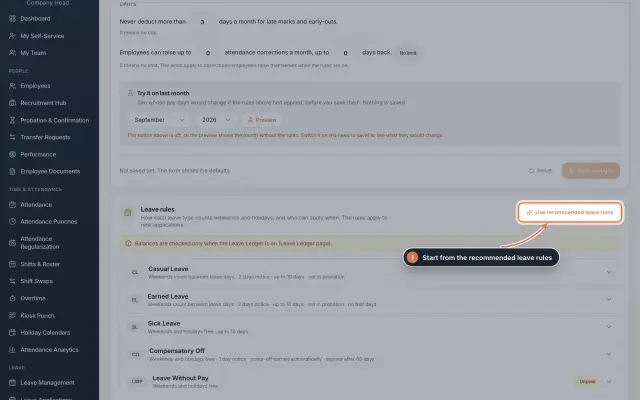
In Settings, Statutory Payroll Rules, under Payroll Cycle & Leave Policy. The leave types and their rules for applications are in Settings, Policies, under Leave rules.
Related
 Leave: rules, applications and approvalsSet up your leave types and their rules, apply for leave on an employee's behalf with a live check of the days, and approve or reject applications.Guide
 The employee app for office staffA tour of the ZeniaHR app for HRMS Core staff: signing in, starting your shift, attendance, leave, the company wall and your profile.GuideApp
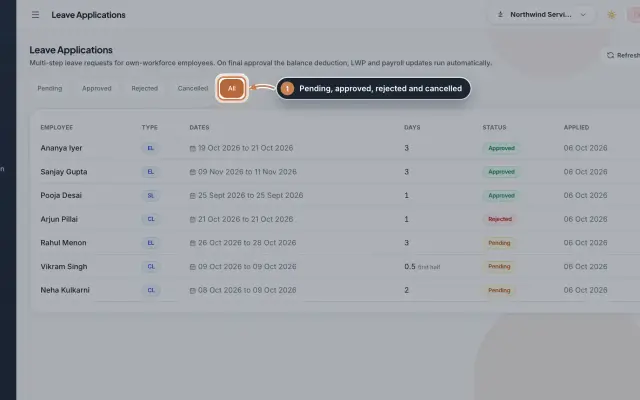 Leave Applications moduleEvery leave application with the days the rules count, its approval steps from the manager to HR, and what happens on approval or when approved leave is cancelled.Module
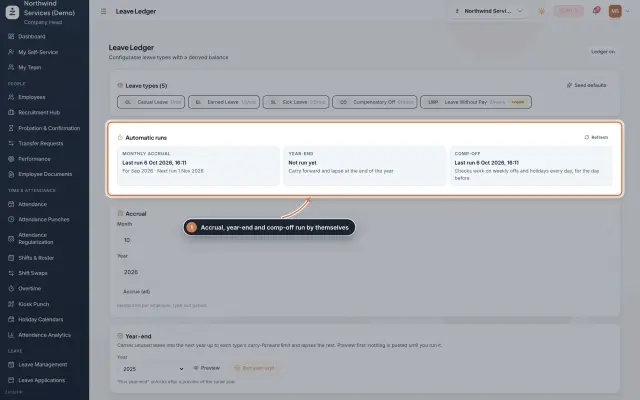 Leave Ledger moduleLeave balances built from monthly accrual, approved leave and comp-off, with year-end carry forward, manual entries and leave encashment.Module
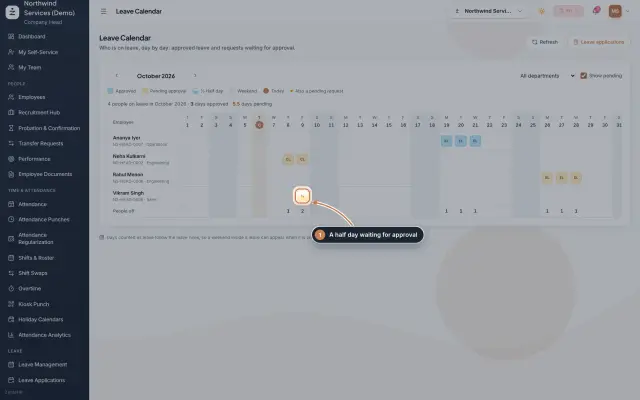 Leave Calendar moduleSee who is on leave, day by day, for a whole month: approved leave, leave waiting for approval and half days, by department.Module
- Attendance softwareSee how it works on the ZeniaHR website