The employee app for office staff
A tour of the ZeniaHR app for HRMS Core staff: signing in, starting your shift, attendance, leave, the company wall and your profile.
Before you start
- Your company has added you as an employee with your mobile number.
- Install the ZeniaHR app on your phone. The first time you open it, a short tour shows what it can do.
Steps
Sign in with your mobile number
Type your Mobile number, tick I agree to the Terms & Conditions and Privacy Policy, and tap Continue. The app texts you a one-time password.
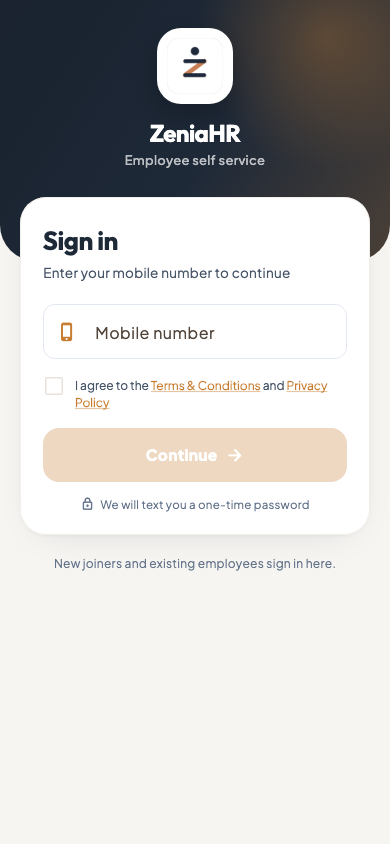
Employee app · Step 1 Tip If the app says the number is not registered, ask your HR team to check the mobile number on your record.
Enter the code
Type the 6-digit code from the text message and tap Verify and continue. If the code does not arrive, wait for the countdown and tap Resend OTP. Never share this code with anyone.
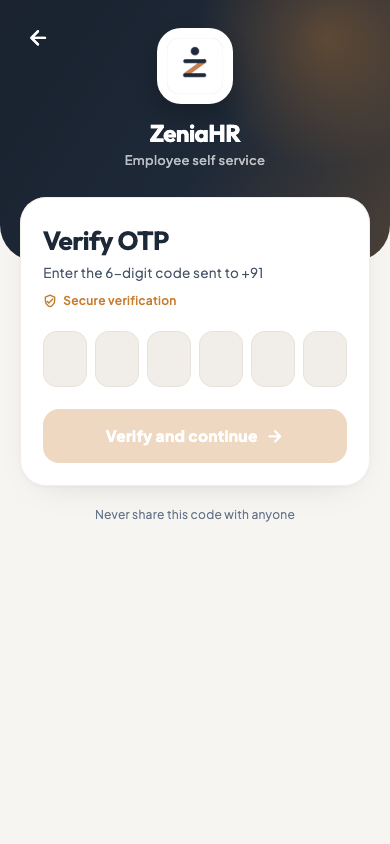
Employee app · Step 2 Start your shift
The home screen shows today's shift and a ring of the hours you have worked against it, your first-in time with any late mark, your breaks and the status of the day. Tap Start shift when you begin work, Break for a break, Resume when you are back and End shift when you finish. Needs your attention lists anything waiting for you, such as a company post to acknowledge or a profile to complete.
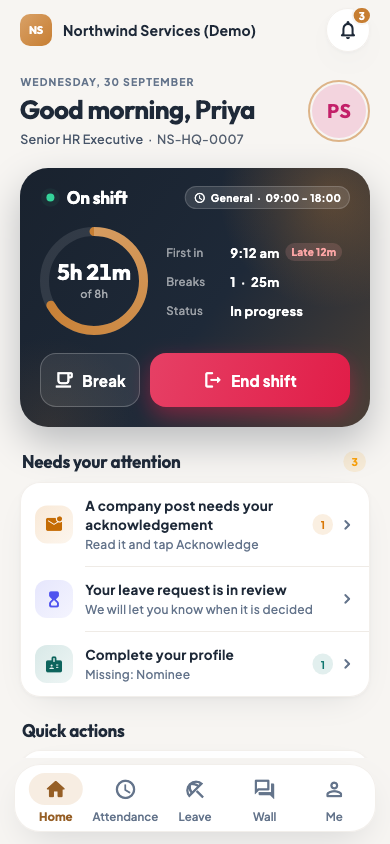
Employee app · Step 3 Tip Scroll down for Quick actions (Apply leave, WFH & on duty, Payslips, Fix attendance, Documents, Holidays, Give praise and Kiosk punch), the company wall, celebrations, this month's payable days, your leave balance and your latest payslip.
Attendance: your days
Tap Attendance to see the month: how many days you were present, on a half day, absent, on leave or on a week off, your late marks and the hours worked. Each day shows your shift, the In, Break out, Break in and Out times, the effective hours and whether you were on time. Use the arrows to change the month. Kiosk lets you punch at an office kiosk by typing the code it shows.
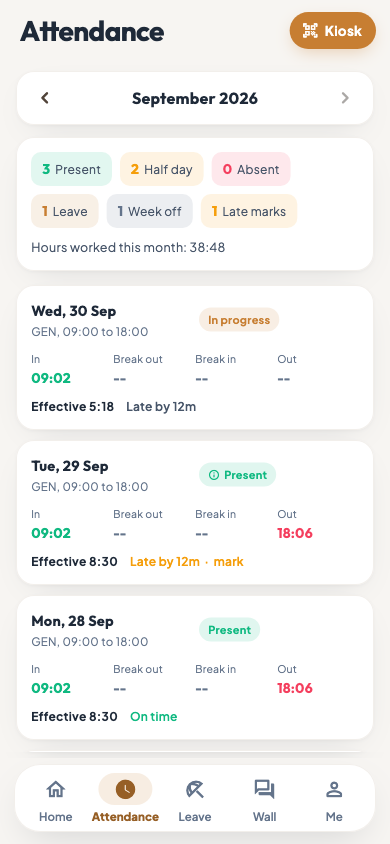
Employee app · Step 4 Leave: balance and applications
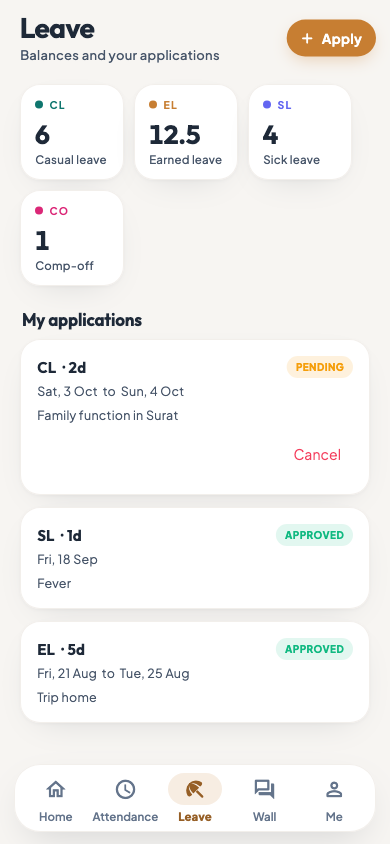
Tap Leave to see each balance and your applications with their status. Tap Apply, pick the Leave type and the dates, choose a half day if you need one, and write the Reason. The app shows what the leave costs and your balance after it before you submit. You can cancel a pending application, and the days go back to your balance.
Employee app · Step 5 Wall: company news
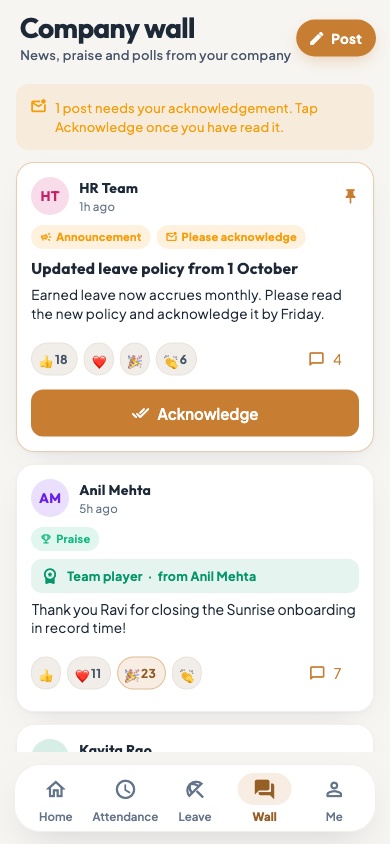
Tap Wall for news, praise and polls from your company. When a post asks for it, read it and tap Acknowledge. React to posts, comment, or tap Post to share an update with your team.
Employee app · Step 6 Me: your profile and settings
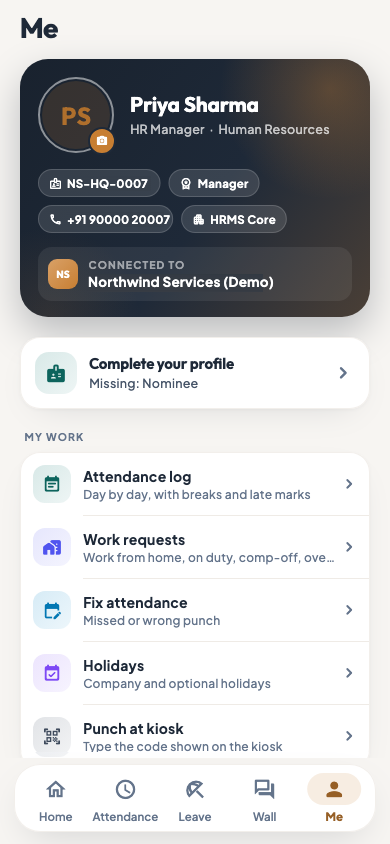
Tap Me to see your name, role, employee code and mobile number, and the company you are connected to. From here you can open your Attendance log, Work requests, Fix attendance, Holidays, Punch at kiosk, Payslips, Documents and My details. If people report to you, you also see Team and approvals, Team live and Team desk. Change Notifications and Appearance, replay the App tour, or Log out.
Employee app · Step 7
Questions
I forgot to punch out yesterday. What do I do?
Open Me, then Fix attendance, choose the request type, such as a missed check-out, and give the date, the correct time and a reason. Your manager decides it first, then HR.
Where do I download my payslip?
Open Me, then Payslips, for your monthly salary slips and their PDFs.
Related
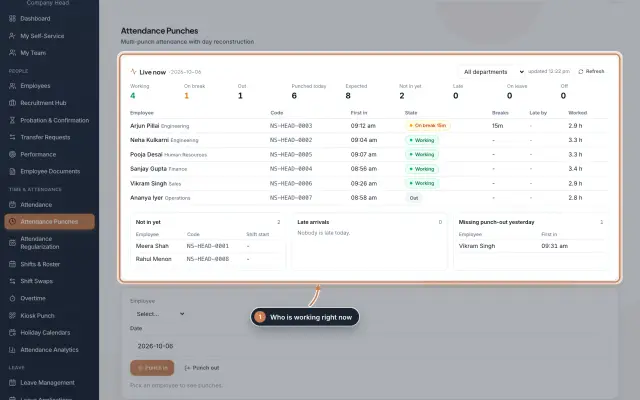 Attendance: punches and the daily registerHow punches reach HRMS Core, how to follow them live, record a missed punch, read each employee's day log, keep the daily register and close the month for payroll.Guide
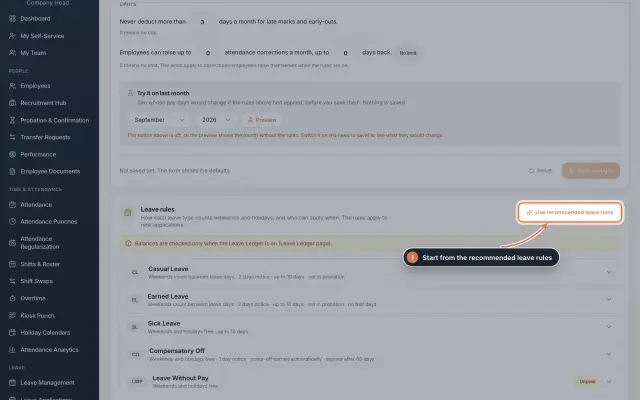 Leave: rules, applications and approvalsSet up your leave types and their rules, apply for leave on an employee's behalf with a live check of the days, and approve or reject applications.Guide
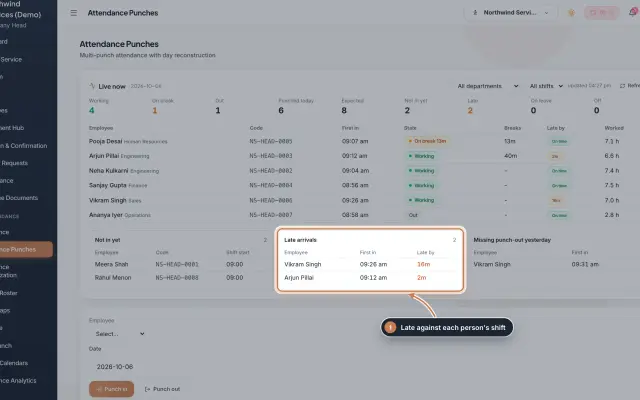 Attendance Punches moduleThe punch register of HRMS Core: who is in right now, every punch of a day, the month's payable days and the penalties the attendance rules add.Module
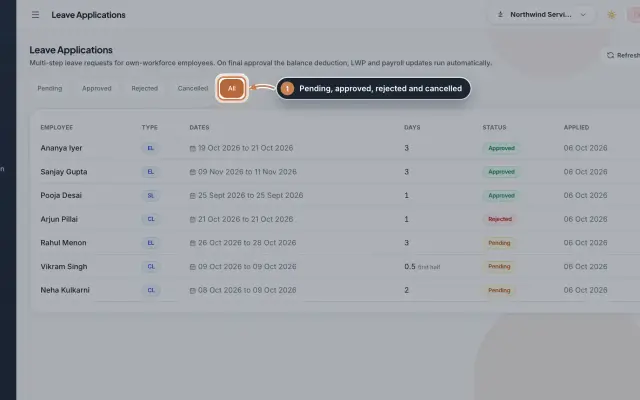 Leave Applications moduleEvery leave application with the days the rules count, its approval steps from the manager to HR, and what happens on approval or when approved leave is cancelled.Module
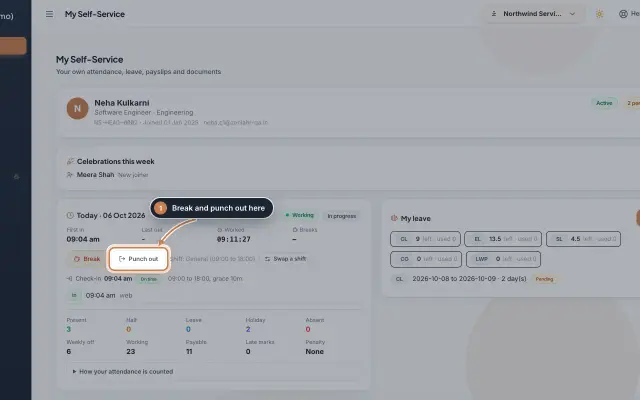 My Self-Service moduleEvery employee's own page on the web: punch in and out, see the month's attendance, apply for leave, ask for corrections and work from home, pick optional holidays and find payslips.Module
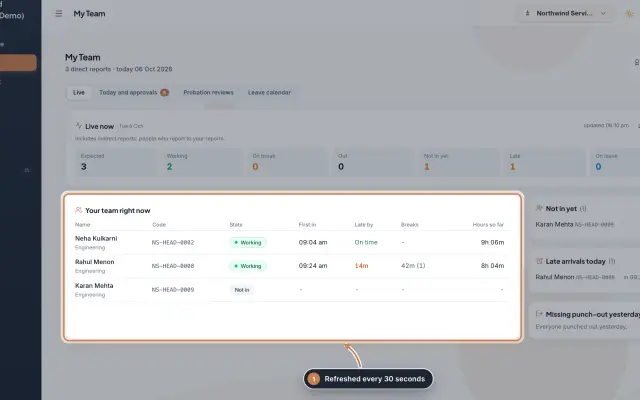 My Team moduleA manager's page for the people who report to them: who is working right now, the requests waiting on them, probation reviews, the team's leave and praise.Module
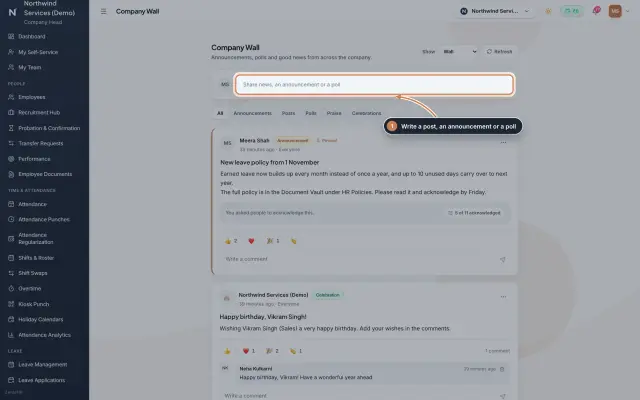 Company Wall moduleA feed for the whole company: announcements people acknowledge, posts, polls, praise and celebrations, with reactions and comments, on the web and in the employee app.Module
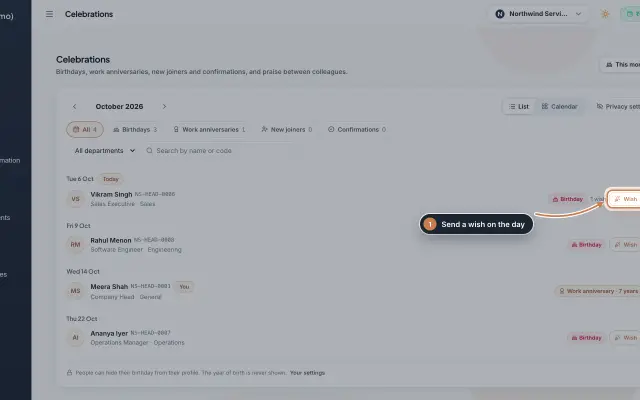 Celebrations moduleBirthdays, work anniversaries, new joiners and confirmations month by month, with wishes, birthday privacy, and praise between colleagues with a monthly leaderboard.Module
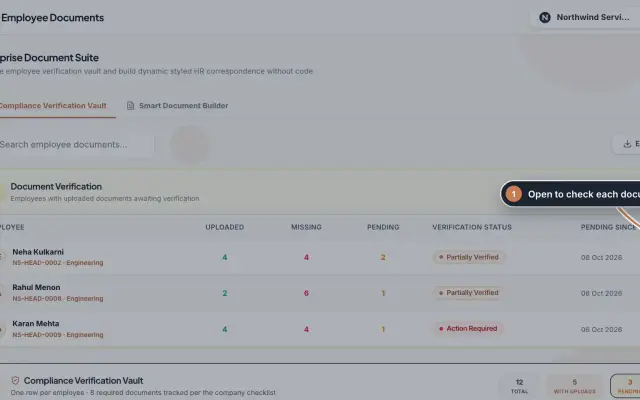 Employee Documents moduleCheck the documents each employee uploads against an eight-document checklist, verify or reject them, and make offer, appointment and other letters from ready-made styles.Module
- ZeniaHR for every businessSee how it works on the ZeniaHR website