Org Chart module
The company's reporting tree, built from each person's reporting manager, with team sizes, a search and a check for broken reporting lines.
Key screens
See the reporting tree
Open Settings and, under Organization, click Org Chart. The tiles count the employees, the people at the top level, how many have a manager, and any Data issues. Each manager shows a badge such as 3 direct · 11 total. Click the arrow beside a name to fold or open their team, or use Collapse all and Expand all. Refresh reads the latest reporting lines.
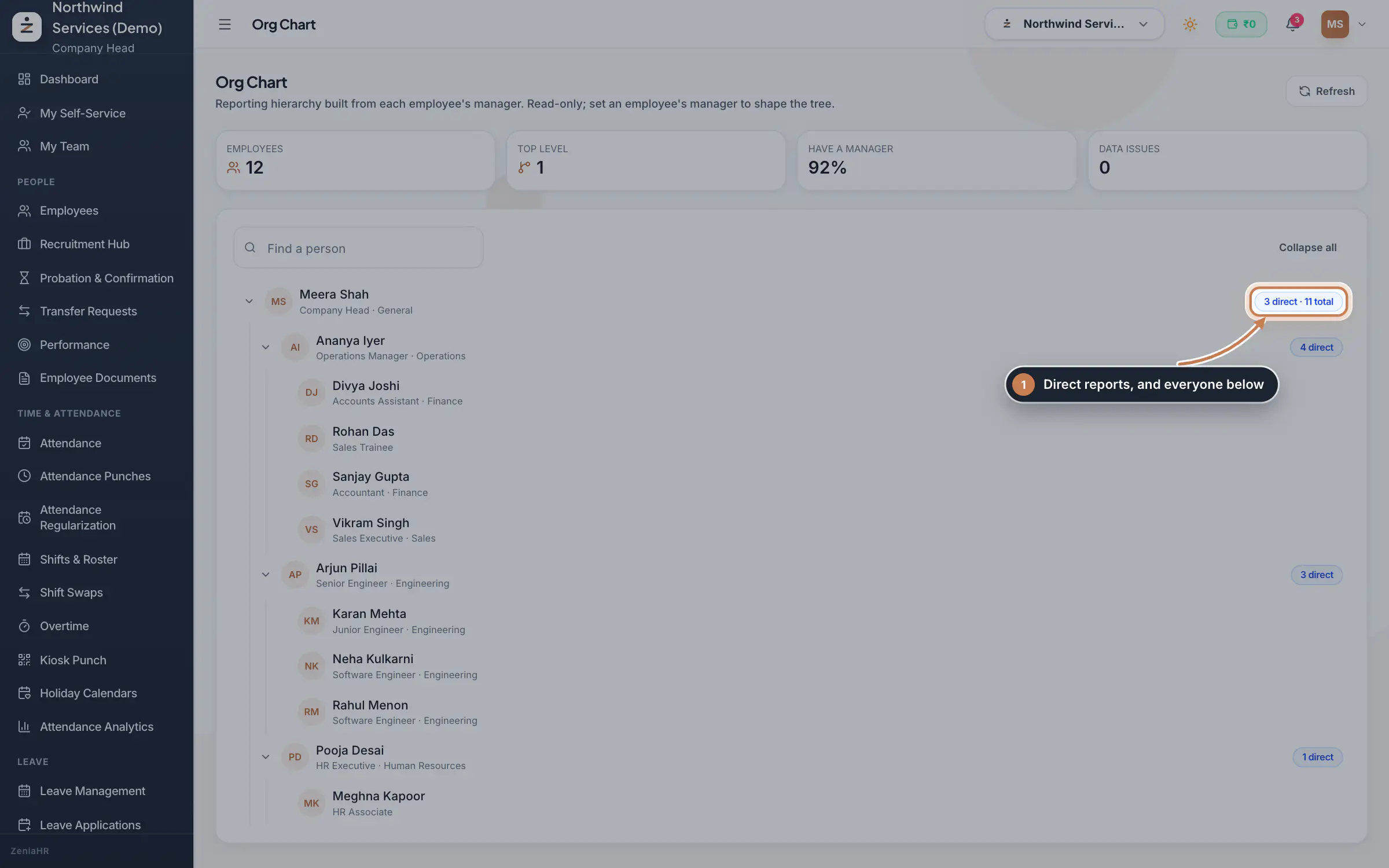 Full size
Step 1 Find a person
Type a name or designation in Find a person. The chart keeps only the matching people and the line of managers above them, so you see at once whom they report to.
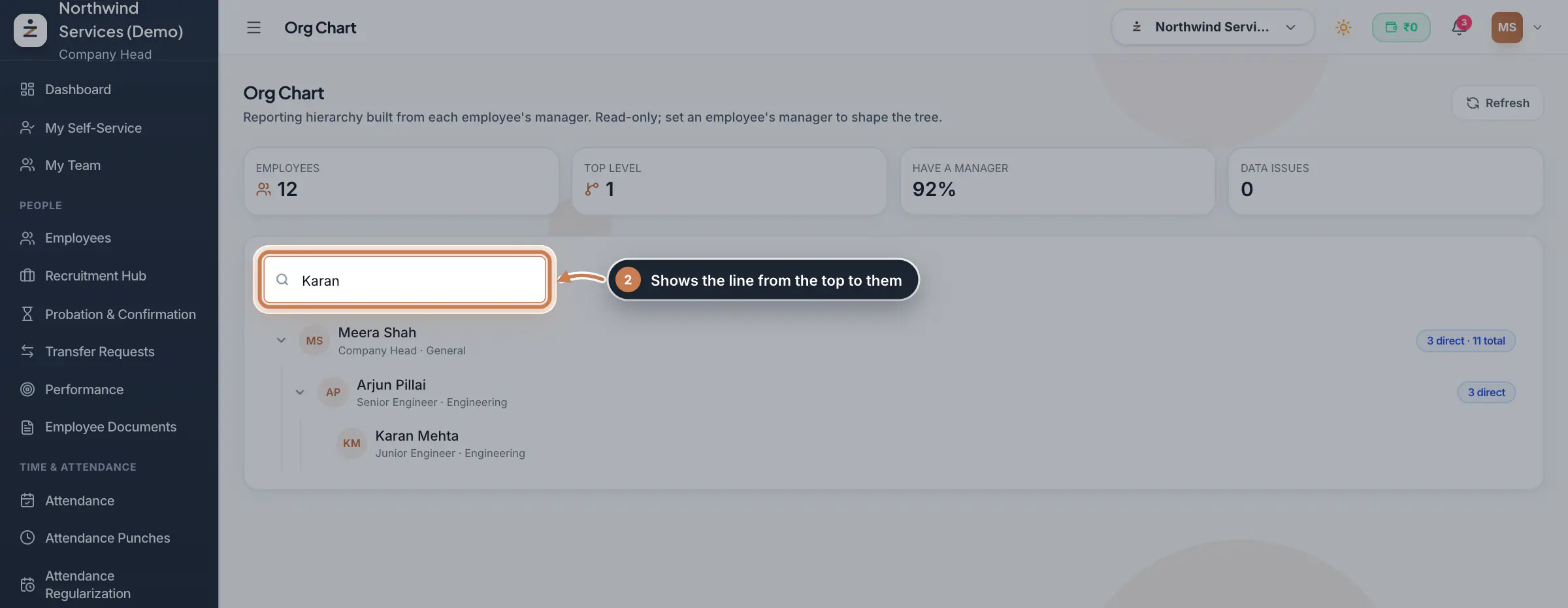 Full size
Step 2 Change who someone reports to
In Employees, open the person's profile and click Employment Details. Under Organization assignment, click Assign, pick the Reporting Manager and click Save. The chart, My Team and the approval steps follow at once.
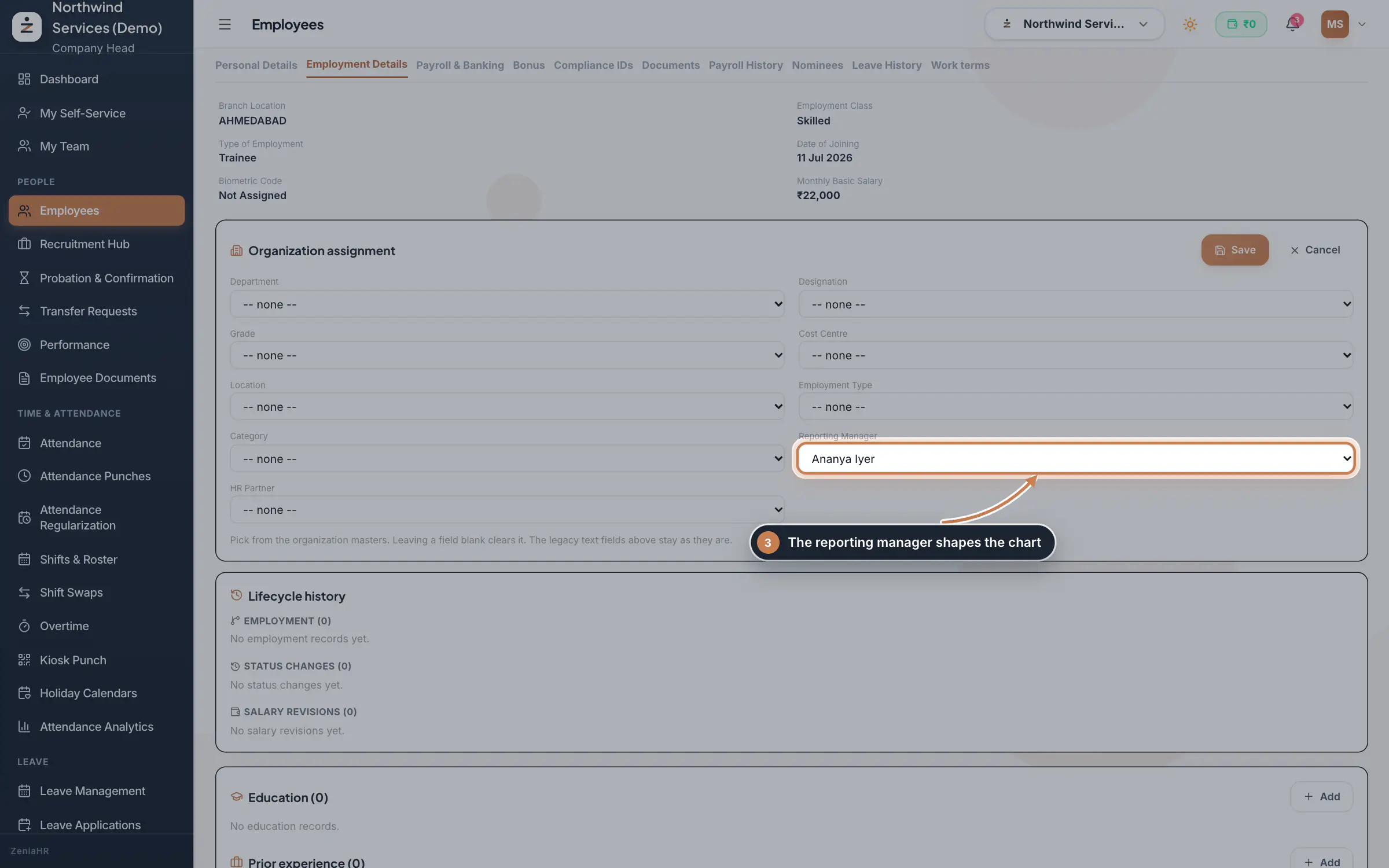 Full size
Step 3 Tip A person cannot report to themselves or to someone who reports to them; ZeniaHR refuses a change that would make a loop.
What it does
Org Chart draws who reports to whom across the company, from the reporting manager on each employee's record. Every person shows their designation and department and, for managers, how many people report to them directly and in total. The chart is read-only: you shape it by setting reporting managers.
Who uses it
- The Company Head and HR open it from Settings, under Organization.
- Everyone else sees their own part of it: managers see their team in My Team.
How it connects
The reporting manager you set on a person's profile decides more than the chart: their leave applications, attendance corrections and swaps go to that manager first, the manager sees them in My Team, and the manager is asked for their probation review in Probation & Confirmation. The department under each name comes from the department the person is linked to in Organization.
Questions
Why are several people at the top level?
They have no reporting manager. Set one on each profile, so that only the head of the company stays at the top.
What are data issues?
People whose manager is not part of this company, or reporting loops left from old data. They are shown at the top level so the chart still opens; fix their reporting manager on the profile.
Why does a person show no department?
Their department is only text on the record and not yet linked to a department in Organization. Link it under Organization assignment on the profile.
Related
 Employees moduleThe staff directory, where you add people, open an employee profile and approve new joiners.Module
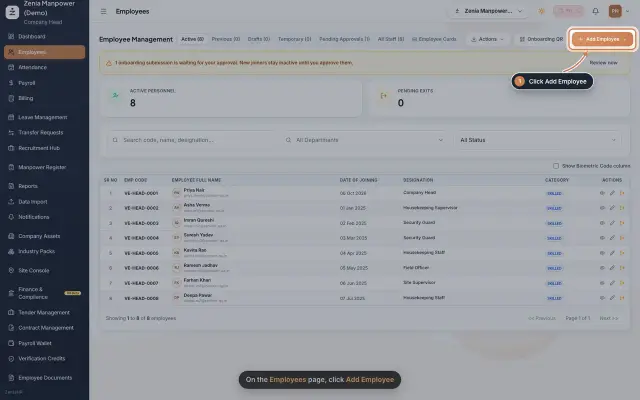 Add an employeeRegister a new employee master file step by step, from personal details to employment.Guide25 s video
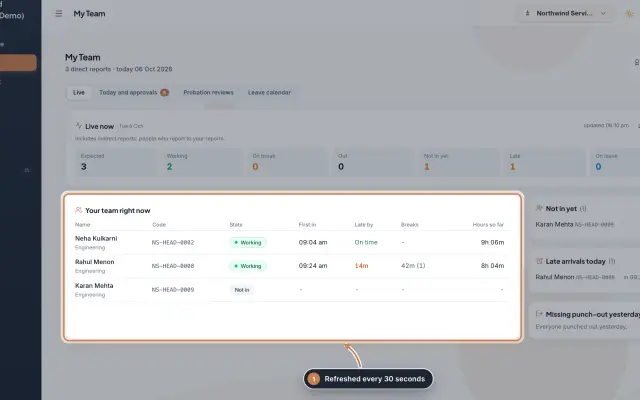 My Team moduleA manager's page for the people who report to them: who is working right now, the requests waiting on them, probation reviews, the team's leave and praise.Module
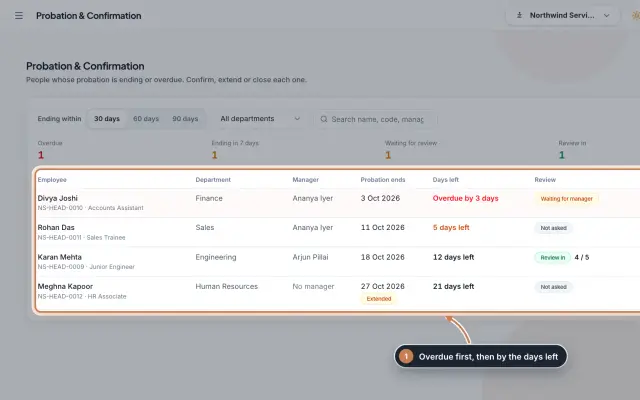 Probation & Confirmation moduleEveryone whose probation is ending or overdue in one queue; confirm with a letter, extend with a reason, record a not confirmed outcome or ask the manager for a review.Module
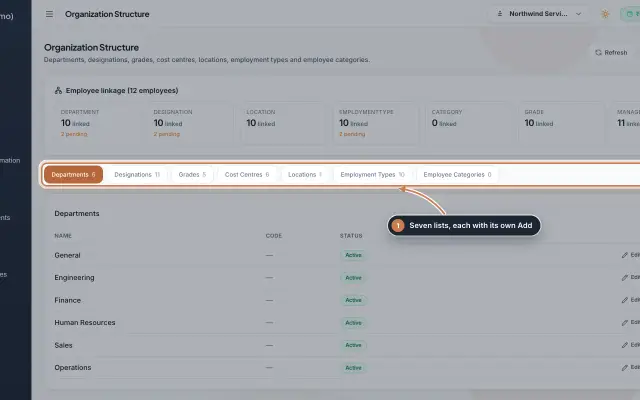 Organization moduleKeep the company's lists of departments, designations, grades, cost centres, locations, employment types and employee categories, and link each employee to them.Module
- Employee onboarding softwareSee how it works on the ZeniaHR website