Manpower Register module
One sheet per base and month for daily-wage contract staff, where pay and the client bill are worked out together as you type.
Key screens
Open the register for a base and month
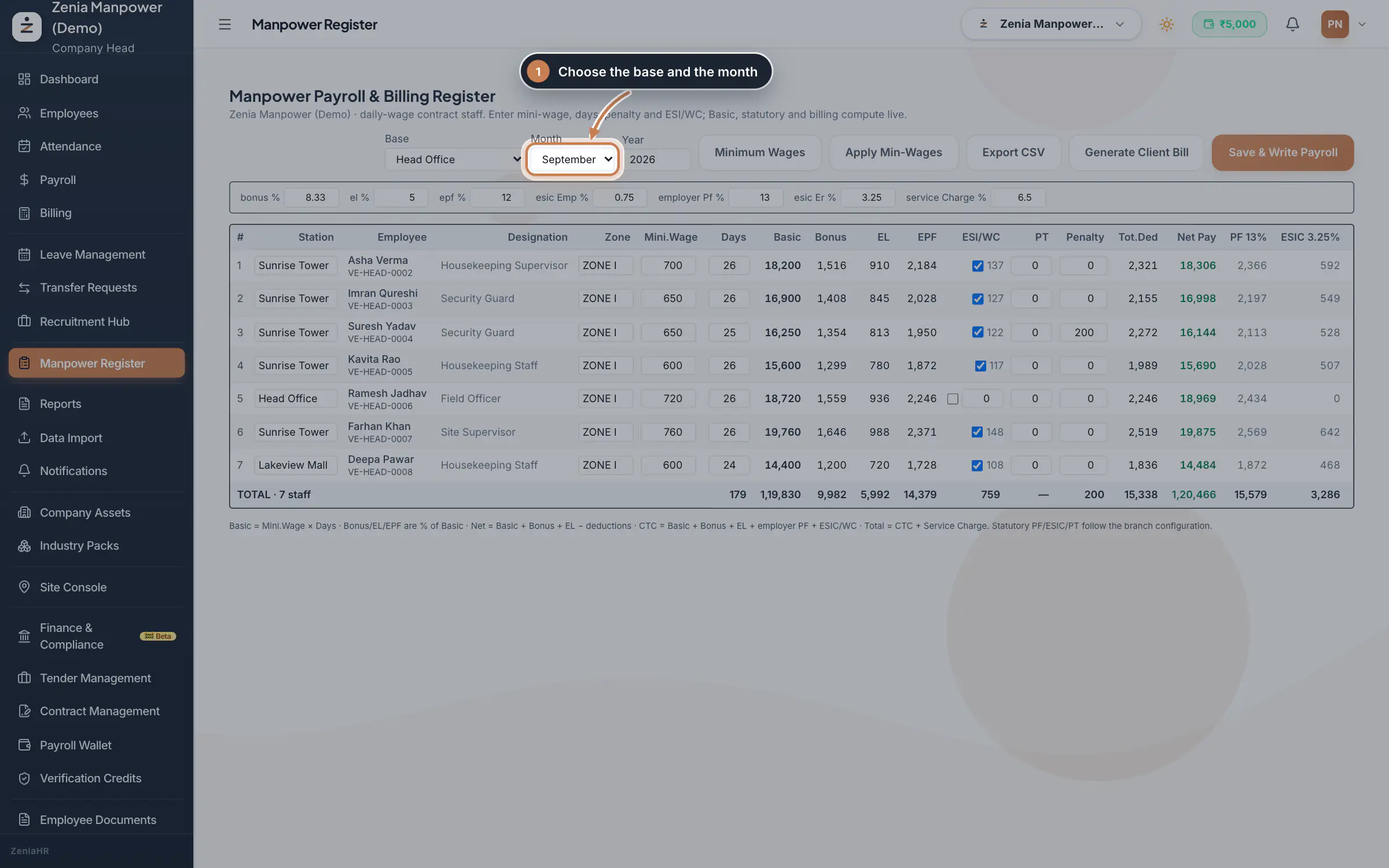
In the sidebar, click Manpower Register. Choose the Base, Month and Year. Each person on the base's sheet for that month has one row: everyone who joined by the end of the month and had not left before it began. Someone who joined later, such as a new Company Head, is not a row. Type the station and zone, the days, any penalty and PT, and tick ESI/WC for ESI-covered staff; for others enter the WC employer amount. Every total updates as you type.
 Full size
Step 1 Keep the minimum wages
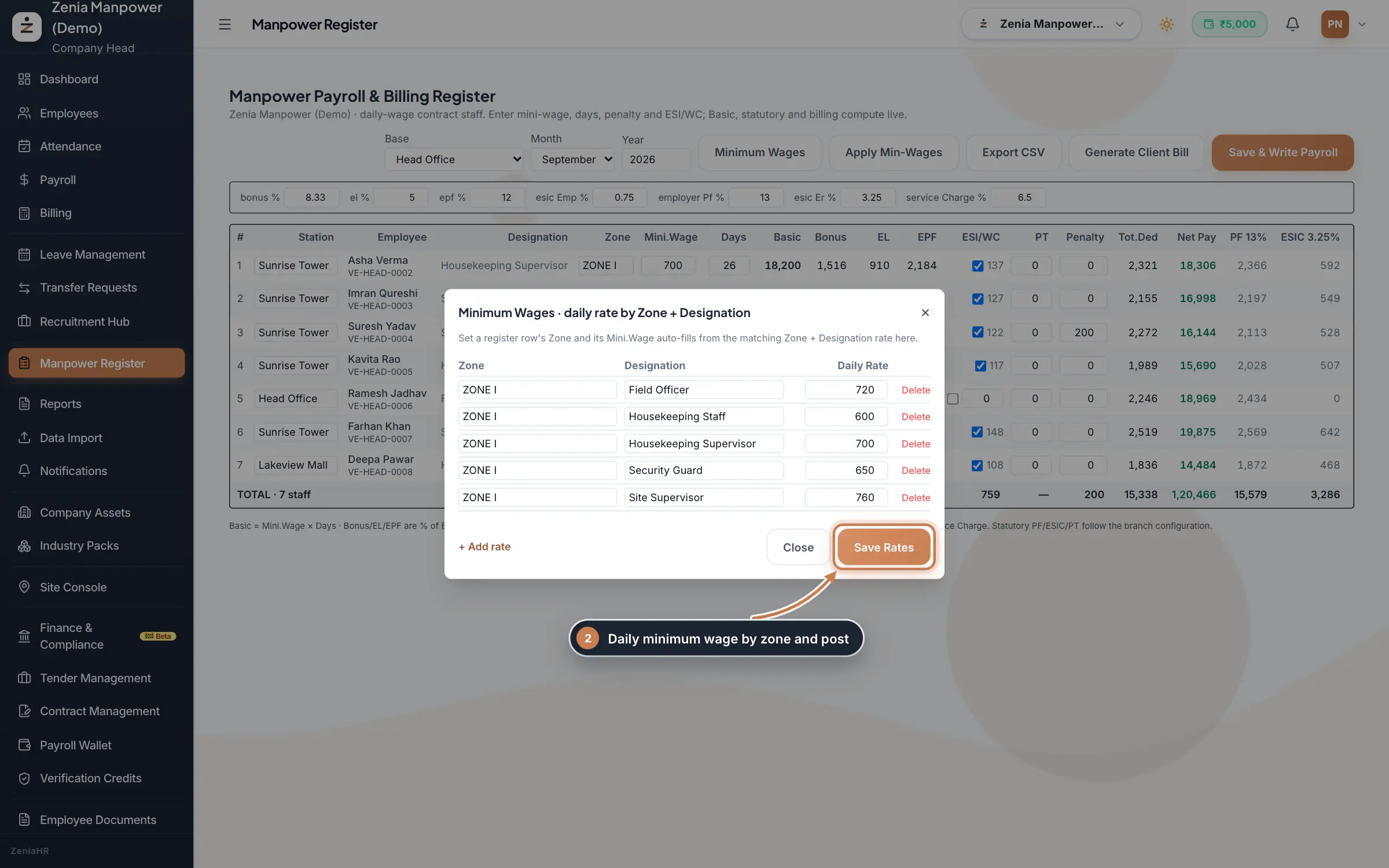
Click Minimum Wages to keep the daily rate for each zone and designation, then click Save Rates. When you type a zone in a row, its Mini.Wage fills in from this list. After changing the rates, click Apply Min-Wages to refill every row at once.
 Full size
Step 2 Save into Payroll
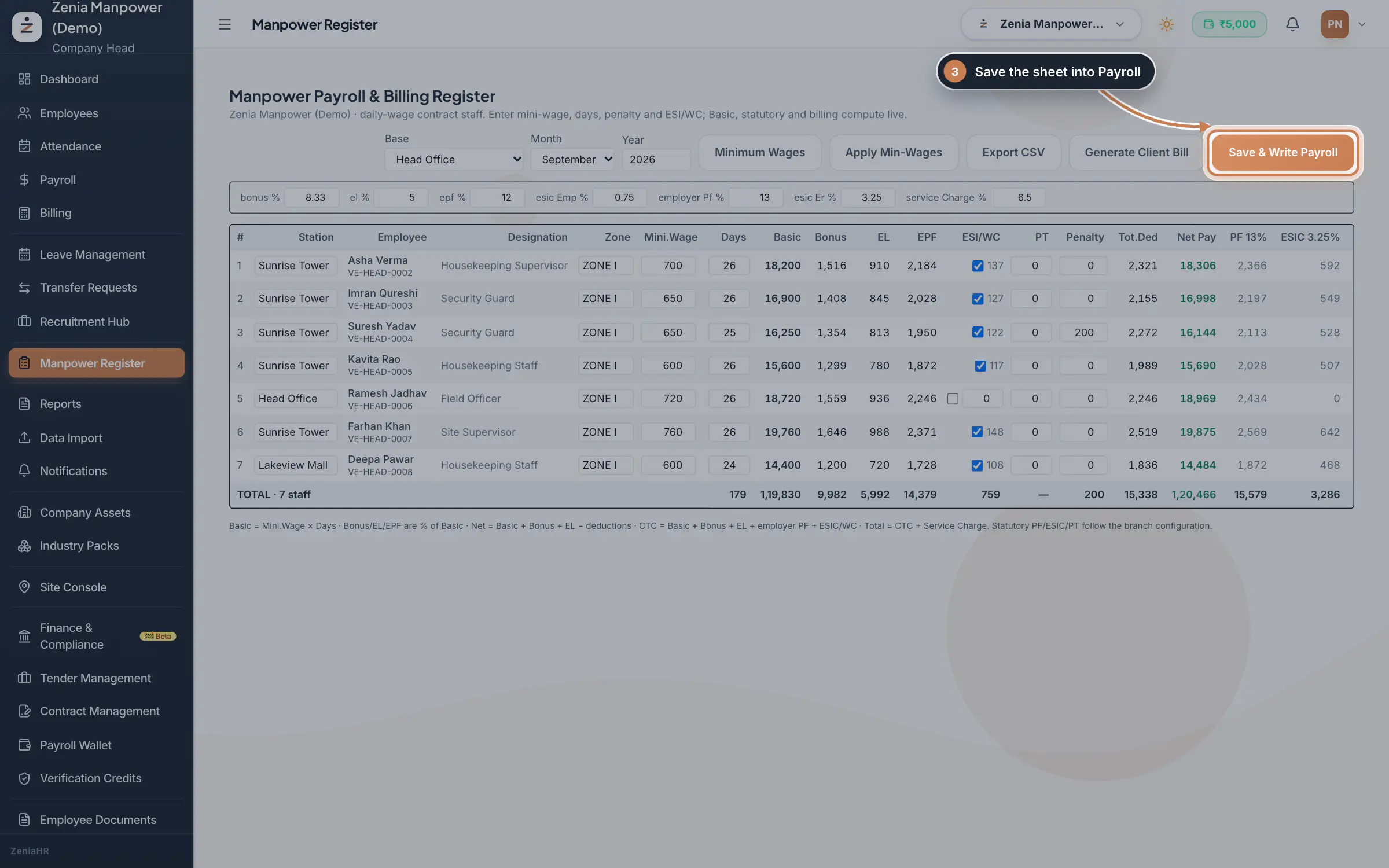
Click Save & Write Payroll. The register is saved and the payroll rows of these employees are updated, so staff see the same net pay on their wage slips in the app. Use Export CSV for a copy of the sheet.
 Full size
Admin panel · Step 3 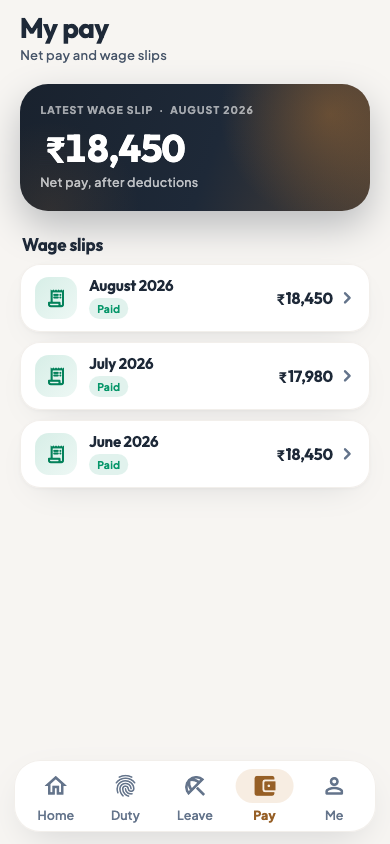 On the employee app
Wage slips in the employee app
Bill the client
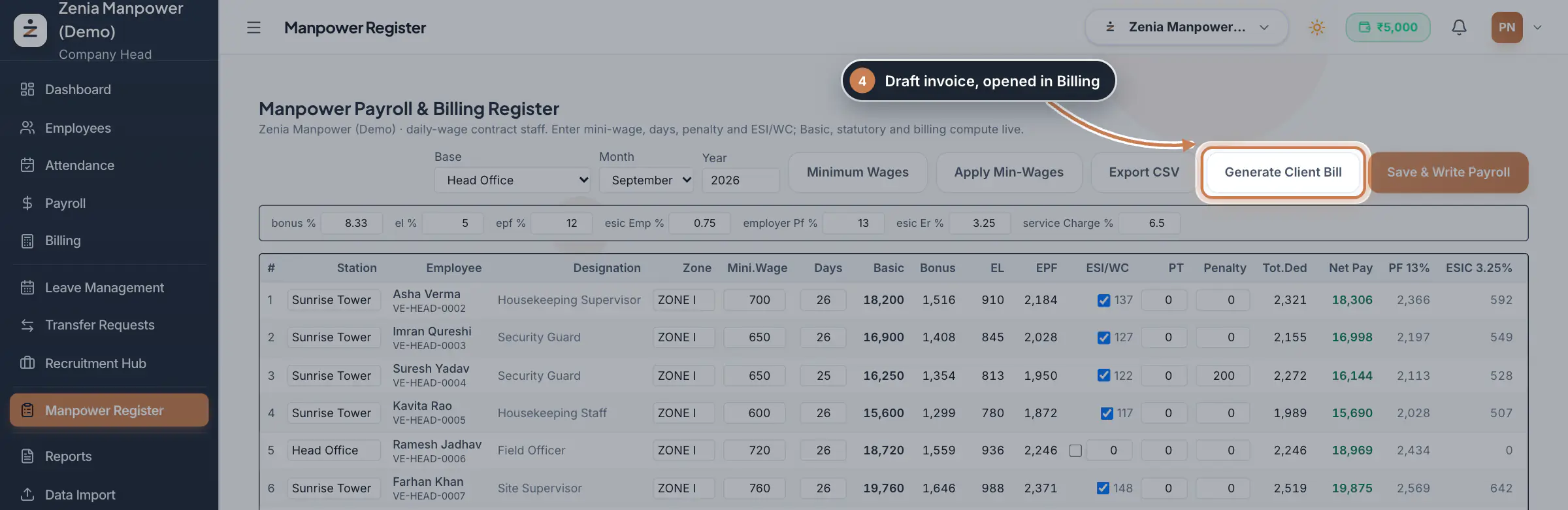
Click Generate Client Bill. ZeniaHR creates a draft invoice with one line per saved entry at CTC, adds the service charge and GST from the contract's billing profile, and opens Billing, where the draft is listed under Invoices. Only saved entries are billed, so save the register first.
 Full size
Step 4
What it does
The Manpower Payroll & Billing Register is the contractor sheet for daily-wage staff, kept for one base (branch) and one month. For each person you enter the station, zone, minimum daily wage, days worked, penalty and ESI or WC cover. The register works out both sides live: the pay side (Basic, Bonus, EL, EPF, ESI or WC, PT, total deductions and net pay) and the billing side (employer PF and ESIC, CTC, service charge and the total to bill).
The percentages used, such as bonus, EL, EPF, ESIC and service charge, sit in a strip above the sheet and can be changed for the month. The note under the sheet explains each formula, for example Basic = Mini.Wage × Days.
Who uses it
- Company Head, HR and Finance fill in and save the register.
How it connects
The register lists the same people as the base's sheet in Branch Month for that month. Saving the register writes the payroll rows of these employees, so their payslips and the employee app show the same pay. The client bill is created from the saved register through the same billing engine as the Billing console, using the contract's billing profile for the service charge, GST and bill-to customer.
Questions
Why is Mini.Wage still zero after I typed a zone?
There is no rate for that zone and the person's designation in Minimum Wages. Add the rate there, save it, and click Apply Min-Wages.
Does the register change the client's contract rates?
No. It only uses the contract's billing profile to build the bill. Approved rates are kept in Billing, under Clients & Contracts.
Related
 The employee app for site staffA tour of the ZeniaHR app for manpower staff at client sites: signing in, checking in for duty, your days, wage slips, leave and your profile.GuideApp
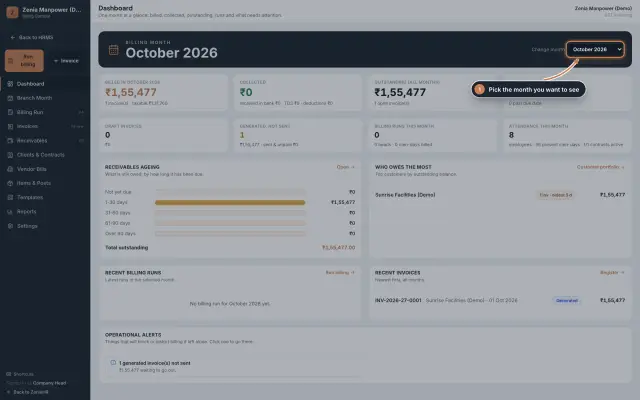 Billing moduleThe Billing console of a manpower company, where you turn attendance on each contract into GST invoices and follow every payment.Module
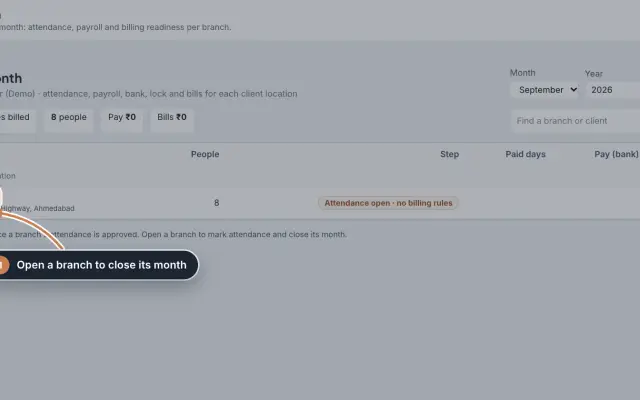 Branch Month moduleClose each branch's month in order, from attendance to payroll, the bank sheet and the client bills, and file EPF and ESIC for the whole company.Module
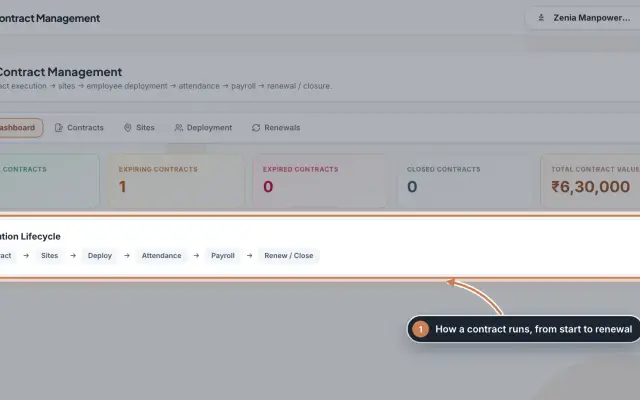 Contract Management moduleKeep every client contract with its sites and the staff deployed to each site, and renew contracts before they end.Module
 Employees moduleThe staff directory, where you add people, open an employee profile and approve new joiners.Module
- Client billing for manpower firmsSee how it works on the ZeniaHR website