Branch Month module
Close each branch's month in order, from attendance to payroll, the bank sheet and the client bills, and file EPF and ESIC for the whole company.
Key screens
The month overview
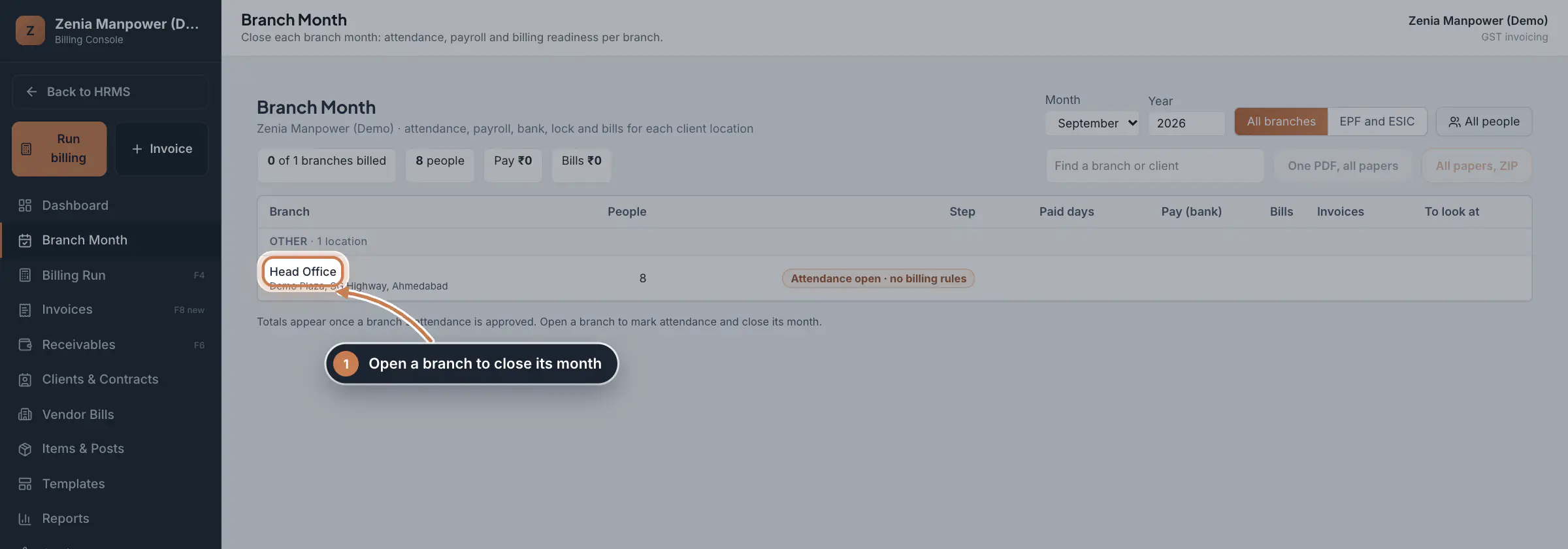
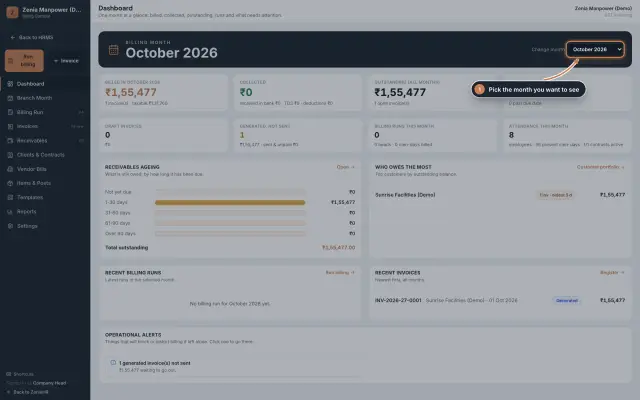
Choose the Month and Year. Each branch shows its step, for example Attendance open, and a note when something is missing, such as billing rules. One PDF, all papers and All papers, ZIP download every branch's papers once at least one branch has approved attendance. Click a branch to open its month.
 Full size
Step 1 Mark the attendance
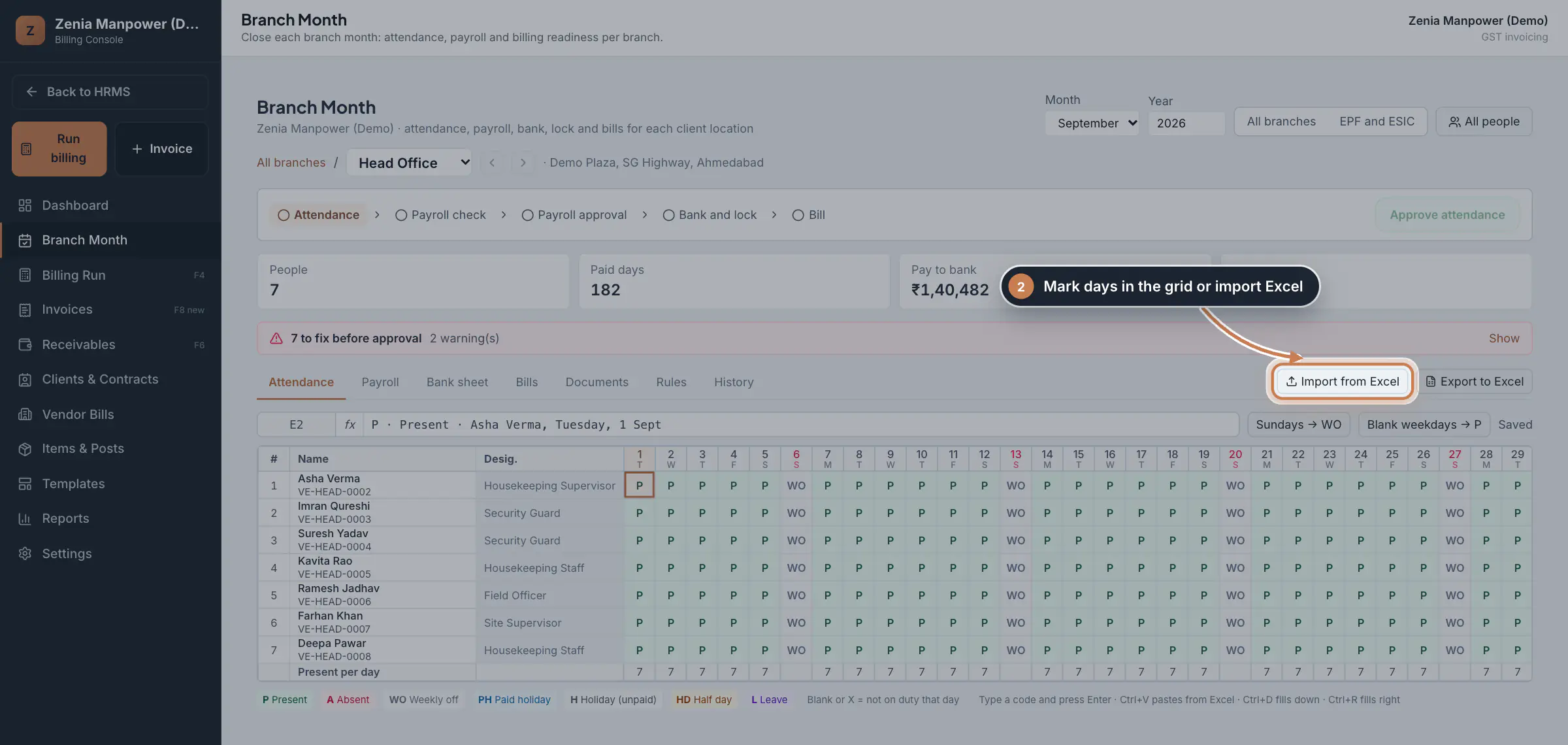
The Attendance tab is a grid with one row per person and one column per day. Type a code and press Enter: P present, A absent, WO weekly off, PH paid holiday, H unpaid holiday, HD half day and L leave. Sundays → WO and Blank weekdays → P fill the month quickly, and you can paste from Excel or use Import from Excel.
 Full size
Step 2 Tip Ctrl+D fills down and Ctrl+R fills right, just as in Excel.
Fix what blocks approval
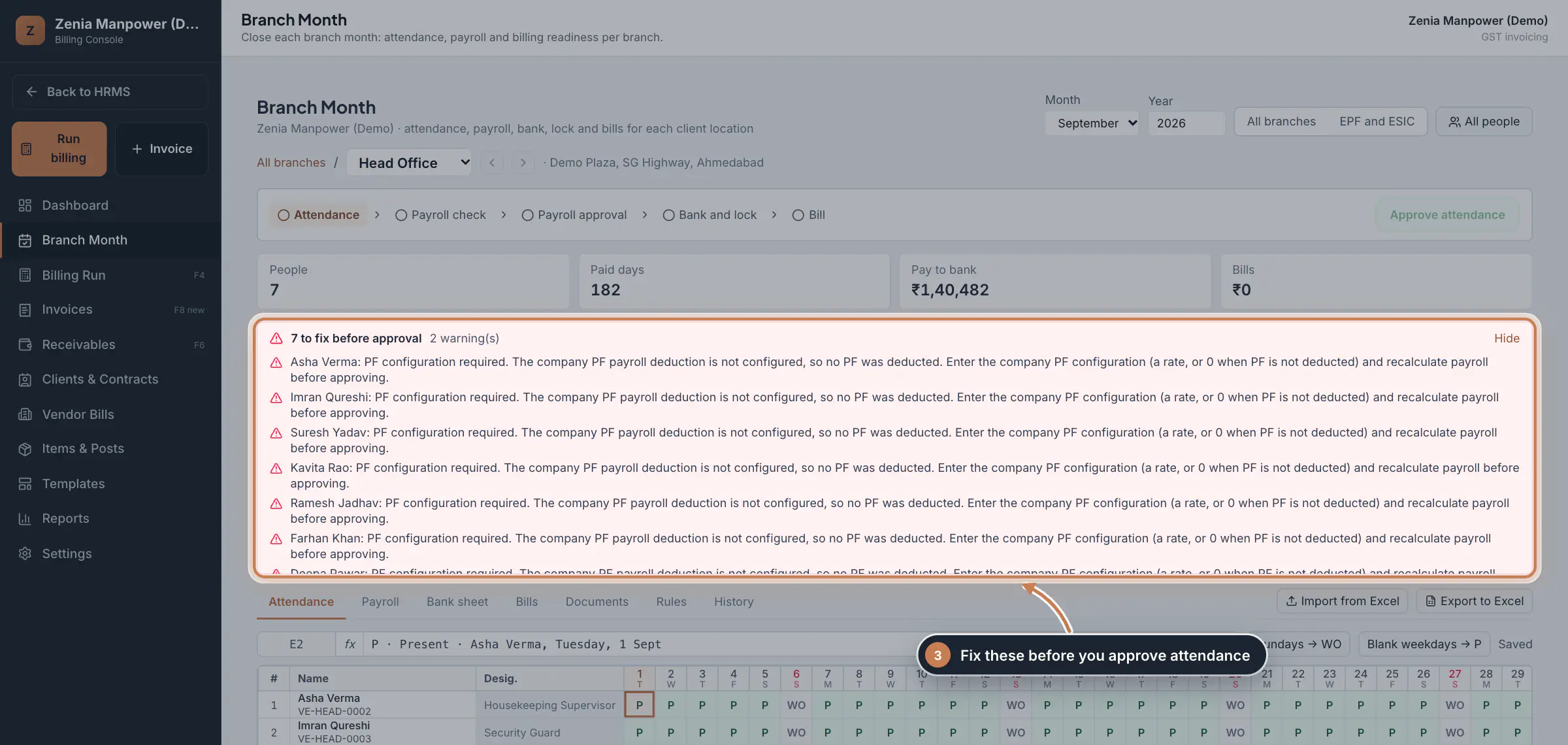
Above the tabs, Branch Month lists what must be fixed before you can approve, and warnings that do not block. Click the line to see each item, for example a missing PF setting or missing billing rules. When the list is clear, click Approve attendance.
 Full size
Step 3 Check and approve payroll
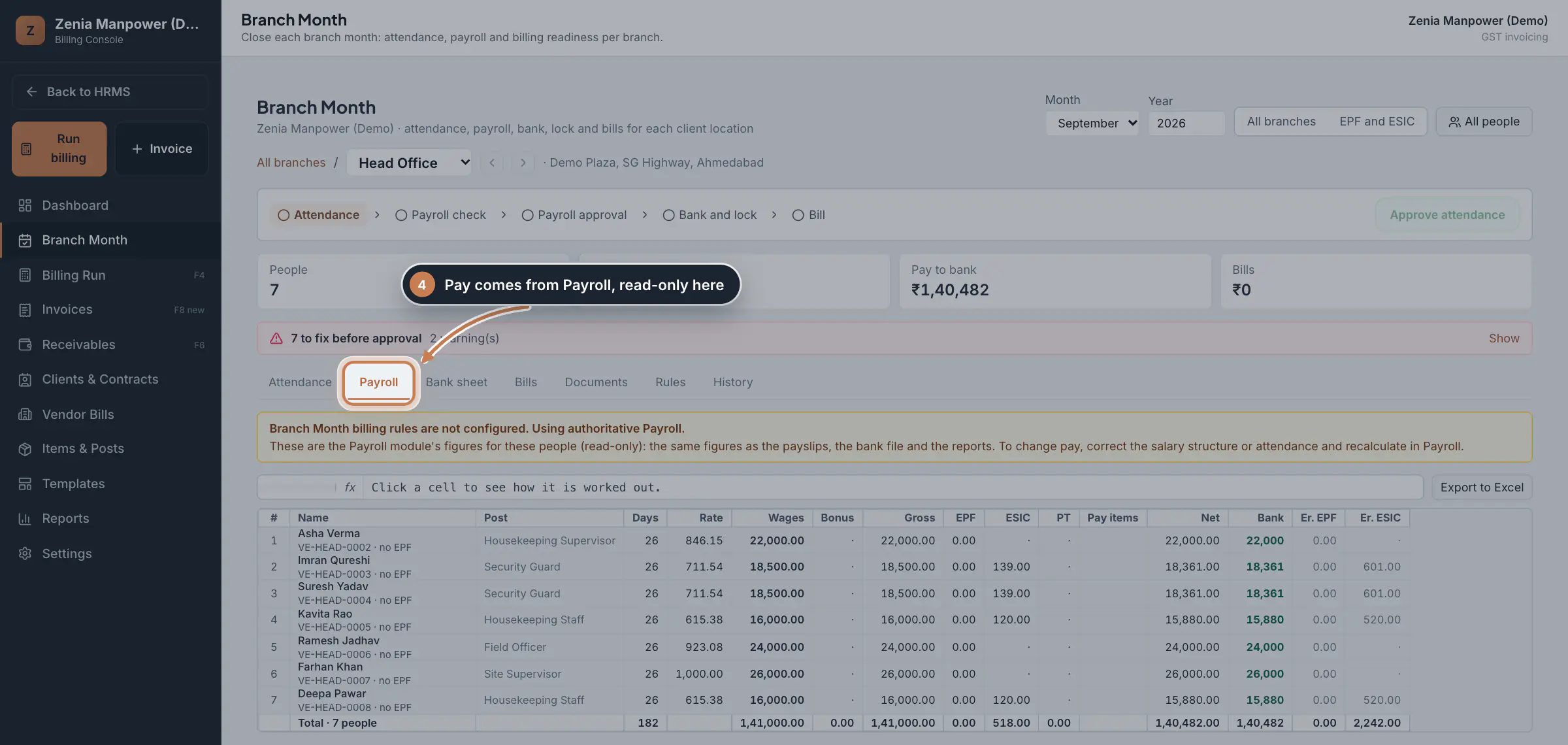
The Payroll tab shows each person's days, rate, wages, deductions, net pay and bank amount, read from Payroll. Click a cell to see how it is worked out. To change pay, correct the salary structure or the attendance and recalculate in Payroll. Then click Mark payroll checked and Approve payroll. Staff see the same net pay as wage slips in the app, under Pay.
 Full size
Admin panel · Step 4 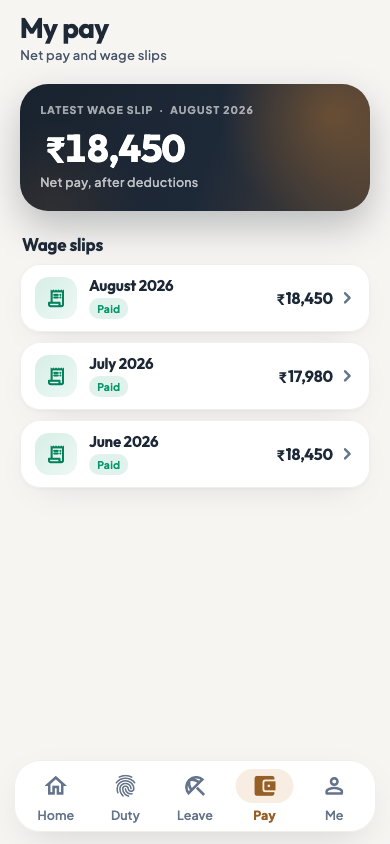 On the employee app
Wage slips in the employee app
Lock the month and raise the bills
After payroll approval the Bank sheet tab opens. Enter the Paid on date and click Lock (paid). Then click Raise the bills. The Rules tab sets the branch's billing rules: which days are billed, each post's approved client rate and how each contract bills. Changes show their effect on the month's bills before you save.
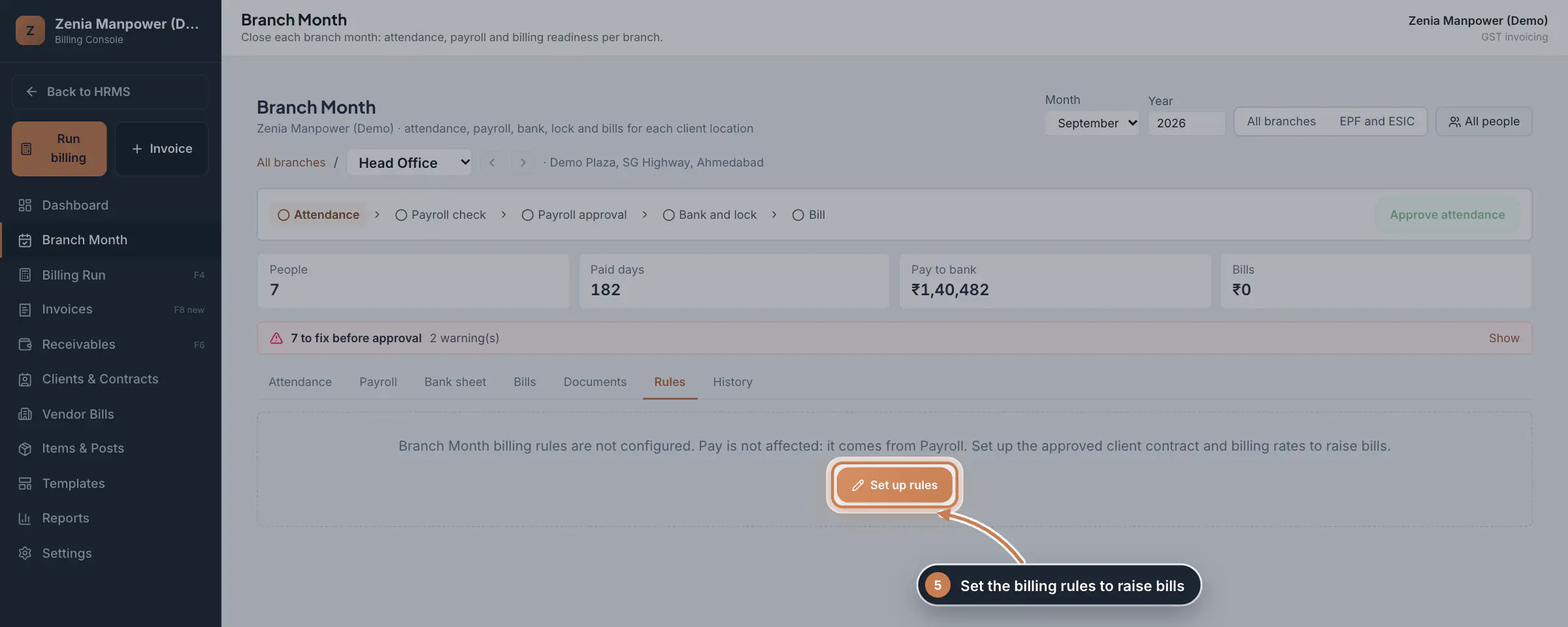 Full size
Step 5 File EPF and ESIC
Click EPF and ESIC. It builds the EPF ECR text file for the EPFO portal and the ESIC monthly contribution upload from every branch whose payroll is approved. After paying, enter the EPF challan TRRN and the ESIC challan number with the date and amount.
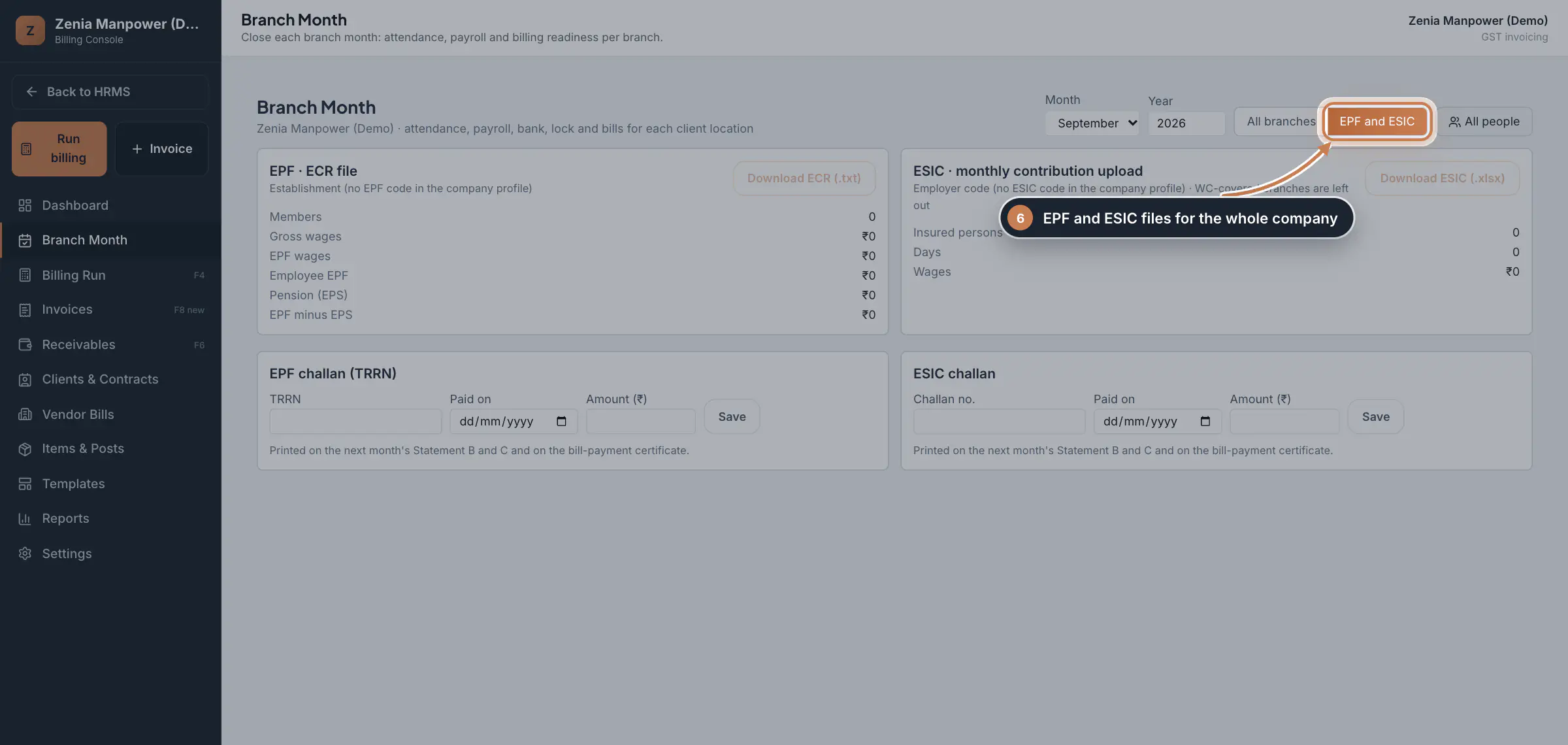 Full size
Step 6
What it does
Branch Month closes one client location's month at a time, always in the same order: Attendance, Payroll check, Payroll approval, Bank and lock, then Bill. The overview lists every branch for the month, grouped by client, with its current step, people, paid days, pay, bills and anything to look at. EPF and ESIC are then filed once for the whole company from the approved months.
Who uses it
- Company Head, HR and Finance who can view payroll.
- Once a month is locked, only a Company Head can unlock it to change attendance or payroll.
How it connects
Branch Month opens inside the Billing console: click Billing in the sidebar, then Branch Month in the console menu. Pay is never set here. Every figure comes from Payroll, the same figures as the payslips, the bank file and the reports, and staff see their wage slips in the employee app. The bills use the branch's billing rules and the client contracts kept in Contract Management.
Questions
Why is Approve attendance greyed out?
Something on the list above the tabs still has to be fixed. Open the list, fix each item, and the button becomes active.
Can I change attendance after the month is locked?
Only after a Company Head unlocks the month. Locking marks the payroll as paid on the date you entered.
Related
 The employee app for site staffA tour of the ZeniaHR app for manpower staff at client sites: signing in, checking in for duty, your days, wage slips, leave and your profile.GuideApp
 Billing moduleThe Billing console of a manpower company, where you turn attendance on each contract into GST invoices and follow every payment.Module
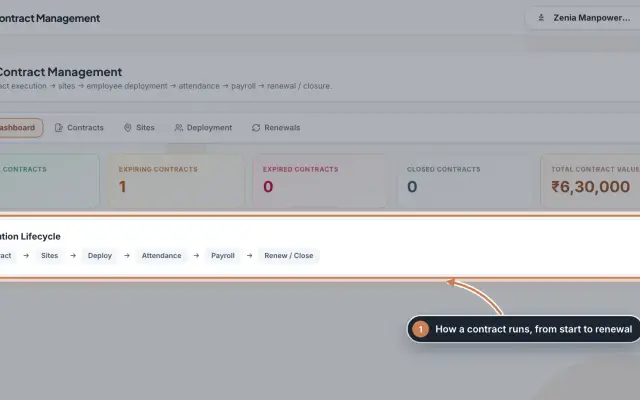 Contract Management moduleKeep every client contract with its sites and the staff deployed to each site, and renew contracts before they end.Module
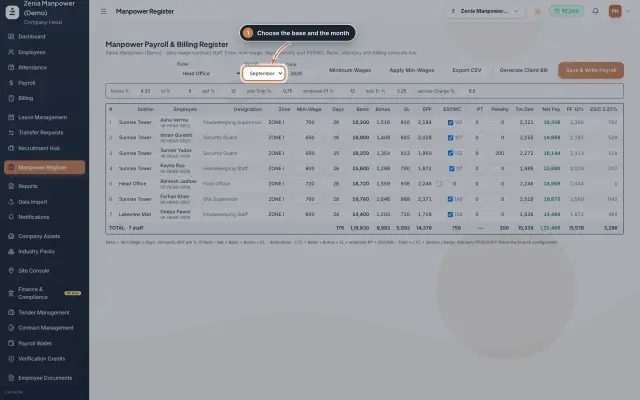 Manpower Register moduleOne sheet per base and month for daily-wage contract staff, where pay and the client bill are worked out together as you type.Module
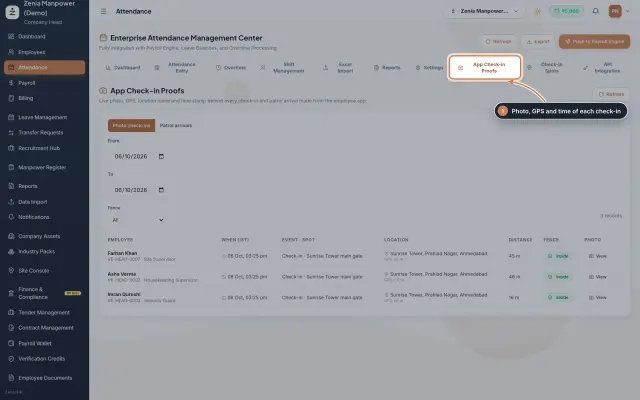 App check-ins and check-in spotsSee the live photo, GPS and time behind every check-in made from the employee app, and set the spots where staff may check in.Module
 Employees moduleThe staff directory, where you add people, open an employee profile and approve new joiners.Module
- Client billing for manpower firmsSee how it works on the ZeniaHR website