My Self-Service module
Every employee's own page on the web: punch in and out, see the month's attendance, apply for leave, ask for corrections and work from home, pick optional holidays and find payslips.
Key screens
Punch in and see your day
In the sidebar, click My Self-Service. The top shows your name, code and joining date, and any celebrations this week. Under Today, click Punch in when you start, Break and Resume around a break, and Punch out when you finish; the timers show the hours worked and the breaks. Your shift, your check-in time against it (on time or late) and each punch are listed. Below, the month so far: present, half, leave, holiday, absent and weekly off days, working and payable days, late marks and any penalty. Open How your attendance is counted to read your company's rules in plain words.
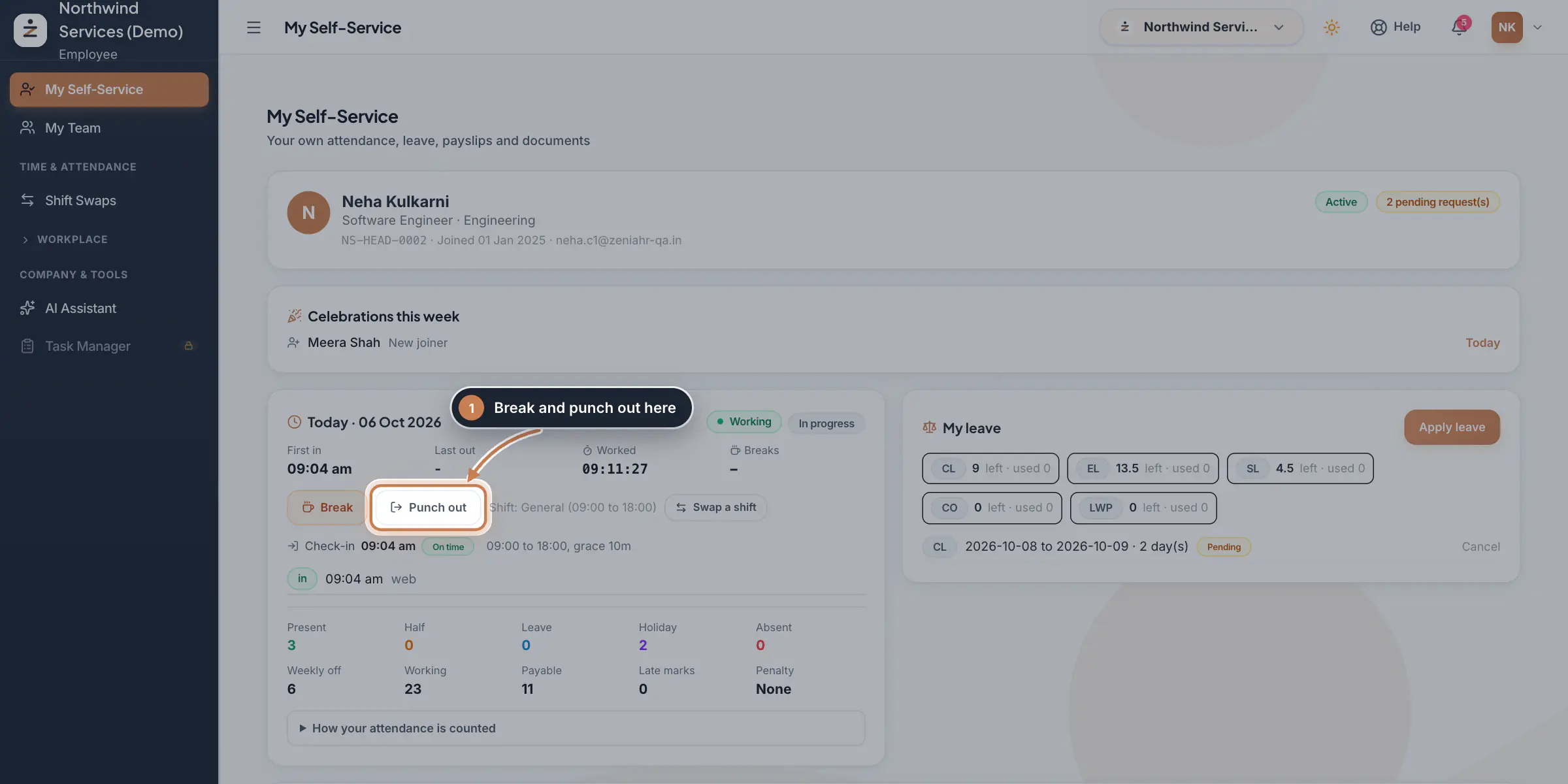 Full size
Admin panel · Step 1 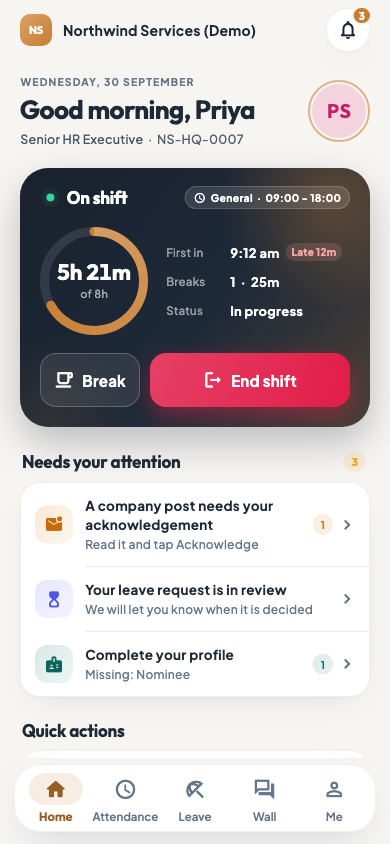 On the employee app
The employee app home with today's shift
Tip If your company asks for your location when you punch, allow it in the browser, or the punch may be refused.
Apply for leave
My leave shows what is left and used of each leave type. Click Apply leave, choose the Type, type the From and To dates, tick Half day if allowed, and write a Reason. Before you submit, ZeniaHR shows how many days will be deducted, the exact days counted and your balance after this leave; anything that blocks the application shows in red. Click Submit. A pending application can be cancelled with Cancel, and so can approved leave that has not started yet.
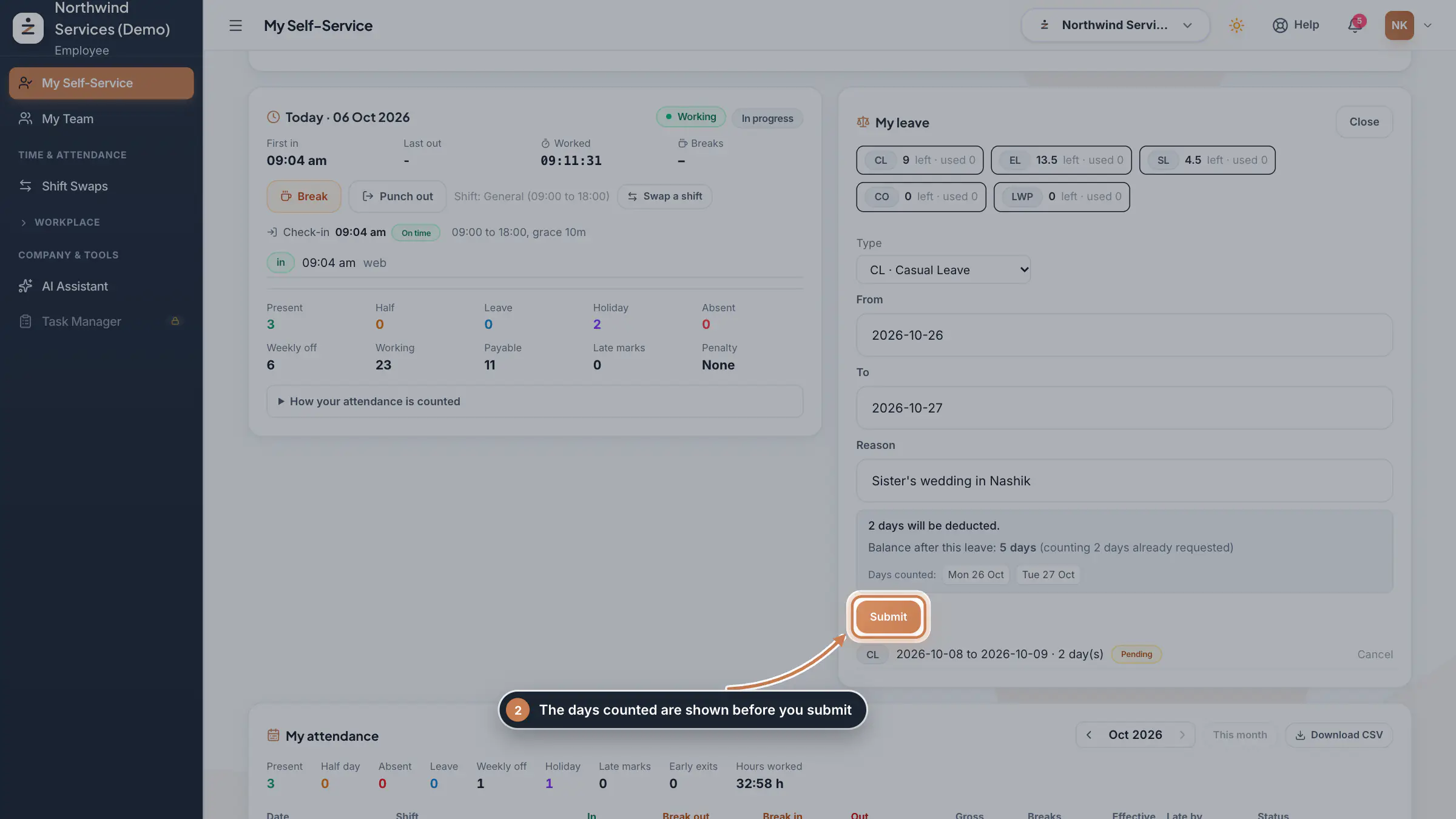 Full size
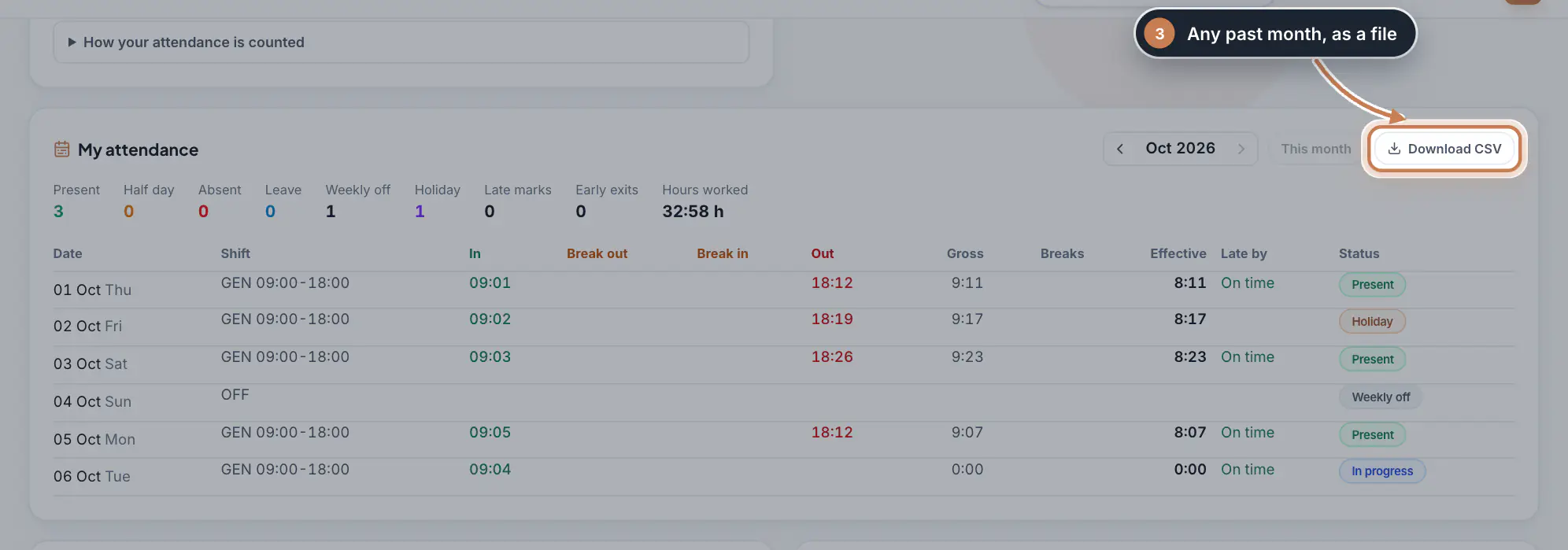
Step 2 Check your attendance month by month
My attendance lists every day of the month with your shift, the in, break and out times, the gross and effective hours, how late you were and the day's status. Use the arrows to see an earlier month, This month to come back, and Download CSV to save the month as a file.
 Full size
Step 3 Ask for a correction or to work from home
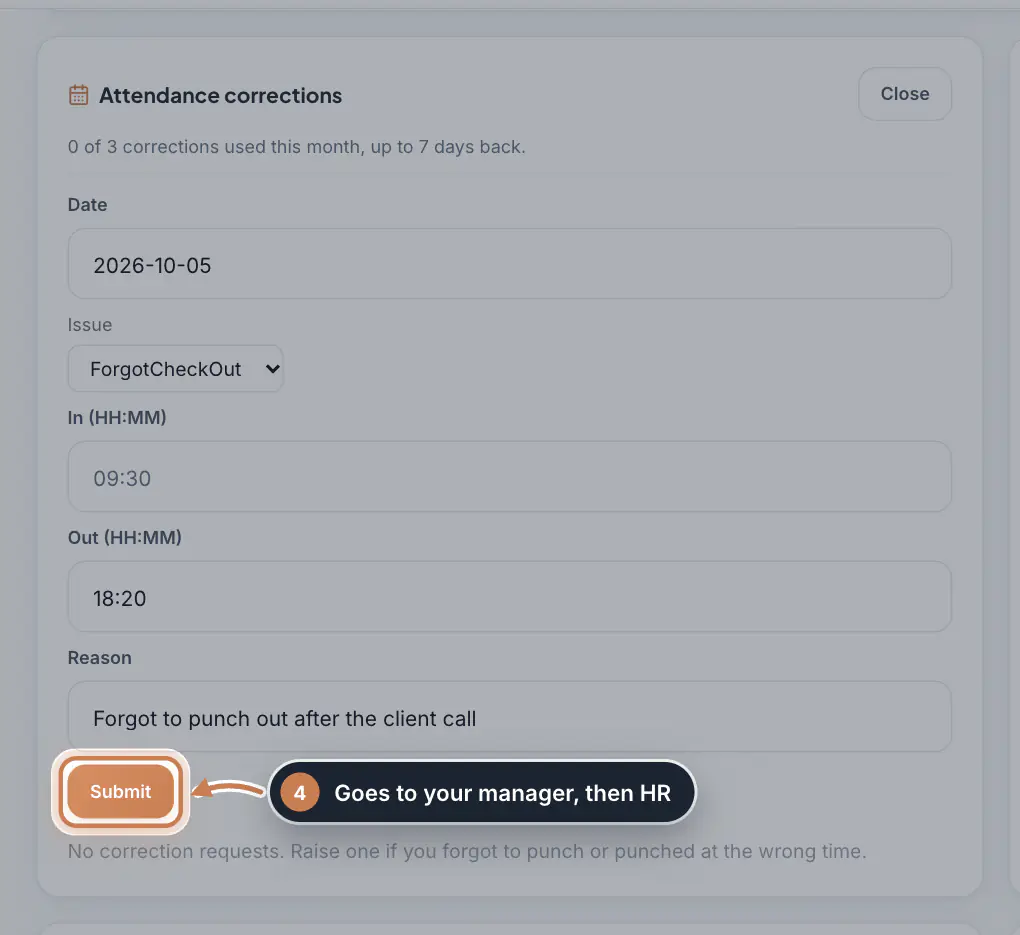
Forgot to punch, or punched at the wrong time? Under Attendance corrections, click Raise a request, enter the Date, choose the Issue, type the correct In or Out time and the Reason, and click Submit. The card shows how many corrections you have used this month and how far back you can go. To work from home or on duty, click Request under Work from home / On duty. Both go to your manager first, then HR.
 Full size
Step 4 Pick optional holidays and find your payslips
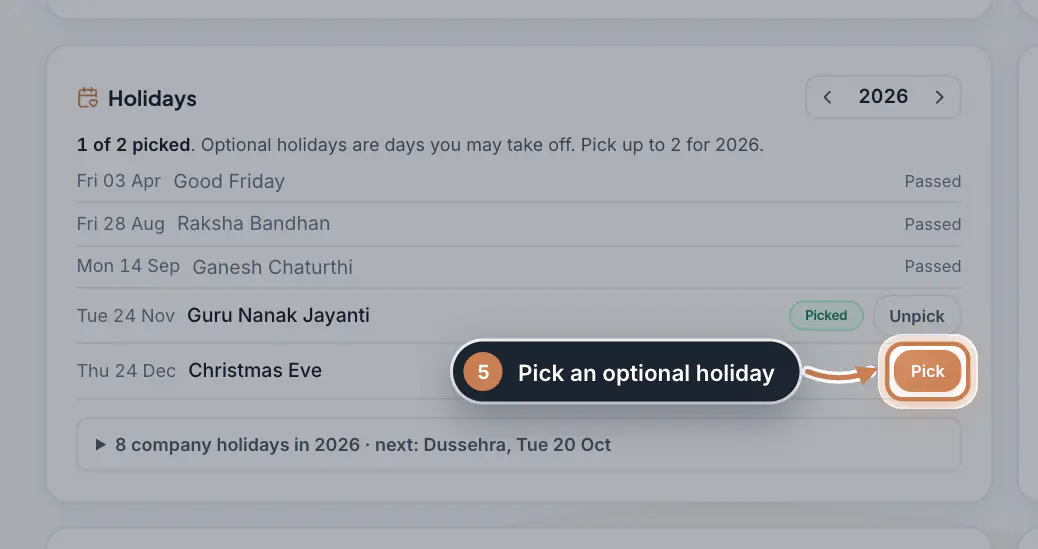
Under Holidays, click Pick on an optional holiday you want off, up to your company's limit, or Unpick to change your mind before the day. The year's company holidays are listed below. My payslips lists your pay by month; a PDF is there for each slip from Direct Payroll. My documents shows the documents on your file, and My work opens the Task Manager, and My Team when people report to you.
 Full size
Step 5
What it does
My Self-Service is each person's own page in the ZeniaHR web app: today's attendance with a web punch, the month's days, leave balances and applications, attendance corrections, work from home and on duty requests, optional holidays, payslips and documents. It shows only your own record; nobody needs admin rights to use it. The employee app offers the same on the phone.
Who uses it
- Every employee of an HRMS Core company whose login is linked to their employee record, including HR and the Company Head for their own record.
- It is always on: it cannot be switched off under Settings, Modules.
How it connects
Punches go to Attendance Punches and are judged against your shift from Shifts & Roster. Leave applications, corrections and work from home requests go to your reporting manager first and then to HR, in Leave Applications and Attendance Regularization; their status shows here as soon as someone decides. Optional holidays come from Holiday Calendars, and Swap a shift opens Shift Swaps. The limits, such as how many corrections a month or how many work from home days, are your company's rules.
Questions
My page says my login is not linked to an employee record. What now?
Ask HR to link your login to your employee record. Until then there is no attendance, leave or pay to show.
Why can I not raise another correction?
You have reached your company's limit for the month, or the day is further back than allowed. The card says how many you have used and how far back you can go.
Can I punch in from the web and the app?
Yes. Both write to the same attendance, so use whichever is at hand. Your company may limit where punches are allowed.
Related
 The employee app for office staffA tour of the ZeniaHR app for HRMS Core staff: signing in, starting your shift, attendance, leave, the company wall and your profile.GuideApp
 Attendance: punches and the daily registerHow punches reach HRMS Core, how to follow them live, record a missed punch, read each employee's day log, keep the daily register and close the month for payroll.Guide
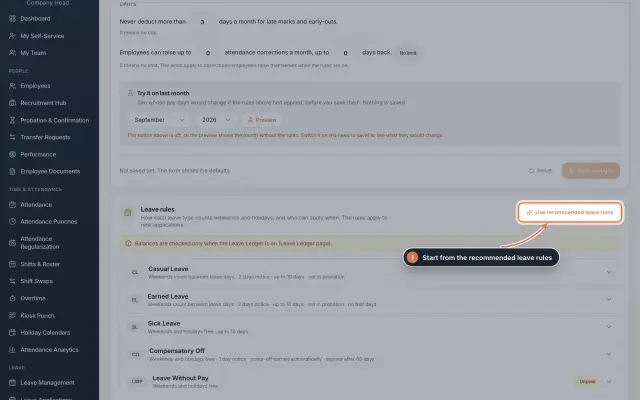 Leave: rules, applications and approvalsSet up your leave types and their rules, apply for leave on an employee's behalf with a live check of the days, and approve or reject applications.Guide
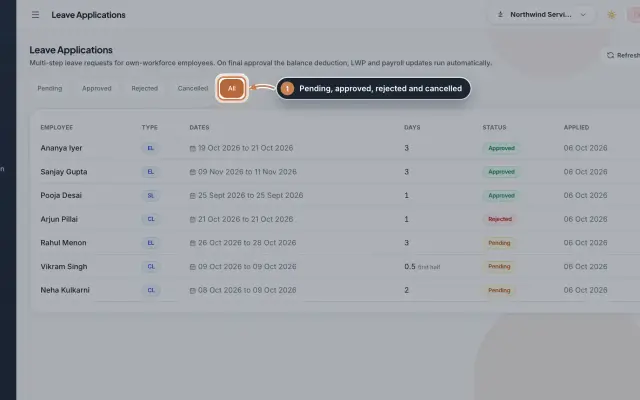 Leave Applications moduleEvery leave application with the days the rules count, its approval steps from the manager to HR, and what happens on approval or when approved leave is cancelled.Module
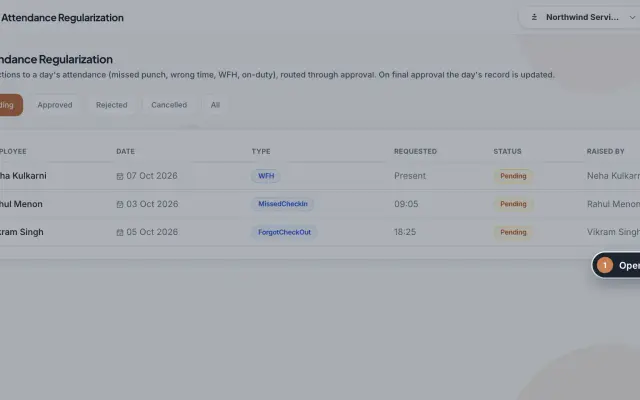 Attendance Regularization moduleCorrect a day's attendance through approval: a missed or forgotten punch, a wrong time, work from home or on duty, decided by the manager and then HR.Module
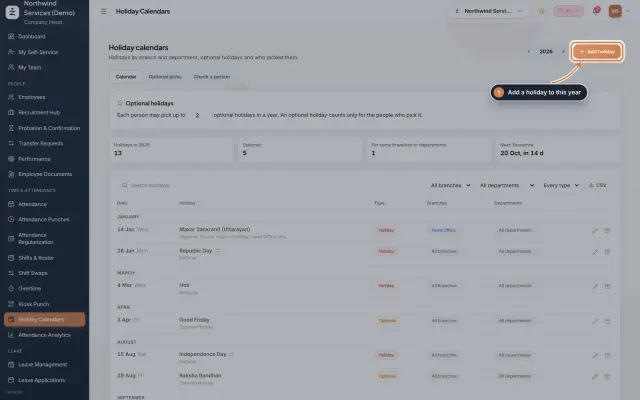 Holiday Calendars moduleKeep the year's holidays by branch and department, set optional holidays and how many each person may pick, and check which holidays a person gets.Module
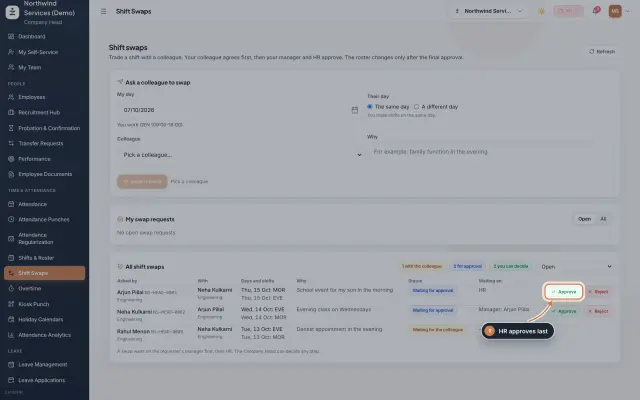 Shift Swaps moduleStaff trade shifts with a colleague; the colleague agrees first, then the manager and HR approve, and only then the roster changes.Module
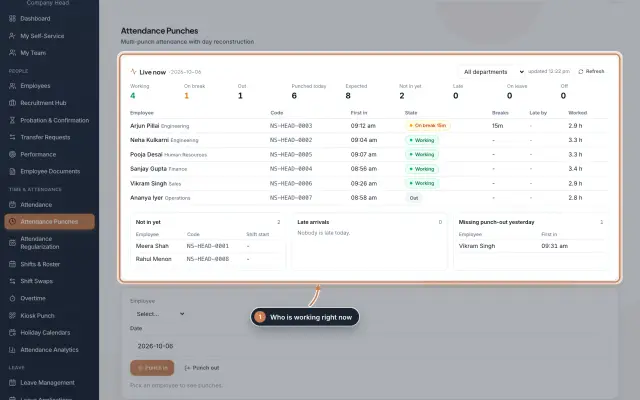
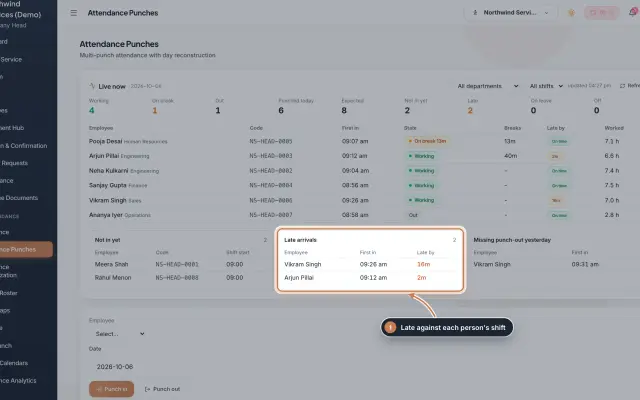 Attendance Punches moduleThe punch register of HRMS Core: who is in right now, every punch of a day, the month's payable days and the penalties the attendance rules add.Module
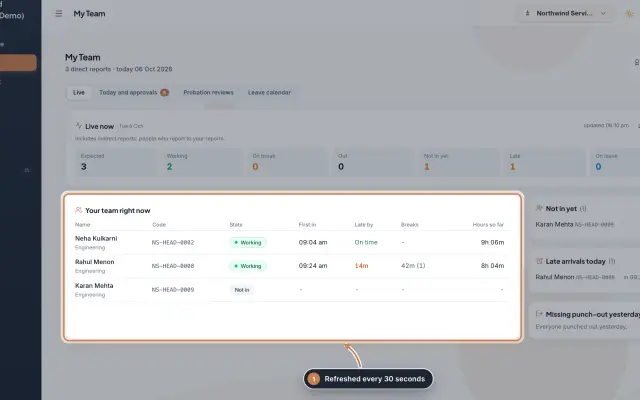 My Team moduleA manager's page for the people who report to them: who is working right now, the requests waiting on them, probation reviews, the team's leave and praise.Module
- Employee onboarding softwareSee how it works on the ZeniaHR website