Kiosk Punch module
Turn a tablet at the entrance into a punch kiosk: it shows a code that changes every 30 seconds, and staff scan or type it in the app to punch.
Key screens
Switch kiosk punching on and add a kiosk
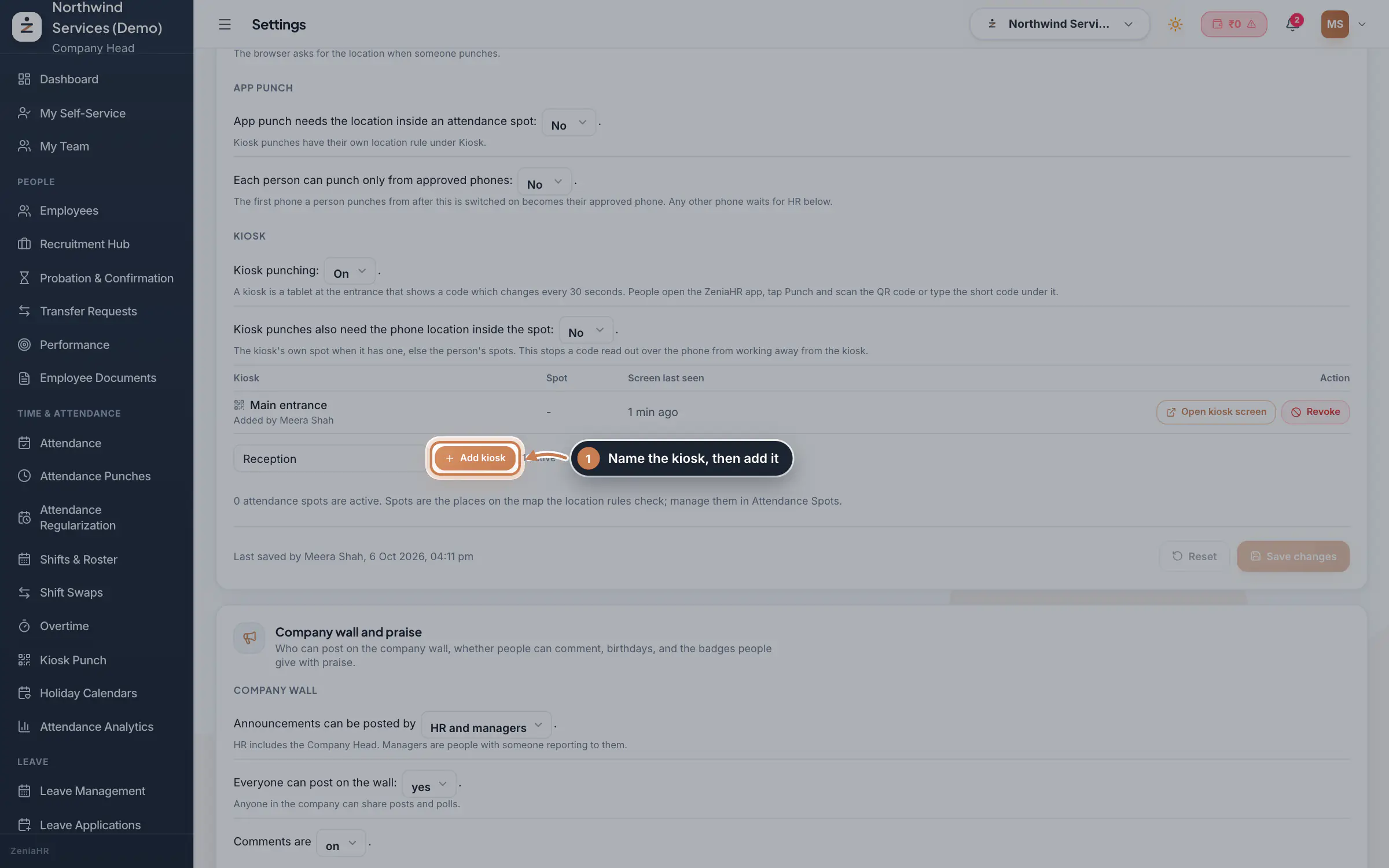
Go to Settings, open the Policies tab and scroll to Capture controls. Under Kiosk, set Kiosk punching to On and click Save changes. Type a name for the kiosk, for example "Main gate", pick its attendance spot if you use spots, and click Add kiosk. Each kiosk shows its spot and when its screen was last seen. Open kiosk screen opens it in a new tab, and Revoke retires a kiosk for good: its codes stop working at once.
 Full size
Step 1 Tip Set Kiosk punches also need the phone location inside the spot to Yes so a code read out over the phone cannot be used away from the kiosk.
Open the kiosk screen on the tablet
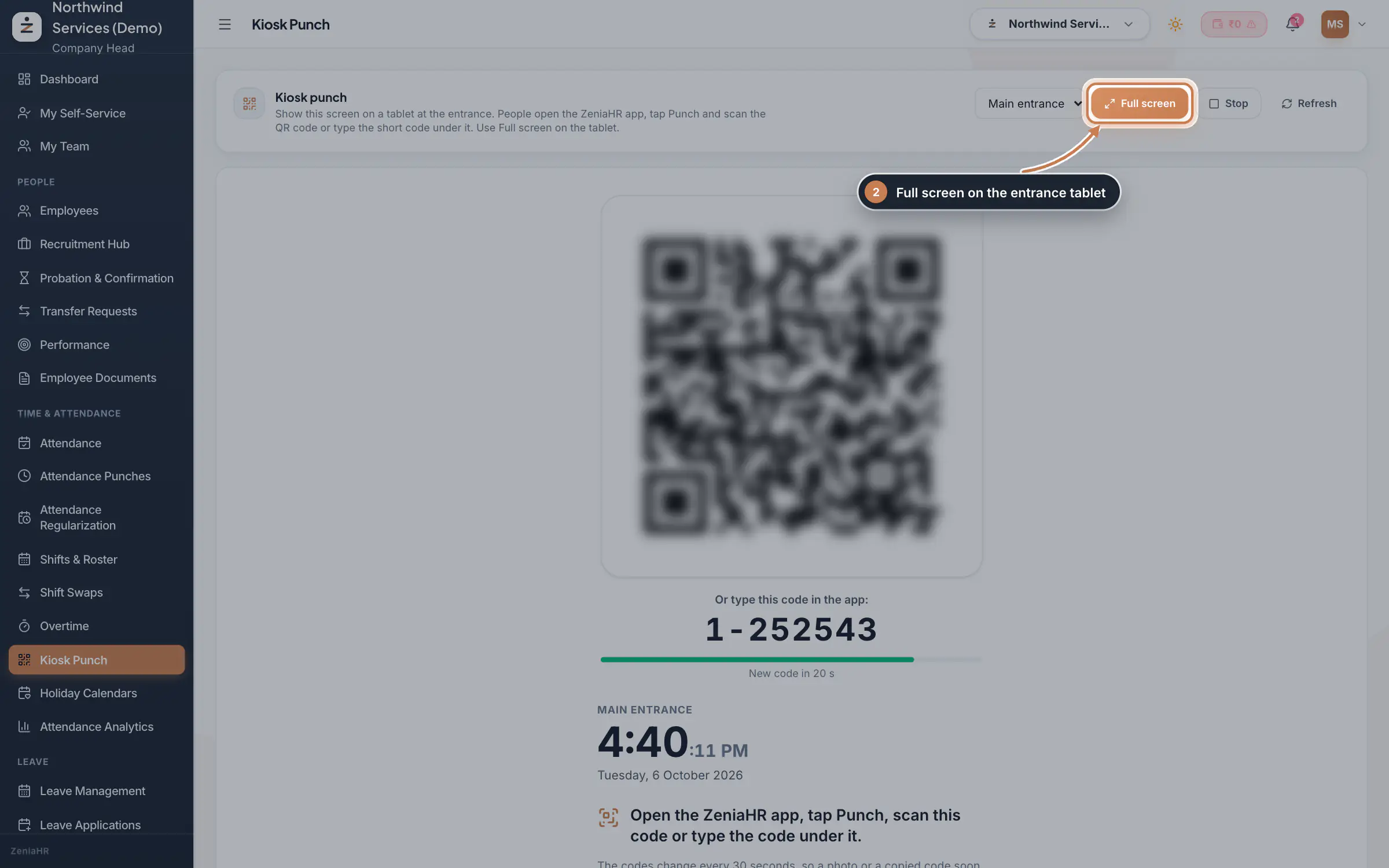
On the tablet, sign in and click Kiosk Punch in the sidebar, under Time & Attendance, or use Open kiosk screen in Settings. Pick the kiosk if you have more than one. The screen shows the QR code, the number to type, a bar counting down to the next code, the kiosk's name, the time and the instructions. Stop stops the screen and Refresh reloads the list of kiosks. In the app, staff tap Kiosk at the top of Attendance, or Punch at kiosk under Me.
 Full size
Admin panel · Step 2 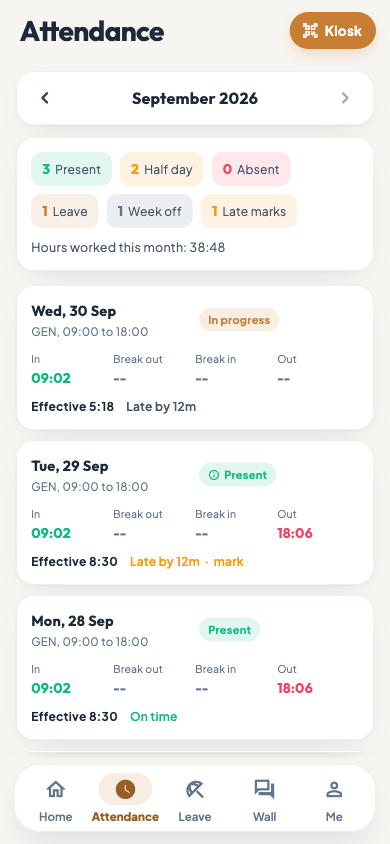 On the employee app
The Attendance tab of the employee app with the Kiosk button
Run it full screen
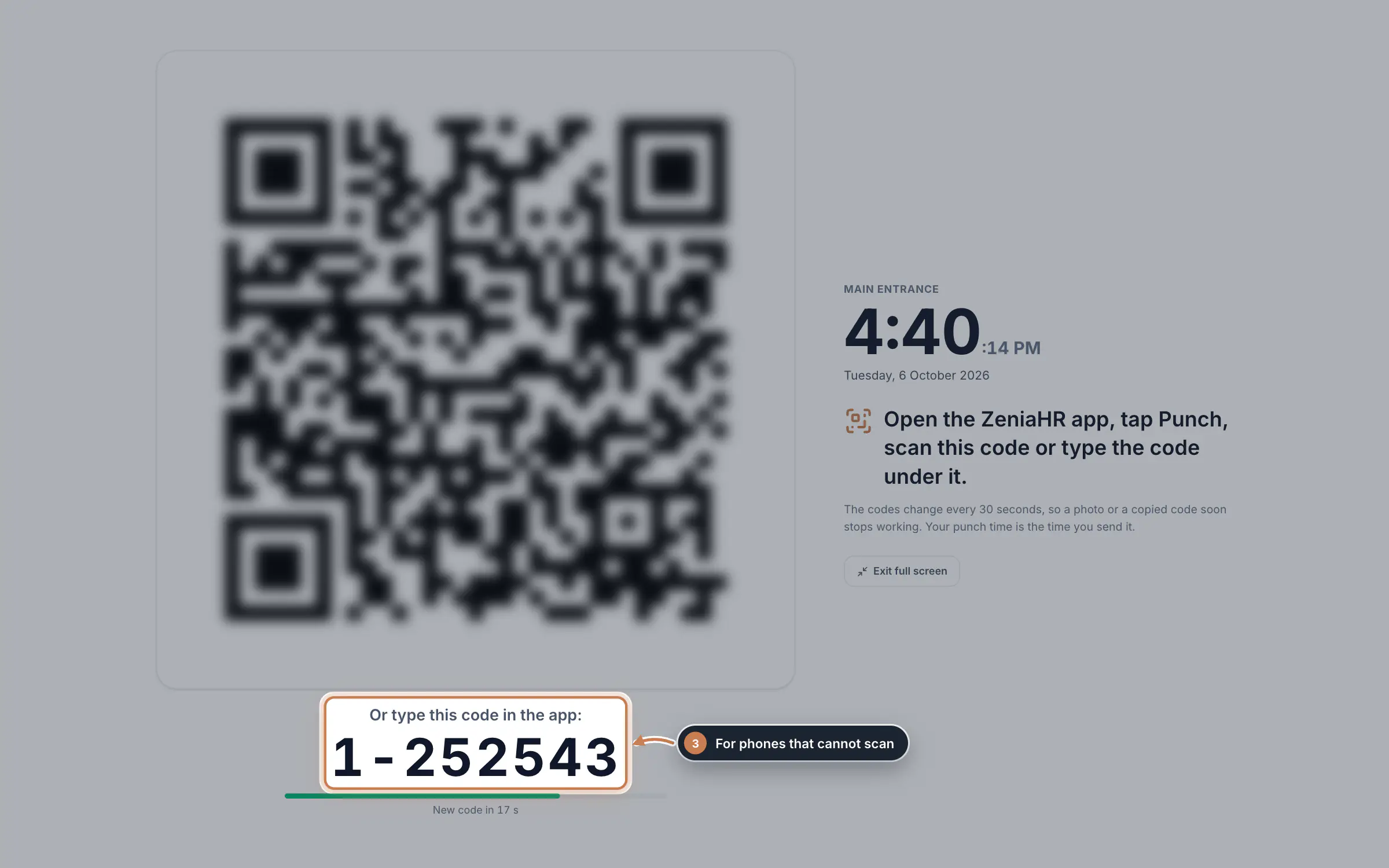
Click Full screen. The code fills the tablet and, where the browser allows it, the screen stays awake. Staff whose phone cannot scan type the number under the code. Click Exit full screen, or press Esc, to go back.
 Full size
Step 3
What it does
A kiosk is a tablet at your entrance that shows the Kiosk Punch screen: a large QR code and, under it, the same code as a short number for typing, such as 1-252543. The code changes every 30 seconds. Staff open the ZeniaHR app and scan the code or type the number; the punch is recorded at the moment they send it. Because each code works for less than a minute, a photo or a code passed on by phone soon stops working.
Who uses it
- The Company Head and HR switch kiosk punching on, add the kiosks and open the kiosk screen on the tablet.
- Staff punch with their own phone at the kiosk.
How it connects
Kiosk punching and the list of kiosks live in Settings, Policies, under Capture controls, next to the rules for web and app punches. Each kiosk punch lands on Attendance Punches with the source kiosk, and counts like any other punch for lateness, hours and payroll. A kiosk can be tied to an attendance spot, so the location rule can check that the phone is really at the kiosk.
Questions
Why does the Kiosk Punch page say kiosk punching is off?
It has not been switched on yet. Turn it on in Settings, Policies, Capture controls; the screen starts by itself once it is on and a kiosk exists.
What if the tablet loses its connection?
The screen asks for a new code every 30 seconds. While it cannot reach ZeniaHR it says it is waiting for the server and keeps trying; staff cannot punch with an old code in the meantime.
Can one kiosk serve several entrances?
Add one kiosk for each entrance instead, each with its own spot, so the location rule checks every phone against the entrance it is at.
Related
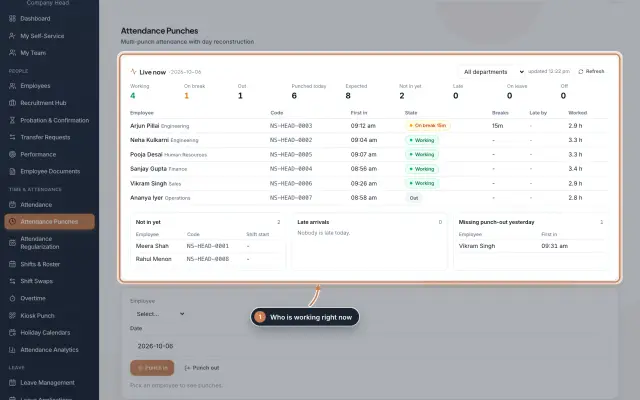 Attendance: punches and the daily registerHow punches reach HRMS Core, how to follow them live, record a missed punch, read each employee's day log, keep the daily register and close the month for payroll.Guide
 The employee app for office staffA tour of the ZeniaHR app for HRMS Core staff: signing in, starting your shift, attendance, leave, the company wall and your profile.GuideApp
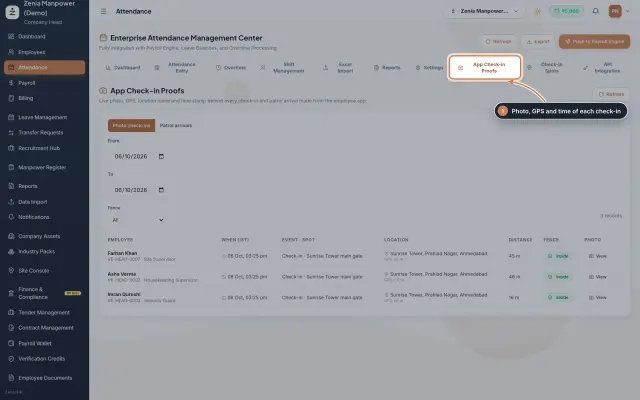 App check-ins and check-in spotsSee the live photo, GPS and time behind every check-in made from the employee app, and set the spots where staff may check in.Module
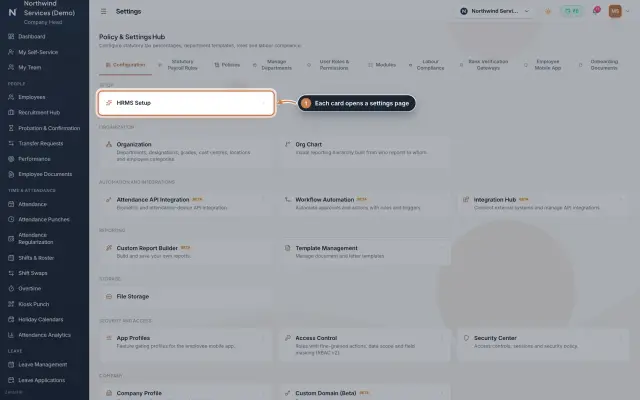 Settings moduleThe Policy & Settings Hub: a card for every settings page, and tabs for statutory rules, policies, departments, user permissions, modules, labour compliance, bank verification, the employee app and onboarding documents.Module
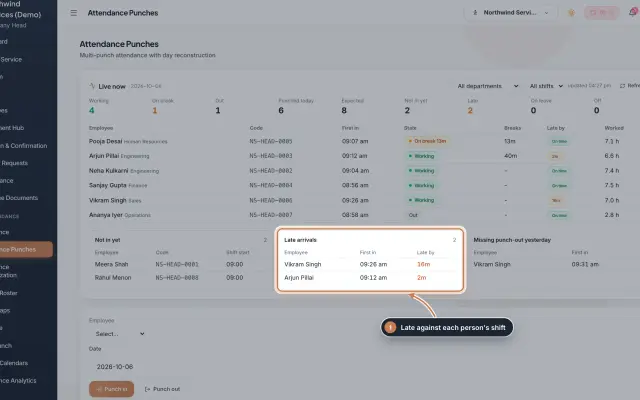 Attendance Punches moduleThe punch register of HRMS Core: who is in right now, every punch of a day, the month's payable days and the penalties the attendance rules add.Module
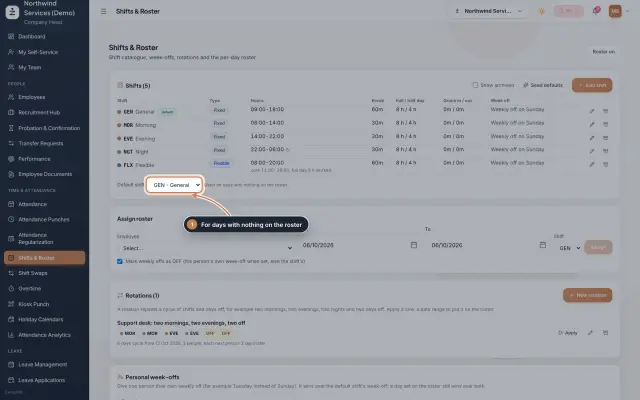 Shifts & Roster moduleKeep your shifts, give everyone a default shift, roster people for date ranges or on a repeating rotation, and set personal weekly offs.Module
- Attendance softwareSee how it works on the ZeniaHR website