Notifications module
Decide who hears about which event, on which channel and with which message, and switch live delivery of email and WhatsApp copies on when you are ready.
Key screens
Check live delivery
In the sidebar, click Notifications. The Live delivery card says whether copies are sent. Click Turn on when the subscriptions are right; until then, events are planned but nothing is sent. The first time, click Seed defaults at the top to add the standard subscriptions; it also adds newer events later and keeps your existing rows.
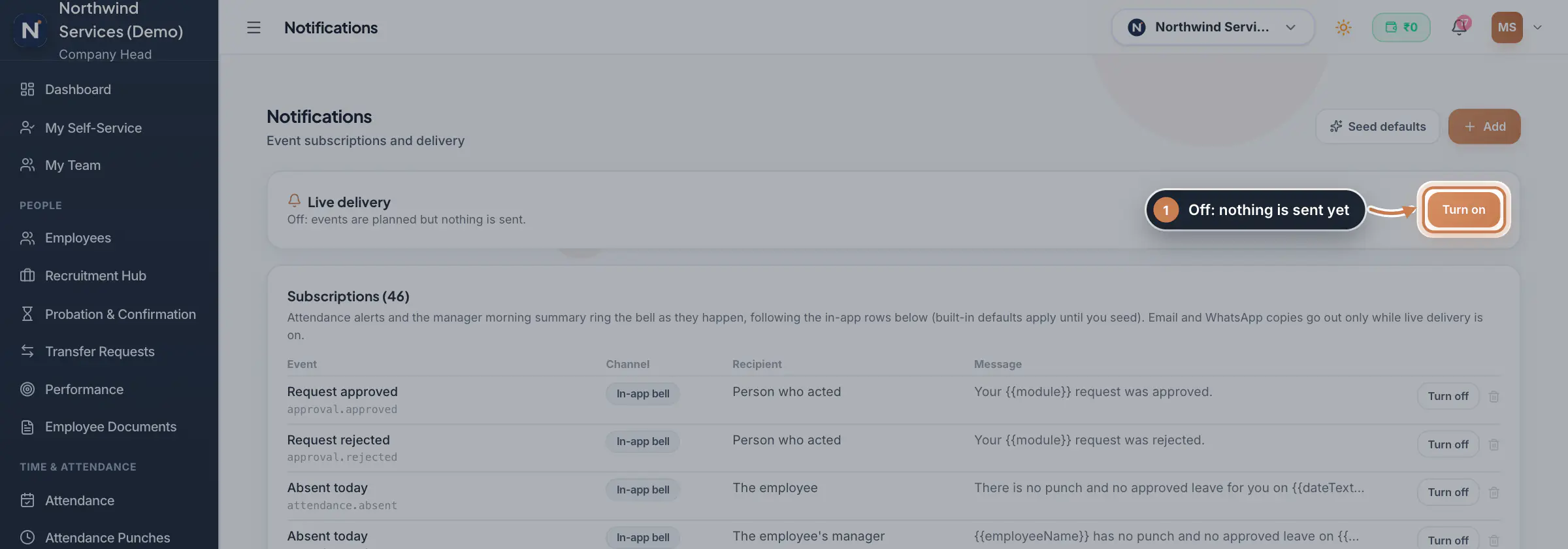 Full size
Step 1 Switch single subscriptions on or off
Each row shows the event with its code, the channel, the recipient and the message. Email and WhatsApp copies start off; click Turn on on a row to send that copy, or Turn off to stop it. The bin removes a row after you confirm. Point at an event's name to read when it fires, for example Absent today at 23:30 company time for people who had no punch and no approved leave.
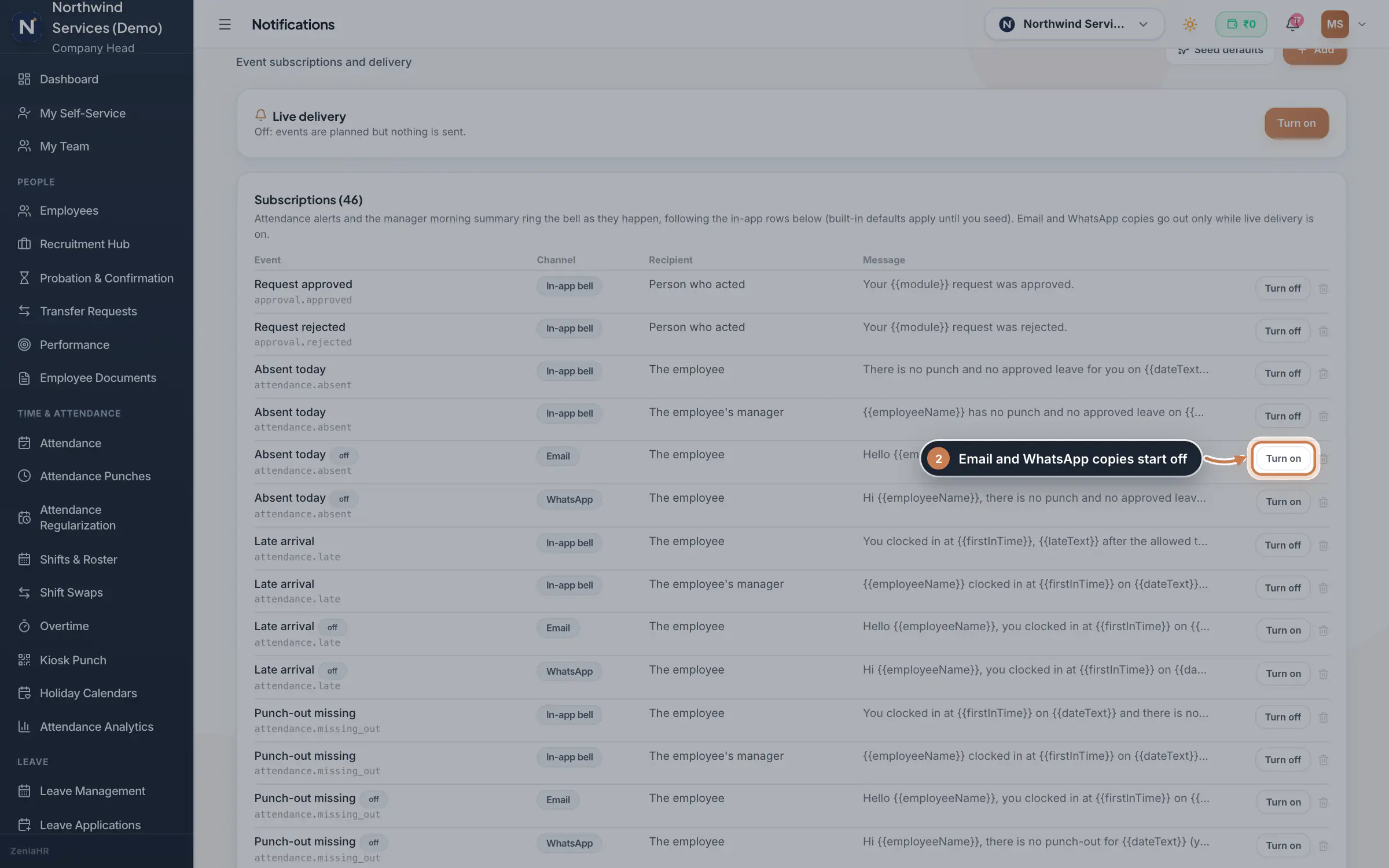 Full size
Step 2 Add your own subscription
Click Add. Type the Event type or pick one from the list, such as
leave.applied, or*for every event; a line under it explains the event. Choose the Channel and the Recipient, write the Title template and Message template, and click Add. In a template,{{employeeName}}puts in a value from the event, and{{leaveType|leave}}uses "leave" when the value is missing.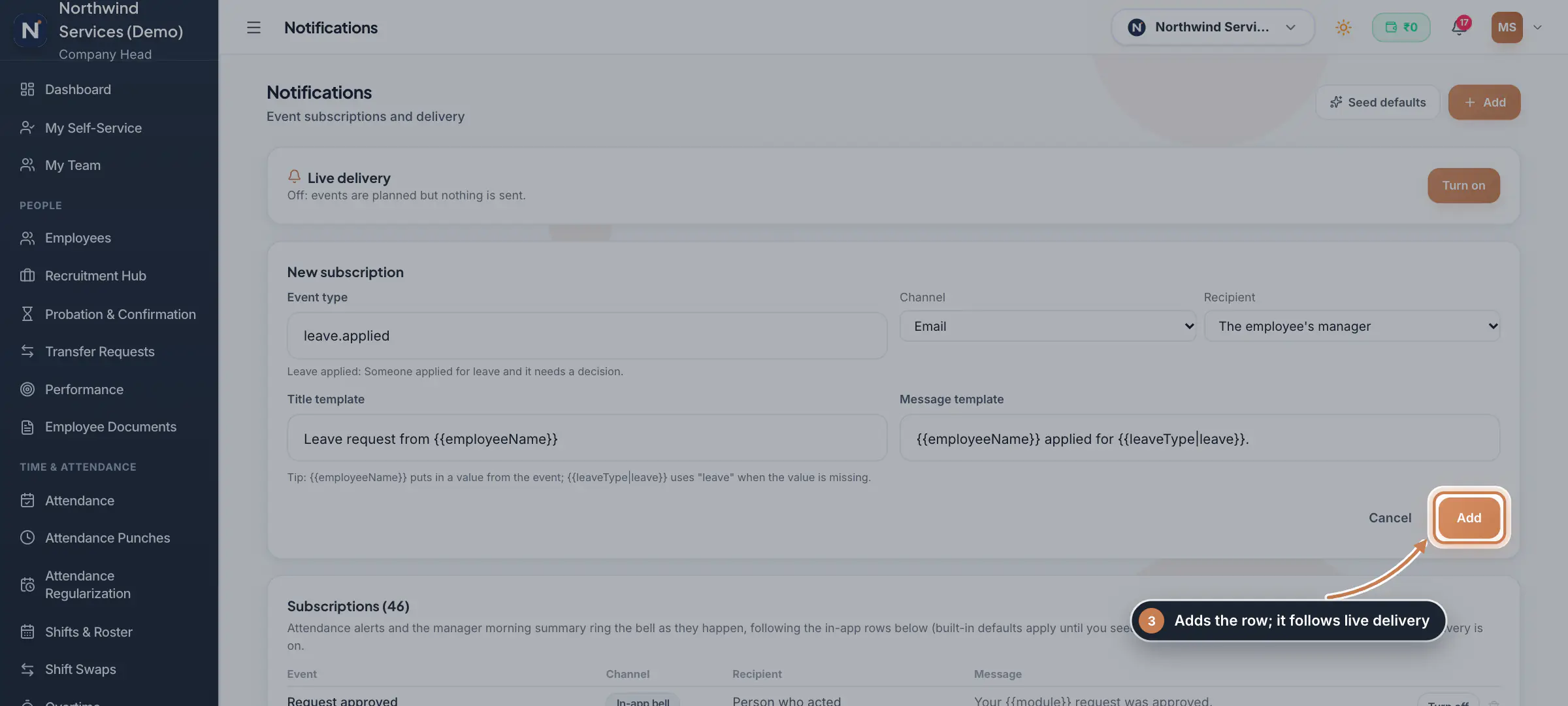 Full size
Step 3
What it does
Notifications lists the company's notification subscriptions. Each one ties an event, such as a late arrival, an absence, a leave application or a new wall post, to a channel (In-app bell, Email, WhatsApp or Mobile push), a recipient, such as the employee, their manager or HR, and a message with placeholders such as {{employeeName}}. Live delivery is the master switch: while it is off, events are worked out but nothing goes out by email or WhatsApp.
Who uses it
- The Company Head, and HR with the Settings edit permission, change the subscriptions and the switch.
- Employees and managers receive the notifications.
How it connects
Attendance alerts and the manager morning summary ring the bell in the web app as they happen, following the in-app rows here. Some bells are rung by the feature itself, such as probation reminders, the company wall, praise and overtime requests; those rows show Always on, and only their email and WhatsApp copies can be switched. The events come from the other modules: Attendance Punches, Leave Applications, Probation, the Company Wall, Celebrations and Overtime.
Questions
Why did nobody get an email?
Live delivery is off, or the email row for that event is off. Turn both on. Email and WhatsApp copies go out only while live delivery is on.
Can I stop the bell for an event?
Yes, with Turn off on its in-app row, except for rows marked Always on, whose bell is part of the feature itself.
Who is "HR partner"?
The HR person set as the employee's HR partner on their employee record. "HR and Company Head" means everyone with those roles.
Related
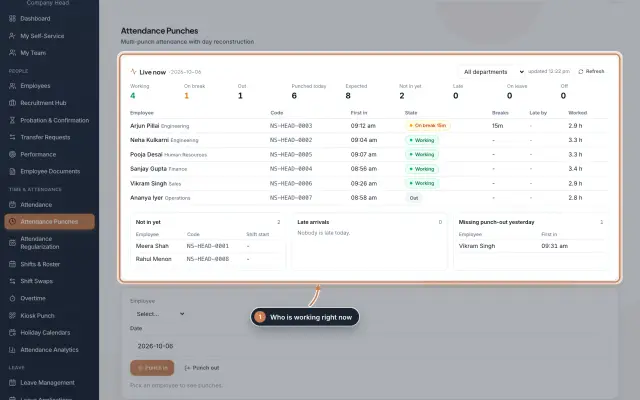 Attendance: punches and the daily registerHow punches reach HRMS Core, how to follow them live, record a missed punch, read each employee's day log, keep the daily register and close the month for payroll.Guide
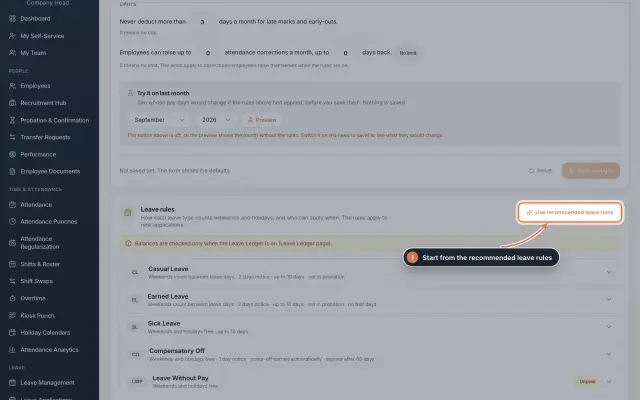 Leave: rules, applications and approvalsSet up your leave types and their rules, apply for leave on an employee's behalf with a live check of the days, and approve or reject applications.Guide
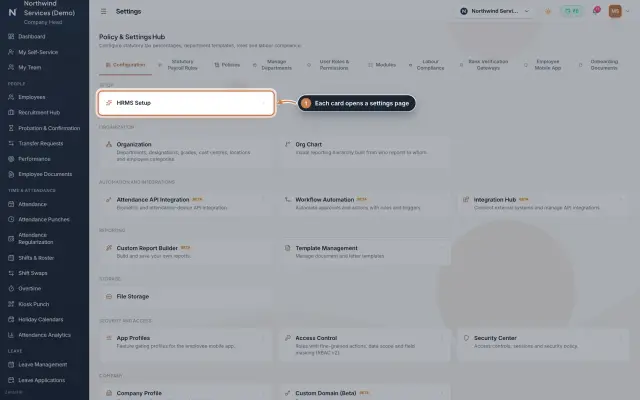 Settings moduleThe Policy & Settings Hub: a card for every settings page, and tabs for statutory rules, policies, departments, user permissions, modules, labour compliance, bank verification, the employee app and onboarding documents.Module
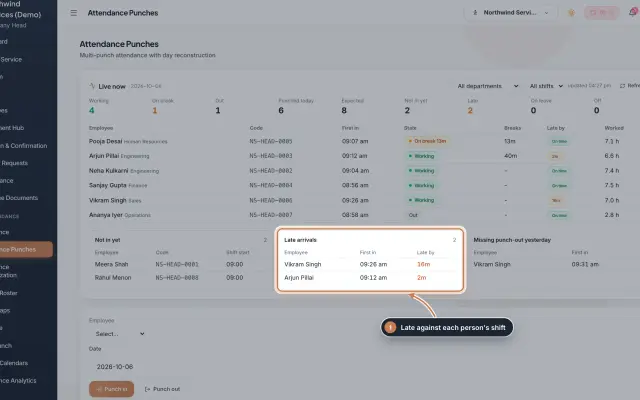 Attendance Punches moduleThe punch register of HRMS Core: who is in right now, every punch of a day, the month's payable days and the penalties the attendance rules add.Module
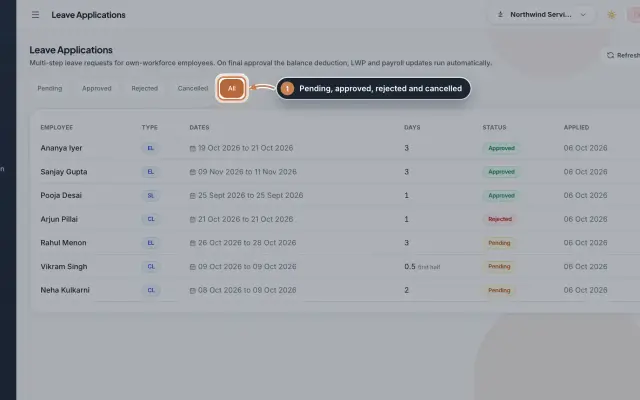 Leave Applications moduleEvery leave application with the days the rules count, its approval steps from the manager to HR, and what happens on approval or when approved leave is cancelled.Module
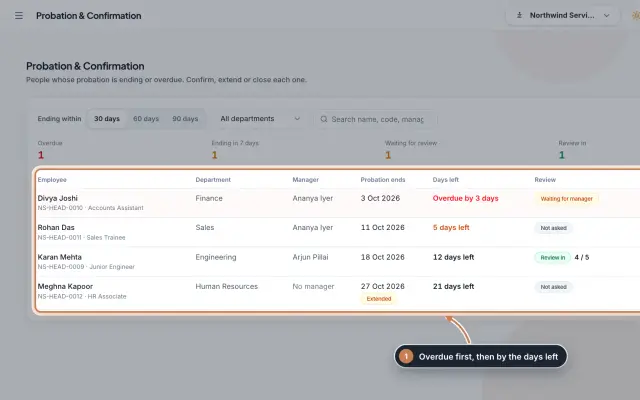 Probation & Confirmation moduleEveryone whose probation is ending or overdue in one queue; confirm with a letter, extend with a reason, record a not confirmed outcome or ask the manager for a review.Module
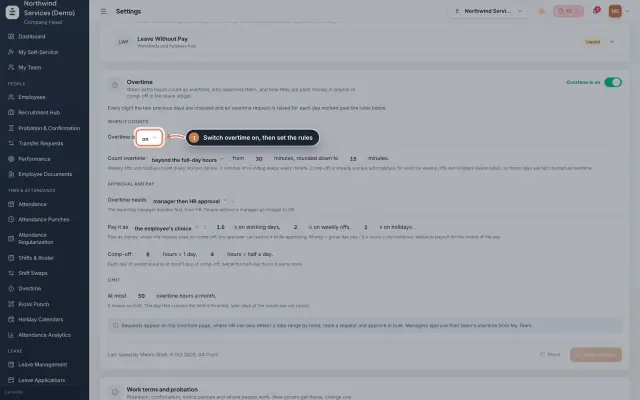 Overtime moduleOvertime found in the punches or raised by HR, approved by the manager and HR, and paid as money in payroll or as comp-off in the leave ledger.Module
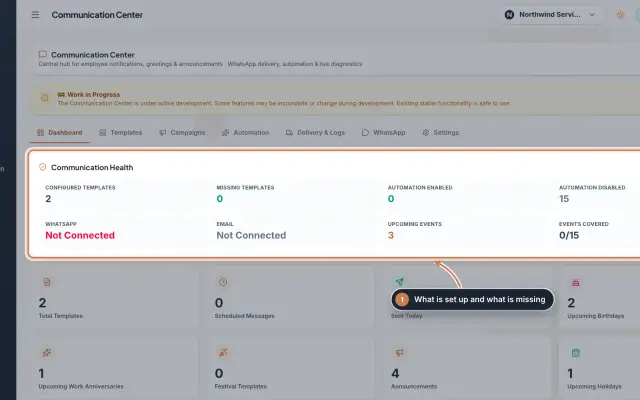 Communication Center module (Beta)Greeting and notice templates, birthday and anniversary wishes, announcements for the employee app and WhatsApp delivery with a safe test mode, in one place.Module
- ZeniaHR for every businessSee how it works on the ZeniaHR website