Overtime module
Overtime found in the punches or raised by HR, approved by the manager and HR, and paid as money in payroll or as comp-off in the leave ledger.
Key screens
Set the overtime rules
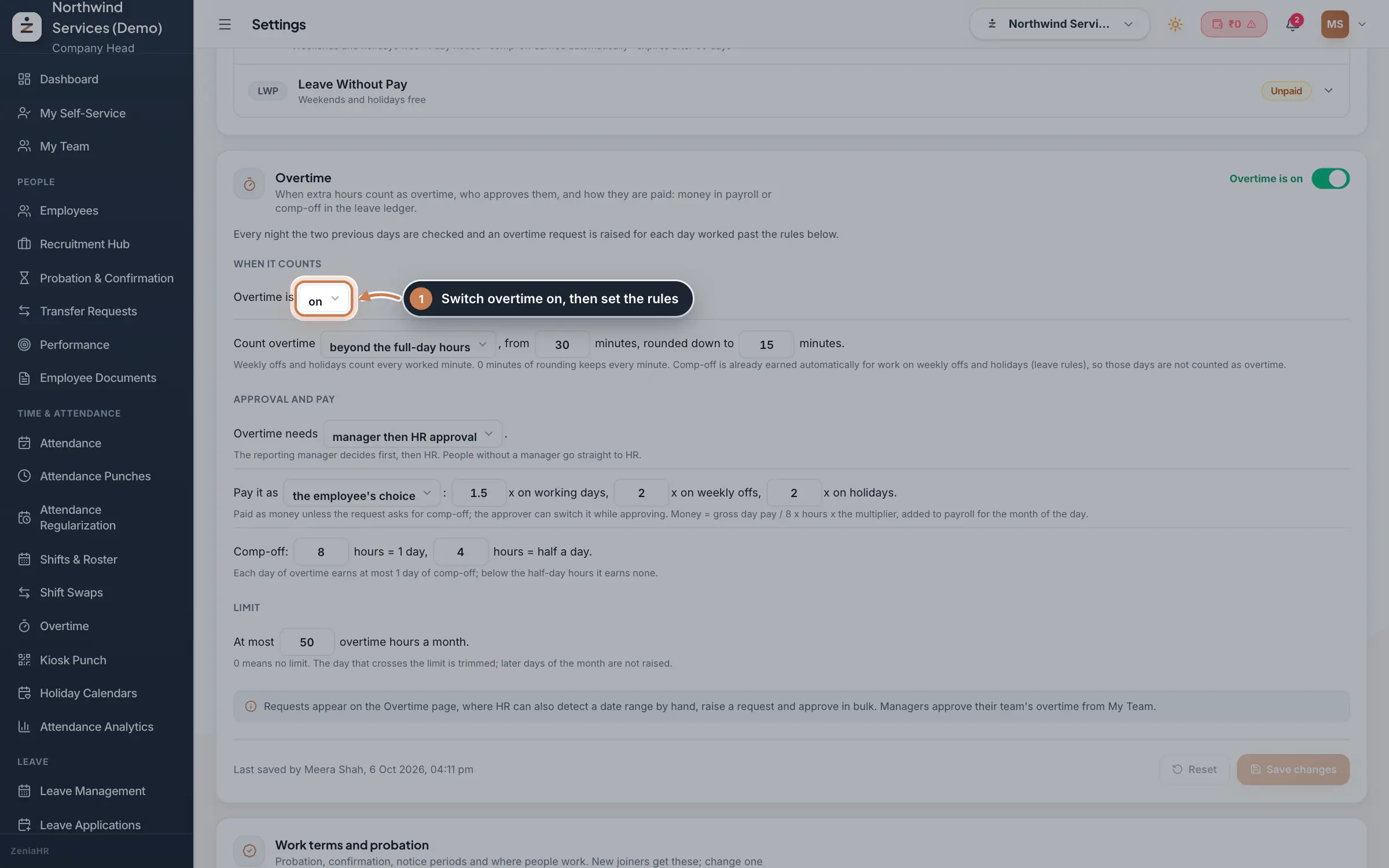
Go to Settings, open the Policies tab and scroll to Overtime. The rules read as sentences: switch Overtime is to on, choose whether it counts beyond the full-day hours or after the shift end, from how many minutes and rounded down to what, whether it needs the manager then HR, and how it is paid: as money, as comp-off, or as the employee chooses. Set the rate for working days, weekly offs and holidays, how many hours make a full or half day of comp-off, and the most overtime hours in a month. Click Save changes.
 Full size
Step 1 Review the requests
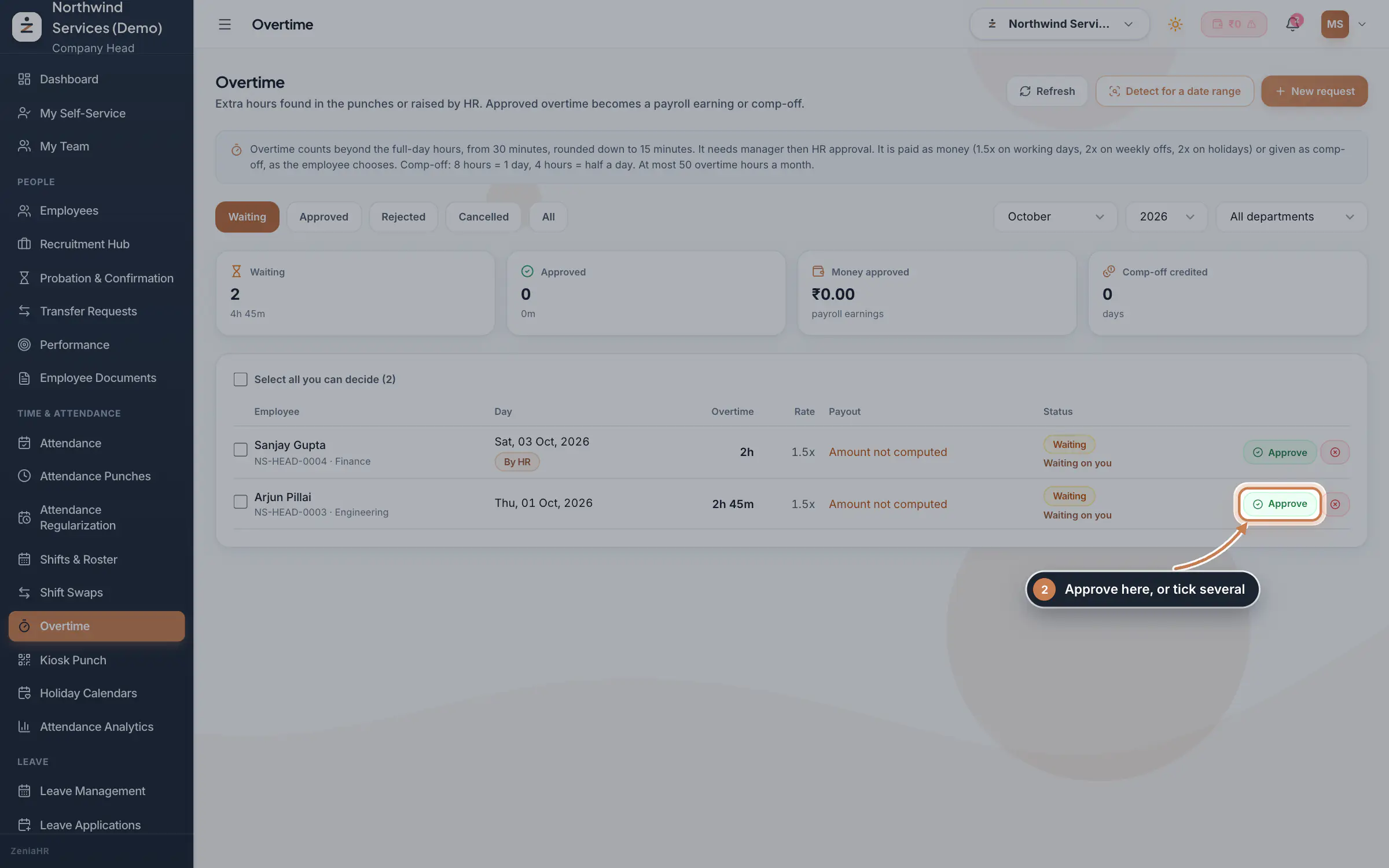
In the sidebar, under Time & Attendance, click Overtime. The rules in force are summed up at the top. Pick a status (Waiting, Approved, Rejected, Cancelled or All), the month and a department. The tiles count the requests waiting, approved, the money approved and the comp-off credited. Each row shows the person, the day (By HR when HR raised it), the overtime, the rate, the payout and who it waits on. Click Approve or the reject icon on a row, or tick several rows, or Select all you can decide, and use Approve selected or Reject selected.
 Full size
Step 2 Check a date range for overtime
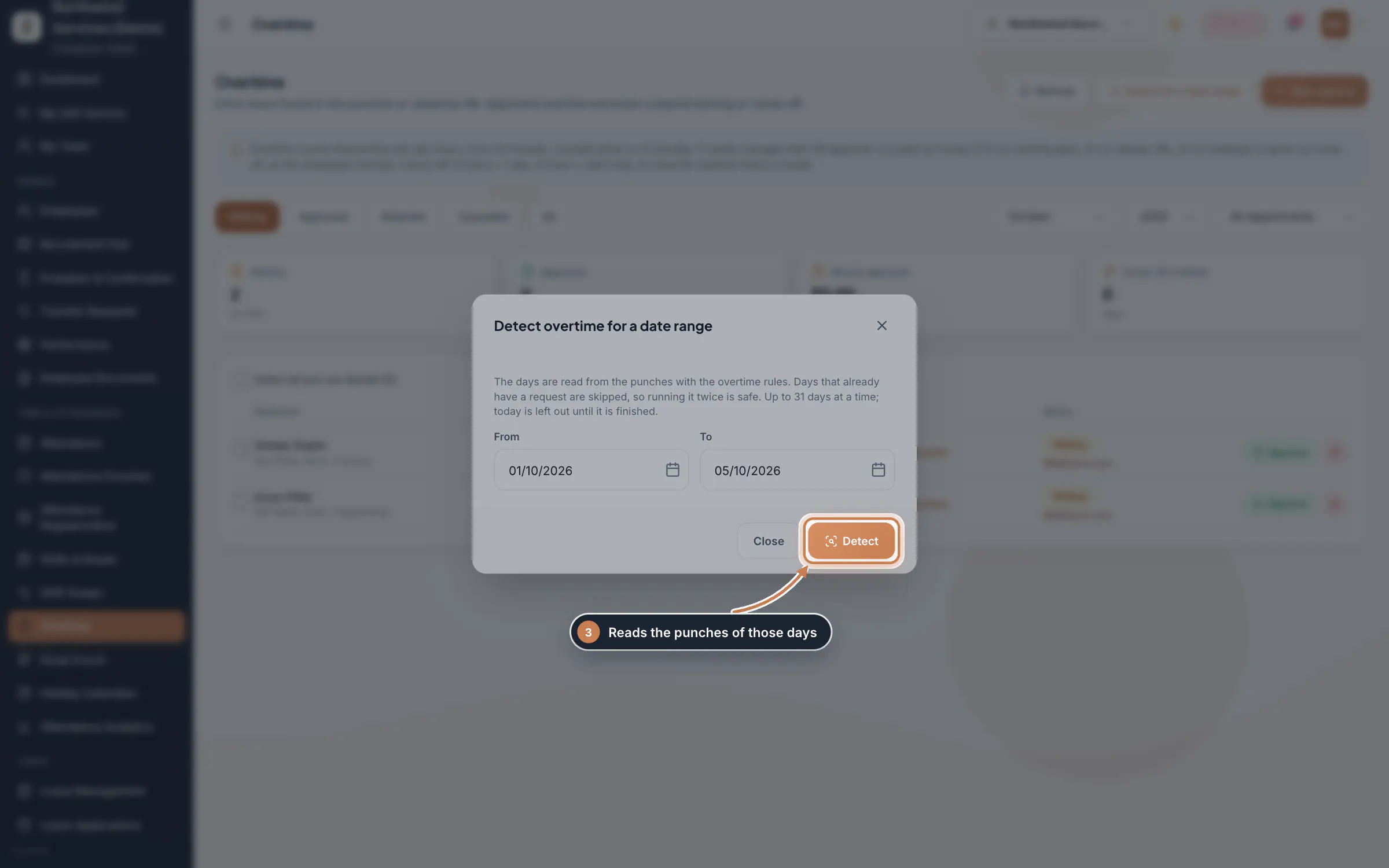
Click Detect for a date range, pick From and To (up to yesterday, 31 days at most) and click Detect. ZeniaHR reads those days' punches with your rules and raises the requests it finds. Days that already have a request are skipped, so running it twice is safe.
 Full size
Step 3 Raise overtime for someone
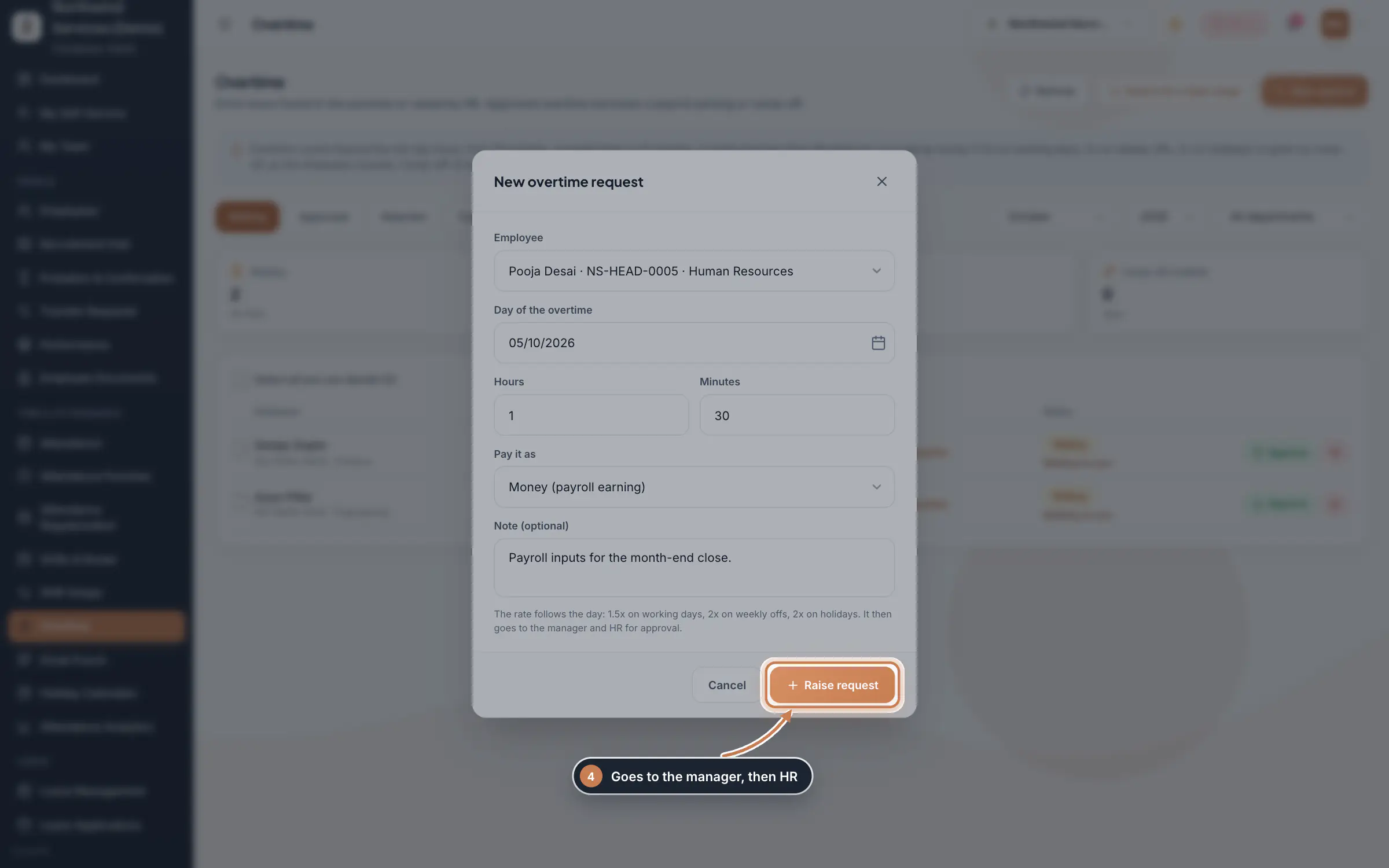
Click New request. Pick the Employee and the Day of the overtime (today or earlier), enter the Hours and Minutes, choose Pay it as when the rules let people choose, and add a note about the work. Click Raise request. The rate follows the kind of day, and the request then goes to the manager and HR.
 Full size
Step 4 Open a request and decide
Click a row to open it. You see the overtime, the kind of day and its rate, the payout, whether it was found in the punches or raised by HR, and the Approval steps with the manager by name. When the rules let people choose, check Pay it as: Money (payroll earning) or Comp-off (leave ledger). Add a comment and click Approve or Reject, or Cancel request to withdraw it; detection will not raise that day again.
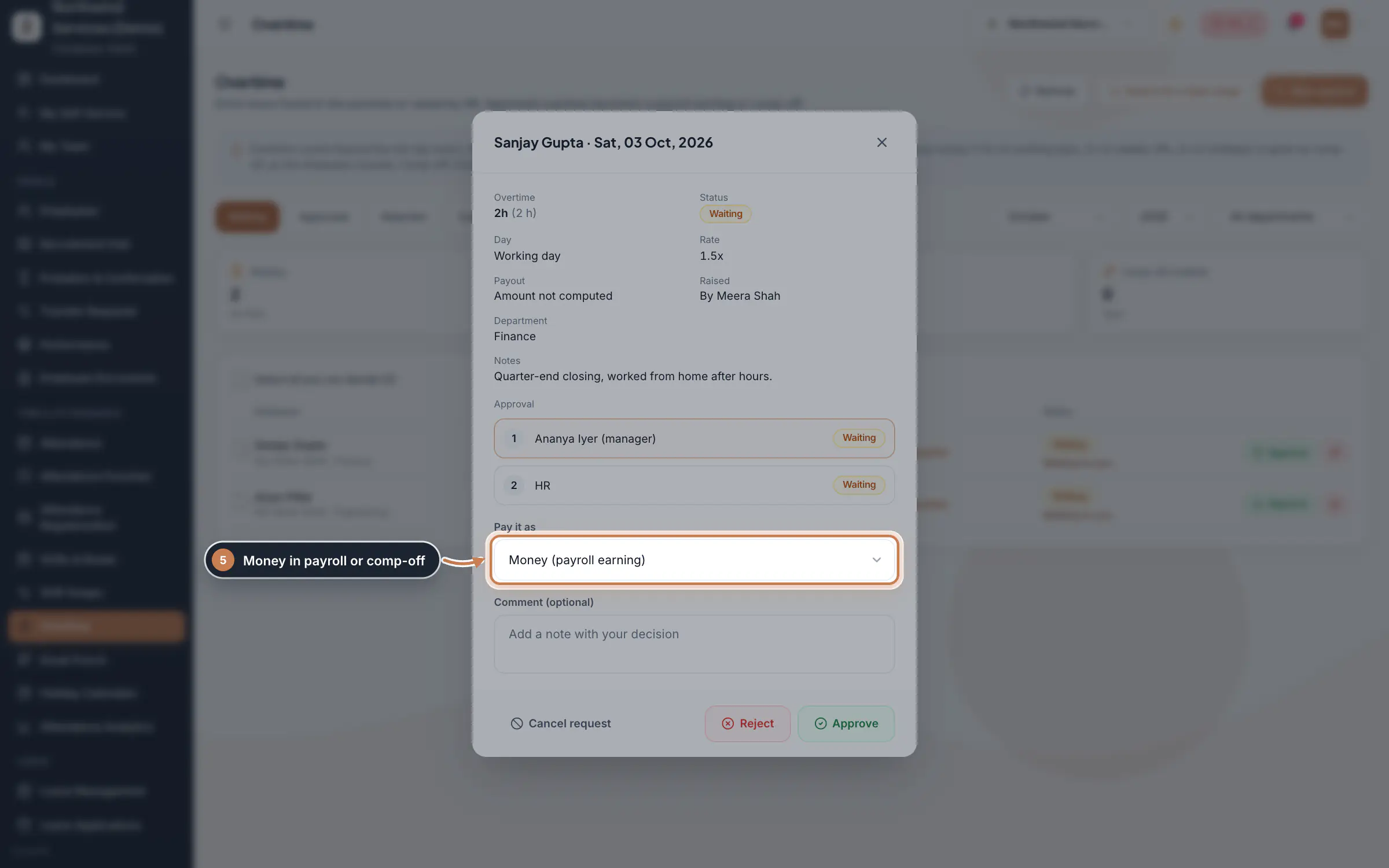 Full size
Step 5 See what was paid
Open Approved. The payout shows In payroll for money or Credited for comp-off, with who approved it. If a payout did not go through, open the request and click Pay again.
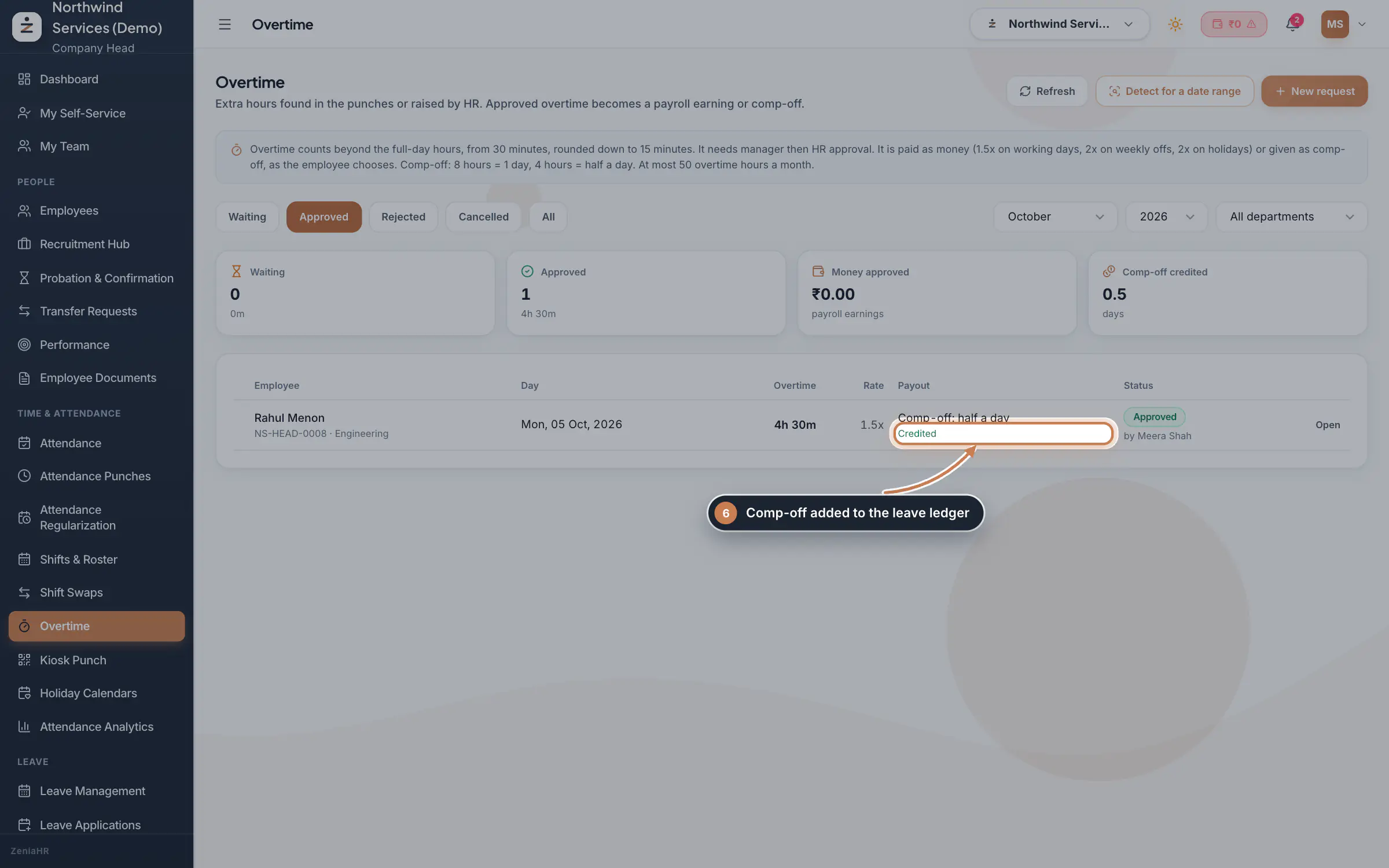 Full size
Step 6
What it does
Overtime collects the extra hours your staff work. Every night ZeniaHR checks the two previous days and raises a request for each day someone worked past your overtime rules; HR can also check a date range by hand or raise a request for someone. Each request is approved, by the manager and then HR, and the final approval pays it: as money added to payroll for the month of the day, or as comp-off credited to the leave ledger.
Who uses it
- The Company Head and HR set the rules, decide requests and approve many at once.
- Managers approve their team's overtime on the web under My Team, or in the app.
How it connects
Overtime is read from the days built on Attendance Punches, measured against the full day of each person's shift in Shifts & Roster. Money goes to Payroll as an earning for the month of the day: the person's gross pay for a day (the monthly gross from their salary structure divided by 30) divided by 8, times the hours, times the rate for that kind of day. Comp-off goes to the Leave Ledger as a CO credit, which the person later takes through a leave application. Work on weekly offs and holidays can earn comp-off by itself under the leave rules; then those days are left out of overtime.
Questions
Why is a long day not in the list?
It may be under the minimum minutes in your rules, on a day that is still open, on leave, or on a weekly off or holiday that earns comp-off under the leave rules instead. The monthly limit also stops new requests once a person reaches it.
Can overtime be paid without approval?
Yes. Set Overtime needs to no approval in the rules; overtime found in the punches is then approved and paid at once.
Why does a request say "Amount not computed"?
ZeniaHR prices overtime from the person's salary structure in Payroll. When the person has none, it cannot work out the money. If you approve such a request as money, add the overtime earning to their payroll by hand, as the note on the request says, or pay it as comp-off instead.
Related
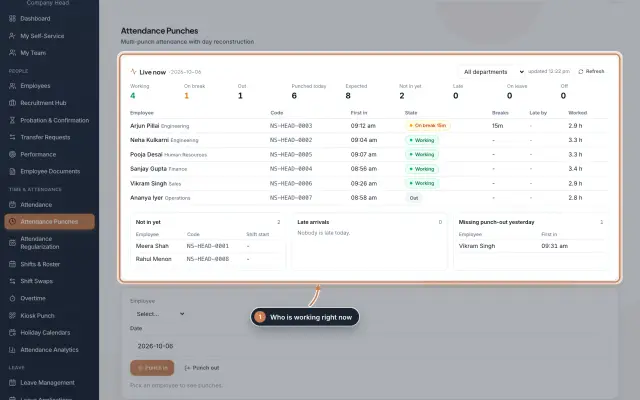 Attendance: punches and the daily registerHow punches reach HRMS Core, how to follow them live, record a missed punch, read each employee's day log, keep the daily register and close the month for payroll.Guide
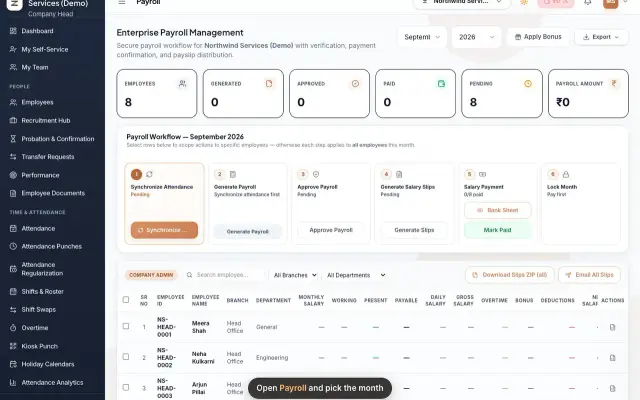 Run payroll and share payslipsRun the monthly payroll for your own employees in six steps, from synchronizing attendance to approving salaries, generating payslips, sharing them and paying.Guide29 s video
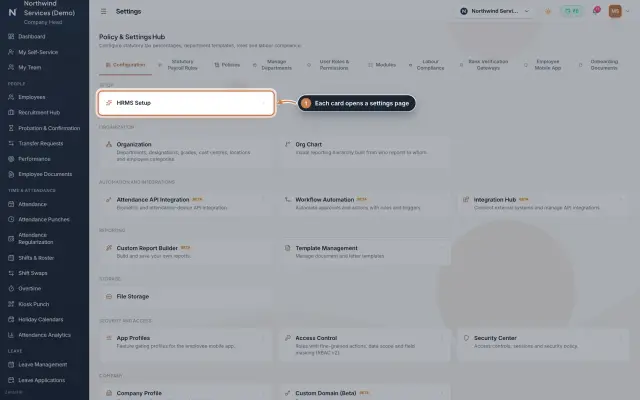 Settings moduleThe Policy & Settings Hub: a card for every settings page, and tabs for statutory rules, policies, departments, user permissions, modules, labour compliance, bank verification, the employee app and onboarding documents.Module
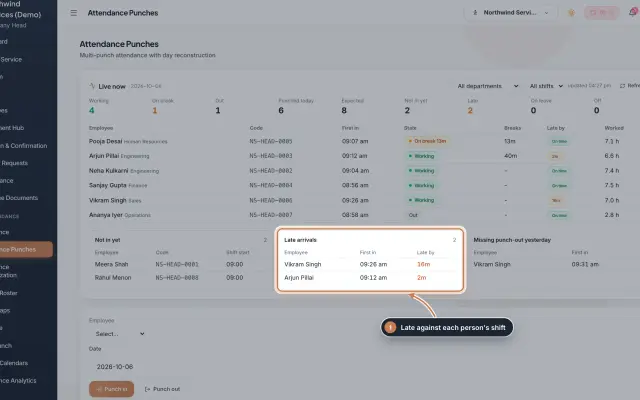 Attendance Punches moduleThe punch register of HRMS Core: who is in right now, every punch of a day, the month's payable days and the penalties the attendance rules add.Module
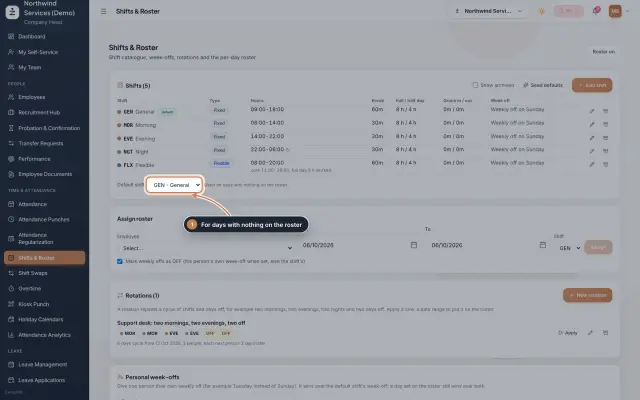 Shifts & Roster moduleKeep your shifts, give everyone a default shift, roster people for date ranges or on a repeating rotation, and set personal weekly offs.Module
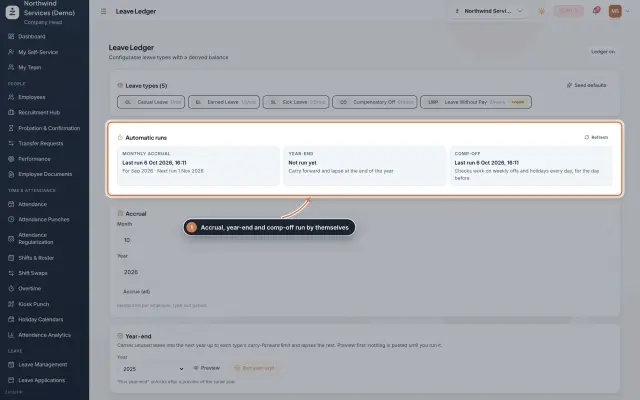 Leave Ledger moduleLeave balances built from monthly accrual, approved leave and comp-off, with year-end carry forward, manual entries and leave encashment.Module
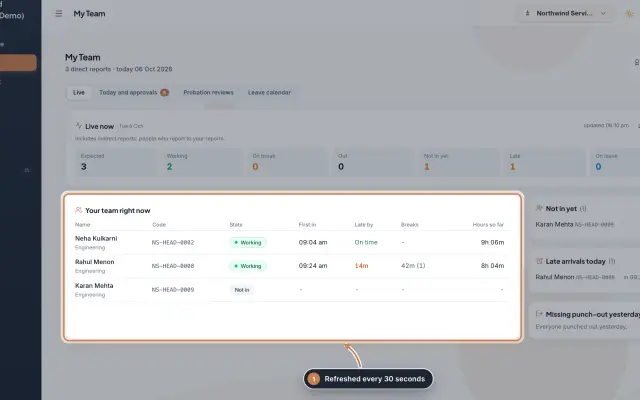 My Team moduleA manager's page for the people who report to them: who is working right now, the requests waiting on them, probation reviews, the team's leave and praise.Module
- Attendance softwareSee how it works on the ZeniaHR website