Shift Swaps module
Staff trade shifts with a colleague; the colleague agrees first, then the manager and HR approve, and only then the roster changes.
Key screens
HR: see every open swap
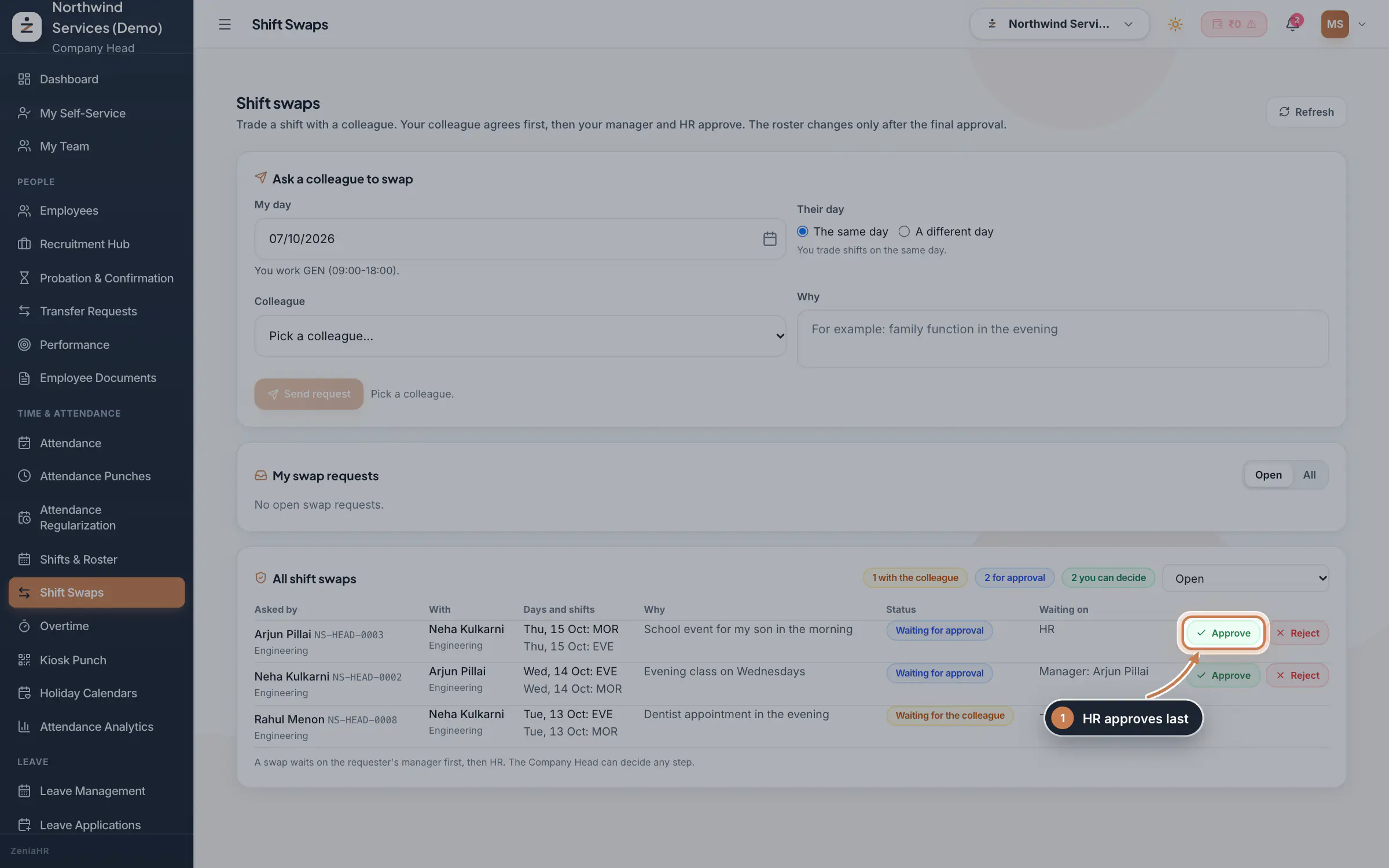
In the sidebar, under Time & Attendance, click Shift Swaps and scroll to All shift swaps. Each row shows who asked, the colleague, both days with their shifts, the reason and the Status. Waiting on says who must act next: the manager by name, or HR. The badges at the top count the swaps waiting for a colleague, those waiting for approval and those you can decide. Click Approve or Reject on a swap that waits for you.
 Full size
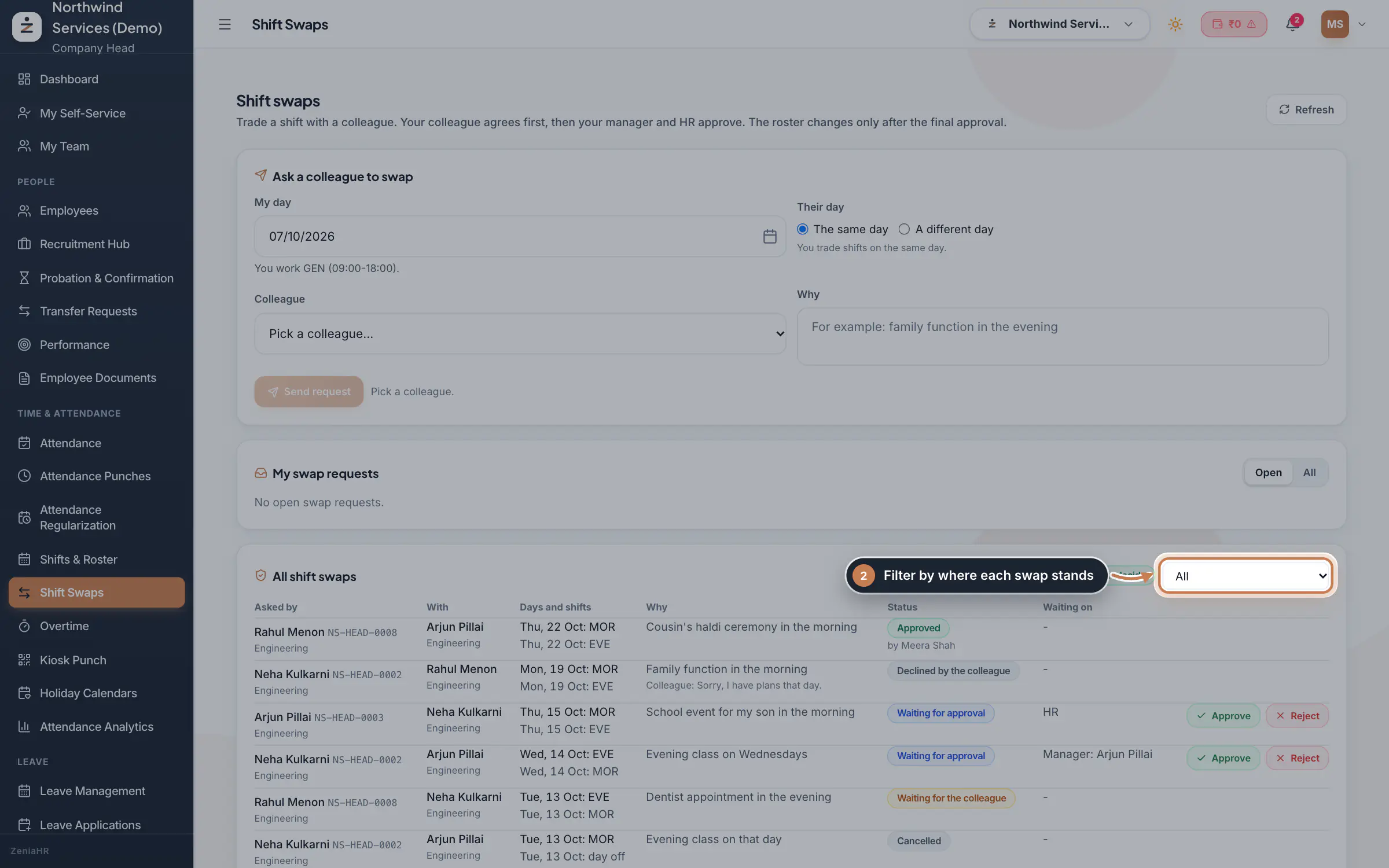
Step 1 HR: filter by where a swap stands
Use the status filter to see Waiting for the colleague, Waiting for approval, Approved, Rejected, Declined, Cancelled or All. An approved swap shows who approved it, and a declined one shows the colleague's note.
 Full size
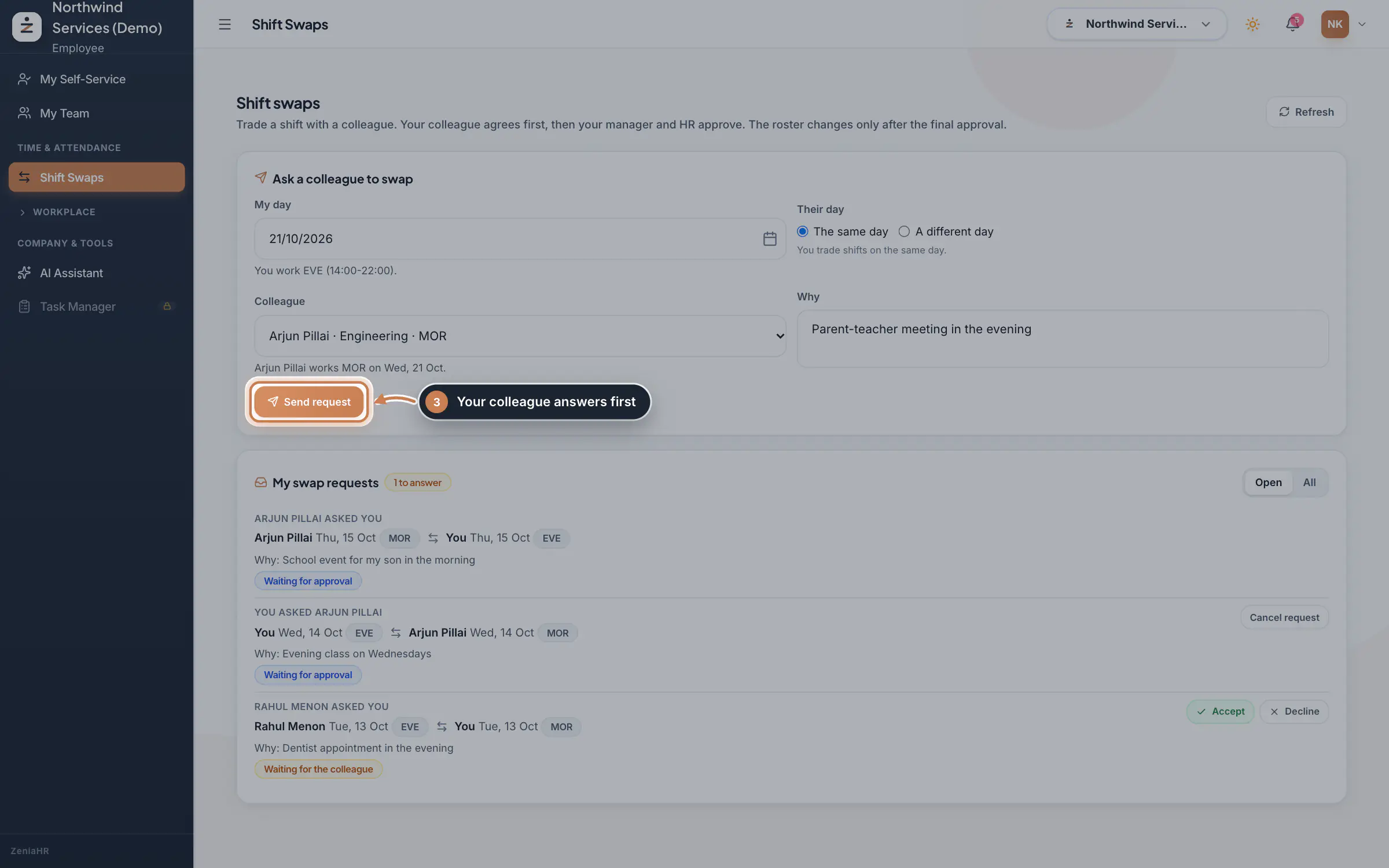
Step 2 Employee: ask a colleague
Under Ask a colleague to swap, pick My day: the form shows the shift you work that day. Choose The same day or A different day (then pick their day), pick the Colleague from the people rostered that day, write Why and click Send request. You can only ask for today or a later day, and only for a day you have a shift.
 Full size
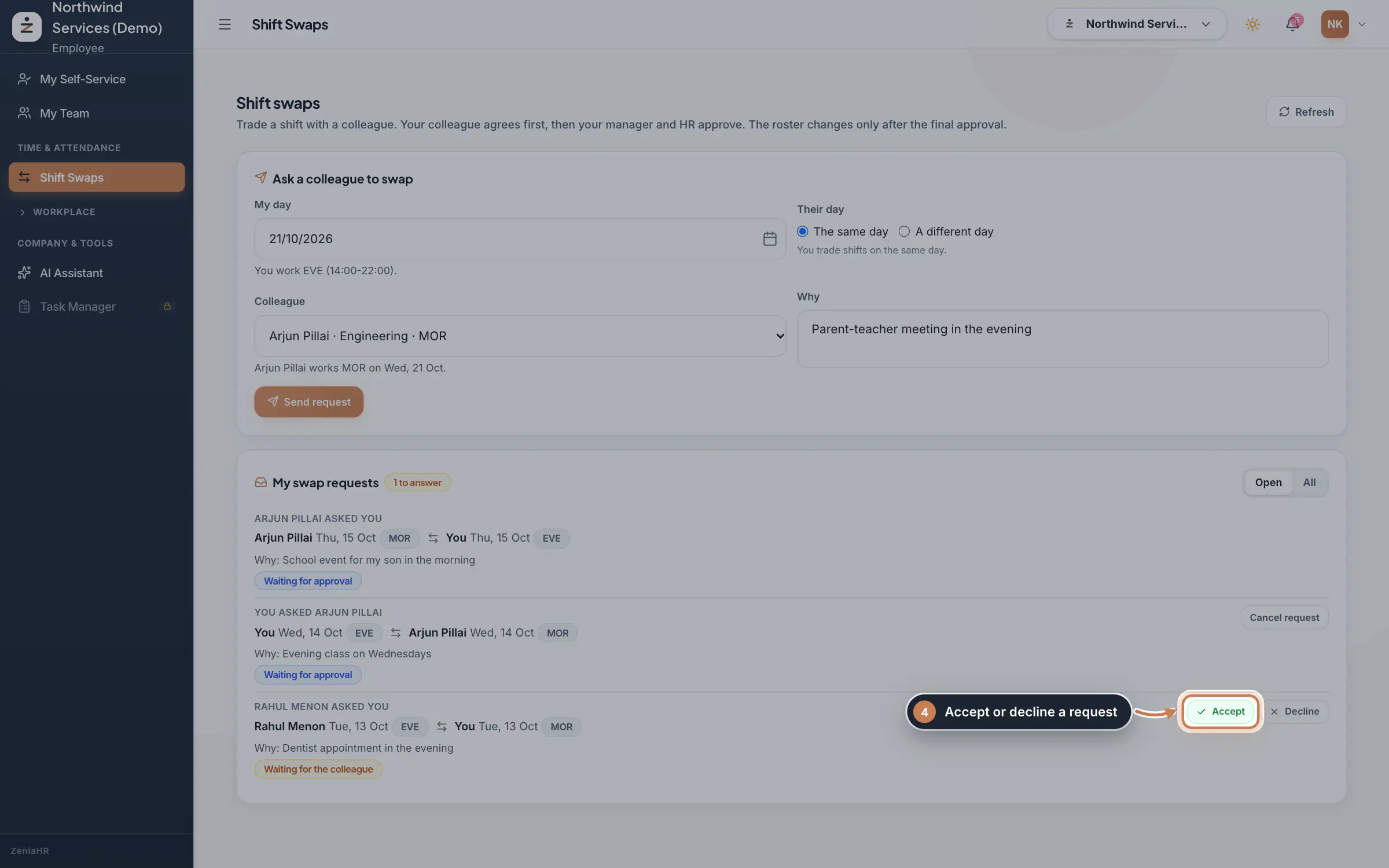
Step 3 Employee: answer a request
My swap requests lists the requests you sent and those sent to you, with Open and All. For a request sent to you, click Accept to pass it on for approval, or Decline, with a note if you like. For a request you sent, Cancel request withdraws it while it is still open.
 Full size
Step 4 Manager: approve your team's swaps
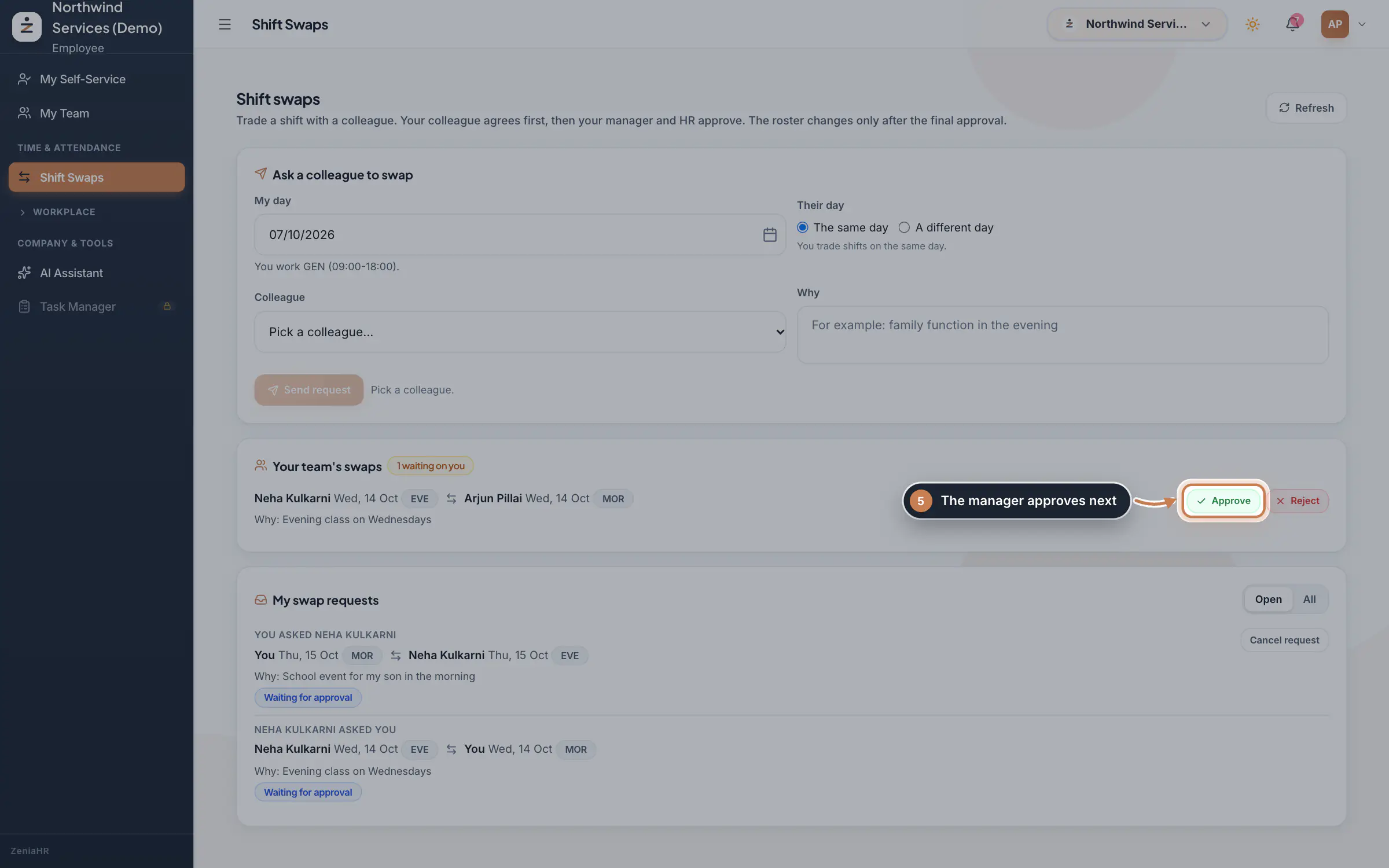
If people report to you, Your team's swaps lists the swaps your team members asked for once the colleague has accepted. Click Approve to send the swap on to HR, or Reject with a reason.
 Full size
Step 5
What it does
Shift Swaps lets two people trade their shifts. On The same day, they swap shifts, for example a morning for an evening. On A different day, each works the other's day. The colleague agrees first, then the requester's reporting manager approves, then HR. Nothing changes on the roster until the last approval.
The same page serves everyone: staff ask and answer, managers approve their team's swaps, and HR sees every swap.
Who uses it
- Employees ask a colleague and answer requests, on the web or in the app under Me, Shift swaps.
- The requester's manager approves next, under Your team's swaps.
- HR decides last, under All shift swaps. The Company Head can decide any step.
How it connects
Swaps work on the shifts in Shifts & Roster: a person can only offer a day on which they have a shift, and the list of colleagues shows who works that day and on which shift, from the roster or the default shift. On the final approval the two days change on the roster, marked swapped, so Attendance Punches judges each person against their new shift. Applying a rotation again keeps swapped days unless you choose otherwise.
Questions
Why is a colleague missing from the list?
The list shows only people who have a shift or a day off that day, from the roster or the default shift. If nobody has given the person a shift, roster them in Shifts & Roster or set a default shift there.
Can someone swap a day off?
Yes. If the colleague is off that day, the swap gives the requester the day off and the colleague the requester's shift. The requester must have a shift on their own day.
What happens when HR rejects a swap?
The swap ends as Rejected and both people keep their original shifts. They can ask again with another day or another colleague.
Related
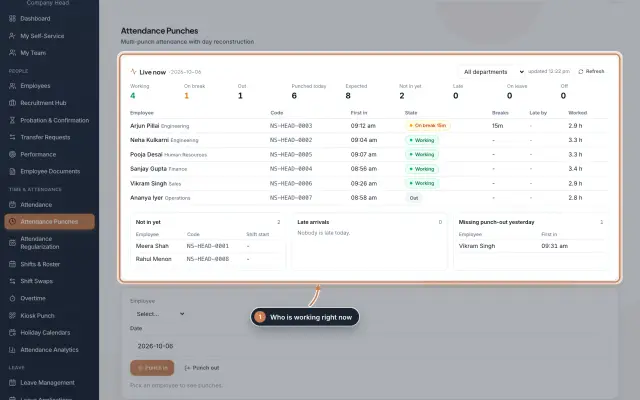 Attendance: punches and the daily registerHow punches reach HRMS Core, how to follow them live, record a missed punch, read each employee's day log, keep the daily register and close the month for payroll.Guide
 The employee app for office staffA tour of the ZeniaHR app for HRMS Core staff: signing in, starting your shift, attendance, leave, the company wall and your profile.GuideApp
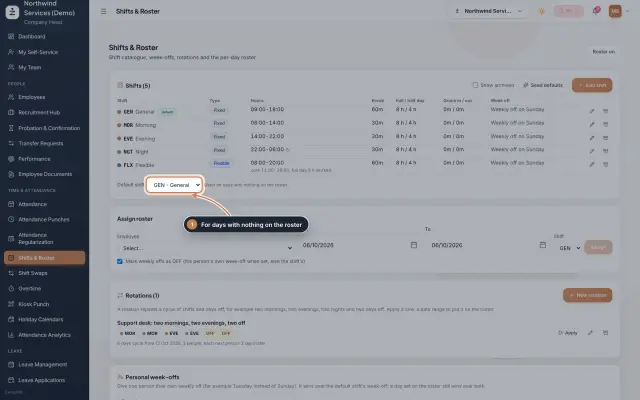 Shifts & Roster moduleKeep your shifts, give everyone a default shift, roster people for date ranges or on a repeating rotation, and set personal weekly offs.Module
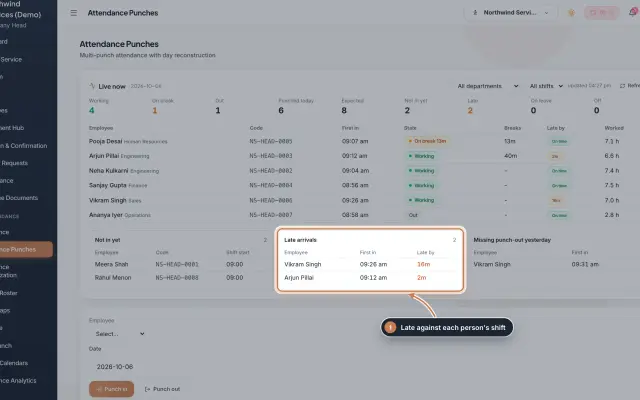 Attendance Punches moduleThe punch register of HRMS Core: who is in right now, every punch of a day, the month's payable days and the penalties the attendance rules add.Module
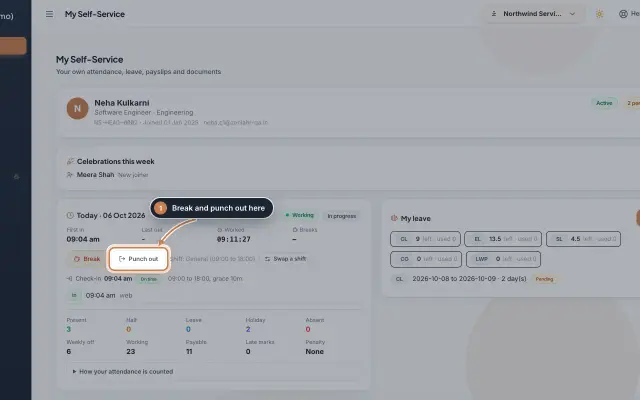 My Self-Service moduleEvery employee's own page on the web: punch in and out, see the month's attendance, apply for leave, ask for corrections and work from home, pick optional holidays and find payslips.Module
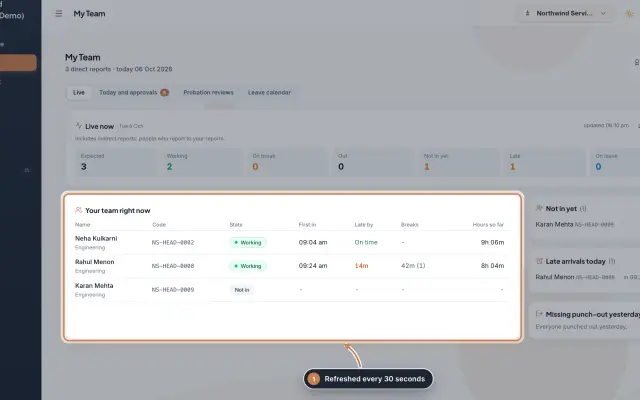 My Team moduleA manager's page for the people who report to them: who is working right now, the requests waiting on them, probation reviews, the team's leave and praise.Module
- Attendance softwareSee how it works on the ZeniaHR website